> ## Documentation Index
> Fetch the complete documentation index at: https://knowledge.komo.tech/llms.txt
> Use this file to discover all available pages before exploring further.
# Add new members to your company
> Adding a new member to your company platform enables others to edit the front and back-end of your hub.
## What is it
When inviting new members you have the choice to give them a role of either a viewer, editor, or owner. Viewers will only be able to overlook your company without the ability to edit. The editor role grants these lack of permissions and the owner grants equal ability to you. You also have the ability to resend invites if needed.
## How do I do this?
* [Step 1: Navigate to the Company settings](#step-1-navigate-to-the-company-settings)
* [Step 2: Invite new members to join your company](#step-2-invite-new-members-to-join-your-company)
### Step 1: Navigate to the Company settings
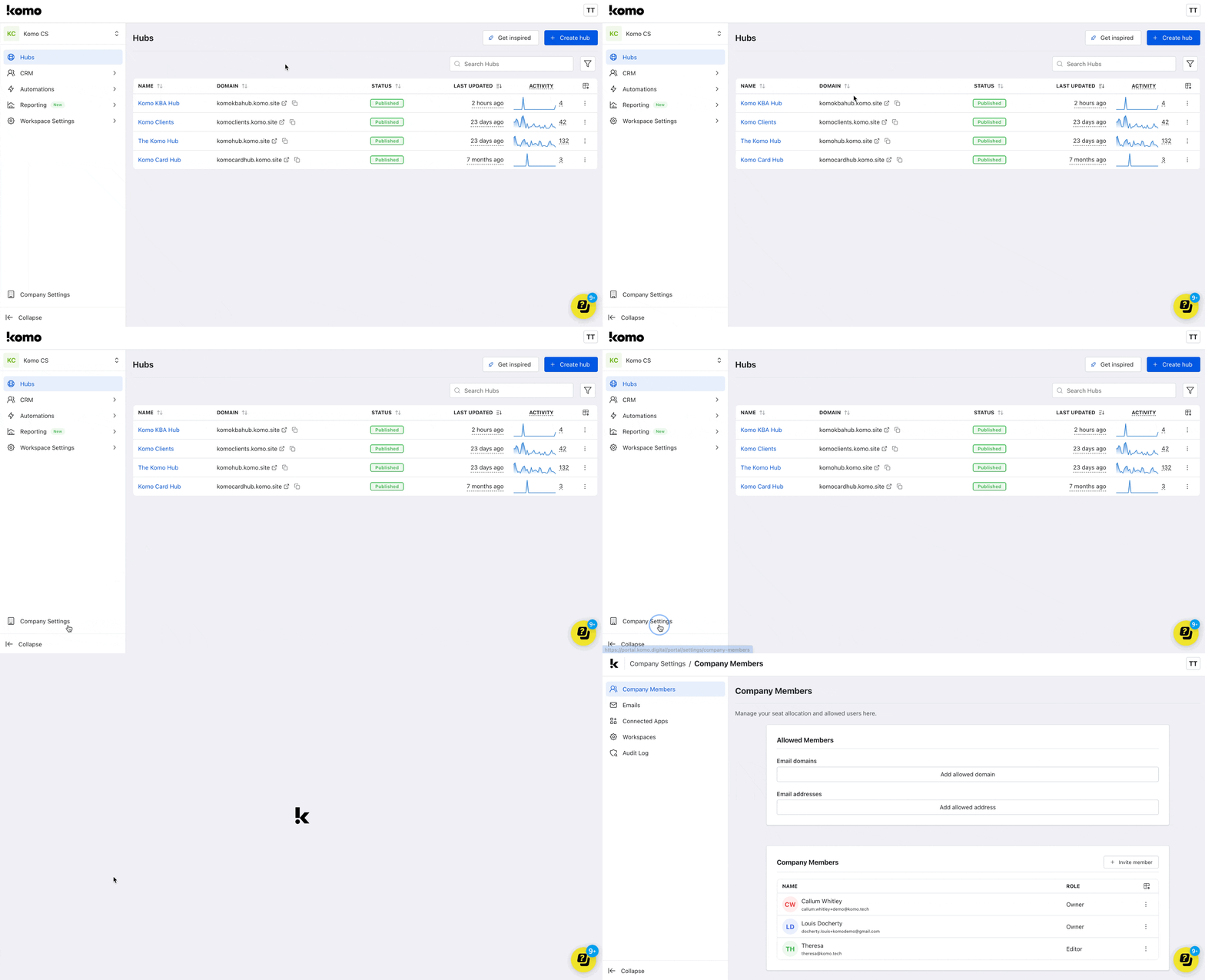 * Head to the **Company settings** on the company dashboard.
### Step 2: Invite new members to your company
* Head to the **Company settings** on the company dashboard.
### Step 2: Invite new members to your company
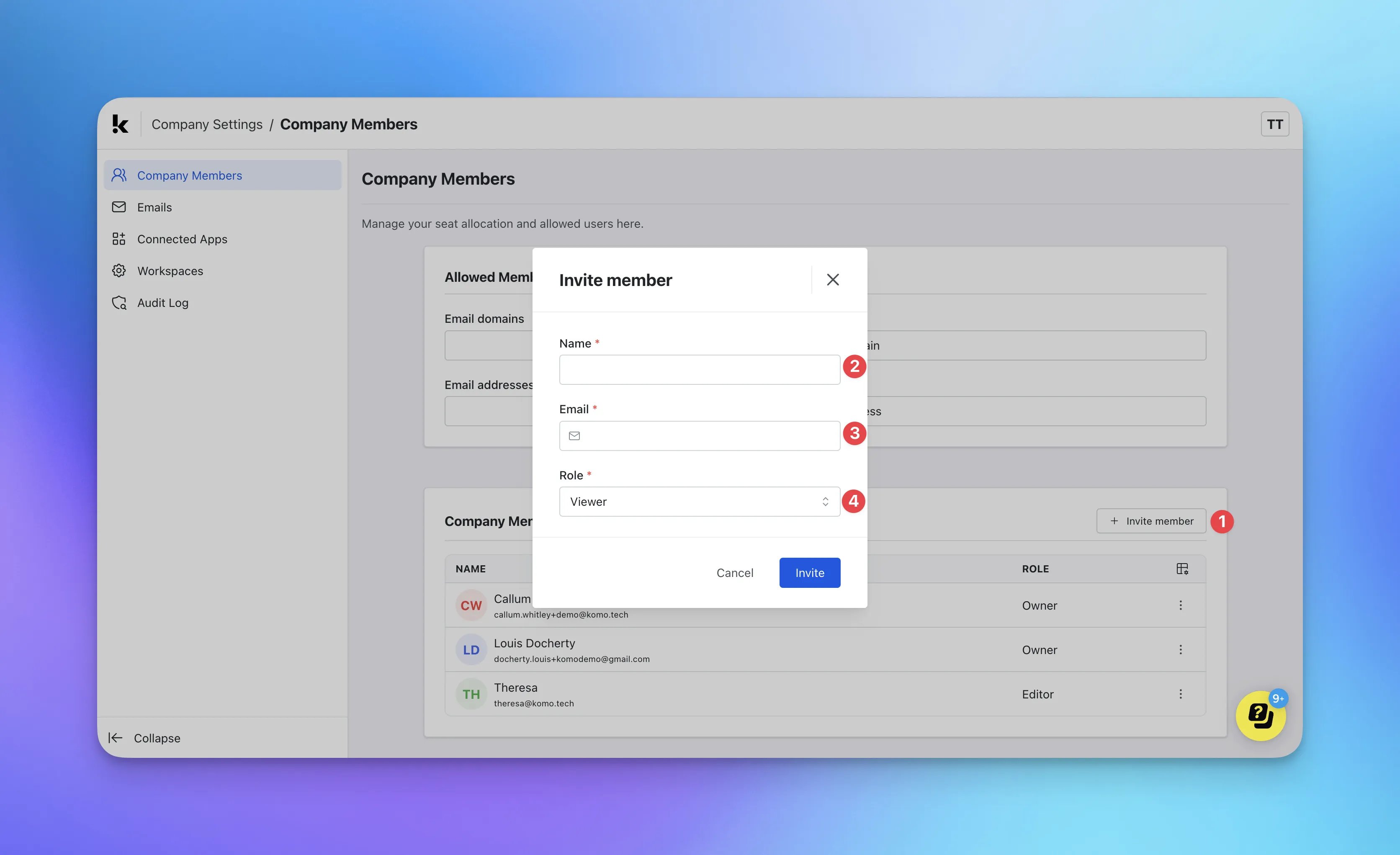 * **(1)** Under the Company members section, click on **Invite member.**
* **(2) + (3)** Enter the new member's **email and name**.
* **(4)** Select the **role** for the member. You can select from three; viewer, editor or owner.
* Once a member has been invited, they will receive an email promoting them to create an account.
## FAQ
**Can I resend the invite if I have entered the wrong details?**
Yes, if you have entered their details incorrectly, you can update/edit their details by clicking on **...** once the details have been corrected, an email will automatically be sent to inform the change to that member.
**Why would I want to add a viewer over an editor?**
You might find it useful to add specific members as viewers, such as marketers, collaborators and peers so that they can overlook relevant hub analytics, promotion mechanics, and user details.
**What is the difference between editor and owner?**
Owners can edit the portal, invite new members, revoke member invites, update details and delete members while an editor can only edit the portal and send password reset links for members.
* **(1)** Under the Company members section, click on **Invite member.**
* **(2) + (3)** Enter the new member's **email and name**.
* **(4)** Select the **role** for the member. You can select from three; viewer, editor or owner.
* Once a member has been invited, they will receive an email promoting them to create an account.
## FAQ
**Can I resend the invite if I have entered the wrong details?**
Yes, if you have entered their details incorrectly, you can update/edit their details by clicking on **...** once the details have been corrected, an email will automatically be sent to inform the change to that member.
**Why would I want to add a viewer over an editor?**
You might find it useful to add specific members as viewers, such as marketers, collaborators and peers so that they can overlook relevant hub analytics, promotion mechanics, and user details.
**What is the difference between editor and owner?**
Owners can edit the portal, invite new members, revoke member invites, update details and delete members while an editor can only edit the portal and send password reset links for members.