> ## Documentation Index
> Fetch the complete documentation index at: https://knowledge.komo.tech/llms.txt
> Use this file to discover all available pages before exploring further.
# Cloudflare Turnstile
> Add a CAPTCHA to your competitions to eliminate bot traffic.
## What is it?
Cloudflare Turnstile is a type of CAPTCHA that is able to verify users as real humans to block any spam or bot traffic entering your competition. This feature applies at the end of the data capture form and is an automatic reading that doesn't affect the user experience.
## How do I set it up?
### Step 1: Connect your Hub to Cloudflare
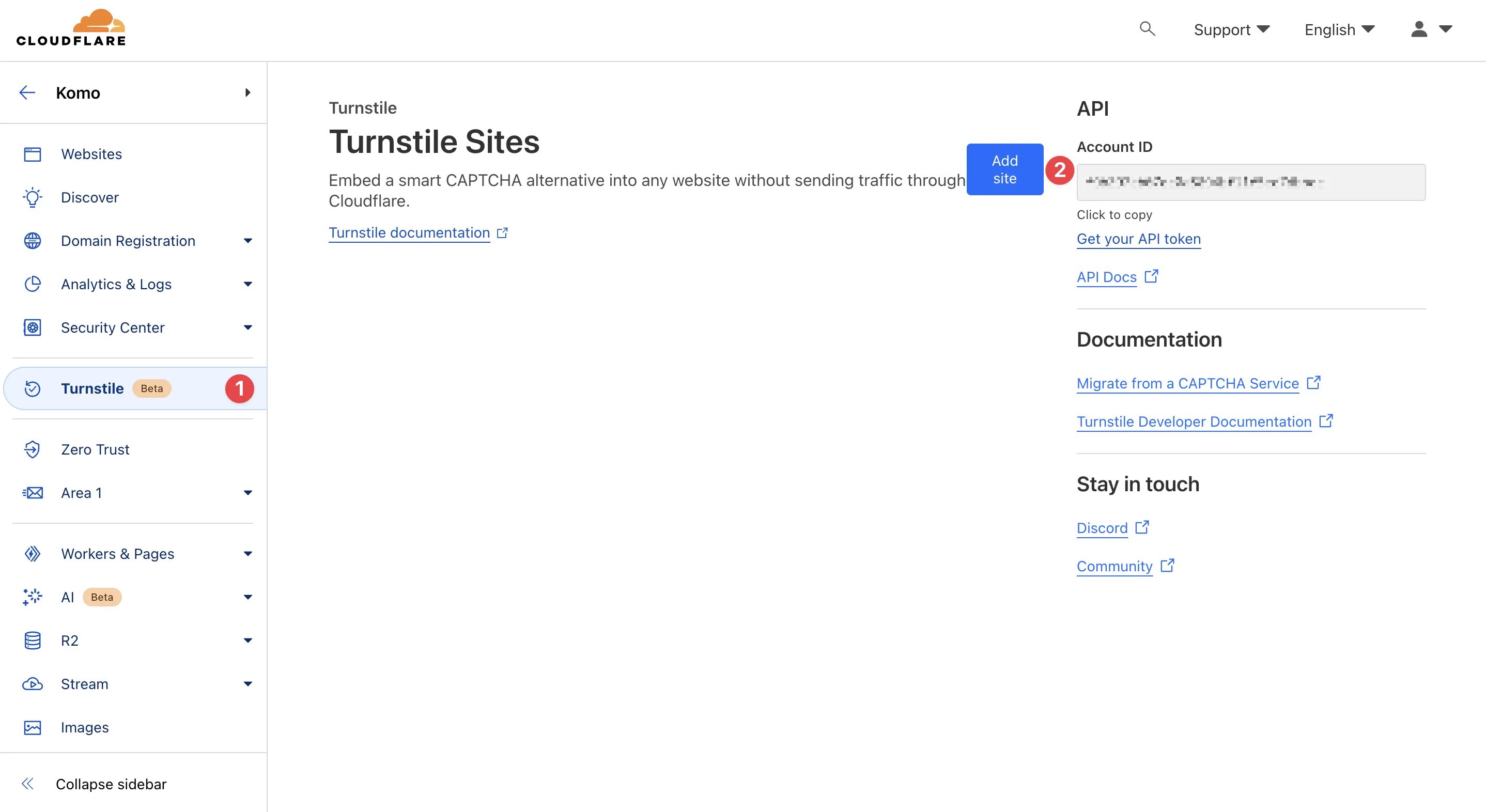 * To set up Cloudflare Turnstile, you will need to have a Cloudflare account. You can sign up and create an account [here](https://dash.cloudflare.com/sign-up). Don't worry, it's free!
* **(1)** Navigate to the sidebar and click on **Turnstile**
* **(2)** Click on **Add site** to connect your Komo Hub
* To set up Cloudflare Turnstile, you will need to have a Cloudflare account. You can sign up and create an account [here](https://dash.cloudflare.com/sign-up). Don't worry, it's free!
* **(1)** Navigate to the sidebar and click on **Turnstile**
* **(2)** Click on **Add site** to connect your Komo Hub
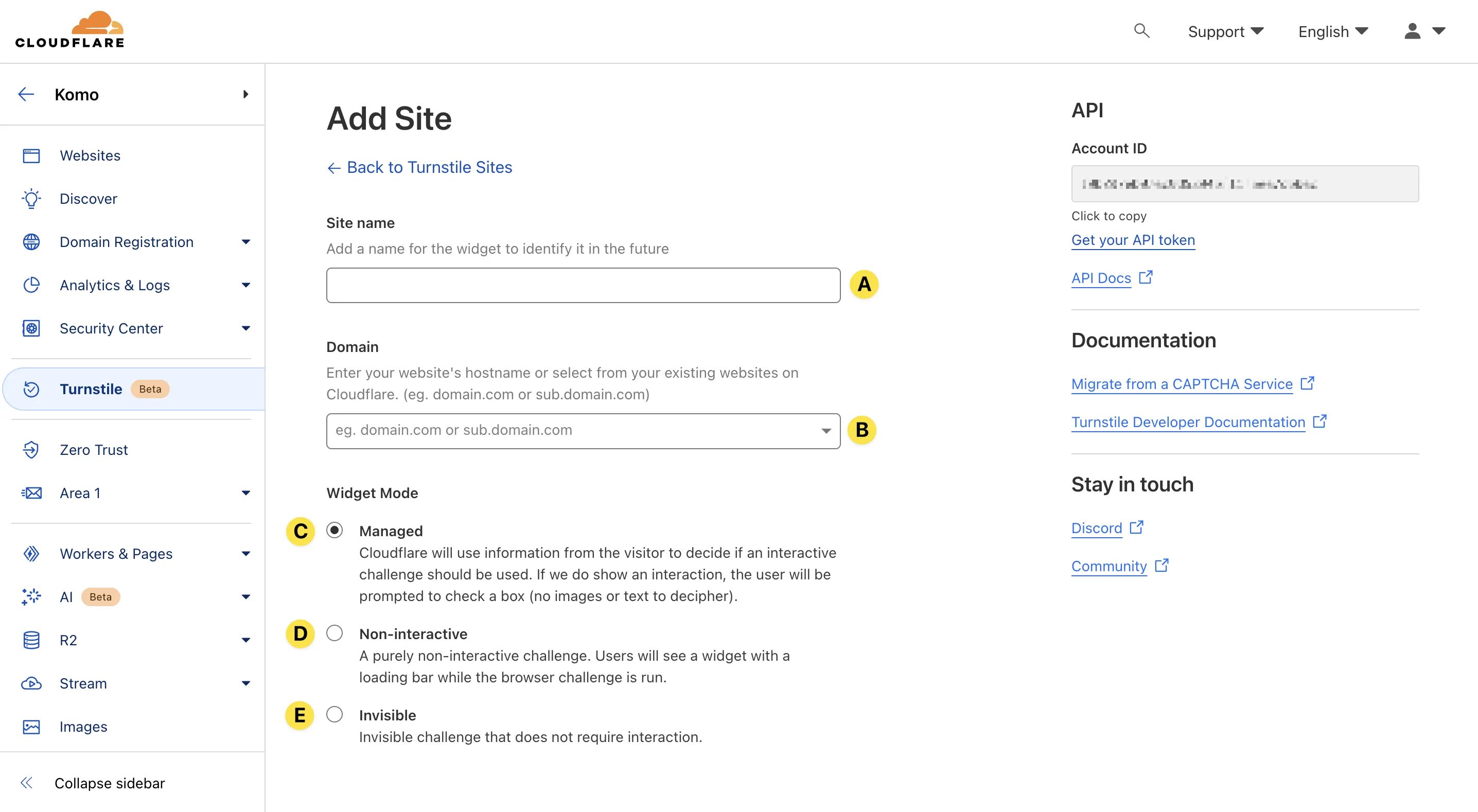 * **(A)** Here you will input an **internal name**
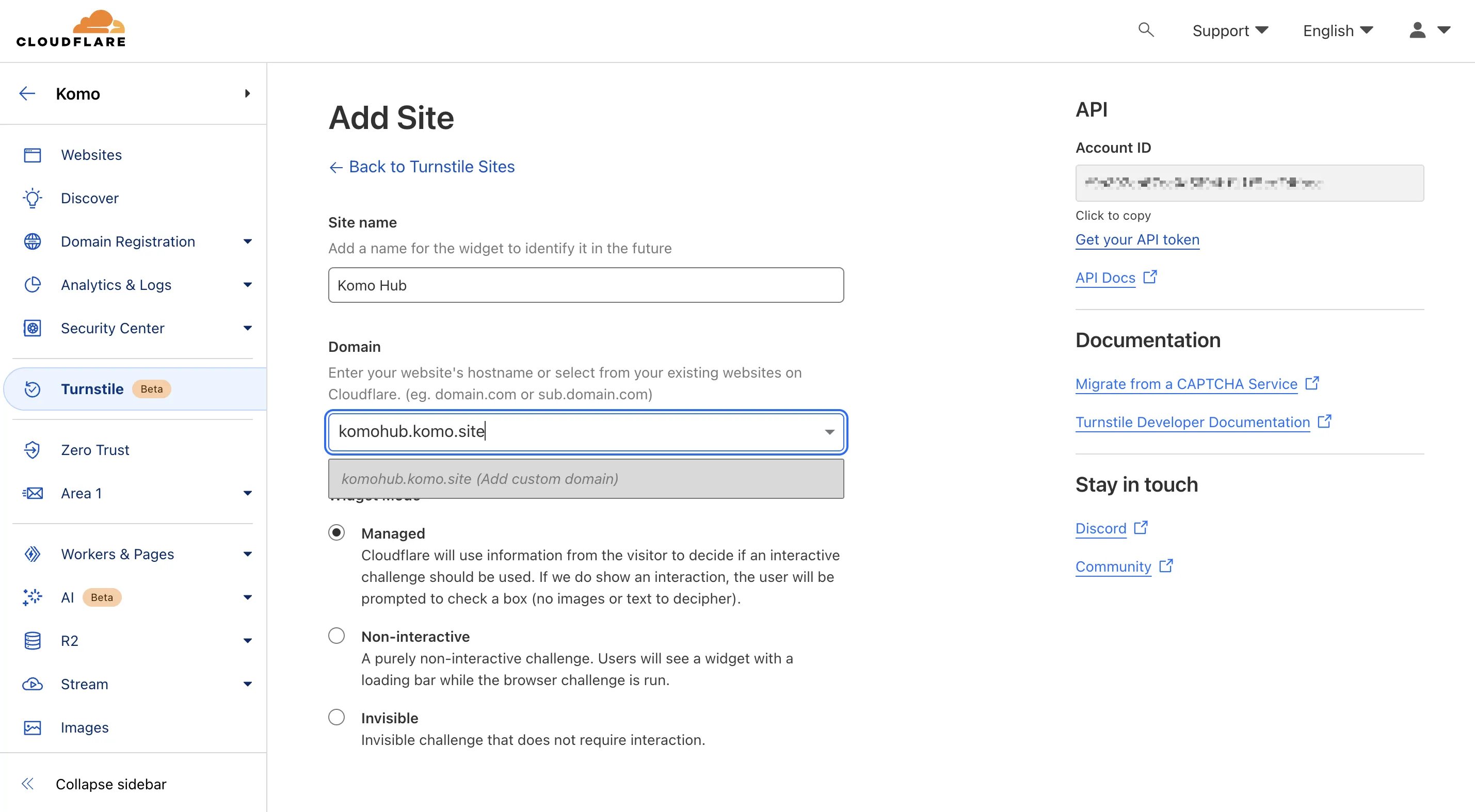
* **(B)** Enter your **Hub URL** here without the http\://. For example, komohub.komo.site, then click on the pop-up below, *Add custom domain*
*If you want to enable a CAPTCHA to multiple Hubs, you will need to add all the domains here.*
* **(A)** Here you will input an **internal name**
* **(B)** Enter your **Hub URL** here without the http\://. For example, komohub.komo.site, then click on the pop-up below, *Add custom domain*
*If you want to enable a CAPTCHA to multiple Hubs, you will need to add all the domains here.*
 * **(C)** Here you can select from different modes. Select **Managed** if you want Cloudflare to decide whether or not the checkbox needs to be manually filled for assumed bot activity.
* **(D) Non-interactive** means users don't need to check the box; it will automatically scan a user's session.
* **(C)** Here you can select from different modes. Select **Managed** if you want Cloudflare to decide whether or not the checkbox needs to be manually filled for assumed bot activity.
* **(D) Non-interactive** means users don't need to check the box; it will automatically scan a user's session.
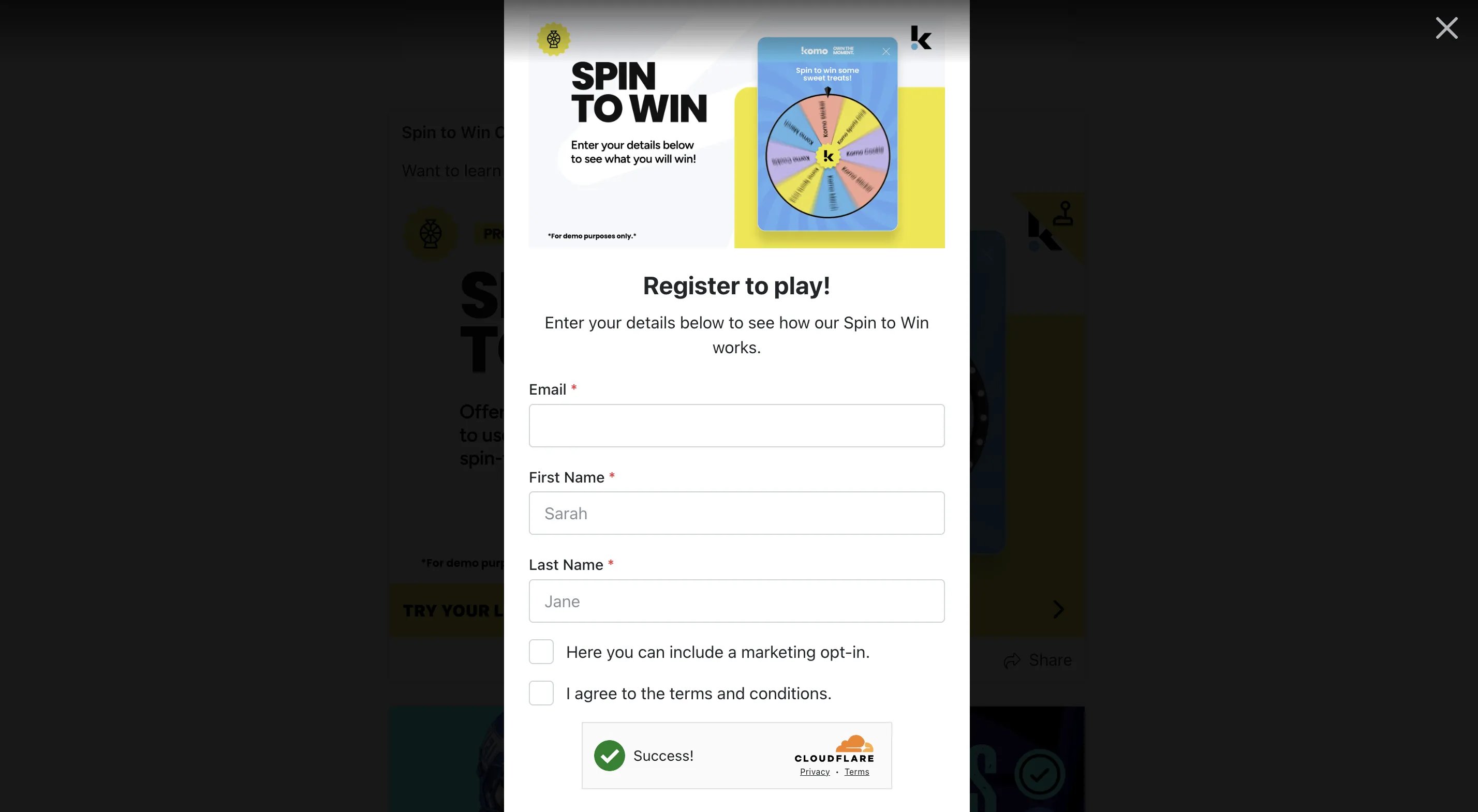 * **(E) Invisible** means the Cloudflare Turnstile CAPTCHA will not be visible on the form.
 * Then scroll down and click **Create**.
### Step 2: Copy the Turnstile keys
* Then scroll down and click **Create**.
### Step 2: Copy the Turnstile keys
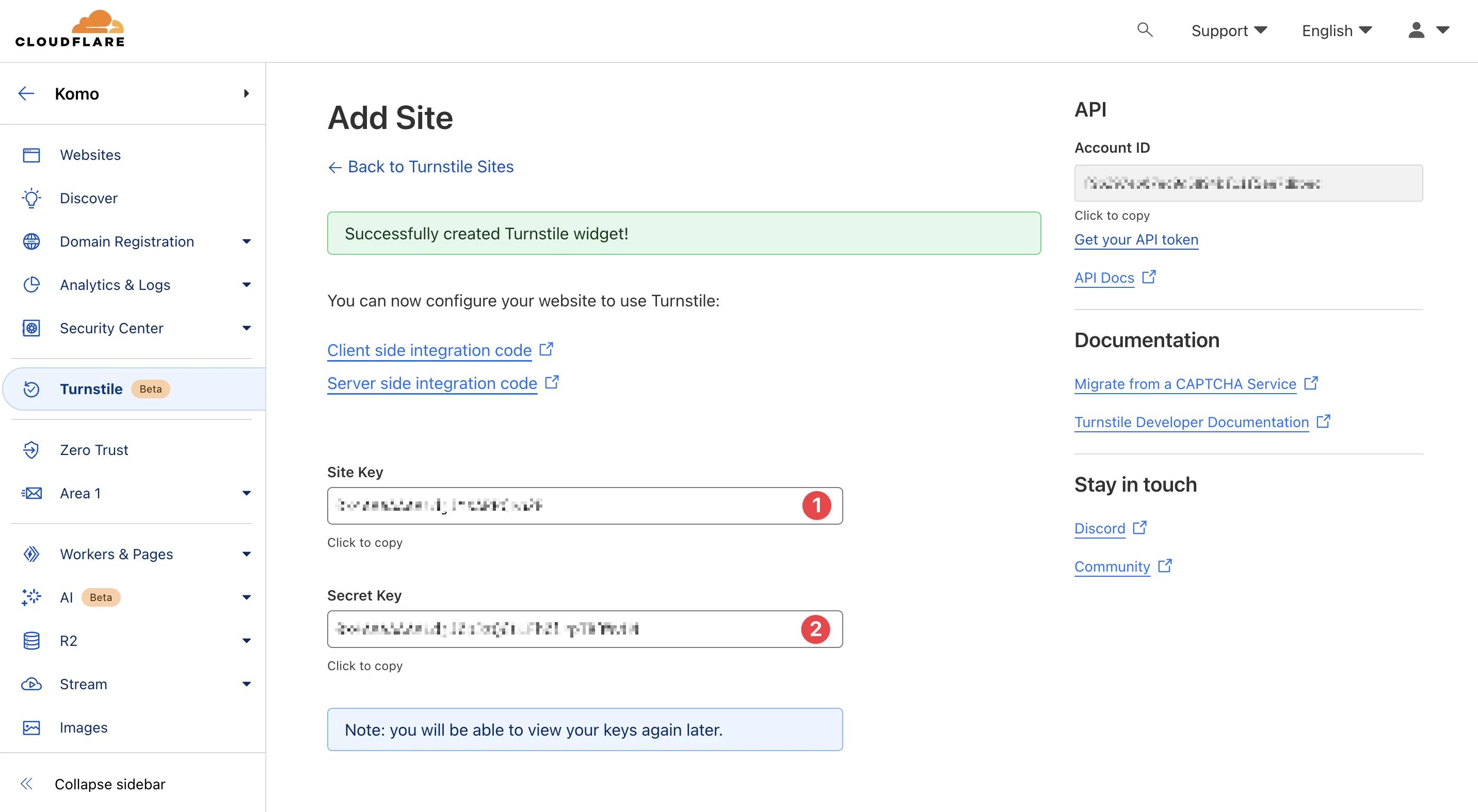 * **(1) + (2)** These are the **keys** you will need to have on hand to paste on the Komo portal.
### Step 3: Enable the Cloudflare Turnstile feature
* **(1) + (2)** These are the **keys** you will need to have on hand to paste on the Komo portal.
### Step 3: Enable the Cloudflare Turnstile feature
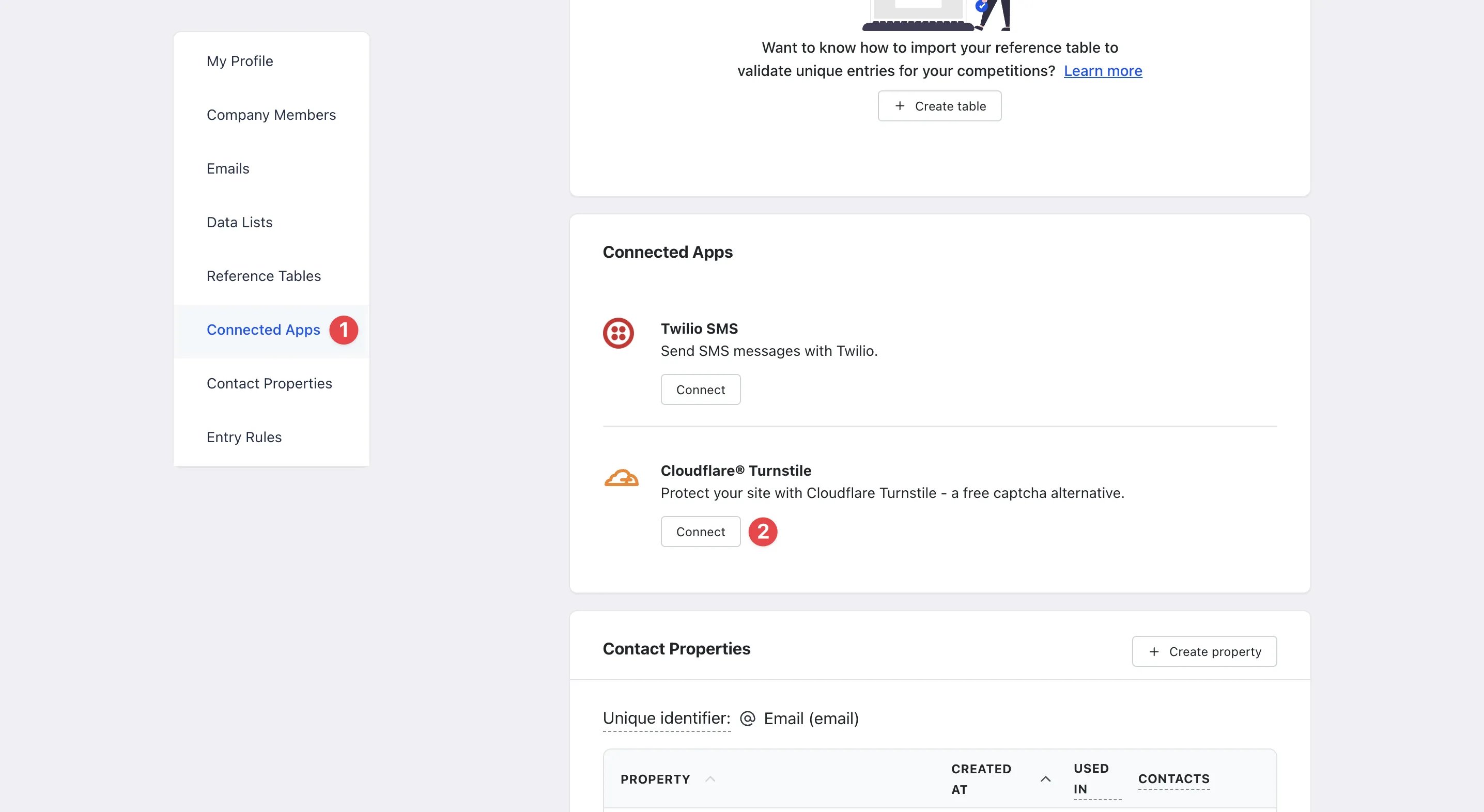 * Navigate to the Komo portal, click on your initials on the top right corner and then select Account settings.
* **(1)** Click on **Create property** Connnected Apps on the left sidebar.
* **(2)** Then select **Connect** under Cloudflare Turnstile to enable.
* Navigate to the Komo portal, click on your initials on the top right corner and then select Account settings.
* **(1)** Click on **Create property** Connnected Apps on the left sidebar.
* **(2)** Then select **Connect** under Cloudflare Turnstile to enable.
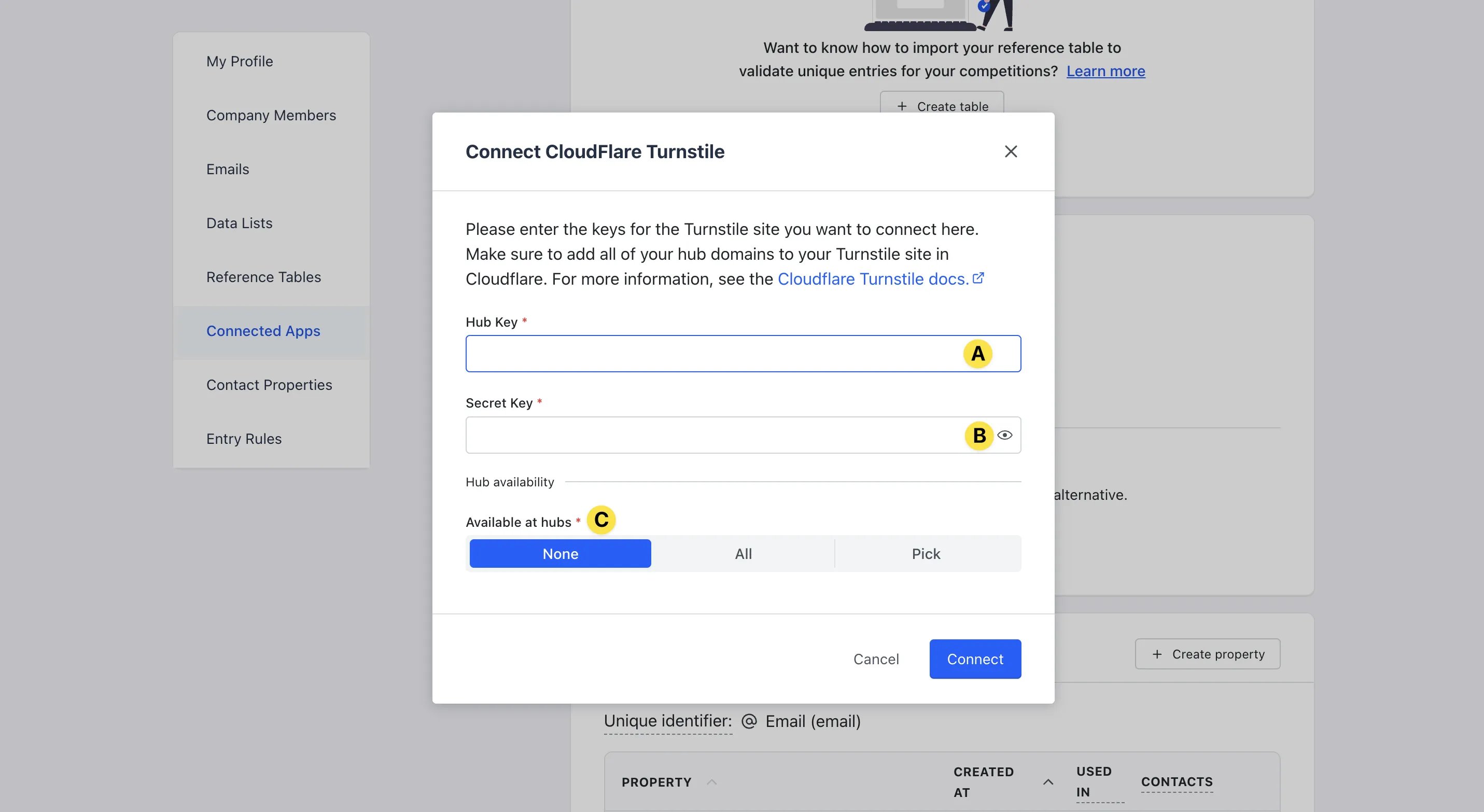 * **(A)** Paste the **Site key** from Step 2 here.
* **(B)** Paste the **Secret Key** from Step 2 here.
* **(C)** Select which **Hubs** you want to apply the CAPTCHA to.
Any Hubs selected here must be on the Cloudflare Turnstile list in Step 1 (2C).
* Then click **Create** to save your settings.
### Step 4: Test the feature
* **(A)** Paste the **Site key** from Step 2 here.
* **(B)** Paste the **Secret Key** from Step 2 here.
* **(C)** Select which **Hubs** you want to apply the CAPTCHA to.
Any Hubs selected here must be on the Cloudflare Turnstile list in Step 1 (2C).
* Then click **Create** to save your settings.
### Step 4: Test the feature
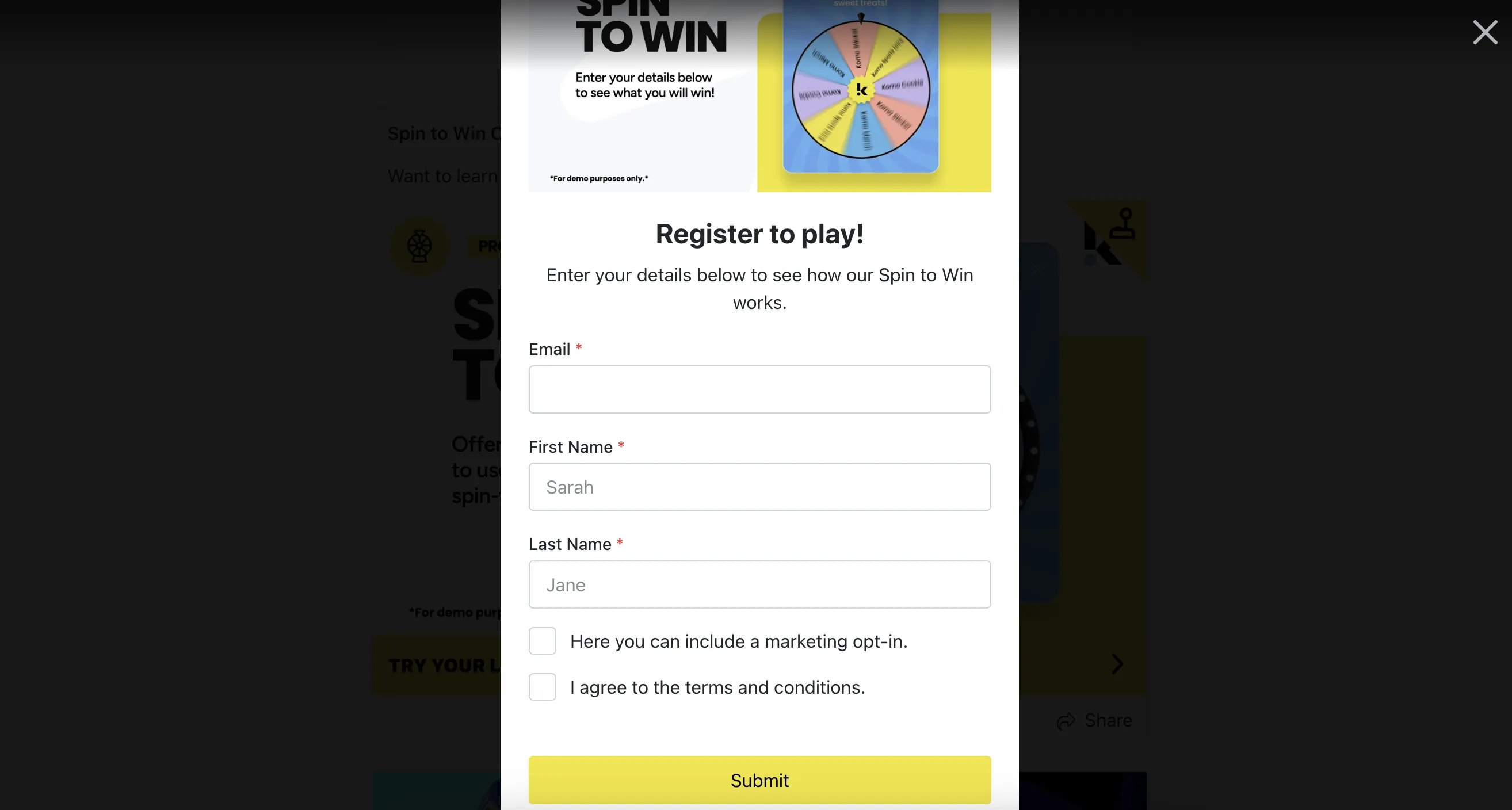
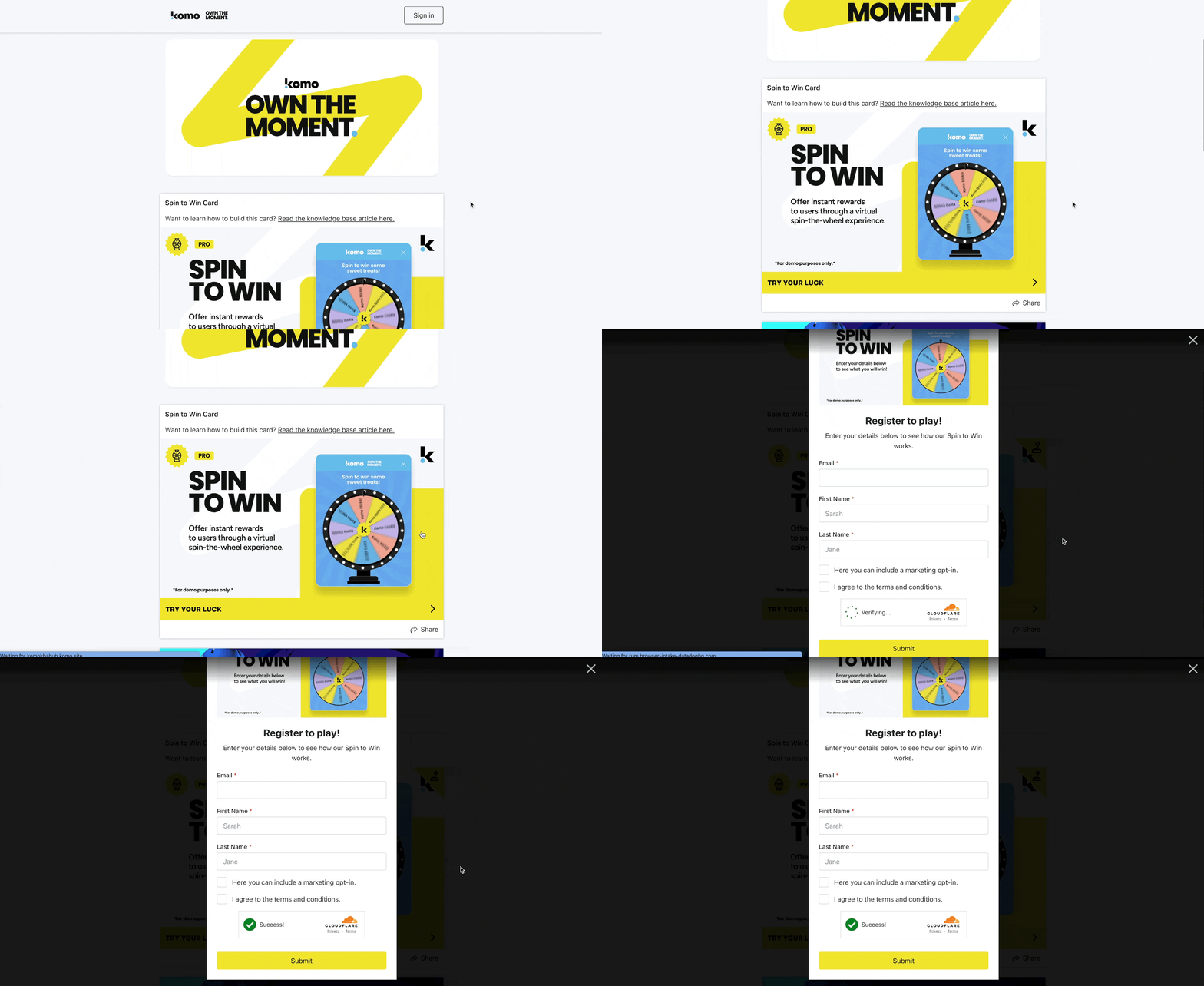 * Navigate to your live site and engage with a piece of content with a data capture form to view the experience.
### FAQ
**Can bots enter a competition if the Cloudflare Turnstile CAPTCHA is enabled?**
No, they can't. The role of the CAPTCHA is to eliminate any type of bot traffic or illegitimate entries trying to enter or spam your competitions.
**Will the CAPTCHA apply to all the competitions?**
Yes, if you have enabled the feature, this will apply to all competitions on the Hub.
* Navigate to your live site and engage with a piece of content with a data capture form to view the experience.
### FAQ
**Can bots enter a competition if the Cloudflare Turnstile CAPTCHA is enabled?**
No, they can't. The role of the CAPTCHA is to eliminate any type of bot traffic or illegitimate entries trying to enter or spam your competitions.
**Will the CAPTCHA apply to all the competitions?**
Yes, if you have enabled the feature, this will apply to all competitions on the Hub.