![Group 1225.png]](https://knowledge.komo.tech/hs-fs/hubfs/Group%201225.png?height=40&name=Group%201225.png)
Contents:
- What is it?
- Achieving a Seamless Look with Transparency
- Breaking the Grid: Custom Card Dimensions
- The "Clean Canvas" Checklist
- Design Inspiration
What is it?
Your Engagement Hub is more than just a collection of Cards—it’s a digital canvas! While our standard templates are designed for ease of use, you can move beyond the traditional "grid" look to create seamless, high-end designs that feel like a bespoke website.
By leveraging Manual Transparency and Custom Dimensions, your content can "float" and integrate directly into your Hub’s background.
Achieving a Seamless Look with Transparency
To make your Cards feel like a natural part of the Hub background rather than a separate box, you can manually adjust the card background color to be transparent.
How to execute this:
- Prepare your Assets: Design your Card Cover in a tool like Canva or Photoshop and export it as a transparent PNG.
- Upload to Komo: Navigate to your Card > Cover tab and upload your image.
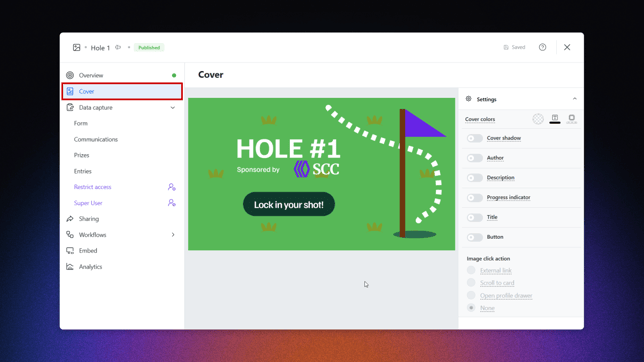
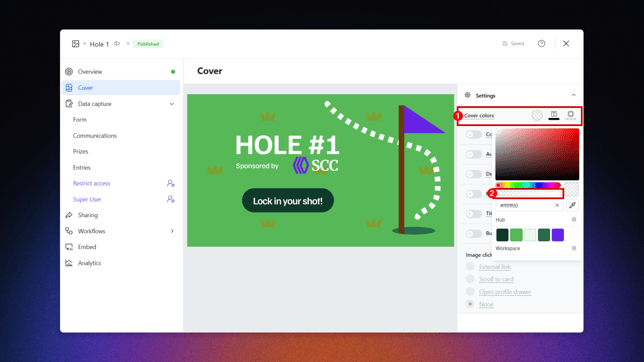
- Adjust Cover Colors: In the Cover tab, click on the (1) Cover colors selector. Use the (2) transparency slider (or enter a hex code with 0% opacity) to remove the solid background color. This allows your PNG and the Hub background to blend seamlessly.
Breaking the Grid: Custom Card Dimensions
Your Card Covers don't have to be limited to standard rectangular dimensions! The Komo platform supports assets that break the mold:
- Vertical Overhang: You can upload Card Covers that are significantly taller than the suggested dimensions. This allows you to create "pillar" cards or long visual elements that draw the user’s eye down the page.
- Irregular Shapes: By using a transparent PNG on a taller canvas, you can make cards appear as circles, waves, or diagonal "burst" elements that overlap the Hub background.
The "Clean Canvas" Checklist
To achieve a truly "floating" design, you’ll want to remove any UI elements that might clutter your custom artwork. Head to your Settings menu within the Card editor to toggle the following:
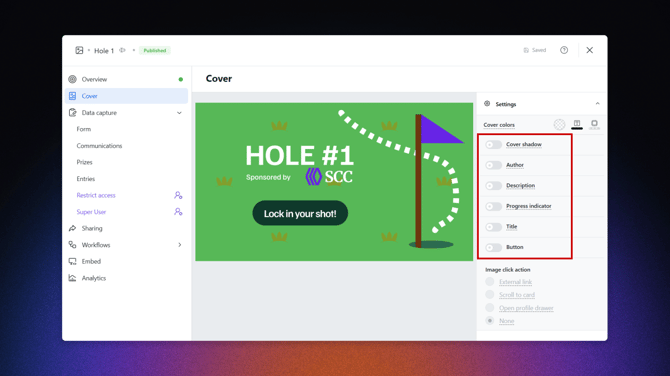
- Cover Shadow: Toggle this OFF to remove the border shadow, ensuring the card doesn't look like a "box" sitting on the page.
- Title & Description: Turn these OFF to let your custom typography on the image do the talking.
- CTA Buttons: Turn the Button toggle OFF if you want the entire image to act as the link without a visible bar at the bottom.
- Author & Progress Indicator: Toggle these OFF for a cleaner, more editorial look.
Design Inspiration 💡
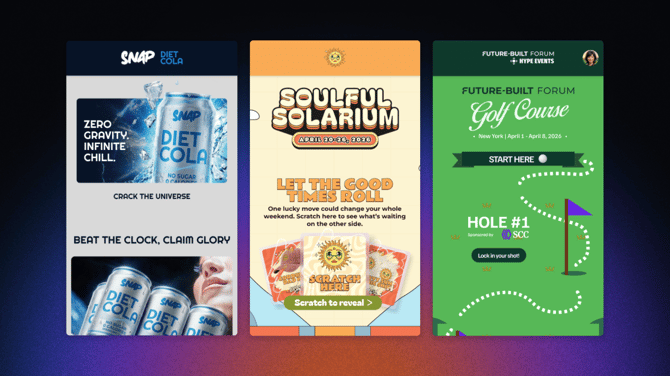
See how these techniques are being used to create world-class digital experiences:
- Snap Diet Cola: Perfect use of transparent PNGs and vertical dimensions to create a fluid, refreshing flow.
- Soulful Solarium: High-end festival aesthetic using transparency to let vibrant background colors shine through.
- Future Built Forum: A modern, professional look that uses custom dimensions to create a structured yet seamless layout.
Pro-Tip: Mastering Your PNG Assets
To get that ultra-slick, "floating" look seen in the Snap Diet Cola and Soulful Solarium hubs, your image preparation is just as important as your Hub settings. Here’s how to prep your assets like a pro:
1. Export as "Transparent PNG"
Whether you are using Canva, Photoshop, or Figma, ensuring your background is transparent is step one.
- Figma Users: Select your Frame or Group. In the right-hand Export panel, ensure the format is set to PNG. Click the plus (+) icon to see options and ensure "Ignore over-lapping layers" is unchecked if you want a clean transparent crop.
- Canva Users: When clicking Download, ensure PNG is selected and check the box for Transparent Background (available in Canva Pro).
- Photoshop Users: Use Export As > PNG and ensure the Transparency checkbox is ticked.
2. Mind the "Canvas" vs. the "Content"
Komo allows your card covers to be longer than the suggested dimensions. This is your secret weapon for breaking the grid!
- Create a Tall Canvas: Instead of a standard square, try a ratio like 1080 x 1920 (vertical).
- Figma Strategy: Use a Frame with no fill color. Place your actual design elements (logo, product bottle, character) within that Frame, leaving "negative space" at the top or bottom.
- The Result: When uploaded, your card will appear to "float" with plenty of breathing room, allowing elements to "bleed" into the Hub background seamlessly.
3. "Bake In" Your Effects
Since you are turning off the Cover shadow in the Komo Settings to achieve a seamless look, your image might look a bit "flat."
- Pro Move: Add a soft Drop Shadow or Layer Blur directly to your design in Figma or Photoshop before you export it.
- This gives your "floating" asset depth and dimension against the Hub background without needing a boxy card container.
4. Optimize for Load Speed
Transparent PNGs with large dimensions can sometimes have large file sizes. To keep your Hub snappy:
- Figma Tip: Use the "TinyPNG" or "Downsize" plugin directly within Figma to compress images before you even hit export.
- Alternatively, run your final files through a web compressor. This ensures your high-end designs load instantly, even on slower mobile connections.