> ## Documentation Index
> Fetch the complete documentation index at: https://knowledge.komo.tech/llms.txt
> Use this file to discover all available pages before exploring further.
# Vault Digital Mastercards
> Easily distribute Vault Digital Mastercards to prize winners using automated workflows.
## What is it?
Vault Mastercards are digital prepaid cards that can be instantly issued to prize winners via automated workflows. These digital cards can be accessed on recipients' phones and used wherever traditional Mastercards are accepted. Continue reading to learn how you can effortlessly distribute Vault Mastercards to your prize winners.
## How do I do it?
### Step 1: Provide Vault Campaign IDs
* Ensure you have a **Campaign** set up with **Vault**. Once everything is approved, you will need to provide your Customer Success Manager with access and share your credentials. Please forward this request to Vault with your CSM's details. When granted access, your CSM will then complete the backend connection on your behalf. If you have any issues or require further assistance, please reach out to your Customer Success Manager directly.
### Step 2: Create your prize
* Prior to creating your distribution workflows, you will need to ensure you have created your prize. You will not be able to link your workflow until this prize is created. For detailed information on how to create prizes, please read [this article](/competitions-promotions/setup-management/prizes-and-comms).
### Step 3: Build your workflow
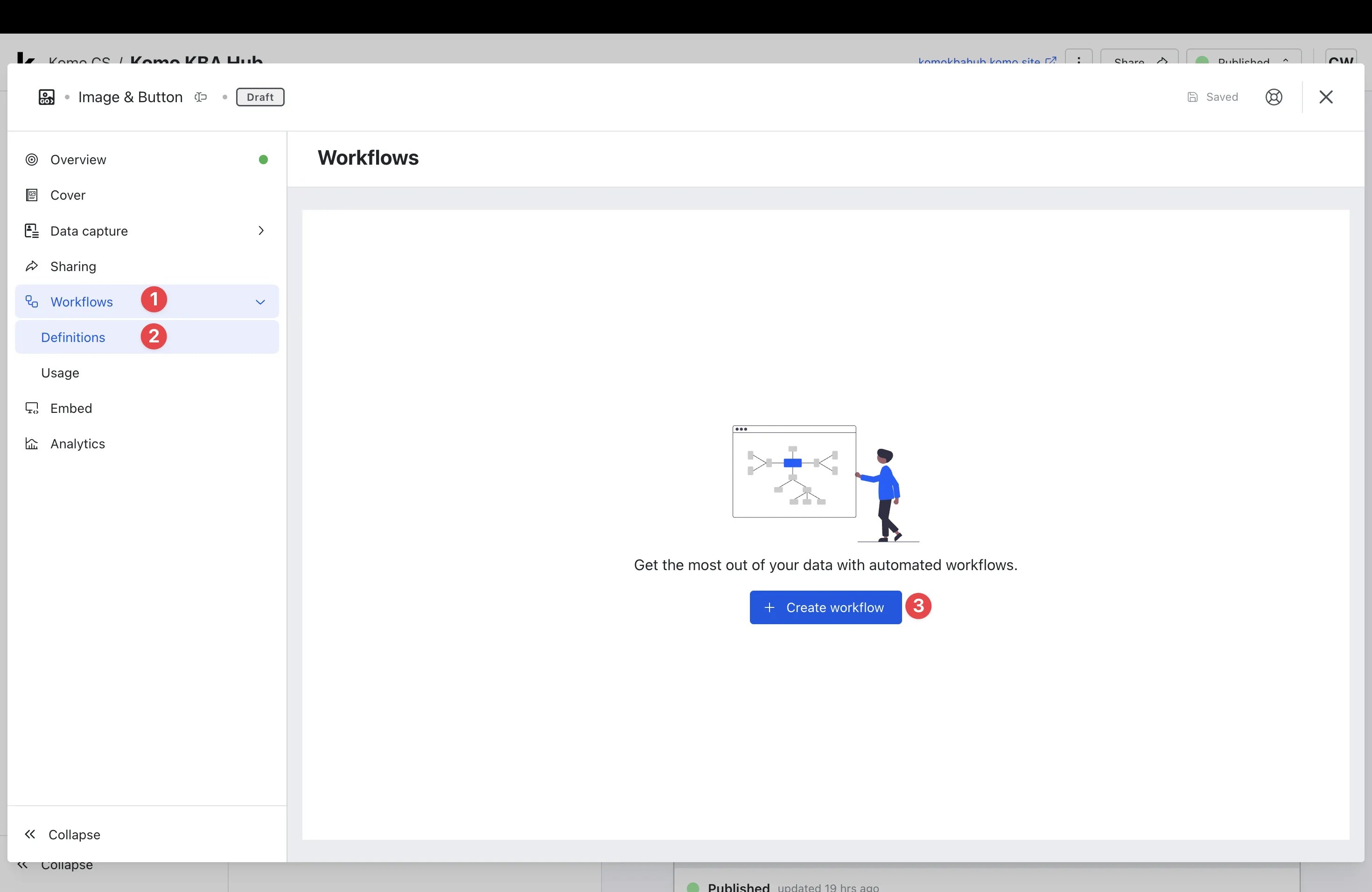 * Navigate to your **Card** and go into the **Card Settings.**
* **(1)** Click on **Workflows**.
* **(2)** Click on **Definitions**.
* **(3)** Select **+ Create workflow**.
* Navigate to your **Card** and go into the **Card Settings.**
* **(1)** Click on **Workflows**.
* **(2)** Click on **Definitions**.
* **(3)** Select **+ Create workflow**.
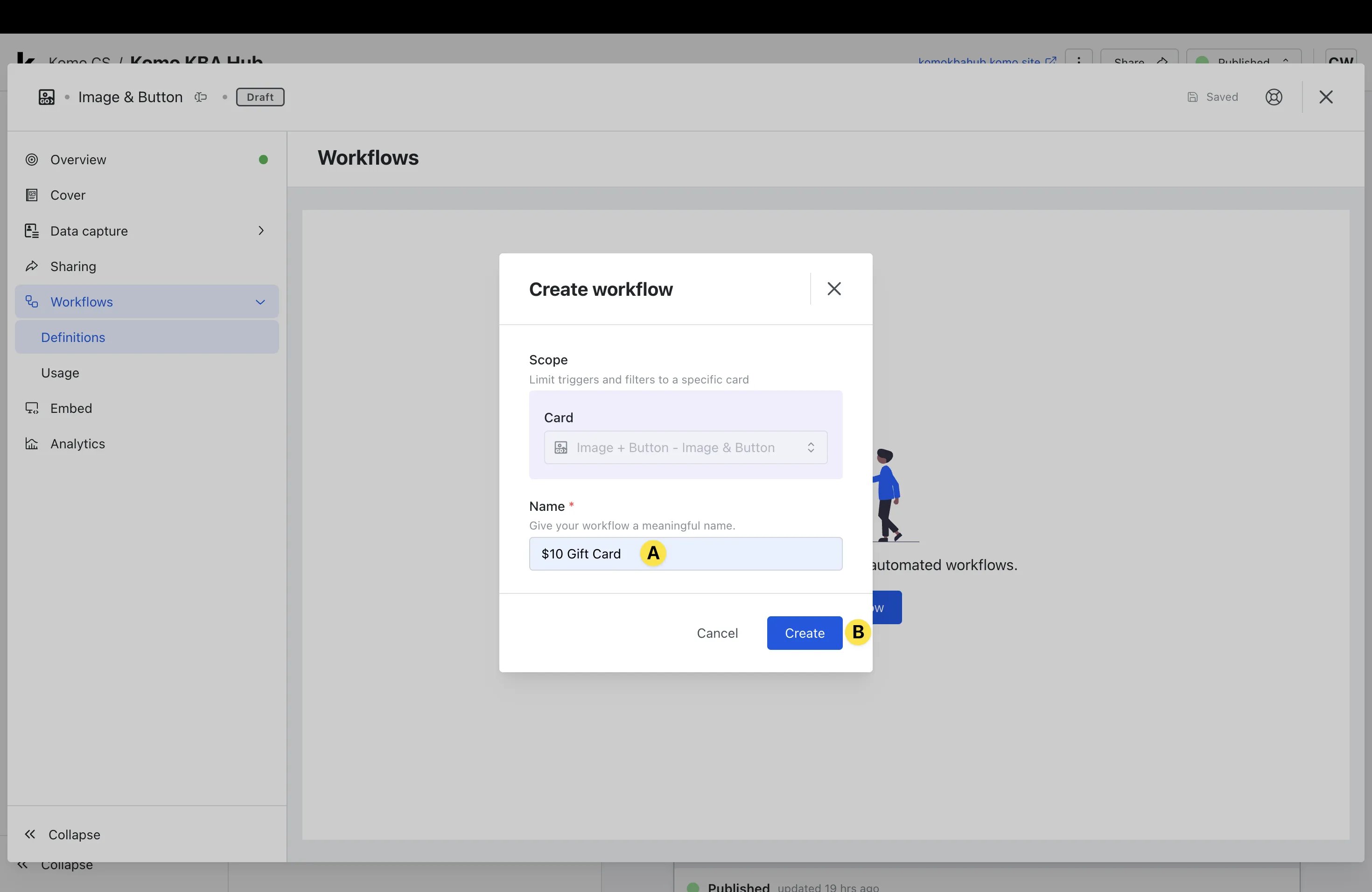 * **(A)** Give your workflow a meaningful **Name.**
* **Note:** This is internal only but we recommend that the naming aligns with the prize on offer for clarity.
* **(B)** Click **Create**.
* **(A)** Give your workflow a meaningful **Name.**
* **Note:** This is internal only but we recommend that the naming aligns with the prize on offer for clarity.
* **(B)** Click **Create**.
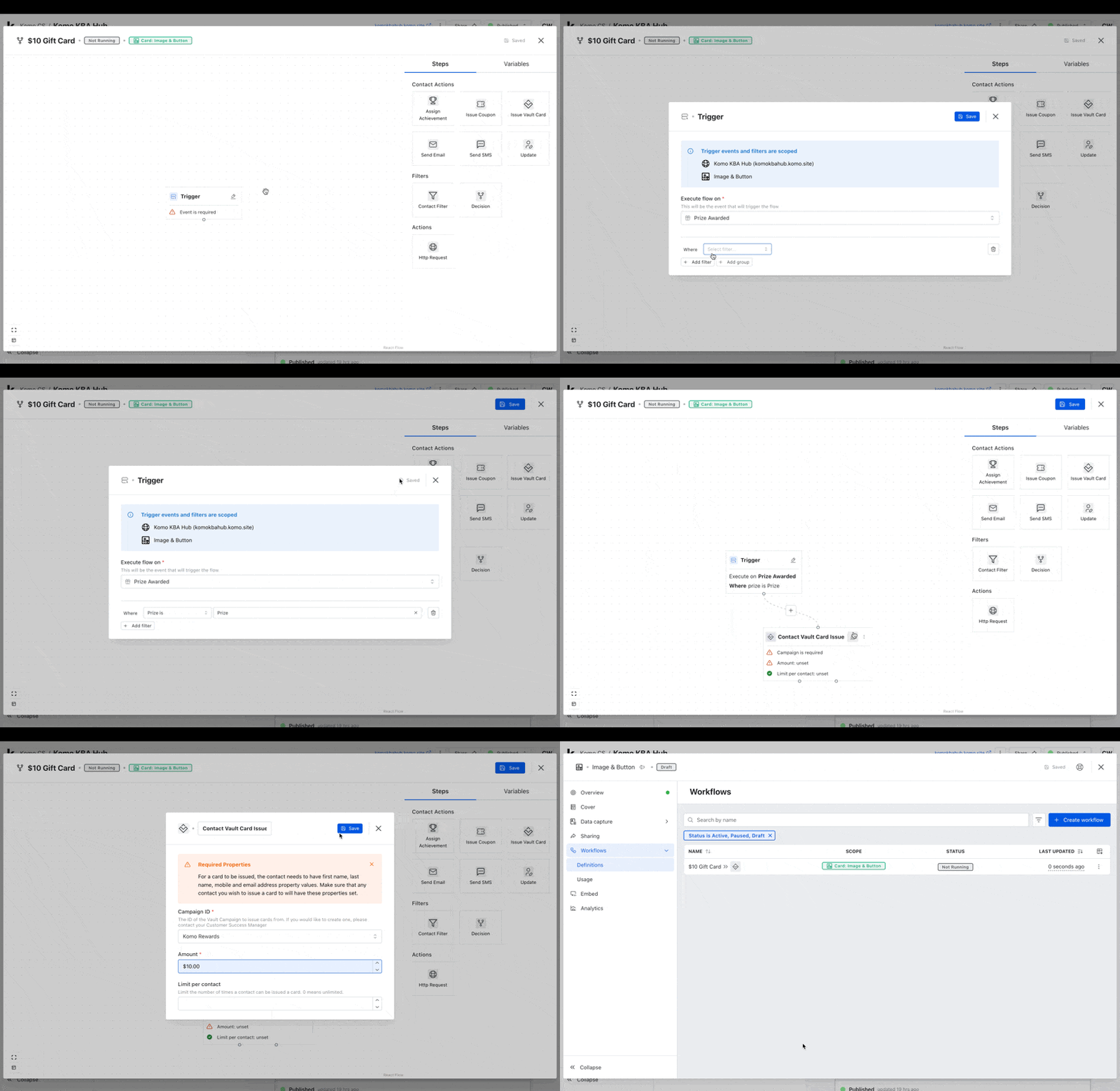 * You can now start building out your workflow.
* Select the **pencil icon** next to Trigger.
* Select **Prize Awarded** from the **Execute flow on** dropdown.
* Click **+ Add filter**, select **Prize is** and then select the appropriate **Prize** from the dropdown (you created this prize in [**Step 2**](#step-1-provide-vault-campaign-ids)).
* Click **Save** and exit the modal by clicking **X**.
* Drag the **Issue Vault Card** workflow module and drop it below the **Trigger module**.
* Click on the **circle** at the bottom of the **Trigger module, drag** and **drop** on the **circle** of the **Contact Vault Card Issue module**.
* Select the **pencil icon** next to **Contact Vault Card Issue**.
* Select your **Campaign ID** from the dropdown (this is the ID you provided in [**Step 1**](#step-1-provide-vault-campaign-ids)).
* Type the appropriate **Gift Card value** in the **Amount** field.
* Set you **Limit per contact** as per your game rules (we recommend leaving blank for unlimited).
* Click **Save** and then exit the modal by clicking **X**.
* Finish building your workflow by clicking **Save**.
### Step 4: Activate your workflow
* You can now start building out your workflow.
* Select the **pencil icon** next to Trigger.
* Select **Prize Awarded** from the **Execute flow on** dropdown.
* Click **+ Add filter**, select **Prize is** and then select the appropriate **Prize** from the dropdown (you created this prize in [**Step 2**](#step-1-provide-vault-campaign-ids)).
* Click **Save** and exit the modal by clicking **X**.
* Drag the **Issue Vault Card** workflow module and drop it below the **Trigger module**.
* Click on the **circle** at the bottom of the **Trigger module, drag** and **drop** on the **circle** of the **Contact Vault Card Issue module**.
* Select the **pencil icon** next to **Contact Vault Card Issue**.
* Select your **Campaign ID** from the dropdown (this is the ID you provided in [**Step 1**](#step-1-provide-vault-campaign-ids)).
* Type the appropriate **Gift Card value** in the **Amount** field.
* Set you **Limit per contact** as per your game rules (we recommend leaving blank for unlimited).
* Click **Save** and then exit the modal by clicking **X**.
* Finish building your workflow by clicking **Save**.
### Step 4: Activate your workflow
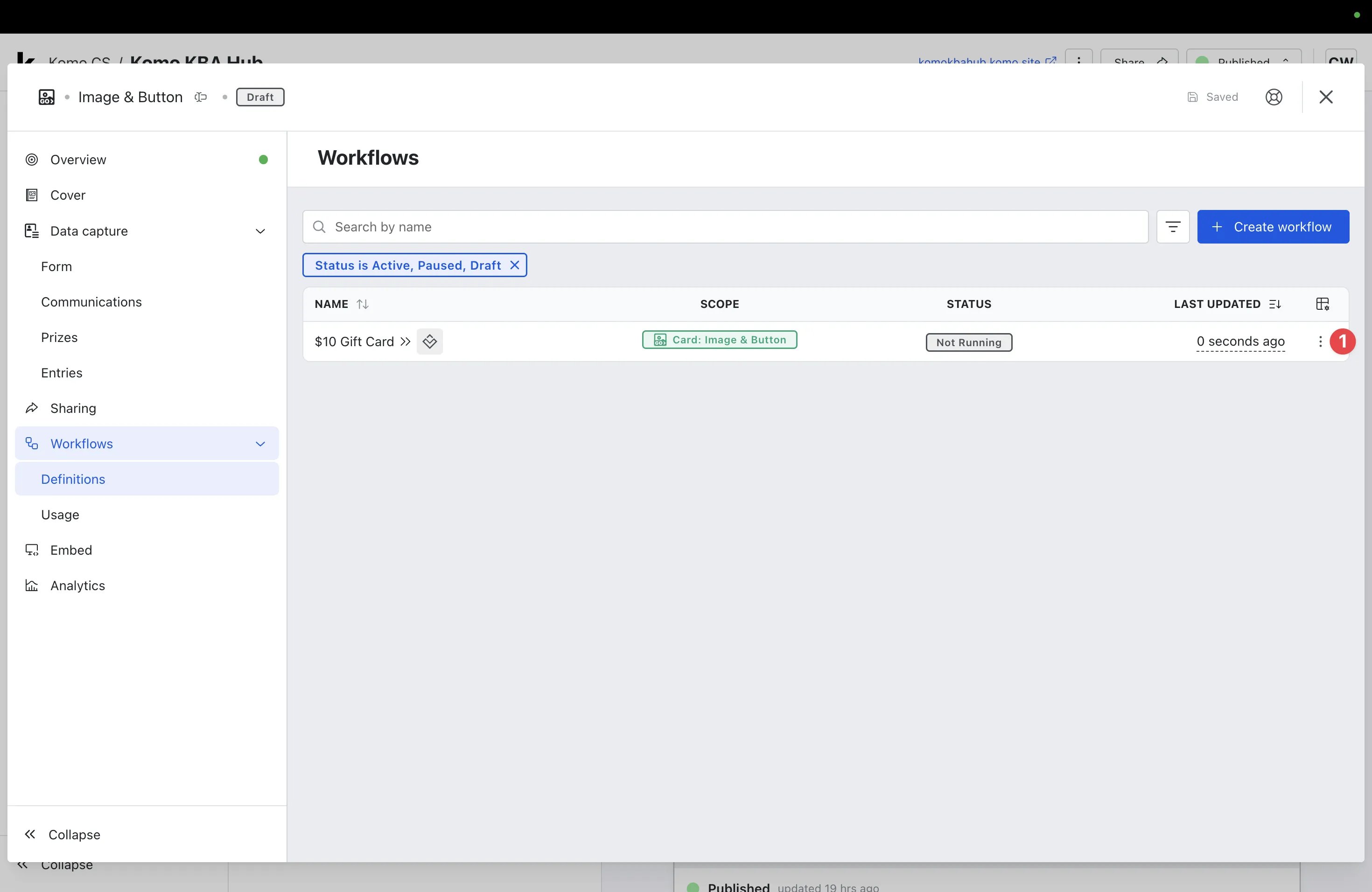 * You will now have to **Run** your workflow for it to begin working.
* **(1)** Click the **three dots** to access the additional actions.
* You will now have to **Run** your workflow for it to begin working.
* **(1)** Click the **three dots** to access the additional actions.
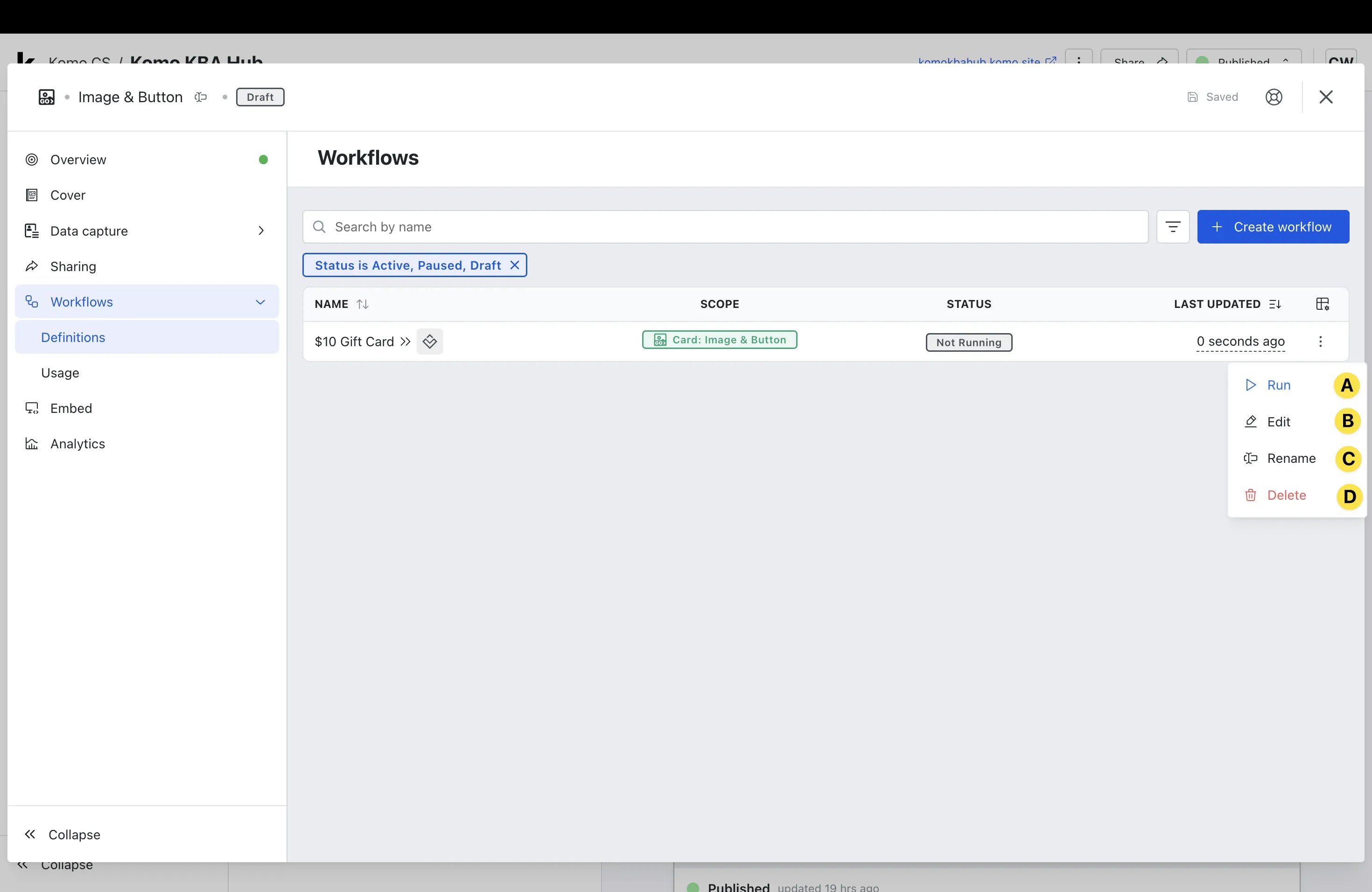 * **(A) Run** - Click this to **run** your workflow.
* **(B) Edit** - Here you can make **edits** to the workflow you set up.
* **(C) Rename** - Select this if you would like to **rename** your workflow.
* **(D) Delete** - Click this if you would like to **delete** your workflow.
* Once you have selected **Run**, your workflow will be live and you can move onto testing!
### Step 5: Test your workflow
* Repeat [**Step 2**](#step-1-provide-vault-campaign-ids)**,** [**Step 3**](#step-1-provide-vault-campaign-ids) and [**Step 4**](#step-1-provide-vault-campaign-ids) to create a test prize and workflow.
* We recommend clearly naming your prize and workflow with **Test** or **Testing** for easy identification.
* When setting your prize, ensure that the **Awarding Prize Rule** is set to manually selected. This will be the default selection.
* When setting up your test workflow, we recommend setting the Vault Gift Card **Amount** to **\$1.00** and the **Limit per contact** to **1**.
* Once you have set up your test prize and workflow, you will then need to test the Card. For information on how to test your card, [please read this article.](/getting-started/hub-setup/card-testing)
* Once you've tested the card and entered your details, you can then test the workflow.
* Navigate to the **Card Settings** and select **Prizes** under the **Data Capture** dropdown.
* Select the **three dots (actions)** next to your **Test Prize**.
* Click **Select recipients to award**.
* You should now see the **contact details** you submitted when working through the Card experience.
* **Check the box** next to your **contact details** and click **Review**.
* You can now review the details of the **contact** and click **Award Prize**.
* A pop-up should appear confirming that **Awarding prizes** have been **completed**. Confirm that the **Status** box next to your test prize also displays **Awarded**.
* When you are satisfied that your test workflow is operating as expected, it is best to ensure the workflow is paused by navigating to your test workflow under **Definitions**, clicking the **three dots (actions)** next to your test workflow (as detailed in [**Step 4**](#step-1-provide-vault-campaign-ids)) and selecting **Pause**.
Once your test workflow is paused, we also recommend canceling the **Test Card** directly in the Vault portal.
### Step 6: Monitor your workflow
* **(A) Run** - Click this to **run** your workflow.
* **(B) Edit** - Here you can make **edits** to the workflow you set up.
* **(C) Rename** - Select this if you would like to **rename** your workflow.
* **(D) Delete** - Click this if you would like to **delete** your workflow.
* Once you have selected **Run**, your workflow will be live and you can move onto testing!
### Step 5: Test your workflow
* Repeat [**Step 2**](#step-1-provide-vault-campaign-ids)**,** [**Step 3**](#step-1-provide-vault-campaign-ids) and [**Step 4**](#step-1-provide-vault-campaign-ids) to create a test prize and workflow.
* We recommend clearly naming your prize and workflow with **Test** or **Testing** for easy identification.
* When setting your prize, ensure that the **Awarding Prize Rule** is set to manually selected. This will be the default selection.
* When setting up your test workflow, we recommend setting the Vault Gift Card **Amount** to **\$1.00** and the **Limit per contact** to **1**.
* Once you have set up your test prize and workflow, you will then need to test the Card. For information on how to test your card, [please read this article.](/getting-started/hub-setup/card-testing)
* Once you've tested the card and entered your details, you can then test the workflow.
* Navigate to the **Card Settings** and select **Prizes** under the **Data Capture** dropdown.
* Select the **three dots (actions)** next to your **Test Prize**.
* Click **Select recipients to award**.
* You should now see the **contact details** you submitted when working through the Card experience.
* **Check the box** next to your **contact details** and click **Review**.
* You can now review the details of the **contact** and click **Award Prize**.
* A pop-up should appear confirming that **Awarding prizes** have been **completed**. Confirm that the **Status** box next to your test prize also displays **Awarded**.
* When you are satisfied that your test workflow is operating as expected, it is best to ensure the workflow is paused by navigating to your test workflow under **Definitions**, clicking the **three dots (actions)** next to your test workflow (as detailed in [**Step 4**](#step-1-provide-vault-campaign-ids)) and selecting **Pause**.
Once your test workflow is paused, we also recommend canceling the **Test Card** directly in the Vault portal.
### Step 6: Monitor your workflow
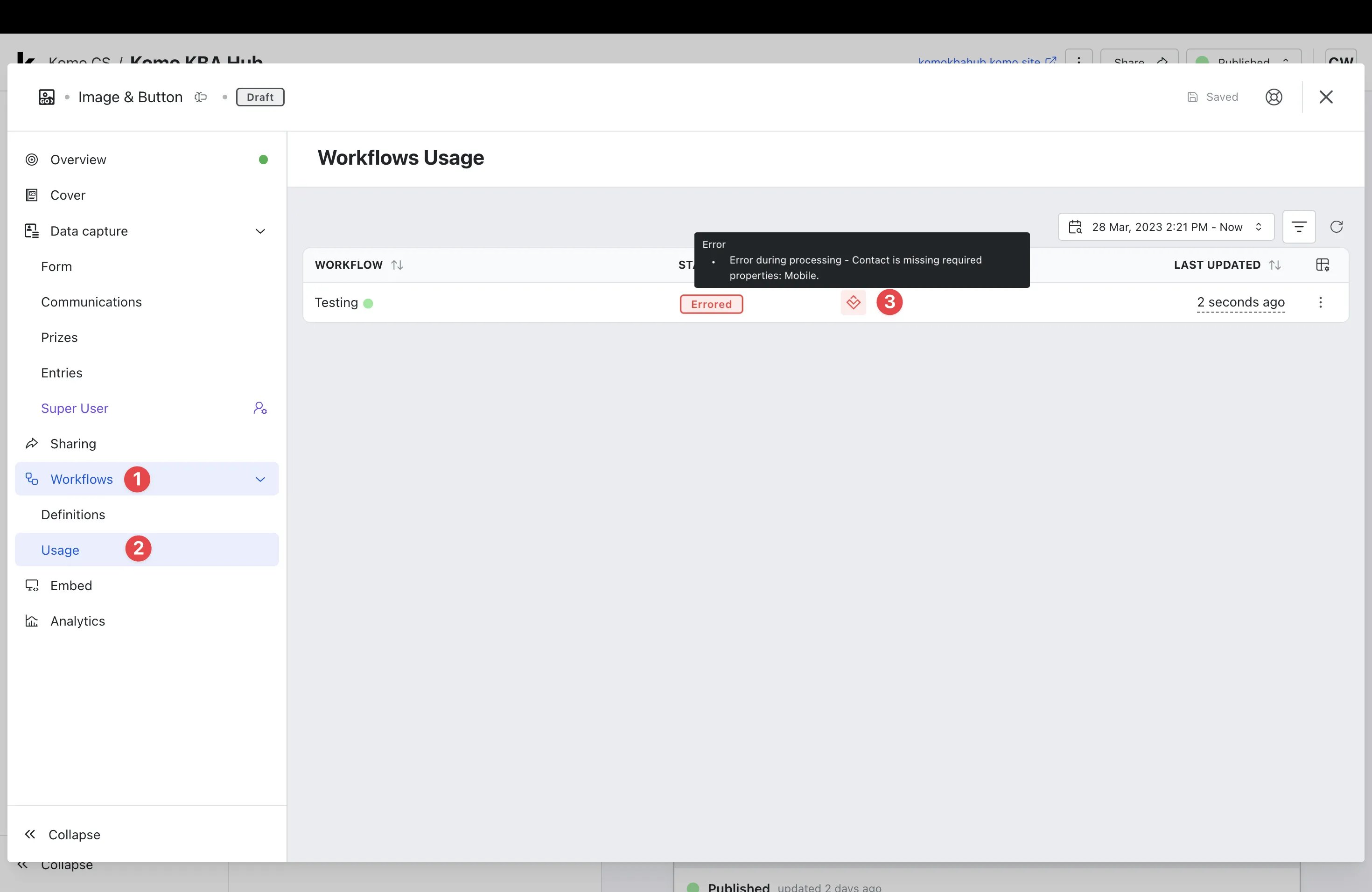 * It is important to **monitor** your test workflow to ensure it is running as expected.
* **(1)** Navigate to the **Workflows** dropdown.
* **(2)** Select **Usage**.
* **(3)** View the **STATUS** and **INFO**. If the status displays an error, we recommend hovering your mouse over the error icon under **INFO**.
* You will then be provided with a summary of the error (you can also click for more detailed information that will enable you to troubleshoot).
## FAQ
**I'm experiencing errors when testing my workflow, what is causing this?**
The most common error we see customers experience when setting up their workflows is a misalignment between the form fields included on their Komo Card and the fields required by Vault to fulfill the Card issuance. Vault usually require both a mobile number and email address, so it's best to include both on your forms. If you experience any other issues, the error message displayed next to the workflow in the **Usage** section should give you the context you require to diagnose the issue. If you are still having issues, please reach out to your Customer Success Manager.
**Who should I contact if I have any questions or issues?**
For any enquiries about the **Vault Mastercards/Vault Portal**, please reach out directly to [info@vaultps.com.au](mailto:info@vaultps.com.au). For any questions or issues relating to the setup within Komo or issues with the Komo portal, please contact your Customer Success Manager.
**Do you have any resources that can be shared with our consumers?**
Yes! Feel free to send [this Help Centre link](https://vaultps.zendesk.com/hc/en-au?_gl=1) directly to your consumers.
* It is important to **monitor** your test workflow to ensure it is running as expected.
* **(1)** Navigate to the **Workflows** dropdown.
* **(2)** Select **Usage**.
* **(3)** View the **STATUS** and **INFO**. If the status displays an error, we recommend hovering your mouse over the error icon under **INFO**.
* You will then be provided with a summary of the error (you can also click for more detailed information that will enable you to troubleshoot).
## FAQ
**I'm experiencing errors when testing my workflow, what is causing this?**
The most common error we see customers experience when setting up their workflows is a misalignment between the form fields included on their Komo Card and the fields required by Vault to fulfill the Card issuance. Vault usually require both a mobile number and email address, so it's best to include both on your forms. If you experience any other issues, the error message displayed next to the workflow in the **Usage** section should give you the context you require to diagnose the issue. If you are still having issues, please reach out to your Customer Success Manager.
**Who should I contact if I have any questions or issues?**
For any enquiries about the **Vault Mastercards/Vault Portal**, please reach out directly to [info@vaultps.com.au](mailto:info@vaultps.com.au). For any questions or issues relating to the setup within Komo or issues with the Komo portal, please contact your Customer Success Manager.
**Do you have any resources that can be shared with our consumers?**
Yes! Feel free to send [this Help Centre link](https://vaultps.zendesk.com/hc/en-au?_gl=1) directly to your consumers.