> ## Documentation Index
> Fetch the complete documentation index at: https://knowledge.komo.tech/llms.txt
> Use this file to discover all available pages before exploring further.
# Embed Cards
> Embed any card from your Engagement Hub within your third-party site!
## What is it?
Take content from your Engagement Hub and integrate it into your website, blog or app.
## How do I use it?
* [Step 1: Navigate to the card](#step-1-navigate-to-the-card)
* [Step 2: Configure your card settings](#step-2-configure-your-card-settings)
* [Step 3: Embed the content](#step-3-embed-the-content)
### Step 1: Navigate to the card
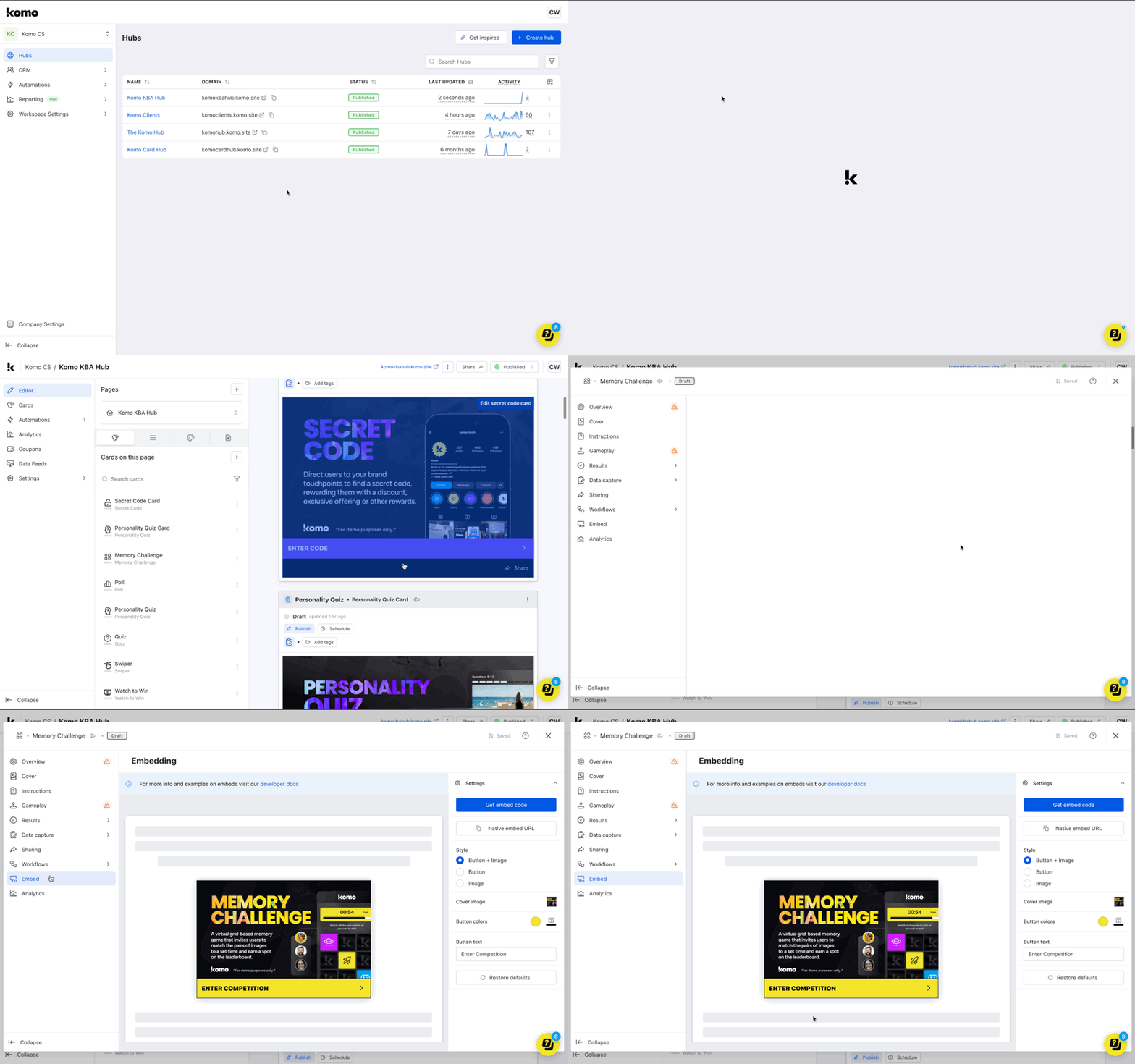 * Navigate to your **Engagement Hub.**
* Once there, **scroll and click on the card** you wish to embed to access the **card editor**.
* Click on the **Embed** tab.
### Step 2: Configure your card settings
* Navigate to your **Engagement Hub.**
* Once there, **scroll and click on the card** you wish to embed to access the **card editor**.
* Click on the **Embed** tab.
### Step 2: Configure your card settings
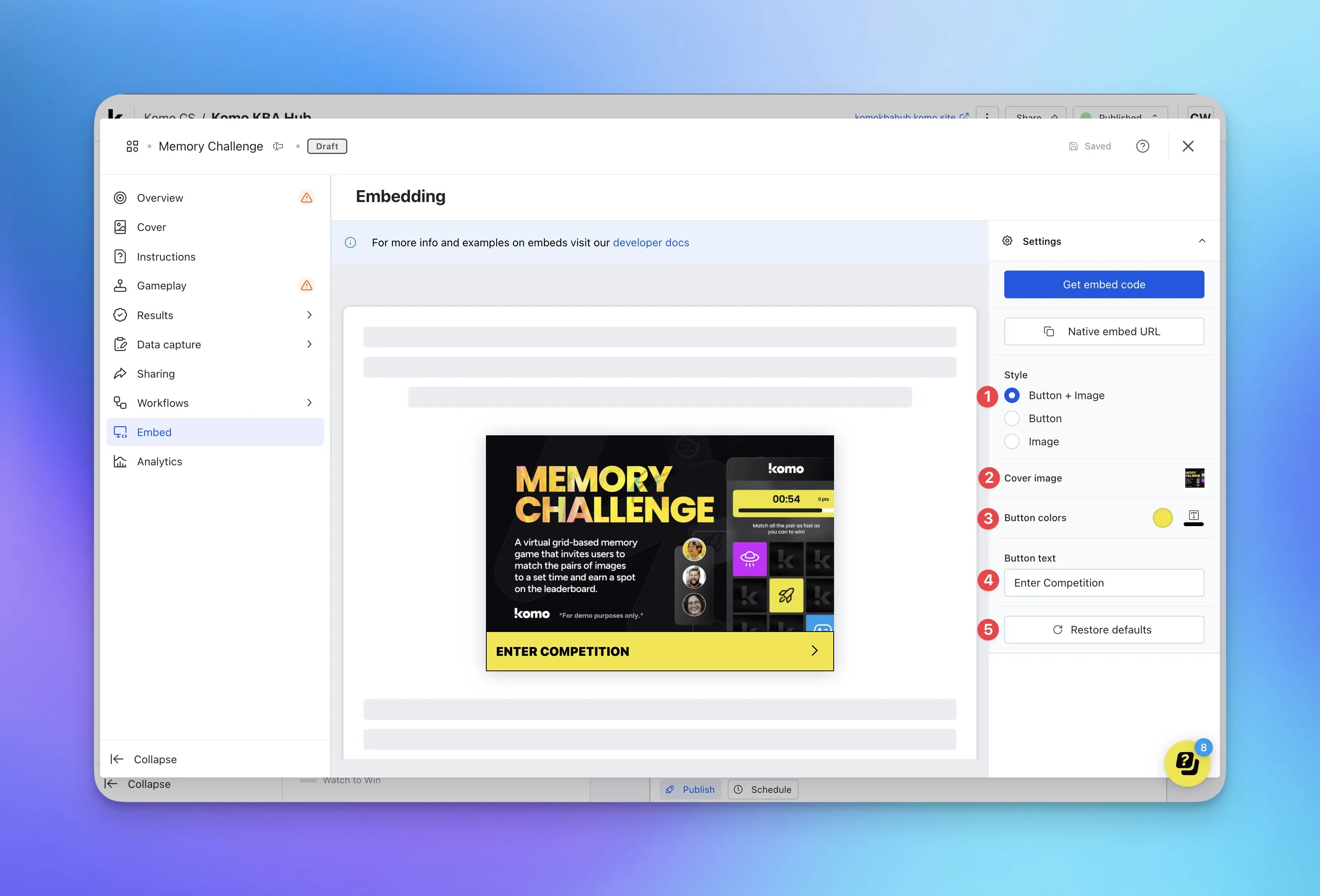 * **(1)** Here you can edit the **card cover** style.
* **(2)** Edit the **cover image** you wish to have on the embed.
* **(3)** Alter the **color** of the **text** and **call-to-action bar**.
* **(4)** Change the **copy** of the call-to-action bar.
* **(5) Restore** the style to the default settings.
This is an embed preview. Any entries submitted or games played in the preview will count as real entries and gameplay and will be reflected as such in the analytics.
### Step 3: Embed the content
* **(1)** Here you can edit the **card cover** style.
* **(2)** Edit the **cover image** you wish to have on the embed.
* **(3)** Alter the **color** of the **text** and **call-to-action bar**.
* **(4)** Change the **copy** of the call-to-action bar.
* **(5) Restore** the style to the default settings.
This is an embed preview. Any entries submitted or games played in the preview will count as real entries and gameplay and will be reflected as such in the analytics.
### Step 3: Embed the content
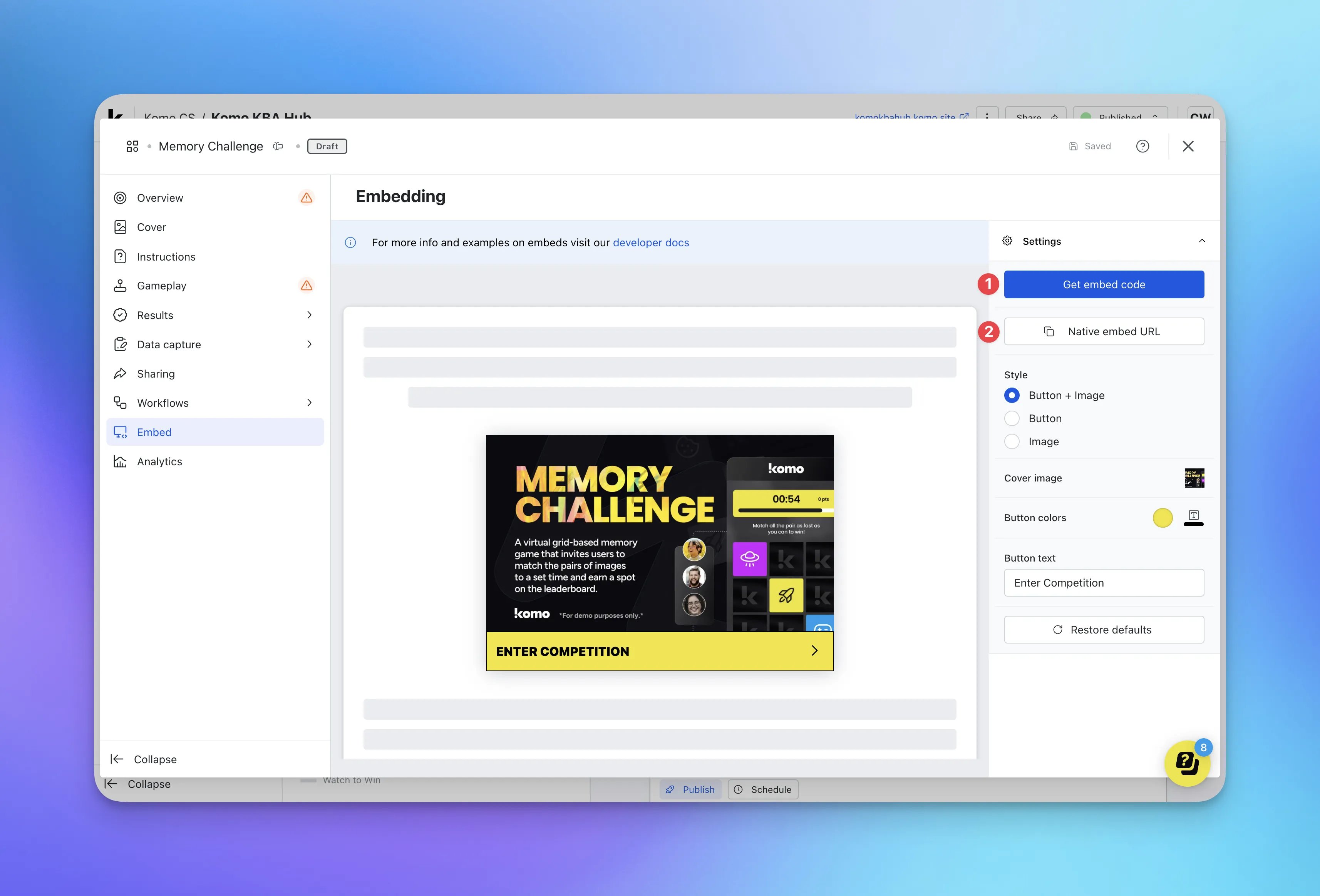 * **(1)** If you would like to make use of the embed code to paste within your desired location, click on **Get embed code.**
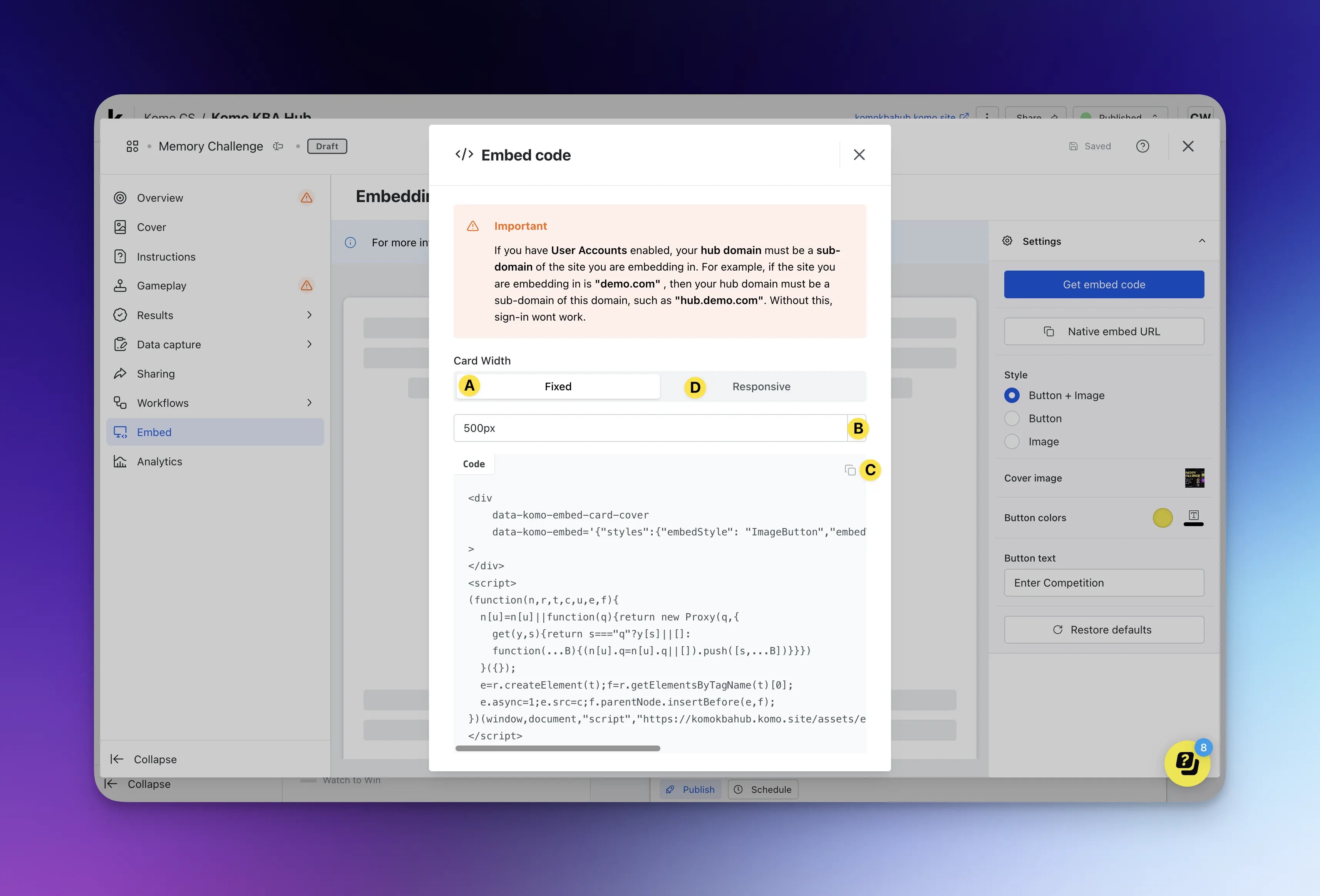 * **(A)** Click here if you would like to embed the card with **fixed** size.
* **(B)** Here you can adjust the **size of the embed** if using the fixed option.
* **(C)** Click the **copy icon** to copy the embed code if using the fixed option.
* **(D)** Click here if you would like to embed a card that is **responsive** in size.
* **(A)** Click here if you would like to embed the card with **fixed** size.
* **(B)** Here you can adjust the **size of the embed** if using the fixed option.
* **(C)** Click the **copy icon** to copy the embed code if using the fixed option.
* **(D)** Click here if you would like to embed a card that is **responsive** in size.
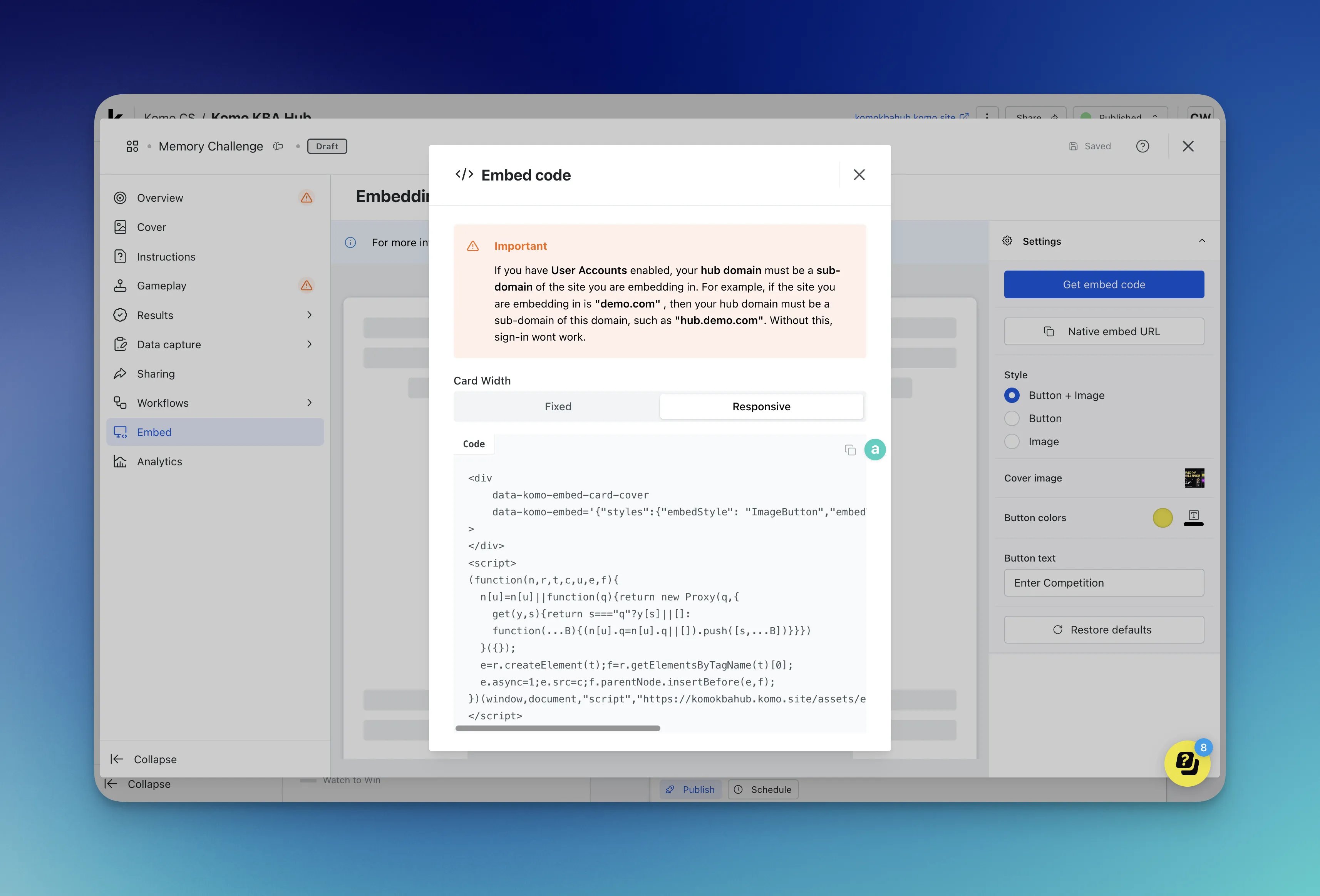 * **(a)** Click the **copy icon** to copy the embed code if using the responsive option.
* Once you've copied your desired embed code, **paste it** into the **embed destination**.
* **(2)** If you would like to embed the card in a React Native application, click **Native embed URL,** install '@komo-tech/react-native-widgets' from NPM, and pass the URL to the 'KomoCardWidget' component.
If you would like to explore additional ways to surface and trigger embedded cards on your website or app or prefill forms in the embed experience, please refer to our [**Embed SDK Developer docs**](https://developers.komo.tech/embedding/browser).
## FAQ
**If I change the cover image under the Embed tab, will it change the cover image on the Hub?**\
No, the cover image you add/change under the Embed tab will apply to just the embed and will not affect the designs on the Hub.
**Can users go to the Hub from the embed?**\
Users will only be able to access your Hub through the embed if you include a link out to the Hub within the competition card.
* **(a)** Click the **copy icon** to copy the embed code if using the responsive option.
* Once you've copied your desired embed code, **paste it** into the **embed destination**.
* **(2)** If you would like to embed the card in a React Native application, click **Native embed URL,** install '@komo-tech/react-native-widgets' from NPM, and pass the URL to the 'KomoCardWidget' component.
If you would like to explore additional ways to surface and trigger embedded cards on your website or app or prefill forms in the embed experience, please refer to our [**Embed SDK Developer docs**](https://developers.komo.tech/embedding/browser).
## FAQ
**If I change the cover image under the Embed tab, will it change the cover image on the Hub?**\
No, the cover image you add/change under the Embed tab will apply to just the embed and will not affect the designs on the Hub.
**Can users go to the Hub from the embed?**\
Users will only be able to access your Hub through the embed if you include a link out to the Hub within the competition card.