> ## Documentation Index
> Fetch the complete documentation index at: https://knowledge.komo.tech/llms.txt
> Use this file to discover all available pages before exploring further.
# Twitch TV Card
> Share Twitch videos directly in your Hub.
## Watch it come to life
## How do I build one?
* [Step 1: Add a Twitch TV card to your Hub](#step-1-add-a-twitch-tv-card-to-your-hub)
* [Step 2: Set up your card link](#step-2-set-up-your-card-link)
* [Step 3: Publish your card](#step-3-publish-your-card)
### Step 1: Add a Twitch TV Card to your Engagement Hub
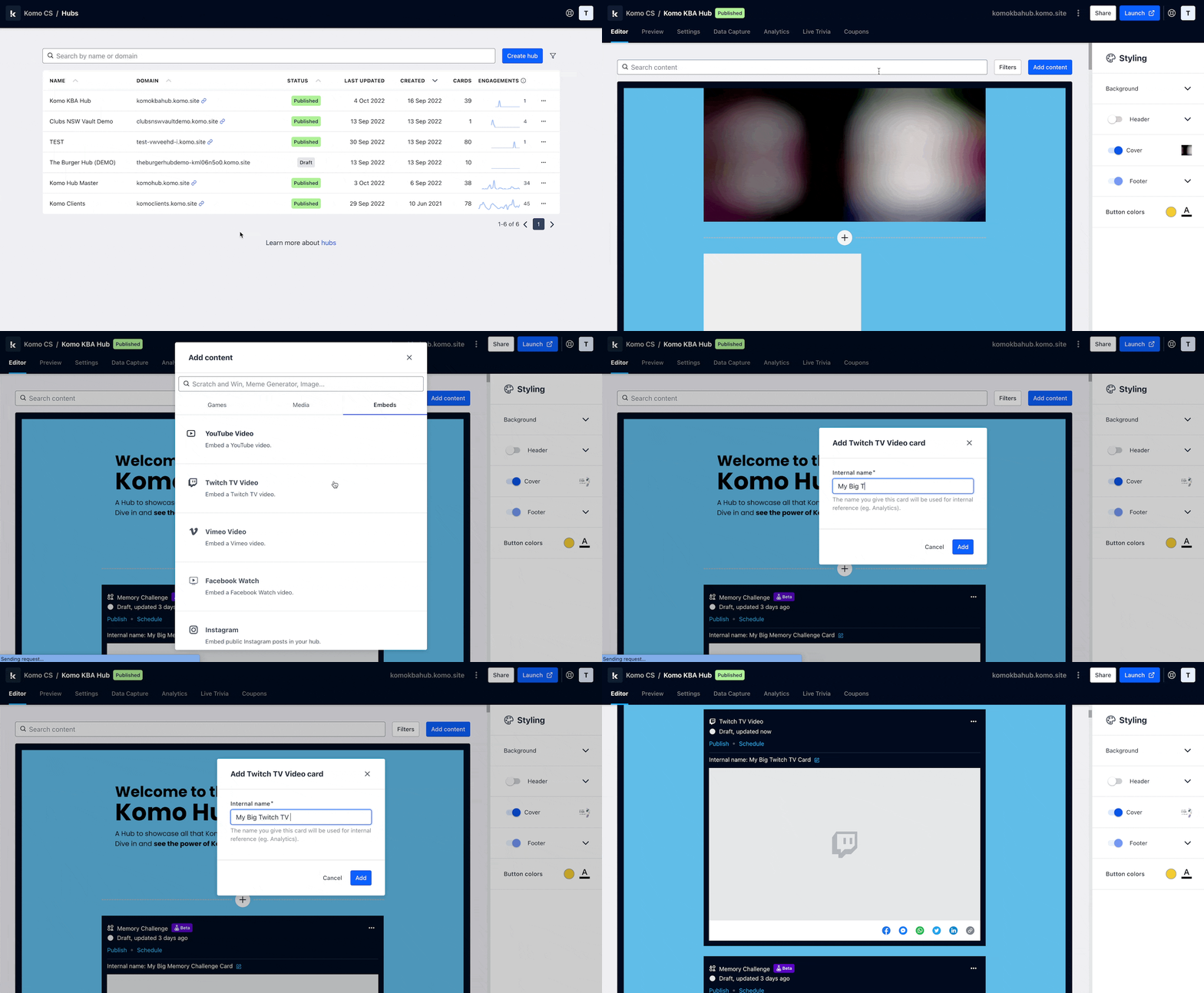 * Navigate to your **Engagement Hub**.
* Once there, click **Add content**, from here select **Embeds** and then **Twitch TV**.
* You will then see your new card has been added to your Hub.
### Step 2: Set up your card link
* Navigate to your **Engagement Hub**.
* Once there, click **Add content**, from here select **Embeds** and then **Twitch TV**.
* You will then see your new card has been added to your Hub.
### Step 2: Set up your card link
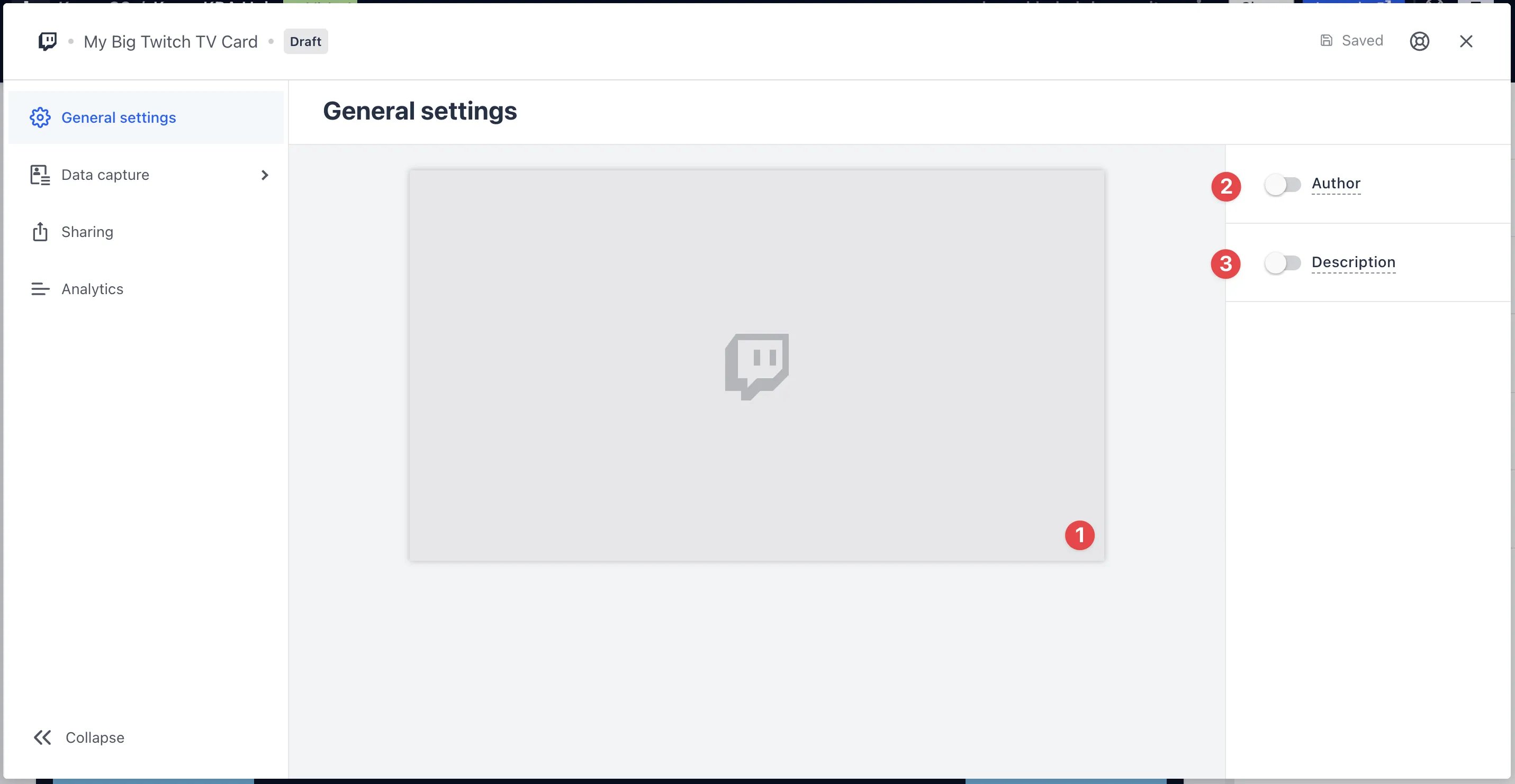 * Clicking on **Twitch TV** will open the editing module.
* **(1)** By clicking the placeholder cover image, paste your **video URL**. Learn more on how to get a video URL [here](/interactive-features/polls-surveys/video-url-link/index).
* **(2)** You can add an **author** tag by displaying the brand or person who's responsible for the card content.
* **(3)** Add a **description** to the card.
### Step 3: Publish your card
* Clicking on **Twitch TV** will open the editing module.
* **(1)** By clicking the placeholder cover image, paste your **video URL**. Learn more on how to get a video URL [here](/interactive-features/polls-surveys/video-url-link/index).
* **(2)** You can add an **author** tag by displaying the brand or person who's responsible for the card content.
* **(3)** Add a **description** to the card.
### Step 3: Publish your card
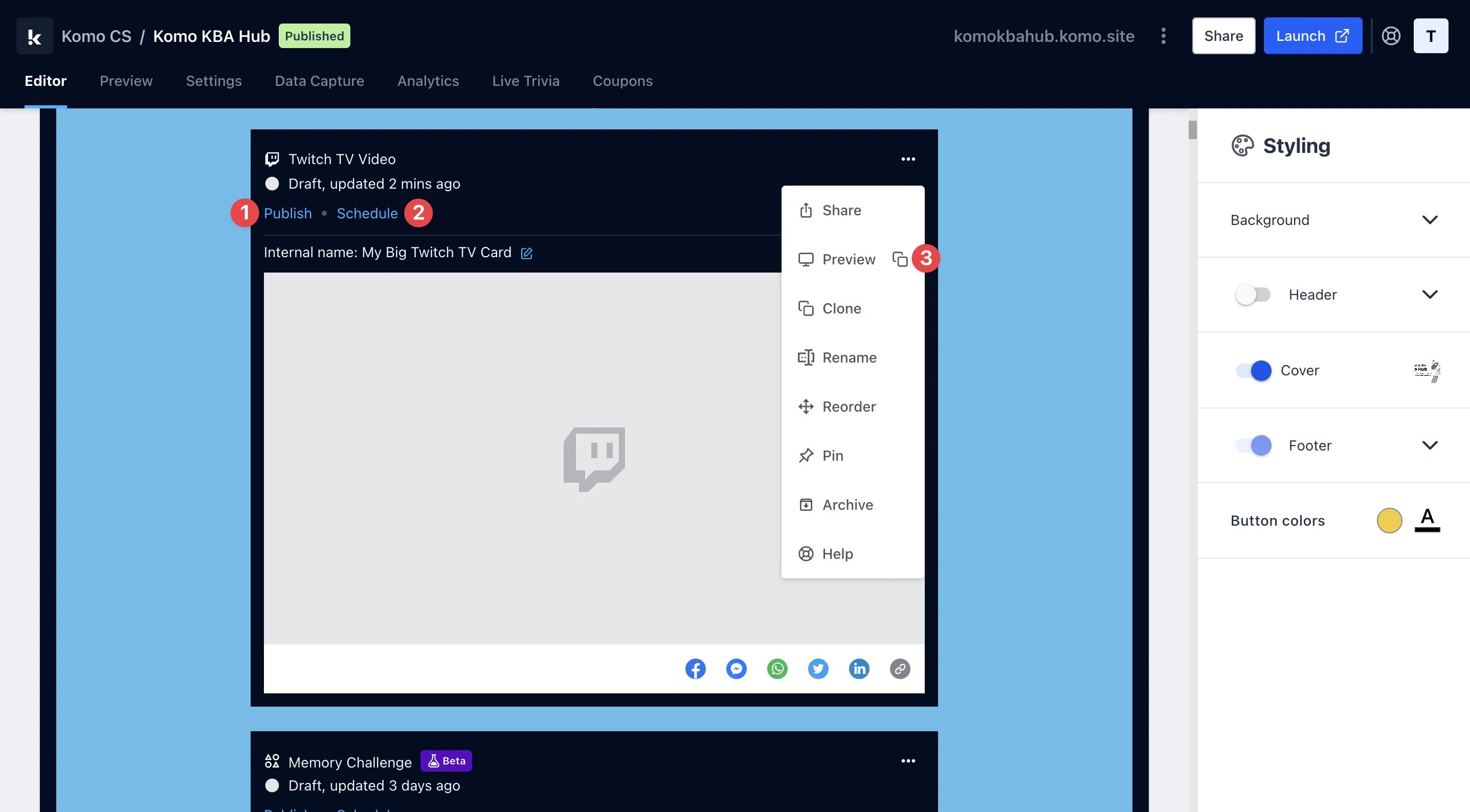 **Once you've completed all of these steps and are happy with all the aspects, it's time to get your card live!**
* **(1)** **Publish** your card manually and instantly for the world to see.
* **(2)** **Schedule** your card to be published and unpublished at set dates and times.
* **(3)** Click on **..** to **Preview** and interact with the card on the front end from a user's perspective before publishing it.
All competition entries will be recorded and will impact the card analytics.
## FAQ
**Where can I find the share link/URL?**
For Twitch videos, you copy the URL that is in the search bar at the top of the page and paste it into the share link bar on the card.
**Once you've completed all of these steps and are happy with all the aspects, it's time to get your card live!**
* **(1)** **Publish** your card manually and instantly for the world to see.
* **(2)** **Schedule** your card to be published and unpublished at set dates and times.
* **(3)** Click on **..** to **Preview** and interact with the card on the front end from a user's perspective before publishing it.
All competition entries will be recorded and will impact the card analytics.
## FAQ
**Where can I find the share link/URL?**
For Twitch videos, you copy the URL that is in the search bar at the top of the page and paste it into the share link bar on the card.