> ## Documentation Index
> Fetch the complete documentation index at: https://knowledge.komo.tech/llms.txt
> Use this file to discover all available pages before exploring further.

# Twitter Card

> Instructions on how to embed Twitter tweets and timelines in your Engagement Hub.

## What is it?

Share Twitter content on your Hub.

## Watch it come to life

<iframe src="https://www.loom.com/embed/f2e74065855245f4a648c2fb7f8bac46" title="Loom video player" frameborder="0" className="w-full aspect-video rounded-xl" allow="accelerometer; autoplay; clipboard-write; encrypted-media; gyroscope; picture-in-picture; web-share" allowfullscreen />

## Things to note

* Only **Public** content can be embedded.
* Embedding timelines and lists will automatically pull through the 20 latest tweets.

## How do I build one?

* [**Step 1:** Add a Twitter Embed card to your Hub](#step-1-add-a-twitter-embed-card-to-your-hub)
* [**Step 2:** Paste the link to your card](#step-2-paste-the-link-to-your-card)
* [**Step 3:** Publish your card](#step-3-publish-your-card)

### Step 1: Add a Twitter Embed card to your Hub
<img src="https://mintcdn.com/komotechnologies/22OmvqhqqNidygu6/images/twitter-card-step-1-add-a-step-2.gif?s=cdfbc64a71c80c2545596af42a73247e" alt="Twitter Card: step 2 — Step 1: Add a Twitter Embed card to your Hub" width="2000" height="1100" data-path="images/twitter-card-step-1-add-a-step-2.gif" />

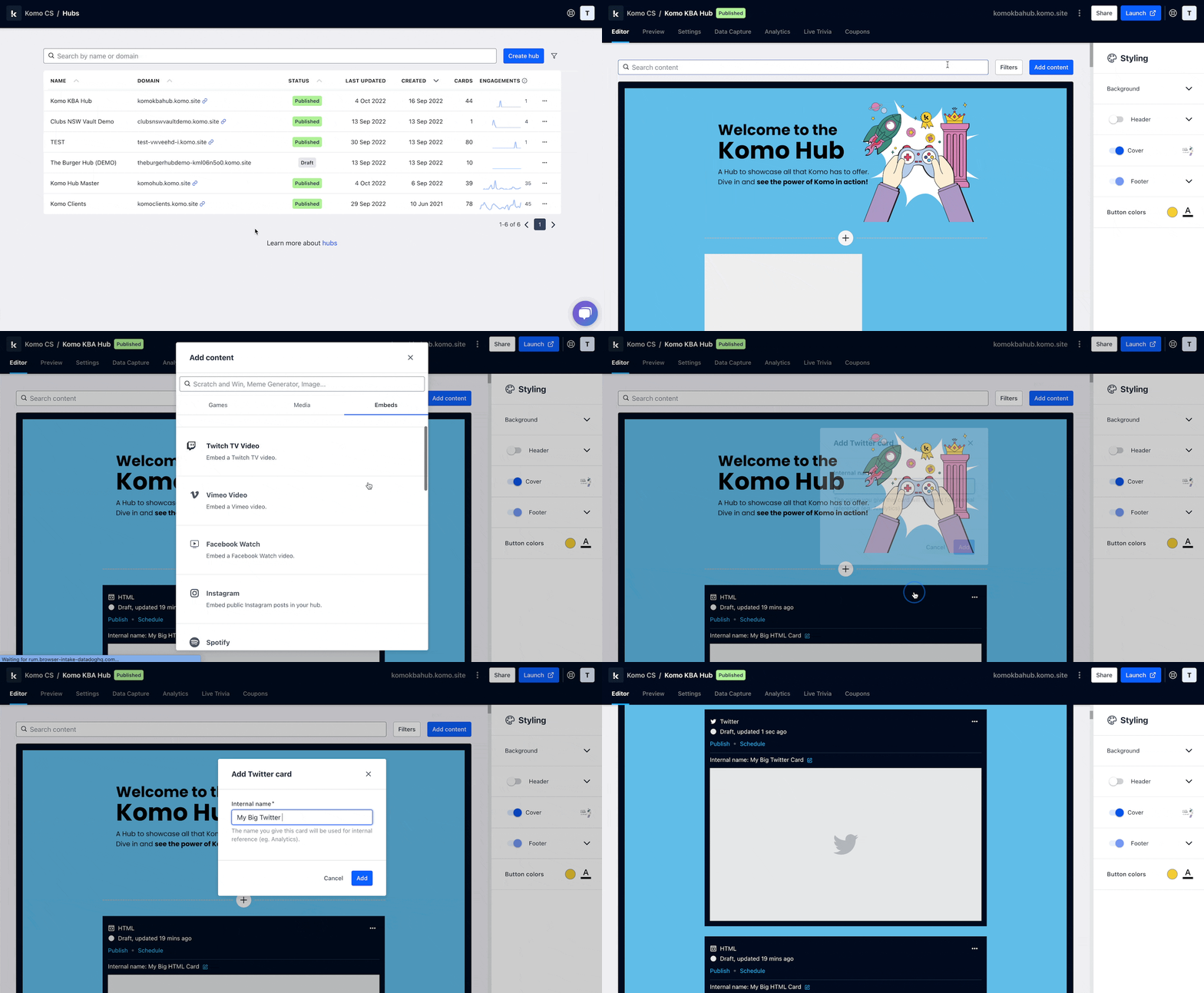
* Navigate to your **Engagement Hub**.
* Once there, click **Add content**, from here select **Embeds** and then **Twitter.**
* You will then see your new card has been added to your Hub.

### Step 2: Paste the link to the card

<img src="https://mintcdn.com/komotechnologies/22OmvqhqqNidygu6/images/twitter-card-step-2-paste-the-step-2.webp?fit=max&auto=format&n=22OmvqhqqNidygu6&q=85&s=6257770933baf22cb2093b40f793d4dc" alt="Twitter Card: step 2 — Step 2: Paste the link to the card" width="2860" height="1484" data-path="images/twitter-card-step-2-paste-the-step-2.webp" />

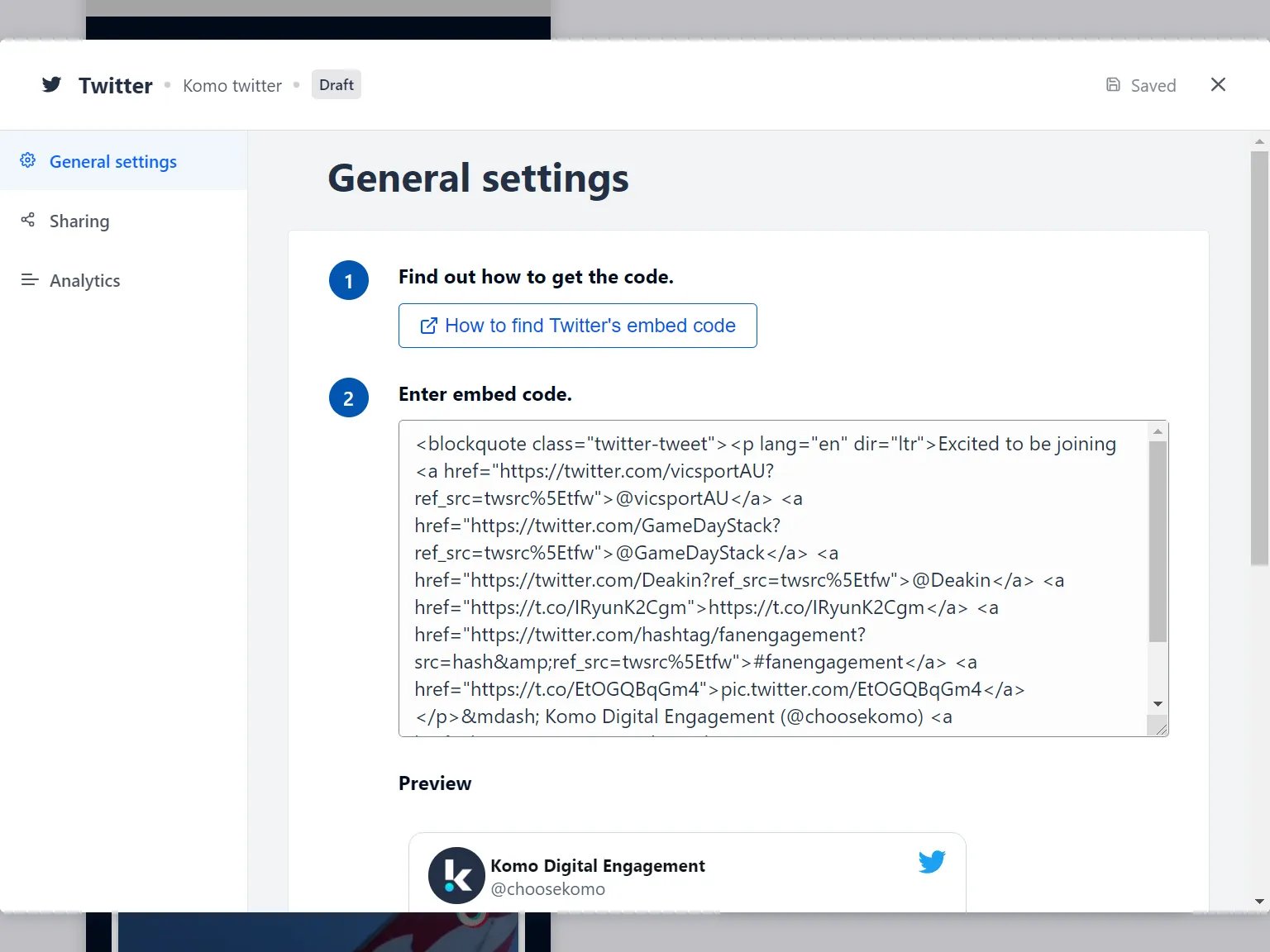
* Clicking on **Twitter** will open the editing module.
* **(1)** Get the **embed code** and paste it here and a preview will appear below.
  <AccordionGroup>
    <Accordion title="Embedding single tweets">
      <Steps>
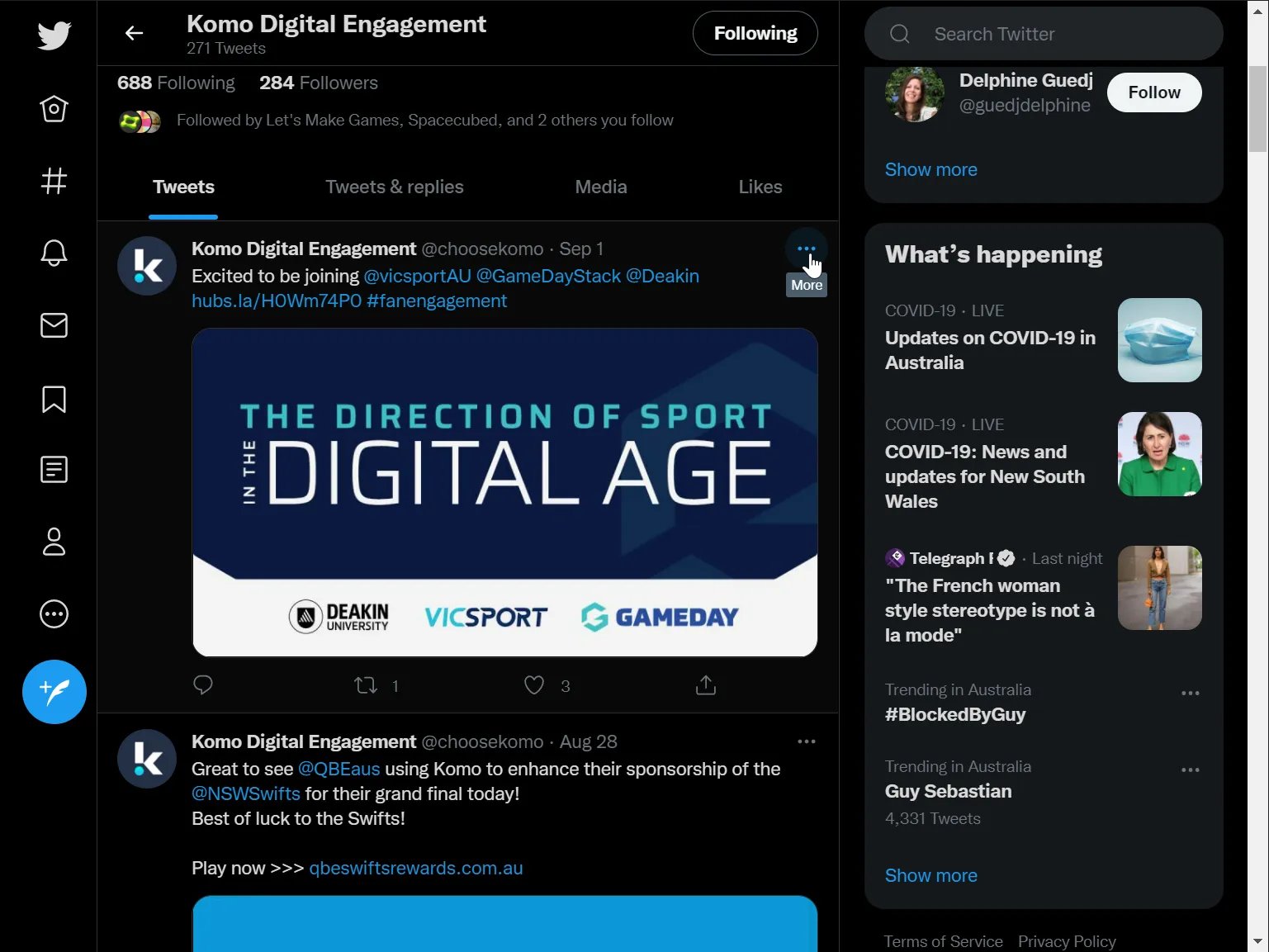
        <Step title="On the tweet you want to embed, click the More (...) button.">
          <img src="https://mintcdn.com/komotechnologies/22OmvqhqqNidygu6/images/twitter-card-step-2-paste-the-step-1.webp?fit=max&auto=format&n=22OmvqhqqNidygu6&q=85&s=755195a510c6420e7760d52187abf08f" alt="Twitter Card: step 1 — Step 2: Paste the link to the card" width="1537" height="1153" data-path="images/twitter-card-step-2-paste-the-step-1.webp" />
        </Step>

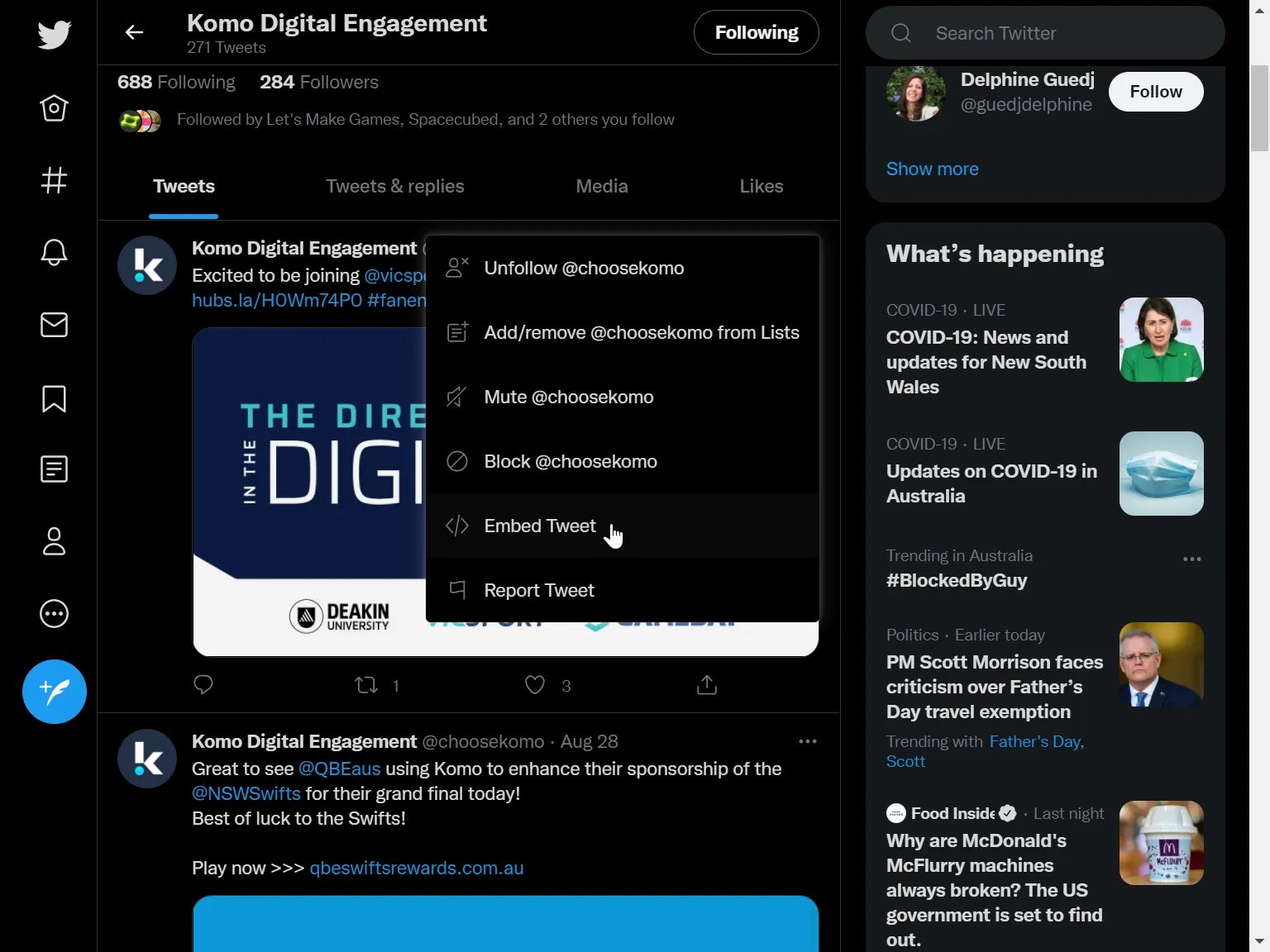
        <Step title=" Click the Embed (</>) button.">
          <img src="https://mintcdn.com/komotechnologies/22OmvqhqqNidygu6/images/twitter-card-step-2-paste-the-step-1-2.webp?fit=max&auto=format&n=22OmvqhqqNidygu6&q=85&s=c7d8856d32174eb703aa08aeff5e4a55" alt="Twitter Card: step 1 — Step 2: Paste the link to the card" width="1536" height="1152" data-path="images/twitter-card-step-2-paste-the-step-1-2.webp" />
        </Step>

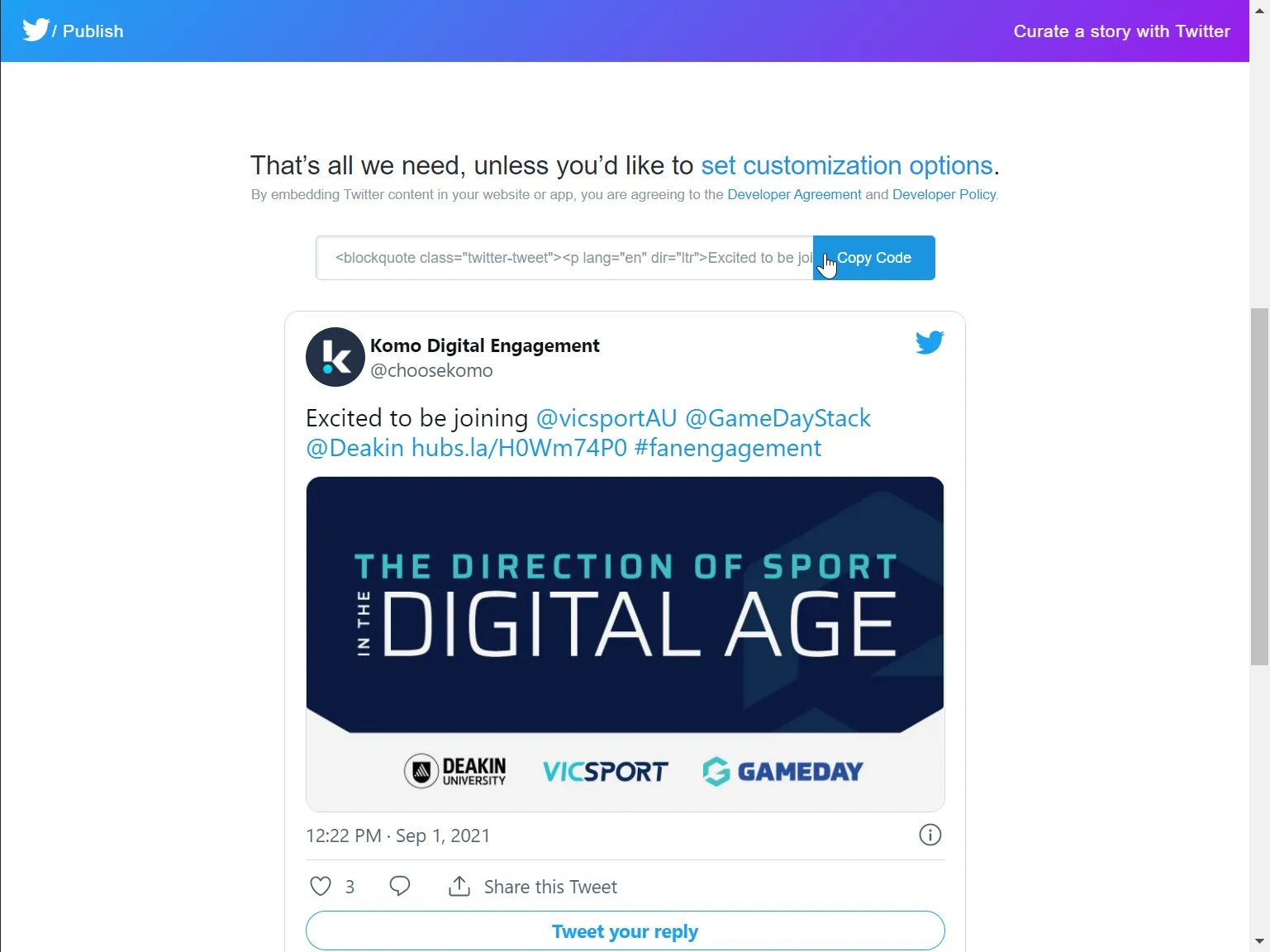
        <Step title="Click on &#x22;Copy Code&#x22;">
          <img src="https://mintcdn.com/komotechnologies/22OmvqhqqNidygu6/images/twitter-card-step-2-paste-the-step-2-2.webp?fit=max&auto=format&n=22OmvqhqqNidygu6&q=85&s=efffcd51ffd825d309cf91503cd6e163" alt="Twitter Card: step 2 — Step 2: Paste the link to the card" width="1537" height="1152" data-path="images/twitter-card-step-2-paste-the-step-2-2.webp" />
        </Step>

        <Step title="Paste the embed code in the Twitter embed card.">
          <img src="https://mintcdn.com/komotechnologies/22OmvqhqqNidygu6/images/twitter-card-step-2-paste-the-step-3.webp?fit=max&auto=format&n=22OmvqhqqNidygu6&q=85&s=6c78c0b66a49428f4bcb4d73ebc54c92" alt="Twitter Card: step 3 — Step 2: Paste the link to the card" width="1536" height="1152" data-path="images/twitter-card-step-2-paste-the-step-3.webp" />
        </Step>
      </Steps>
    </Accordion>

    <Accordion title="Embedding timelines and lists">
      <Steps>
        <Step title="Visit publish.twitter.com to start the guided journey for getting twitter embed code">
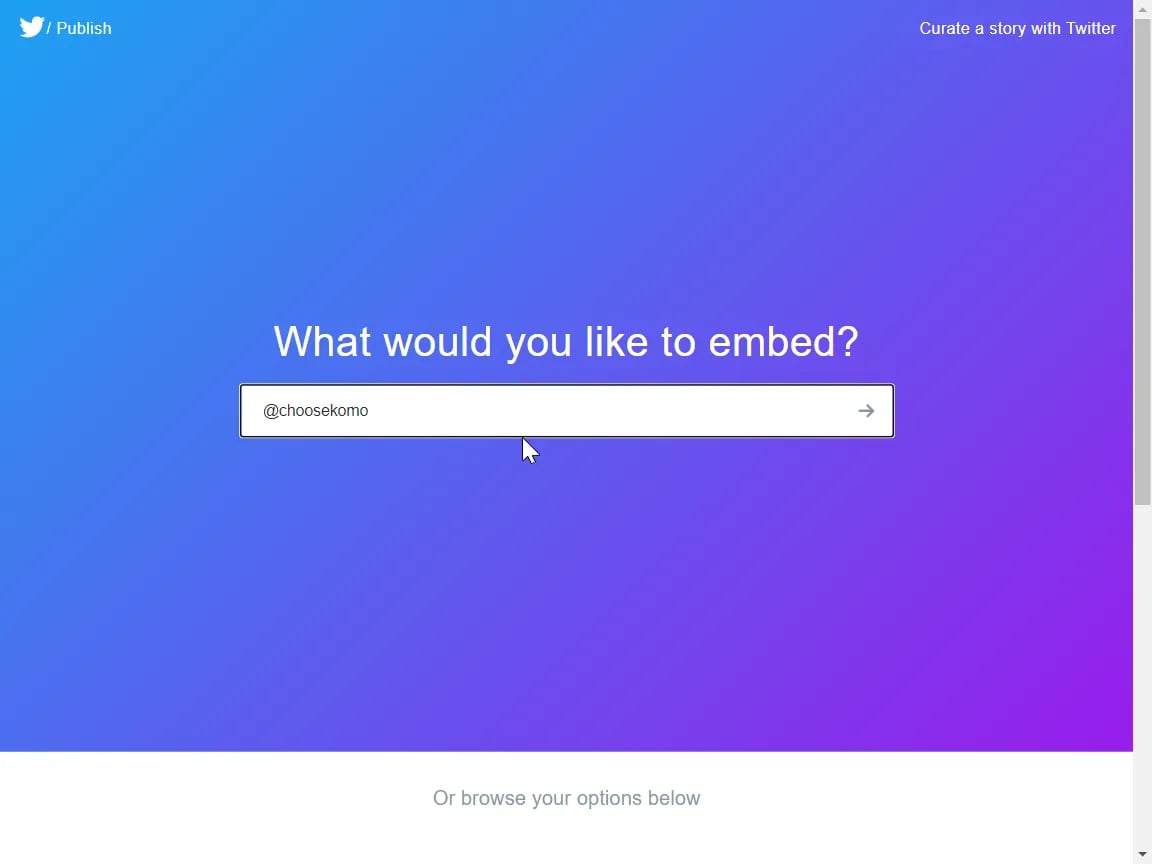
          <img src="https://mintcdn.com/komotechnologies/22OmvqhqqNidygu6/images/twitter-card-step-2-paste-the-step-1-4.webp?fit=max&auto=format&n=22OmvqhqqNidygu6&q=85&s=467560067f2cdcf1f9f9461f538dbc8e" alt="Twitter Card: step 1 — Step 2: Paste the link to the card" width="1152" height="864" data-path="images/twitter-card-step-2-paste-the-step-1-4.webp" /> From here you can choose to embed individual tweets, user timelines, and custom lists.
        </Step>

        <Step title="In this example, we will be embedding the @choosekomo Twitter timeline. Enter the Twitter handle in the box and hit enter.">
          <img src="https://mintcdn.com/komotechnologies/22OmvqhqqNidygu6/images/twitter-card-step-2-paste-the-step-1-3.webp?fit=max&auto=format&n=22OmvqhqqNidygu6&q=85&s=cc163e8587c1c267d45843d395e28d0b" alt="Twitter Card: step 1 — Step 2: Paste the link to the card" width="1152" height="864" data-path="images/twitter-card-step-2-paste-the-step-1-3.webp" />
        </Step>

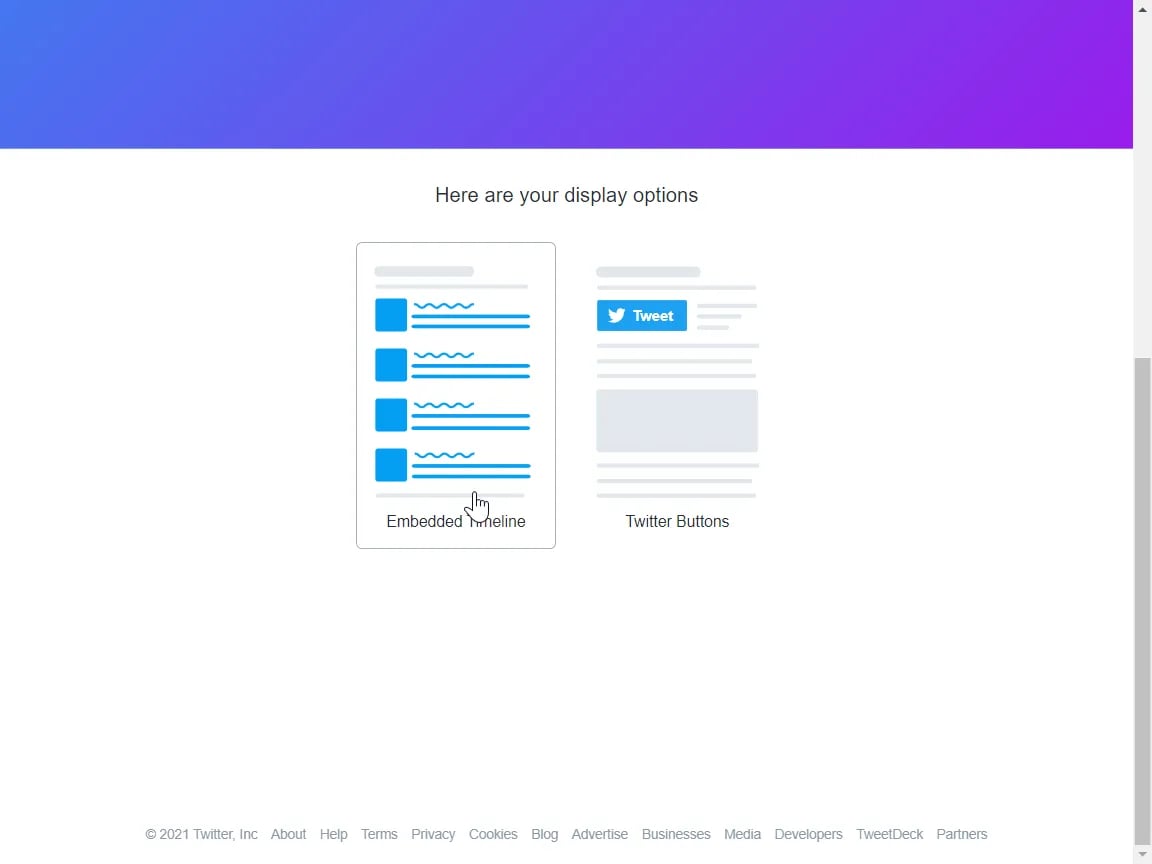
        <Step title="&#x22;Embedded Timeline&#x22; as the display option.">
          <img src="https://mintcdn.com/komotechnologies/22OmvqhqqNidygu6/images/twitter-card-step-2-paste-the-step-2-3.webp?fit=max&auto=format&n=22OmvqhqqNidygu6&q=85&s=7b4550444302f6ccd1ff2f4785c5b61a" alt="Twitter Card: step 2 — Step 2: Paste the link to the card" width="1152" height="864" data-path="images/twitter-card-step-2-paste-the-step-2-3.webp" />
        </Step>

        <Step title="Copy the code!">
          <Tip>
            You may wish to **set customization options** before copying the embed code.
          </Tip>

          <img src="https://mintcdn.com/komotechnologies/22OmvqhqqNidygu6/images/twitter-card-step-2-paste-the-step-4.webp?fit=max&auto=format&n=22OmvqhqqNidygu6&q=85&s=a2832925b71913a2bc9ab2e7dccdfcbe" alt="Twitter Card: step 4 — Step 2: Paste the link to the card" width="1152" height="864" data-path="images/twitter-card-step-2-paste-the-step-4.webp" />

          <Note>
            Setting a height on the embedded timeline will introduce an additional scrollbar inside the embedded timeline content. We do not recommend setting a width - the content will automatically try to scale to the best width.
          </Note>
        </Step>

        <Step title="Paste the embed code in the Twitter embed card in your Hub.">
          <img src="https://mintcdn.com/komotechnologies/22OmvqhqqNidygu6/images/twitter-card-step-2-paste-the-step-3.webp?fit=max&auto=format&n=22OmvqhqqNidygu6&q=85&s=6c78c0b66a49428f4bcb4d73ebc54c92" alt="Twitter Card: step 3 — Step 2: Paste the link to the card" width="1536" height="1152" data-path="images/twitter-card-step-2-paste-the-step-3.webp" />
        </Step>
      </Steps>
    </Accordion>
  </AccordionGroup>
* **(2)** You can add an **author** tag by displaying the brand or person who's responsible for the card content.
* **(3)** Add a **description** to the card.

### Step 3: Publish your card
<img src="https://mintcdn.com/komotechnologies/22OmvqhqqNidygu6/images/twitter-card-step-3-publish-your-step-3.webp?fit=max&auto=format&n=22OmvqhqqNidygu6&q=85&s=3c1036d8d05b0255b3134f108cc6ff37" alt="Twitter Card: step 3 — Step 3: Publish your card" width="2876" height="1590" data-path="images/twitter-card-step-3-publish-your-step-3.webp" />

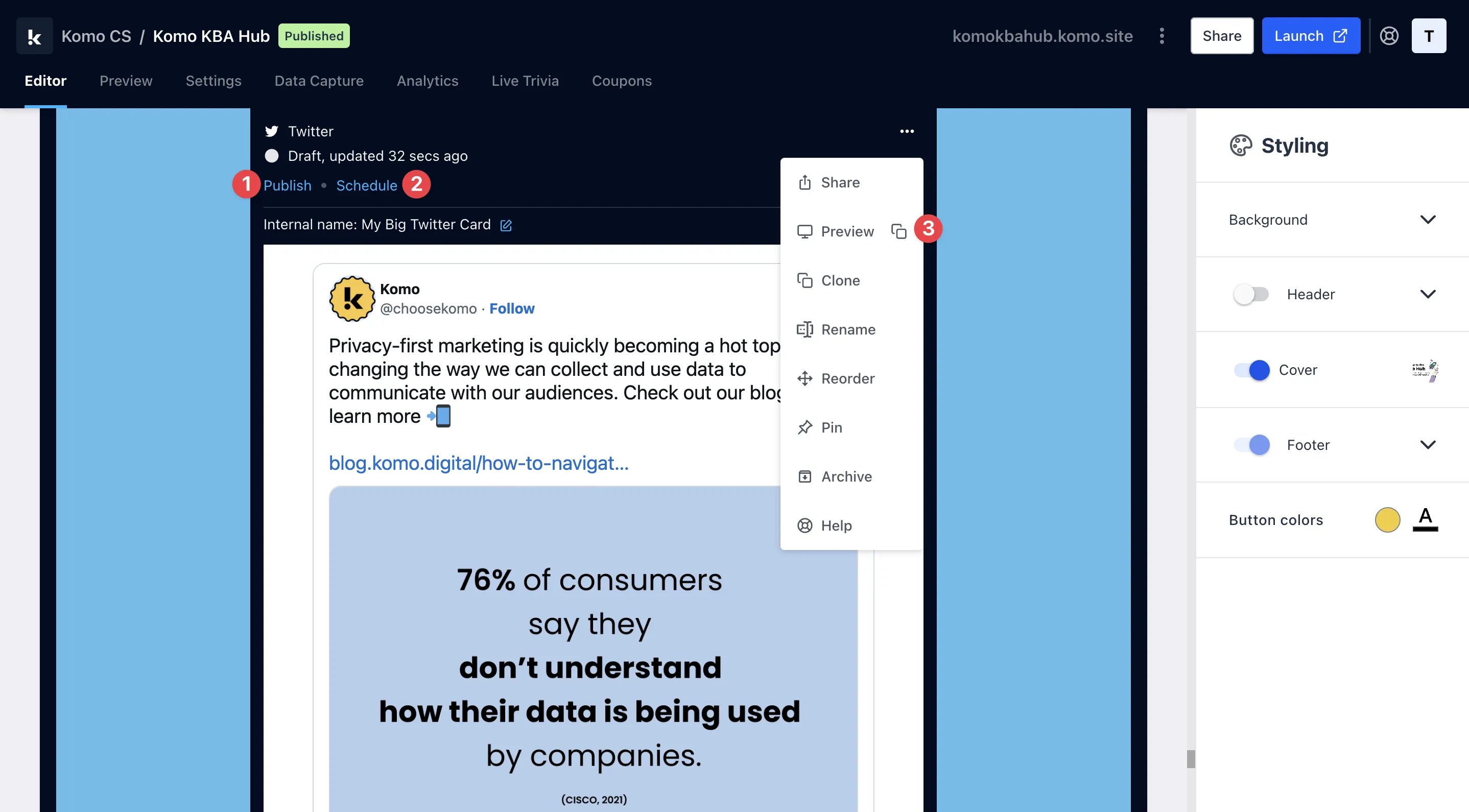
**Once you've completed all of these steps and are happy with all the aspects, it's time to get your card live!**

* **(1)** **Publish** your card manually and instantly for the world to see.
* **(2)** **Schedule** your card to be published and unpublished at set dates and times.
* **(3)** Click on **...** to **Preview** and interact with the card on the front end from a user's perspective before publishing it.

<Note>
  All competition entries will be recorded and will impact the card analytics.
</Note>