> ## Documentation Index
> Fetch the complete documentation index at: https://knowledge.komo.tech/llms.txt
> Use this file to discover all available pages before exploring further.
# YouTube Card
> Embed YouTube videos directly into your Engagement Hub.
## What is it?
The YouTube card makes it easy for you to share video content with your community, grow brand awareness, and boost conversion rates. The Komo Engagement Engine works seamlessly with YouTube to link videos directly in your Engagement Hub, supporting your brand and/or your sponsor family.
## Watch it come to life
## How do I build one?
* [Step 1: Add a YouTube card to your Hub](#step-1-add-a-youtube-card-to-your-hub)
* [Step 2: Set up your card link](#step-2-set-up-your-card-link)
* [Step 3: Publish your card](#step-3-publish-your-card)
### Step 1: Add a YouTube card to your Hub
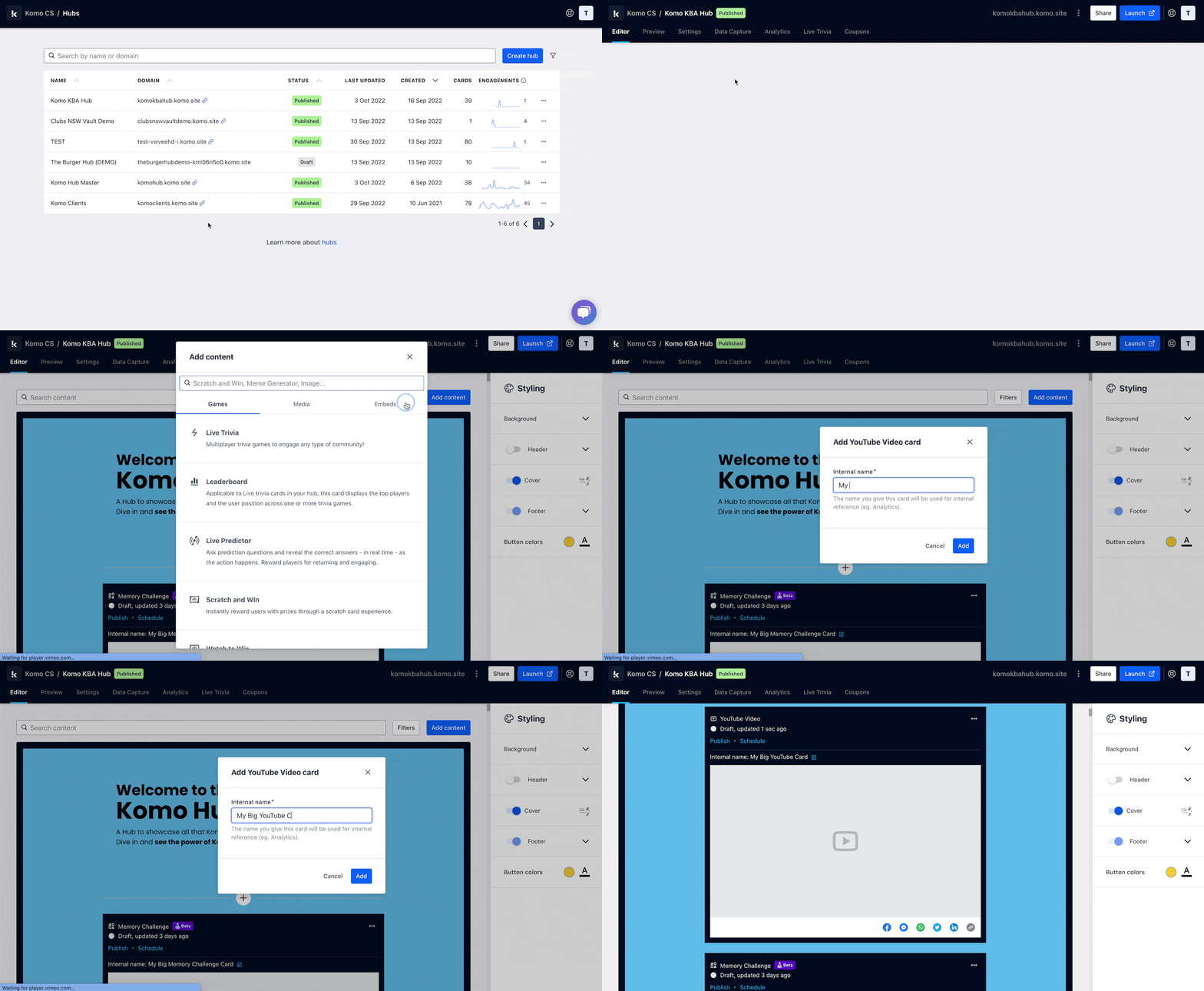 * Navigate to your **Engagement Hub**.
* Once there, click **Add content**, from here select **Embeds** and then **YouTube**.
* You will then see your new card has been added to your Hub.
### Step 2: Set up your card link
* Navigate to your **Engagement Hub**.
* Once there, click **Add content**, from here select **Embeds** and then **YouTube**.
* You will then see your new card has been added to your Hub.
### Step 2: Set up your card link
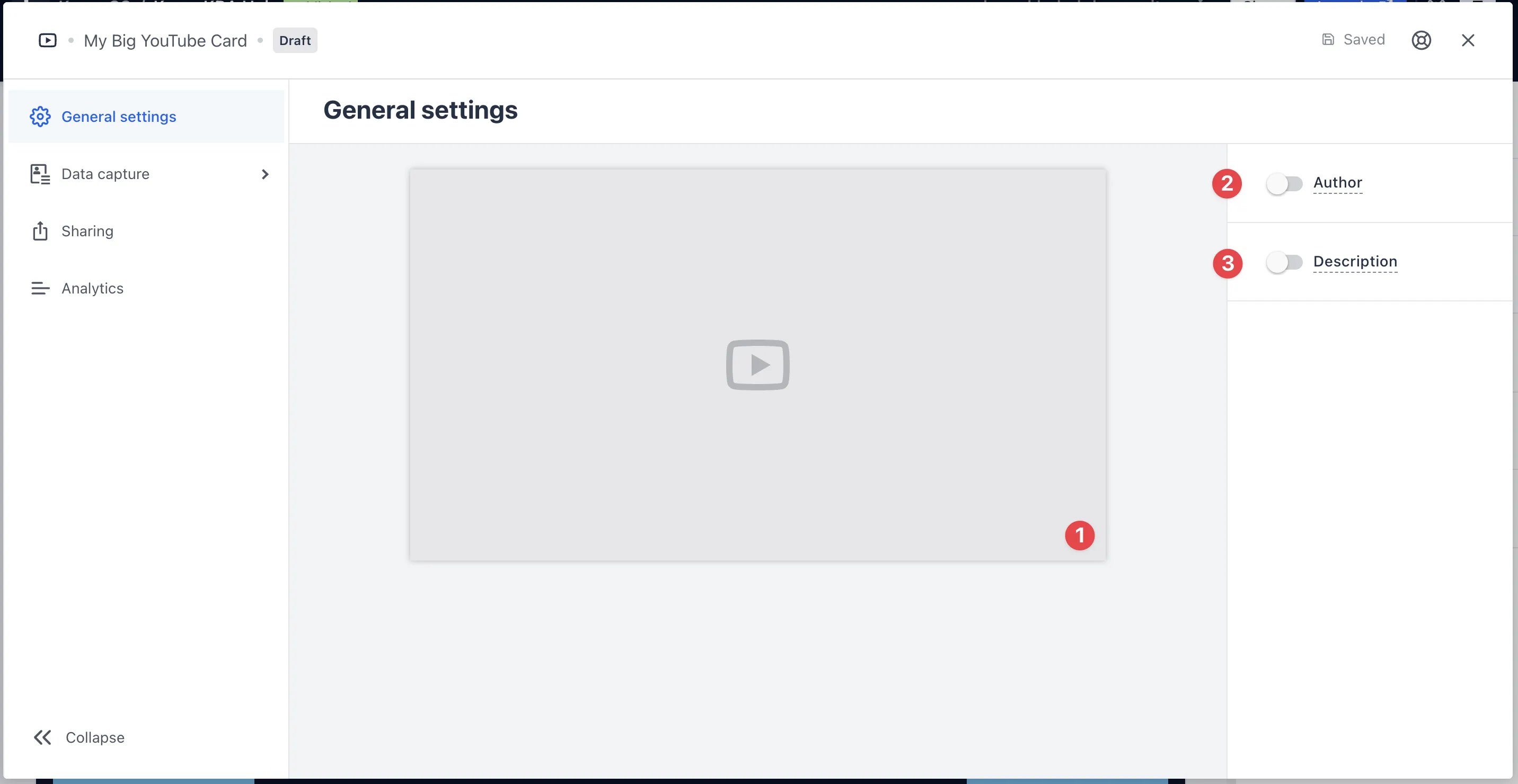 * Clicking on **YouTube** will open the editing module.
* **(1)** By clicking the placeholder cover image, paste your **video URL**. Learn more on how to get a video URL [here](/interactive-features/polls-surveys/video-url-link).
* **(2)** You can add an **author** tag by displaying the brand or person who's responsible for the card content.
* **(3)** Add a **description** to the card.
### Step 3: Publish your card
* Clicking on **YouTube** will open the editing module.
* **(1)** By clicking the placeholder cover image, paste your **video URL**. Learn more on how to get a video URL [here](/interactive-features/polls-surveys/video-url-link).
* **(2)** You can add an **author** tag by displaying the brand or person who's responsible for the card content.
* **(3)** Add a **description** to the card.
### Step 3: Publish your card
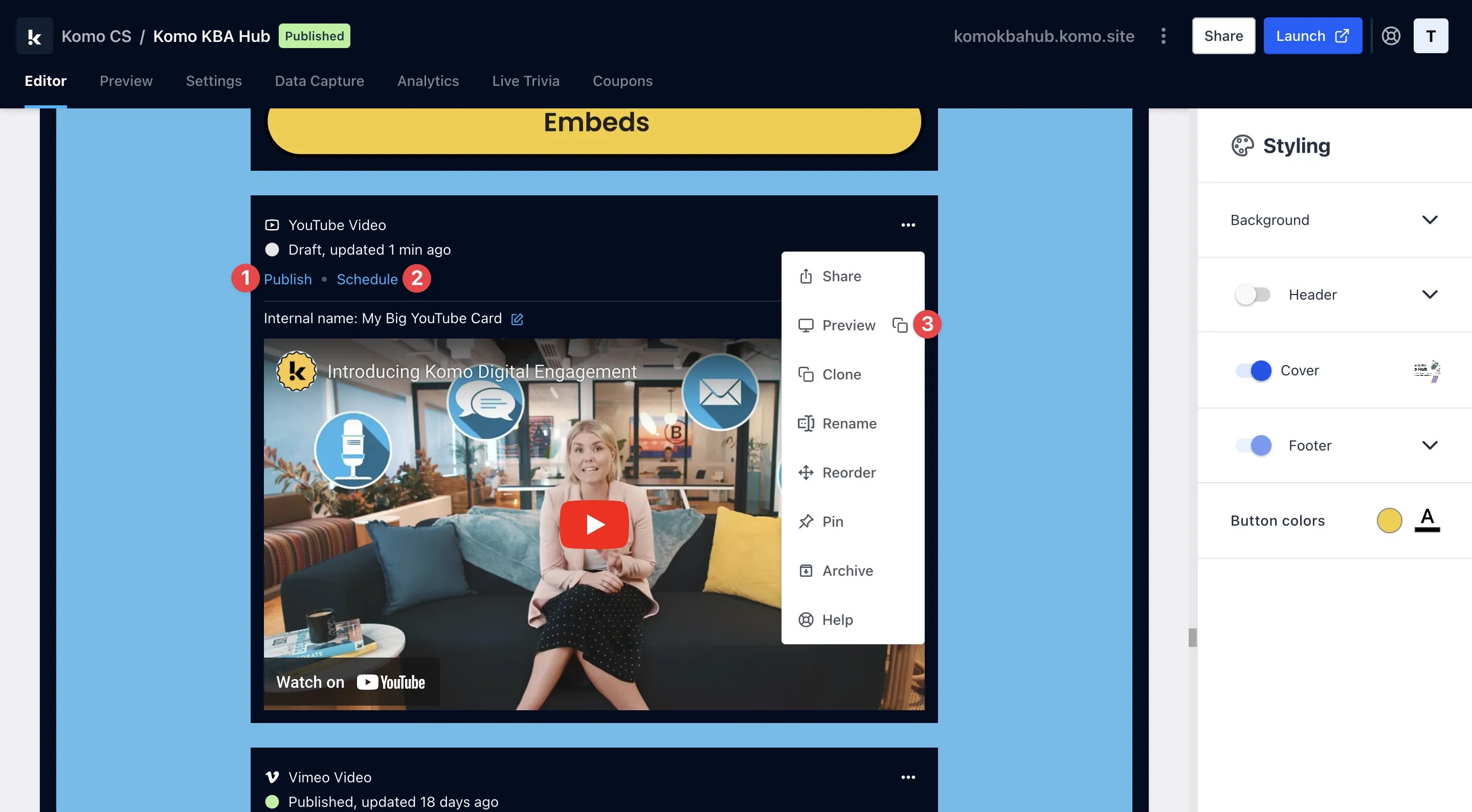 **Once you've completed all of these steps and are happy with all the aspects, it's time to get your card live!**
* **(1)** **Publish** your card manually and instantly for the world to see.
* **(2)** **Schedule** your card to be published and unpublished at set dates and times.
* **(3)** Click on **...** to **Preview** and interact with the card on the front end from a user's perspective before publishing it.
All competition entries will be recorded and will impact the card analytics.
## FAQ
**Where can I find the share link/URL on YouTube?**
There are two options. First, simply copy the URL on the browser (youtube.com/) and paste it into the share link bar on the Card. Second, you can also select Share a video on YouTube and then copy the link provided. You do not need to Embed the video.
**Why is my video URL not working?**
Some users don't allow their videos to be shared on other web pages.
**Once you've completed all of these steps and are happy with all the aspects, it's time to get your card live!**
* **(1)** **Publish** your card manually and instantly for the world to see.
* **(2)** **Schedule** your card to be published and unpublished at set dates and times.
* **(3)** Click on **...** to **Preview** and interact with the card on the front end from a user's perspective before publishing it.
All competition entries will be recorded and will impact the card analytics.
## FAQ
**Where can I find the share link/URL on YouTube?**
There are two options. First, simply copy the URL on the browser (youtube.com/) and paste it into the share link bar on the Card. Second, you can also select Share a video on YouTube and then copy the link provided. You do not need to Embed the video.
**Why is my video URL not working?**
Some users don't allow their videos to be shared on other web pages.