> ## Documentation Index
> Fetch the complete documentation index at: https://knowledge.komo.tech/llms.txt
> Use this file to discover all available pages before exploring further.
# Communication Subscriptions
> Easily create custom subscription consent fields for use across your customer communications.
## What is it?
Communication Subscriptions allow for granular opt-in and consent control at the Contact and Workspace levels, ensuring privacy compliance, enhancing opt-in management for integrations, and streamlining opt-ins before marketing communications. Ultimately you are able to simplify consent while providing better data protection.
## Watch it come to life
## How do I do it?
* [Step 1: Create your subscription](#step-1-create-your-subscription)
* [Step 2: Add subscription consent field to forms](#step-2-add-subscription-consent-field-to-forms)
* [Step 3: Send communications to subscribed groups](#step-3-send-communications-to-subscribed-groups)
### Step 1: Create your subscription
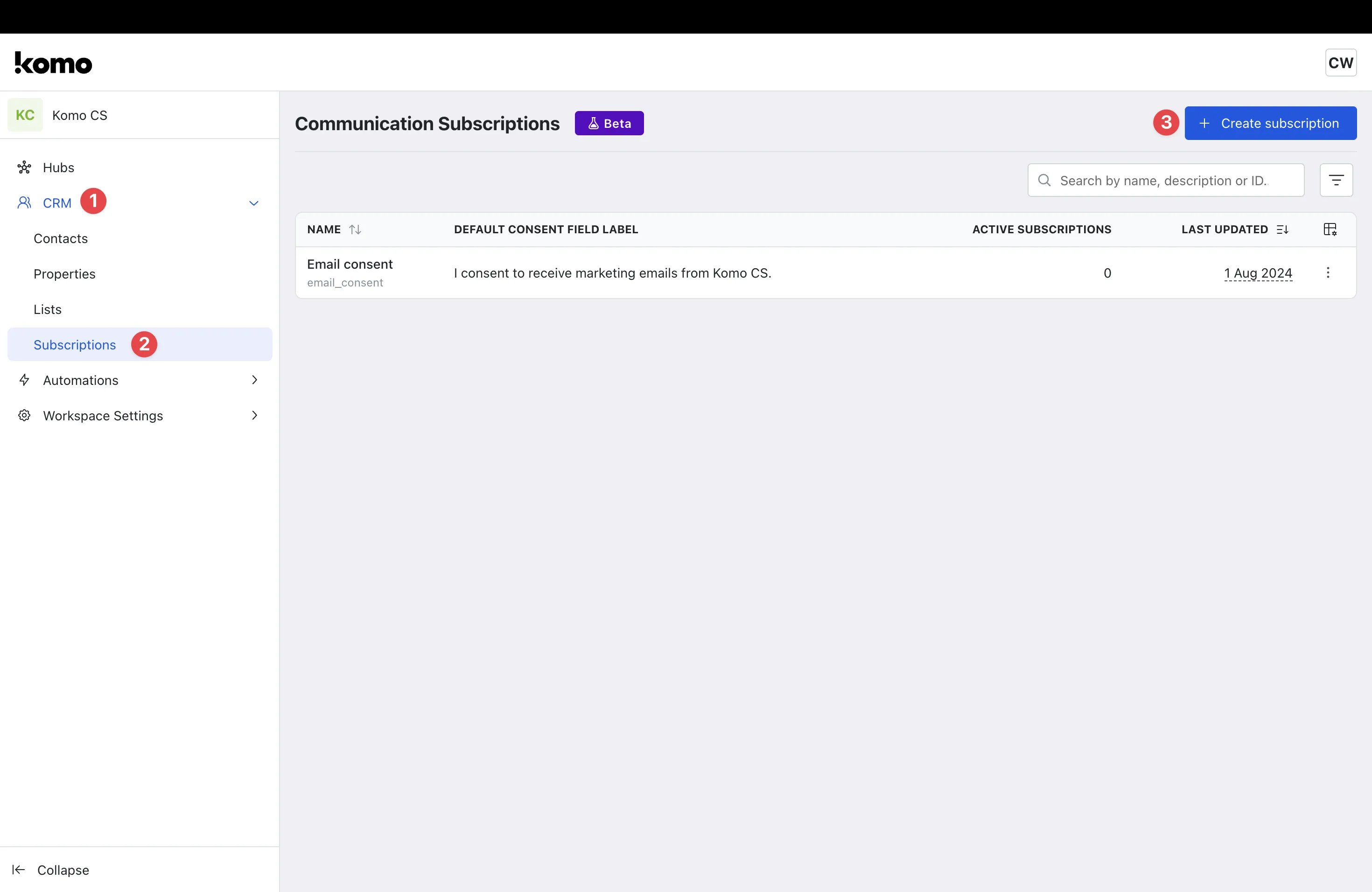 * Navigate to your **Workspace**.
* **(1)** Click on **CRM**.
* **(2)** Click on **Subscriptions**.
* **(3)** Select **+ Create subscription**.
You will see a default subscription titled 'Email Consent'. This can be edited or deleted by clicking the 3 dots on the right-hand side of the subscription.
* Navigate to your **Workspace**.
* **(1)** Click on **CRM**.
* **(2)** Click on **Subscriptions**.
* **(3)** Select **+ Create subscription**.
You will see a default subscription titled 'Email Consent'. This can be edited or deleted by clicking the 3 dots on the right-hand side of the subscription.
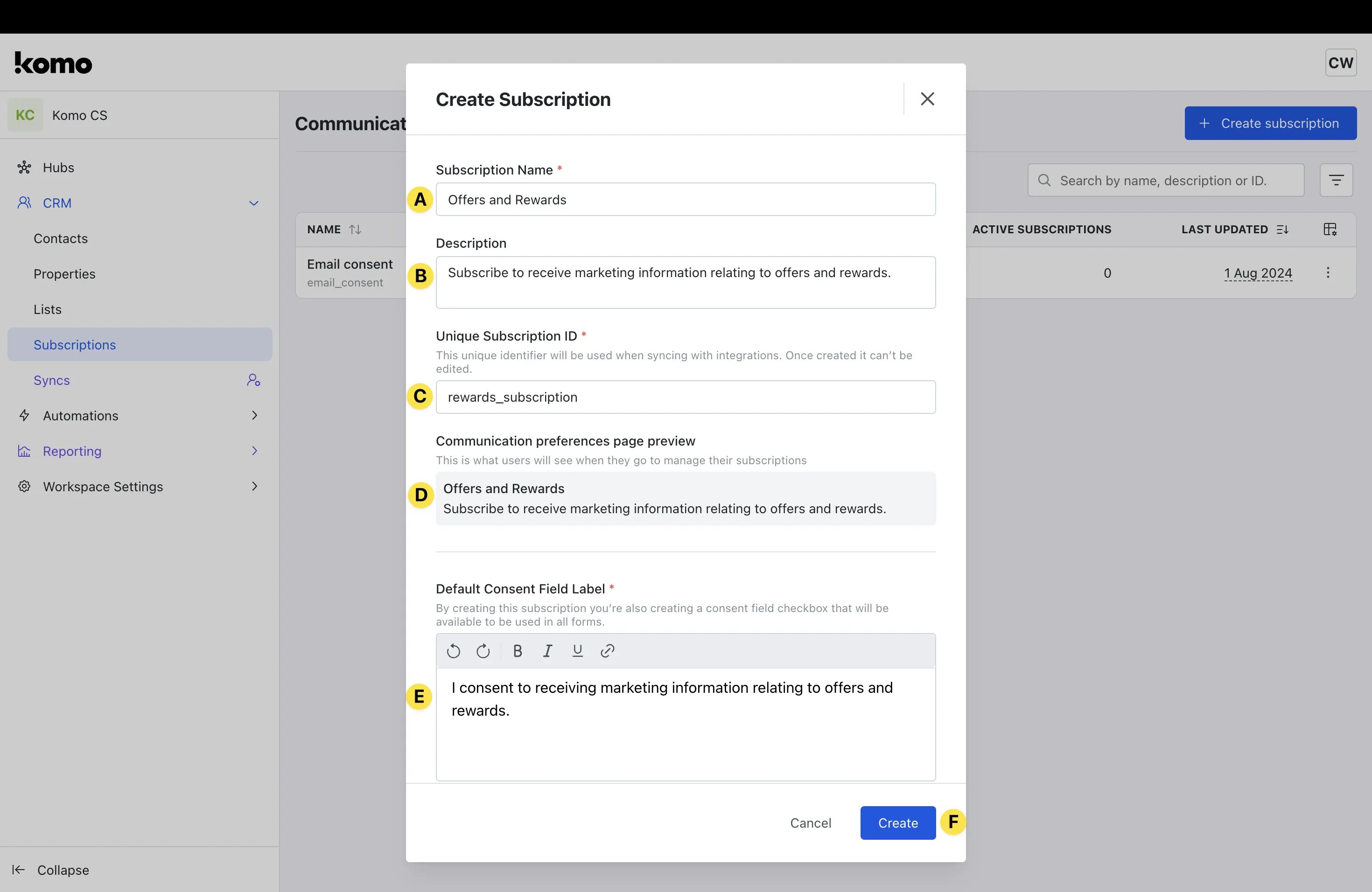 * **(A)** Give your subscription a meaningful **Name**. This name will help with searching for the consent group when adding to forms.
* **(B)** Provide a relevant **Description** for your subscription. This is automatically added to the Communications preference page and will be viewable by users when managing subscription preferences.
* **(C)** Type in a **Unique Subscription ID**. This will be referenced when syncing with integrations. Make sure you are satisfied with the ID as it can't be edited once the subscription is created.
* **(D)** Review the **Communication preference preview**. This is auto-filled based on the information you inputted above and will be what users see when managing their subscriptions.
* **(E)** Type in your **Default Consent Field Label**. This is the label that will appear alongside the form checkbox when users provide consent.
* **(F)** Click **Create** to finalize the creation of the subscription.
### Step 2: Add subscription consent field to forms
* **(A)** Give your subscription a meaningful **Name**. This name will help with searching for the consent group when adding to forms.
* **(B)** Provide a relevant **Description** for your subscription. This is automatically added to the Communications preference page and will be viewable by users when managing subscription preferences.
* **(C)** Type in a **Unique Subscription ID**. This will be referenced when syncing with integrations. Make sure you are satisfied with the ID as it can't be edited once the subscription is created.
* **(D)** Review the **Communication preference preview**. This is auto-filled based on the information you inputted above and will be what users see when managing their subscriptions.
* **(E)** Type in your **Default Consent Field Label**. This is the label that will appear alongside the form checkbox when users provide consent.
* **(F)** Click **Create** to finalize the creation of the subscription.
### Step 2: Add subscription consent field to forms
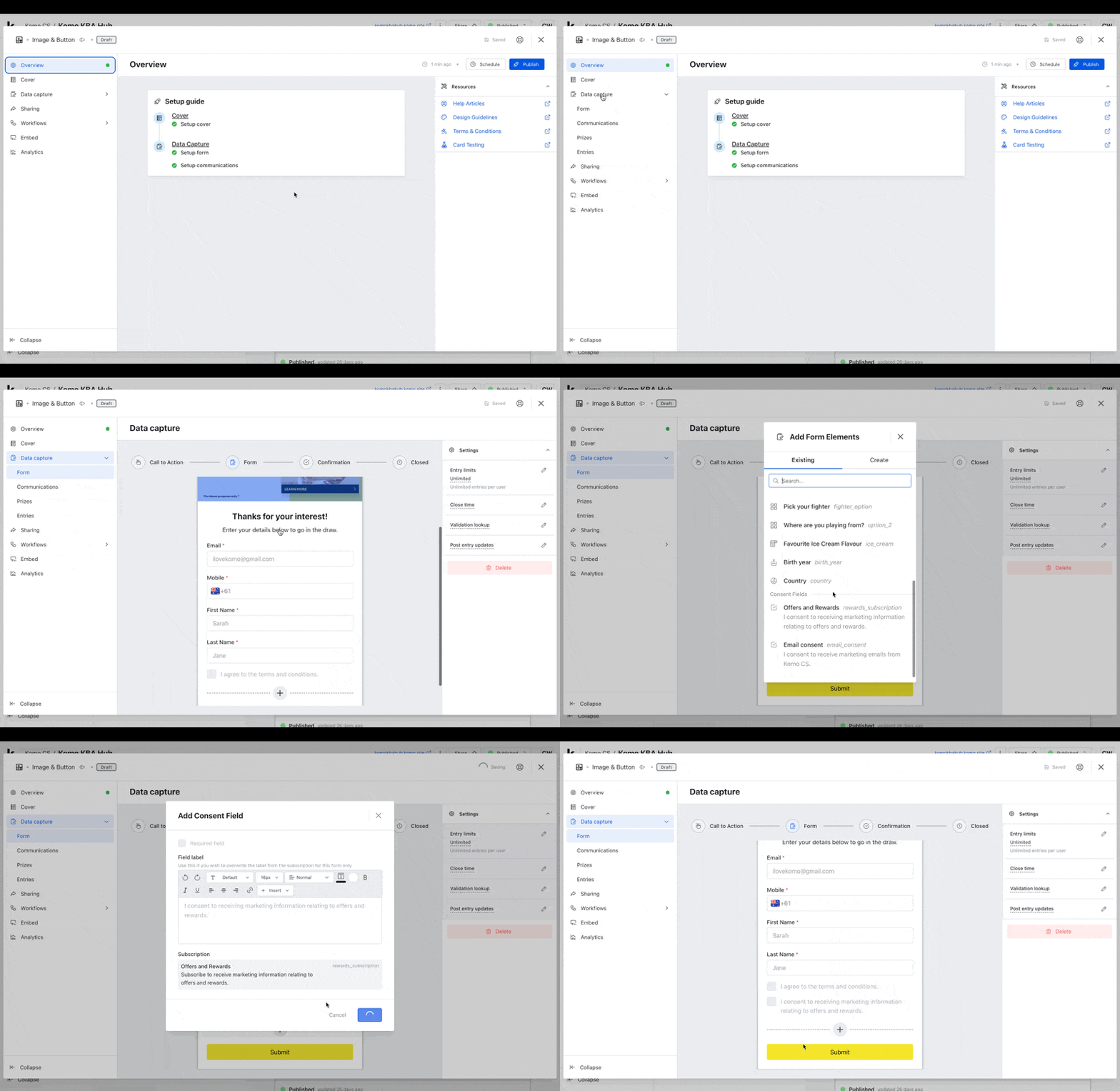 * Once you have set up your subscriptions, you can now add it to the relevant card forms.
* Navigate to the relevant **Card** and access the **Card Settings**.
* Click on the **Data capture** dropdown, select **Form** from the options, and select **Form** in the middle of the screen.
* Click the **+ sign** at the bottom of the form.
* Scroll down your existing **contact properties column** and select the **Subscription** you created in [**Step 1**](#step-1-create-your-subscription).
* You will then be able to **edit** the **Consent Field settings**, including **marking the checkbox as required** and editing the **field label**.
* You will now see that the **Subscription Consent Checkbox** has been added to the form.
### Step 3: Send communications to subscribed groups
Once your subscription has been created and tested, you are then able to send relevant communications to your subscribed groups. When creating communications, you will only have the ability to send marketing emails to users who have subscribed to those communications and explicitly opted in. For more detailed information on how to do this, please read [this article](/competitions-promotions/setup-management/prizes-and-comms).
## FAQ
**How many subscriptions can I create?**
You have the flexibility to create as many subscriptions as you require!
**How is this different from existing opt-in fields?**
Opt-in fields in their current form are set at the Card/competition level. With Communication Subscription Consent, you can create the subscriptions at the workspace level and add them directly to your Cards, removing the need to recreate consent fields on every Card or Competition.
**How does this impact marketing communications?**
With this new approach, instead of sending emails and then allowing customers to opt out, customers must now opt in first to receive marketing communications. This ensures an added layer of compliance across your communications.
**Has this been rolled out for all communications?**
Currently, Communication Subscription Consent has only been implemented on marketing email communications. Communication Subscription Communications will be implemented across transactional emails and SMS communications as an optional feature in a future release.
* Once you have set up your subscriptions, you can now add it to the relevant card forms.
* Navigate to the relevant **Card** and access the **Card Settings**.
* Click on the **Data capture** dropdown, select **Form** from the options, and select **Form** in the middle of the screen.
* Click the **+ sign** at the bottom of the form.
* Scroll down your existing **contact properties column** and select the **Subscription** you created in [**Step 1**](#step-1-create-your-subscription).
* You will then be able to **edit** the **Consent Field settings**, including **marking the checkbox as required** and editing the **field label**.
* You will now see that the **Subscription Consent Checkbox** has been added to the form.
### Step 3: Send communications to subscribed groups
Once your subscription has been created and tested, you are then able to send relevant communications to your subscribed groups. When creating communications, you will only have the ability to send marketing emails to users who have subscribed to those communications and explicitly opted in. For more detailed information on how to do this, please read [this article](/competitions-promotions/setup-management/prizes-and-comms).
## FAQ
**How many subscriptions can I create?**
You have the flexibility to create as many subscriptions as you require!
**How is this different from existing opt-in fields?**
Opt-in fields in their current form are set at the Card/competition level. With Communication Subscription Consent, you can create the subscriptions at the workspace level and add them directly to your Cards, removing the need to recreate consent fields on every Card or Competition.
**How does this impact marketing communications?**
With this new approach, instead of sending emails and then allowing customers to opt out, customers must now opt in first to receive marketing communications. This ensures an added layer of compliance across your communications.
**Has this been rolled out for all communications?**
Currently, Communication Subscription Consent has only been implemented on marketing email communications. Communication Subscription Communications will be implemented across transactional emails and SMS communications as an optional feature in a future release.