> ## Documentation Index
> Fetch the complete documentation index at: https://knowledge.komo.tech/llms.txt
> Use this file to discover all available pages before exploring further.
# Edit Entrant Details and Resend Communications
> Want to know how to edit a user's details if they have incorrectly filled out the data capture form and how to resend communications? Read on...
## What is it?
If a user has incorrectly filled out a Data capture form for a competition, you have the ability to edit and update an entrant's details. Once you have updated an entrant's details, you are able to resend any communications associated with the entry to the updated information.
## How do I do this?
* [Step 1: Select the relevant competition card](#step-1-select-the-relevant-competition-card)
* [Step 2: Edit an entrant's details](#step-2-edit-an-entrants-details)
* [Step 3: Resend communications](#step-3-resend-communications)
### Step 1: Select the relevant competition card
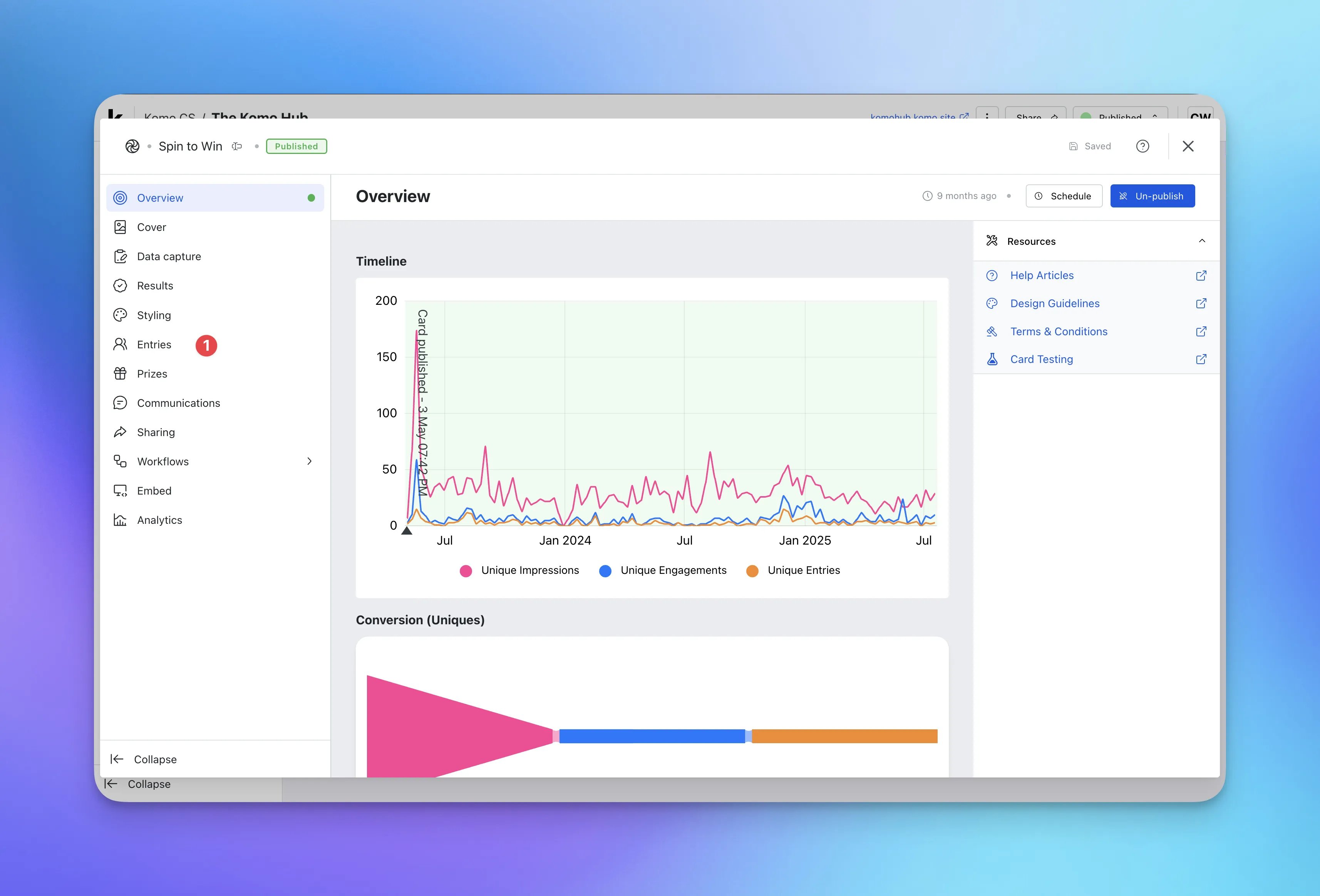 * Head to your Engagement Hub and then the card you wish to edit a user's details.
* Click on the **Settings** cog.
* **(1)** Select **Entries** (this is occasionally listed under the **Data Capture** dropdown).
### Step 2: Edit an entrant's details
* Head to your Engagement Hub and then the card you wish to edit a user's details.
* Click on the **Settings** cog.
* **(1)** Select **Entries** (this is occasionally listed under the **Data Capture** dropdown).
### Step 2: Edit an entrant's details
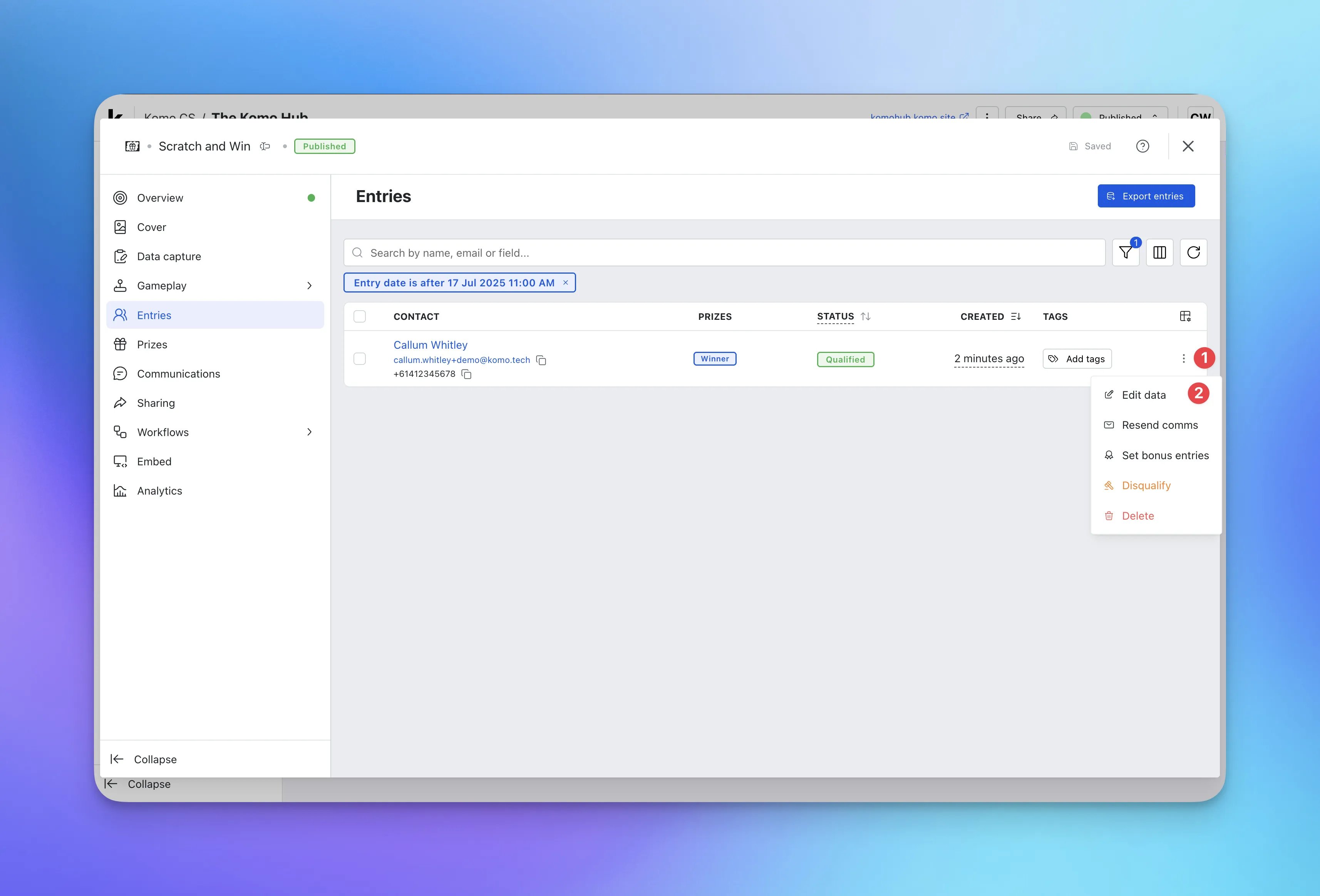 * Find the **entrant** with the incorrect details.
* **(1)** Click the **...** icon next to the entry.
* **(2)** Select **Edit data** to update the user's information.
* Find the **entrant** with the incorrect details.
* **(1)** Click the **...** icon next to the entry.
* **(2)** Select **Edit data** to update the user's information.
 The information you can edit here will correspond to your Data capture form.
* **(A)** Here you can edit an entrant's **email**.
* **(B)** Here you can edit an entrant's **first name**.
* **(C)** You can edit an entrant's **last name**.
* **(D)** Here you can edit an entrant's **mobile**.
* **(E)** You can adjust any **opt-ins**.
* **(F)** Click **Update.** You will then get a pop-up requesting to view and resend any associated communications to this user.
The information you can edit here will correspond to your Data capture form.
* **(A)** Here you can edit an entrant's **email**.
* **(B)** Here you can edit an entrant's **first name**.
* **(C)** You can edit an entrant's **last name**.
* **(D)** Here you can edit an entrant's **mobile**.
* **(E)** You can adjust any **opt-ins**.
* **(F)** Click **Update.** You will then get a pop-up requesting to view and resend any associated communications to this user.
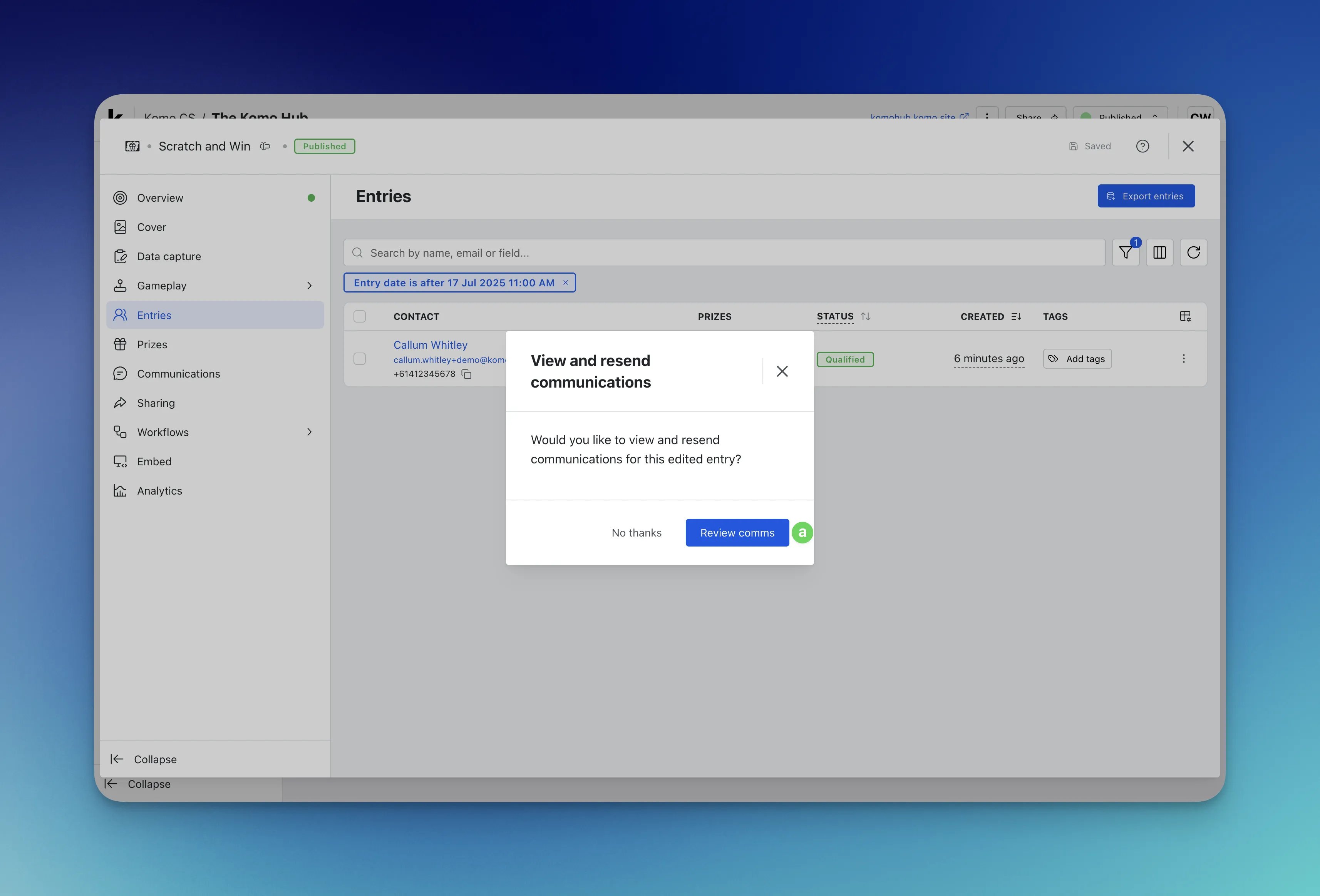 * **(a)** Select **Review communications**
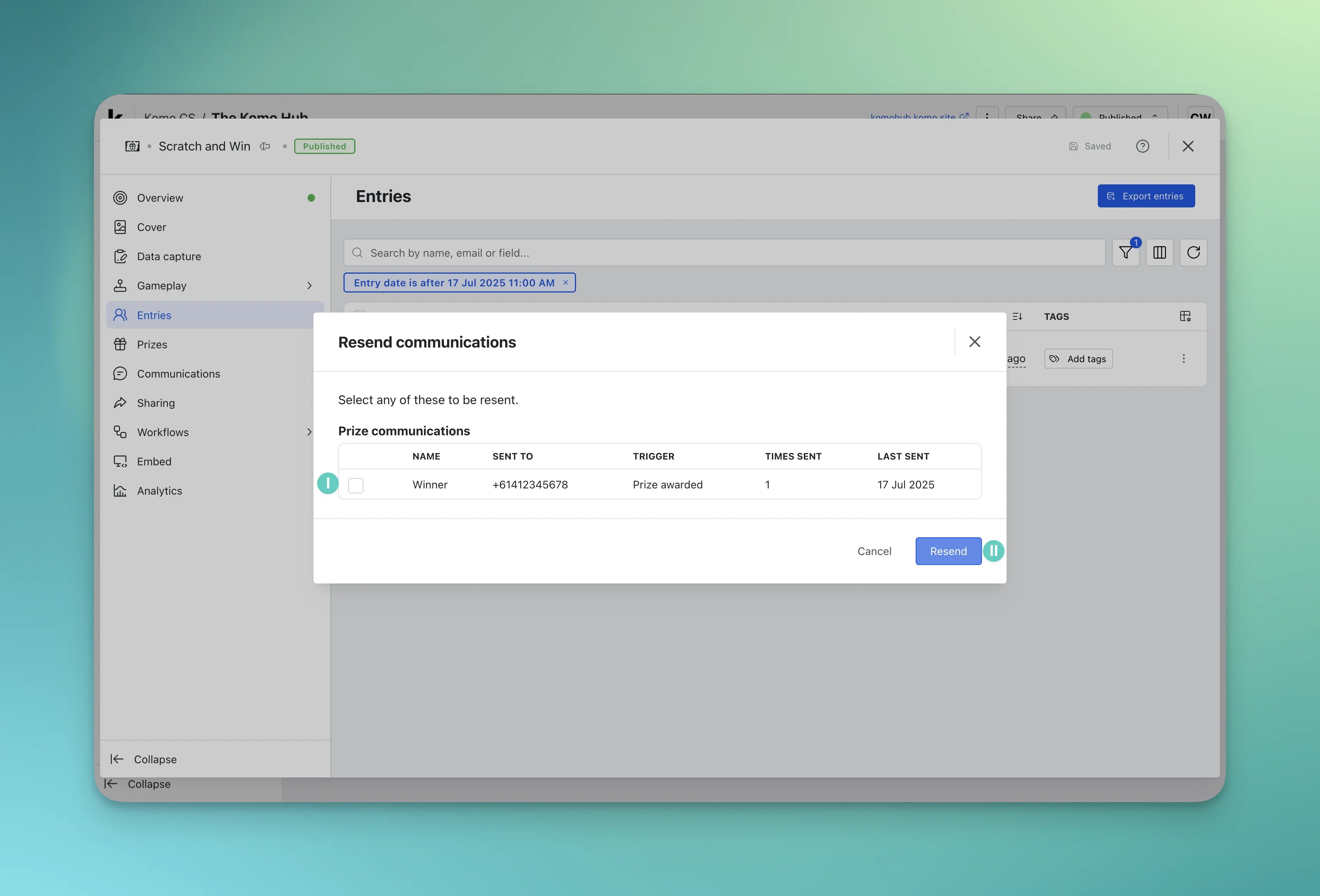 * **(I) Select the communication** you wish to resend.
* **(II)** Click **Resend.**
### Step 3: Resend communications
* **(I) Select the communication** you wish to resend.
* **(II)** Click **Resend.**
### Step 3: Resend communications
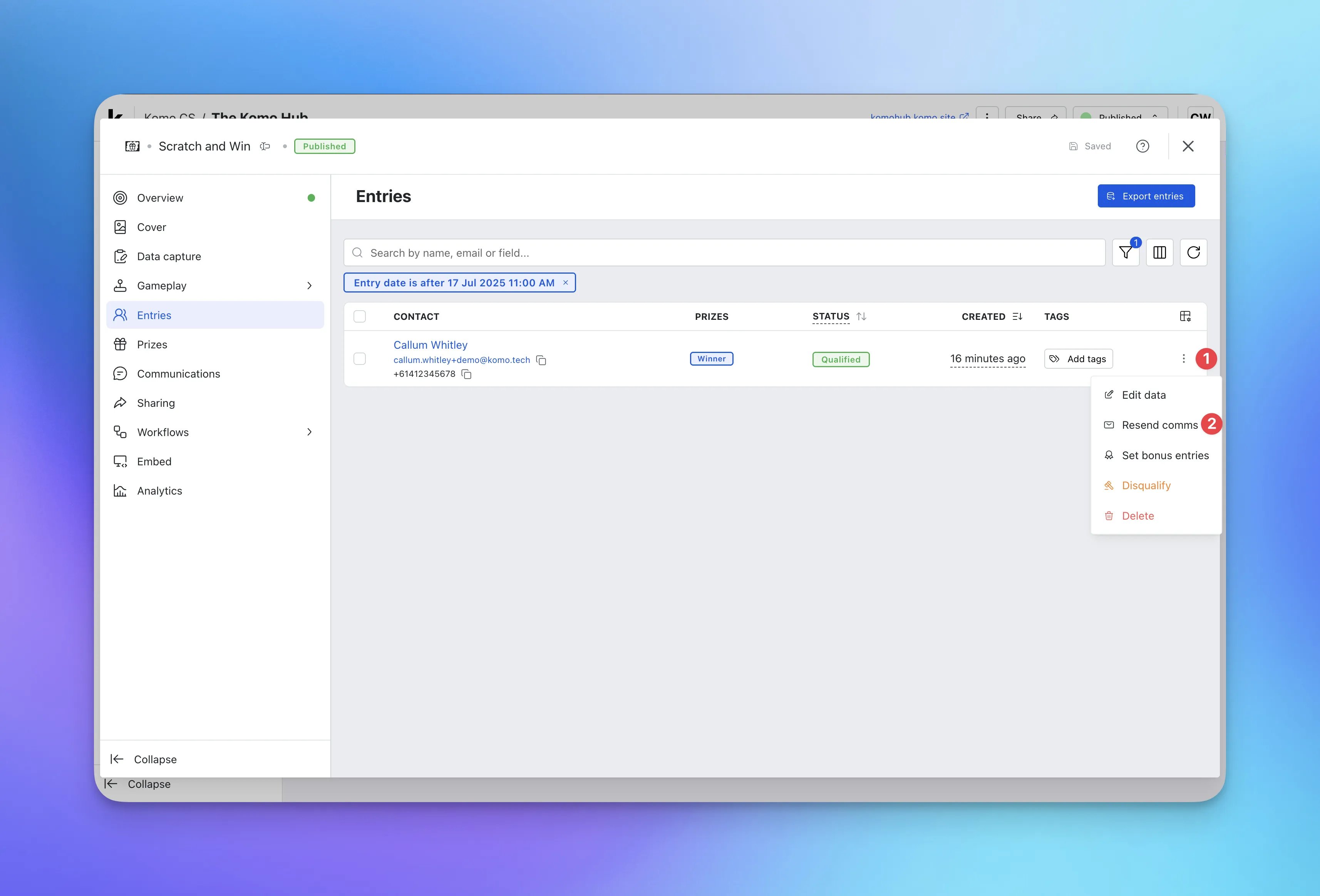 * If you wish to just **resend communications** to an entrant,
* **(1)** Click on the **...** icon next to the entry.
* **(2)** Select **Resend communications.**
* If you wish to just **resend communications** to an entrant,
* **(1)** Click on the **...** icon next to the entry.
* **(2)** Select **Resend communications.**
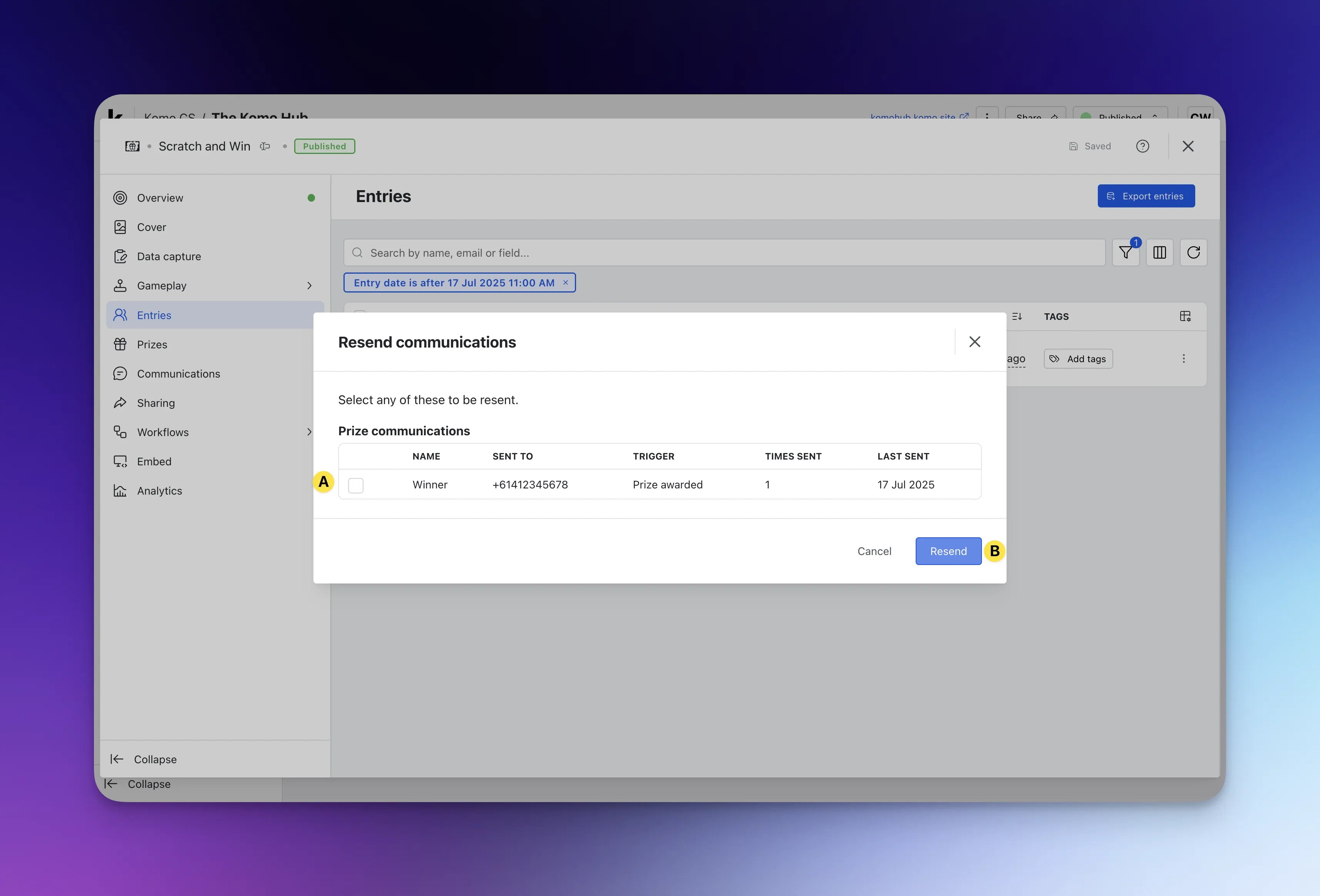 * You can select the **communications** that are associated with the entry.
* **(A)** Select the **communication** you wish to resend then click **(B) Resend.**
## FAQ
What details can I edit in this process?
It is possible to edit all user inputs that were presented to them at the time of data capture. Examples of inputs include but are not limited to: First name, last name, mobile number, email address, etc.
**If I update an entrant's details, will this impact my excel export?**
Yes, when you change an entrant's information, it will update in the card and in the CSV file when you export all the data for the competition.
**Can I send more than one type of communication to the user?**
You can only re-send communications that have been previously sent to this user.
**Can I do this for all competitions?**
You can do this with any competition that has a Data capture form attached. However, you are unable to change any entrant details for the Live Trivia Card.
* You can select the **communications** that are associated with the entry.
* **(A)** Select the **communication** you wish to resend then click **(B) Resend.**
## FAQ
What details can I edit in this process?
It is possible to edit all user inputs that were presented to them at the time of data capture. Examples of inputs include but are not limited to: First name, last name, mobile number, email address, etc.
**If I update an entrant's details, will this impact my excel export?**
Yes, when you change an entrant's information, it will update in the card and in the CSV file when you export all the data for the competition.
**Can I send more than one type of communication to the user?**
You can only re-send communications that have been previously sent to this user.
**Can I do this for all competitions?**
You can do this with any competition that has a Data capture form attached. However, you are unable to change any entrant details for the Live Trivia Card.