> ## Documentation Index
> Fetch the complete documentation index at: https://knowledge.komo.tech/llms.txt
> Use this file to discover all available pages before exploring further.
# Contacts
> Learn how to collect and store rich customer data within the Komo Engagement Engine!
## What is it?
Use our Contacts feature to store the rich zero and first-party data you collect using the Komo Engagement Engine! Contacts will allow you to view and gain knowledge from various contact properties like achievements ([**Badges**](/interactive-features/features/badges-and-workflows)), contact type, the creation date of the contact, as well as your own unique properties collected via data capture. These are the rich insights that will allow you to personalize your content and *truly* connect with your customers.
The Komo Engagement Engine is fully integrated, allowing you to seamlessly share your customer data captured via Komo with your external CRM, or you can choose to manage all of your data directly within the Komo ecosystem.
Contacts also support our Badges and Profiles features, allowing you to assign achievements to users based on their activity within your Engagement Hub and enabling users to identify themselves with an avatar while they engage with the games across your Engagement Hub. Learn more about setting up Badges and Profiles [**here**](/interactive-features/features/badges-and-workflows).
## How do I use it?
### Step 1: Using the Contacts features
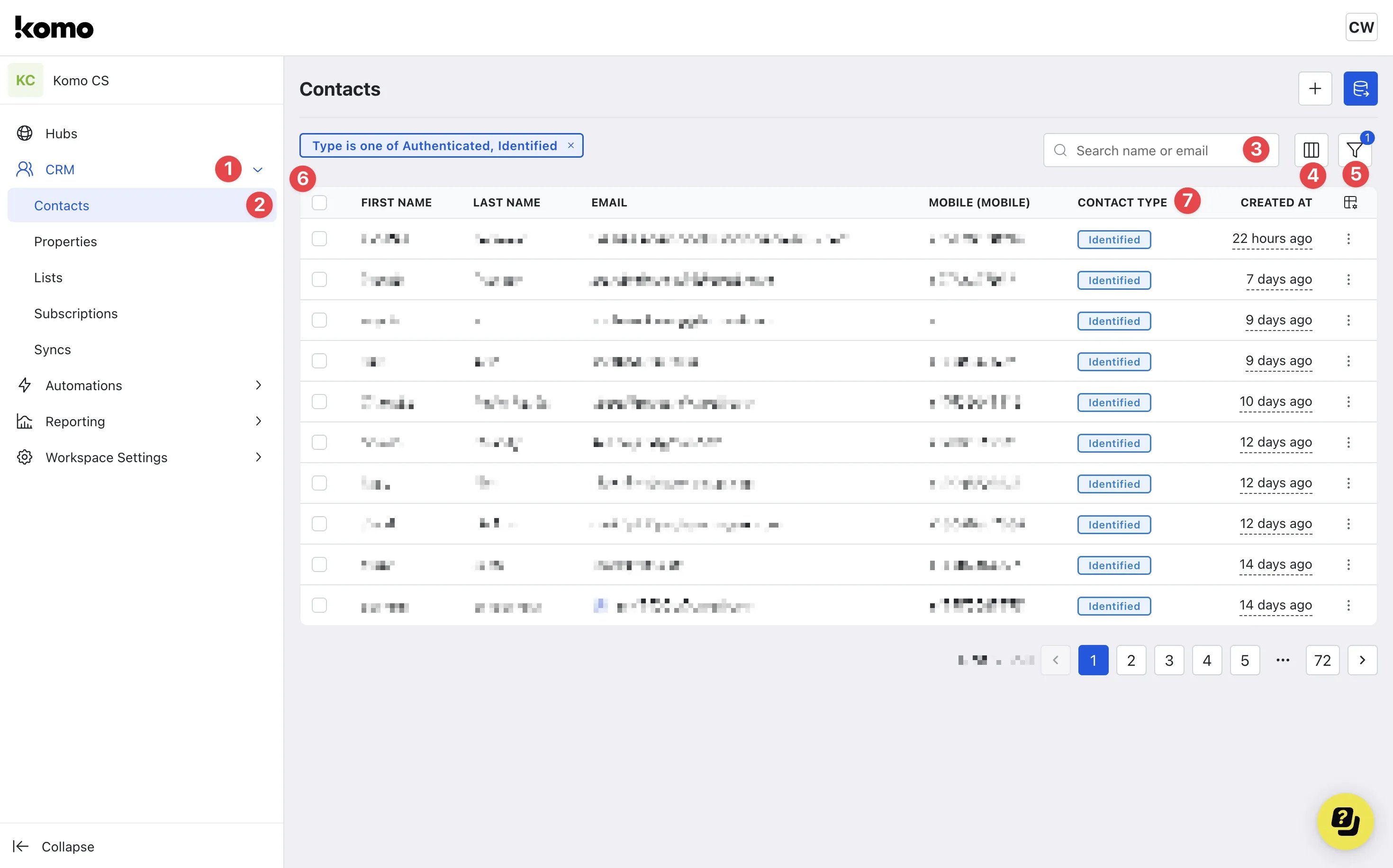 * **(1)** Navigate to the **CRM** tab.
* **(2)** Click **Contacts** to view the full list of user data collected across your Engagement Hubs.
* **(3)** Here you can **search** for users by name, mobile or email.
* **(4)** The **columns** button will allow you to mark certain properties you wish for the contacts table to show to improve the visibility of the information.
* **(1)** Navigate to the **CRM** tab.
* **(2)** Click **Contacts** to view the full list of user data collected across your Engagement Hubs.
* **(3)** Here you can **search** for users by name, mobile or email.
* **(4)** The **columns** button will allow you to mark certain properties you wish for the contacts table to show to improve the visibility of the information.
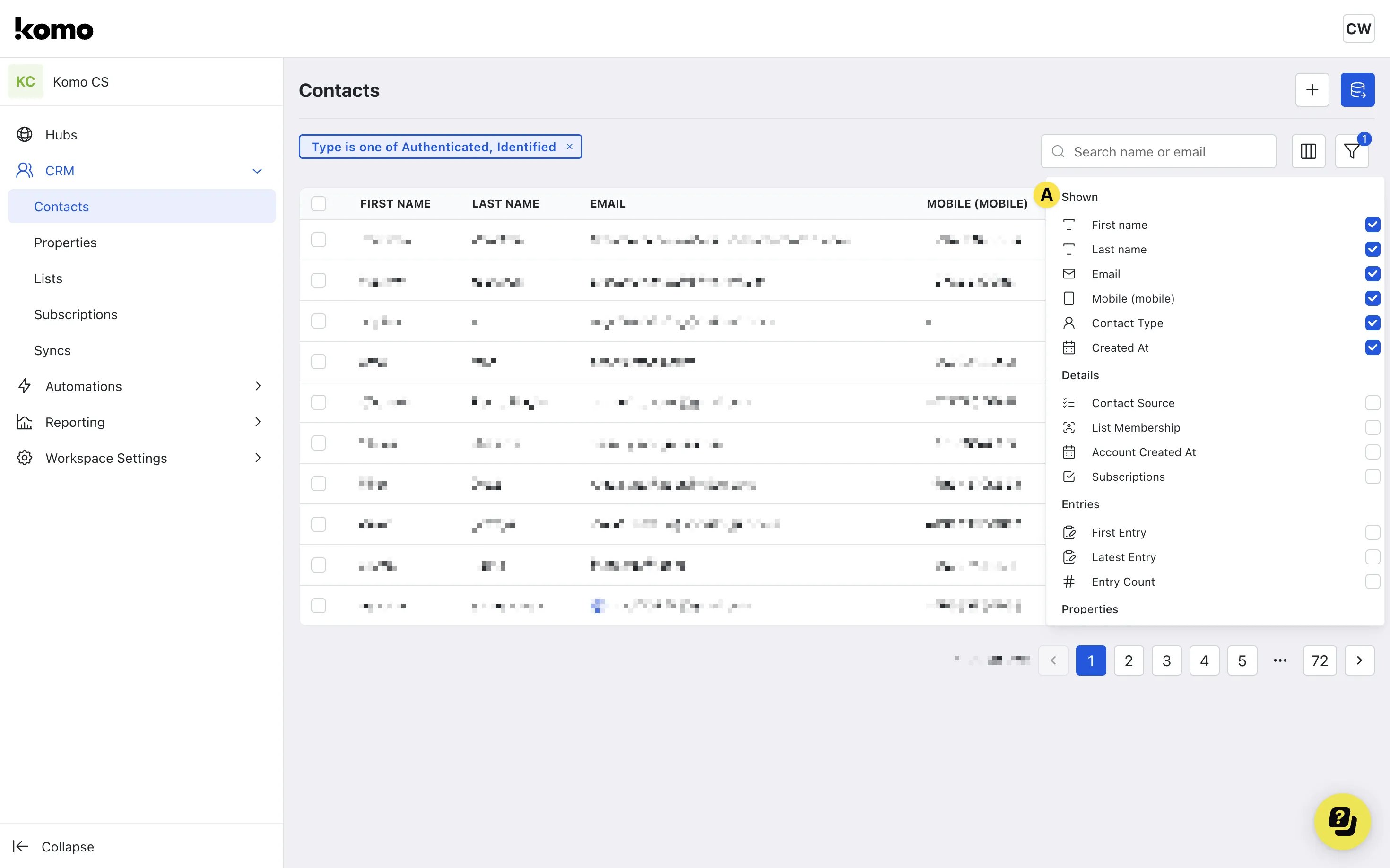 * **(A)** The list of column items includes all **contact properties** created. Disable and enable any information you wish to display on the contacts table.
* **(5)** The **filter option** allows you to further segment and filter the contacts table. You can filter the table by Engagement Hubs visited, subscription groups, contact properties and more!
* **(6)** If any columns are altered and filters applied, the table will update accordingly. These fields show the **first-party data** collected from your Contacts.
* **(7)** This column shows the **contact type**.
Contact type definitions are as follows:
* **Anonymous:** Any user who has visited your Engagement Hub but has no identifying information.
* **Identified:** Any user who has visited your Engagement Hub and has provided some identifying information via a data capture form.
* **Authenticated:** Any user who has created an account within your Engagement Hub, and has provided all the necessary data to do so.
### Step 2: Viewing Contact profiles
* **(A)** The list of column items includes all **contact properties** created. Disable and enable any information you wish to display on the contacts table.
* **(5)** The **filter option** allows you to further segment and filter the contacts table. You can filter the table by Engagement Hubs visited, subscription groups, contact properties and more!
* **(6)** If any columns are altered and filters applied, the table will update accordingly. These fields show the **first-party data** collected from your Contacts.
* **(7)** This column shows the **contact type**.
Contact type definitions are as follows:
* **Anonymous:** Any user who has visited your Engagement Hub but has no identifying information.
* **Identified:** Any user who has visited your Engagement Hub and has provided some identifying information via a data capture form.
* **Authenticated:** Any user who has created an account within your Engagement Hub, and has provided all the necessary data to do so.
### Step 2: Viewing Contact profiles
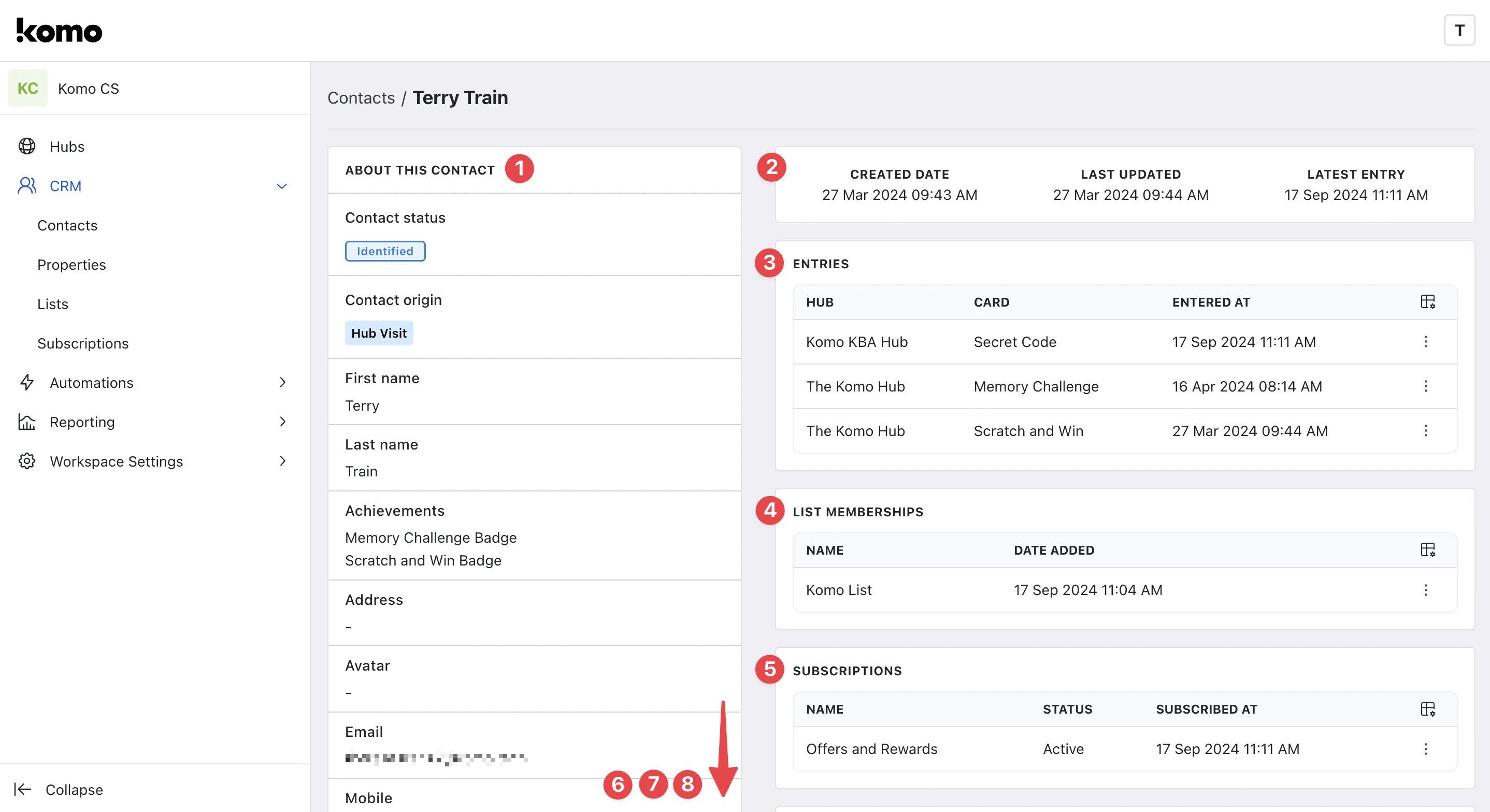 * **(1)** Under the **About this contact section** is all the first-party data collected from competitions and responses to the contact properties you've created.
You have the ability to view history of each contact property, edit any existing data collected and update any blank properties with details if known.
* **(2)** Here displays information on when the contact was **created**, the **last updated** information under the about this contact section and the **latest competition entry**.
* **(3)** View all the **competitions** this contact has entered, where (Engagement Hub) and when.
* **(1)** Under the **About this contact section** is all the first-party data collected from competitions and responses to the contact properties you've created.
You have the ability to view history of each contact property, edit any existing data collected and update any blank properties with details if known.
* **(2)** Here displays information on when the contact was **created**, the **last updated** information under the about this contact section and the **latest competition entry**.
* **(3)** View all the **competitions** this contact has entered, where (Engagement Hub) and when.
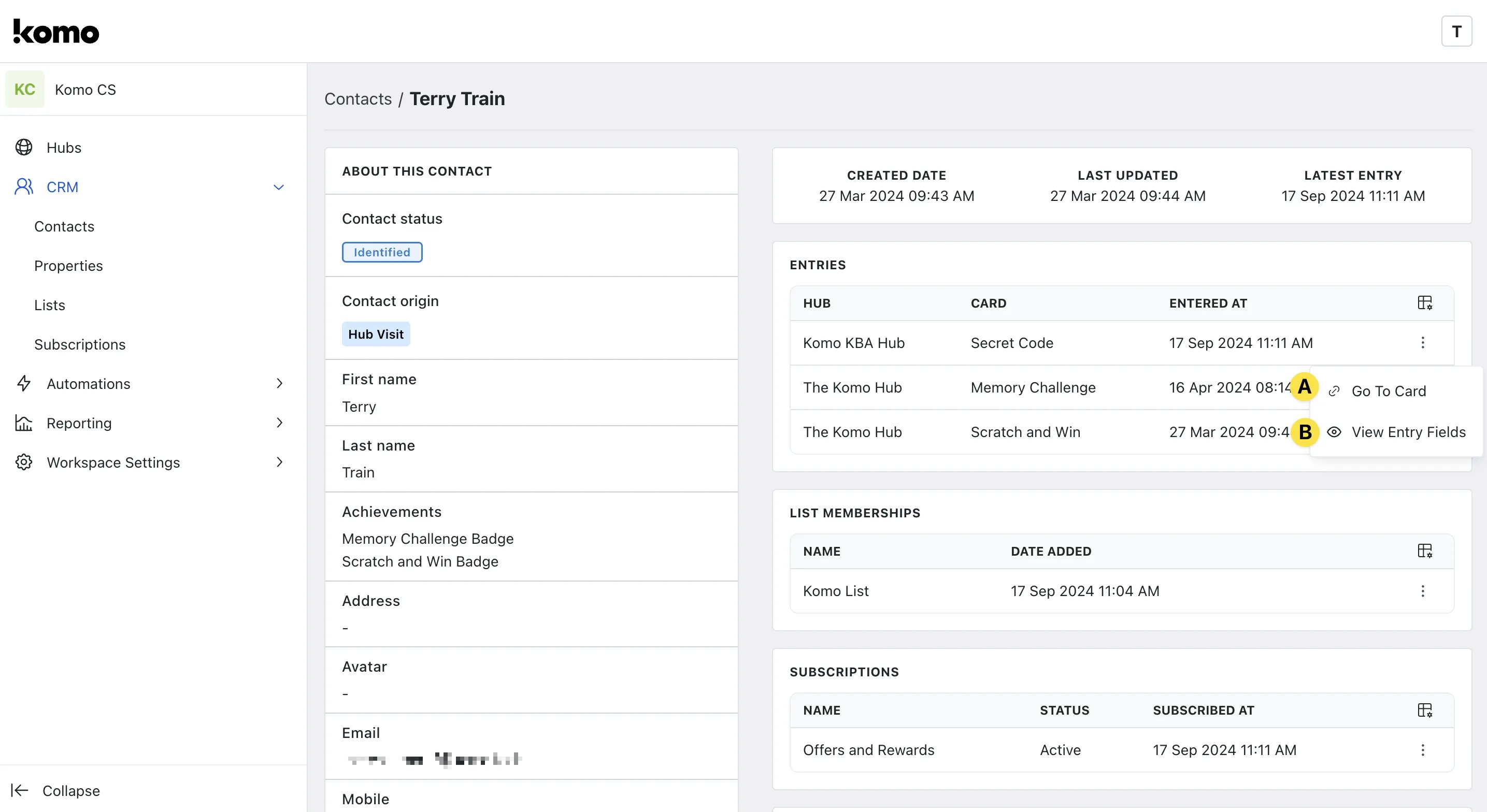 * Clicking on the **...** next to the entry, you can view additional actions.
* **(A)** Directly **go to the card**.
* **(B)** View the contact **entry submission** for that competition.
* **(4)** The **list memberships** shows which list the contact is apart of.
* **(5)** The **subscriptions** display the communication and subscription group the contact has opted-in to.
* **(6)** Scrolling down, you can see the full list of **communications** the contact has received.
* Clicking on the **...** next to the entry, you can view additional actions.
* **(A)** Directly **go to the card**.
* **(B)** View the contact **entry submission** for that competition.
* **(4)** The **list memberships** shows which list the contact is apart of.
* **(5)** The **subscriptions** display the communication and subscription group the contact has opted-in to.
* **(6)** Scrolling down, you can see the full list of **communications** the contact has received.
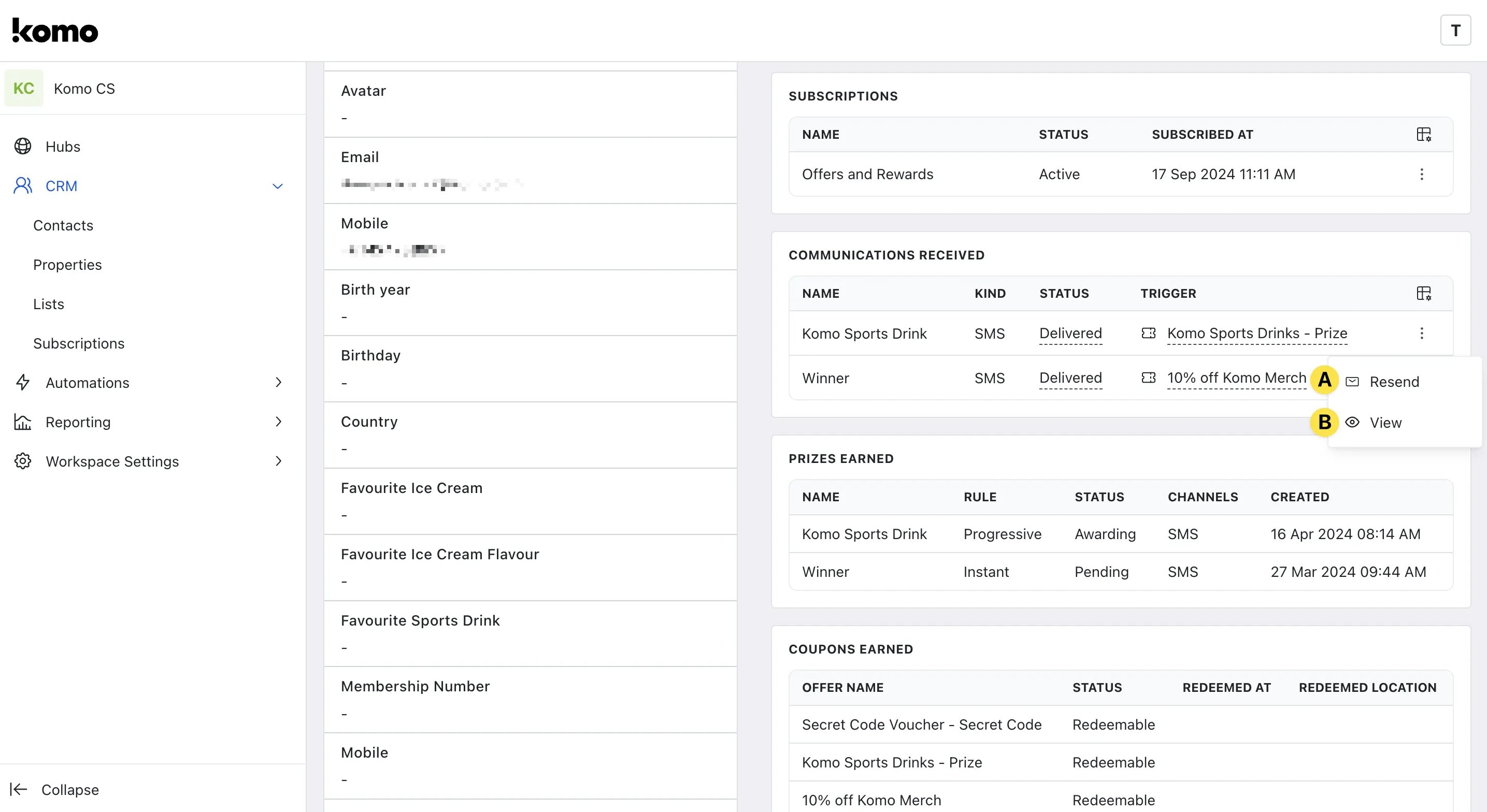 * Clicking on the **...** you can access additional actions.
* **(A)** Here you can **resend** the specific communication sent to the contact.
* **(B)** This allows you to see **the timeline** of the communication from where it was sent from (card and Engagement Hub), when it was sent, delivered and the communication body content.
* **(7)** Here you can view all the **prizes** this contact has received.
* **(8)** The **coupons earned** section shows all the coupons the contact has received, the status of the coupon (redeemed and redeemable), when the coupon was redeemed and the redemption location (if applicable).
### Step 3: Import a list of Contacts
* Clicking on the **...** you can access additional actions.
* **(A)** Here you can **resend** the specific communication sent to the contact.
* **(B)** This allows you to see **the timeline** of the communication from where it was sent from (card and Engagement Hub), when it was sent, delivered and the communication body content.
* **(7)** Here you can view all the **prizes** this contact has received.
* **(8)** The **coupons earned** section shows all the coupons the contact has received, the status of the coupon (redeemed and redeemable), when the coupon was redeemed and the redemption location (if applicable).
### Step 3: Import a list of Contacts
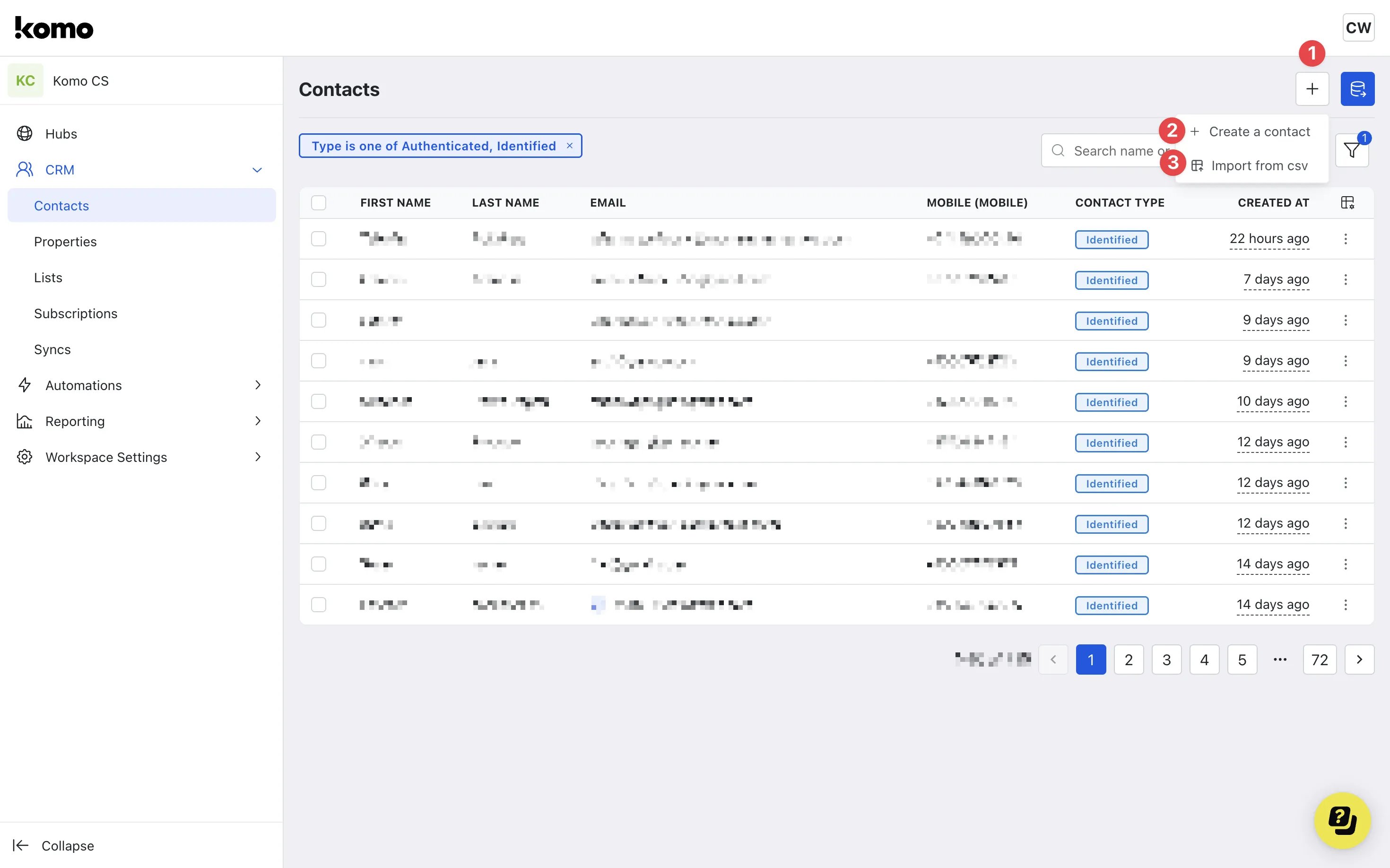 * **(1)** Click on the **+ plus icon** to add contacts.
* **(2)** Here you can manually **create a contact**.
* **(1)** Click on the **+ plus icon** to add contacts.
* **(2)** Here you can manually **create a contact**.
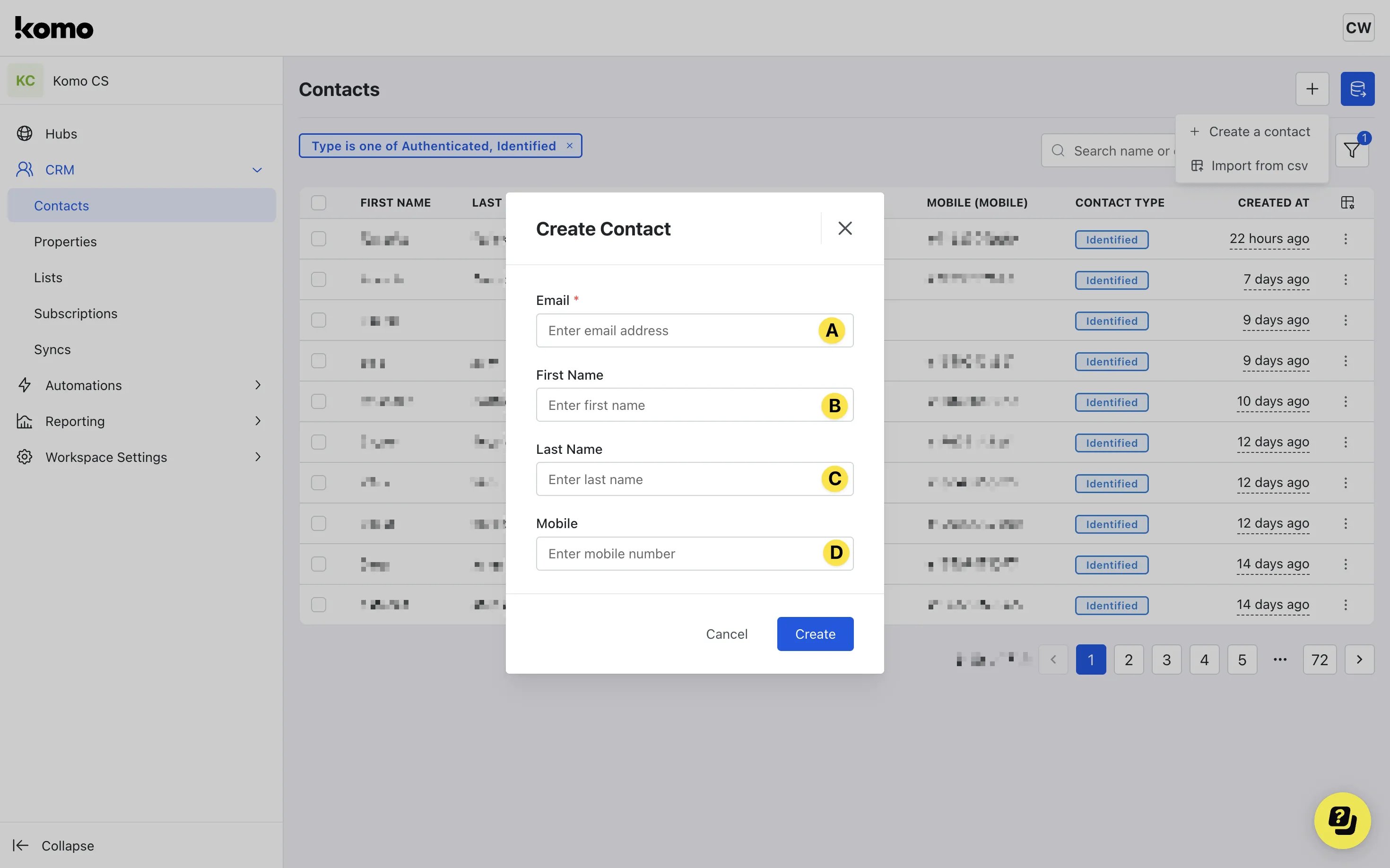 * **(A)** Input the contact's **email address**.
* **(B)** Enter the contact's **first name**.
* **(C)** Enter the contact's **last name**.
* **(D)** Then include the contact's **mobile**.
* **(3)** Click **Import from CSV** to bulk upload contacts.
* **(A)** Input the contact's **email address**.
* **(B)** Enter the contact's **first name**.
* **(C)** Enter the contact's **last name**.
* **(D)** Then include the contact's **mobile**.
* **(3)** Click **Import from CSV** to bulk upload contacts.
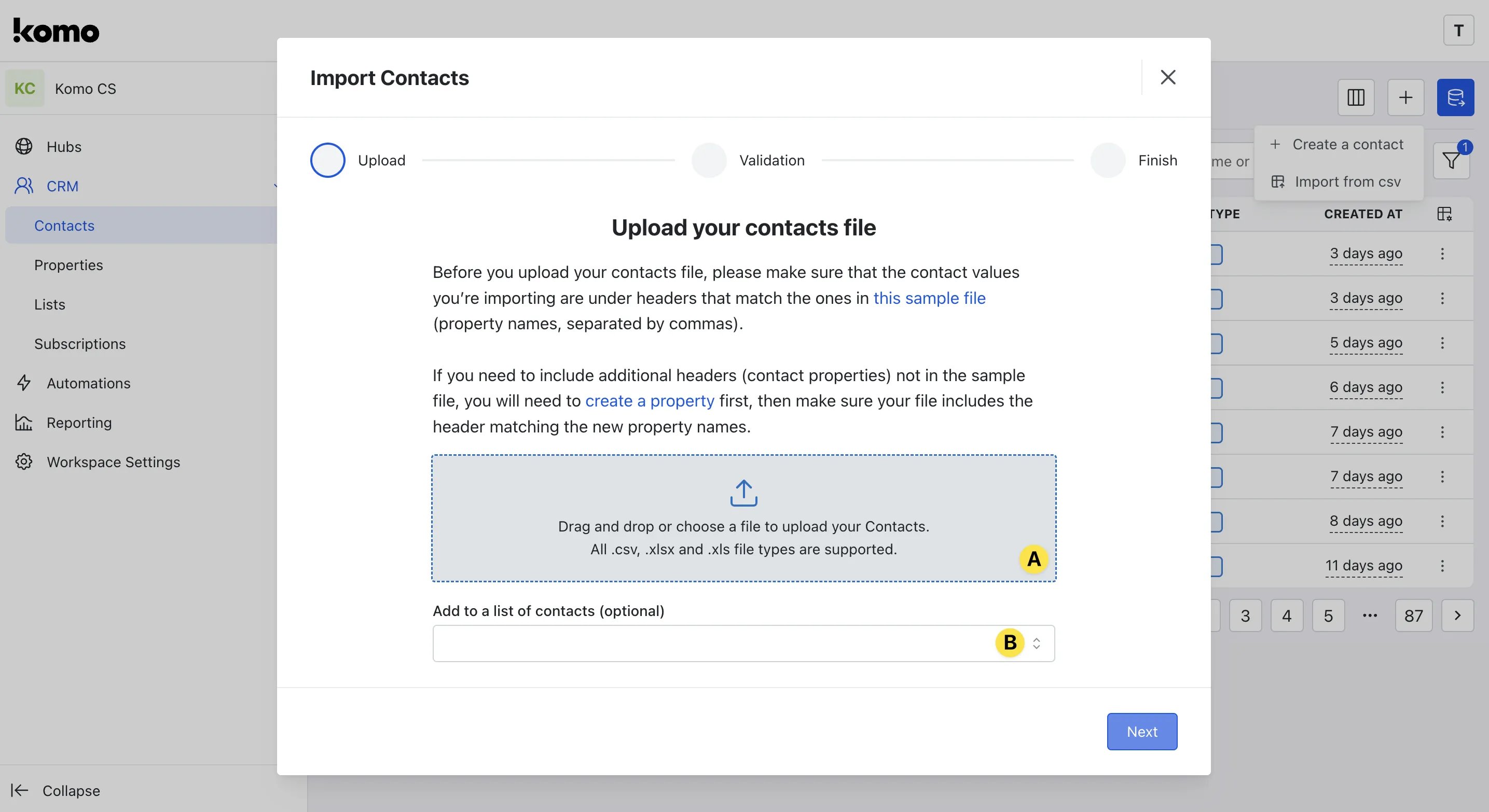 * **(A)** Upload your **CSV, XLSX, or XLS file** here.
* **(B)** Here you have the option to add your imported contacts to one of your **lists**. Click here to learn more about contact lists.
### Step 4: Export a Contact list
* **(A)** Upload your **CSV, XLSX, or XLS file** here.
* **(B)** Here you have the option to add your imported contacts to one of your **lists**. Click here to learn more about contact lists.
### Step 4: Export a Contact list
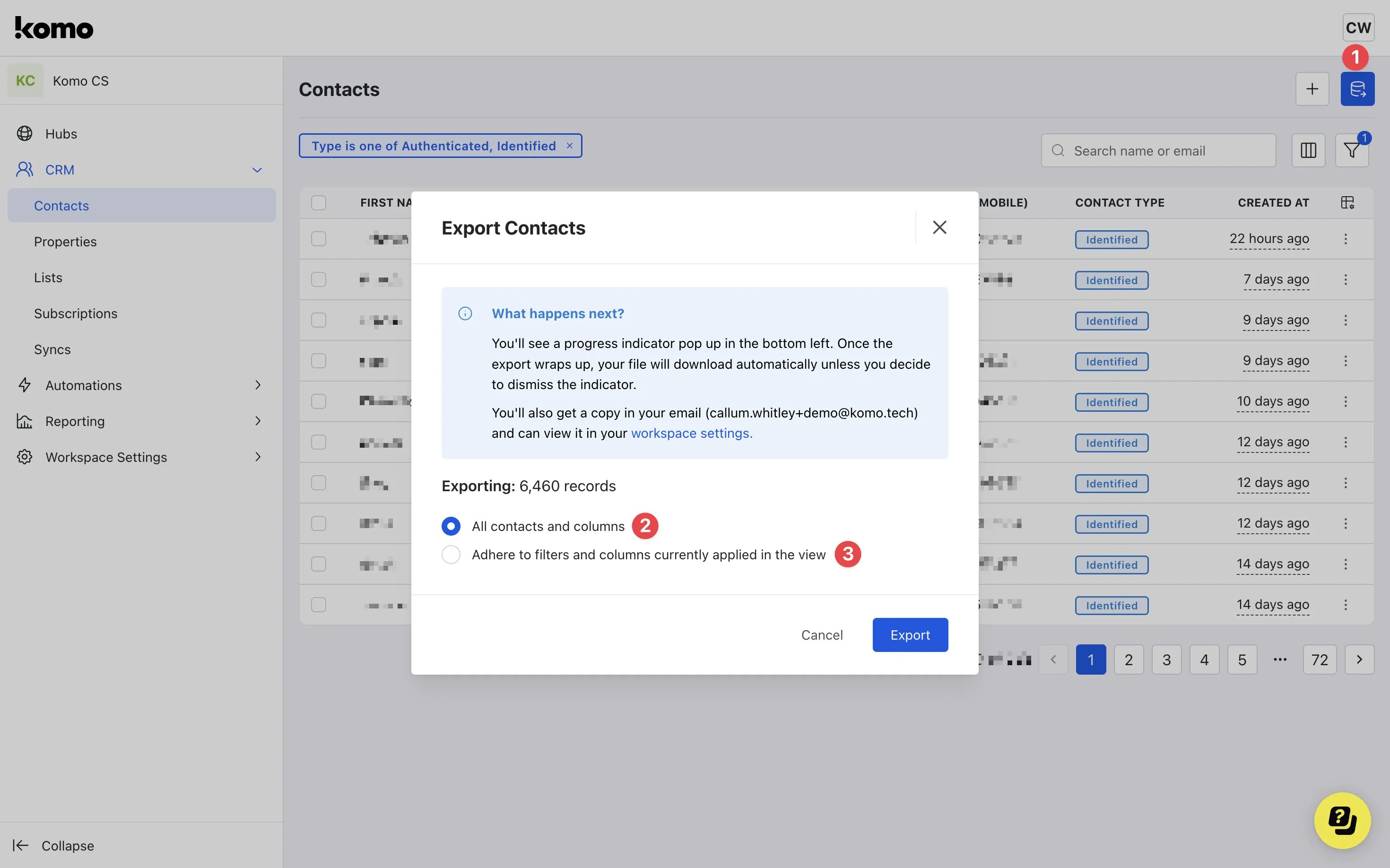 * **(1)** The **export** button will allow you to export your contacts as a .CSV file. This can be used to upload contacts to your external CRM!
* **(2)** You can export the **full contact list** and columns applied.
* **(3)** This option will export the contact list and **adhere to any filters or columns** set from Step 1 (4) + (5) which will appear in your inbox.
### Step 5: Delete a Contact
* **(1)** The **export** button will allow you to export your contacts as a .CSV file. This can be used to upload contacts to your external CRM!
* **(2)** You can export the **full contact list** and columns applied.
* **(3)** This option will export the contact list and **adhere to any filters or columns** set from Step 1 (4) + (5) which will appear in your inbox.
### Step 5: Delete a Contact
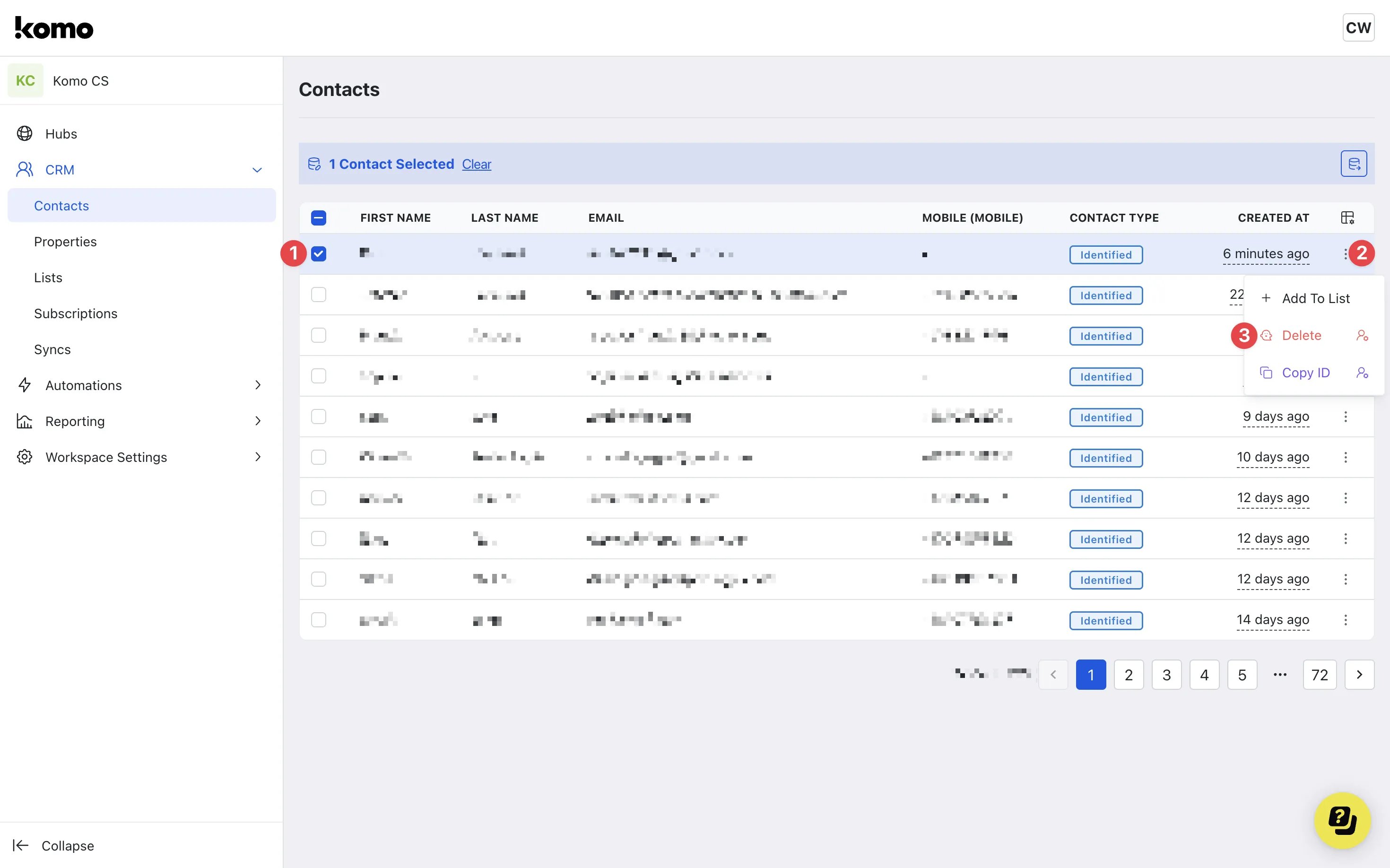 * **(1)** Select the **checkbox** next to the contact you wish to delete.
* **(2)** Click the **three dots** next to the selected contact.
* **(3)** Click **Delete**.
* **(1)** Select the **checkbox** next to the contact you wish to delete.
* **(2)** Click the **three dots** next to the selected contact.
* **(3)** Click **Delete**.
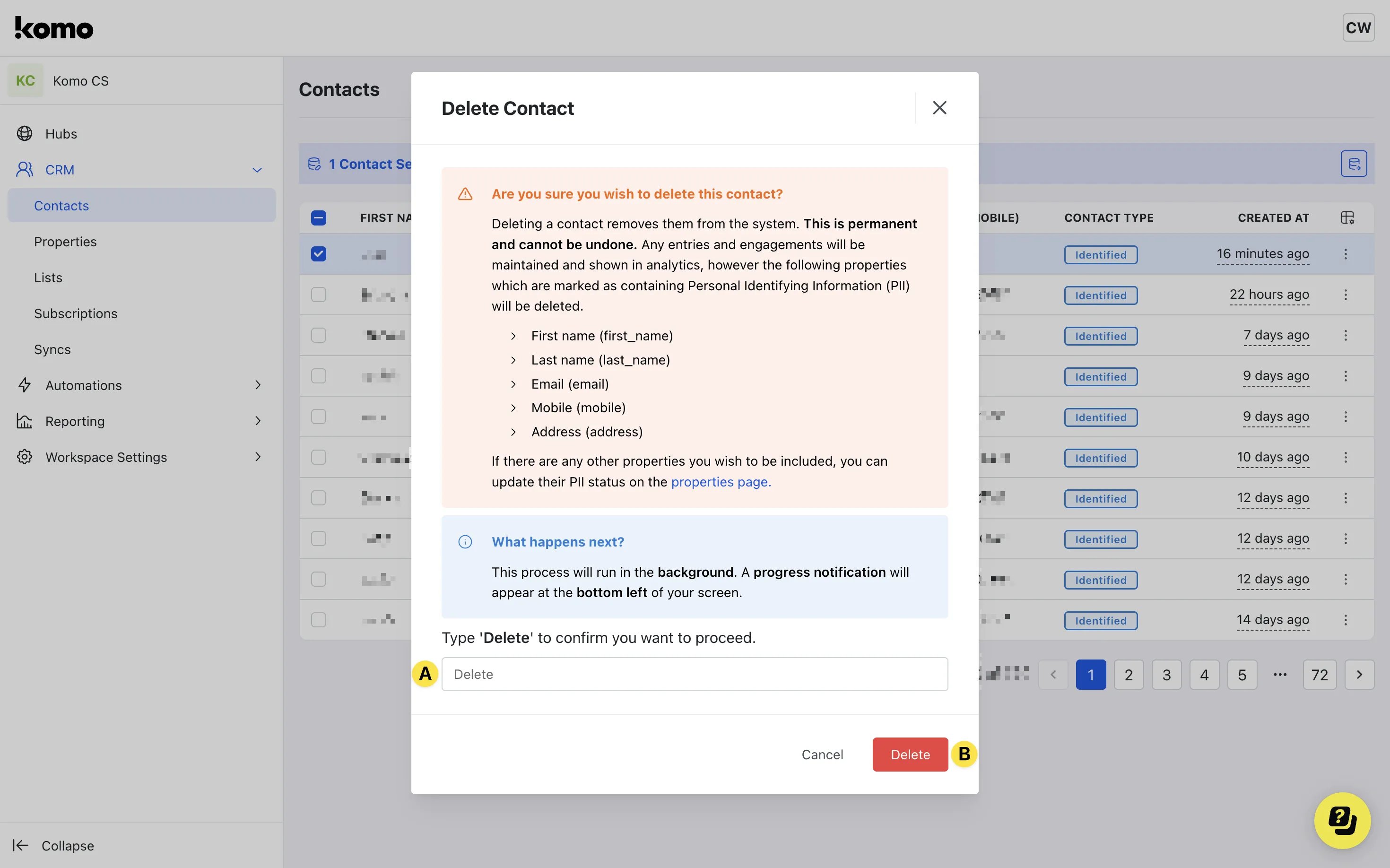 * **(A)** Type the word **Delete** into the text box.
* **(B)** Click the **Delete** button to confirm the contact deletion.
It is important to read the warning message prior to proceeding with contact deletion. Once a contact is deleted, it **cannot be undone**.
## FAQ
**What is a contact?**
A Contact in the Komo Engagement Engine is the representation of a customer or your end-user.
**What is a unique contact?**
A unique contact is identified by a user's email address. If a user has entered multiple competitions using a singular email, they will be classified as one unique contact.
**A user detail is incorrect, can I update their profile in the Komo Engagement Engine?**
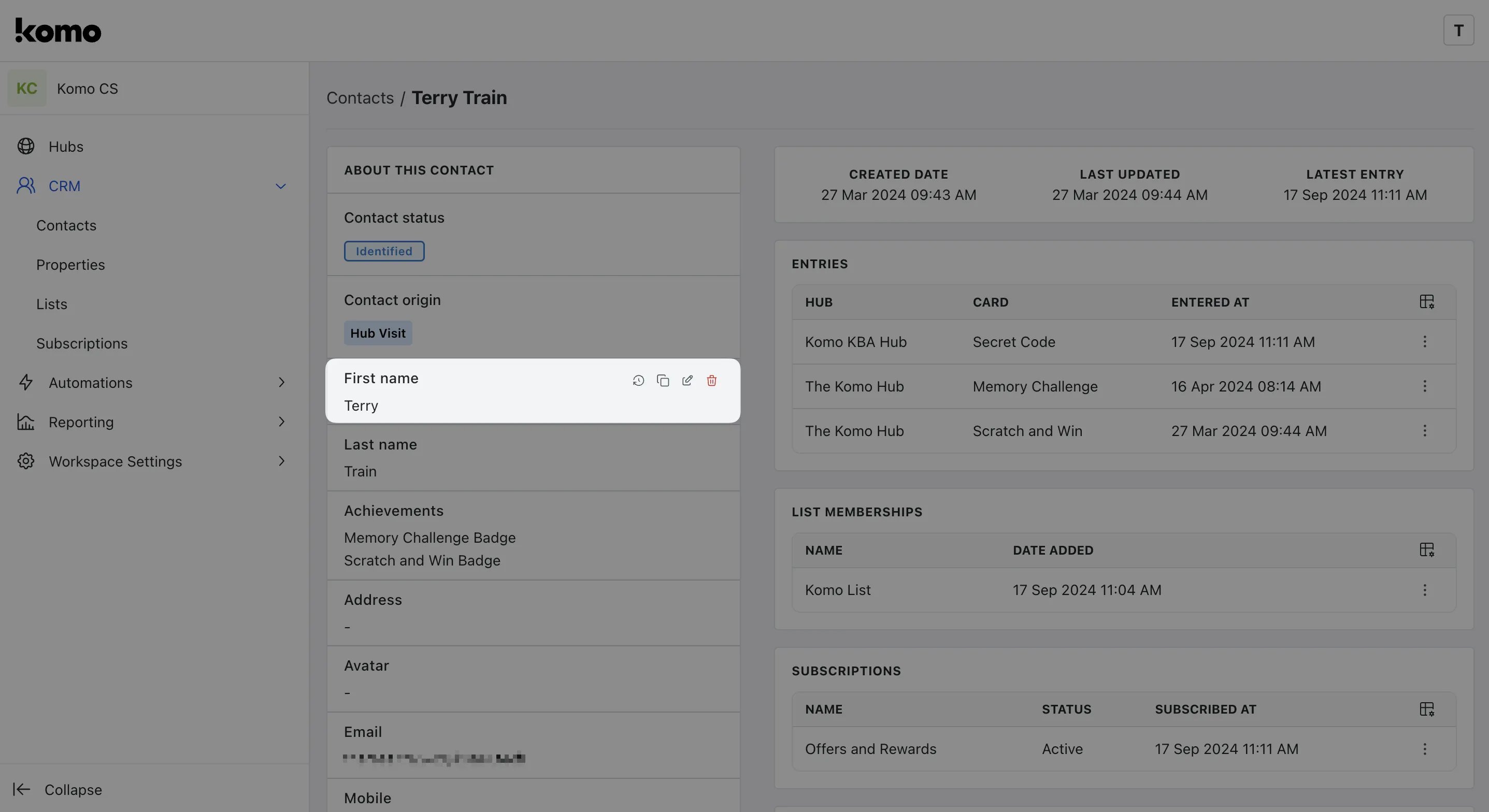
Yes, you can. If you go to the contact and to the section you need to update on the contact profile e.g. mobile, hover over the field and then click on the pencil icon to edit and update.
* **(A)** Type the word **Delete** into the text box.
* **(B)** Click the **Delete** button to confirm the contact deletion.
It is important to read the warning message prior to proceeding with contact deletion. Once a contact is deleted, it **cannot be undone**.
## FAQ
**What is a contact?**
A Contact in the Komo Engagement Engine is the representation of a customer or your end-user.
**What is a unique contact?**
A unique contact is identified by a user's email address. If a user has entered multiple competitions using a singular email, they will be classified as one unique contact.
**A user detail is incorrect, can I update their profile in the Komo Engagement Engine?**
Yes, you can. If you go to the contact and to the section you need to update on the contact profile e.g. mobile, hover over the field and then click on the pencil icon to edit and update.
 **If I delete a contact by mistake, can it be restored?**
No, once a contact is deleted, it cannot be undone. It is important to proceed with caution when deleting contacts.
**Will my analytics be affected if I delete a contact?**
When a contact is deleted, the Komo Engagement Engine creates a tombstone. This means that while all PII (Personally Identifiable Information) is removed from the database, a record of that contact is retained but replaced with placeholder information ie. 56shdu475ihr. This ensures that your analytics remain unaffected and all PII is redacted.
**If I delete a contact by mistake, can it be restored?**
No, once a contact is deleted, it cannot be undone. It is important to proceed with caution when deleting contacts.
**Will my analytics be affected if I delete a contact?**
When a contact is deleted, the Komo Engagement Engine creates a tombstone. This means that while all PII (Personally Identifiable Information) is removed from the database, a record of that contact is retained but replaced with placeholder information ie. 56shdu475ihr. This ensures that your analytics remain unaffected and all PII is redacted.