> ## Documentation Index
> Fetch the complete documentation index at: https://knowledge.komo.tech/llms.txt
> Use this file to discover all available pages before exploring further.
# Card Scheduling
> Schedule the time and date to publish and unpublish your content cards.
## How do I do this?
### Step 1: Schedule the card
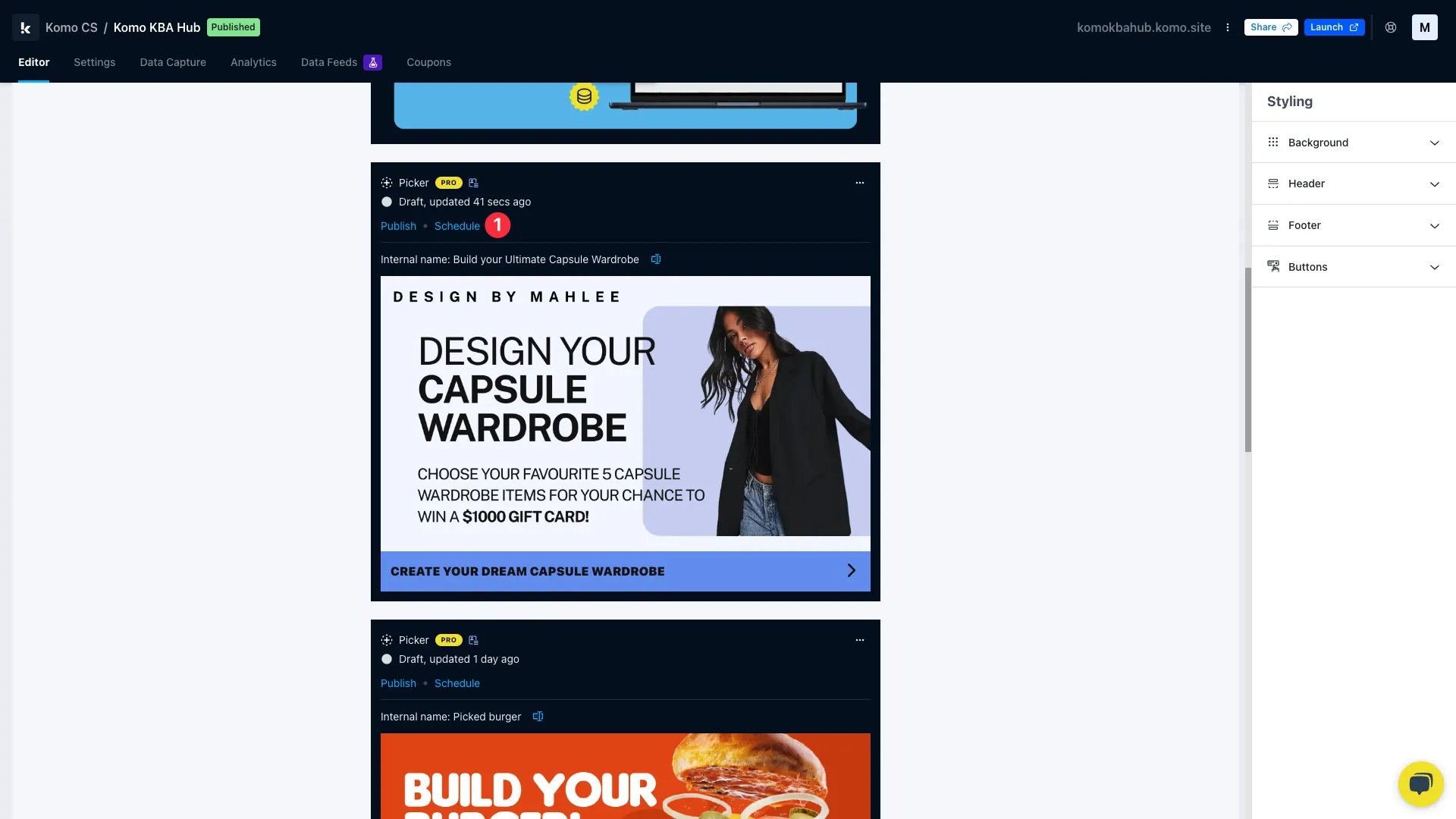 * **(1)** Click **Schedule** once you've completely built out your card and are ready to schedule it.
### Step 2: Set the dates and times
* **(1)** Click **Schedule** once you've completely built out your card and are ready to schedule it.
### Step 2: Set the dates and times
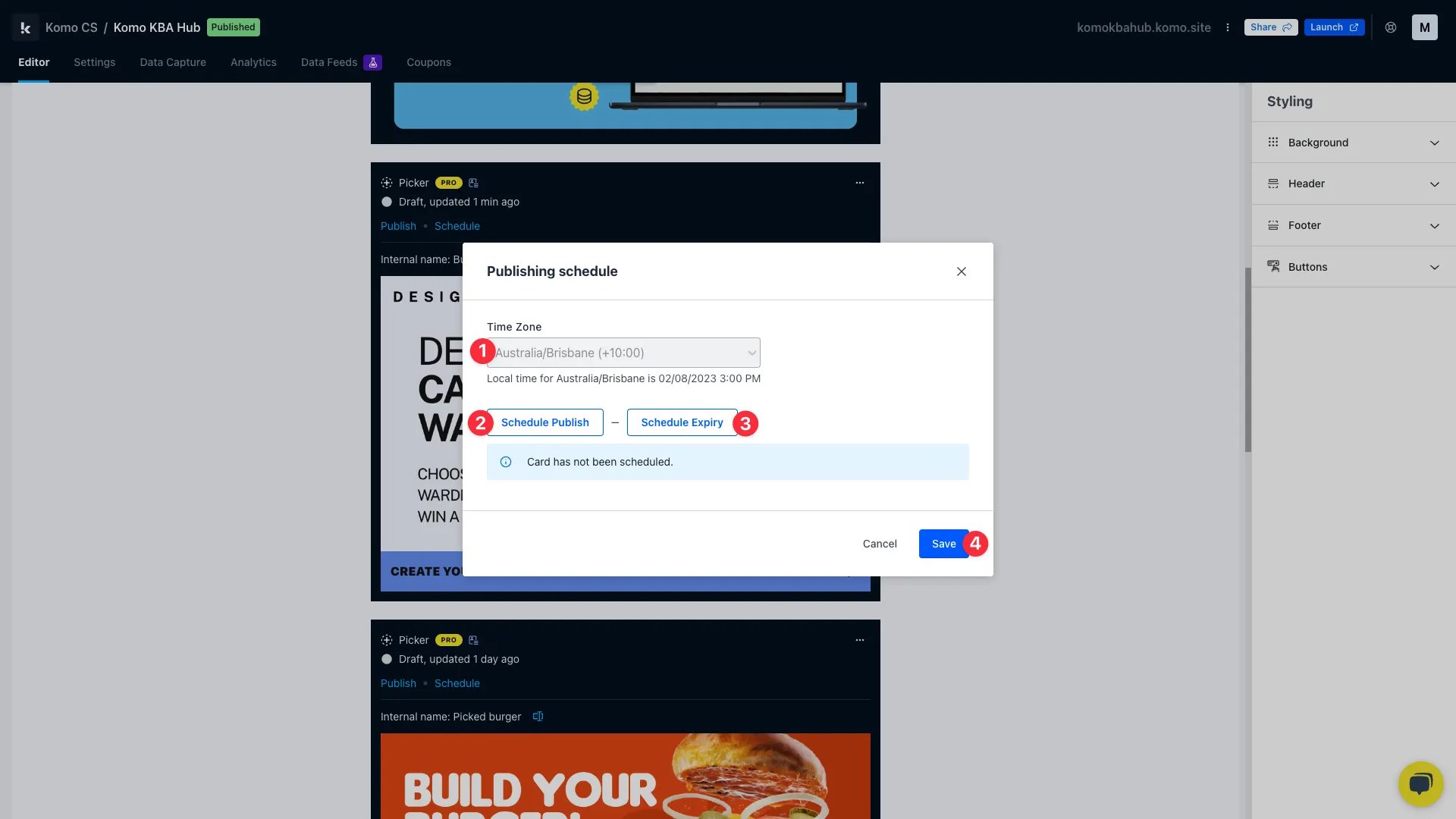 From here you can **schedule** the time the card goes live on your **Engagement Hub**.
* **(1)** Here you can set the **timezone** to reflect when you wish to schedule your Card.
* **(2)** Click **Schedule Publish** to set a date and time you want the card to publish on the Hub.
From here you can **schedule** the time the card goes live on your **Engagement Hub**.
* **(1)** Here you can set the **timezone** to reflect when you wish to schedule your Card.
* **(2)** Click **Schedule Publish** to set a date and time you want the card to publish on the Hub.
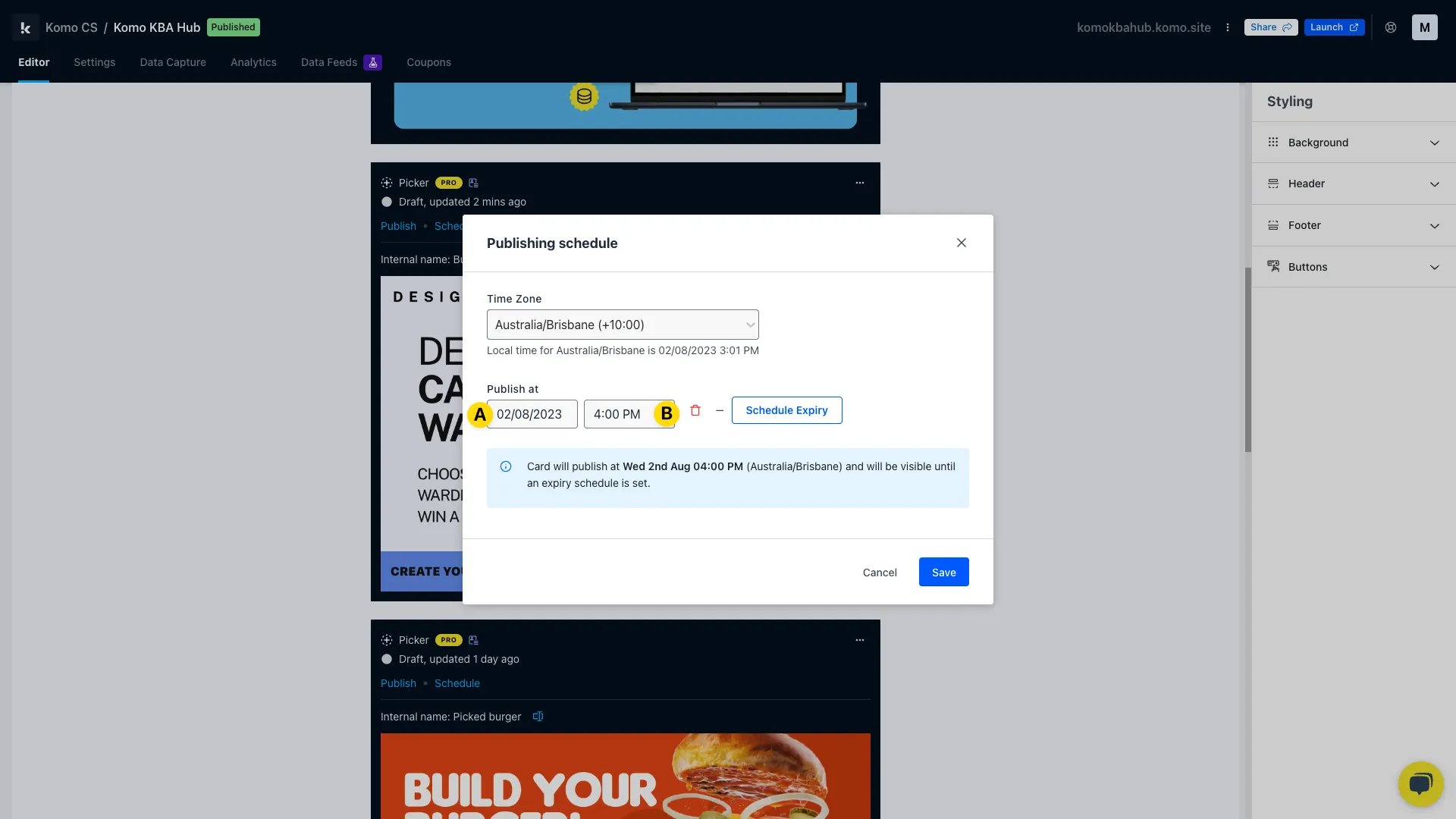 * **(A)** Click here to select the **date** the card will publish on.
* **(B)** Here you can set the **time** the card will publish at.
* **(3)** Click **Schedule Expiry** to set a date and time you want the card to unpublish on the Hub.
* **(A)** Click here to select the **date** the card will publish on.
* **(B)** Here you can set the **time** the card will publish at.
* **(3)** Click **Schedule Expiry** to set a date and time you want the card to unpublish on the Hub.
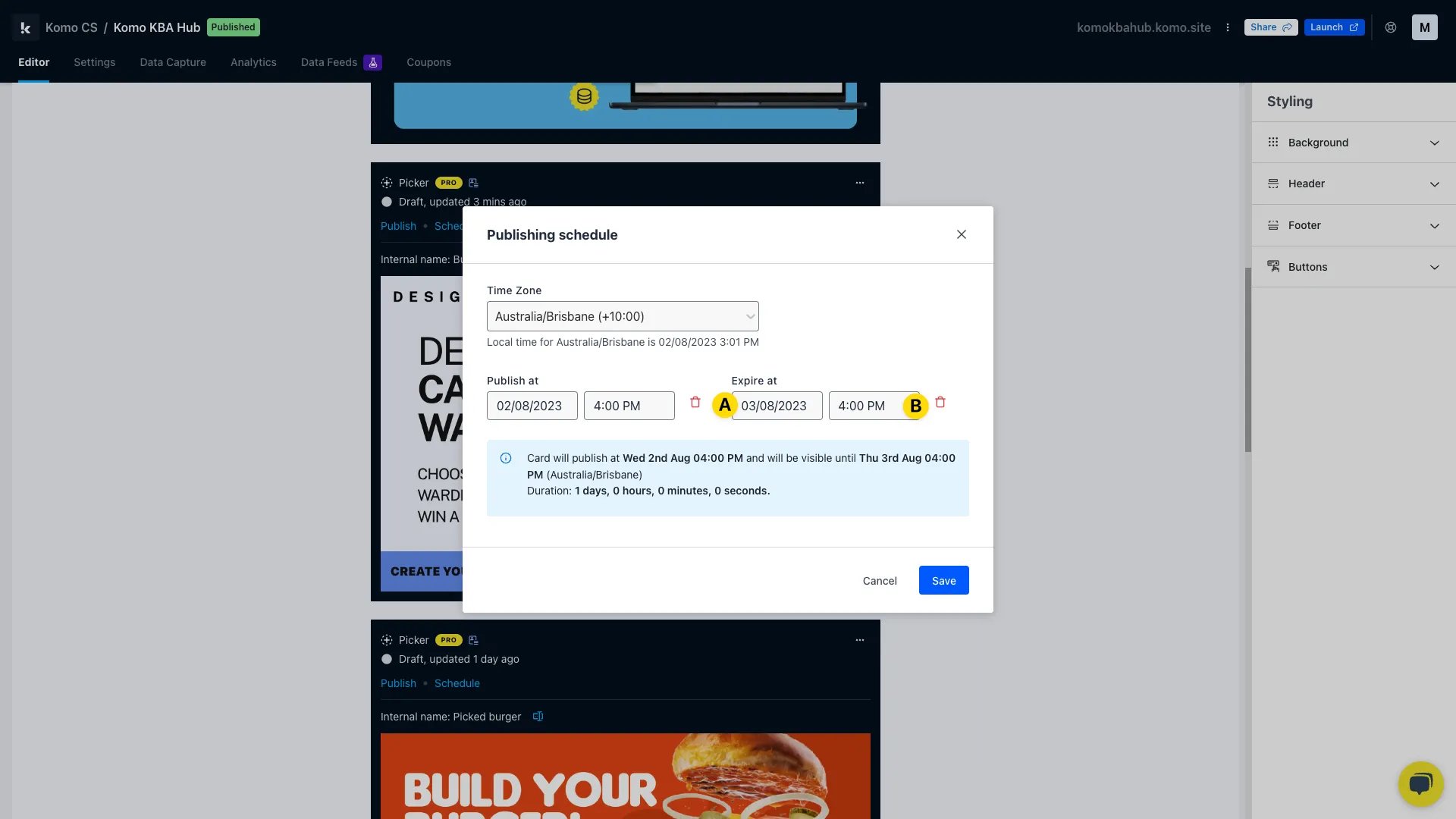 * **(A)** Click here to select the **date** the card will unpublish.
* **(B)** Here you can set the **time** the card will unpublish.
* **(4)** Click Save once you're happy with the selected date and time.
### Step 3: Overview of the scheduled times
* **(A)** Click here to select the **date** the card will unpublish.
* **(B)** Here you can set the **time** the card will unpublish.
* **(4)** Click Save once you're happy with the selected date and time.
### Step 3: Overview of the scheduled times
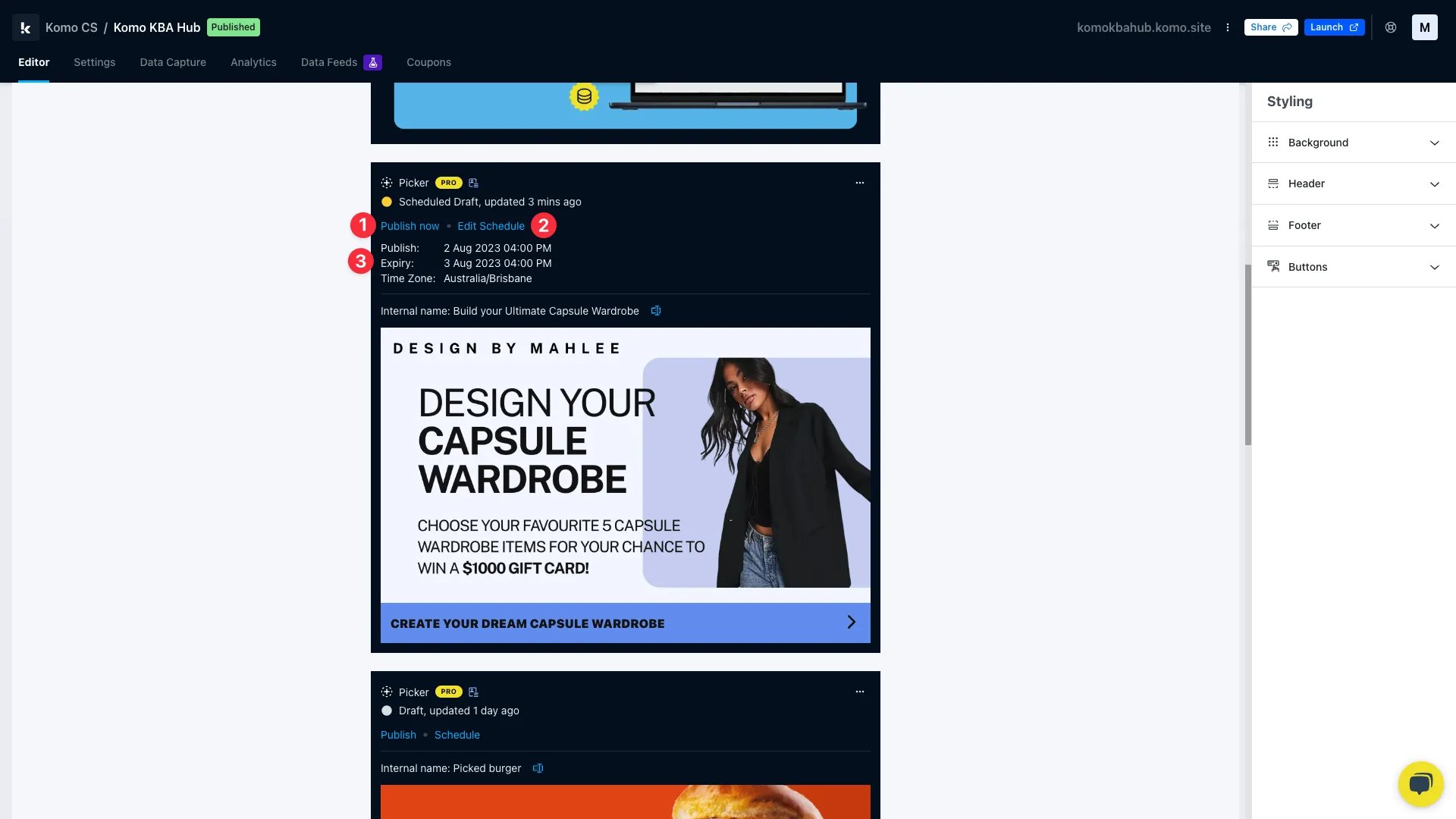 * **(1)** If you change your mind and want to immediately publish the card, you can click **Publish** now.
* **(2)** You can **edit** the dates and time of the schedule here.
* **(3)** Here is an overview of the **scheduled times.**
* **(1)** If you change your mind and want to immediately publish the card, you can click **Publish** now.
* **(2)** You can **edit** the dates and time of the schedule here.
* **(3)** Here is an overview of the **scheduled times.**