> ## Documentation Index
> Fetch the complete documentation index at: https://knowledge.komo.tech/llms.txt
> Use this file to discover all available pages before exploring further.
# Card Testing
> Want to know how to test your cards before publishing? Read on...
Once you have built out your cards, it is always best to do a test run to ensure you have set up everything correctly. Below is a guide on how to test your cards.
## How do I do this?
### Step 1: Clone the Card
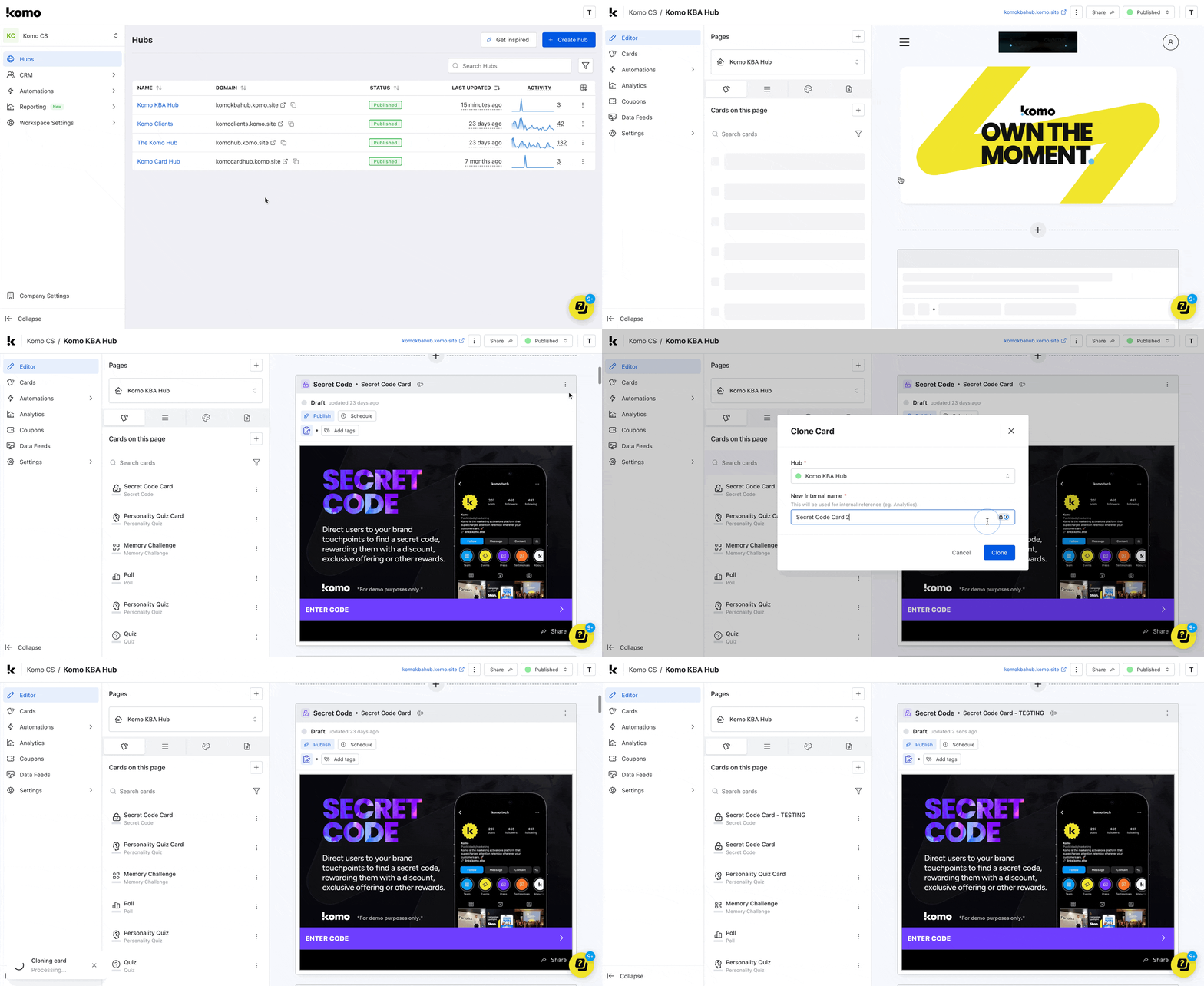 * Navigate to your **Engagement Hub**.
* Scroll to the card you want to test.
* Click on ... and then select **Clone**.
* Add the copy **Testing** to the **internal name** to differentiate between the original and the cloned.
We recommend cloning cards for testing as once you interact with the content, this will impact the card analytics.
### Step 2: Test the Content
There are two ways to test your content prior to launching.
* **Preview**: This allows you to view the journey and experience of just the card/content. The preview will appear as a pop-up over the editor.
* **Single Card View** : You can preview the card on the Hub to see how this would potentially look with your Hub styling.
As this is a testing process, do **not** publish the card. If the card is published on the Hub, users will be able to view the content.
## Preview the Card
* Navigate to your **Engagement Hub**.
* Scroll to the card you want to test.
* Click on ... and then select **Clone**.
* Add the copy **Testing** to the **internal name** to differentiate between the original and the cloned.
We recommend cloning cards for testing as once you interact with the content, this will impact the card analytics.
### Step 2: Test the Content
There are two ways to test your content prior to launching.
* **Preview**: This allows you to view the journey and experience of just the card/content. The preview will appear as a pop-up over the editor.
* **Single Card View** : You can preview the card on the Hub to see how this would potentially look with your Hub styling.
As this is a testing process, do **not** publish the card. If the card is published on the Hub, users will be able to view the content.
## Preview the Card
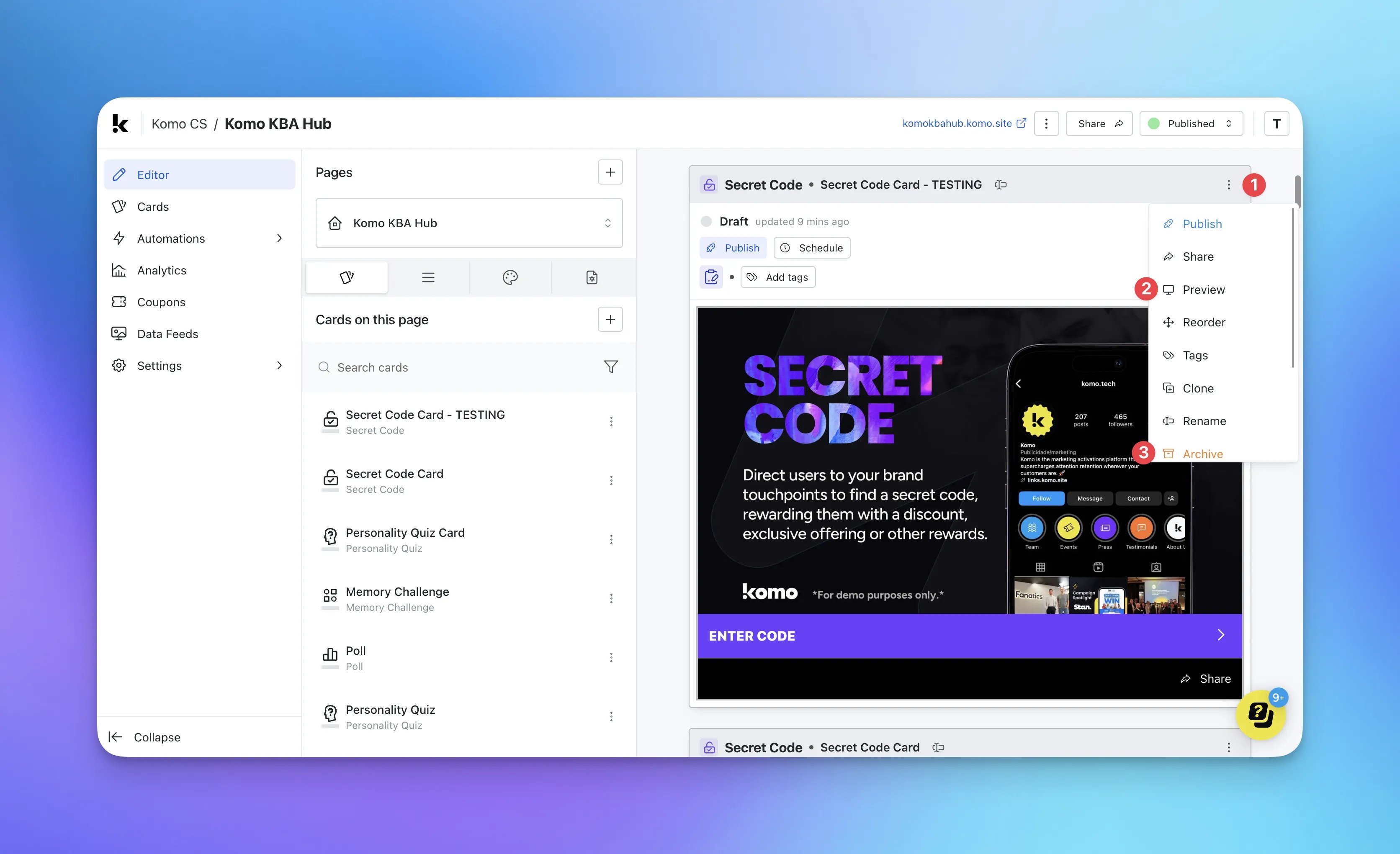 * (1) Clicking on **...** opens additional settings for the card. (2) Click on **Preview** to test the card.
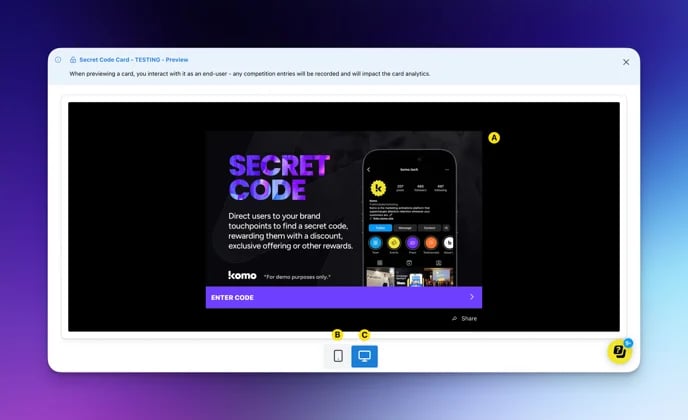 * **(A)** Here you can play through the experience as a potential end user.
* **(B) + (C)** You have the option to test the card in a mobile view or desktop.
* **(3)** After you have finished testing your game, **archive the testing card** to avoid confusion with the original.
## Single Card View
* **(A)** Here you can play through the experience as a potential end user.
* **(B) + (C)** You have the option to test the card in a mobile view or desktop.
* **(3)** After you have finished testing your game, **archive the testing card** to avoid confusion with the original.
## Single Card View
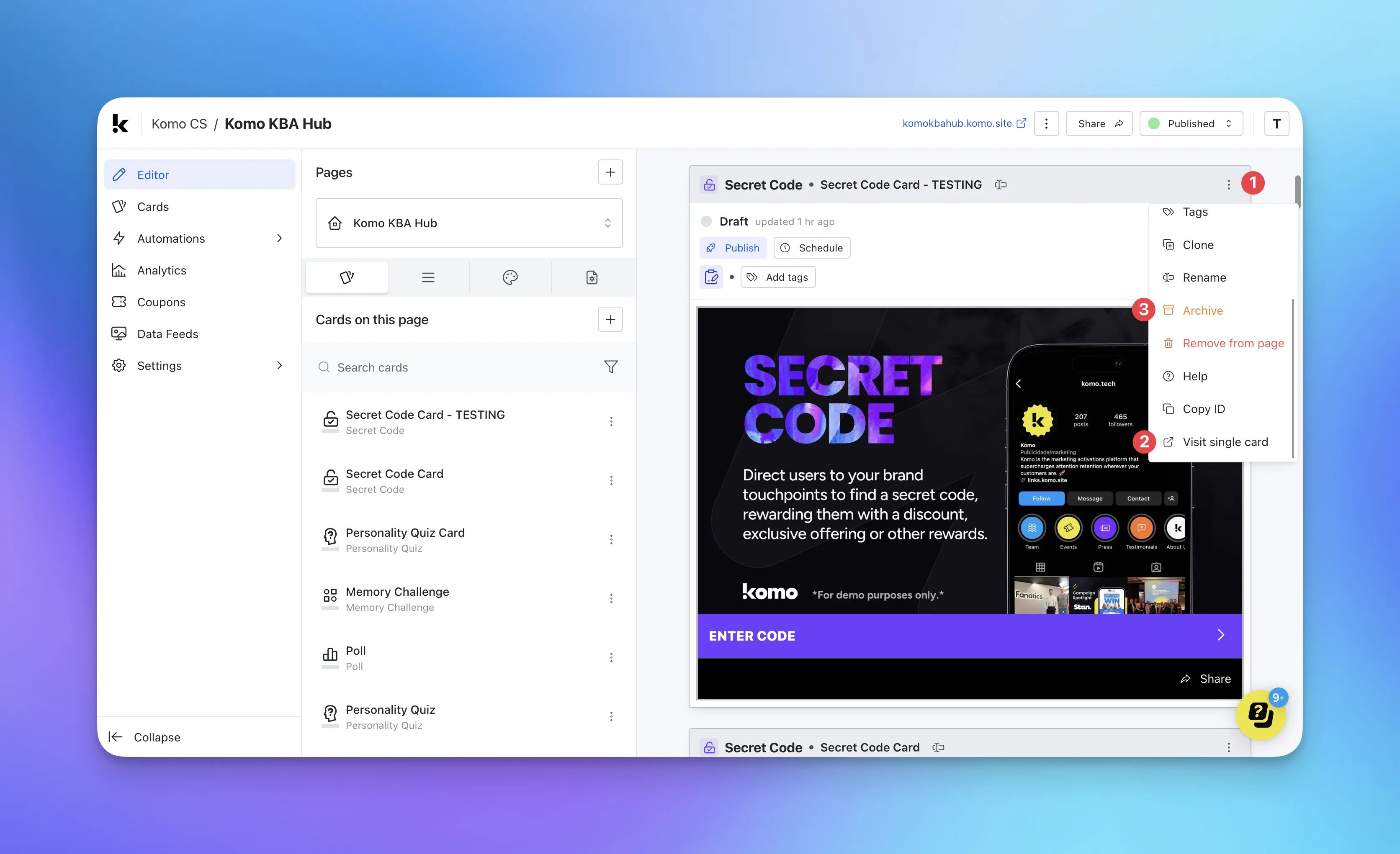 * **(1)** Clicking on ... opens additional settings for the card.
* **(2)** Click on **View single card** to test the card.
* **(1)** Clicking on ... opens additional settings for the card.
* **(2)** Click on **View single card** to test the card.
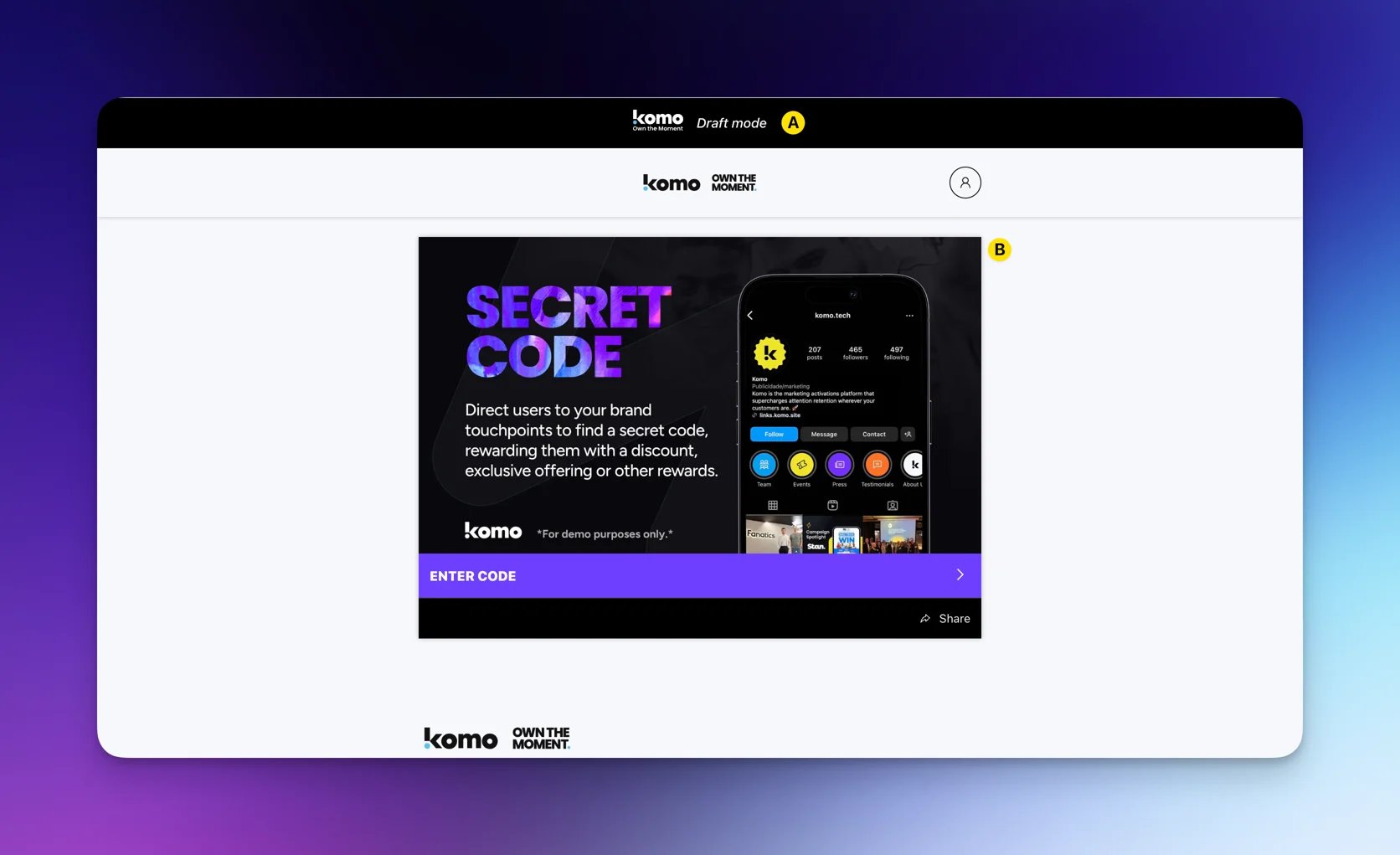 * **(A)** When previewing a draft card, you will see the **draft banner** to make you aware the card is still in draft mode.
* **(B)** Click on the card and **preview the experience**.
* **(A)** When previewing a draft card, you will see the **draft banner** to make you aware the card is still in draft mode.
* **(B)** Click on the card and **preview the experience**.