> ## Documentation Index
> Fetch the complete documentation index at: https://knowledge.komo.tech/llms.txt
> Use this file to discover all available pages before exploring further.
# Hub Sharing
> Share your Hub with links, QR codes, email or straight to your socials.
## What is it?
You can now share your Hub directly to your social accounts, through email, with a link or QR code.
## How do I use it?
### Step 1: Set up your SEO/SEM settings
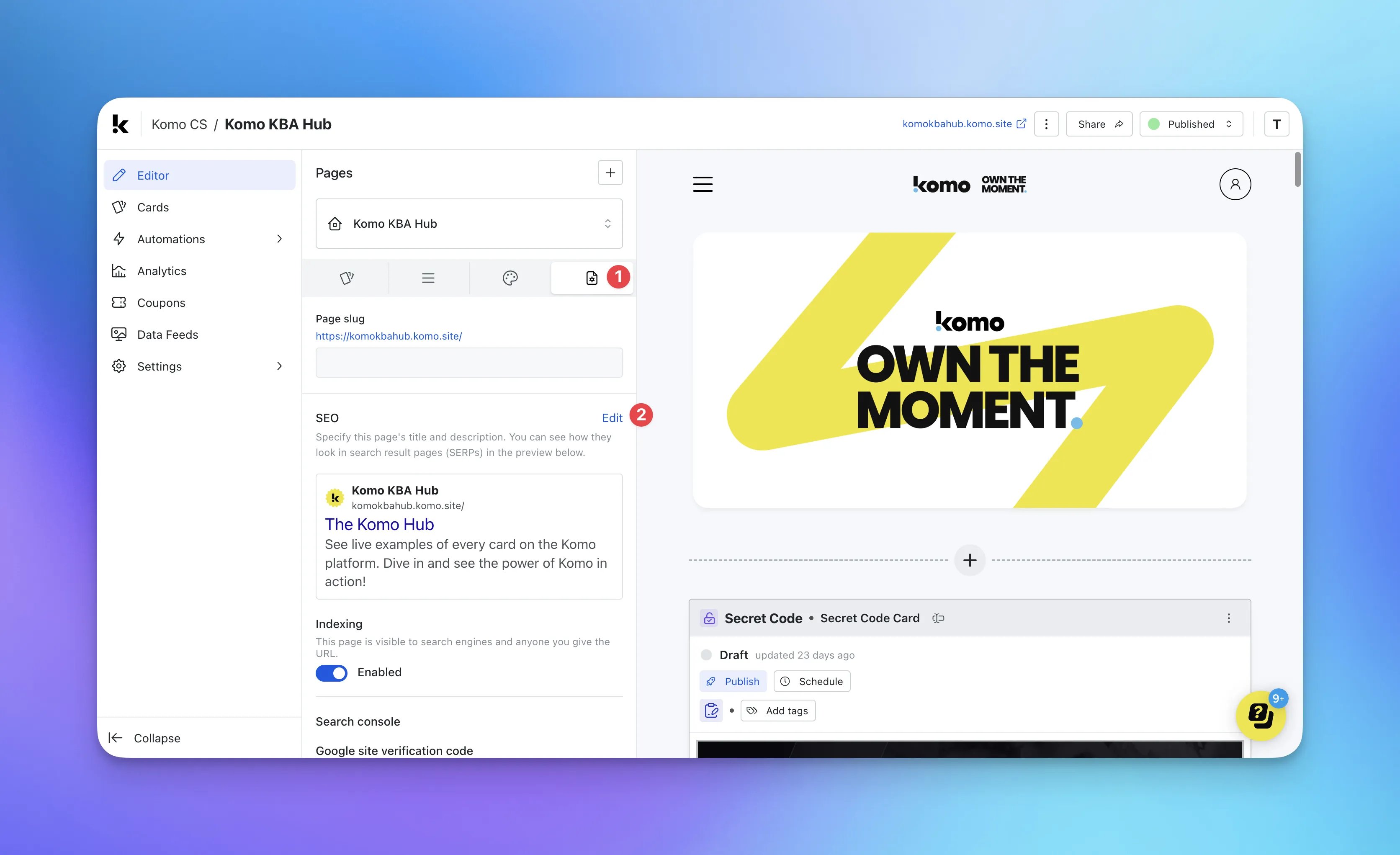 * Navigate to your **Engagement Hub**.
* **(1)** Once there, click on **Page settings** and then **(2)** Edit.
Here you can set whether you would like your Hub to be visible in **search engine results**.
* Navigate to your **Engagement Hub**.
* **(1)** Once there, click on **Page settings** and then **(2)** Edit.
Here you can set whether you would like your Hub to be visible in **search engine results**.
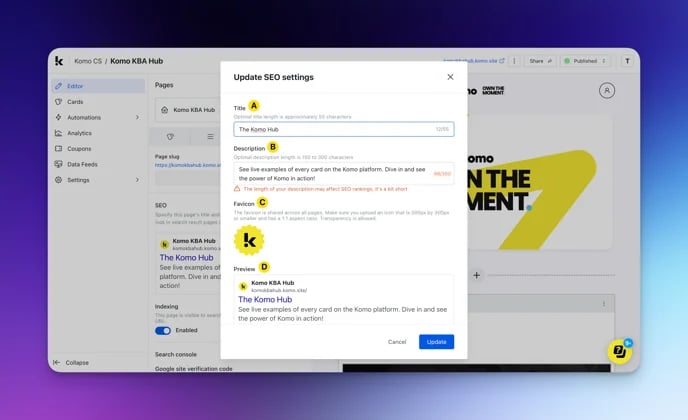 * **(A)** This refers to the **title** of your site and will be shown in the browser tab.
* **(B)** Here you can set up your **SEO description**.
* **(C)** This is the **icon** that will be shown next to your Hub name in your browsers tab.
* **(D)** This is a **preview** of search engine results.
### Step 2: Sharing a published Hub
* **(A)** This refers to the **title** of your site and will be shown in the browser tab.
* **(B)** Here you can set up your **SEO description**.
* **(C)** This is the **icon** that will be shown next to your Hub name in your browsers tab.
* **(D)** This is a **preview** of search engine results.
### Step 2: Sharing a published Hub
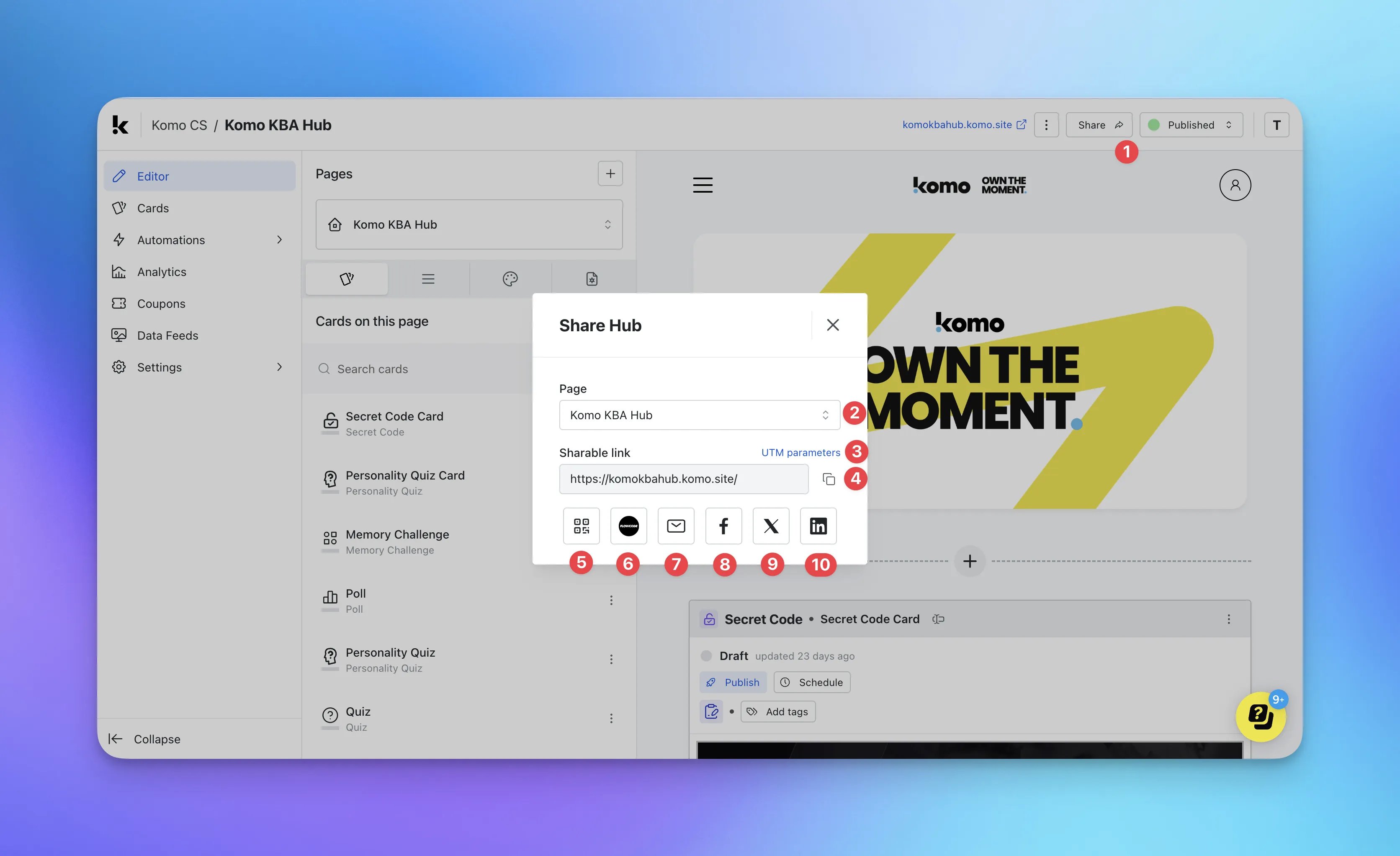 * **(1)** Click on **Share** to open the sharing options.
* **(2)** If you have **multi-pages**, you can select the page you wish to share.
* **(3)** Add **UTM parameters** to your Hub URL.
We highly recommend using UTM parameters/tracking for all promotional links including QR codes. Click here to learn more.
* **(4)** Selecting the **Clipboard** button to copy the sharable link
* **(5)** Create a **QR code**.
* **(1)** Click on **Share** to open the sharing options.
* **(2)** If you have **multi-pages**, you can select the page you wish to share.
* **(3)** Add **UTM parameters** to your Hub URL.
We highly recommend using UTM parameters/tracking for all promotional links including QR codes. Click here to learn more.
* **(4)** Selecting the **Clipboard** button to copy the sharable link
* **(5)** Create a **QR code**.
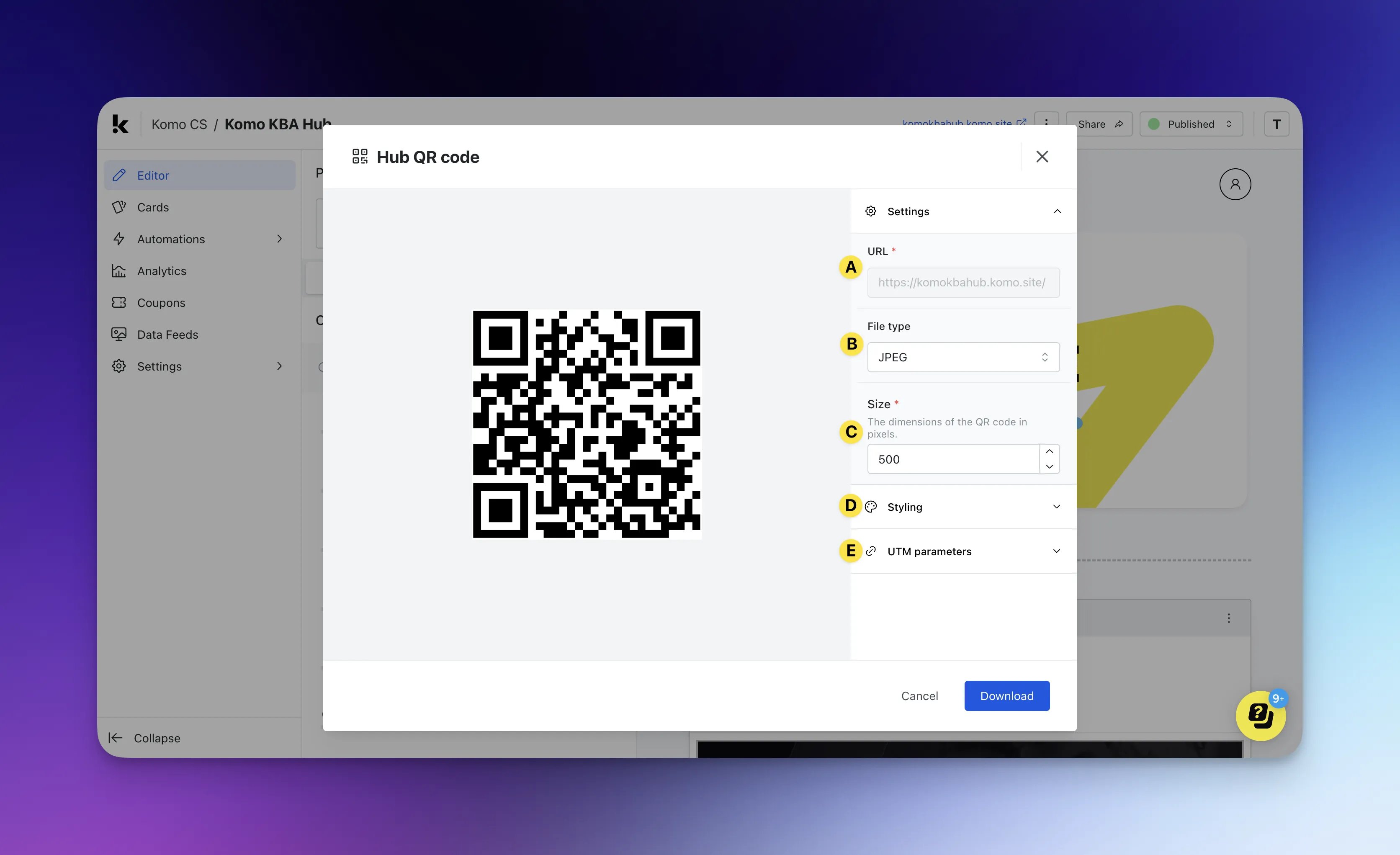 * (A) The Hub URL cannot be changed in this setting.
Ensure you're happy with your domain prior to generating a QR code as once you alter the domain, you will need to generate a new QR code.
* (B) Select your preferred file type.
* (C) Alter the size of the QR code.
The dimensions are a locked aspect ratio of 1:1.
* (D) Edit the styling of the QR code.
* (A) The Hub URL cannot be changed in this setting.
Ensure you're happy with your domain prior to generating a QR code as once you alter the domain, you will need to generate a new QR code.
* (B) Select your preferred file type.
* (C) Alter the size of the QR code.
The dimensions are a locked aspect ratio of 1:1.
* (D) Edit the styling of the QR code.  * **(a)** Edit the **background colour** of the QR code.
* **(b)** Edit the **foreground colour** of the QR code.
* **(c)** Upload an **image or logo** here that will sit in the centre.
* **(E)** Add UTM parameters to the QR code/s to track where traffic is coming from.
* **(a)** Edit the **background colour** of the QR code.
* **(b)** Edit the **foreground colour** of the QR code.
* **(c)** Upload an **image or logo** here that will sit in the centre.
* **(E)** Add UTM parameters to the QR code/s to track where traffic is coming from.  * **(a)** Add a **source** to identify where the traffic originated from.
* **(b)** Include a **medium** to track what type of traffic users originated from.
* **(c)** Input the **campaign name**.
* **(d)** Add a **term** to track which keyword term a user came from.
This is only use for paid search ads.
* **(e)** The **content** will allow you to differentiate between ads or links if you have multiple links directing to the same URL.
* **(6)** Connect and create a QR code via **Flowcode.**
* **(7)** Share via **email**.
* **(8)** Share via **Facebook**.
* **(9)** Share via **X**.
* **(10)** Share via **LinkedIn**.
### Step 3: Sharing an unpublished Hub
* **(a)** Add a **source** to identify where the traffic originated from.
* **(b)** Include a **medium** to track what type of traffic users originated from.
* **(c)** Input the **campaign name**.
* **(d)** Add a **term** to track which keyword term a user came from.
This is only use for paid search ads.
* **(e)** The **content** will allow you to differentiate between ads or links if you have multiple links directing to the same URL.
* **(6)** Connect and create a QR code via **Flowcode.**
* **(7)** Share via **email**.
* **(8)** Share via **Facebook**.
* **(9)** Share via **X**.
* **(10)** Share via **LinkedIn**.
### Step 3: Sharing an unpublished Hub
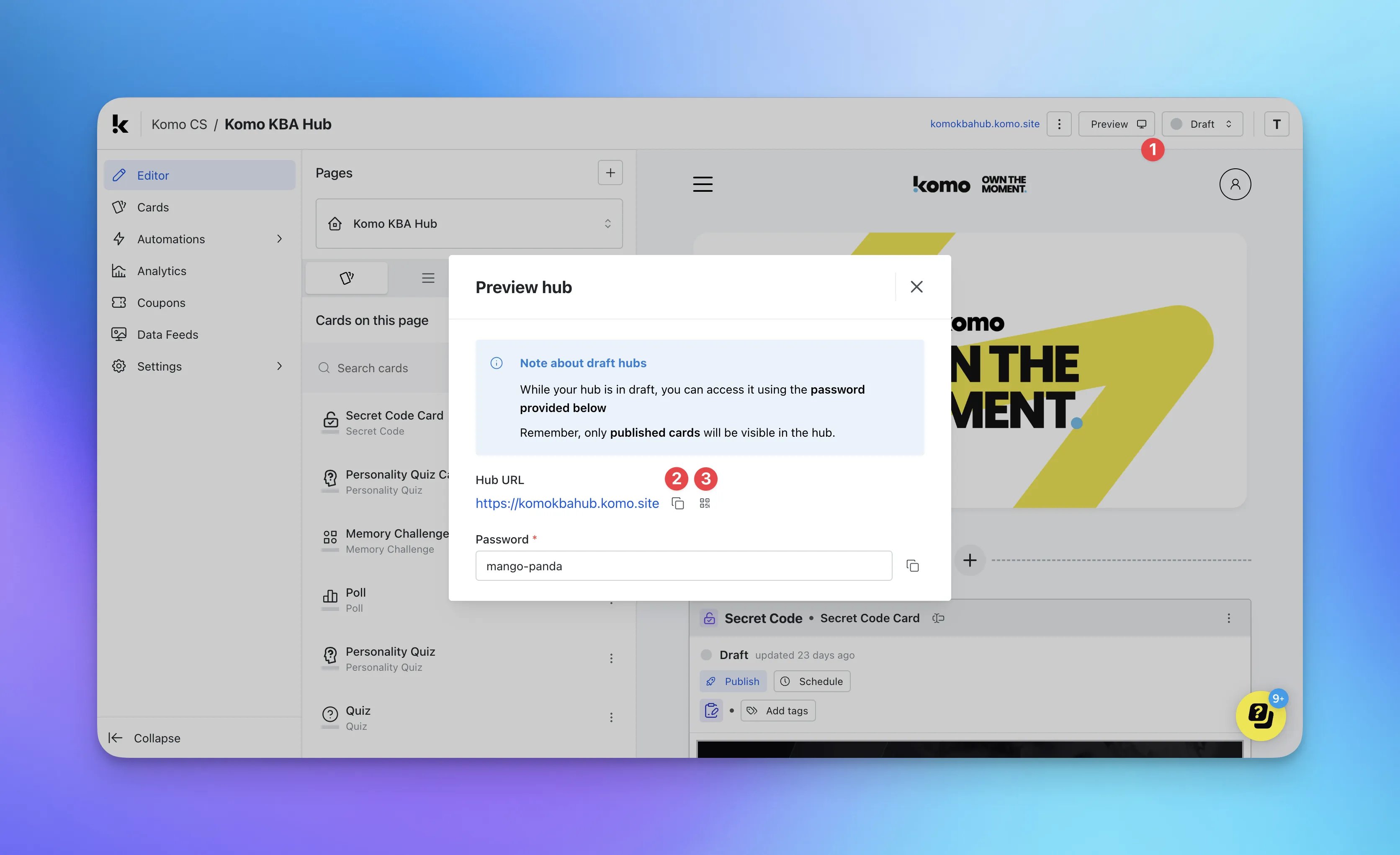 * **(1)** Click on **Preview** to open the options.
* **(2)** Selecting the **Clipboard** button to copy the sharable link.
* **(3)** Create a **QR code.**
Follow Step 2(5) to generate a QR code.
## FAQ
**Can I share directly on my socials?**
Yes, when you click on the social icons, it will automatically connect to your signed in account for that platform and create a draft post where you can add a caption.
**Do I need to set up any SEM/SEO settings for the Hub when sharing?**
Yes, you can see how to edit these settings [here](#contents).
**Can I generate a QR code before building any content or going live?**
You sure can! We understand promotional collateral can take some time so follow [Step 3](#how-do-i-use-it-step-1-set-up-your-seosem-settings) to see how to create a QR code when your Hub is still in draft mode.
* **(1)** Click on **Preview** to open the options.
* **(2)** Selecting the **Clipboard** button to copy the sharable link.
* **(3)** Create a **QR code.**
Follow Step 2(5) to generate a QR code.
## FAQ
**Can I share directly on my socials?**
Yes, when you click on the social icons, it will automatically connect to your signed in account for that platform and create a draft post where you can add a caption.
**Do I need to set up any SEM/SEO settings for the Hub when sharing?**
Yes, you can see how to edit these settings [here](#contents).
**Can I generate a QR code before building any content or going live?**
You sure can! We understand promotional collateral can take some time so follow [Step 3](#how-do-i-use-it-step-1-set-up-your-seosem-settings) to see how to create a QR code when your Hub is still in draft mode.