> ## Documentation Index
> Fetch the complete documentation index at: https://knowledge.komo.tech/llms.txt
> Use this file to discover all available pages before exploring further.
# Connect Google Tag Manager to your Hub
> Google Tag Manager allows you to track various custom events and more accurately measure ROI.
## What is it?
Easily track custom engagement events and prove marketing impact with Google Tag Manager integration. By connecting GTM to your Komo activation, you can fire custom tags based on user actions—capturing rich, real-time behavioral data that feeds directly into your analytics platform of choice. This lets you measure campaign ROI more accurately, optimize user experiences, and eliminate the need for hard-coded tracking setups or manual data handling.
The Google Tag Manager integration is only available on certain Komo plans.
## How do I set it up?
### Connect the Google Tag Manager Connected App
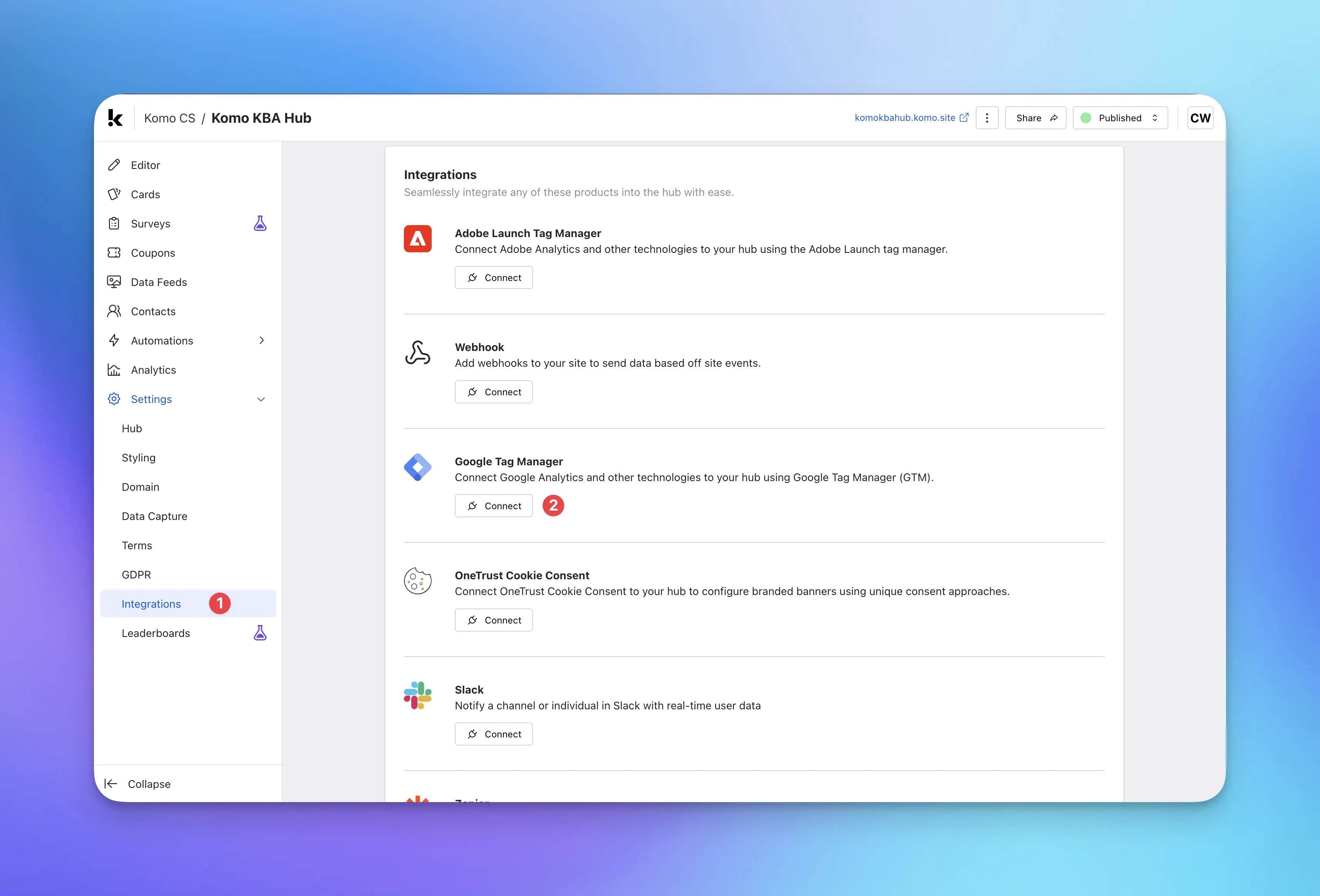 * **(1)** To add your Google Tag Manager, navigate to Settings within your Hub and select **Integrations.**
* **(2)** Find the Google Tag Manager integration and click **Connect.**
* **(1)** To add your Google Tag Manager, navigate to Settings within your Hub and select **Integrations.**
* **(2)** Find the Google Tag Manager integration and click **Connect.**
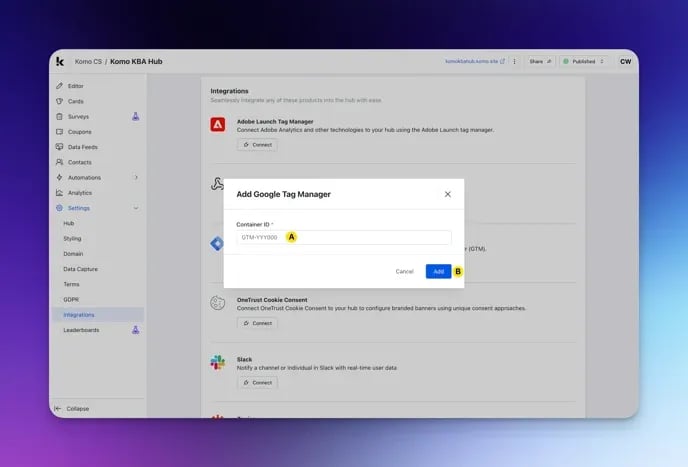 * **(A)** Here you can enter the **Google Tag Manager Container ID** you are supplied from GTM (it should look like the placeholder text).
* **(B)** Click **Add.**
## FAQ
**What events does Komo send to GTM?**
To learn more about the event that Komo pushed to the GTM Data Layer, see here.
* **(A)** Here you can enter the **Google Tag Manager Container ID** you are supplied from GTM (it should look like the placeholder text).
* **(B)** Click **Add.**
## FAQ
**What events does Komo send to GTM?**
To learn more about the event that Komo pushed to the GTM Data Layer, see here.