> ## Documentation Index
> Fetch the complete documentation index at: https://knowledge.komo.tech/llms.txt
> Use this file to discover all available pages before exploring further.
# Workflows
> Build powerful automation sequences that respond to user behavior, manage contacts, and deliver personalized experiences at scale
# Workflows
Transform manual processes into intelligent automation. Komo Workflows let you create event-driven sequences that respond to user behavior, manage contacts automatically, and deliver personalized experiences at scale.
**Why use workflows?** Turn every user interaction into an opportunity for automated engagement, contact management, and conversion optimization.
## Creating Your First Workflow
### Step 1: Navigate to Workflows
Go to **Automations → Workflows** in your workspace sidebar.
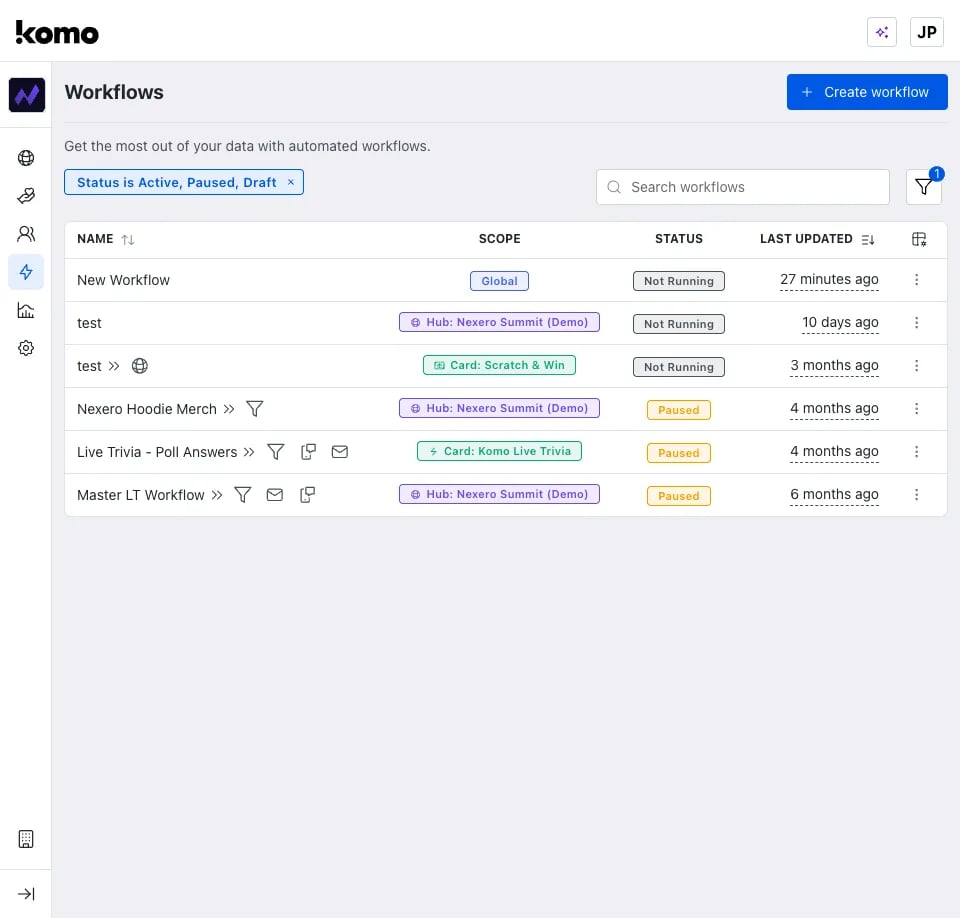
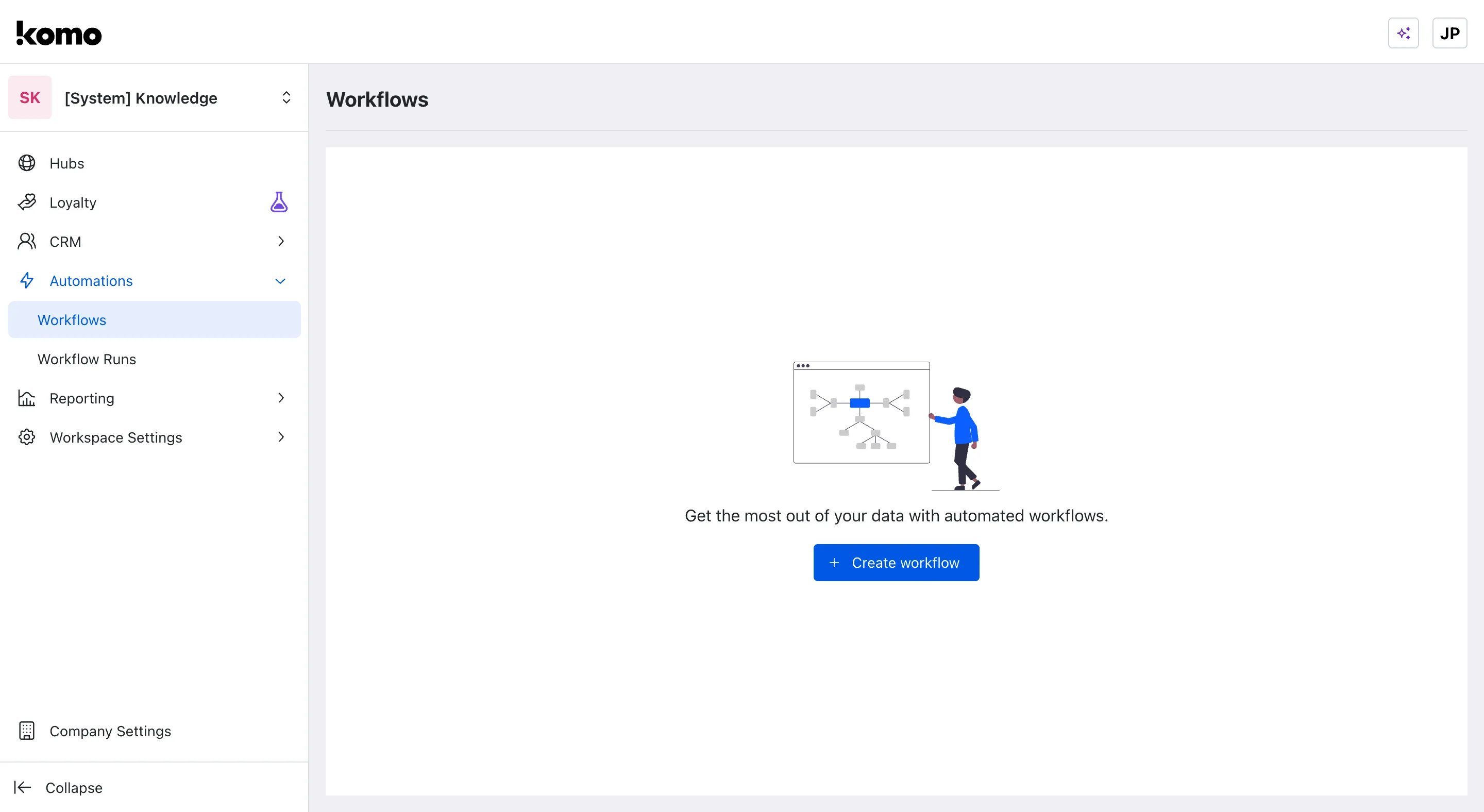 Your workflows dashboard shows:
* **Active workflows** with status indicators and scope information
* **Quick actions** via three-dot menus for editing, cloning, and management
* **Performance metrics** at a glance
[**Learn more about workflow statuses →**](/integrations-automation/workflows/status-management)
Your workflows dashboard shows:
* **Active workflows** with status indicators and scope information
* **Quick actions** via three-dot menus for editing, cloning, and management
* **Performance metrics** at a glance
[**Learn more about workflow statuses →**](/integrations-automation/workflows/status-management)
 ### Step 2: Choose Your Scope
Click **+ Create Workflow** and select your automation scope:
### Step 2: Choose Your Scope
Click **+ Create Workflow** and select your automation scope:
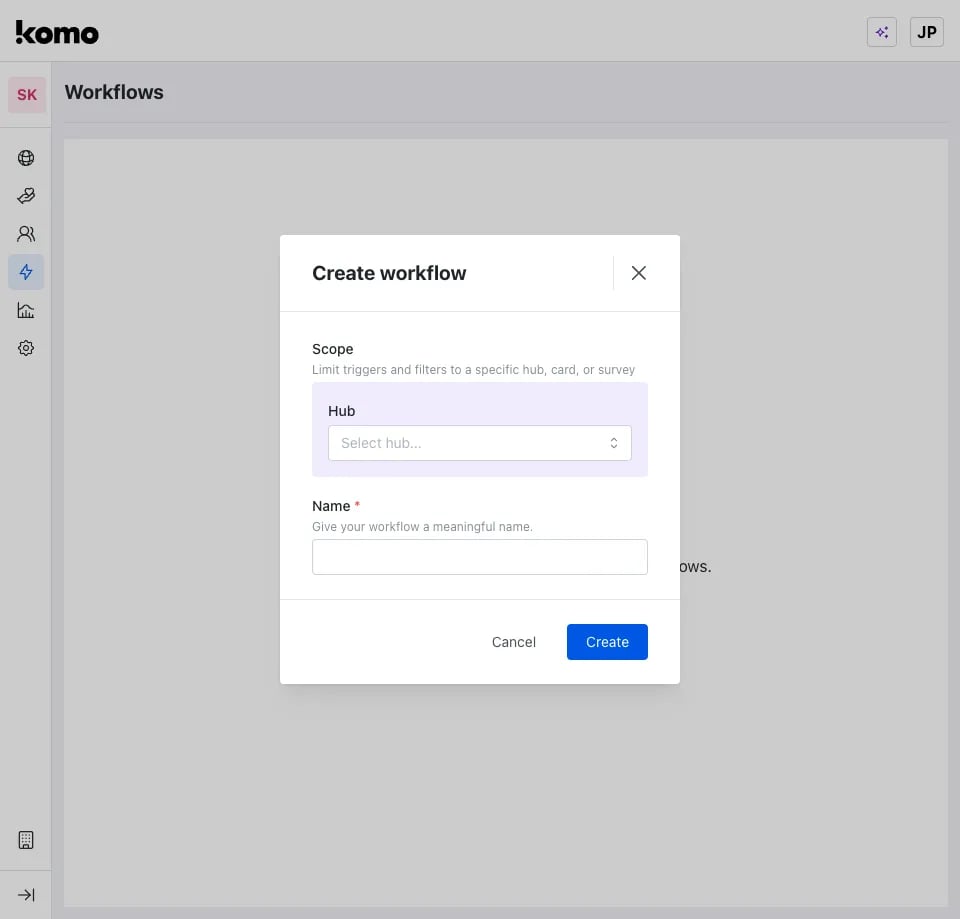 | Scope | Best For | Example |
| ------------- | --------------------- | ------------------------ |
| **Workspace** | Global automations | Welcome all new contacts |
| **Hub** | Site-specific actions | Location-based offers |
| **Card** | Campaign-focused | Event completion rewards |
| Scope | Best For | Example |
| ------------- | --------------------- | ------------------------ |
| **Workspace** | Global automations | Welcome all new contacts |
| **Hub** | Site-specific actions | Location-based offers |
| **Card** | Campaign-focused | Event completion rewards |
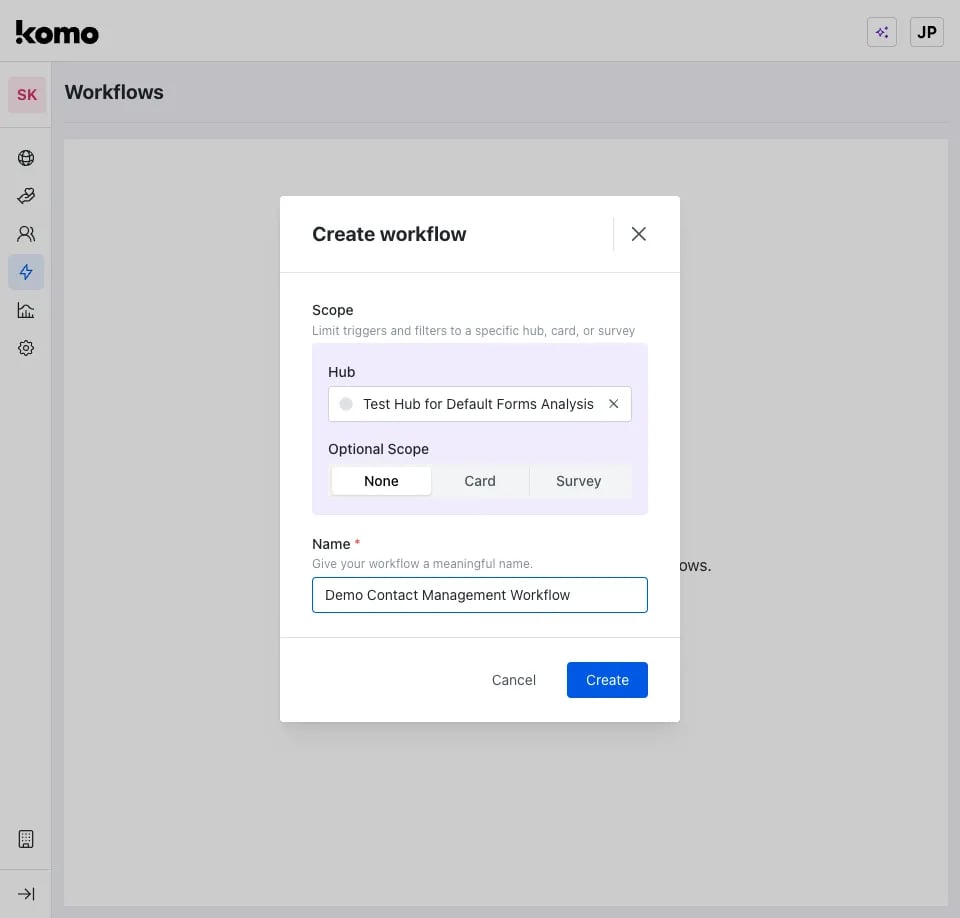 **💡 Tip**: Start with Hub or Card scope for testing, then scale to Workspace level.
### Step 3: Select Your Trigger
Choose what event starts your workflow:
| Trigger | When It Fires | Perfect For |
| ------------------- | ------------------- | -------------------- |
| **Data Captured** | Form submission | Lead generation |
| **Card Completed** | Experience finished | Completion rewards |
| **Contact Created** | New user identified | Welcome sequences |
| **Prize Awarded** | User wins prize | Winner notifications |
[**See all triggers →**](/integrations-automation/workflows/triggers)
### Step 4: Build Your Flow
Use the visual workflow builder to drag, connect, and configure your automation:
**💡 Tip**: Start with Hub or Card scope for testing, then scale to Workspace level.
### Step 3: Select Your Trigger
Choose what event starts your workflow:
| Trigger | When It Fires | Perfect For |
| ------------------- | ------------------- | -------------------- |
| **Data Captured** | Form submission | Lead generation |
| **Card Completed** | Experience finished | Completion rewards |
| **Contact Created** | New user identified | Welcome sequences |
| **Prize Awarded** | User wins prize | Winner notifications |
[**See all triggers →**](/integrations-automation/workflows/triggers)
### Step 4: Build Your Flow
Use the visual workflow builder to drag, connect, and configure your automation:
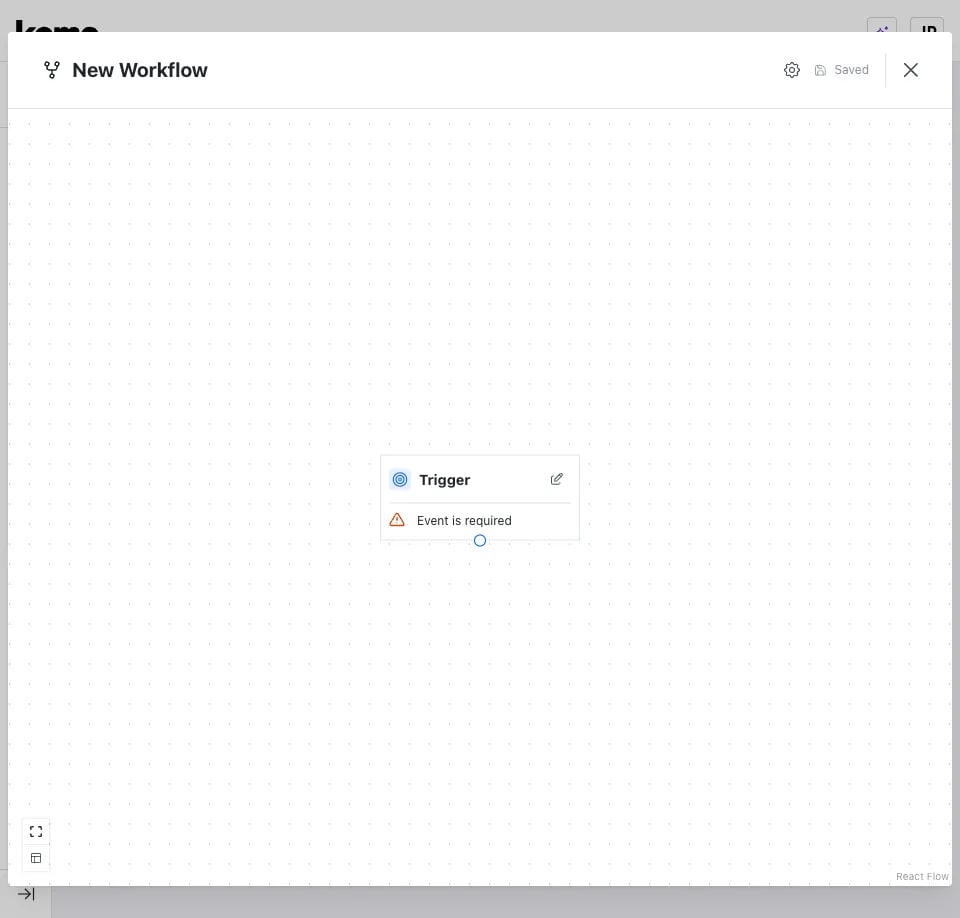 **Key interface elements:**
* **Canvas area** - Arrange and connect modules
* **Action library** - All available workflow actions organized by category
* **Configuration panels** - Set up each module's specific settings
* **Connection paths** - Define success and failure routes
**Key interface elements:**
* **Canvas area** - Arrange and connect modules
* **Action library** - All available workflow actions organized by category
* **Configuration panels** - Set up each module's specific settings
* **Connection paths** - Define success and failure routes
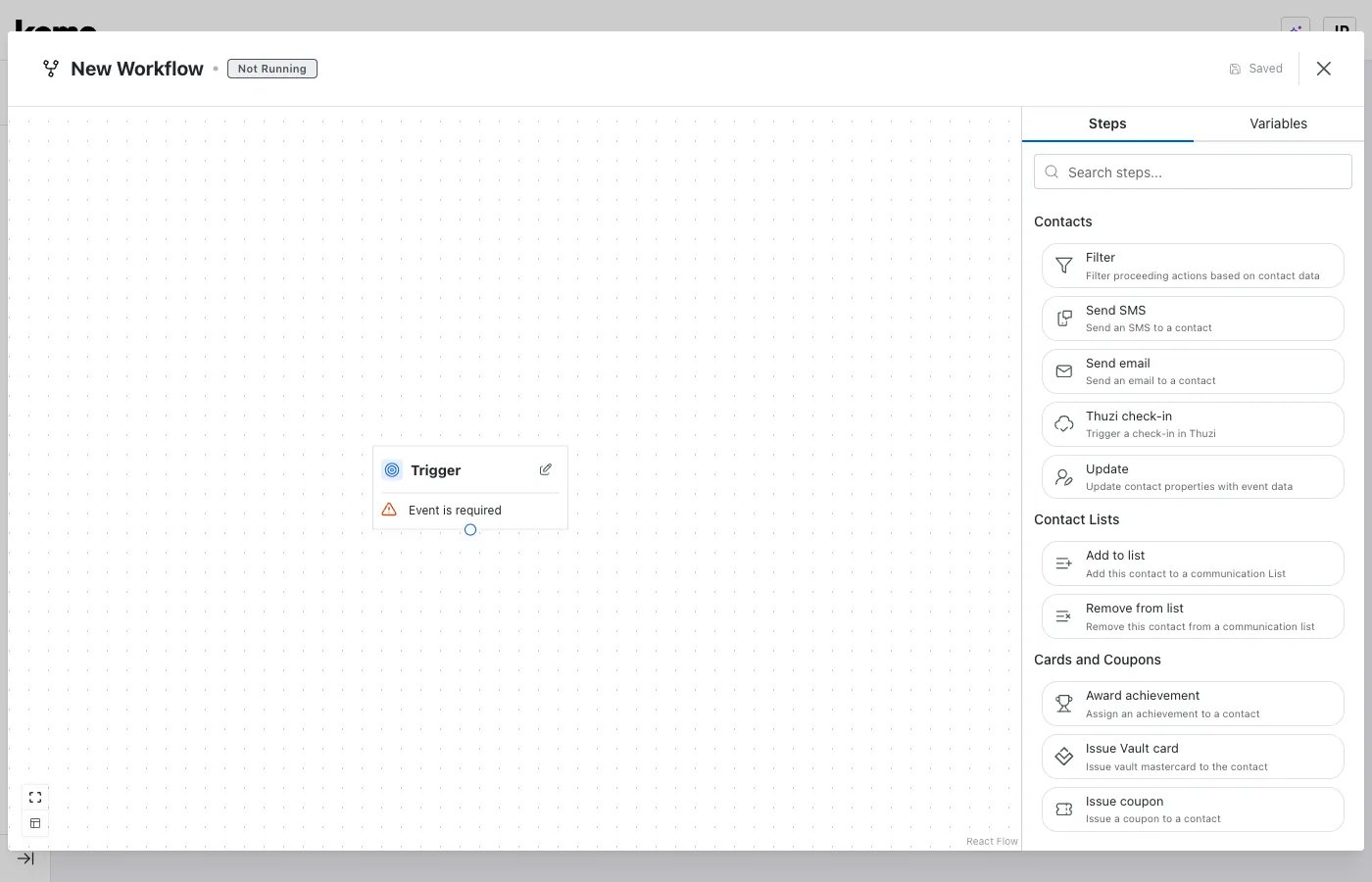 **Popular action categories:**
* **Contact Actions** - Update profiles, send emails/SMS, manage lists
* **Integrations** - Sync with Salesforce, Mailchimp, Braze
* **Loyalty** - Award points, manage tiers, track engagement
* **Utility** - Add delays, conditional logic, custom webhooks
[**Browse all actions →**](/integrations-automation/workflows/actions)
### Step 5: Test and Launch
1. **Save** your workflow
2. **Test** with sample data to verify each step works correctly
3. **Activate** via three-dot menu → **Run**. For draft-only workflows, a validation modal checks your configuration for errors before publishing and activating. See [workflow status management](/integrations-automation/workflows/status-management) for the full activation guide.
4. **Monitor** performance in the Workflow Runs dashboard
## Monitoring Your Workflows
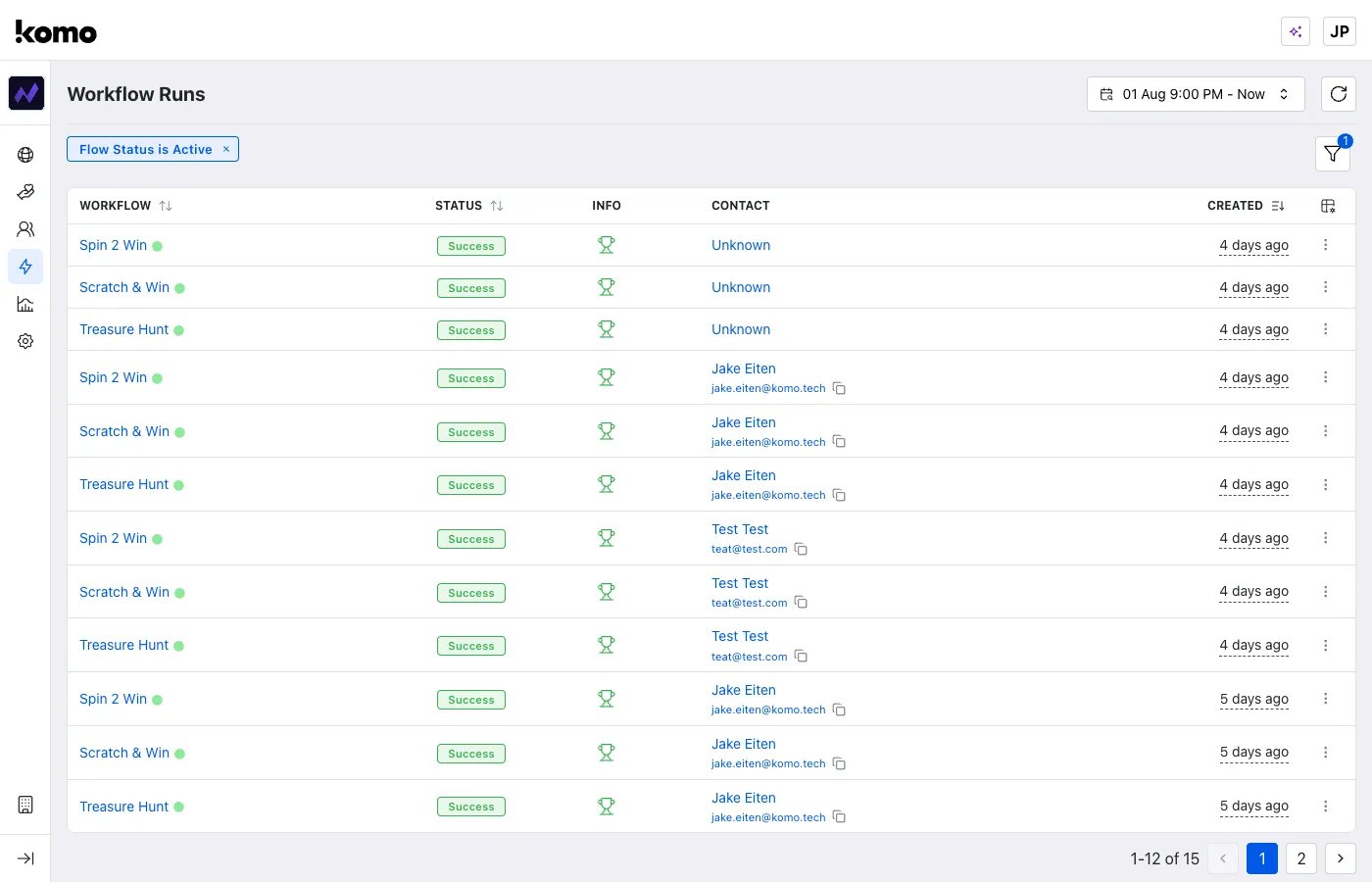
Track performance and troubleshoot issues in the **Workflow Runs** dashboard:
**Popular action categories:**
* **Contact Actions** - Update profiles, send emails/SMS, manage lists
* **Integrations** - Sync with Salesforce, Mailchimp, Braze
* **Loyalty** - Award points, manage tiers, track engagement
* **Utility** - Add delays, conditional logic, custom webhooks
[**Browse all actions →**](/integrations-automation/workflows/actions)
### Step 5: Test and Launch
1. **Save** your workflow
2. **Test** with sample data to verify each step works correctly
3. **Activate** via three-dot menu → **Run**. For draft-only workflows, a validation modal checks your configuration for errors before publishing and activating. See [workflow status management](/integrations-automation/workflows/status-management) for the full activation guide.
4. **Monitor** performance in the Workflow Runs dashboard
## Monitoring Your Workflows
Track performance and troubleshoot issues in the **Workflow Runs** dashboard:
 ### Detailed Execution Views
Click any workflow run to see step-by-step execution details:
### Detailed Execution Views
Click any workflow run to see step-by-step execution details:
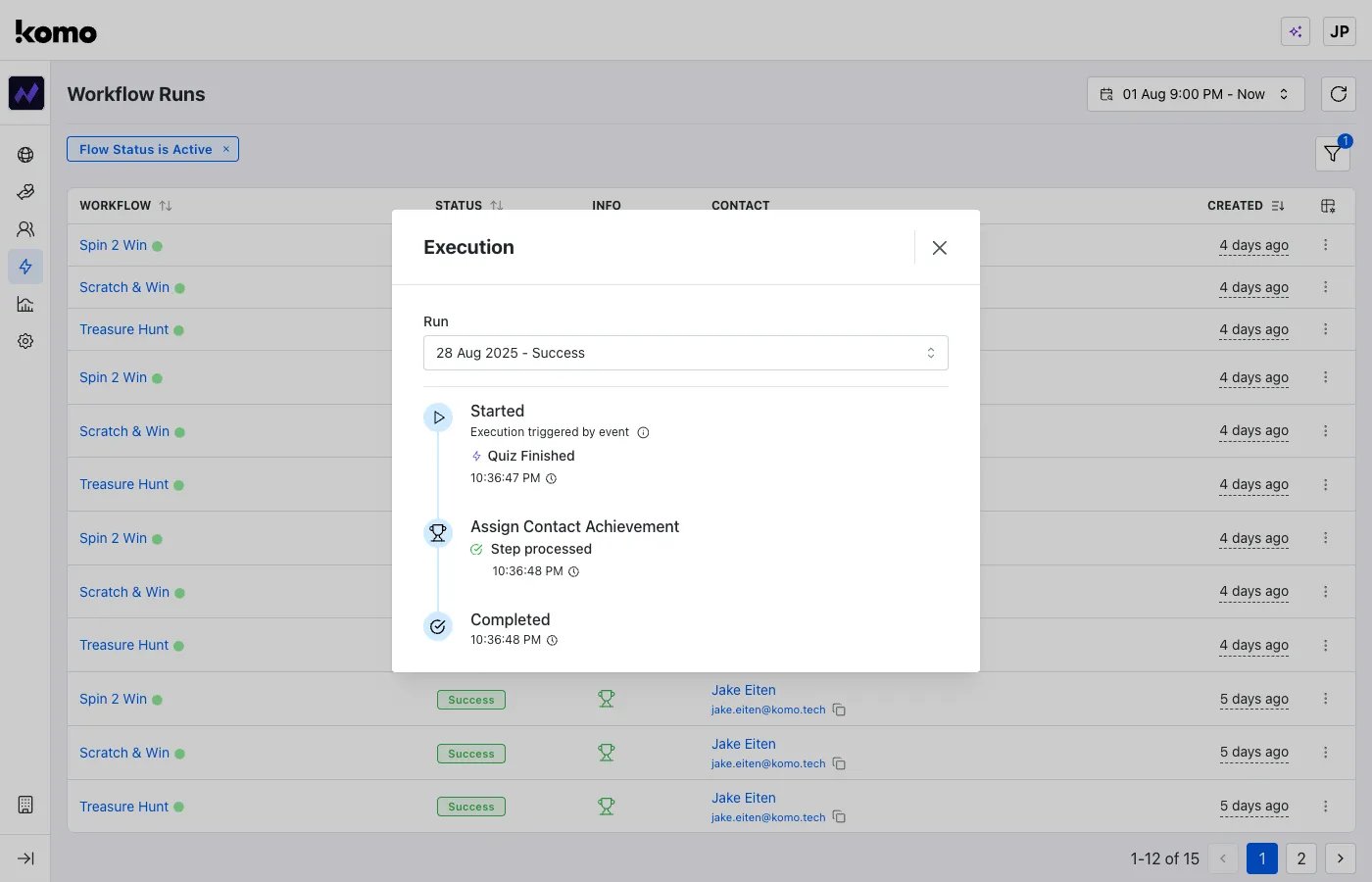 **What you'll see:**
* **Trigger event** that started the workflow
* **Step-by-step timeline** with precise timestamps
* **Success/failure indicators** for each module
* **Data context** about the contact and triggering event
[**Complete monitoring guide →**](/integrations-automation/workflows/workflow-runs)
## What's Next?
**Ready to build advanced workflows?**
* [**View all triggers →**](/integrations-automation/workflows/triggers) - Complete trigger reference with use cases
* [**Browse all actions →**](/integrations-automation/workflows/actions) - Full action library with examples
* [**Workflow status management →**](/integrations-automation/workflows/status-management) - Control workflow execution and lifecycle
* [**Monitoring guide →**](/integrations-automation/workflows/workflow-runs) - Deep dive into performance tracking
**Need help getting started?**
* Try the [Contact List Workflows tutorial](/integrations-automation/workflows/tips/workflows-for-contact-lists)
* Contact support at [support@komo.tech](mailto:support@komo.tech)
**What you'll see:**
* **Trigger event** that started the workflow
* **Step-by-step timeline** with precise timestamps
* **Success/failure indicators** for each module
* **Data context** about the contact and triggering event
[**Complete monitoring guide →**](/integrations-automation/workflows/workflow-runs)
## What's Next?
**Ready to build advanced workflows?**
* [**View all triggers →**](/integrations-automation/workflows/triggers) - Complete trigger reference with use cases
* [**Browse all actions →**](/integrations-automation/workflows/actions) - Full action library with examples
* [**Workflow status management →**](/integrations-automation/workflows/status-management) - Control workflow execution and lifecycle
* [**Monitoring guide →**](/integrations-automation/workflows/workflow-runs) - Deep dive into performance tracking
**Need help getting started?**
* Try the [Contact List Workflows tutorial](/integrations-automation/workflows/tips/workflows-for-contact-lists)
* Contact support at [support@komo.tech](mailto:support@komo.tech)