> ## Documentation Index
> Fetch the complete documentation index at: https://knowledge.komo.tech/llms.txt
> Use this file to discover all available pages before exploring further.
# Workflow Status Management
> Complete guide to managing workflow execution states, monitoring workflow health, and controlling automation lifecycles
# Workflow Status Management
Master the complete lifecycle of your automation systems. From activation and monitoring to pausing and deactivation, effective status management ensures your workflows run smoothly and deliver consistent business value.
## Quick Status Overview
| Status | Description | User Action | Business Impact |
| --------------- | ------------------------------------------- | ----------------------- | -------------------------------- |
| **Active** | Workflow is running and processing triggers | Monitor performance | Full automation benefits |
| **Paused** | Temporarily stopped, can be resumed | Resume when ready | Automation temporarily disabled |
| **Draft** | Under development, not processing triggers | Complete and activate | No automation until activated |
| **Not Running** | Inactive but configured | Start/activate workflow | Missing automation opportunities |
***
## Workflow Status Dashboard
### Accessing Status Management
Navigate to **Automations → Workflows** to access the comprehensive status management dashboard:
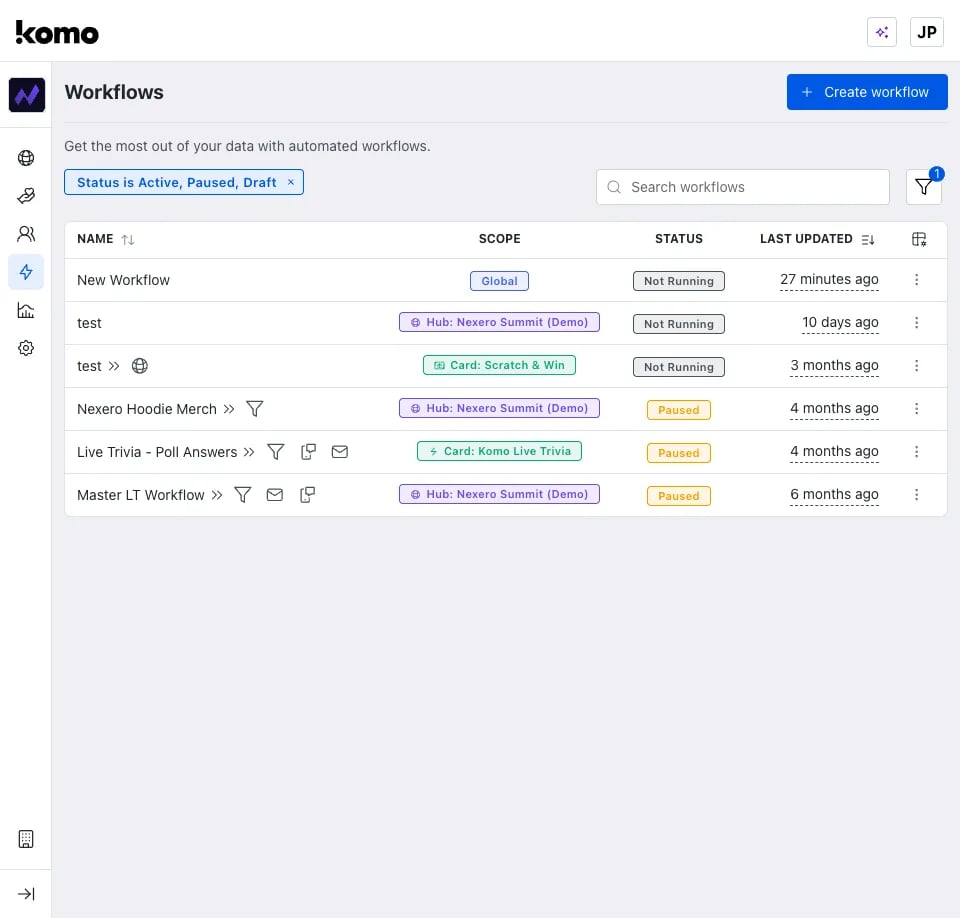 **Key Interface Elements:**
1. **Status Filter Bar** - Filter workflows by current state (Active, Paused, Draft)
2. **Status Column** - Visual indicators for each workflow's current state
3. **Quick Actions Menu** - Three-dot menu for status changes and management
4. **Search & Sort** - Find and organize workflows by status and performance
### Status Filter Controls
The status filter bar shows: `Status is Active, Paused, Draft`
**Filter Options:**
* **All Statuses** - View every workflow regardless of state
* **Active Only** - Focus on currently running automations
* **Paused** - Review temporarily disabled workflows
* **Draft** - See workflows still in development
* **Custom Combinations** - Mix multiple statuses for targeted views
***
## Understanding Workflow States
### Active Status
**What it means:** Workflow is fully operational and processing triggers in real-time.
**Visual Indicators:**
* Green status badge
* Real-time execution data in workflow runs
* Performance metrics actively updating
**When to use:**
* Production workflows handling live user interactions
* Critical automation sequences (welcome series, lead qualification)
* Workflows that have been tested and validated
**Management Actions:**
* Monitor execution volume and success rates
* Review performance metrics regularly
* Pause if issues detected
### Paused Status
**What it means:** Workflow execution is temporarily suspended but configuration is preserved.
**Visual Indicators:**
* Orange/yellow "Paused" status badge
* Last execution timestamp frozen
* No new trigger processing
**When to use:**
* Temporary maintenance or updates needed
* External system integration issues
* Testing alternative workflow configurations
* Seasonal campaigns during off-periods
**Management Actions:**
* Click **Resume** to reactivate
* Review pause duration and impact
* Update workflow if needed before resuming
### Draft Status
**What it means:** Workflow is in development mode and not processing any triggers.
**Visual Indicators:**
* Gray "Draft" status badge
* No execution history
* Configuration incomplete warning (if applicable)
**When to use:**
* Initial workflow creation and setup
* Major reconfiguration of existing workflows
* Testing complex automation logic
* Collaborative workflow development
**Management Actions:**
* Complete trigger and action configuration
* Test with sample data
* Activate directly from the workflow list or overview modal when ready for production
### Not Running Status
**What it means:** Workflow is configured but currently inactive.
**Visual Indicators:**
* Gray "Not Running" status badge
* Configuration appears complete
* No recent execution activity
**Common Causes:**
* Workflow was manually stopped
* System detected configuration issues
* External dependencies unavailable
* Resource limitations
**Management Actions:**
* Investigate why workflow stopped
* Check external system connections
* Review error logs and system health
* Restart when issues resolved
***
## Status Change Operations
### Starting/Activating Workflows
**From Workflow List:**
1. Locate the workflow to activate
2. Click the three-dot actions menu
3. Select **"Run"**
4. Confirm activation in the dialog
**Draft-only workflows:** When you run a workflow that has only a draft version (never been published), a pre-flight validation modal appears before activation. This modal automatically checks your workflow configuration for errors and warnings:
* **If the workflow is valid** — you see a confirmation prompt: *"Are you sure you want to start \[workflow name]? The draft will be published and the workflow will begin running."* Click **"Yes, start it"** to publish the draft and activate the workflow in one step.
* **If there are errors or warnings** — the modal displays the specific issues found. You must resolve any errors before the workflow can be started.
Workflows that already have a published version are activated directly without this validation step.
**Pre-activation Checklist:**
* All required triggers configured
* Essential actions properly set up
* External integrations tested
* Notification preferences configured
* Success metrics defined
**Activation Best Practices:**
* Start with limited scope (single hub/campaign)
* Monitor closely for first 24 hours
* Validate trigger firing and action execution
* Check for any unexpected volume spikes
### Pausing Workflows
**When to Pause:**
* Scheduled maintenance windows
* External system outages
* Unexpectedly high failure rates (>10%)
* Business rule changes requiring updates
* A/B testing alternative approaches
**Pausing Process:**
1. Navigate to the active workflow
2. Click three-dot actions menu
3. Select **"Pause"**
4. Add pause reason for team visibility
5. Set estimated resume timeframe
**During Pause Period:**
* Review workflow performance data
* Make necessary configuration updates
* Test changes in development environment
* Communicate timeline to stakeholders
### Resuming Workflows
**Pre-resume Validation:**
* Original pause issue resolved
* No configuration conflicts introduced
* External systems fully operational
* Team aligned on resume timing
**Resume Process:**
1. Locate paused workflow
2. Click actions menu → **"Resume"**
3. Review any configuration changes
4. Confirm resume action
5. Monitor initial execution batch
### Cloning Workflows
Create a copy of any workflow to reuse its configuration as a starting point for a new automation.
**Cloning Process:**
1. Locate the workflow you want to clone
2. Click the three-dot actions menu
3. Select **"Clone"**
4. In the confirmation modal, enter a name for the cloned workflow (max 50 characters). A default name is suggested based on the original workflow name.
5. Click **"Clone"** to confirm
The cloned workflow is created in **Draft** status with the same trigger, actions, and configuration as the original. You can then modify and activate it independently.
**When to clone:**
* Reusing a proven workflow pattern for a different campaign
* Creating variations of existing automations for A/B testing
* Setting up similar workflows across different scopes
### Stopping Workflows
**Permanent Deactivation:**
1. Click workflow actions menu
2. Select **"Stop"** or **"Deactivate"**
3. Confirm deactivation
4. Document deactivation reason
5. Archive workflow if no longer needed
**Temporary Shutdown:**
* Use **"Pause"** instead of **"Stop"**
* Maintains configuration and execution history
* Easier to resume operations later
***
## Audit trail
All workflow status changes and configuration updates are recorded in your company's audit log. This gives you a complete history of who made changes, when they happened, and what was modified.
**Tracked events include:**
| Event | Description |
| ------------------- | ---------------------------------------- |
| Workflow created | A new workflow was created |
| Workflow cloned | An existing workflow was duplicated |
| Workflow renamed | A workflow's name was changed |
| Workflow activated | A workflow was set to active |
| Workflow paused | A workflow was paused |
| Workflow archived | A workflow was moved to the archive |
| Workflow unarchived | A workflow was restored from the archive |
| Workflow deleted | A workflow was permanently deleted |
| Version created | A new draft version was created |
| Version published | A draft version was published |
| Version updated | A version's configuration was modified |
| Version deleted | A draft version was removed |
To view workflow audit events, navigate to **Settings → Audit Log** and filter by workflow event types. Version update events include a detailed diff view showing exactly what changed between the previous and new configuration.
***
## Monitoring Workflow Health
### Execution Status Tracking
Access detailed execution monitoring at **Automations → Workflow Runs**:
**Key Interface Elements:**
1. **Status Filter Bar** - Filter workflows by current state (Active, Paused, Draft)
2. **Status Column** - Visual indicators for each workflow's current state
3. **Quick Actions Menu** - Three-dot menu for status changes and management
4. **Search & Sort** - Find and organize workflows by status and performance
### Status Filter Controls
The status filter bar shows: `Status is Active, Paused, Draft`
**Filter Options:**
* **All Statuses** - View every workflow regardless of state
* **Active Only** - Focus on currently running automations
* **Paused** - Review temporarily disabled workflows
* **Draft** - See workflows still in development
* **Custom Combinations** - Mix multiple statuses for targeted views
***
## Understanding Workflow States
### Active Status
**What it means:** Workflow is fully operational and processing triggers in real-time.
**Visual Indicators:**
* Green status badge
* Real-time execution data in workflow runs
* Performance metrics actively updating
**When to use:**
* Production workflows handling live user interactions
* Critical automation sequences (welcome series, lead qualification)
* Workflows that have been tested and validated
**Management Actions:**
* Monitor execution volume and success rates
* Review performance metrics regularly
* Pause if issues detected
### Paused Status
**What it means:** Workflow execution is temporarily suspended but configuration is preserved.
**Visual Indicators:**
* Orange/yellow "Paused" status badge
* Last execution timestamp frozen
* No new trigger processing
**When to use:**
* Temporary maintenance or updates needed
* External system integration issues
* Testing alternative workflow configurations
* Seasonal campaigns during off-periods
**Management Actions:**
* Click **Resume** to reactivate
* Review pause duration and impact
* Update workflow if needed before resuming
### Draft Status
**What it means:** Workflow is in development mode and not processing any triggers.
**Visual Indicators:**
* Gray "Draft" status badge
* No execution history
* Configuration incomplete warning (if applicable)
**When to use:**
* Initial workflow creation and setup
* Major reconfiguration of existing workflows
* Testing complex automation logic
* Collaborative workflow development
**Management Actions:**
* Complete trigger and action configuration
* Test with sample data
* Activate directly from the workflow list or overview modal when ready for production
### Not Running Status
**What it means:** Workflow is configured but currently inactive.
**Visual Indicators:**
* Gray "Not Running" status badge
* Configuration appears complete
* No recent execution activity
**Common Causes:**
* Workflow was manually stopped
* System detected configuration issues
* External dependencies unavailable
* Resource limitations
**Management Actions:**
* Investigate why workflow stopped
* Check external system connections
* Review error logs and system health
* Restart when issues resolved
***
## Status Change Operations
### Starting/Activating Workflows
**From Workflow List:**
1. Locate the workflow to activate
2. Click the three-dot actions menu
3. Select **"Run"**
4. Confirm activation in the dialog
**Draft-only workflows:** When you run a workflow that has only a draft version (never been published), a pre-flight validation modal appears before activation. This modal automatically checks your workflow configuration for errors and warnings:
* **If the workflow is valid** — you see a confirmation prompt: *"Are you sure you want to start \[workflow name]? The draft will be published and the workflow will begin running."* Click **"Yes, start it"** to publish the draft and activate the workflow in one step.
* **If there are errors or warnings** — the modal displays the specific issues found. You must resolve any errors before the workflow can be started.
Workflows that already have a published version are activated directly without this validation step.
**Pre-activation Checklist:**
* All required triggers configured
* Essential actions properly set up
* External integrations tested
* Notification preferences configured
* Success metrics defined
**Activation Best Practices:**
* Start with limited scope (single hub/campaign)
* Monitor closely for first 24 hours
* Validate trigger firing and action execution
* Check for any unexpected volume spikes
### Pausing Workflows
**When to Pause:**
* Scheduled maintenance windows
* External system outages
* Unexpectedly high failure rates (>10%)
* Business rule changes requiring updates
* A/B testing alternative approaches
**Pausing Process:**
1. Navigate to the active workflow
2. Click three-dot actions menu
3. Select **"Pause"**
4. Add pause reason for team visibility
5. Set estimated resume timeframe
**During Pause Period:**
* Review workflow performance data
* Make necessary configuration updates
* Test changes in development environment
* Communicate timeline to stakeholders
### Resuming Workflows
**Pre-resume Validation:**
* Original pause issue resolved
* No configuration conflicts introduced
* External systems fully operational
* Team aligned on resume timing
**Resume Process:**
1. Locate paused workflow
2. Click actions menu → **"Resume"**
3. Review any configuration changes
4. Confirm resume action
5. Monitor initial execution batch
### Cloning Workflows
Create a copy of any workflow to reuse its configuration as a starting point for a new automation.
**Cloning Process:**
1. Locate the workflow you want to clone
2. Click the three-dot actions menu
3. Select **"Clone"**
4. In the confirmation modal, enter a name for the cloned workflow (max 50 characters). A default name is suggested based on the original workflow name.
5. Click **"Clone"** to confirm
The cloned workflow is created in **Draft** status with the same trigger, actions, and configuration as the original. You can then modify and activate it independently.
**When to clone:**
* Reusing a proven workflow pattern for a different campaign
* Creating variations of existing automations for A/B testing
* Setting up similar workflows across different scopes
### Stopping Workflows
**Permanent Deactivation:**
1. Click workflow actions menu
2. Select **"Stop"** or **"Deactivate"**
3. Confirm deactivation
4. Document deactivation reason
5. Archive workflow if no longer needed
**Temporary Shutdown:**
* Use **"Pause"** instead of **"Stop"**
* Maintains configuration and execution history
* Easier to resume operations later
***
## Audit trail
All workflow status changes and configuration updates are recorded in your company's audit log. This gives you a complete history of who made changes, when they happened, and what was modified.
**Tracked events include:**
| Event | Description |
| ------------------- | ---------------------------------------- |
| Workflow created | A new workflow was created |
| Workflow cloned | An existing workflow was duplicated |
| Workflow renamed | A workflow's name was changed |
| Workflow activated | A workflow was set to active |
| Workflow paused | A workflow was paused |
| Workflow archived | A workflow was moved to the archive |
| Workflow unarchived | A workflow was restored from the archive |
| Workflow deleted | A workflow was permanently deleted |
| Version created | A new draft version was created |
| Version published | A draft version was published |
| Version updated | A version's configuration was modified |
| Version deleted | A draft version was removed |
To view workflow audit events, navigate to **Settings → Audit Log** and filter by workflow event types. Version update events include a detailed diff view showing exactly what changed between the previous and new configuration.
***
## Monitoring Workflow Health
### Execution Status Tracking
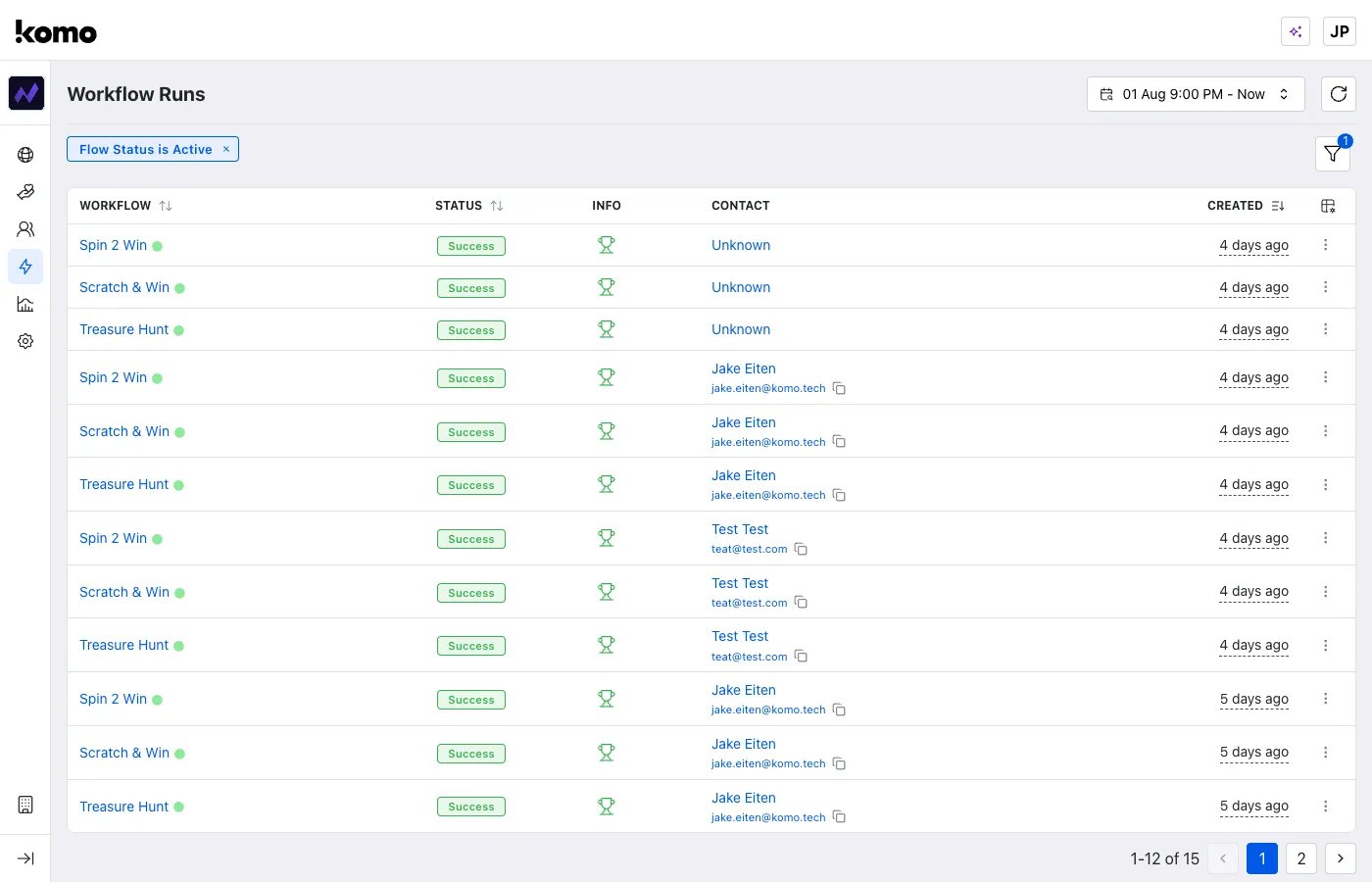
Access detailed execution monitoring at **Automations → Workflow Runs**:
 ### Performance Dashboard
**Real-time Monitoring:**
* Live execution status across all workflows
* Success/failure ratio trends
* Processing time distribution
* Volume patterns by time of day
**Historical Analysis:**
* Weekly/monthly performance reports
* Trend analysis and pattern recognition
* Comparative performance across workflows
* Business impact measurement
***
## What's Next?
**Explore Related Documentation:**
* [**Workflow Creation Guide →**](/integrations-automation/workflows) - Build effective workflows from scratch
* [**Performance Monitoring →**](/integrations-automation/workflows/workflow-runs) - Deep dive into execution analysis
* [**Integration Patterns →**](/integrations-automation/workflows/actions) - Managing status across external systems
**Need Help?**
* Contact support at [support@komo.tech](mailto:support@komo.tech) for status management consultation
* Join our community for workflow optimization best practices
* Schedule a strategy session for enterprise-level automation management
### Performance Dashboard
**Real-time Monitoring:**
* Live execution status across all workflows
* Success/failure ratio trends
* Processing time distribution
* Volume patterns by time of day
**Historical Analysis:**
* Weekly/monthly performance reports
* Trend analysis and pattern recognition
* Comparative performance across workflows
* Business impact measurement
***
## What's Next?
**Explore Related Documentation:**
* [**Workflow Creation Guide →**](/integrations-automation/workflows) - Build effective workflows from scratch
* [**Performance Monitoring →**](/integrations-automation/workflows/workflow-runs) - Deep dive into execution analysis
* [**Integration Patterns →**](/integrations-automation/workflows/actions) - Managing status across external systems
**Need Help?**
* Contact support at [support@komo.tech](mailto:support@komo.tech) for status management consultation
* Join our community for workflow optimization best practices
* Schedule a strategy session for enterprise-level automation management