> ## Documentation Index
> Fetch the complete documentation index at: https://knowledge.komo.tech/llms.txt
> Use this file to discover all available pages before exploring further.
# Access Policies
> Gate a hub, a card, or a competition form so only signed-in users can see or enter it.
An access policy is a gate. When a user doesn't meet the policy, Komo shows a configurable screen (description, optional button, colours) instead of the content. Once they meet it, the content loads as normal.
Access Policies is currently in **Beta**.
## What you can gate
| Where | Where to set it | What's blocked |
| - | - | - |
| **Hub** | **Settings** → **Access Policies** | The whole hub |
| **Card** | Card editor → **Restrict card** tab | That card only (shown in place of the card) |
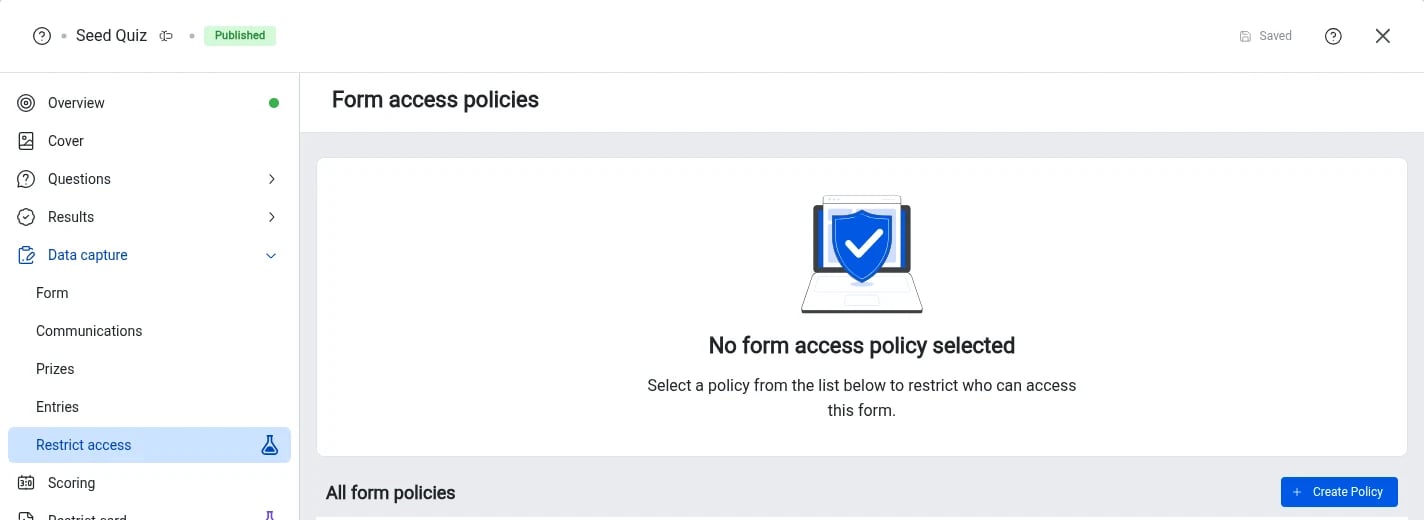
| **Competition form** | Card editor → **Data capture** → **Restrict access** | Entering the competition form only. The card itself stays visible |
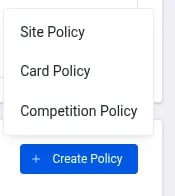
There are three kinds of policy, one for each place: **Site Policy** (hub), **Card Policy** and **Competition Policy** (form). Each list only shows policies of its own kind. A card policy can be reused on any card in the hub, and a competition policy on any competition form, but a hub policy can't be picked for a card (or the other way round).
## How a policy is checked
1. When the gated content loads, Komo checks the user's current session against the policy's condition.
2. If it passes, the content shows.
3. If it fails, the user sees the policy screen for that condition instead.
The condition available today is **Require Authentication**.
## Authentication types
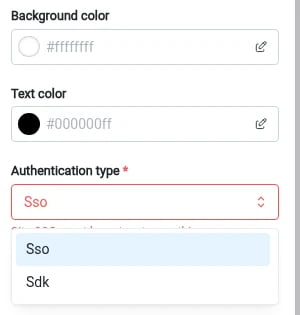
The **Authentication type** dropdown has two options, shown exactly as **Sso** and **Sdk**.
 | Type | Passes when | Use it for |
| - | - | - |
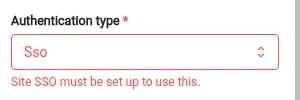
| **Sso** | The user has signed in through your hub's SSO / OAuth login | Hubs with Komo SSO set up. SSO must be configured on the hub first, otherwise the dropdown shows "Site SSO must be set up to use this." |
| **Sdk** | Your website has identified the user to Komo through the Embed SDK | Komo embedded on your own site or app, where your login identifies the user |
| Type | Passes when | Use it for |
| - | - | - |
| **Sso** | The user has signed in through your hub's SSO / OAuth login | Hubs with Komo SSO set up. SSO must be configured on the hub first, otherwise the dropdown shows "Site SSO must be set up to use this." |
| **Sdk** | Your website has identified the user to Komo through the Embed SDK | Komo embedded on your own site or app, where your login identifies the user |
 For **Sdk**, identifying the user with just an email address is enough. You don't need to send a signed JWT. Komo treats an email or JWT identify from the Embed SDK as a signed-in user. Both types check the same thing (that the user is signed in), so a user who has passed one also passes the other.
**Sdk** gates only work when the hub or card is embedded on your site with the Embed SDK. If someone opens the hub link directly, the button has no website to ask and keeps loading.
## Condition settings
For **Sdk**, identifying the user with just an email address is enough. You don't need to send a signed JWT. Komo treats an email or JWT identify from the Embed SDK as a signed-in user. Both types check the same thing (that the user is signed in), so a user who has passed one also passes the other.
**Sdk** gates only work when the hub or card is embedded on your site with the Embed SDK. If someone opens the hub link directly, the button has no website to ask and keeps loading.
## Condition settings
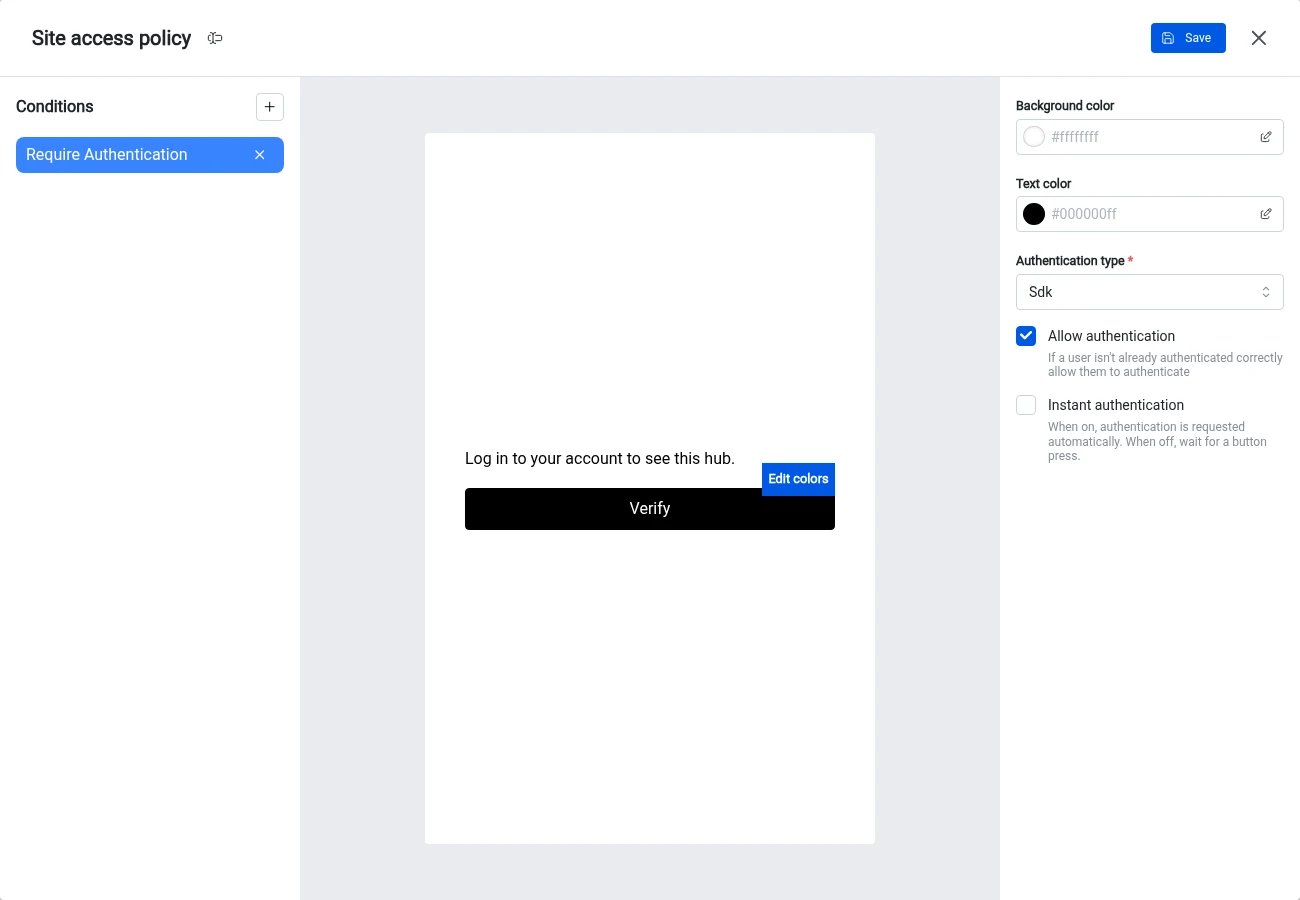 * **Authentication type**: **Sso** or **Sdk** (see above).
* **Allow authentication** (on by default): when on, users who aren't signed in see a description and a button to sign in. When off, they only see your **error message**, with no way to sign in from the gate. The default error message is "Unable to access content."
* **Instant authentication** (Sdk only, on by default when you pick Sdk): when on, the gate shows a loader instead of a button and waits for your site to identify the user. When off, the gate shows your description and button.
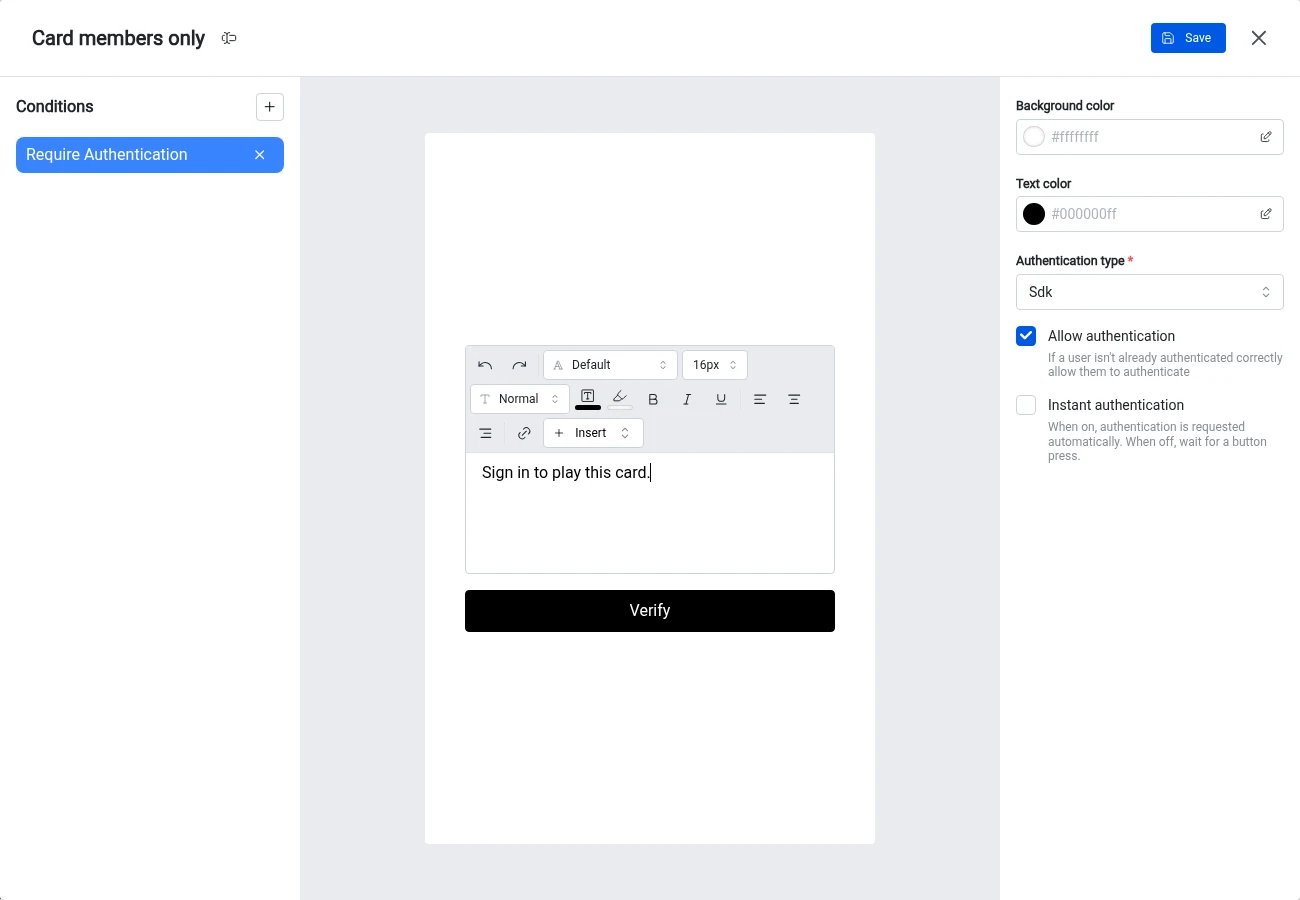
* **Description** and **Error message**: rich text, including images. Click the text in the preview to edit it.
* **Button text**, **button colour** and **button background**: click the button in the preview to edit the text, and use **Edit colors** for its colours. If no button text is set, the button says **Verify**. The default button is white text on black.
* **Background color** and **Text color** for the gate screen (white and black by default). On the live hub, card gates fall back to the card's colours and form gates to the form's colours.
* **Authentication type**: **Sso** or **Sdk** (see above).
* **Allow authentication** (on by default): when on, users who aren't signed in see a description and a button to sign in. When off, they only see your **error message**, with no way to sign in from the gate. The default error message is "Unable to access content."
* **Instant authentication** (Sdk only, on by default when you pick Sdk): when on, the gate shows a loader instead of a button and waits for your site to identify the user. When off, the gate shows your description and button.
* **Description** and **Error message**: rich text, including images. Click the text in the preview to edit it.
* **Button text**, **button colour** and **button background**: click the button in the preview to edit the text, and use **Edit colors** for its colours. If no button text is set, the button says **Verify**. The default button is white text on black.
* **Background color** and **Text color** for the gate screen (white and black by default). On the live hub, card gates fall back to the card's colours and form gates to the form's colours.
 ## What users see
**Sdk, Instant authentication off**: your description and the button. Pressing it sends an auth request to your site, which the Embed SDK passes to your `onAuthRequest` handler so you can open your own login. Once your site calls `identifyUser()`, the gate unlocks without a reload.
## What users see
**Sdk, Instant authentication off**: your description and the button. Pressing it sends an auth request to your site, which the Embed SDK passes to your `onAuthRequest` handler so you can open your own login. Once your site calls `identifyUser()`, the gate unlocks without a reload.
 **Sdk, Instant authentication on**: a loader. The gate unlocks as soon as your site has identified the user. If your site identifies users when the page loads, signed-in users pass straight through. If you use the Embed SDK's `appId` setup, the loader doesn't call `onAuthRequest`, so it won't open your login for you. Use Instant authentication off if users need a button to start signing in.
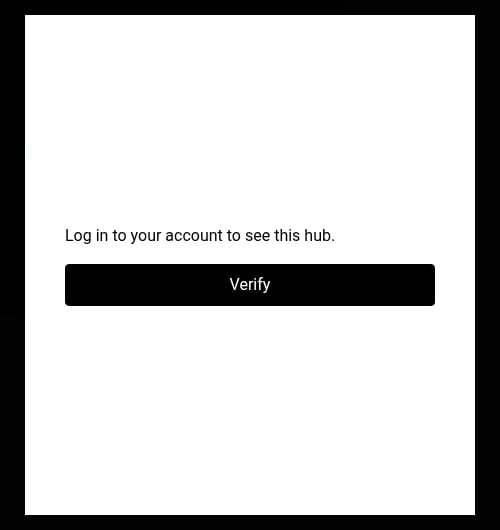
 **Sso**: your description and a sign-in button that starts your hub's SSO login.
**Allow authentication off**: your error message only. Users who are already signed in (or whom your site identifies through the Embed SDK) still get through.
**Sso**: your description and a sign-in button that starts your hub's SSO login.
**Allow authentication off**: your error message only. Users who are already signed in (or whom your site identifies through the Embed SDK) still get through.
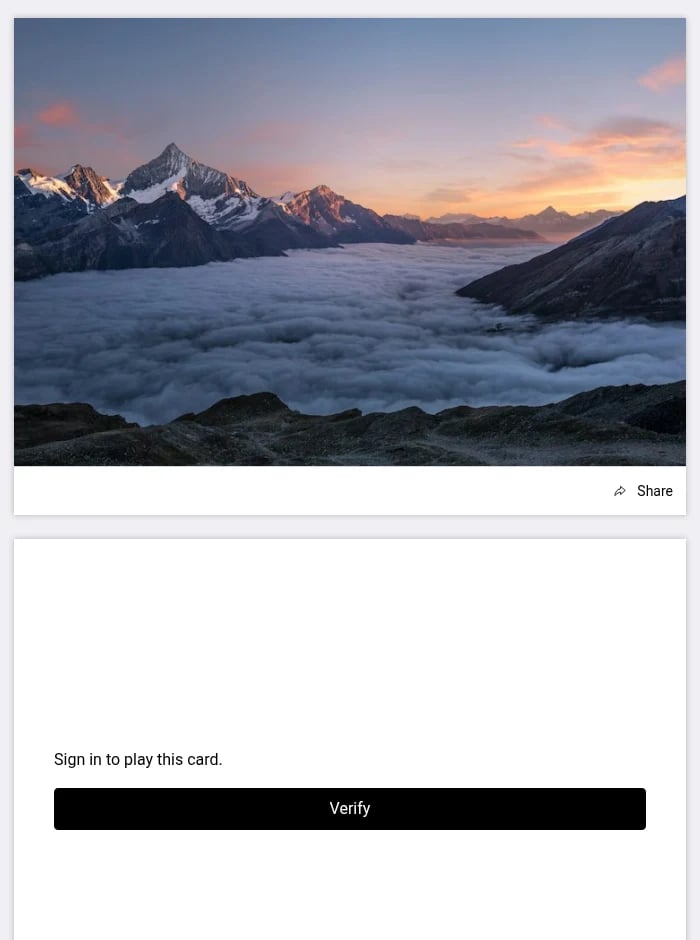
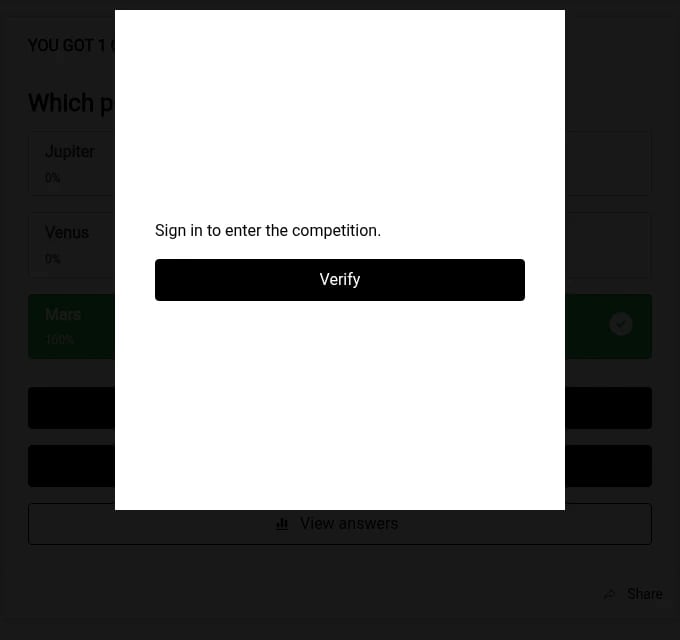
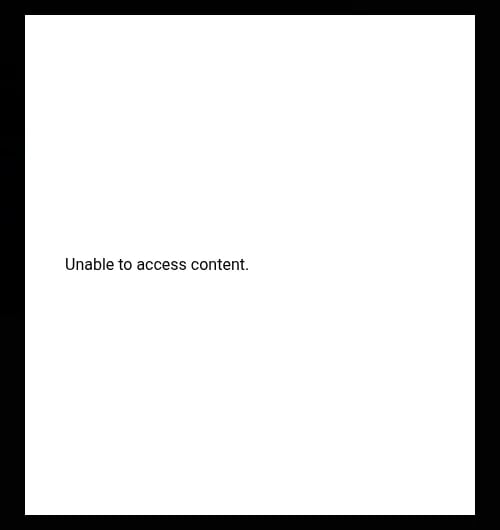 **Hub gate**: the gate replaces the whole hub. **Card gate**: the gate shows in place of that card and the other cards stay open. **Competition form gate**: the card plays as normal and the gate appears when the form opens.
 For the developer side (`komoEmbed` config, `onAuthRequest`, `identifyUser()`), see the [Komo developer docs](https://developers.komo.tech/embedding/browser).
## Set up a policy
### Hub
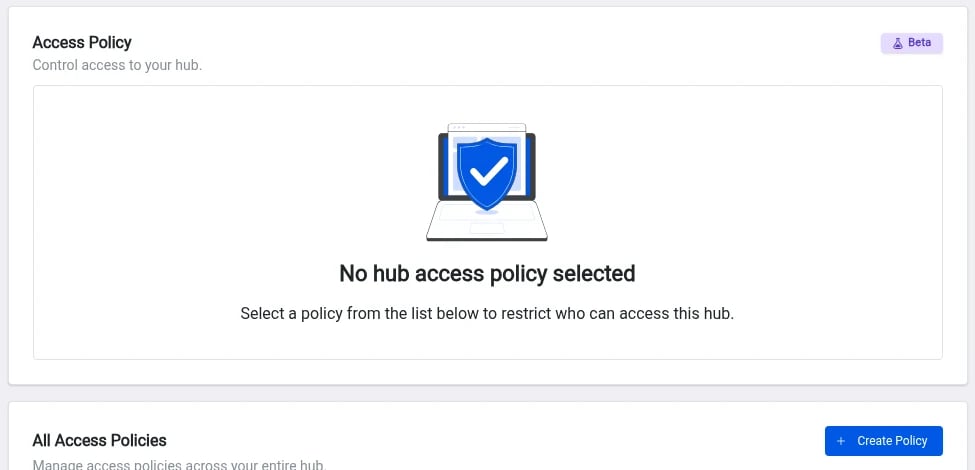
1. Go to **Settings** → **Access Policies**.
2. Under **All Access Policies**, click **Create Policy** and choose **Site Policy**.
3. Click **Add access condition** (+). This adds **Require Authentication**.
4. Set the **Authentication type**, **Allow authentication** and, for Sdk, **Instant authentication**.
5. Edit the description (or error message), button and colours in the preview. Click the policy name at the top to rename it.
6. Click **Save**.
7. In the policy list, open the **⋮** menu on the policy and click **Select**. The policy now shows under **Hub policy**.
For the developer side (`komoEmbed` config, `onAuthRequest`, `identifyUser()`), see the [Komo developer docs](https://developers.komo.tech/embedding/browser).
## Set up a policy
### Hub
1. Go to **Settings** → **Access Policies**.
2. Under **All Access Policies**, click **Create Policy** and choose **Site Policy**.
3. Click **Add access condition** (+). This adds **Require Authentication**.
4. Set the **Authentication type**, **Allow authentication** and, for Sdk, **Instant authentication**.
5. Edit the description (or error message), button and colours in the preview. Click the policy name at the top to rename it.
6. Click **Save**.
7. In the policy list, open the **⋮** menu on the policy and click **Select**. The policy now shows under **Hub policy**.
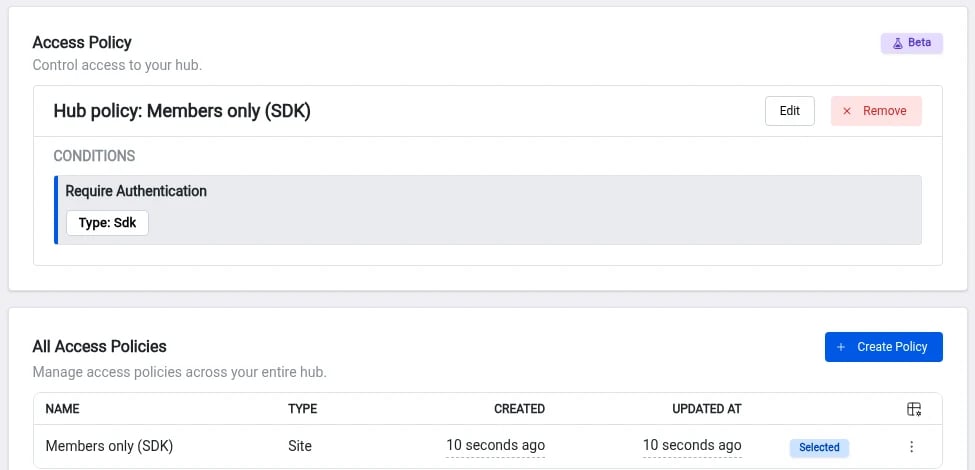 To remove the gate, click **Remove** next to the hub policy. The policy stays in the list to reuse.
### Card
1. Open the card editor and go to the **Restrict card** tab.
2. Click **Create Policy** to add a card policy, or use **Select** on an existing one.
3. Set up the condition as above, then save and select it.
To remove the gate, click **Remove** next to the hub policy. The policy stays in the list to reuse.
### Card
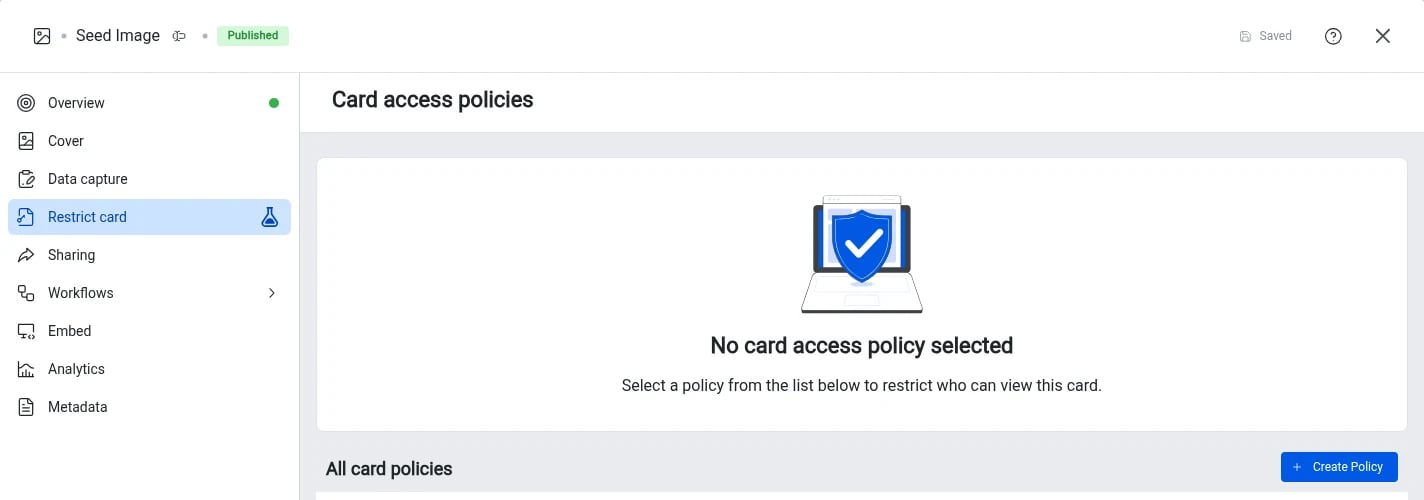
1. Open the card editor and go to the **Restrict card** tab.
2. Click **Create Policy** to add a card policy, or use **Select** on an existing one.
3. Set up the condition as above, then save and select it.
 ### Competition form
1. Open the card editor and go to **Data capture** → **Restrict access**. This tab only shows once the card has data capture.
2. Click **Create Policy** to add a competition policy, or use **Select** on an existing one.
3. Set up the condition as above, then save and select it.
### Competition form
1. Open the card editor and go to **Data capture** → **Restrict access**. This tab only shows once the card has data capture.
2. Click **Create Policy** to add a competition policy, or use **Select** on an existing one.
3. Set up the condition as above, then save and select it.
 Testing the competition form from the portal skips a form gate. To check the gate, open the live hub or your embed as a signed-out user.
## FAQ
**Can I gate one card without gating the whole hub?**\
Yes. Use the card's **Restrict card** tab. Other cards on the hub stay open.
**Can I let people see a card but require login only to enter the competition?**\
Yes. Leave the card open and add a policy under **Data capture** → **Restrict access**. The policy only shows when the user goes to enter.
**Does the card need a data capture form for a card gate to work?**\
No. A **Restrict card** policy works on its own, with or without data capture.
**Do we need to send a signed JWT for an Sdk gate?**\
No. Identifying the user with just an email through the Embed SDK passes an **Sdk** gate. Use a JWT if you want Komo to verify the identity your site sends.
**Users sign in on our site but still see the gate.**\
With **Sdk**, the gate only passes once your site identifies the user to Komo through the Embed SDK after login. Check that your login flow calls `identifyUser()` after the user signs in. See the [developer docs](https://developers.komo.tech/embedding/browser).
**After logging in, users land back at the top of our page instead of at the embed.**\
Where the user returns after login is controlled by your site's login flow, not Komo. Return users to the page section that contains the embed.
**I want my login modal to open only when the user taps a button.**\
Use **Sdk** with **Instant authentication** off. The gate shows your button, and pressing it triggers your `onAuthRequest` handler.
## Related
* [Embed Cards](/content-types/embeds/embed-cards)
* [Entry Condition Screen](/interactive-features/features/entry-condition-screen)
* [Age Verification](/interactive-features/features/age-verification)
* [Data Capture](/getting-started/hub-setup/data-capture)
* [Logging in and account access](/account-settings/faqs/logging-in-and-account-access)
This documentation is built and hosted on [Mintlify](https://mintlify.com), a developer documentation platform.
Testing the competition form from the portal skips a form gate. To check the gate, open the live hub or your embed as a signed-out user.
## FAQ
**Can I gate one card without gating the whole hub?**\
Yes. Use the card's **Restrict card** tab. Other cards on the hub stay open.
**Can I let people see a card but require login only to enter the competition?**\
Yes. Leave the card open and add a policy under **Data capture** → **Restrict access**. The policy only shows when the user goes to enter.
**Does the card need a data capture form for a card gate to work?**\
No. A **Restrict card** policy works on its own, with or without data capture.
**Do we need to send a signed JWT for an Sdk gate?**\
No. Identifying the user with just an email through the Embed SDK passes an **Sdk** gate. Use a JWT if you want Komo to verify the identity your site sends.
**Users sign in on our site but still see the gate.**\
With **Sdk**, the gate only passes once your site identifies the user to Komo through the Embed SDK after login. Check that your login flow calls `identifyUser()` after the user signs in. See the [developer docs](https://developers.komo.tech/embedding/browser).
**After logging in, users land back at the top of our page instead of at the embed.**\
Where the user returns after login is controlled by your site's login flow, not Komo. Return users to the page section that contains the embed.
**I want my login modal to open only when the user taps a button.**\
Use **Sdk** with **Instant authentication** off. The gate shows your button, and pressing it triggers your `onAuthRequest` handler.
## Related
* [Embed Cards](/content-types/embeds/embed-cards)
* [Entry Condition Screen](/interactive-features/features/entry-condition-screen)
* [Age Verification](/interactive-features/features/age-verification)
* [Data Capture](/getting-started/hub-setup/data-capture)
* [Logging in and account access](/account-settings/faqs/logging-in-and-account-access)
This documentation is built and hosted on [Mintlify](https://mintlify.com), a developer documentation platform.