> ## Documentation Index
> Fetch the complete documentation index at: https://knowledge.komo.tech/llms.txt
> Use this file to discover all available pages before exploring further.
# Card Tags
> Create and assign custom card tags to organize and filter your cards for easy campaign management.
## What is it?
You can create and assign custom card tags to your cards. Assigning tags to your cards allows you to group all the content for specific campaigns together for easy and in-depth filtration.
This feature helps you organize your cards by campaign, theme, or any other categorization system that works for your organization.
## How do I use it?
* [Step 1: Navigate to your Hub](#step-1-navigate-to-your-hub)
* [Step 2: Create a Tag](#step-2-create-a-tag)
* [Step 3: Assign the tags](#step-3-assign-the-tags)
* [Step 4: Filter the card view by Tags](#step-4-filter-the-card-view-by-tags)
### Step 1: Navigate to your Hub
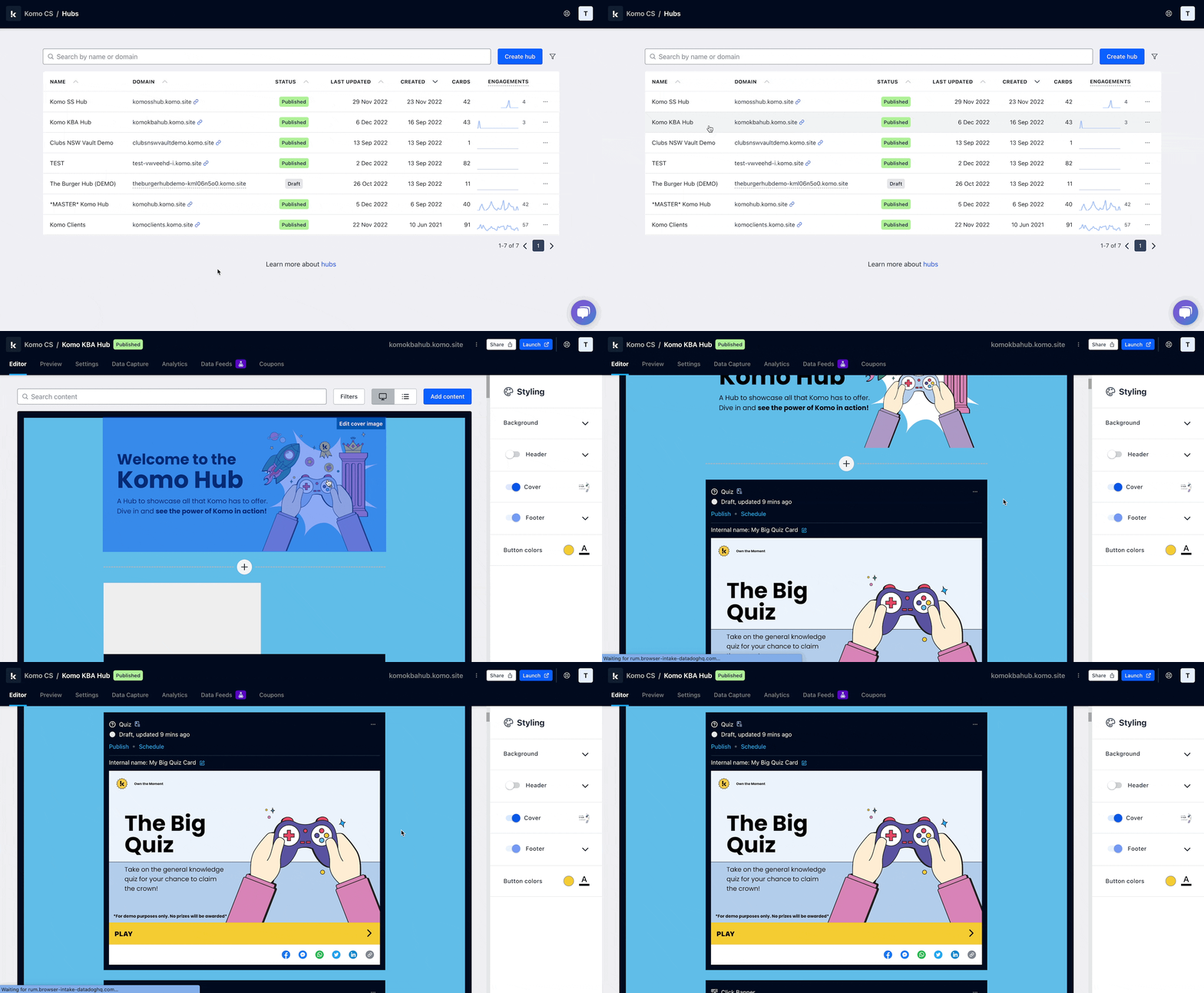 * Navigate to your **Engagement Hub**
* Scroll to the card you want to add a custom tag to
### Step 2: Create a Tag
* Navigate to your **Engagement Hub**
* Scroll to the card you want to add a custom tag to
### Step 2: Create a Tag
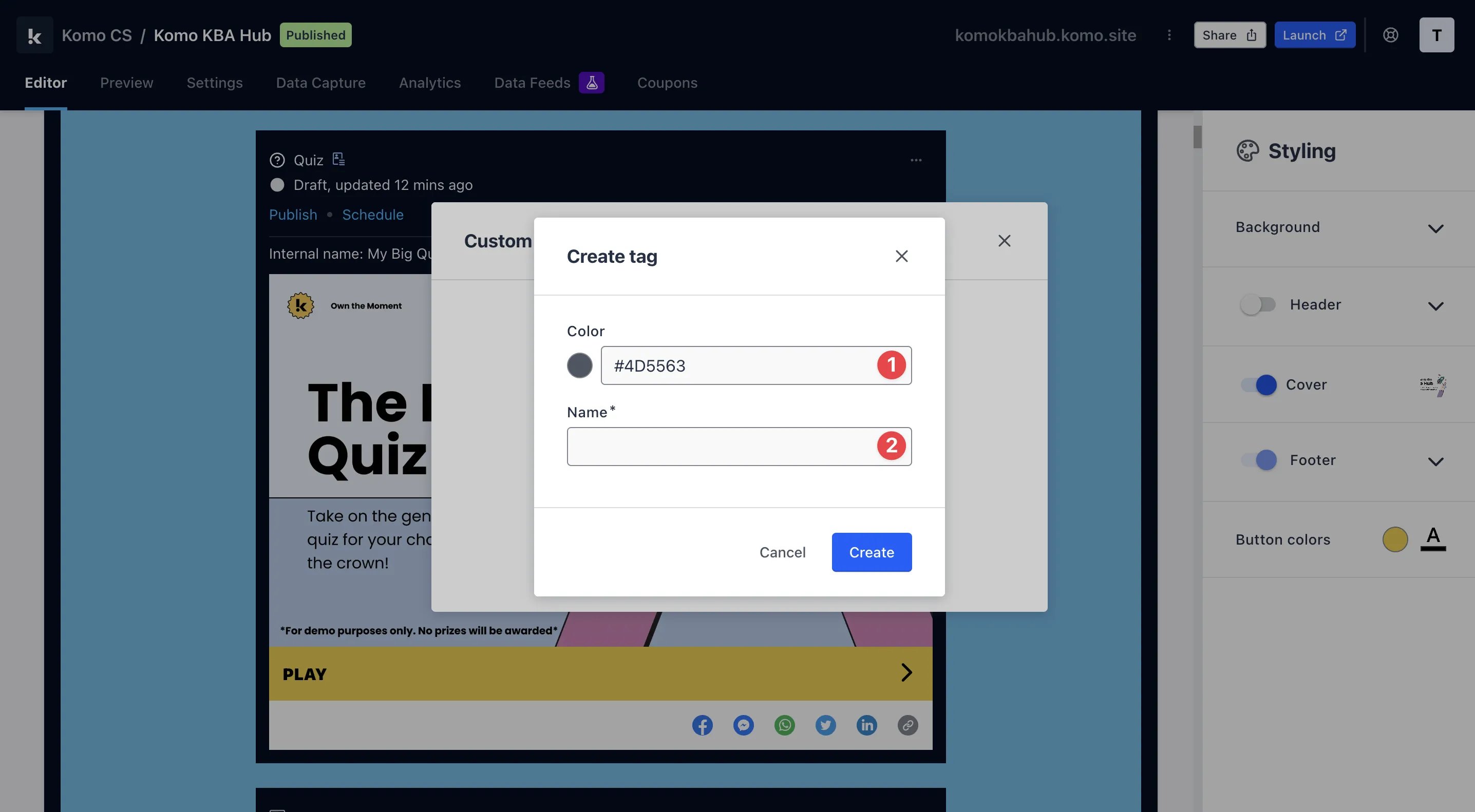 * Click on **...** located on the top right of the card
* Select **Custom tags** and then click on **Create and assign tag**
* **(1)** Here you can select a **colour** for your tag
* **(2)** Enter a **name** for your tag. E.g. Christmas 2022, and then click on **create**
### Step 3: Assign the tags
* Click on **...** located on the top right of the card
* Select **Custom tags** and then click on **Create and assign tag**
* **(1)** Here you can select a **colour** for your tag
* **(2)** Enter a **name** for your tag. E.g. Christmas 2022, and then click on **create**
### Step 3: Assign the tags
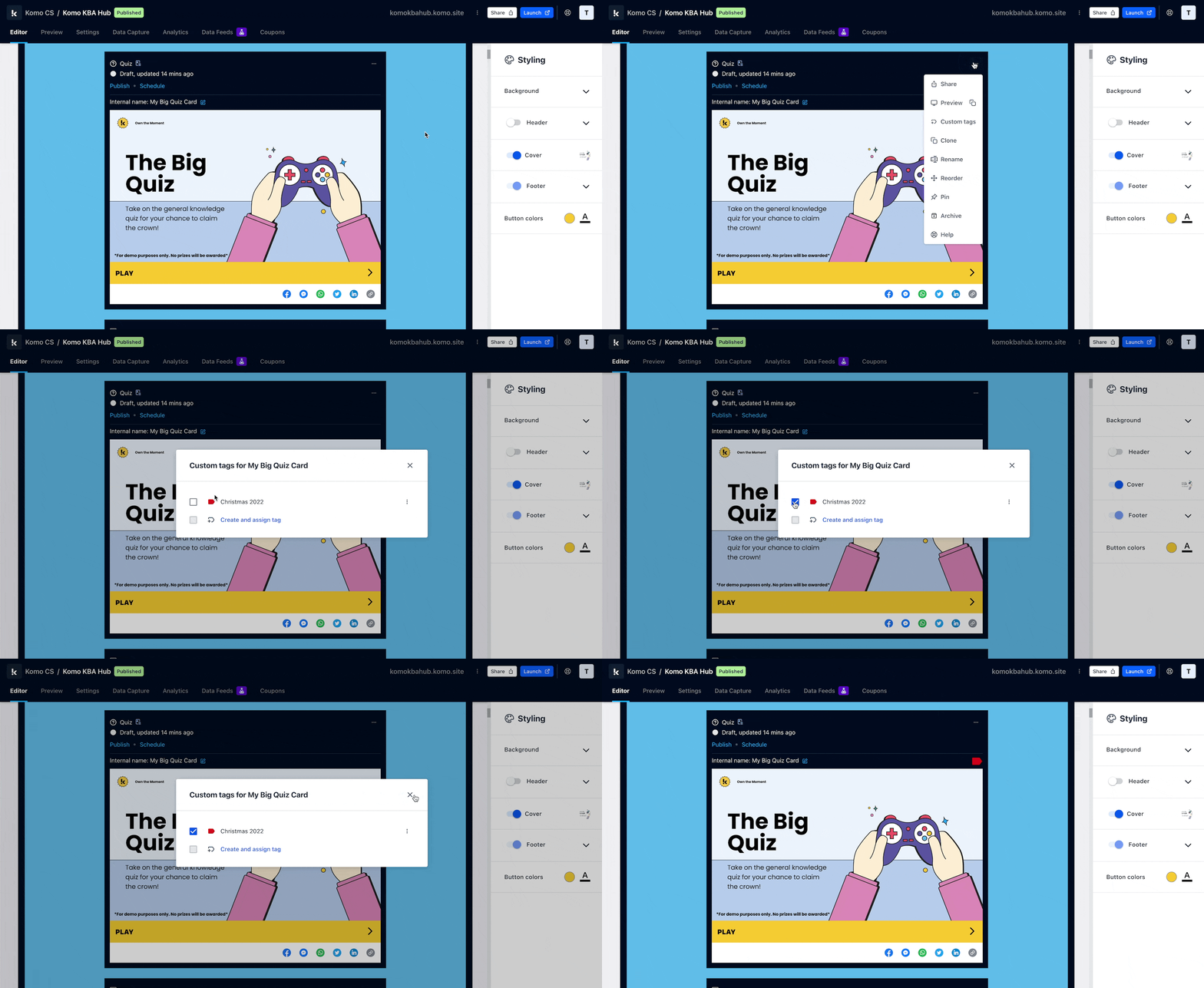 * Click on **...** located on the top right of the card
* Select **Custom tags** and then **mark** the box of the tag you wish to attach to the card
### Step 4: Filter the card view by Tags
* Click on **...** located on the top right of the card
* Select **Custom tags** and then **mark** the box of the tag you wish to attach to the card
### Step 4: Filter the card view by Tags
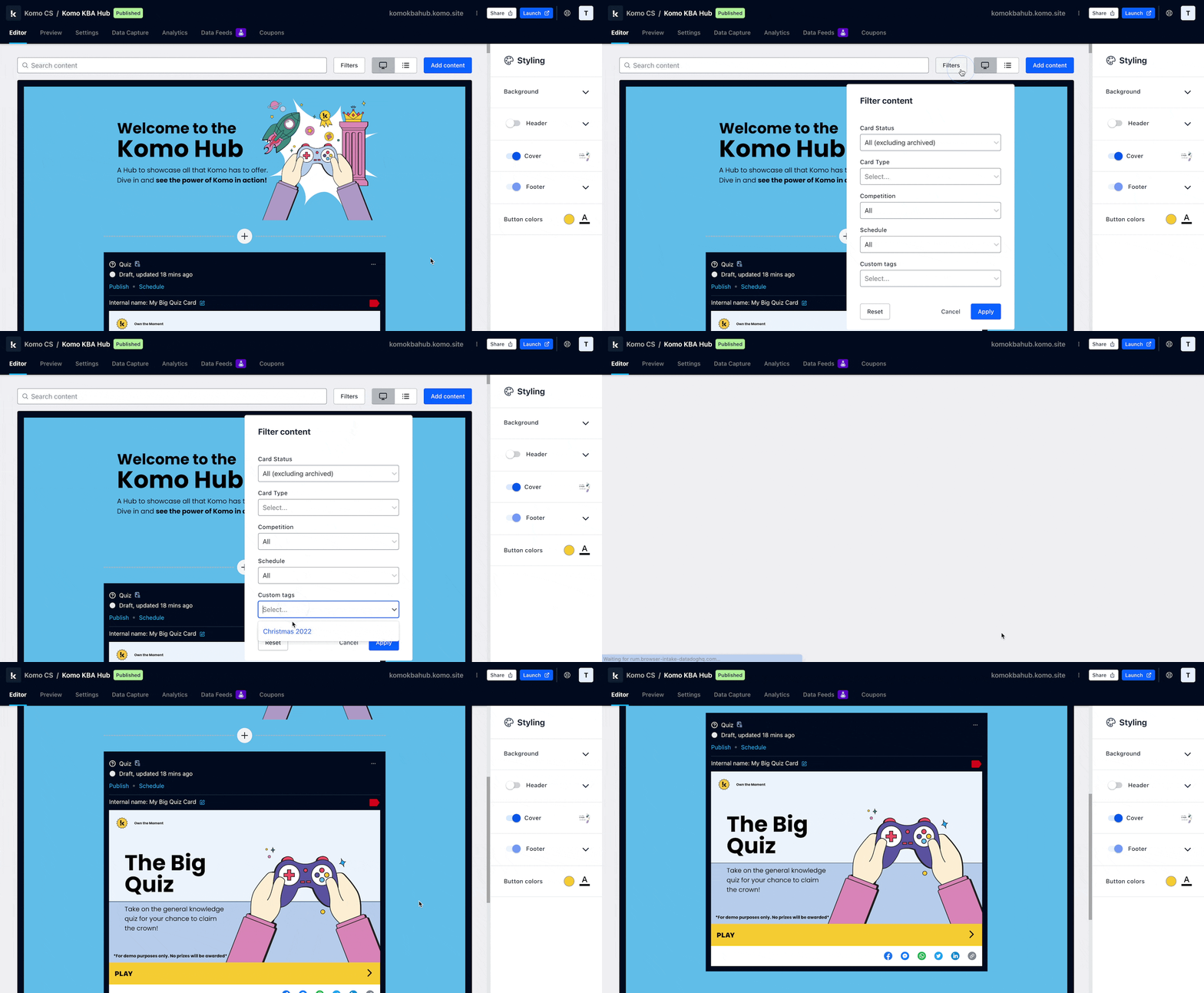 * Click on **Filters** at the top of the Hub
* Select the **Custom tag** you want to filter by and then click on **Apply**
## FAQ
**Can I assign more than one tag to a card?**
Yes, you can add as many tags as you like to a card.
**Is it possible to filter the cards using multiple tags?**
Yes, you can select more than one tag when filtering through all your cards.
**Why do you need custom tags?**
This feature is optional. It allows you to search and filter for content based on each campaign/tag. See what cards and games you used for previous campaigns to replicate or change for your upcoming activations.
* Click on **Filters** at the top of the Hub
* Select the **Custom tag** you want to filter by and then click on **Apply**
## FAQ
**Can I assign more than one tag to a card?**
Yes, you can add as many tags as you like to a card.
**Is it possible to filter the cards using multiple tags?**
Yes, you can select more than one tag when filtering through all your cards.
**Why do you need custom tags?**
This feature is optional. It allows you to search and filter for content based on each campaign/tag. See what cards and games you used for previous campaigns to replicate or change for your upcoming activations.