> ## Documentation Index
> Fetch the complete documentation index at: https://knowledge.komo.tech/llms.txt
> Use this file to discover all available pages before exploring further.
# Countdown Card
> Create a countdown to an event or offer.
## What is it?
The countdown card is a virtual clock that counts down from a specific date or number, showing the beginning or end of an event or offer.The countdown card generates curiosity and a sense of urgency to encourage customers to undertake the desired action.
## How do I build it?
* [Step 1: Add a Countdown card to your Hub](#what-is-it)
* [Step 2: Edit your card settings](#see-it-in-action)
* [Step 3: Publish your card](#what-is-it)
### Step 1: Add a Countdown card to your Hub
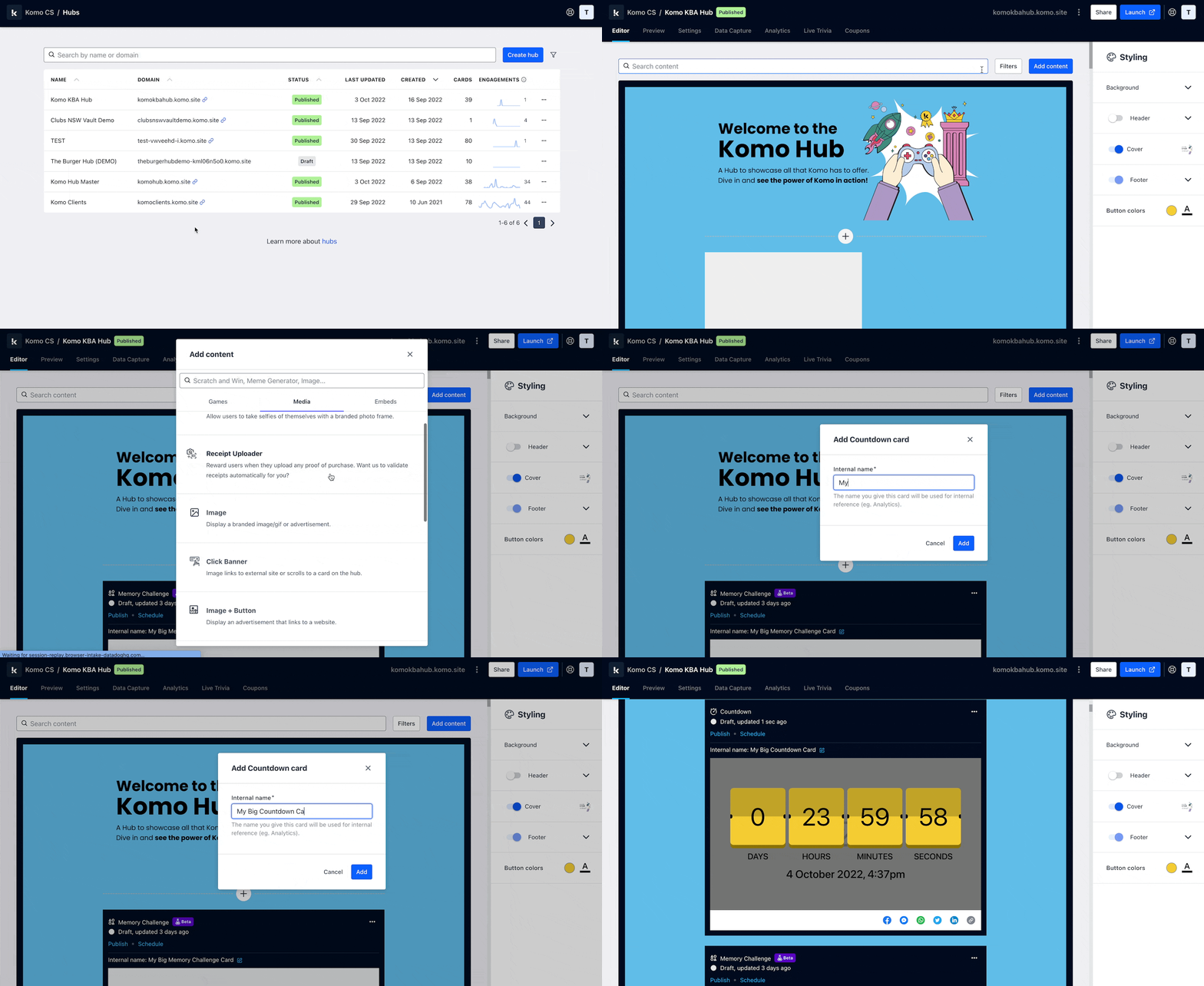 * Navigate to your **Engagement Hub**.
* Once there click **Add Content,** from here select **Media** and then **Countdown**.
* You will then see your new card has been added to your Hub.
### Step 2: Edit your card settings
* Navigate to your **Engagement Hub**.
* Once there click **Add Content,** from here select **Media** and then **Countdown**.
* You will then see your new card has been added to your Hub.
### Step 2: Edit your card settings
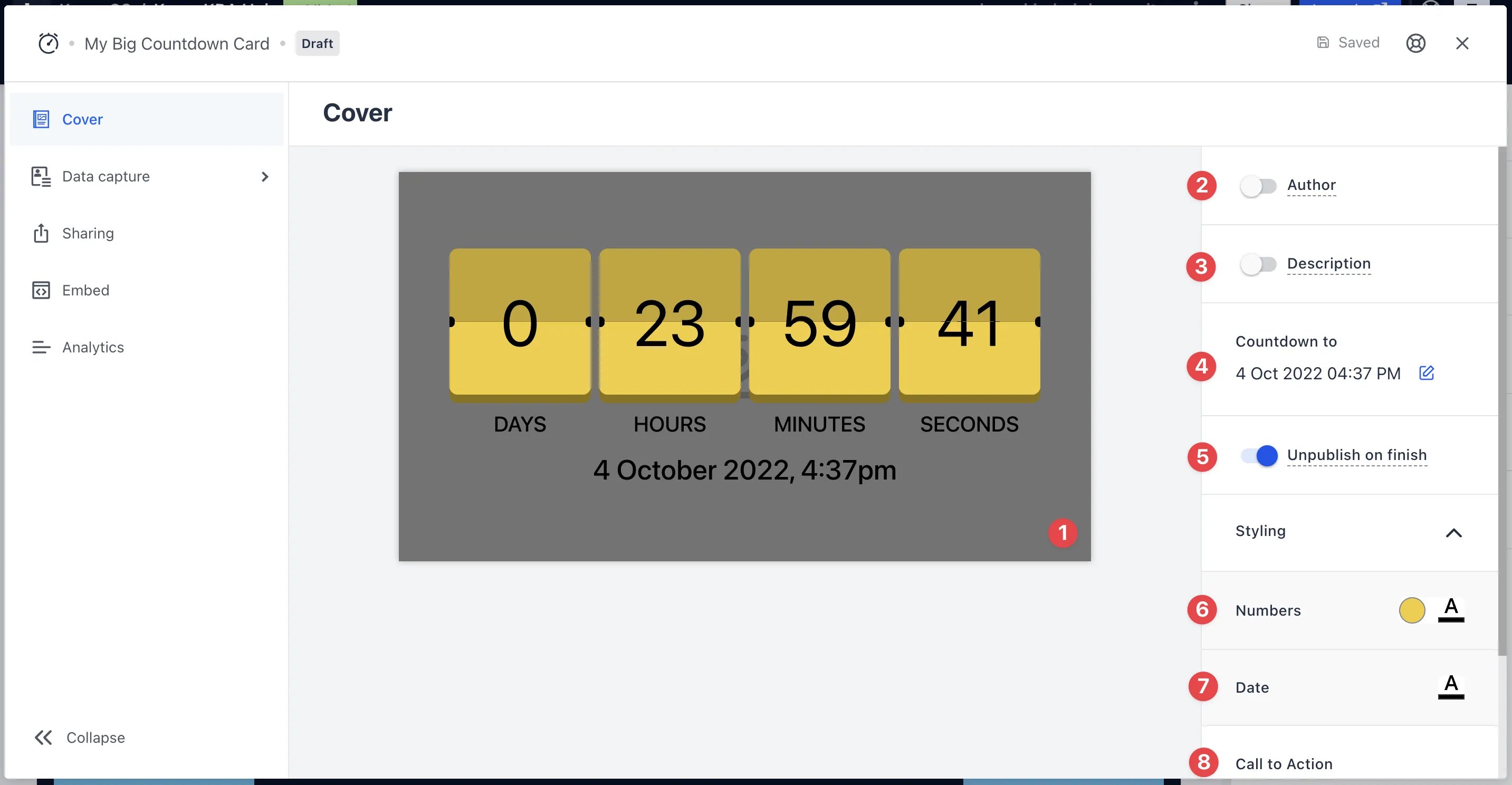 * Clicking on the **Countdown** will open the editing module.
* **(1)** Hover over the countdown and here you are able to upload an **image** to the card.
* **(2)** You can add an **author** tag by displaying the brand or person who's responsible for the card content.
* **(3)** Add a **description** to the card.
* **(4)** Enter the **date and time** that you want the clock to countdown to.
* **(5)** This option allows you to **hide** the card once the countdown has ended on your Hub, or you can leave it visible after the countdown has been completed.
* **(6)** Here you can change the background colour and colour of the **countdown text**.
* **(7) Alter the colour of the date text.**
* **(8)** Scrolling down, you can add a **call-to-action bar** to redirect the audience to another page.
You can add competitions to the countdown using the **Link Button** option. You will need to add **Data Capture** in order to host a competition.
### Step 3: Publish your card
* Clicking on the **Countdown** will open the editing module.
* **(1)** Hover over the countdown and here you are able to upload an **image** to the card.
* **(2)** You can add an **author** tag by displaying the brand or person who's responsible for the card content.
* **(3)** Add a **description** to the card.
* **(4)** Enter the **date and time** that you want the clock to countdown to.
* **(5)** This option allows you to **hide** the card once the countdown has ended on your Hub, or you can leave it visible after the countdown has been completed.
* **(6)** Here you can change the background colour and colour of the **countdown text**.
* **(7) Alter the colour of the date text.**
* **(8)** Scrolling down, you can add a **call-to-action bar** to redirect the audience to another page.
You can add competitions to the countdown using the **Link Button** option. You will need to add **Data Capture** in order to host a competition.
### Step 3: Publish your card
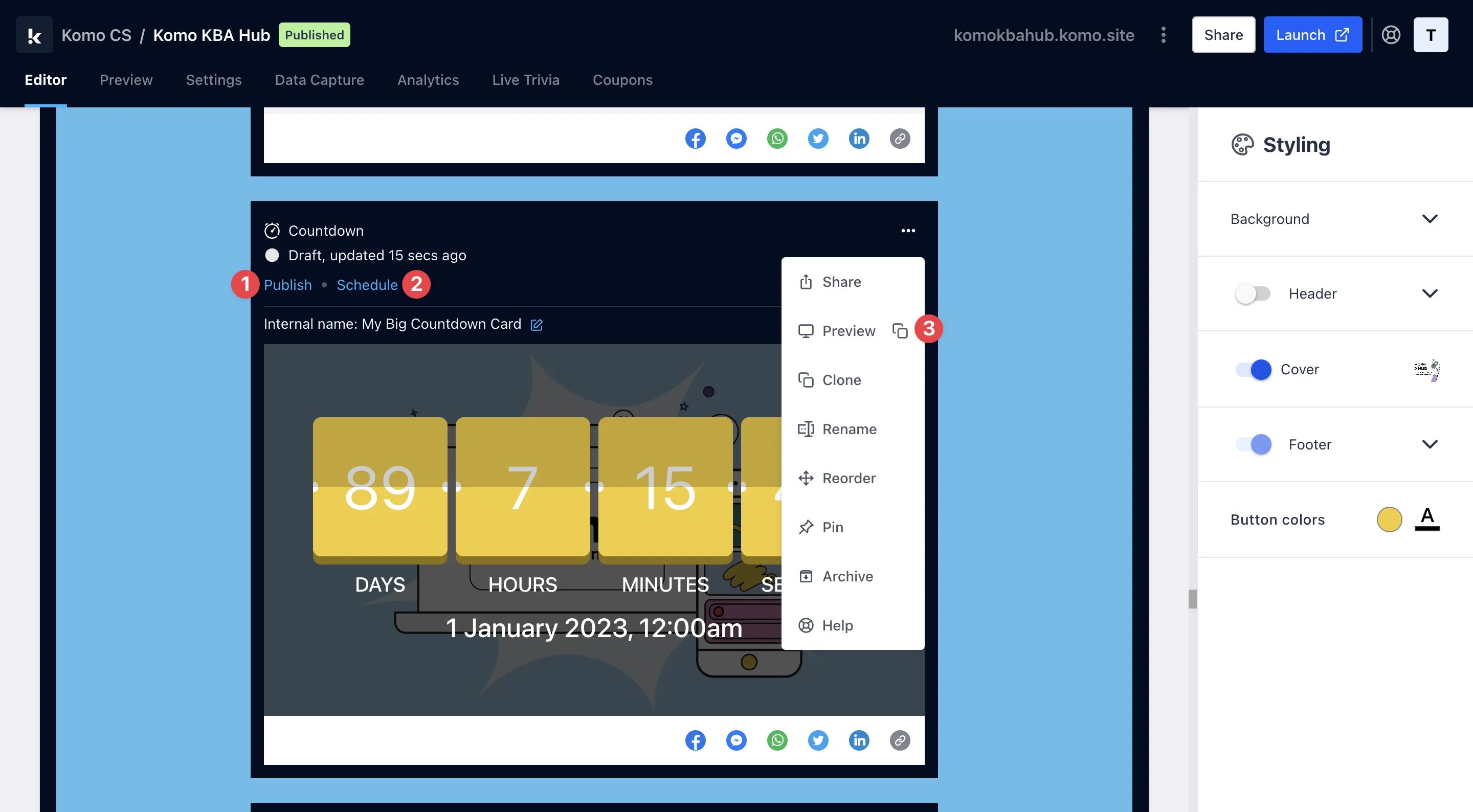 **Once you've completed all of these steps, played around with your card and are happy with all the aspects of your card, it's time to get your card live!**
* **(1) Publish** your card manually and instantly for the world to see.
* **(2) Schedule** your card to be published and unpublished at set dates and times.
* **(3)** Click on **...** to **Preview** and interact with the card on the front end from a user's perspective before publishing it. See how to test your card [here](/getting-started/hub-setup/card-testing).
All competition entries will be recorded and will impact the card analytics.
## Promotion
## FAQ
**Why would I add a data capture to my Countdown?**
Adding a data capture can be used to send reminders to your audience about the event coming up. You can send reminders 5 minutes before the countdown is up to ensure they attend.
**Once you've completed all of these steps, played around with your card and are happy with all the aspects of your card, it's time to get your card live!**
* **(1) Publish** your card manually and instantly for the world to see.
* **(2) Schedule** your card to be published and unpublished at set dates and times.
* **(3)** Click on **...** to **Preview** and interact with the card on the front end from a user's perspective before publishing it. See how to test your card [here](/getting-started/hub-setup/card-testing).
All competition entries will be recorded and will impact the card analytics.
## Promotion
## FAQ
**Why would I add a data capture to my Countdown?**
Adding a data capture can be used to send reminders to your audience about the event coming up. You can send reminders 5 minutes before the countdown is up to ensure they attend.