> ## Documentation Index
> Fetch the complete documentation index at: https://knowledge.komo.tech/llms.txt
> Use this file to discover all available pages before exploring further.
# Fact Card
> Used to quickly educate your audience about your brand's products and services.
## What is it?
The Fact card allows you to upload an image (1920px by 1080px) and overlay it with text.
The Fact card is used to share information about your brand, products, or whatever topic you wanted to discuss. It is great for promoting your brand, new products or just delighting your audience with a fun fact.
### Watch it come to life
## How do I build one?
* [Step 1: Add a Fact card to your Hub](#step-1-add-a-fact-card-to-your-hub)
* [Step 2: Edit your card settings](#step-2-edit-your-card-settings)
* [Step 3: Publish your card](#step-3-publish-your-card)
### Step 1: Add a Fact card to your Hub
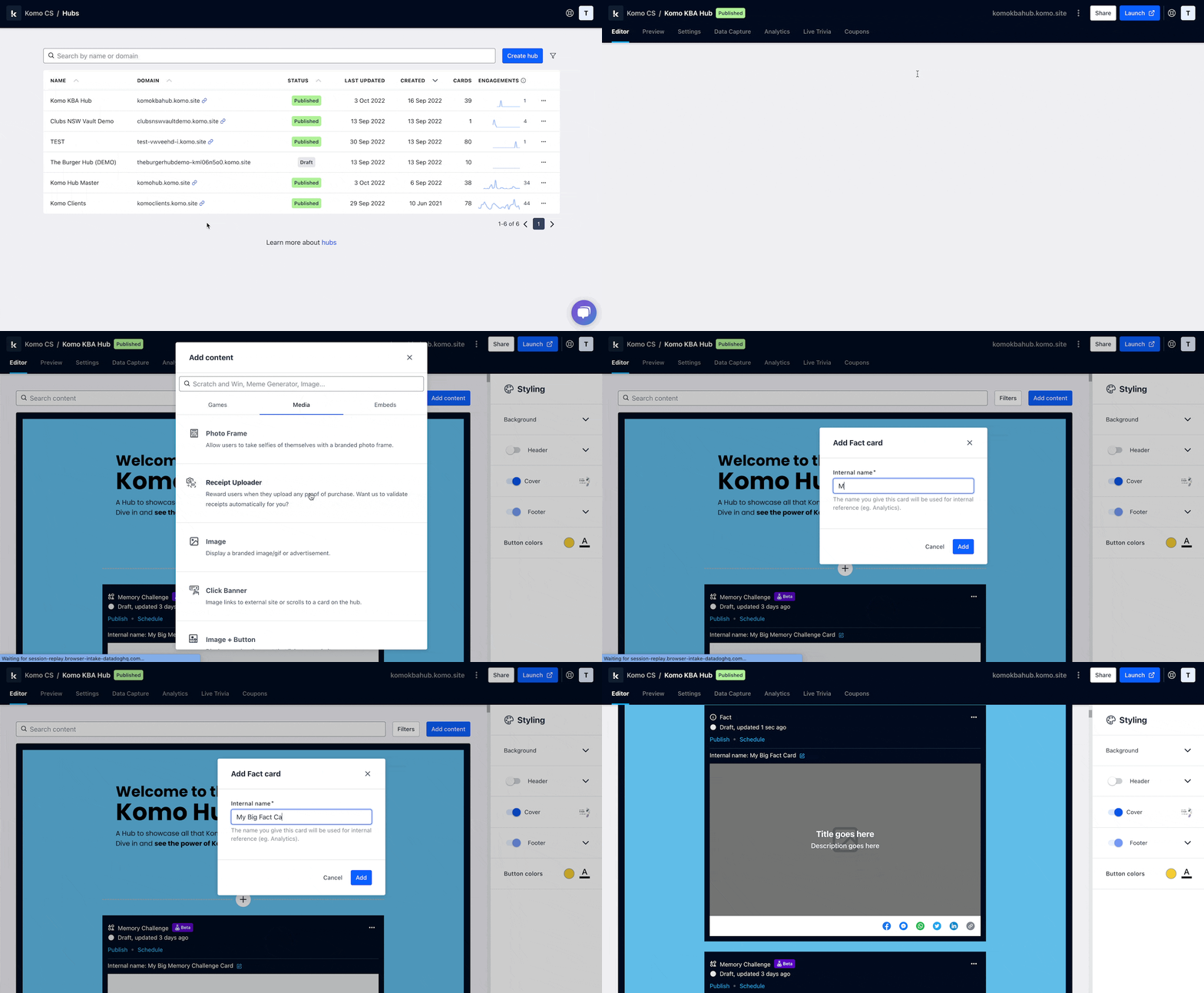 * Navigate to your **Engagement Hub**.
* Once there click **Add Content,** from here select **Media** and then **Fact.**
* You will then see your new card has been added to your Hub.
### Step 2: Edit your card settings
* Navigate to your **Engagement Hub**.
* Once there click **Add Content,** from here select **Media** and then **Fact.**
* You will then see your new card has been added to your Hub.
### Step 2: Edit your card settings
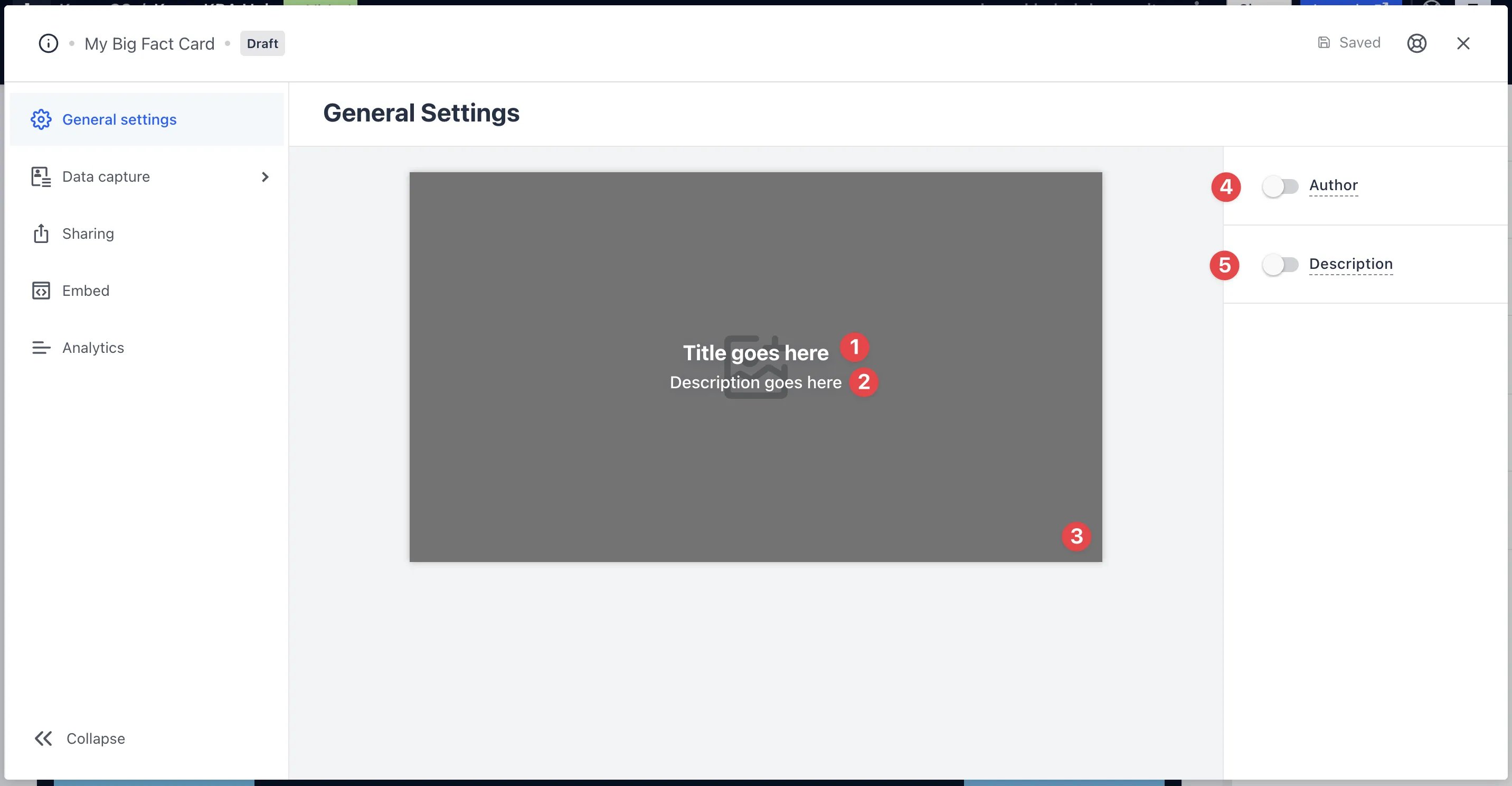 * Clicking on the **Fact** will open the editing module.
* **(1)** Here you add a **Title** for your card.
* **(2)** Write a **description or fact** you wish to share.
* **(3)** Upload an **image** here.
* **(4)** You can add an **author** tag by displaying the brand or person who's responsible for the card content.
* **(5)** Add a **description** to the card.
### Step 3: Publish your card
* Clicking on the **Fact** will open the editing module.
* **(1)** Here you add a **Title** for your card.
* **(2)** Write a **description or fact** you wish to share.
* **(3)** Upload an **image** here.
* **(4)** You can add an **author** tag by displaying the brand or person who's responsible for the card content.
* **(5)** Add a **description** to the card.
### Step 3: Publish your card
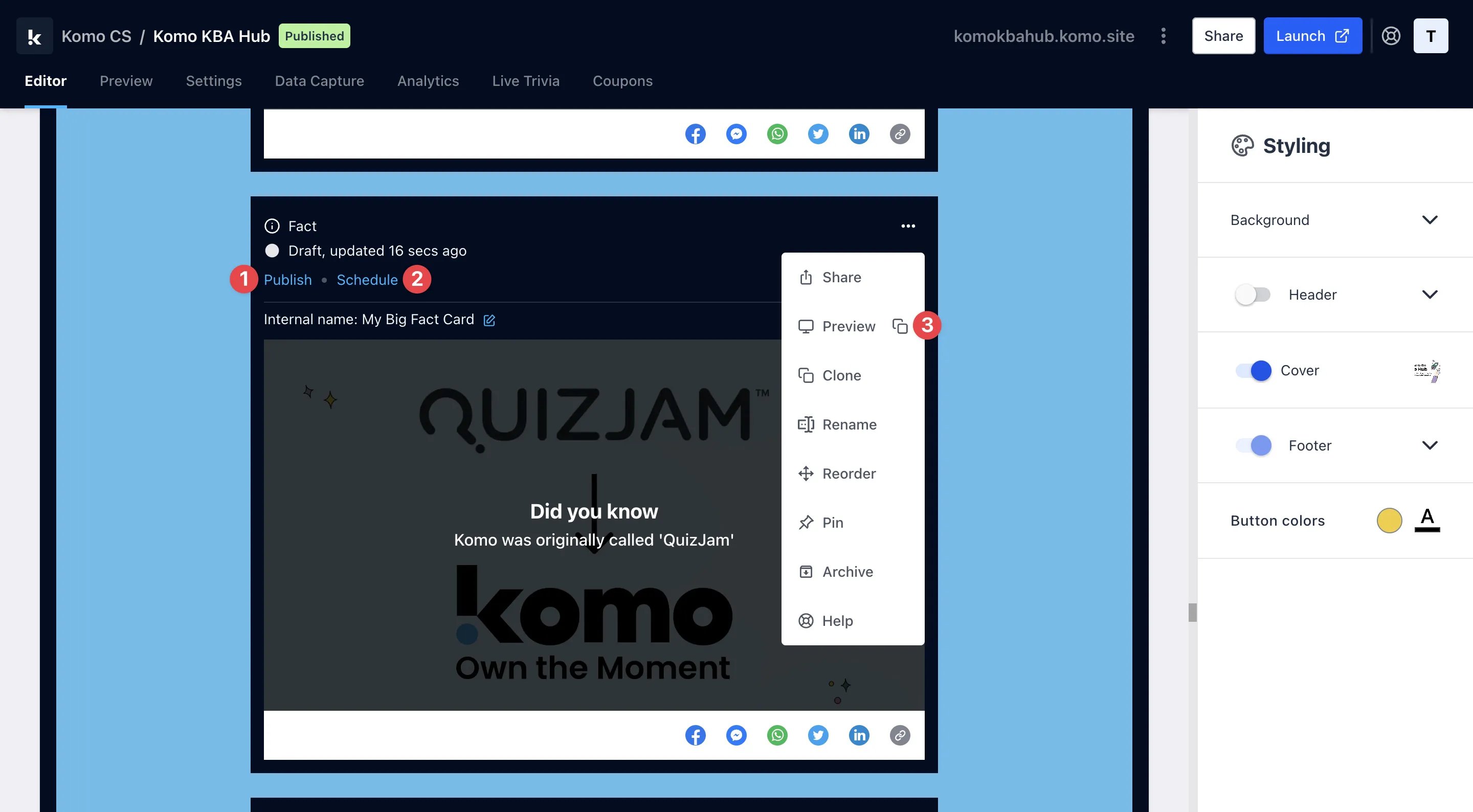 **Once you've completed all of these steps, played around with your card and are happy with all the aspects of your card, it's time to get your card live!**
* **(1) Publish** your card manually and instantly for the world to see.
* **(2) Schedule** your card to be published and unpublished at set dates and times.
* **(3)** Click on **...** to **Preview** and interact with the card on the front end from a user's perspective before publishing it. See how to test your card [here](/getting-started/hub-setup/card-testing).
All competition entries will be recorded and will impact the card analytics.
## Promotion
## FAQ
**Can I add an author tag and description to my Fact card?**
Yes, you can do this by clicking on the **Options** button at the bottom of the card.
**What file formats can I upload?**
You can upload PNG, JPEG, GIFs for the Fact card.
**Once you've completed all of these steps, played around with your card and are happy with all the aspects of your card, it's time to get your card live!**
* **(1) Publish** your card manually and instantly for the world to see.
* **(2) Schedule** your card to be published and unpublished at set dates and times.
* **(3)** Click on **...** to **Preview** and interact with the card on the front end from a user's perspective before publishing it. See how to test your card [here](/getting-started/hub-setup/card-testing).
All competition entries will be recorded and will impact the card analytics.
## Promotion
## FAQ
**Can I add an author tag and description to my Fact card?**
Yes, you can do this by clicking on the **Options** button at the bottom of the card.
**What file formats can I upload?**
You can upload PNG, JPEG, GIFs for the Fact card.