> ## Documentation Index
> Fetch the complete documentation index at: https://knowledge.komo.tech/llms.txt
> Use this file to discover all available pages before exploring further.
# How to run your Live Predictor
> Need help running your Live Predictor? Read on…
This article will provide you with all the information you’ll need to know in order to run your predictor game during a live event. Read on for the step-by-step guide.
If you need help building out your Live Predictor, click [here](/interactive-features/games/live-predictor-card-advanced).
## Starting my Game
Now It’s time to run your Live Predictor! Before your event begins, make sure you have a segment live and running for your audience to make their predictions. If you're looking to promote the event, having the predictor live for a few days to a week prior is best so you get the best engagement rate.
If you know when your event begins and/or ends, you can schedule a segment to open and close at certain times. In a sporting event, for example, you can schedule a segment to close before the game begins, and then you are able to manage and make adjustments to it manually.
If you have a season-long event, you can plan and create segments ahead of time. You can have segments hidden from users by having the **eye icon** with a strike through it below the segment name. Once you're ready, you can click on the **eye icon** to remove the strike and make the segment visible to users.
However, if you don’t know when the event starts, you can push the segment live manually by clicking on the **Play** icon next to the segment name.
We highly recommend scheduling segments as this will show a countdown to when the next segment opens creating excitement.
## Revealing the Correct Answers
For the best experience, you will want to reveal the correct answer during the event. This will allow users to see how they've faired in real-time, with points and leaderboard positioning instantly being updated.
Whilst this is the recommended method of running your Live Predictor game we appreciate this can require additional resources to manage, and as such question outcomes can simply be added on the next working day, along with a communication pushing users back to the Hub to check how they went.
To reveal the correct answer, click on the **tick** next to the answer then select **Reveal correct answer**.
If you accidentally selected the incorrect answer and have revealed the answer to award the points, below is a guide on how to fix this. **Step 1:** Use the toggle to turn off the **Reveal correct answer**
**Step 2:** Go into the question, deselect the wrong answer, select the correct answer and then click **Save.**
**Step 3:** Then select **Reveal correct answer** again to award the points.
### **Experiencing a Draw**
To prevent an issue where you may encounter a draw, include a draw as an option for users to predict in your multi-choice question. As a draw is very rare, make this option worth more points!
We recommend selecting this option as everyone will score an even number of points.
Here you will be able to adjust the number of points to give each answer so everyone is awarded the same number of points. Mark the draw answers as correct and then adjust the points for each.
In this case, you will need to have the Dynamic points fluctuation toggle **off** to adjust the points for each answer.
Mark all of the answers associated with the draw as correct so everyone who selected those answers will get the question correct and score points. Here everyone will be awarded points - as if their prediction was correct. (e.g. if I voted for the Lions when they were the underdog and my prediction was worth 7,000 points. I would receive 7,000 points)
You can decide to not select any of the answers associated with the draw. However, when no correct answer is marked, the question will be incorrect for everyone, and no one will score any points. If you don’t select a correct answer, you have the option to select the **No correct answer** option. When you select this option, you are able to provide an explanation as to why there was no correct answer e.g. The question is no longer valid. No one will be awarded any points using this option.
## Viewing All Entrant Details
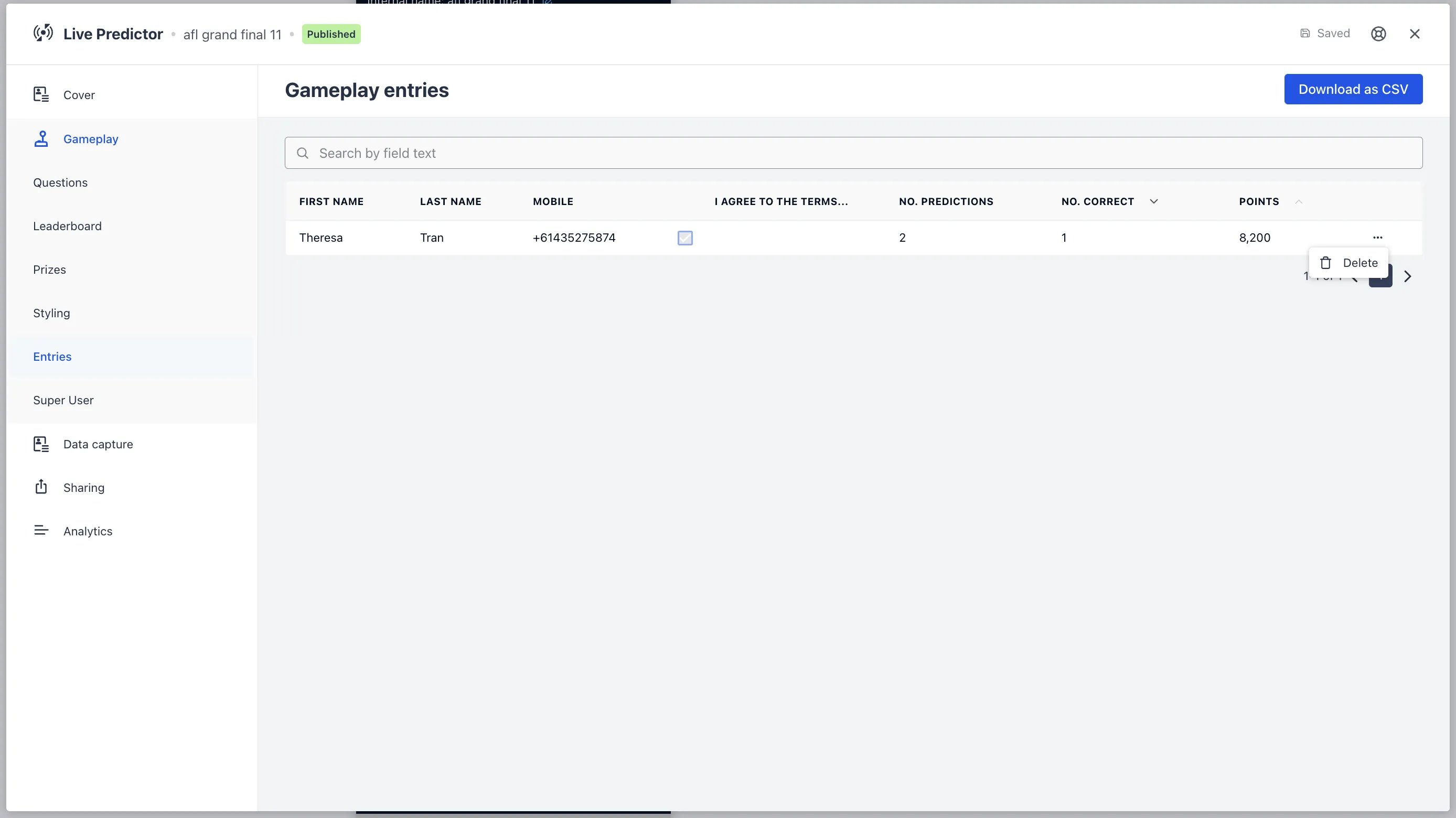
At any time during your event, you are able to view all entrant information under the **Entries** tab. The information in this section will be everything you requested in the Data capture form, the number of predictions each entrant has made, the total number of questions each entrant has got correct and their total points scored.
You are also able to delete a user in this section by clicking the **...** icon. When you remove a user, it will delete all their details including current predictions and points. If they wish to enter the competition again, they can do so by re-entering their details, however, there will be no points associated with their new entry.
 ## Archiving Segments
You can archive closed segments. This will help declutter your Live Predictor if you have multiple segments such as running a season-long event. To archive, a segment, click on the **...** located next to the dropdown arrow. When you archive segments, they will be stored in the box icon next to the Close game tab.
This option is only visible when a segment is closed.
## **Closing the Game**
Before your event begins, remember to close your game. There are different ways to close a segment, your type of event will determine this.
We recommend scheduling segments to close if you know when your event starts/finishes. If you have scheduled your segments to close, you can move on to awarding your prizes.
* If you have a season-long event or have multiple segments and wish to close one, you can do so manually by clicking on the **Stop** button next to the segment title. This allows you to close a segment at any given time while the other segments stay live.
* If your event has completely ended and you want to close your Live Predictor game, you will need to click on the **Close game** tab located on the top right of the Gameplay screen. Clicking on this will close off the whole Live Predictor and **you will not be able to edit or add segments or questions.**
## Awarding Prizes
Once you have closed your game or segment, you can now award your prizes. There are different ways to award your prizes.
* If you have the Live prize-awarding rule selected for a prize, ensure this is enabled before your segment is live. You can do this by clicking on the **…** next to the prize and clicking **Enable prizing.** This is so users are awarded the particular prize instantly throughout the event when they reach a certain threshold of points or correct predictions.
* You can award the prizes by clicking on the **Award Prizes** tab located at the top of the Prize tab screen. Clicking on this will award all the prizes you have listed to the winners.
If you have Manually selected as a rule for a prize, this will not appear in the Award Prizes list. To award this prize, click on the **...** next to the prize, click on Select recipients to award and then select the recipient/s you want to award the prize to.
Now you should know how to run your Live Predictor!
## Archiving Segments
You can archive closed segments. This will help declutter your Live Predictor if you have multiple segments such as running a season-long event. To archive, a segment, click on the **...** located next to the dropdown arrow. When you archive segments, they will be stored in the box icon next to the Close game tab.
This option is only visible when a segment is closed.
## **Closing the Game**
Before your event begins, remember to close your game. There are different ways to close a segment, your type of event will determine this.
We recommend scheduling segments to close if you know when your event starts/finishes. If you have scheduled your segments to close, you can move on to awarding your prizes.
* If you have a season-long event or have multiple segments and wish to close one, you can do so manually by clicking on the **Stop** button next to the segment title. This allows you to close a segment at any given time while the other segments stay live.
* If your event has completely ended and you want to close your Live Predictor game, you will need to click on the **Close game** tab located on the top right of the Gameplay screen. Clicking on this will close off the whole Live Predictor and **you will not be able to edit or add segments or questions.**
## Awarding Prizes
Once you have closed your game or segment, you can now award your prizes. There are different ways to award your prizes.
* If you have the Live prize-awarding rule selected for a prize, ensure this is enabled before your segment is live. You can do this by clicking on the **…** next to the prize and clicking **Enable prizing.** This is so users are awarded the particular prize instantly throughout the event when they reach a certain threshold of points or correct predictions.
* You can award the prizes by clicking on the **Award Prizes** tab located at the top of the Prize tab screen. Clicking on this will award all the prizes you have listed to the winners.
If you have Manually selected as a rule for a prize, this will not appear in the Award Prizes list. To award this prize, click on the **...** next to the prize, click on Select recipients to award and then select the recipient/s you want to award the prize to.
Now you should know how to run your Live Predictor!