> ## Documentation Index
> Fetch the complete documentation index at: https://knowledge.komo.tech/llms.txt
> Use this file to discover all available pages before exploring further.
# Invite Only Live Trivia Games
> Want to know how to make your Live Trivia games only accessible to select people? Read on...
If you are wanting to use the Live Trivia invite feature reach out to your Customer Success Specialist.
## Contents
* [What is it?](#what-is-it)
* [How do I set it up?](#what-is-it)
## What is it?
The invite only feature provides a means for you to make a Live Trivia game only accessible to a certain group of people.
One way you may decide to use this feature is by inviting the top performing participants from previous Live Trivia games to a Grand Final where they will play off for the ultimate prize.
## How do I set it up?
* [Step 1: Toggle on the invite only feature](#step-1-toggle-on-the-invite-only-feature)
* [Step 2: Create your invite list](#step-2-create-your-invite-list)
* [Step 3: Upload the invite list to the Live Trivia game](#step-3-upload-the-invite-list-to-the-live-trivia-game)
* [Step 4: Inform your entrants they've been invited to the Live Trivia game](#step-4-inform-your-entrants-theyve-been-invited-to-the-live-trivia-game)
### Step 1: Toggle on the invite only feature
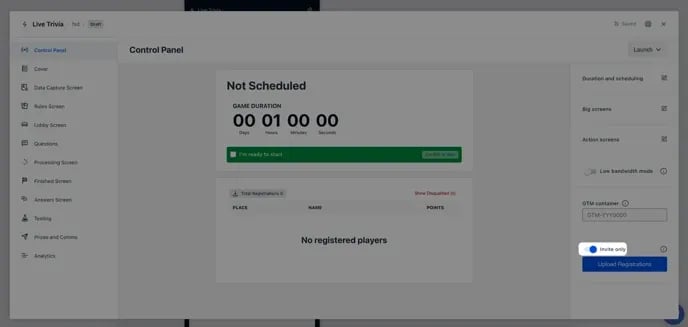 Set up your Live Trivia as you normally would. If you would like further information on this click [here](/interactive-features/quizzes/live-trivia/index).
* Navigate to the **Control Panel** tab and toggle on the **Invite only** feature.
### Step 2: Create your invite list
Set up your Live Trivia as you normally would. If you would like further information on this click [here](/interactive-features/quizzes/live-trivia/index).
* Navigate to the **Control Panel** tab and toggle on the **Invite only** feature.
### Step 2: Create your invite list
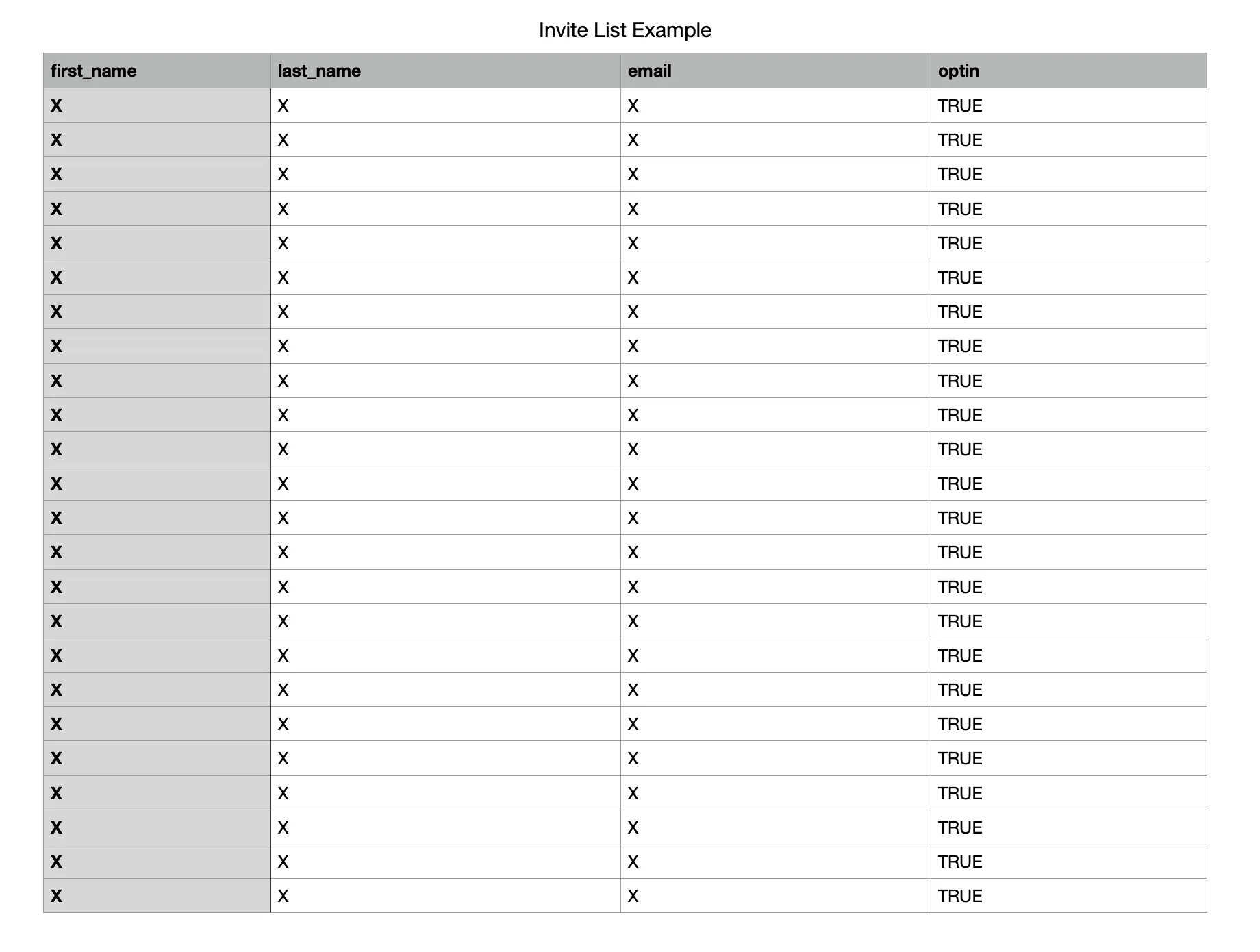 * You will need to create a list of all the entrants who you wish to invite to your Live Trivia game.
* You will need to label the first cell in each column after each of fields in your form. See the above image for reference.
* Once you've created your invite list save the document as a .csv file.
### Step 3: Upload the invite list to the Live Trivia game
* You will need to create a list of all the entrants who you wish to invite to your Live Trivia game.
* You will need to label the first cell in each column after each of fields in your form. See the above image for reference.
* Once you've created your invite list save the document as a .csv file.
### Step 3: Upload the invite list to the Live Trivia game
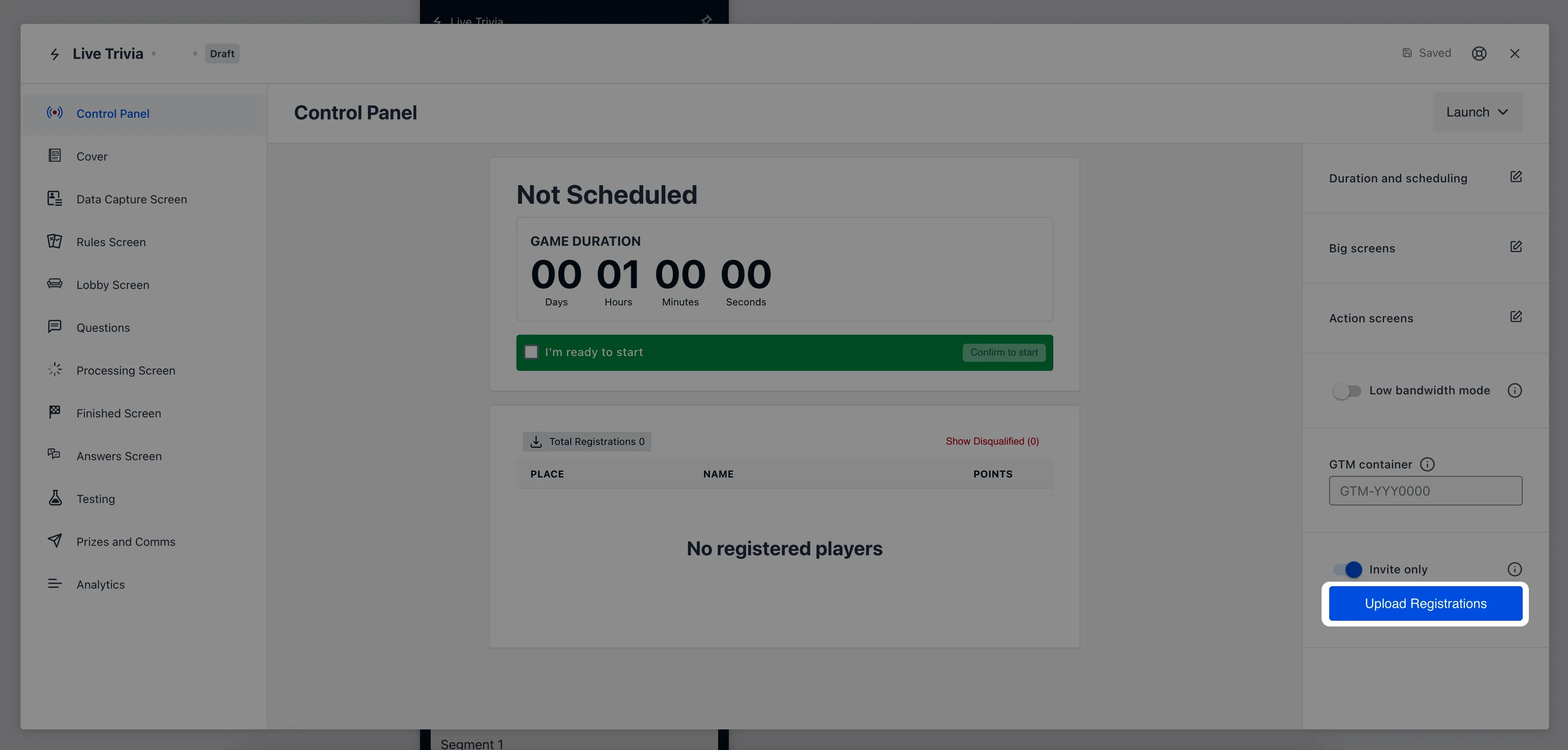 * Head back to the Live Trivia game and click on the **Upload Registrations** button.
* Upload the CSV File.
### Step 4: Inform your entrants they've been invited to the Live Trivia game
* Head back to the Live Trivia game and click on the **Upload Registrations** button.
* Upload the CSV File.
### Step 4: Inform your entrants they've been invited to the Live Trivia game
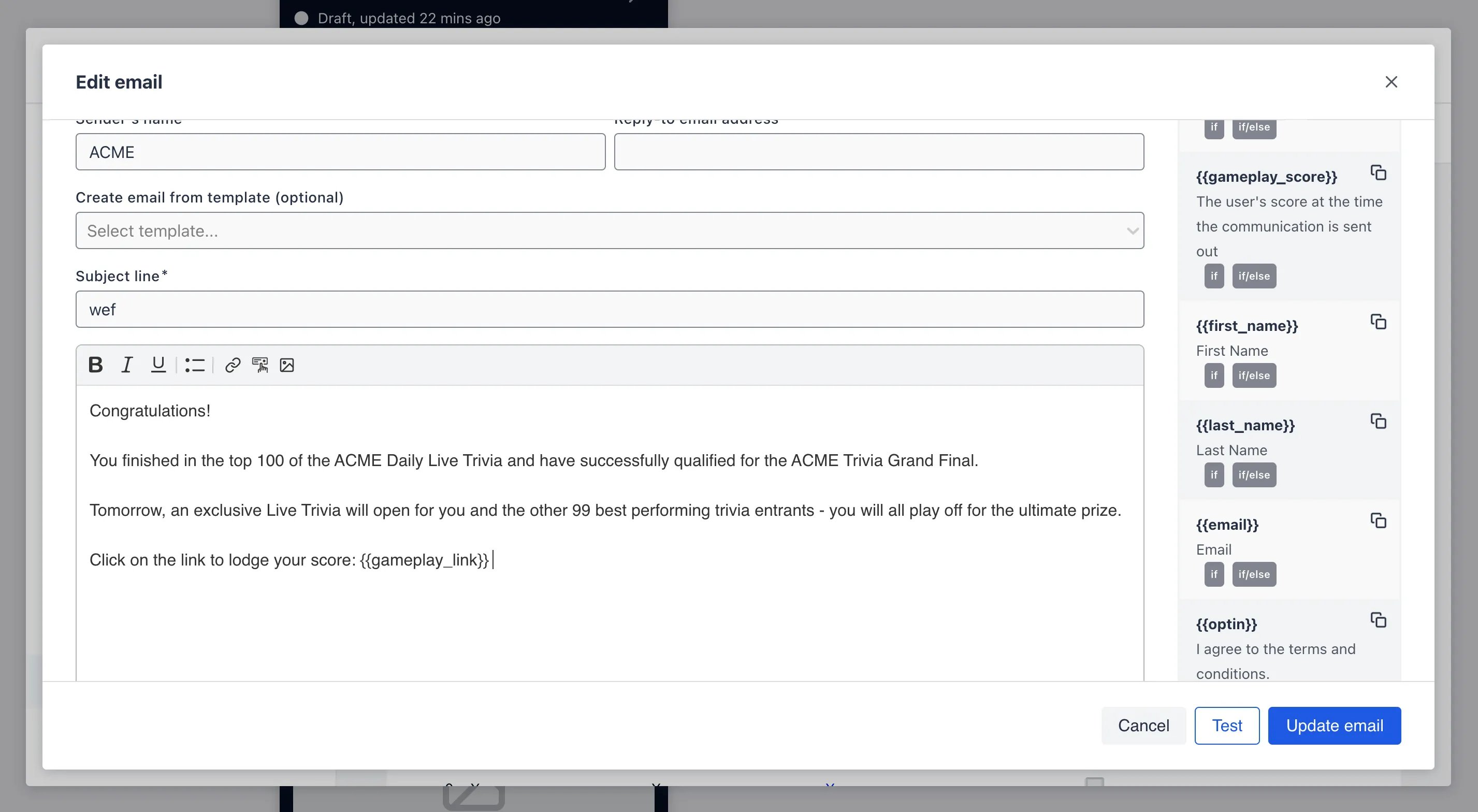 * After uploading the invite list you will need to notify entrants that they've been invited to participate in your Live Trivia game.
* Navigate to the **Prizes and Communications** tab and add a communication with the **Trigger for distribution** set to **Manually sent**.
Remember to include the gameplay link code in your email.
* After uploading the invite list you will need to notify entrants that they've been invited to participate in your Live Trivia game.
* Navigate to the **Prizes and Communications** tab and add a communication with the **Trigger for distribution** set to **Manually sent**.
Remember to include the gameplay link code in your email.
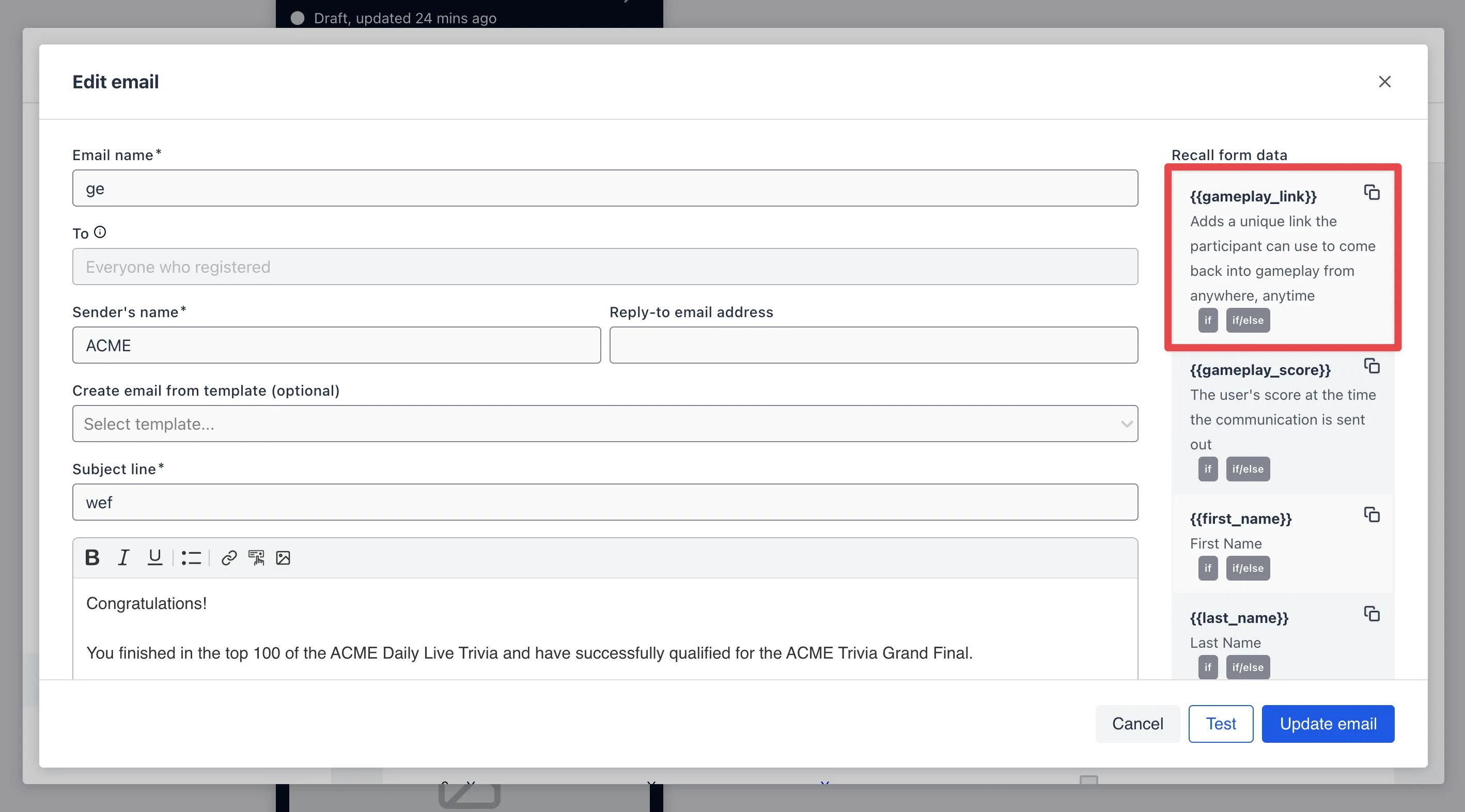 * After writing your copy of your invite email click **Update email.** Click on the **three dots** next to the communication and then **Send to all**.