
What is it?
Communication Subscriptions allow for granular opt-in and consent control at the Contact and Workspace levels, ensuring privacy compliance, enhancing opt-in management for integrations, and streamlining opt-ins before marketing communications. Ultimately you are able to simplify consent while providing better data protection.Watch it come to life
How do I do it?
- Step 1: Create your subscription
- Step 2: Add subscription consent field to forms
- Step 3: Send communications to subscribed groups
Step 1: Create your subscription
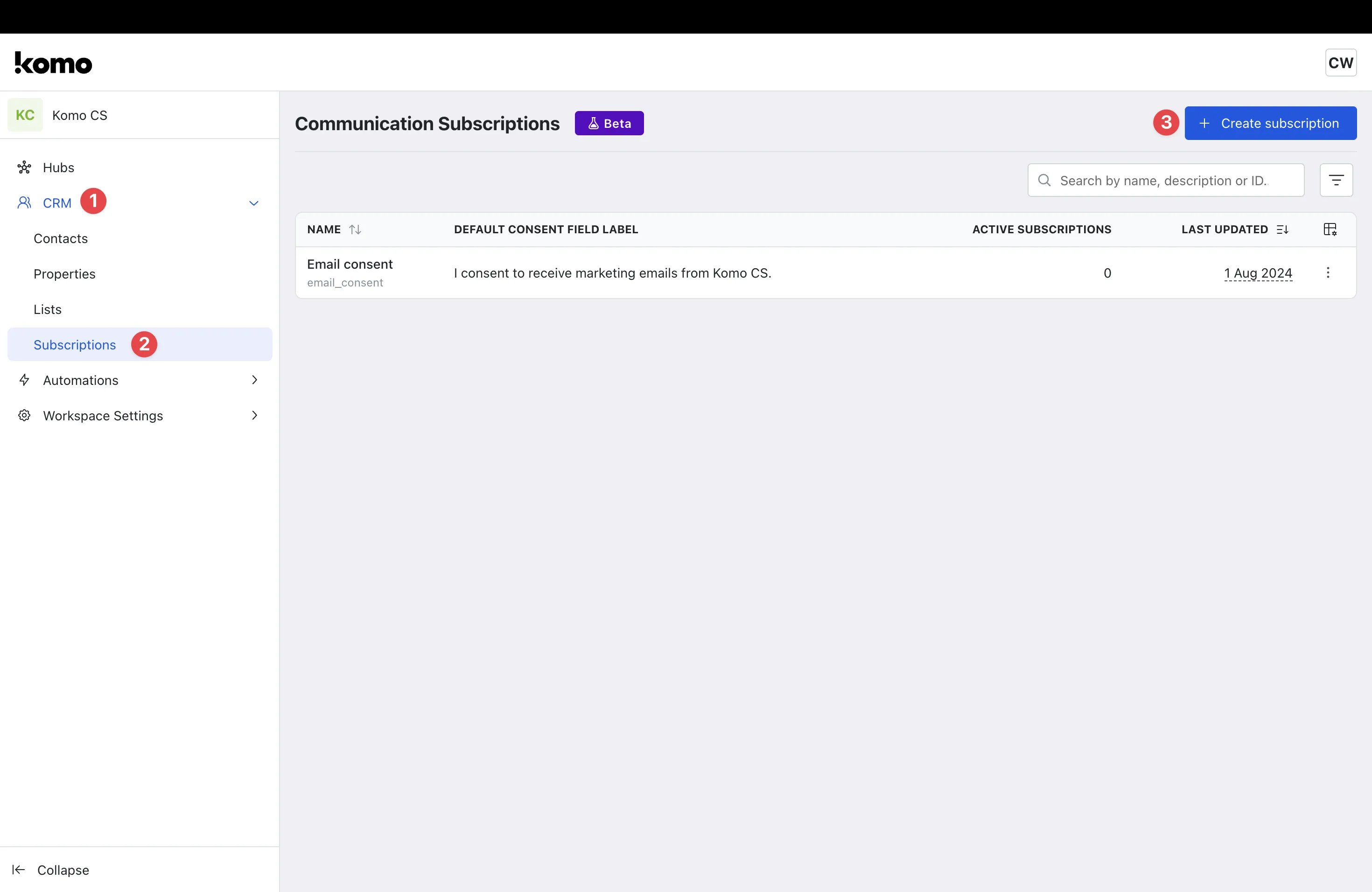
- Navigate to your Workspace.
- (1) Click on CRM.
- (2) Click on Subscriptions.
-
(3) Select + Create subscription.
You will see a default subscription titled ‘Email Consent’. This can be edited or deleted by clicking the 3 dots on the right-hand side of the subscription.
Creating a Subscription
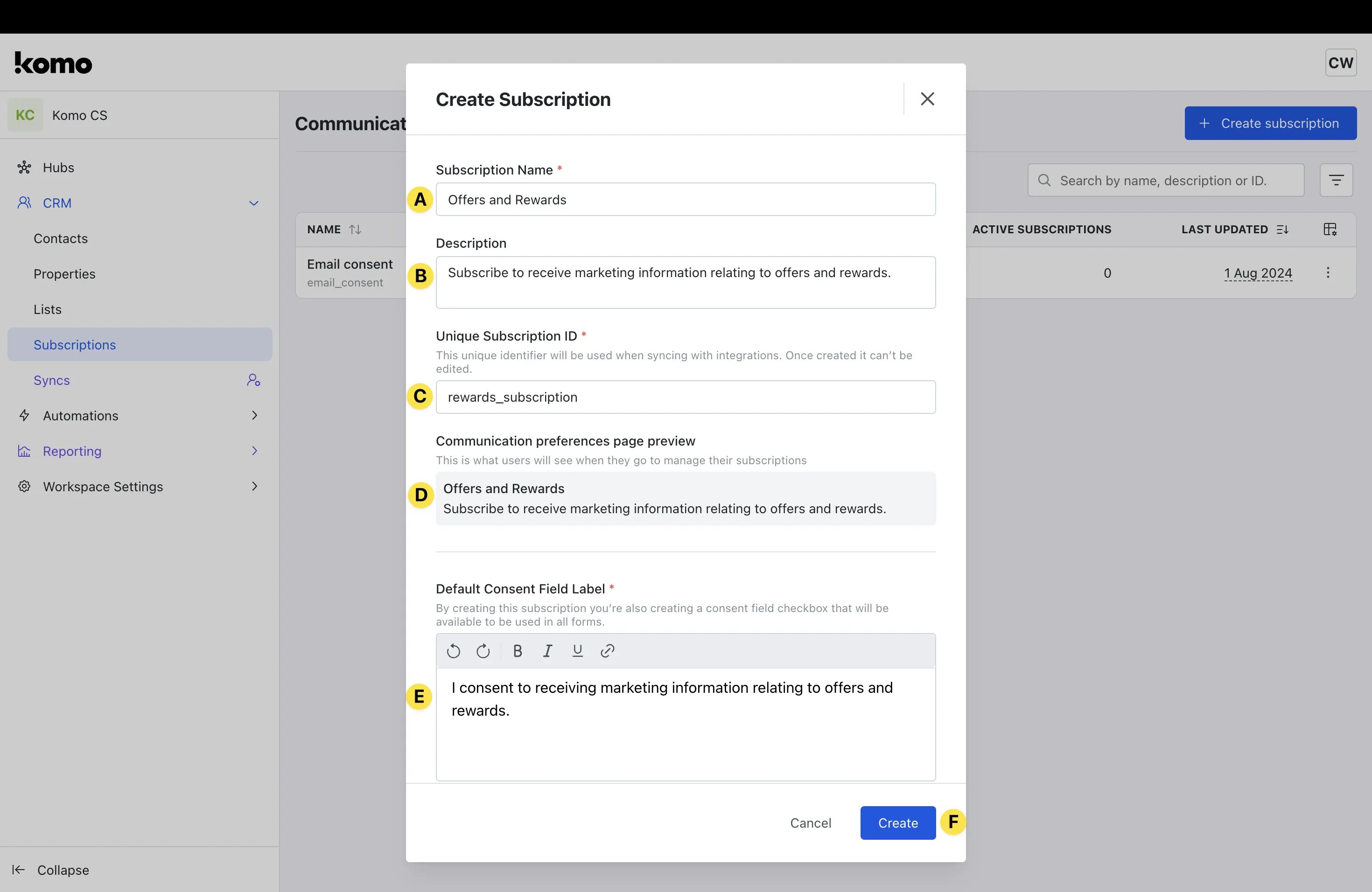
- (A) Give your subscription a meaningful Name. This name will help with searching for the consent group when adding to forms.
- (B) Provide a relevant Description for your subscription. This is automatically added to the Communications preference page and will be viewable by users when managing subscription preferences.
- (C) Type in a Unique Subscription ID. This will be referenced when syncing with integrations. Make sure you are satisfied with the ID as it can’t be edited once the subscription is created.
- (D) Review the Communication preference preview. This is auto-filled based on the information you inputted above and will be what users see when managing their subscriptions.
- (E) Type in your Default Consent Field Label. This is the label that will appear alongside the form checkbox when users provide consent.
- (F) Click Create to finalize the creation of the subscription.
Step 2: Add subscription consent field to forms
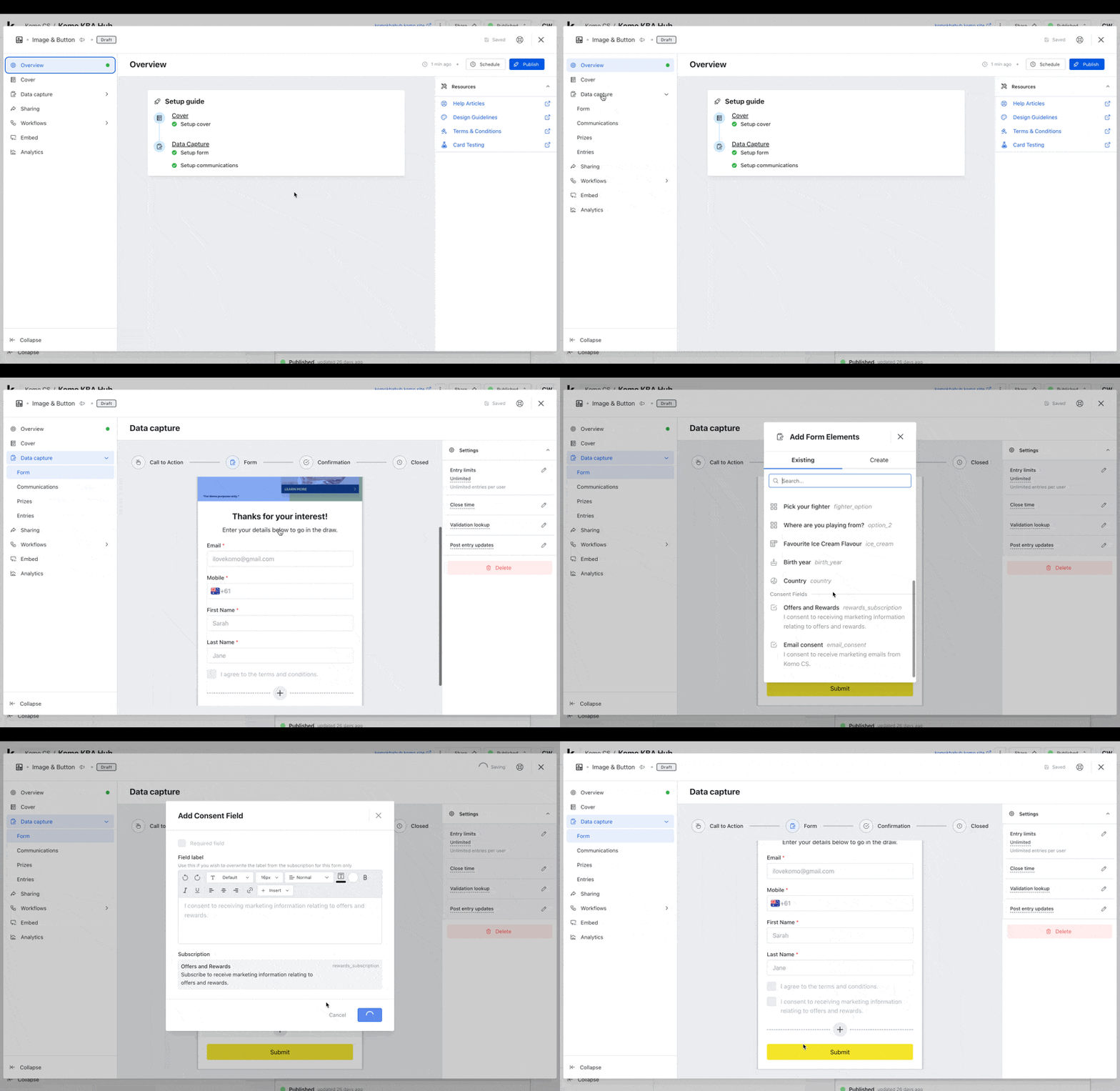
- Once you have set up your subscriptions, you can now add it to the relevant card forms.
- Navigate to the relevant Card and access the Card Settings.
- Click on the Data capture dropdown, select Form from the options, and select Form in the middle of the screen.
- Click the + sign at the bottom of the form.
- Scroll down your existing contact properties column and select the Subscription you created in Step 1.
- You will then be able to edit the Consent Field settings, including marking the checkbox as required and editing the field label.
- You will now see that the Subscription Consent Checkbox has been added to the form.
Step 3: Send communications to subscribed groups
Once your subscription has been created and tested, you are then able to send relevant communications to your subscribed groups. When creating communications, you will only have the ability to send marketing emails to users who have subscribed to those communications and explicitly opted in. For more detailed information on how to do this, please read this article.Check your audience before sending a marketing email to a list
When you send a marketing email to a contact list (CRM → Lists → open a list → Communications), choose Send from the draft email’s actions. The confirmation shows a live preview of who will get it, based on the email’s Communication Subscription. This preview is for marketing emails only. SMS sends to a list are unchanged.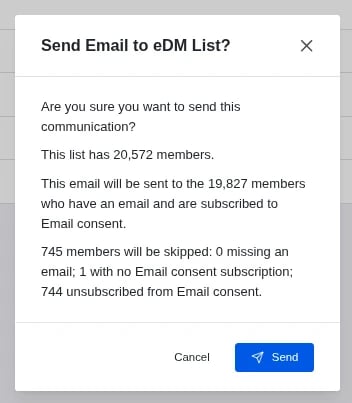
- List size: how many members the list has.
- Recipients: how many members have an email and are subscribed to the email’s Communication Subscription (for example, Email consent). Only these members receive the email.
- Skipped: how many members won’t receive it, broken down into:
- Missing an email: the contact has no email address.
- No subscription: the contact has no record for that Communication Subscription, for example because they never opted in.
- Unsubscribed: the contact was subscribed but has since unsubscribed.
For a scheduled email, the counts are correct when you open the dialog. Komo checks the list again at send time, so the final numbers can change if members join, leave or update their subscriptions in the meantime.