
What is it?
The Braze integration lets you gather first- and zero-party data through Komo and push it into Braze in real time. Data collected from data capture forms and interactive content (polls, quizzes, personality tests, swipers, and more) is sent to Braze via the/users/track/ API, so you can progressively build richer user profiles as contacts continue to engage with your Hub.
Use this integration to:
- Ingest first- and zero-party user data captured in Komo into Braze in real time.
- Ingest market research and preference data when users answer surveys, polls, and quiz questions.
- Progressively build user profiles in Braze as contacts continue to engage and share more data about themselves.
- Standardise the look and feel of transactional emails sent through Braze.
Prerequisites
Before setting up the integration, make sure you have:Use cases
When a user submits a data capture form in Komo, the fields mapped in the Braze integration are passed to Braze via the/users/track/ API call. Data capture forms typically appear at the start or end of a Card.
Komo can also pass through market research data captured when a user answers a quiz question, poll, personality test, swiper, and similar content — allowing you to enhance a user’s Braze profile beyond what’s collected in form submissions.
How do I set it up?
Step 1: Publish a Komo Engagement Hub and Card
Publish a Komo Hub with at least one Card that contains a data capture form. Once published, you’ll be able to test the user experience end-to-end and verify that data is flowing through to Braze.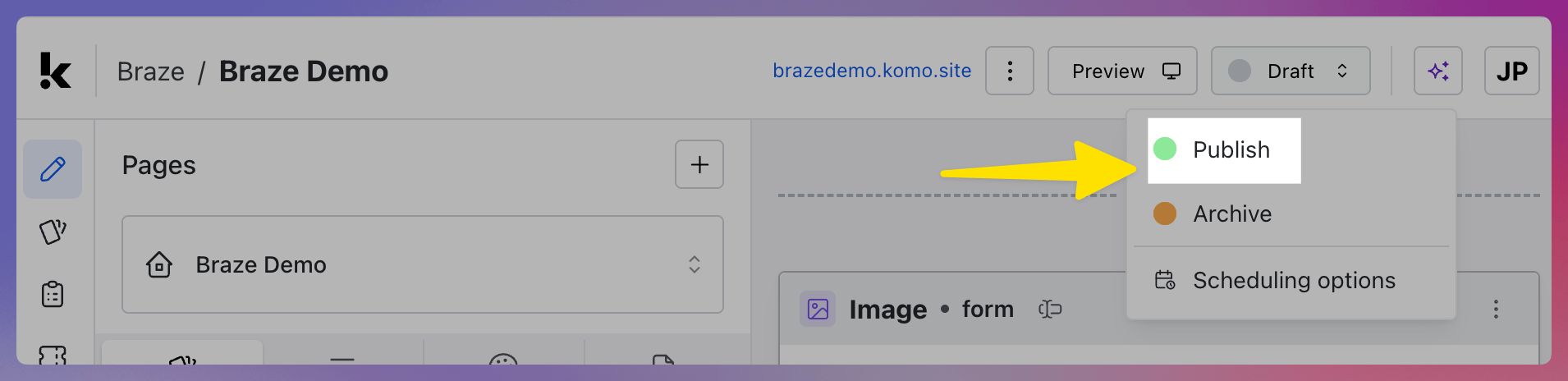
Step 2: Add the Braze Connected App
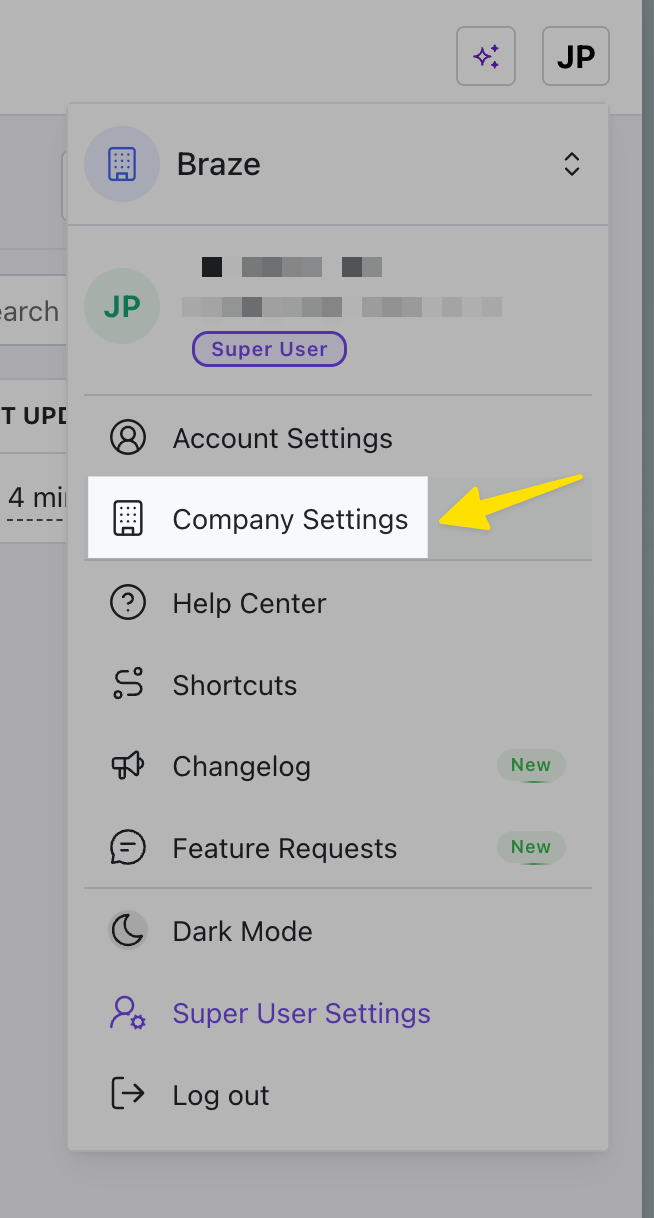
Connect Braze to your Komo workspace via Connected Apps.- Navigate to Company Settings by clicking the Workspace initials in the top right corner and clicking Company Settings.
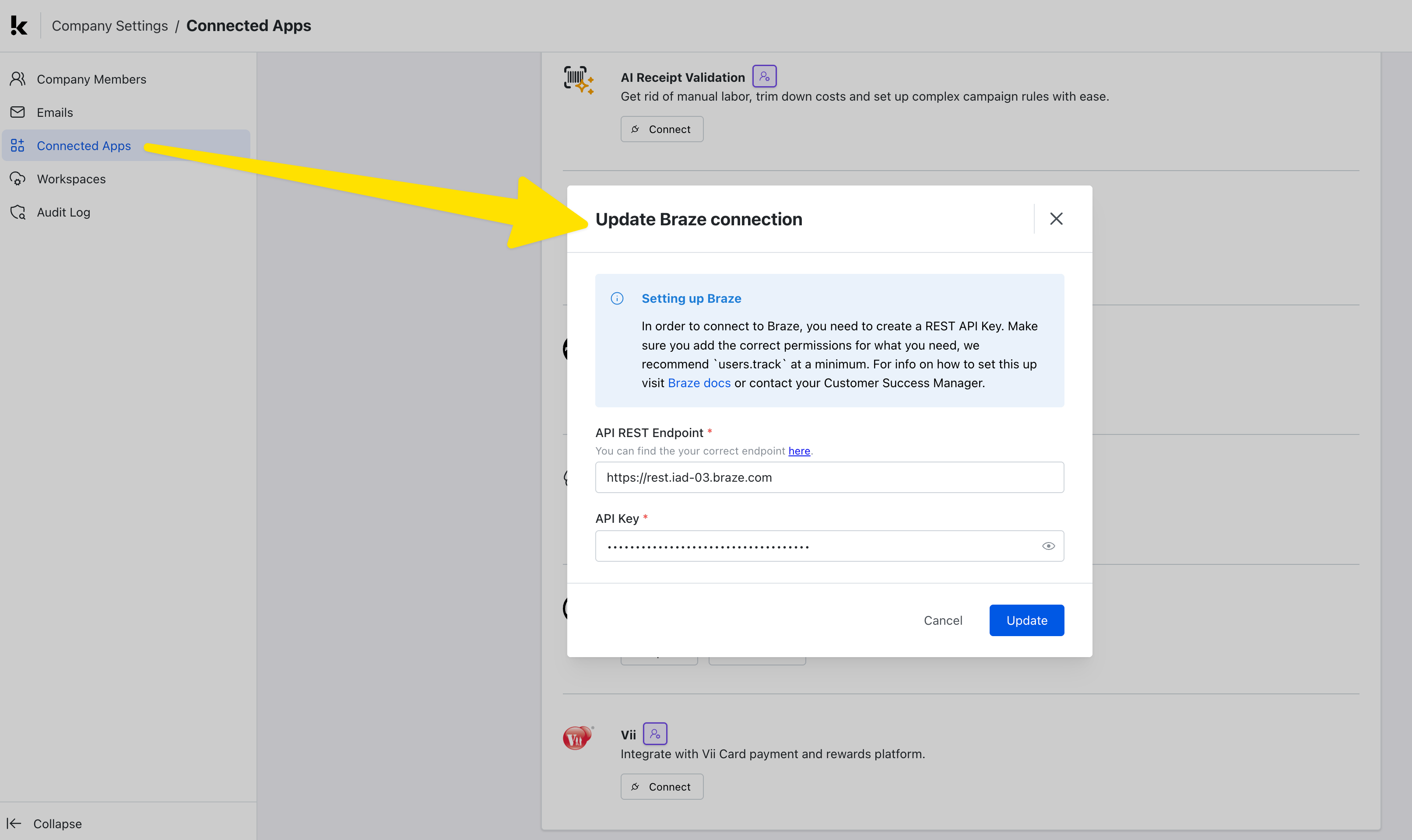
- Click Connected Apps in the left-hand menu.
- Find the Braze integration in the list and click Connect.
- Enter your Braze REST API key and REST endpoint URL from the prerequisites.
- Click Connect to save.
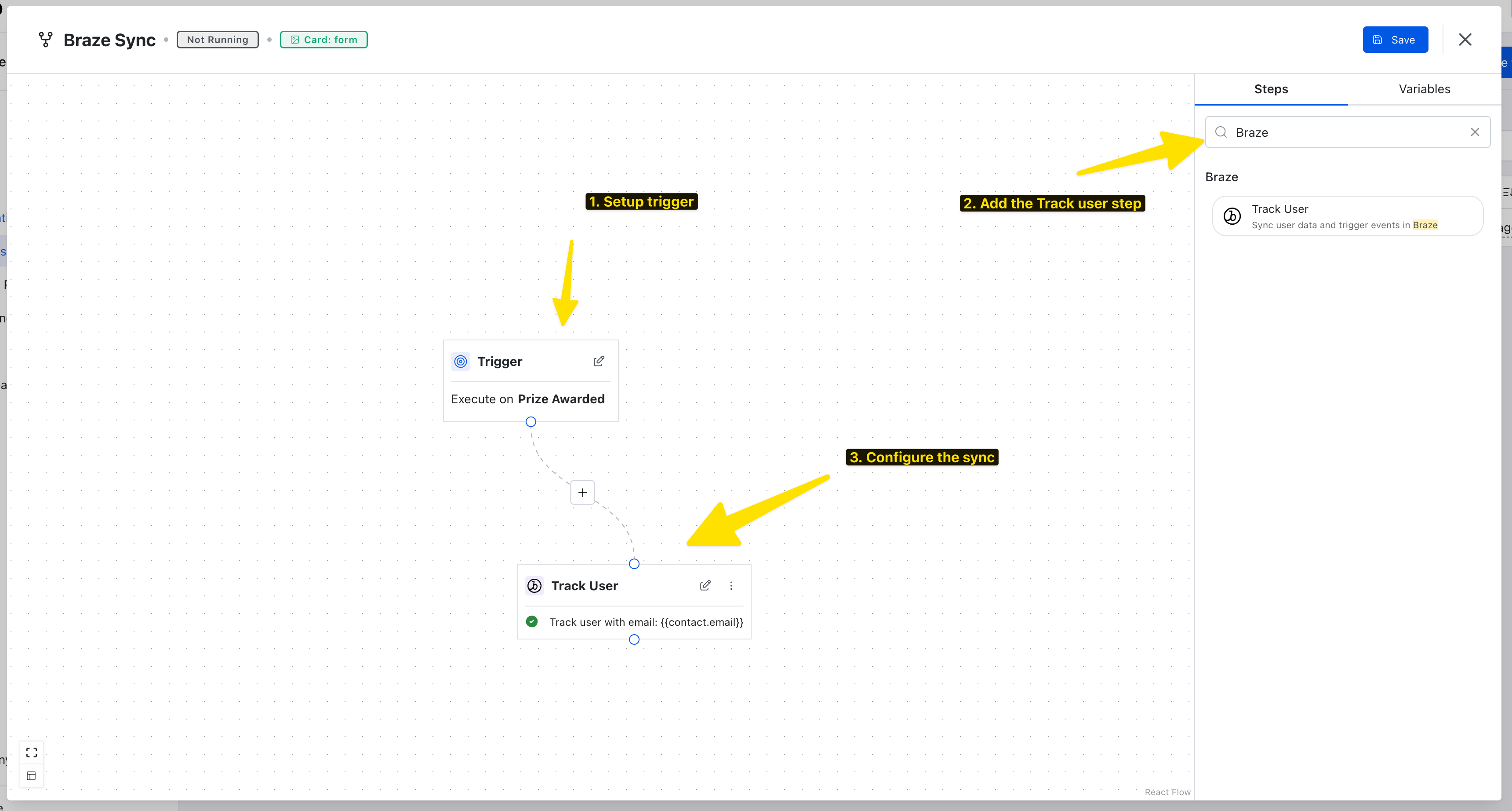
Step 3: Configure the integration via a Workflow
To start syncing data, create a Workflow that includes the Braze Track User action. Workflows can live at the Workspace, Site (Hub), or Card level — the right scope depends on how broadly you want the workflow to trigger.- Workspace-level workflows trigger across every Hub and Card in the workspace.
- Hub-level workflows trigger across the Cards in a single Hub.
- Card-level workflows only trigger for that one Card.
- Define a trigger (for example, Data captured).
- Add any filters you need (for example, only run when the Email consent subscription is Active).
- Search for Braze in the step menu and add the Track User step.
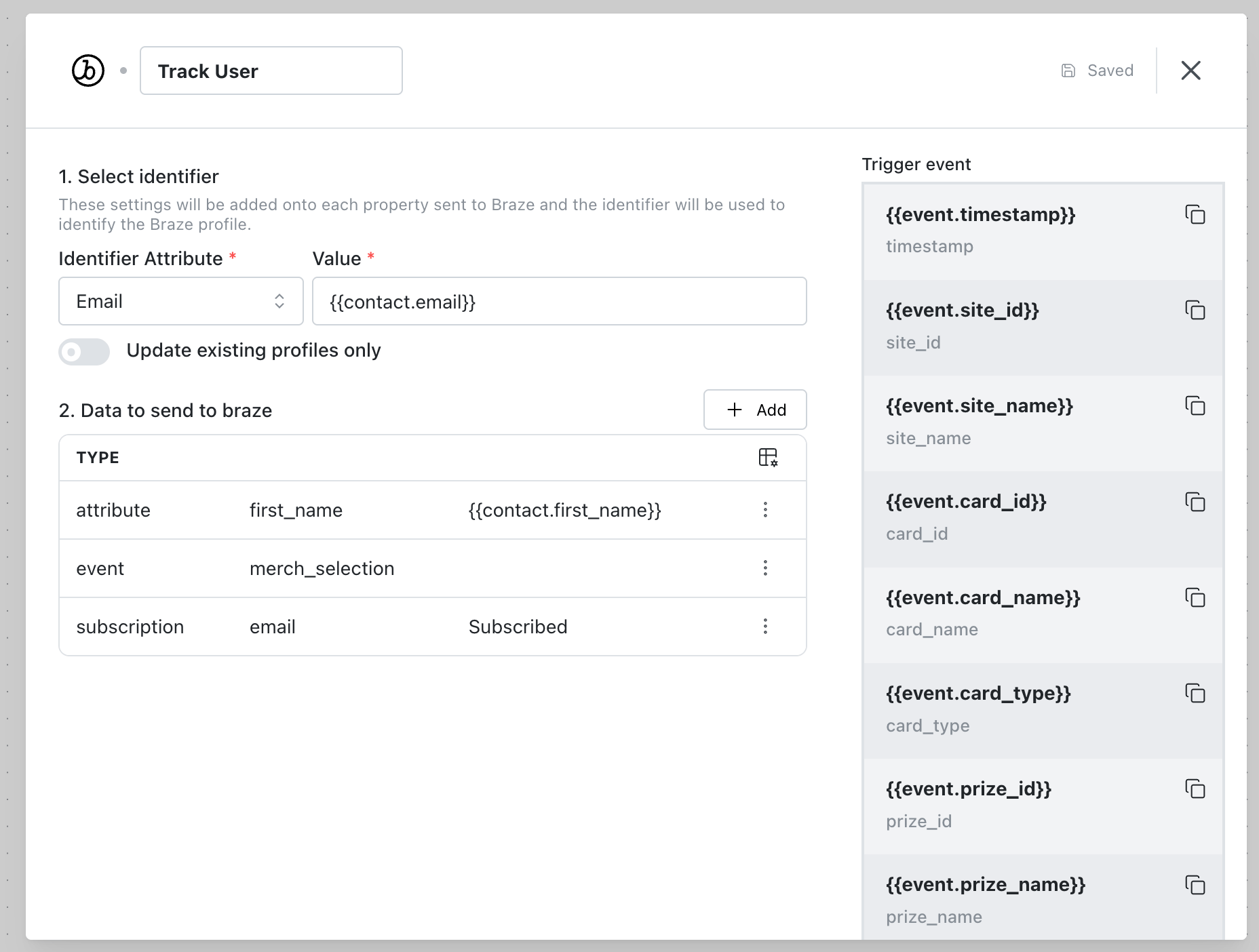
Using the integration
With your Workflow live, every matching event in Komo will trigger a call to Braze. You can monitor each execution — including request and response payloads — from the Workflow Runs tab. For more detail on interpreting runs, see Workflow Runs.FAQ
Which Braze actions can I use in a Workflow? The Braze Track User action is available today. It sends user attributes, events, and subscription updates to Braze via the/users/track/ endpoint.
Is this a two-way sync?
No. The Braze integration is a one-way sync (push) from Komo to Braze. Updates made directly in Braze aren’t pulled back into Komo.
When does the workflow run?
Workflows run in real time as soon as their trigger conditions are met — for example, immediately after a user submits a data capture form.
How many Braze workflows can I create?
You can create as many workflows as you need across your Workspace, Hubs, and Cards.
Do I need a separate Braze API key per workspace?
Each Komo Workspace stores its own Braze credentials in Connected Apps. If you manage multiple Braze instances (for example, staging and production), connect the correct API key and REST endpoint for the workspace you’re working in.