
What is it?
If a user has incorrectly filled out a Data capture form for a competition, you have the ability to edit and update an entrant’s details. Once you have updated an entrant’s details, you are able to resend any communications associated with the entry to the updated information.How do I do this?
- Step 1: Select the relevant competition card
- Step 2: Edit an entrant’s details
- Step 3: Resend communications
Step 1: Select the relevant competition card
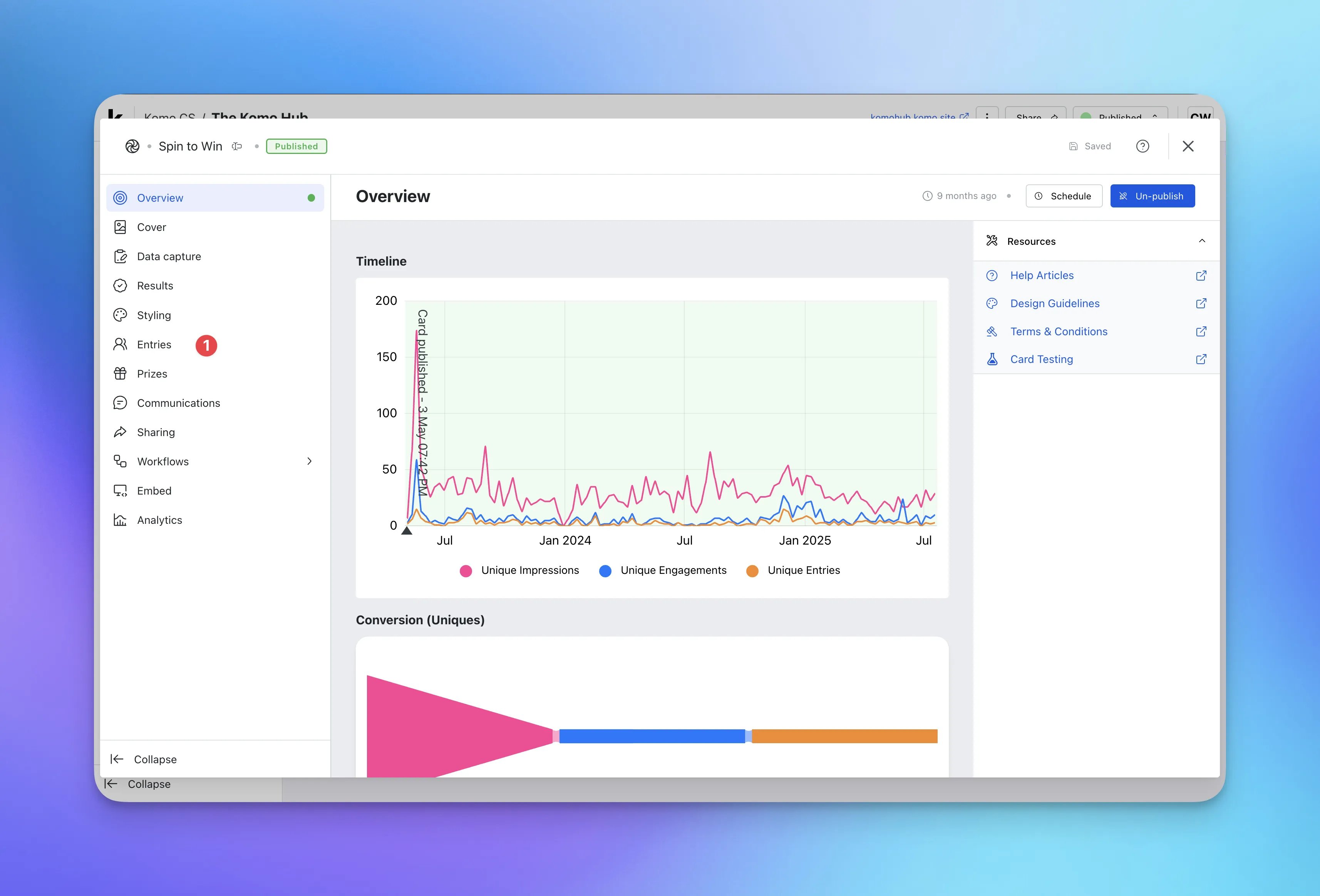
- Head to your Engagement Hub and then the card you wish to edit a user’s details.
- Click on the Settings cog.
- (1) Select Entries (this is occasionally listed under the Data Capture dropdown).
Step 2: Edit an entrant’s details
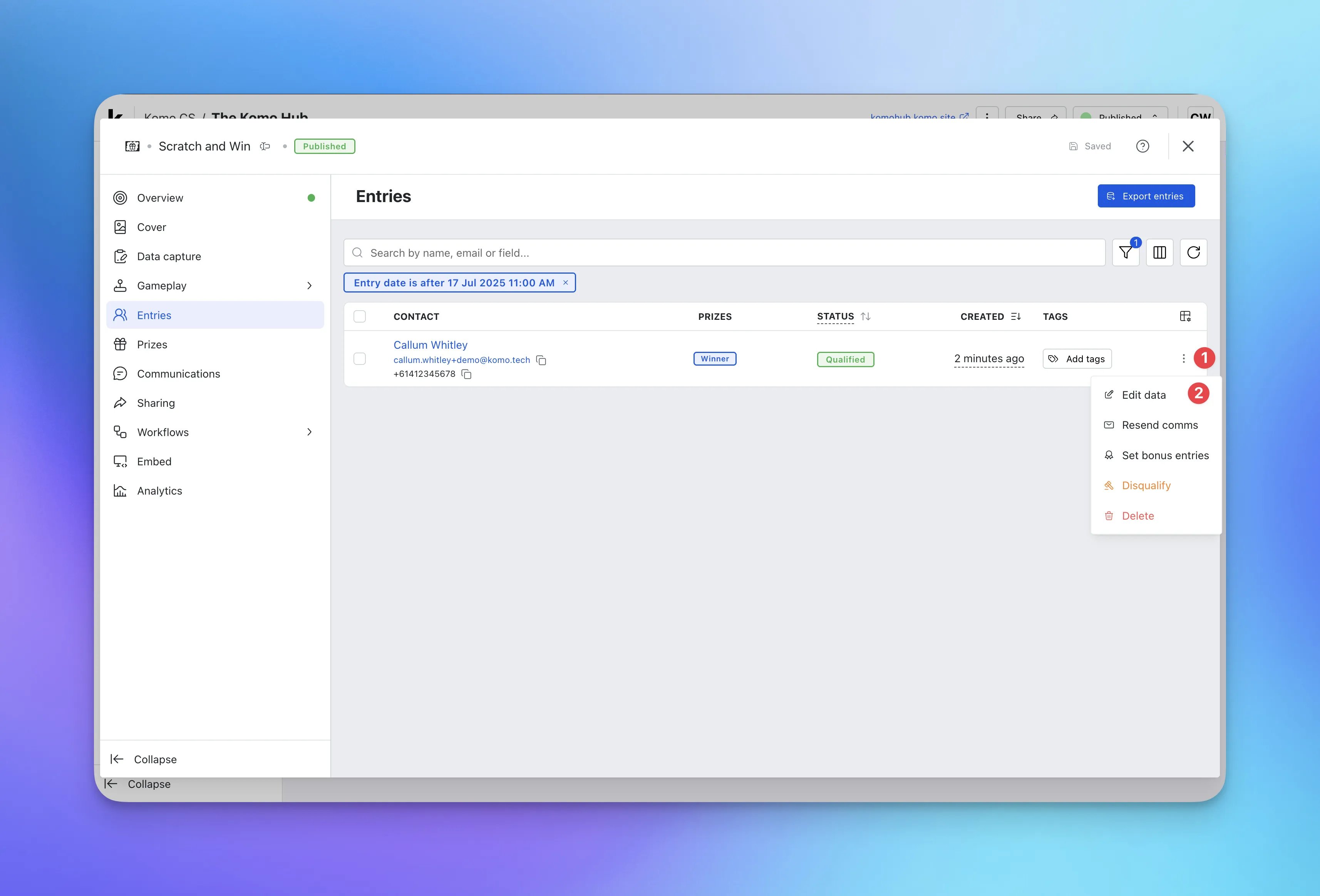
- Find the entrant with the incorrect details.
- (1) Click the … icon next to the entry.
-
(2) Select Edit data to update the user’s information.
Update User's Information
 The information you can edit here will correspond to your Data capture form.
- (A) Here you can edit an entrant’s email.
- (B) Here you can edit an entrant’s first name.
- (C) You can edit an entrant’s last name.
- (D) Here you can edit an entrant’s mobile.
- (E) You can adjust any opt-ins.
- (F) Click Update. You will then get a pop-up requesting to view and resend any associated communications to this user.
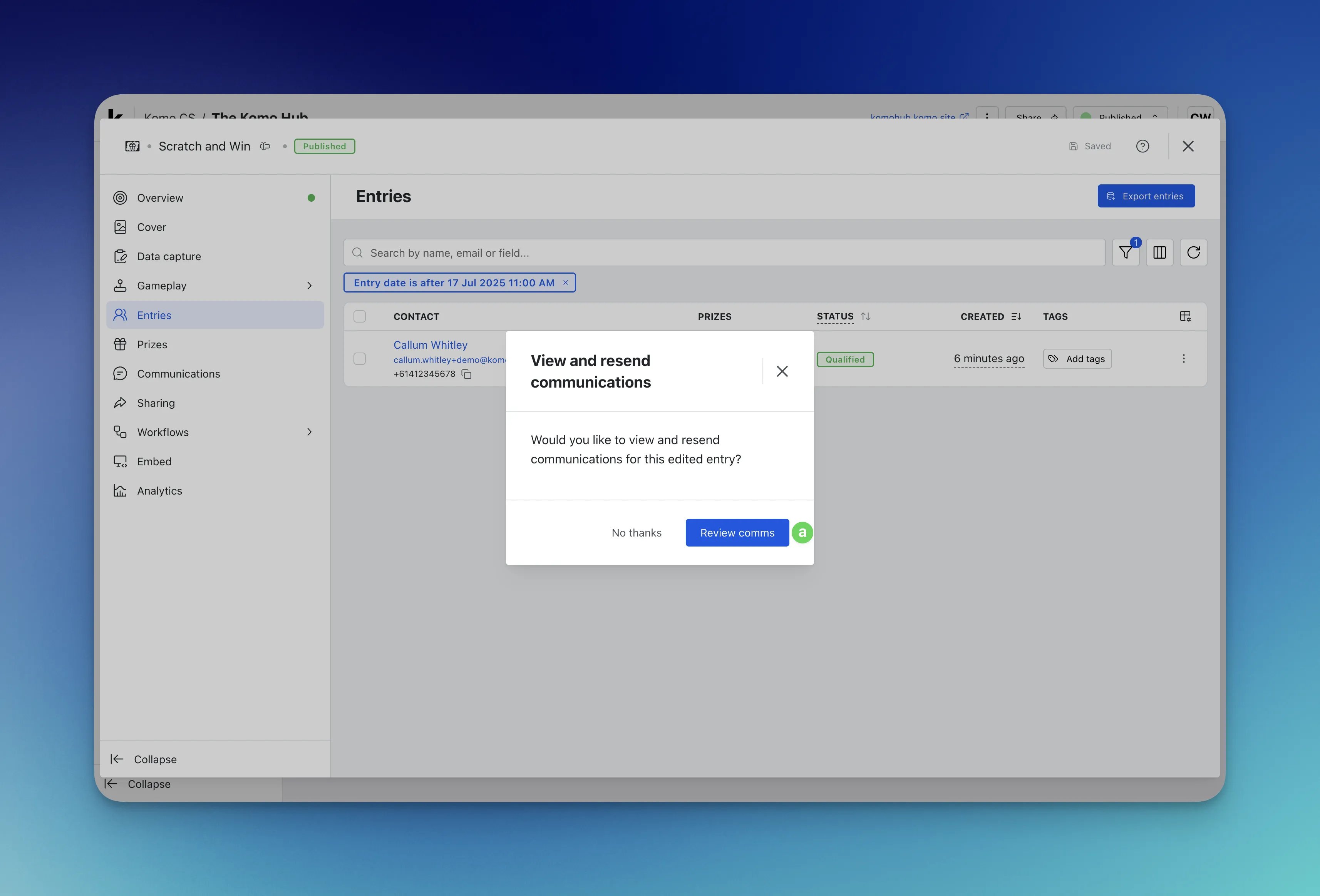
- (a) Select Review communications
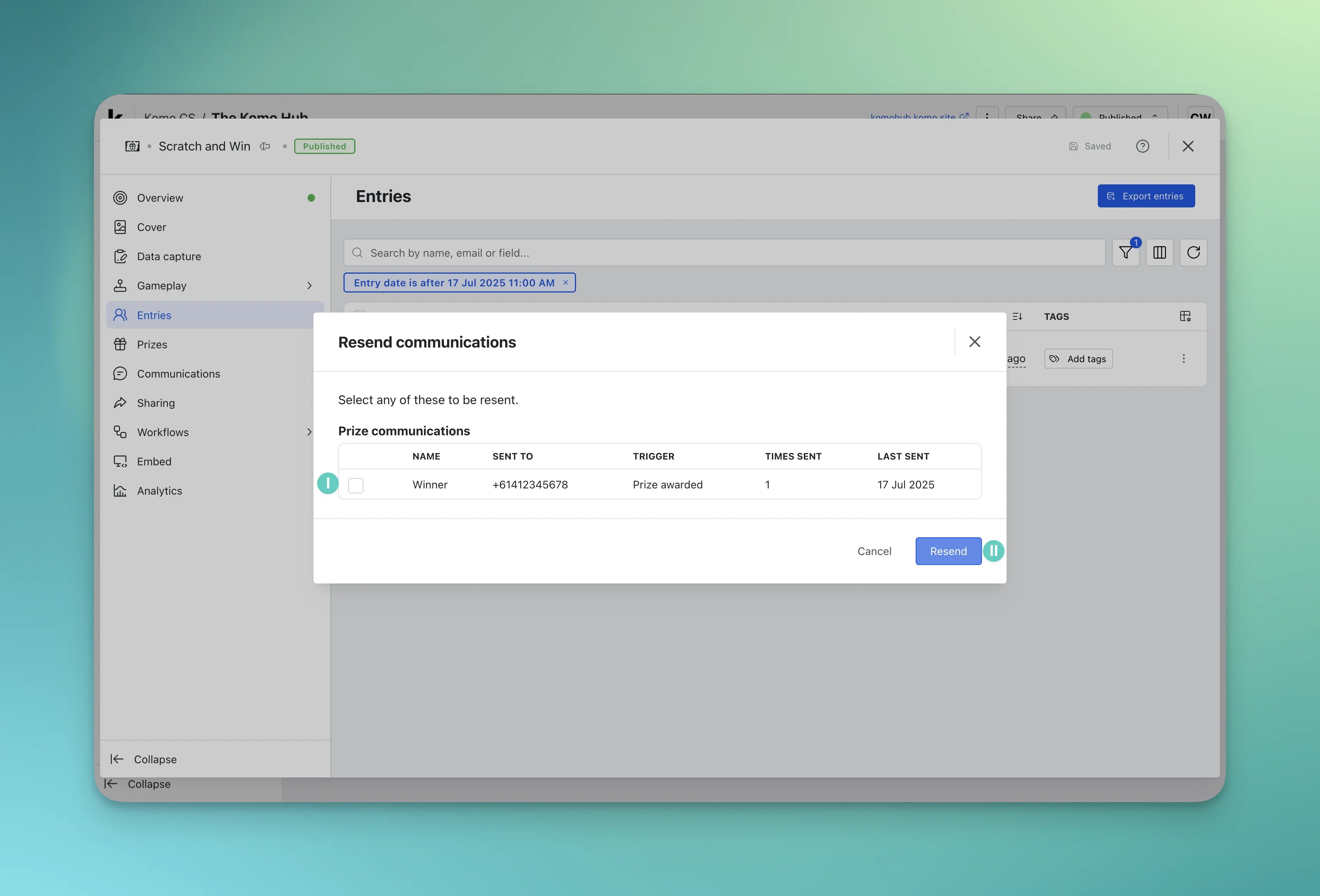
- (I) Select the communication you wish to resend.
- (II) Click Resend.
- (a) Select Review communications
Step 3: Resend communications
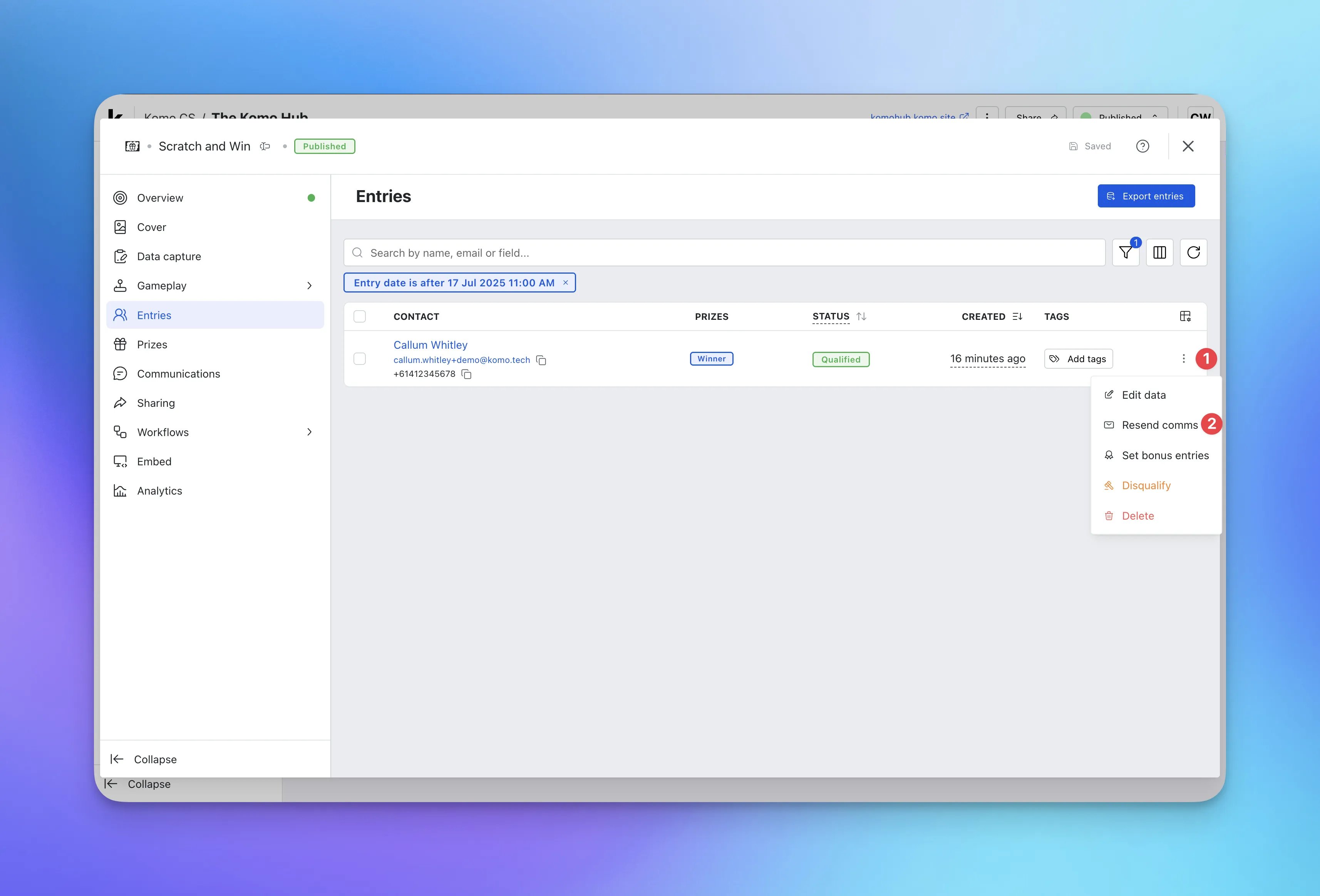
- If you wish to just resend communications to an entrant,
- (1) Click on the … icon next to the entry.
-
(2) Select Resend communications.
Resending Communications
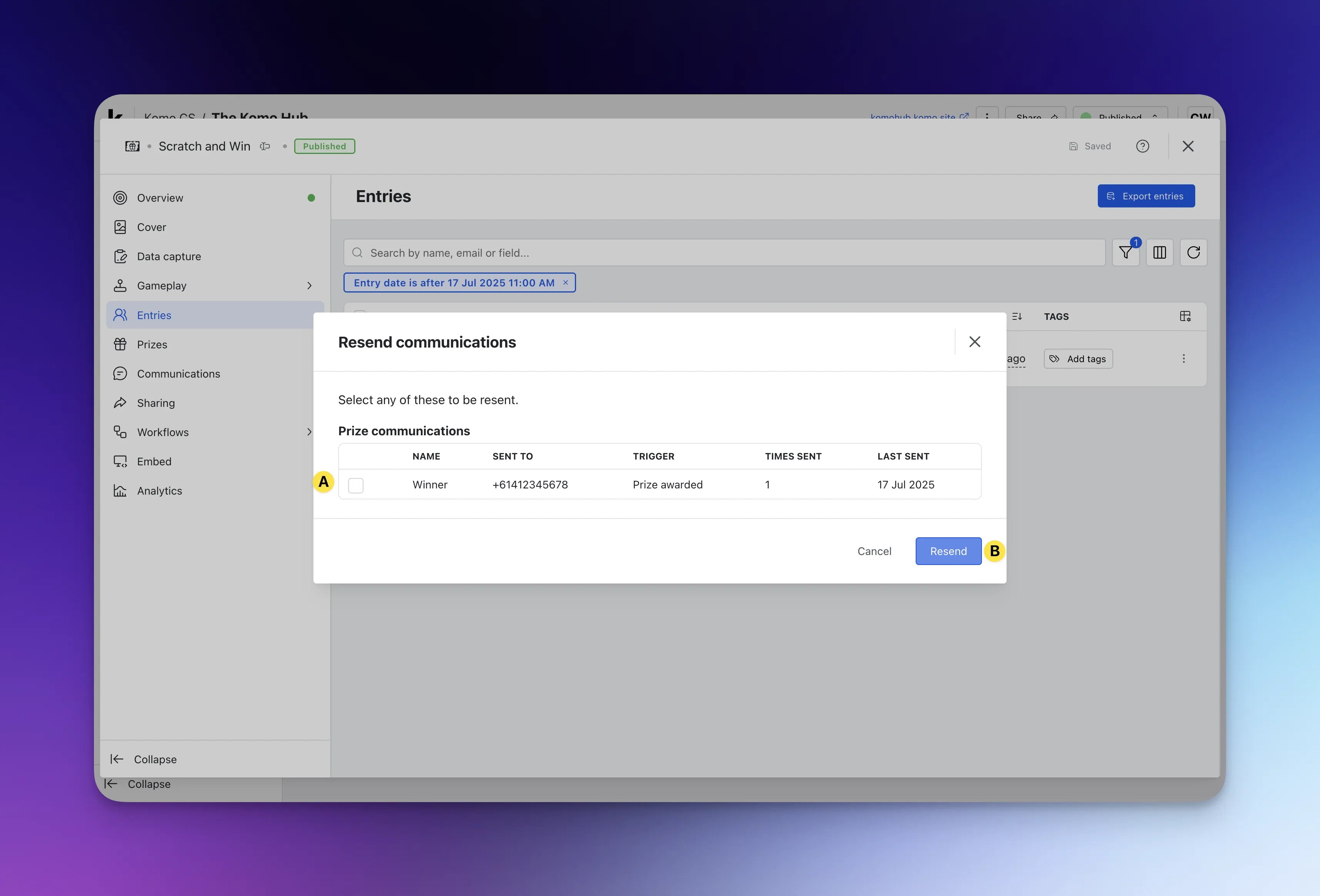
- You can select the communications that are associated with the entry.
- (A) Select the communication you wish to resend then click (B) Resend.