
What is it?
The Google Tag Manager (GTM) connected app loads your GTM container on your hubs, so you can fire tags from the events Komo pushes to thedataLayer.
You set it up once in Company Settings:
- Instances: add one instance per GTM container.
- Workspace defaults: hubs in a workspace load that workspace’s default instance.
- Per hub: a hub can use its workspace default, use a specific container, or turn GTM off.
How do I set it up?
Connect the Google Tag Manager Connected App
- Click the Workspace initials in the top right corner, then click Company Settings.
- Click Connected Apps in the left-hand menu.
- Click Connect on Google Tag Manager. If you already have an instance, click Manage, then Add instance.
- Enter a Name and your Container ID (
GTM-followed by letters and numbers). - Click Connect.
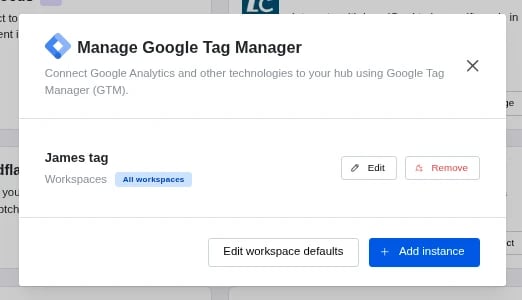
Set workspace defaults
- In Manage Google Tag Manager, click Edit workspace defaults.
- Pick a Default instance for each workspace, or leave it as No default.
- Click Save.
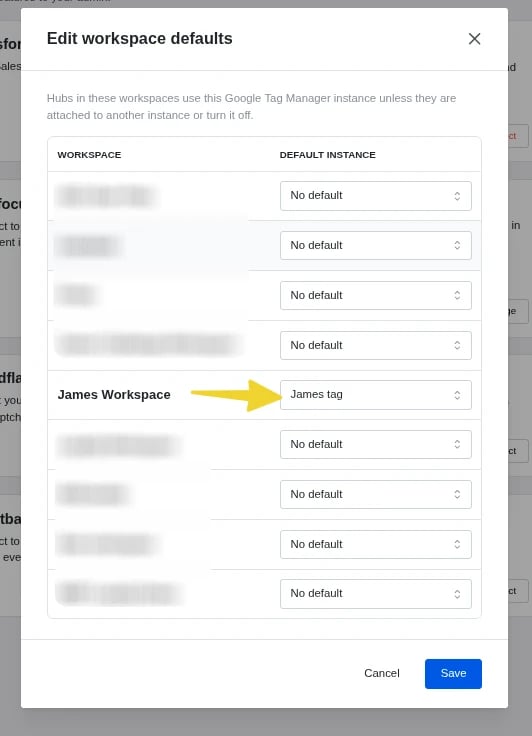
Choose the container for a hub (optional)
- In your hub, go to Settings > Integrations.
- Under Connected apps, click Edit on Google Tag Manager.
- Pick one option, then click Save:
- Inherit workspace default: load the workspace’s default instance.
- Use a specific container: pick an instance. This overrides the workspace default for this hub only.
- Turn off for this site: no GTM tags fire on this hub, even if its workspace has a default.
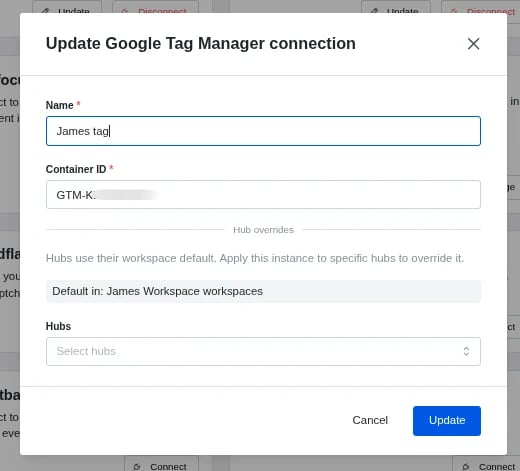
How do I check it’s working?
- Open your hub, then open your browser’s developer tools.
- Network tab: filter on
googletagmanager. You should seegtm.js?id=GTM-...with your Container ID. - Console tab: type
dataLayerand press Enter. You should see GTM and Komo events. - Or use Preview mode in Google Tag Manager and enter your hub URL.
FAQ
What events does Komo send to GTM? To learn more about the events that Komo pushes to the GTM data layer, see Events published to Tag Manager data layers. I set up GTM in my hub’s Integrations settings before. Do I need to change anything? New GTM setups use the connected app. An older hub-level setup keeps working until a connected app container applies to the hub (a workspace default or a specific container) or GTM is turned off for the hub. The Google Tag Manager row in the hub’s Integrations settings shows a warning while the old setup is still there, with a Remove button. Does GTM wait for cookie consent? If the hub’s Cookie Consent banner is turned on, GTM only loads once the visitor accepts cookies. The page reloads when they accept, and GTM loads then. How do I use a consent tool like Ketch or OneTrust with GTM? Load your consent platform and tracking pixels inside your GTM container, and configure them in Google Tag Manager as usual. Komo loads the container on every hub that uses its instance. To use different containers on different hubs, add more instances. Why isn’t my container loading? Check the hub’s Google Tag Manager row in Settings > Integrations. It shows which container the hub uses, or that GTM is turned off. Also check the Container ID starts withGTM-.