
What is it?
This feature allows you to upload a file that can consist of client account/membership numbers, first and last name, email and more, and connect this to your competitions to validate unique entries. This feature gives you the ability to gate access to exclusive competitions based on user membership details.How do I use it?
- Step 1: Go to the Reference Tables setting
- Step 2: Create a Reference Table
- Step 3: Upload your Reference Table file
- Step 4: Update the Data capture form
- Step 5: Link the Reference Table to your competition
- Step 6: Update mapping fields
Step 1: Go to the Reference Tables setting
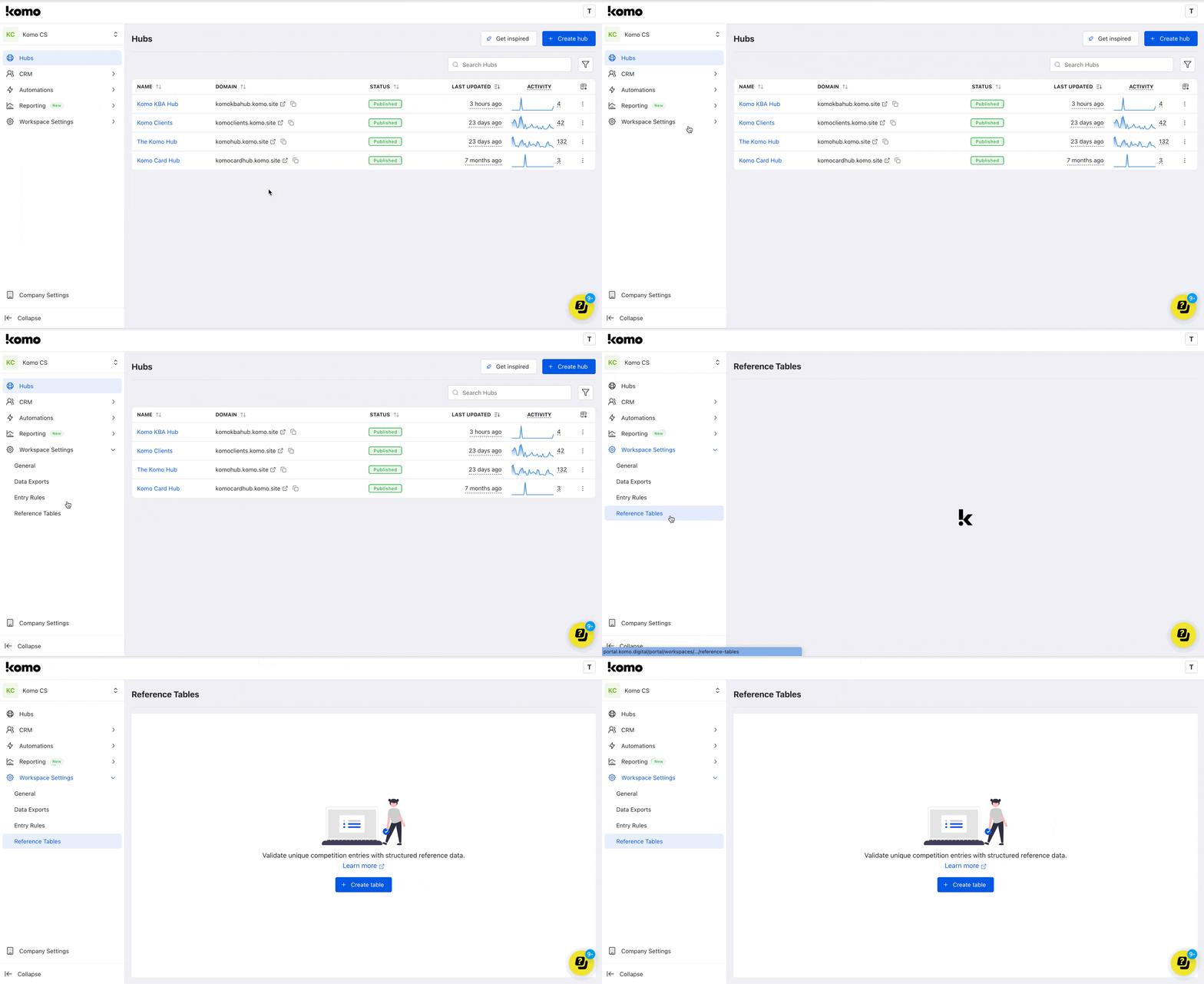
- Head to the Workspace settings followed by Reference Tables.
Step 2: Create a Reference Table
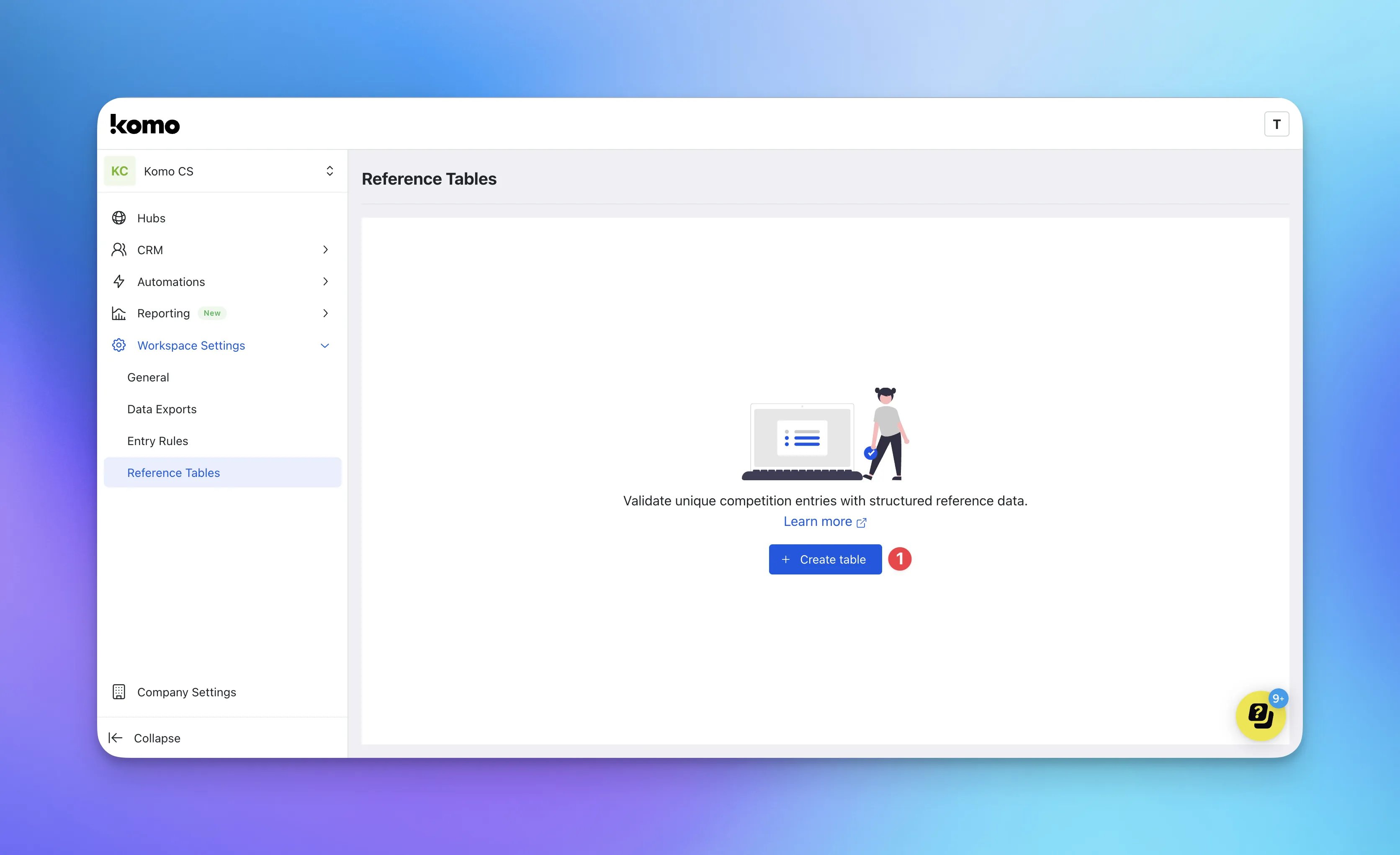
- (1) Click on Create table.
Creating a Reference Table
Creating a Reference Table
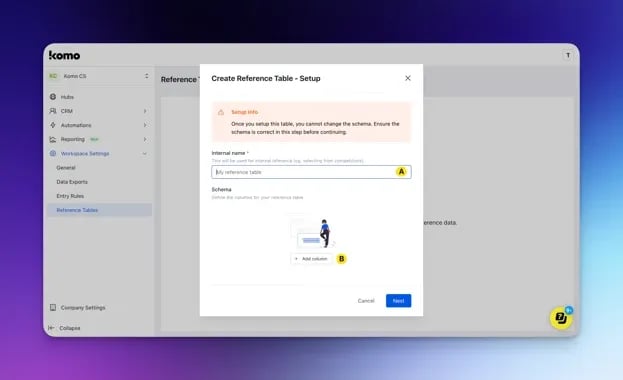
- (A) Give your reference table a name.
- (B) Add a column you have included in your file.
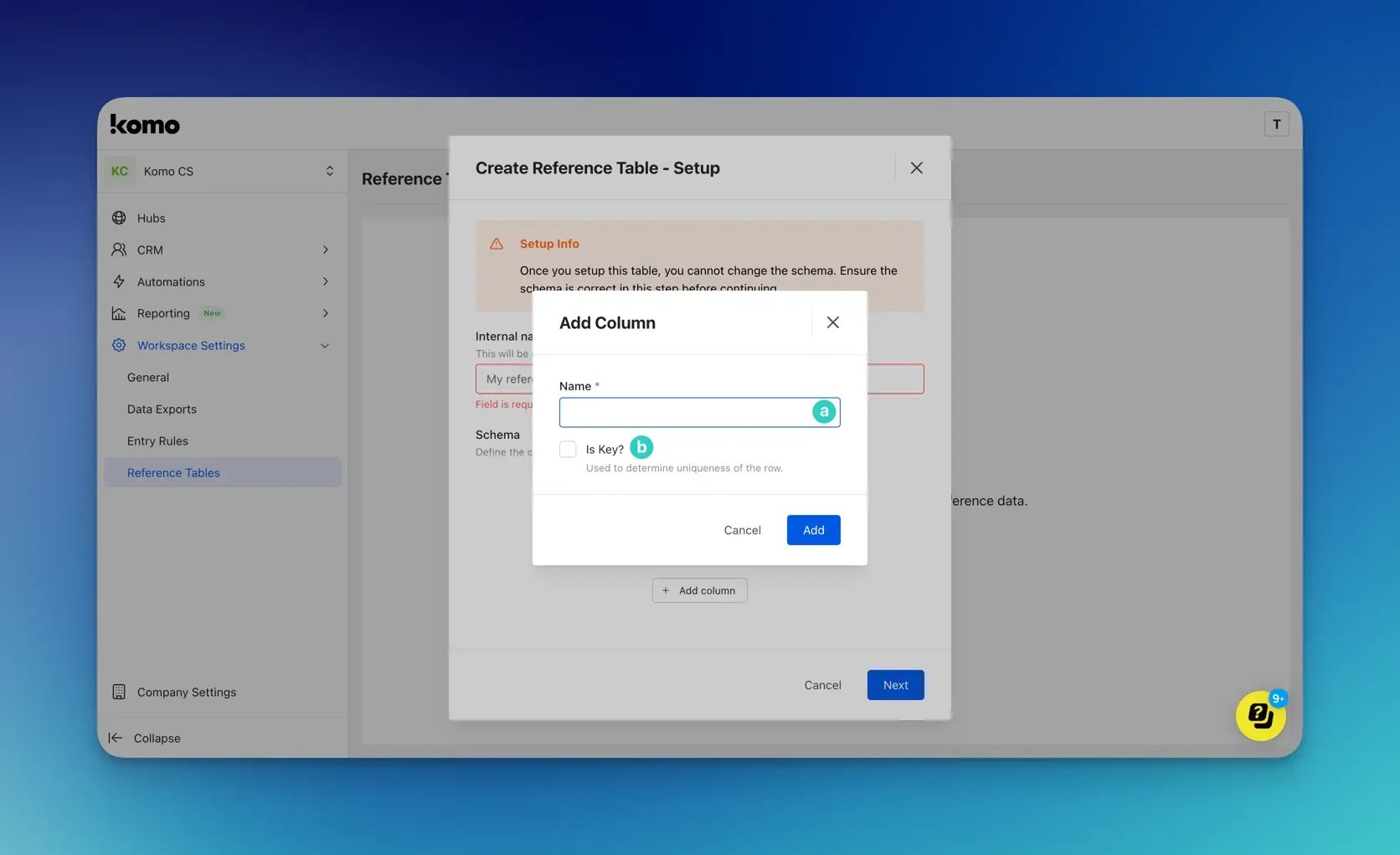
- (a) Add your column name e.g. Membership Number.
- (b) You can mark this column as a key column. The key column refers to the column that will be scanned first against the reference table on the data capture.
Note: We recommend marking the unique field as the key column e.g. membership numbers, account numbers etc.
Step 3: Upload your Reference Table file
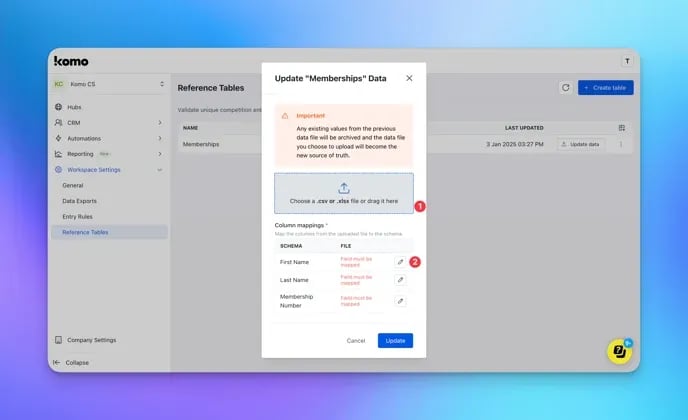
- (1) Upload your file here as a .CSV or .XLSX format.
- (2) After you have uploaded your file, you will need to update mapping for each column created.
Update Mapping
Update Mapping
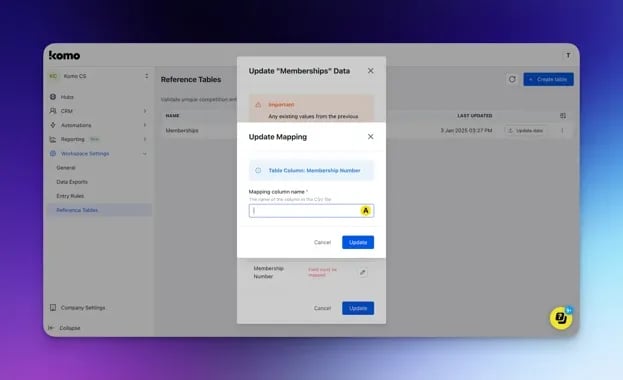
- (A) Enter the CSV column name of the data you want to be located in each column of the reference table.
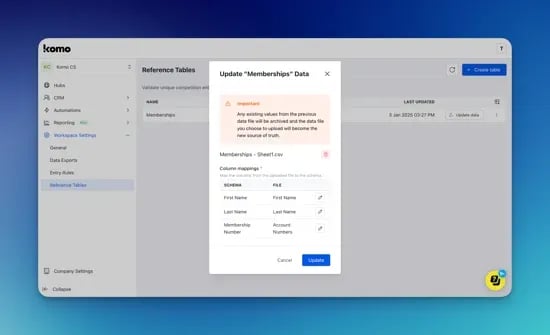
E.g. the Membership Number reference table column is to pull all the data under the Account Numbers column and complete all columns created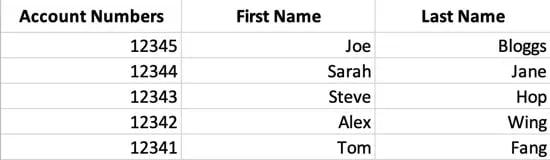
Step 4: Update the Data capture form
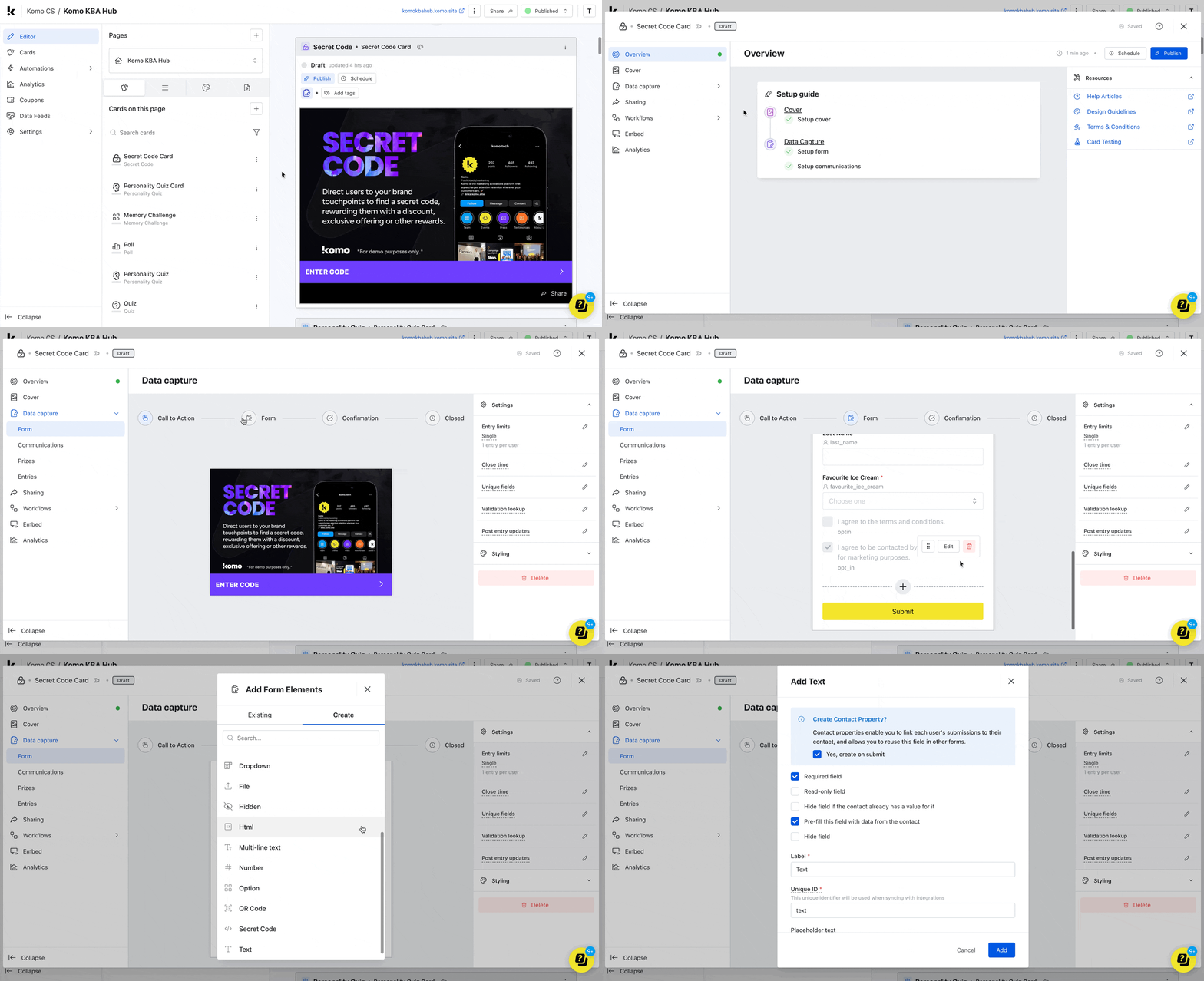
- Go back to your Hub and select the Settings cog on the relevant card.
- Select Data Capture on the left menu.
- Click on Form and then Entry form.
-
Then click on the plus icon and add a text field.
The text field is relevant if you are requesting a unique field e.g. membership numbers.
Adding Text
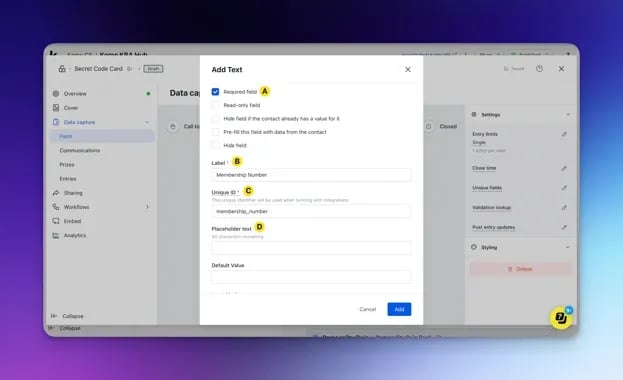
- (A) You can make this field required.
- (B) Give the field a Label on the form.
- (C) You can give this a Unique ID for analytic purposes.
- (D) Add a placeholder text in the field.
Step 5: Link the Reference Table to your competition
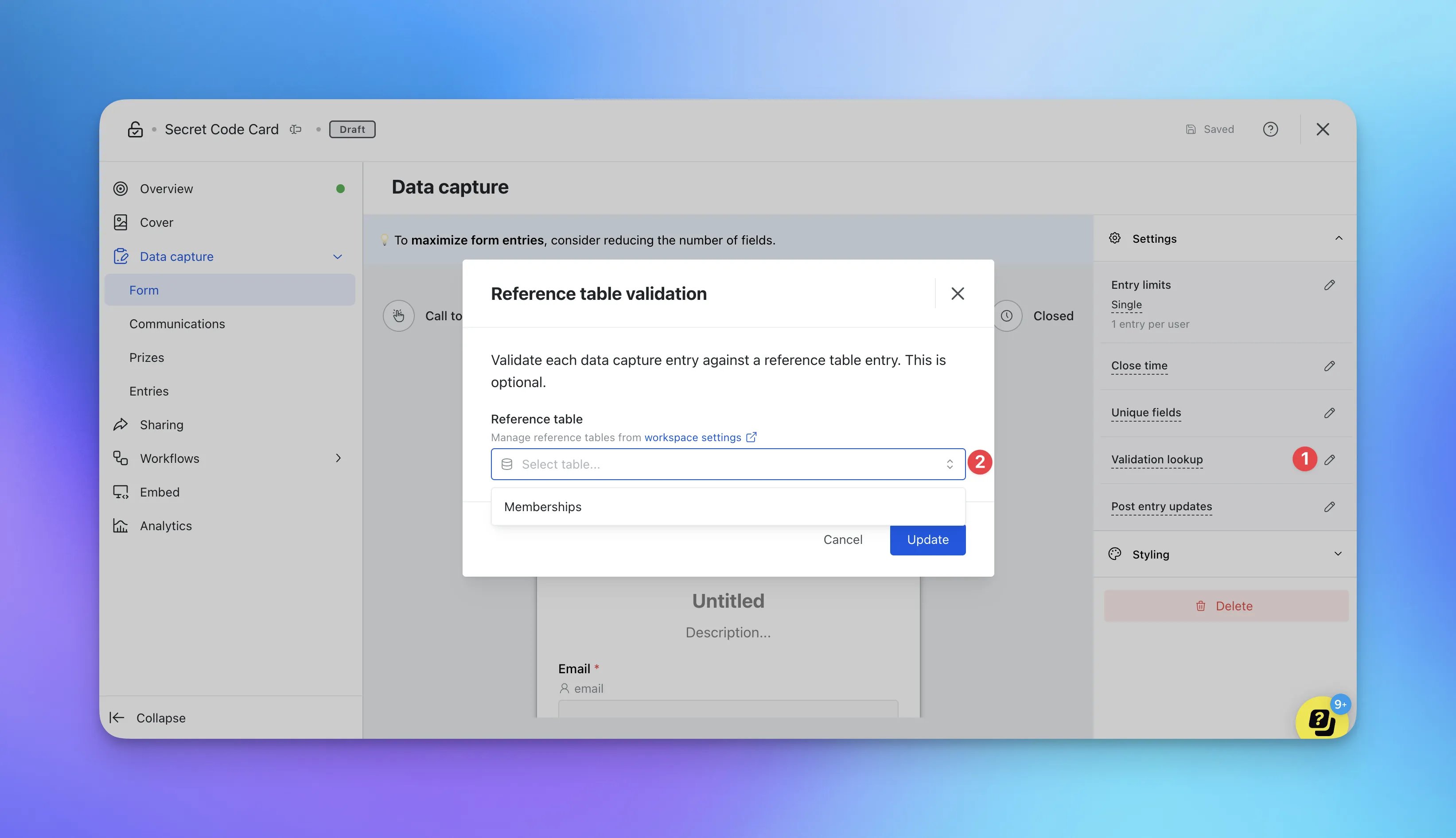
- (1) On the right sidebar, click on the edit icon next to Validation lookup.
- (2) Using the drop down, select the reference table to connect to the data capture.
Step 6: Update mapping fields
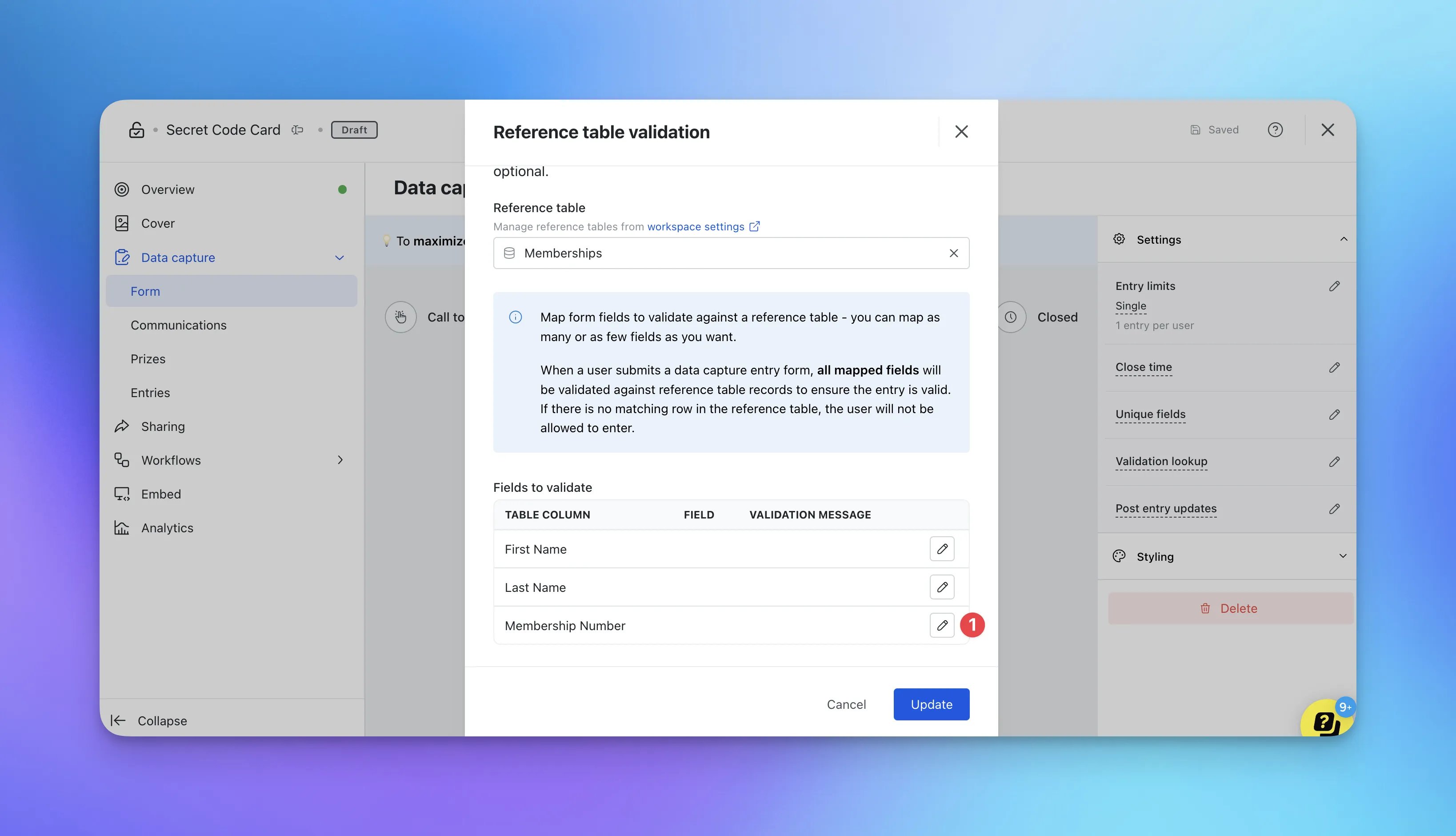
- (1) Map the relevant form field against the reference table column.
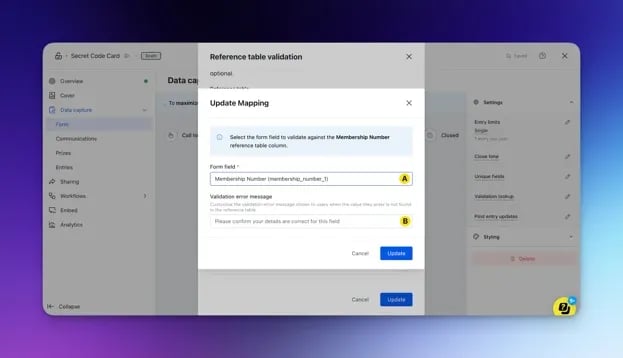
- (A) Using the drop-down menu, select the form field you want to validate against the reference table column.
- (B) Here you can edit the message that appears when a value entered is not found in the reference table file.
- (2) Once you have mapped the columns you wish to validate, click on Update rules to save the validation settings.