
What is it?
Using workflows, you can remove the hassle from ensuring contact lists are synced between the Komo Engagement Engine and Mailchimp by automating the addition and removal of contacts when your pre-determined conditions are met. Read on to discover how to build out a workflow for yourself.How do I do it?
Step 1: Connect the Mailchimp Connected App
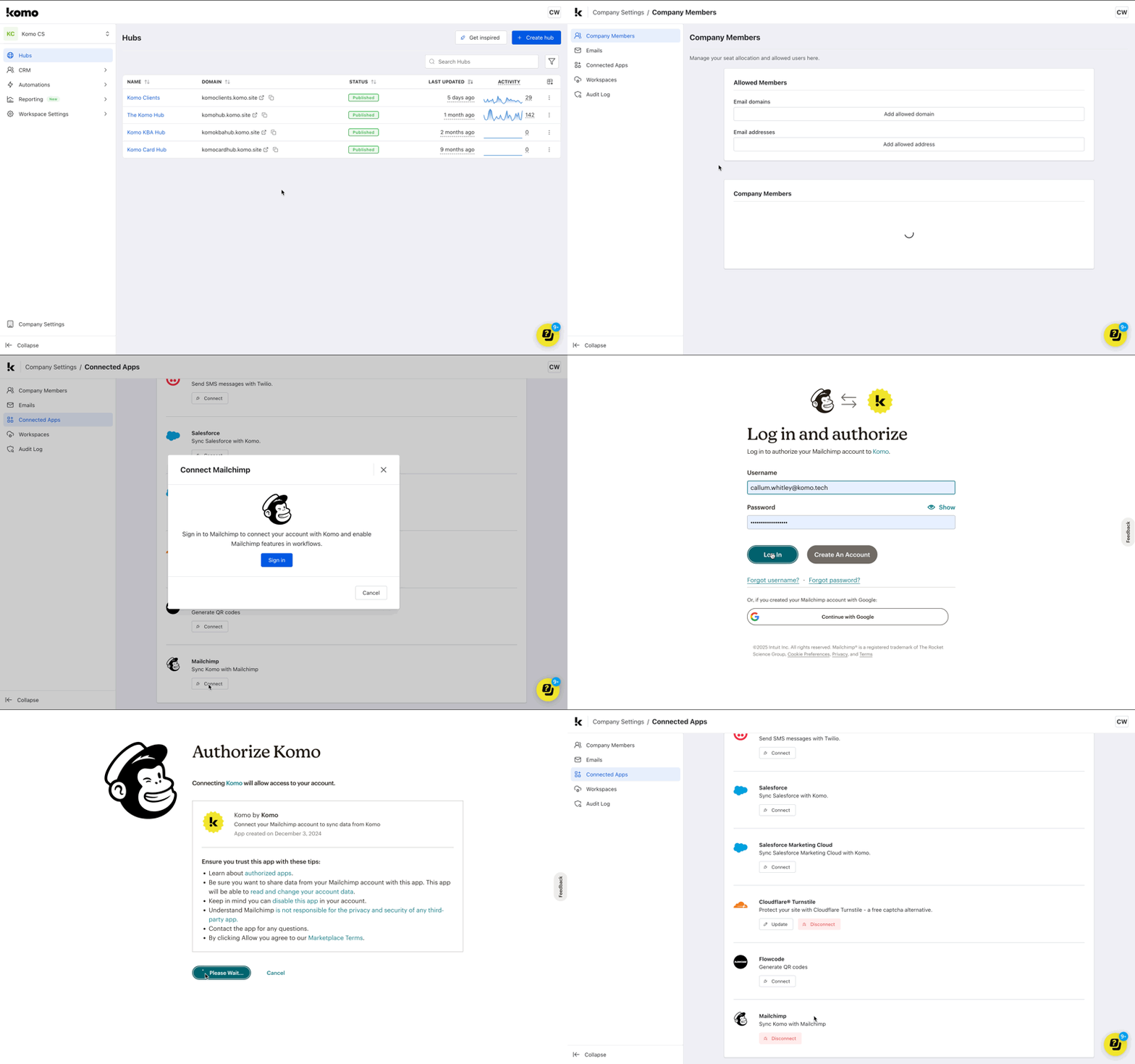
Prior to connecting Mailchimp to the Komo Engagement Engine, you will need to have a Mailchimp account created. For more information on setting up a Mailchimp account, read this article.
- Navigate to Company Settings by clicking the Workspace initials in the top right corner and clicking Company Settings.
- Click Connected Apps in the left-hand menu.
- Select Connect next to the Mailchimp Connected App.
- Click Sign in and continue to log in to Mailchimp using your Mailchimp credentials.
- Click Allow to authorize the connection.
- Your Mailchimp account has now been connected to the Komo Engagement Engine!
Step 2: Build your workflow
-
Workflows can be accessed at the workspace, hub and card level. This article will cover creating the Mailchimp workflow from the card level. The process is the same if creating at the workspace or hub level, although you will need to access workflows within the lefthand toolbar within the workspace or hub view. For more information on creating workflows at the workspace level, read this article.
Before setting up a workflow, you will need to ensure there is a data capture set up with your desired contact property fields and necessary consent fields added. For more information on adding data capture forms, read this article. For more information on adding consent fields, read this article.
- Navigate to your Engagement Hub and access the card containing the data capture form you would like to sync your contacts from.
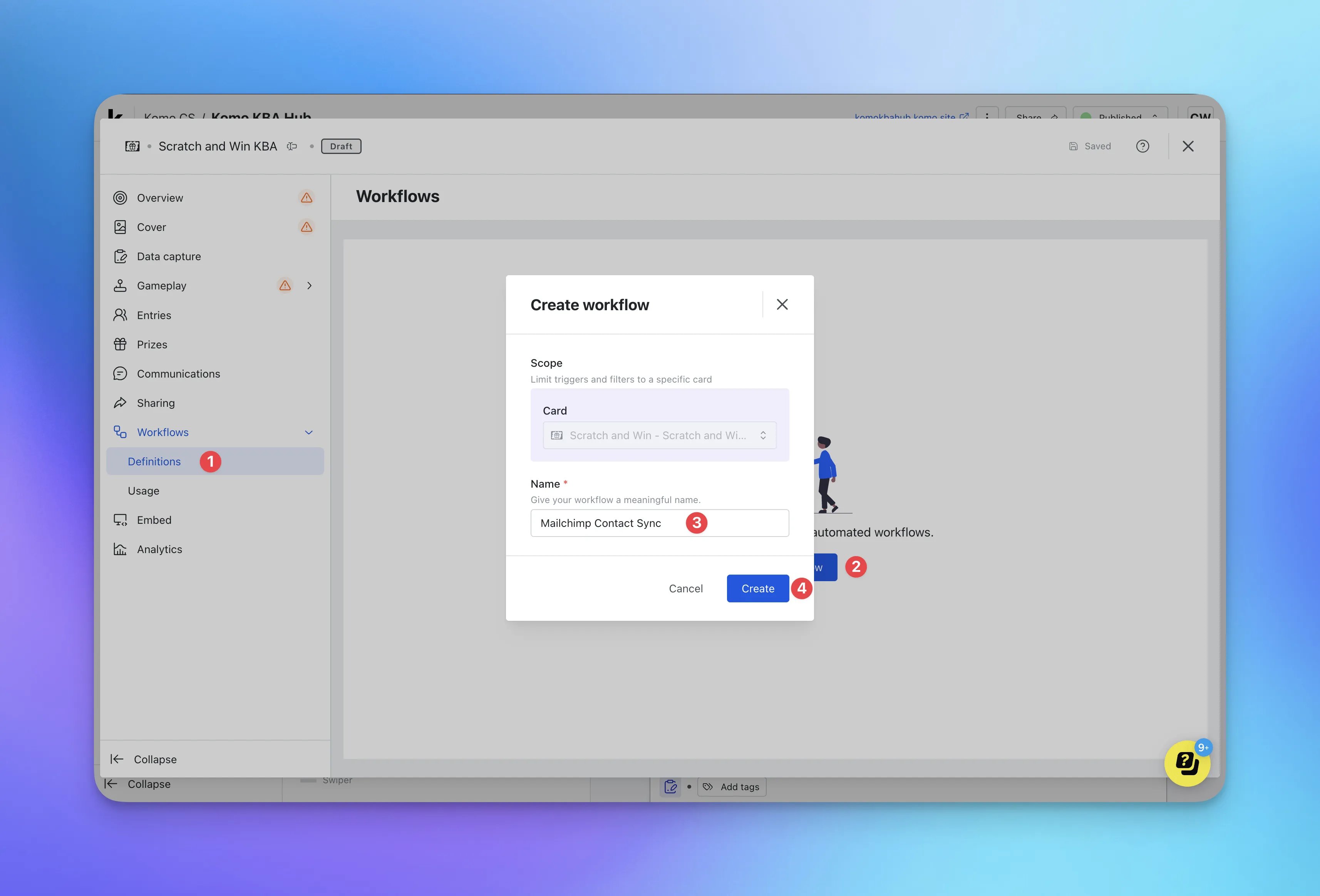
- (1) Click Definitions under the Workflows dropdown.
- (2) Select + Create Workflow.
-
(3) Give your workflow a meaningful Name.
This is internal only but we recommend that the naming aligns with the workflow for clarity.
- (4) Click Create.
- You can now start building out your workflow.
- Select the pencil icon next to Trigger.
- Select the event that will trigger your workflow from the Execute flow on dropdown. In this case, we will select Data captured.
- Click Save and then select the X to exit the modal.
- Drag the Filter module and drop it below the Trigger module.
- Click on the Output node at the bottom of the Trigger module, drag and drop on the Input node of the Filter module.
- Select the pencil icon at the top of the Filter module.
- Set the Filter conditions that must be met for the action to take place. In this case we will set the workflow to only run when the Email consent subscription is Active.
- Click Save and then exit the modal by clicking X.
- Drag the desired Mailchimp action module and drop it below the Filter module. In this instance we are using Add/Update Member, however this will depend entirely on your use case.
- Click on the Success Output node at the bottom of the Filter module, drag and drop on the Input node of the Action module (Add/Update Member).
- Click the Pencil icon at the top of the Action module.
-
Select the Mailchimp audience you would like the contact to be added to and proceed to map the contact properties you are collecting to the appropriate Mailchimp audience fields (you can copy and paste the merge fields from the right-hand column to the relevant fields).
For more information on creating audiences in Mailchimp, read this article.
- Click Save and then exit the modal by clicking X.
- Finish building your workflow by clicking Save in the top right-hand corner.
- You will now see that your workflow has been created.
- For your workflow to start running, you will need to click the 3 dots next to the workflow and select Run, followed by Yes, start it.
- Your workflow is now running!
Step 3: Test your workflow
- To test the workflow, exit the Card settings, click the 3 dots at the top righthand corner of the card and select Visit single card.
- Proceed to interact with the card and fill out the data capture form ensuring that the consent field checkboxes are ticked.
- Once you have filled out the data capture form, you can exit the card by clicking the X.
- Navigate back to your Engagement Hub, access the Card settings and select Usage under the Workflows dropdown.
- Here you should see a Success tag under the status field for the contact details you just entered. This indicates that the workflow was successfully executed.
- You can now confirm that the contact has been successfully added to Mailchimp by accessing your Mailchimp account and navigating to All Contacts under the Audience dropdown.
- You should now see that the contact has automatically been added. If you don’t see the contact immediately, refresh your browser.
- You can view the contact details that were added by clicking on the contact to access more information.