
What is it?
You can now have confidence that the contact data within your Salesforce CRM is up-to-date with CRM Contact Sync. Through direct integration with your Salesforce instance, Komo can push new contacts and contact updates directly to Salesforce. Run a sync manually with Sync now, or set a Sync frequency so it runs on a schedule.If you are using Salesforce Marketing Cloud, you’ll want to refer to another article here.
How do I set it up?
- Step 1: Connect the Salesforce Connected App
- Step 2: Create CRM Sync
- Step 3: Complete Sync configuration
- Step 4: Run the CRM Sync
- Step 5: Review the CRM Sync
Step 1: Connect the Salesforce Connected App
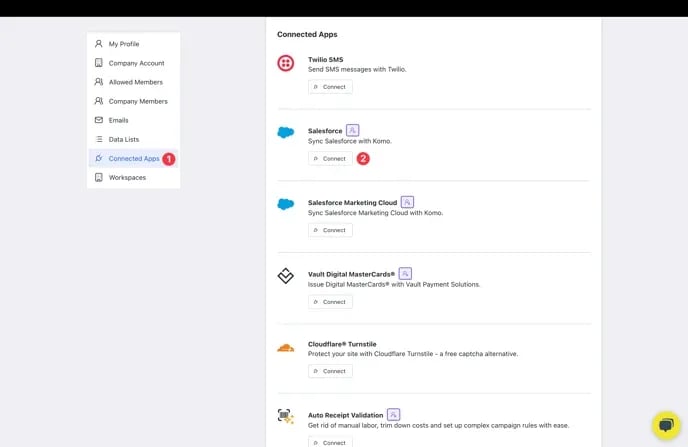
- Navigate to Account Settings by clicking the Workspace initials in the top right corner and clicking Account Settings.
- (1) Click Connected Apps.
- (2) Select Connect next to the Salesforce Connected App.
Connect Salesforce
Connect Salesforce
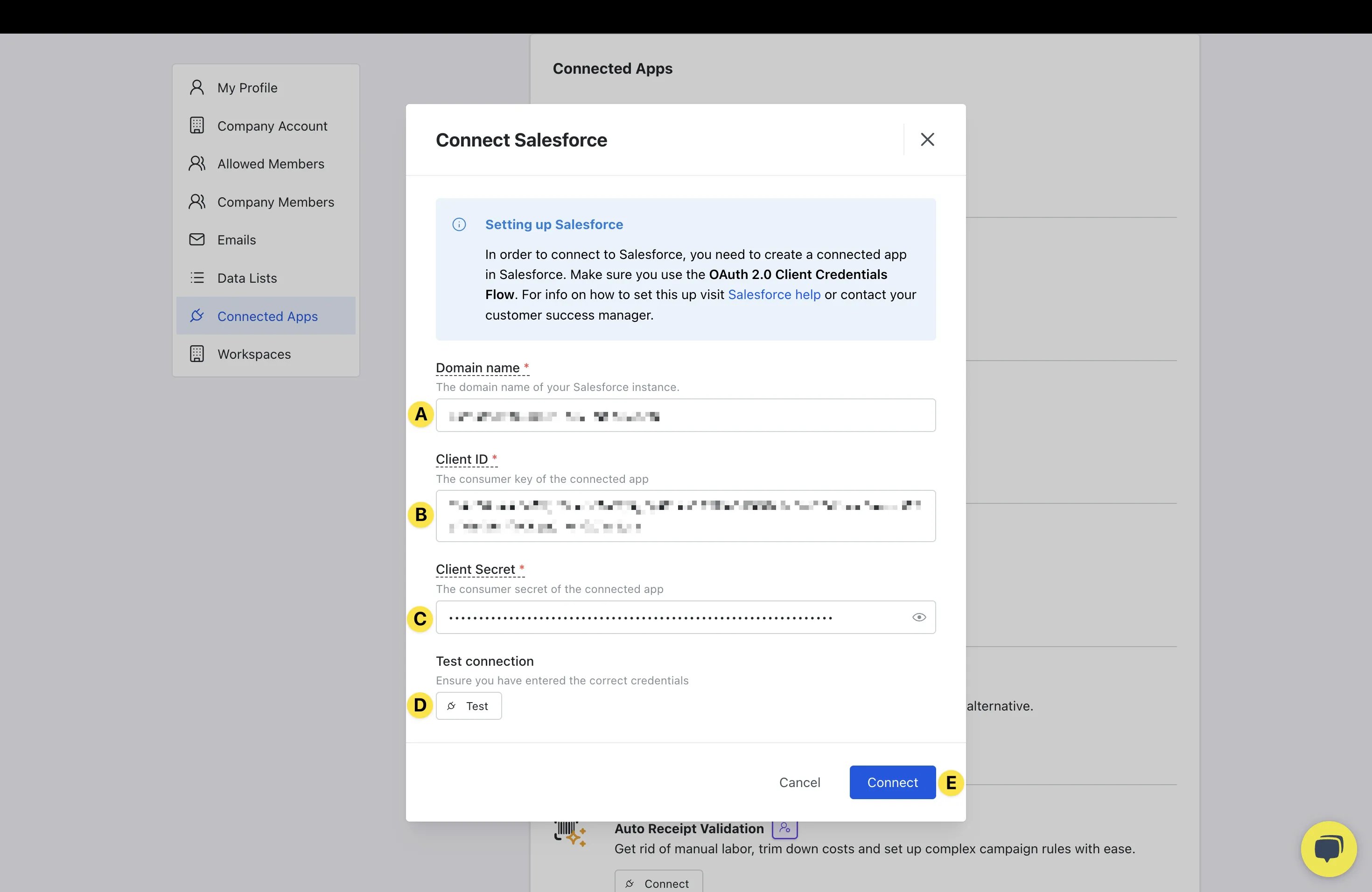
- (A) Here you can insert the CRM Domain Name from your CRM instance.
- (B) Insert the Client ID/consumer key from the connected CRM.
- (C) Here you can paste in the Client Secret of the connected CRM.
- (D) Click Test under Test Connection. If the connection is successful, you will see a green Connection Successful message.
- (E) Click Connect.
Step 2: Create CRM Sync
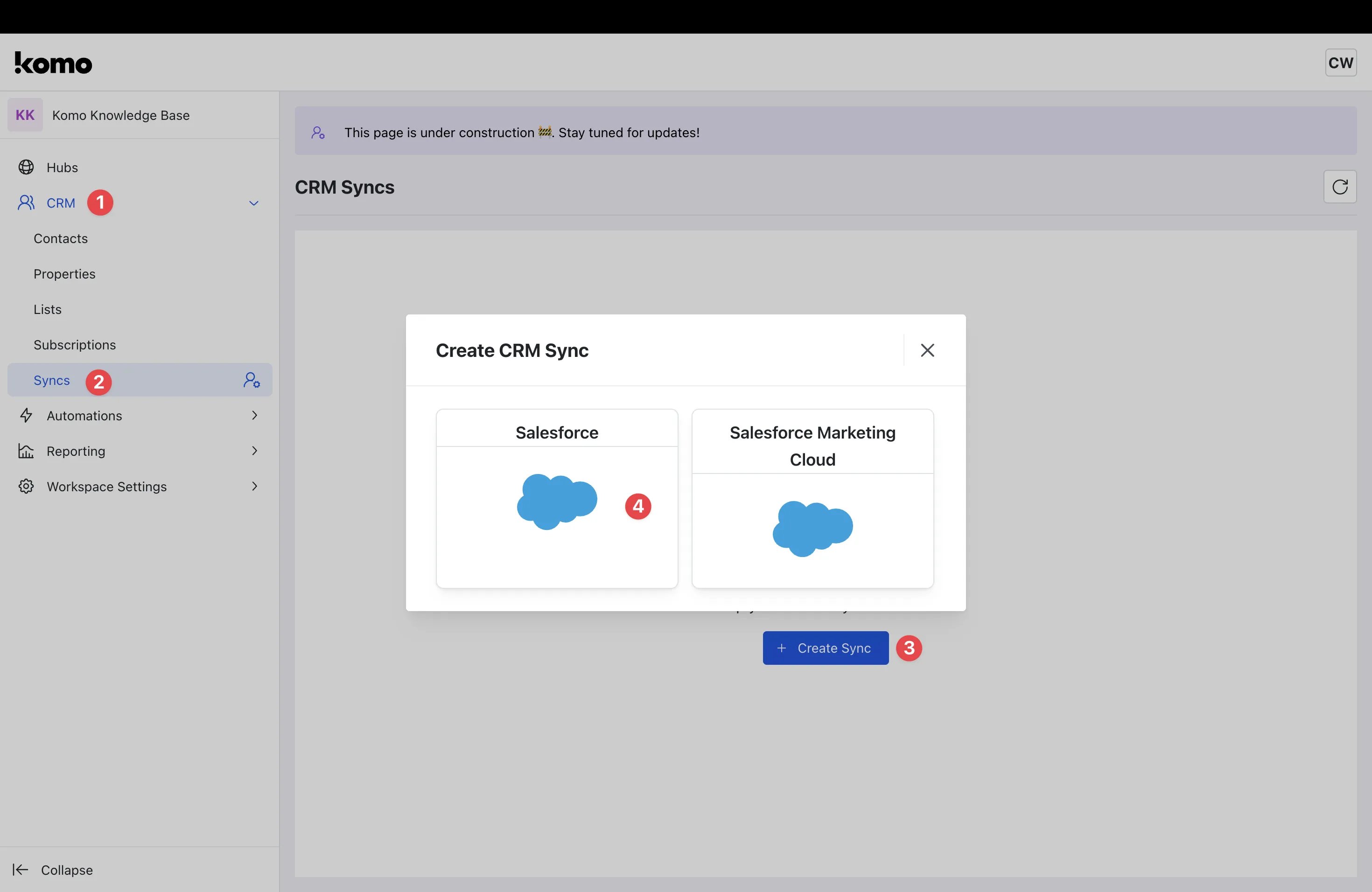
- (1) Navigate back to your workspace and click on CRM.
- (2) Click Syncs.
- (3) Click the + Create Sync button.
- (4) Select the CRM you would like to sync with.
Step 3: Complete Sync configuration
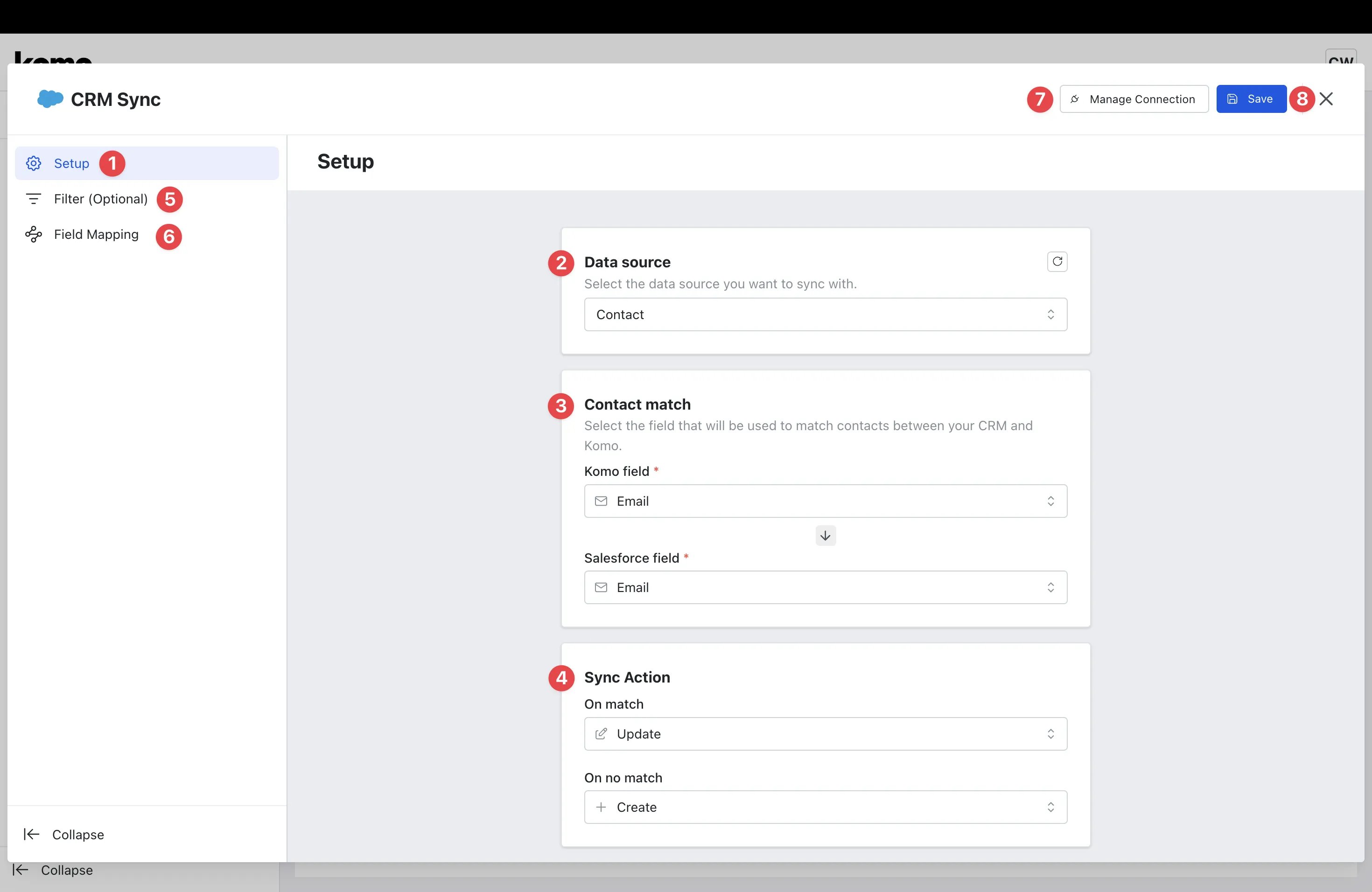
- (1) Here you can configure the CRM Sync Setup.
- (2) Select whether the Data source to sync should be Contact or Lead.
- (3) Select the field within Komo and your CRM which will be used to match contacts between the two platforms.
- (4) Set the desired Sync Actions to be performed when there is a match and when there is no match.
-
(5) Click on Filter (optional) if you would like to add filters to your sync.
Add Filters
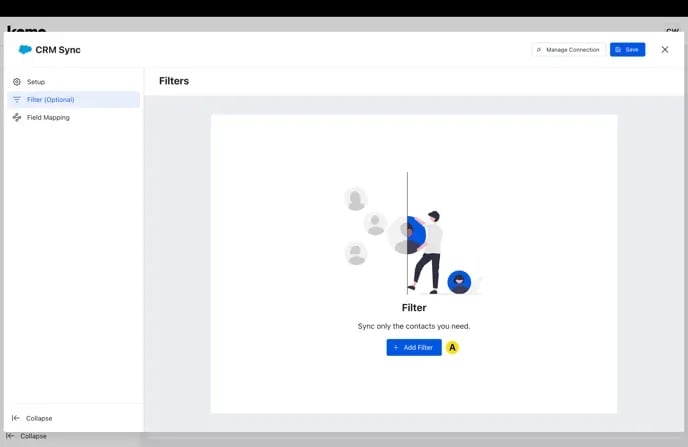
- (A) Click + Add Filter.
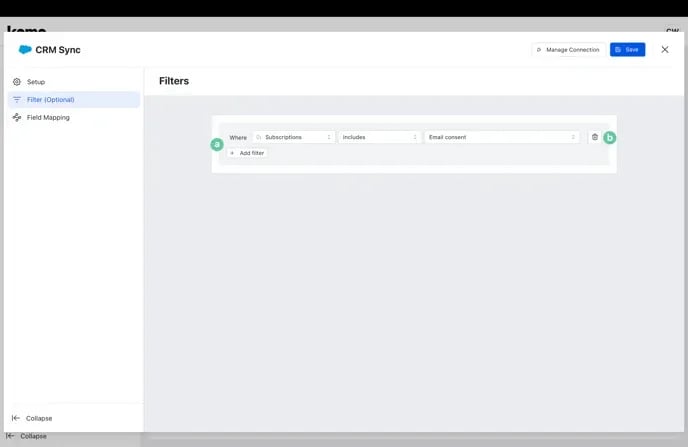
- (a) Here you can configure your Filters as required.
- (b) Click the bin to delete any filters you have created.
- (A) Click + Add Filter.
-
(6) Click on Field Mapping to ensure contact fields in Komo are properly mapped to the fields in your CRM.
Map Fields
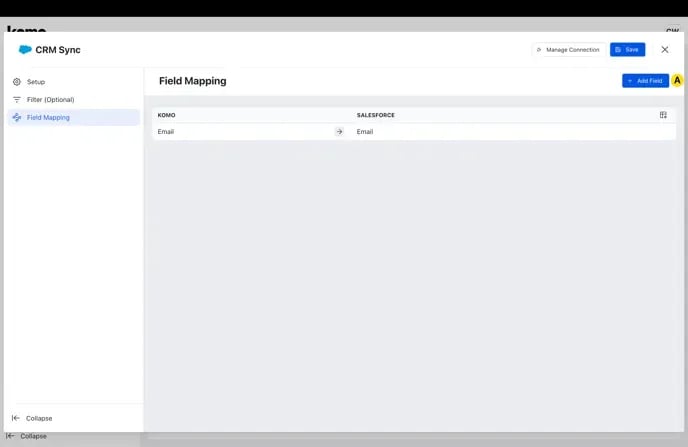
- (A) Click + Add Field.
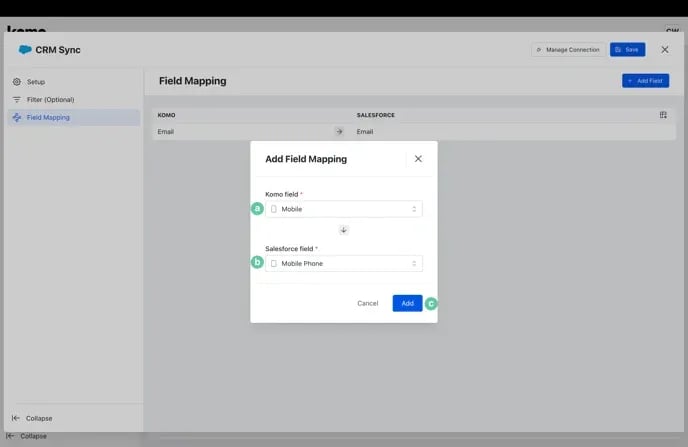
- (a) Select the desired Komo field to be mapped.
- (b) Select the corresponding CRM field that the Komo field should be mapped to.
- (c) Click Add.
- (A) Click + Add Field.
Step 4: Run the CRM Sync
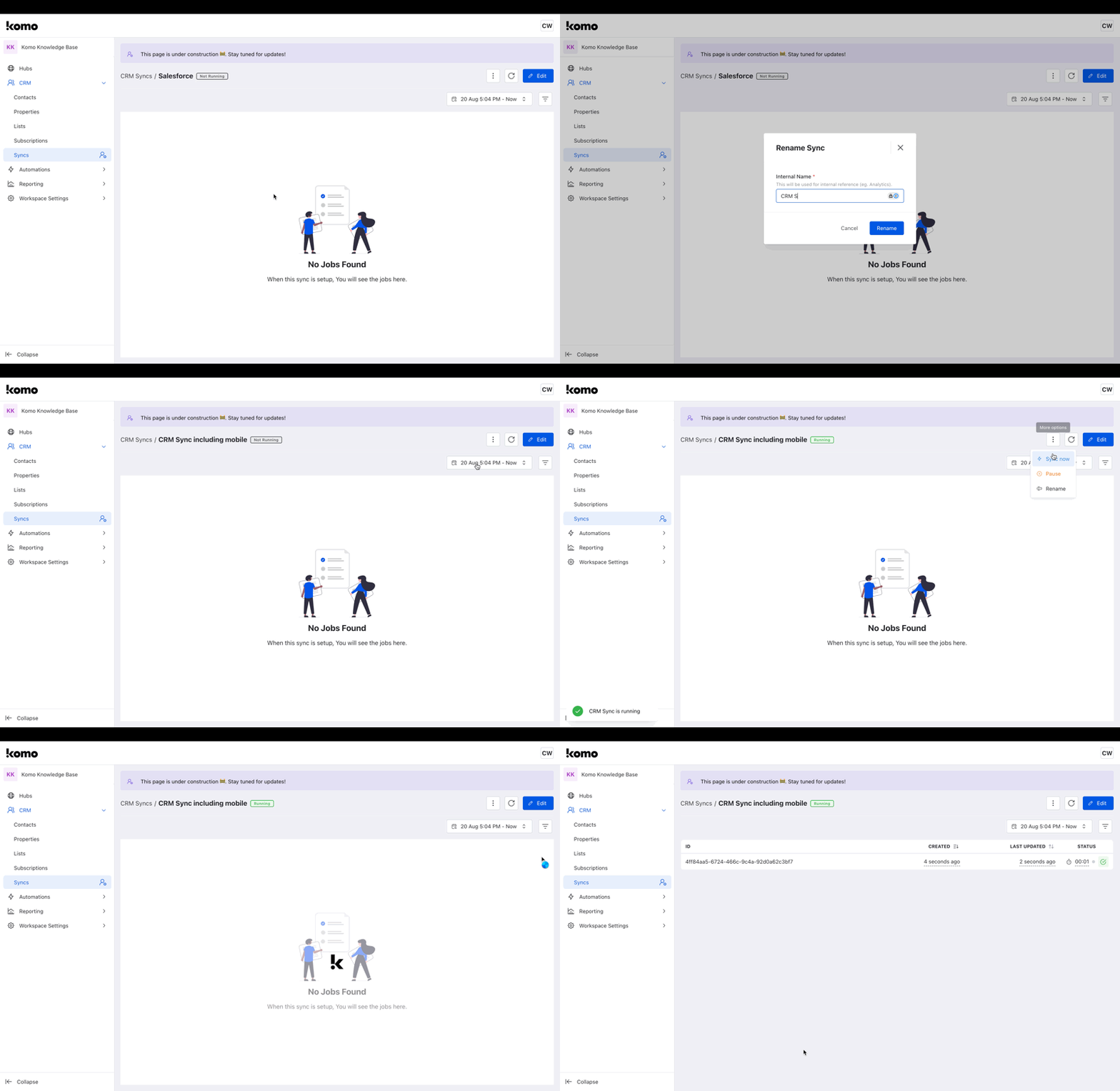
- Once your CRM Sync settings are configured, open the sync control panel.
- Use Enable to set the sync status to Enabled (or Disable Sync to set it to Stopped). Sync now and scheduled runs only execute while the sync is enabled. Edit schedule is available whether or not the sync is enabled.
- Click Sync now for an immediate run. You will see details of the sync that has just been initiated.
- On the sync control panel, click Edit schedule. The modal title is Update schedule.
- Set Sync frequency to Manual, Daily, Weekly, or Monthly.
- For Daily, Weekly or Monthly, set Run time (shown as Reporting time zone: your workspace reporting time zone). Fields by frequency:
- Manual — no timing fields
- Daily — Run time
- Weekly — Run time and Weekday
- Monthly — Run time and Day of month (1–31). Short months automatically use their last day when the chosen date does not exist. Selecting Run on the last day of every month disables Day of month.
- Click Save changes.
Use Sync now any time you want an immediate run while the sync is enabled, even when a schedule is configured.
Step 5: Review the CRM Sync
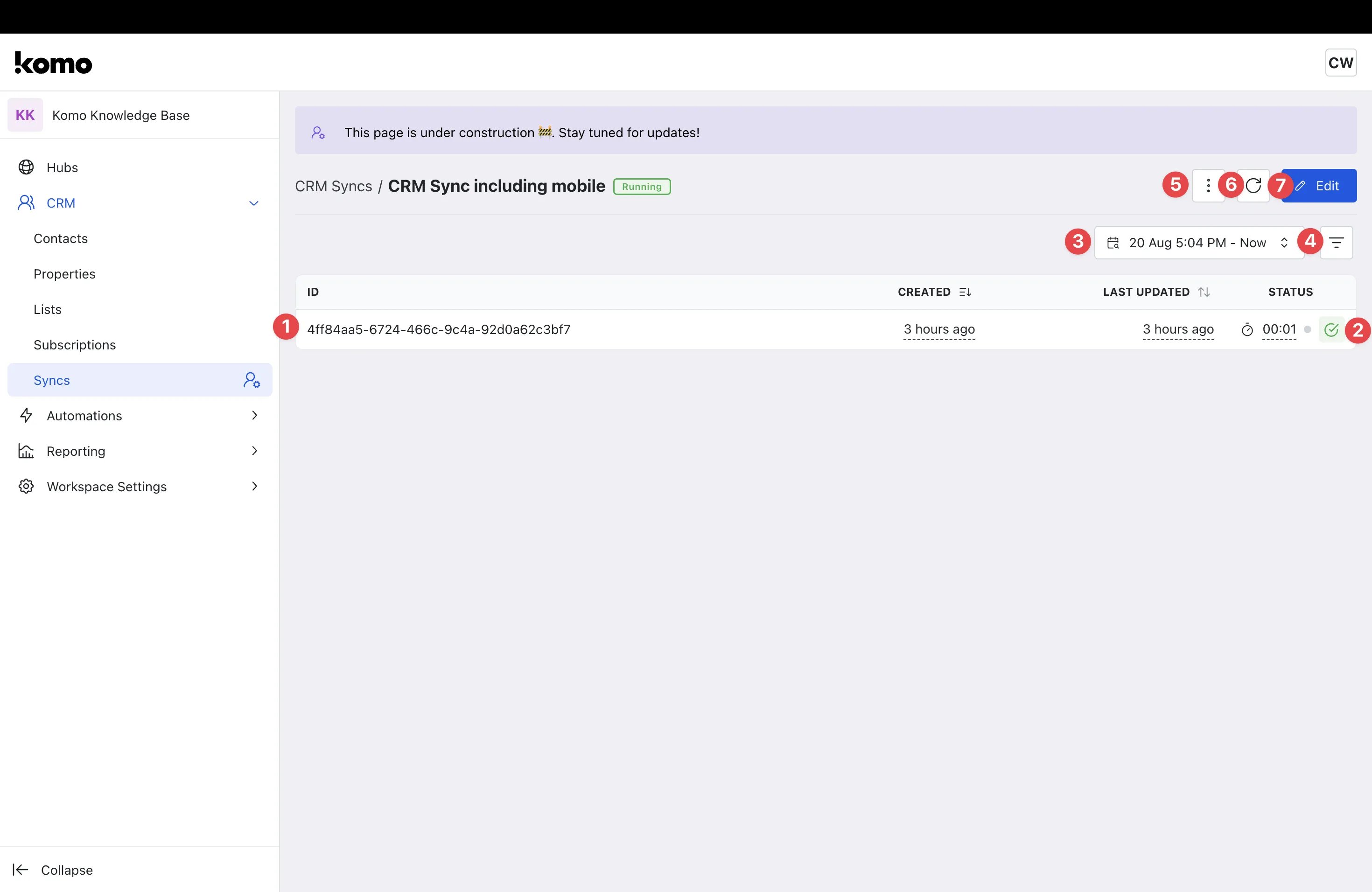
- You can now review the sync to ensure it’s performing as expected.
- (1) Here you can view all details relating to the sync including ID, when it was Created and Last Updated, the Run duration and Status.
- (2) Click on the Green tick to view more detailed information on the Sync Run.
Sync Run Information
Sync Run Information
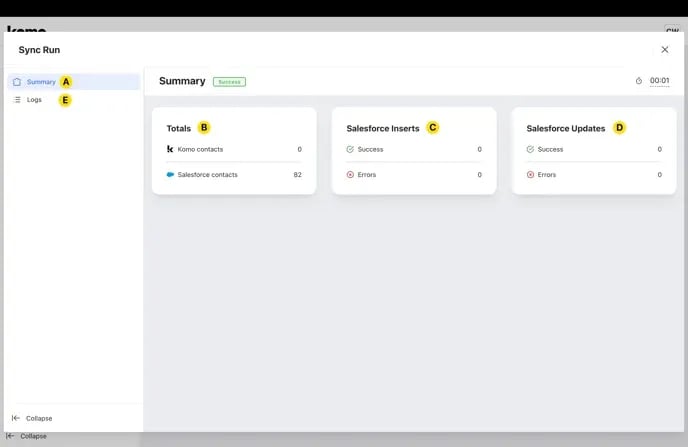
- (A) Here you will be able to see a Summary of the key Sync Run details.
- (B) Totals displays the total number of contacts within your Komo and CRM instances.
- (C) CRM Inserts displays how many contacts the sync successfully imported into the CRM and how many errors were encountered.
- (D) CRM Updates displays how many contacts the sync successfully updated in the CRM and how many errors were encountered.
- (E) Click Logs to view in depth logs of the executed sync.
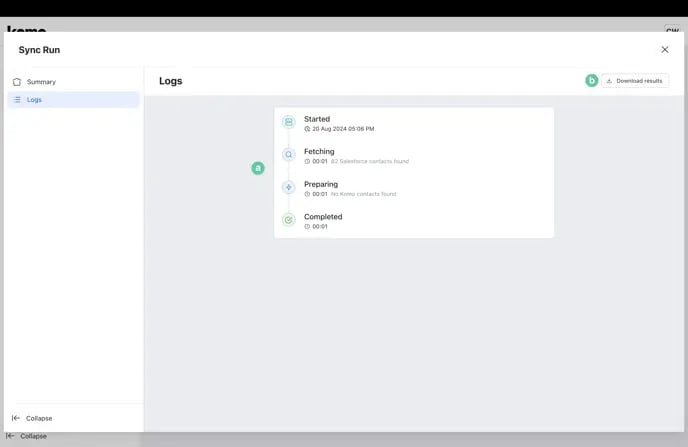
- (a) Here you can view a log of the various actions that took place within the sync.
- (b) Click Download results to export a CSV of the syng logs.