
What is it?
Cloudflare Turnstile is a type of CAPTCHA that is able to verify users as real humans to block any spam or bot traffic entering your competition. This feature applies at the end of the data capture form and is an automatic reading that doesn’t affect the user experience.How do I set it up?
Step 1: Connect your Hub to Cloudflare
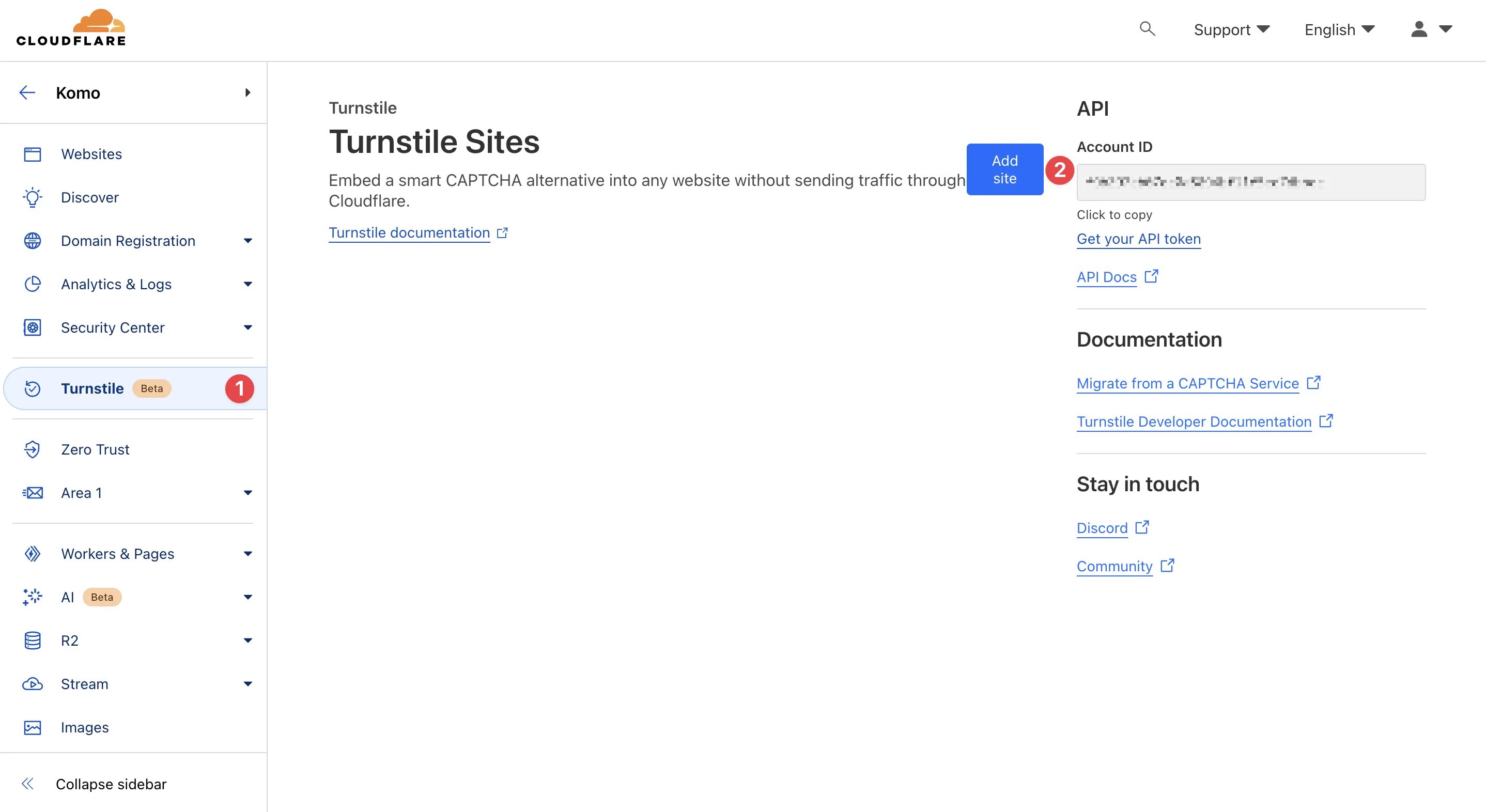
- To set up Cloudflare Turnstile, you will need to have a Cloudflare account. You can sign up and create an account here. Don’t worry, it’s free!
- (1) Navigate to the sidebar and click on Turnstile
-
(2) Click on Add site to connect your Komo Hub
Adding your Komo Hub
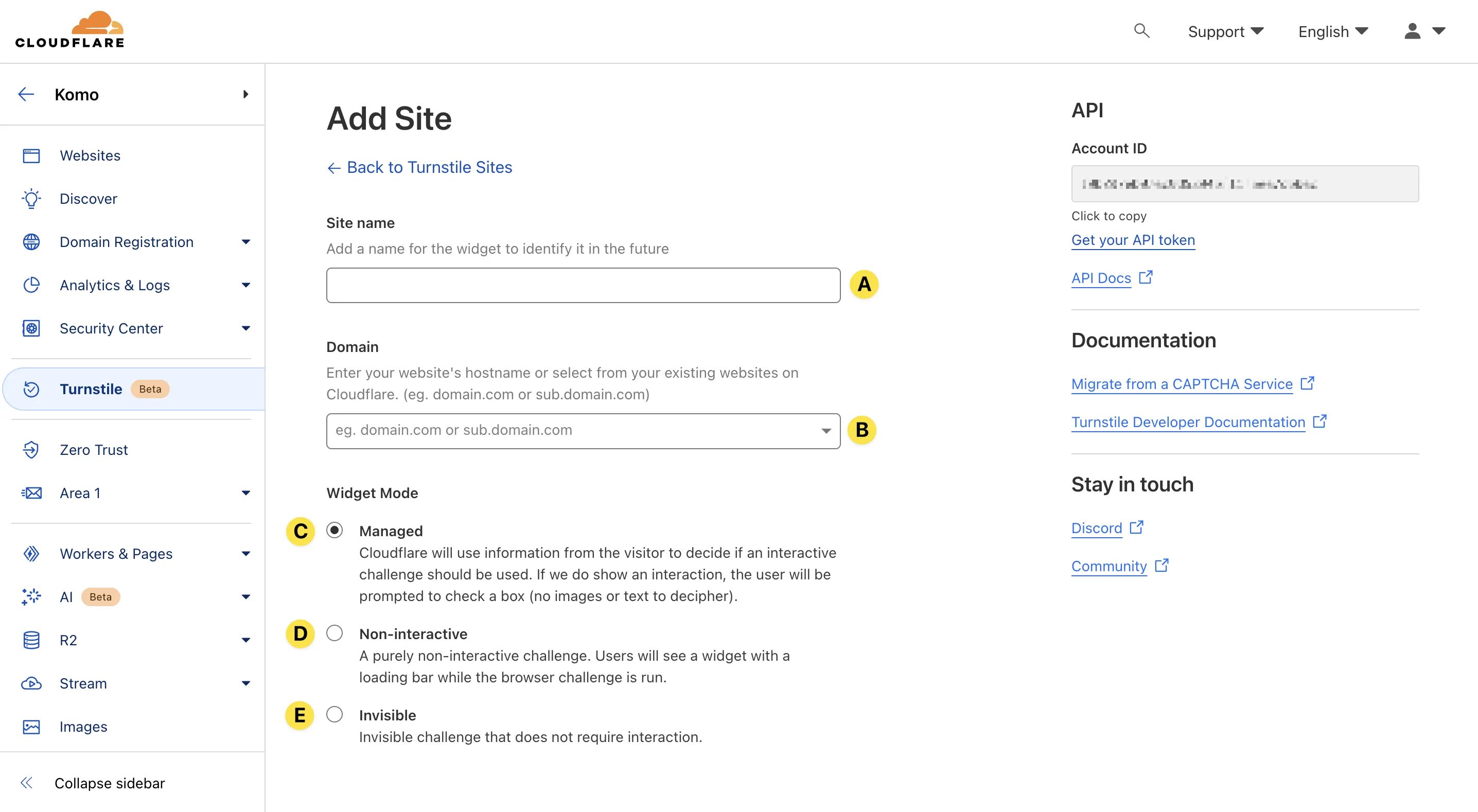
- (A) Here you will input an internal name
- (B) Enter your Hub URL here without the http://. For example, komohub.komo.site, then click on the pop-up below, Add custom domain
If you want to enable a CAPTCHA to multiple Hubs, you will need to add all the domains here.
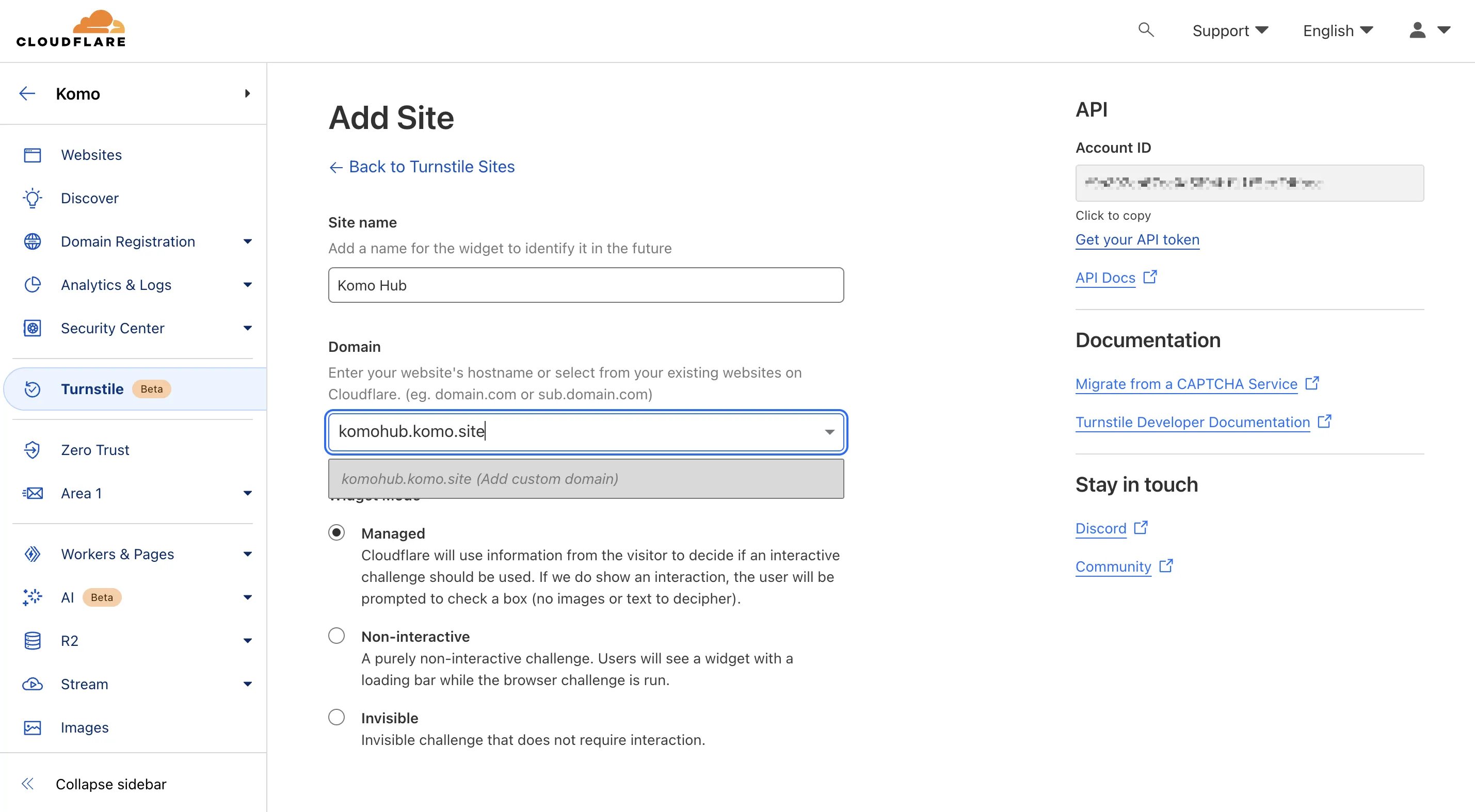
- (C) Here you can select from different modes. Select Managed if you want Cloudflare to decide whether or not the checkbox needs to be manually filled for assumed bot activity.
- (D) Non-interactive means users don’t need to check the box; it will automatically scan a user’s session.
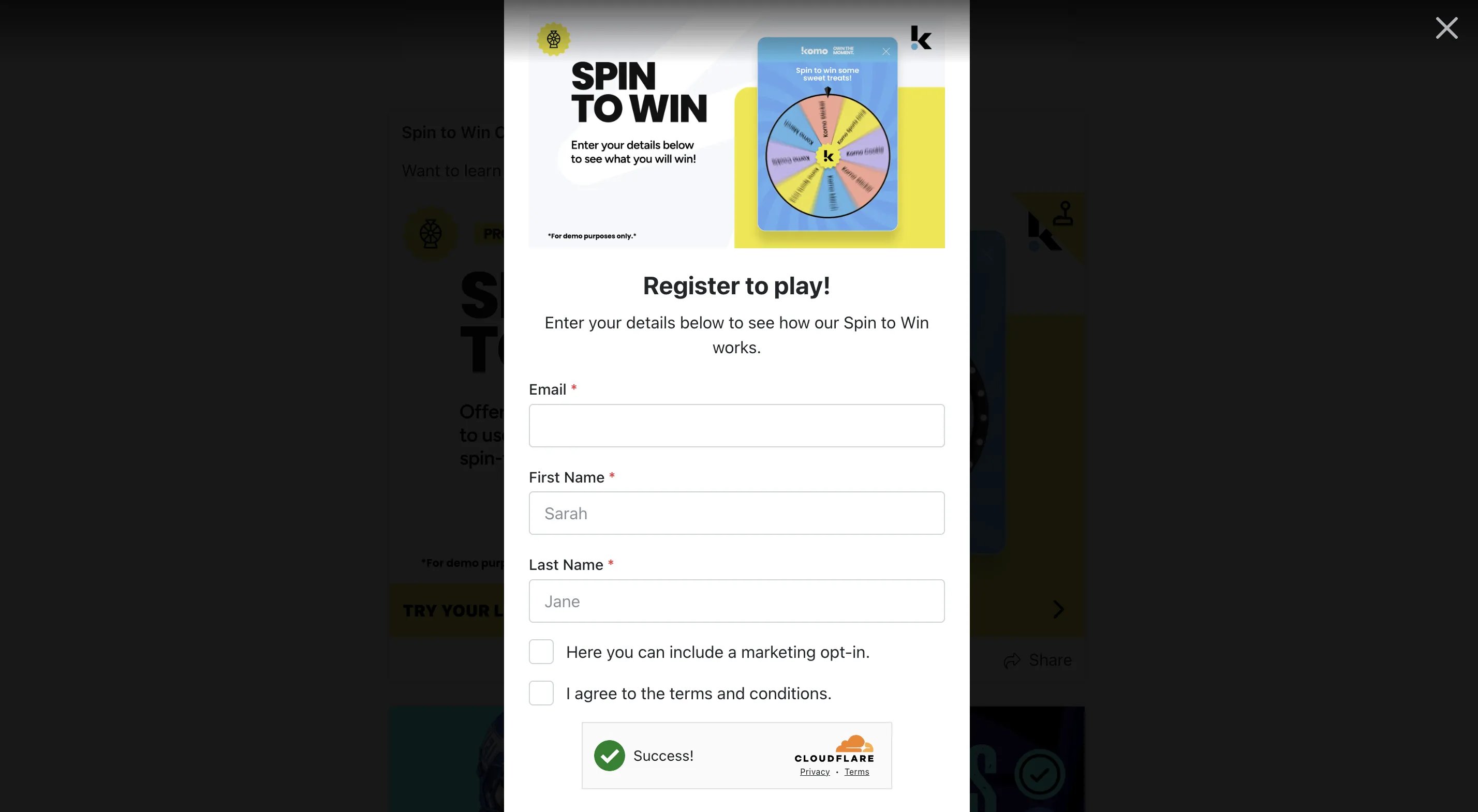
- (E) Invisible means the Cloudflare Turnstile CAPTCHA will not be visible on the form.
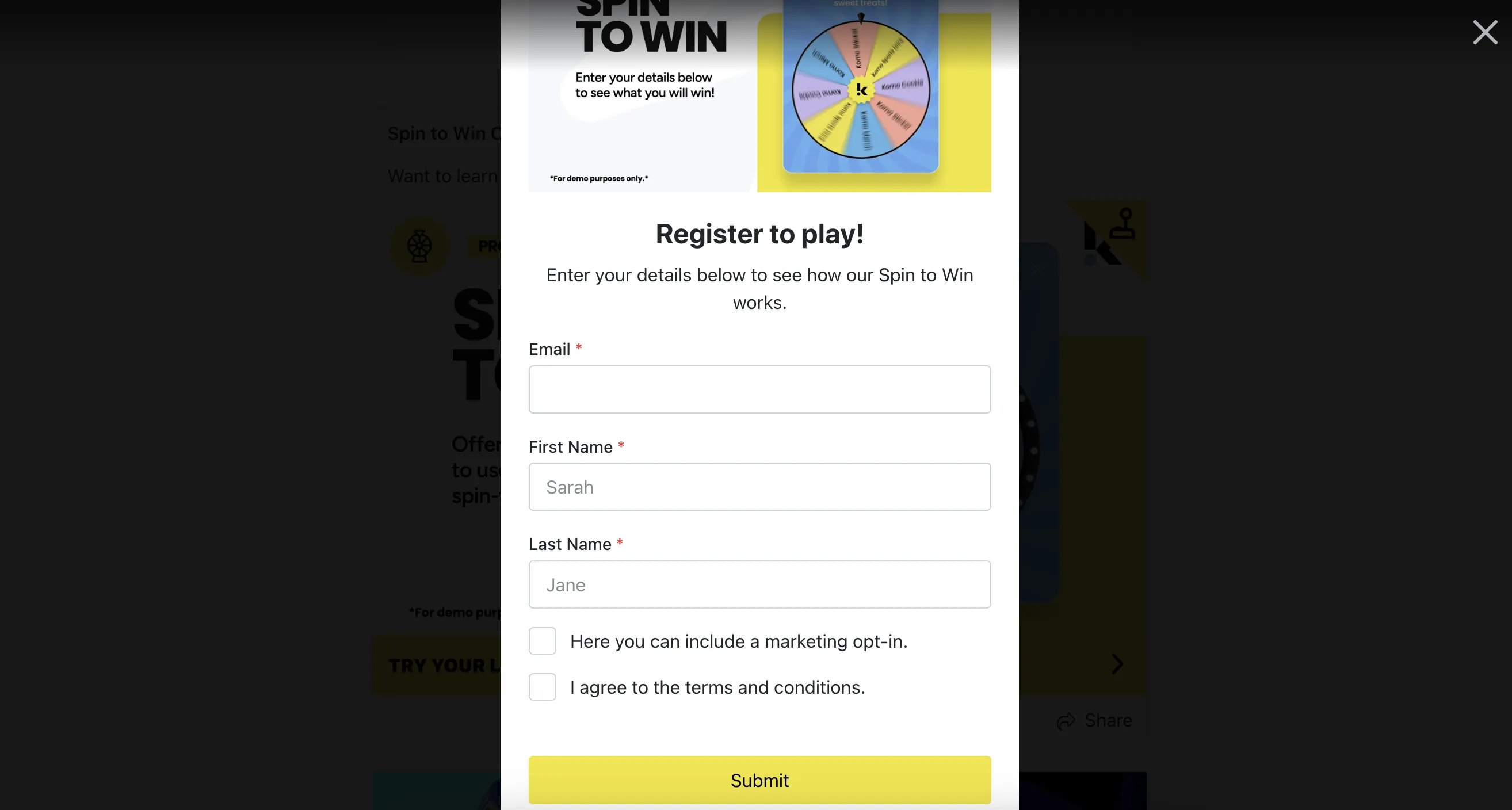
- Then scroll down and click Create.
Step 2: Copy the Turnstile keys
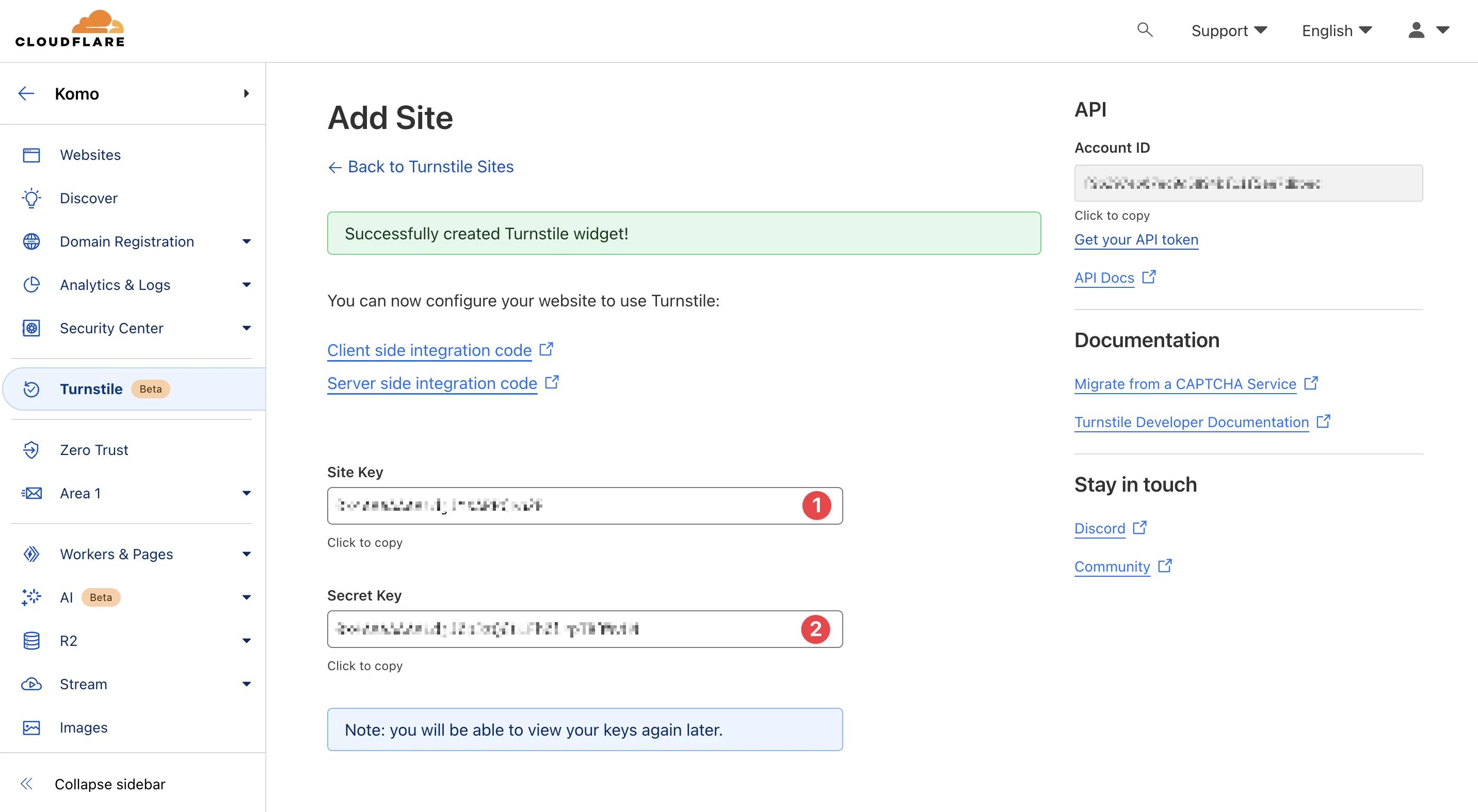
- (1) + (2) These are the keys you will need to have on hand to paste on the Komo portal.
Step 3: Enable the Cloudflare Turnstile feature
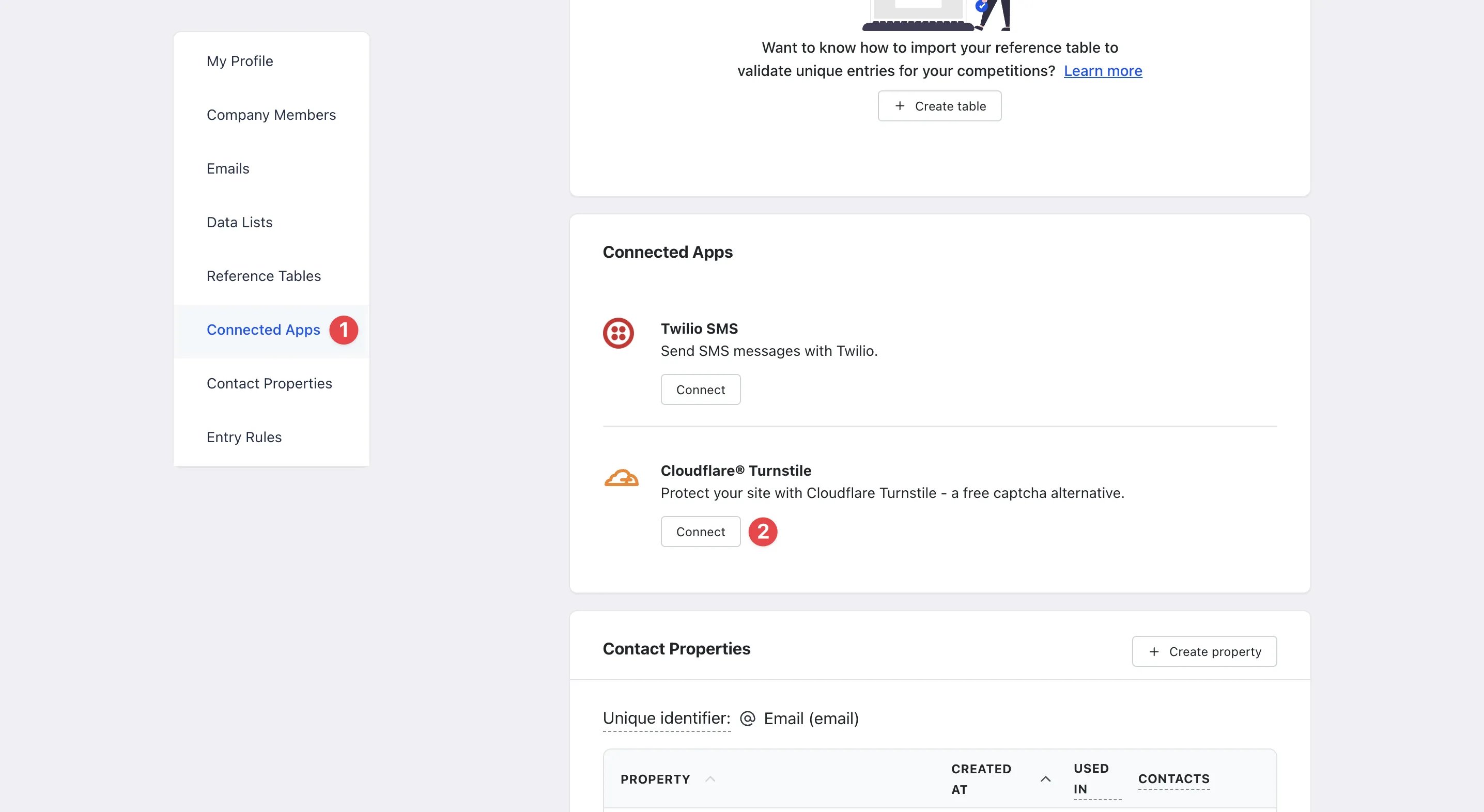
- Navigate to the Komo portal, click on your initials on the top right corner and then select Account settings.
- (1) Click on Create property Connnected Apps on the left sidebar.
-
(2) Then select Connect under Cloudflare Turnstile to enable.
Connect Cloudflare Turnstile
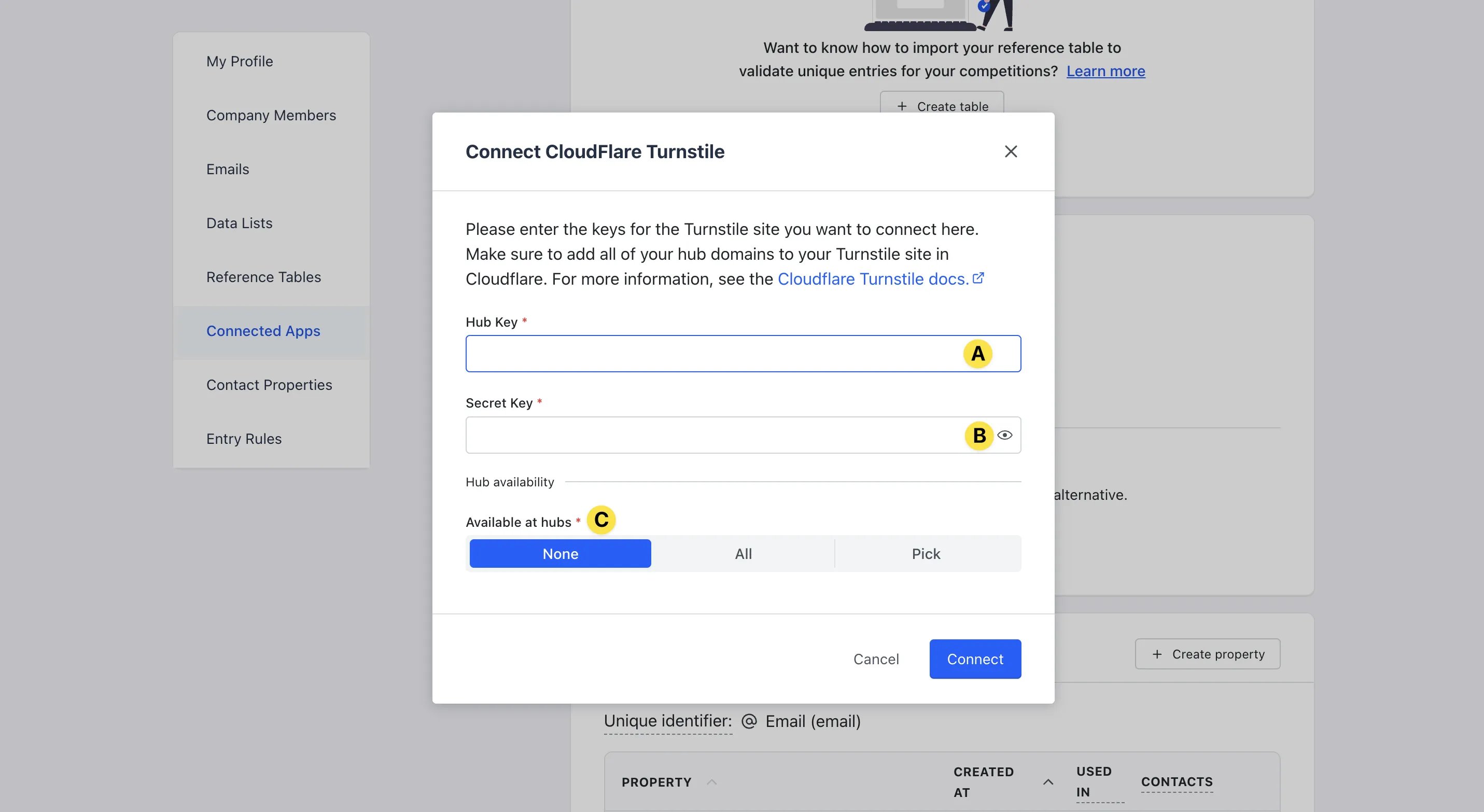
- (A) Paste the Site key from Step 2 here.
- (B) Paste the Secret Key from Step 2 here.
- (C) Select which Hubs you want to apply the CAPTCHA to.
Any Hubs selected here must be on the Cloudflare Turnstile list in Step 1 (2C).
- Then click Create to save your settings.
Step 4: Test the feature
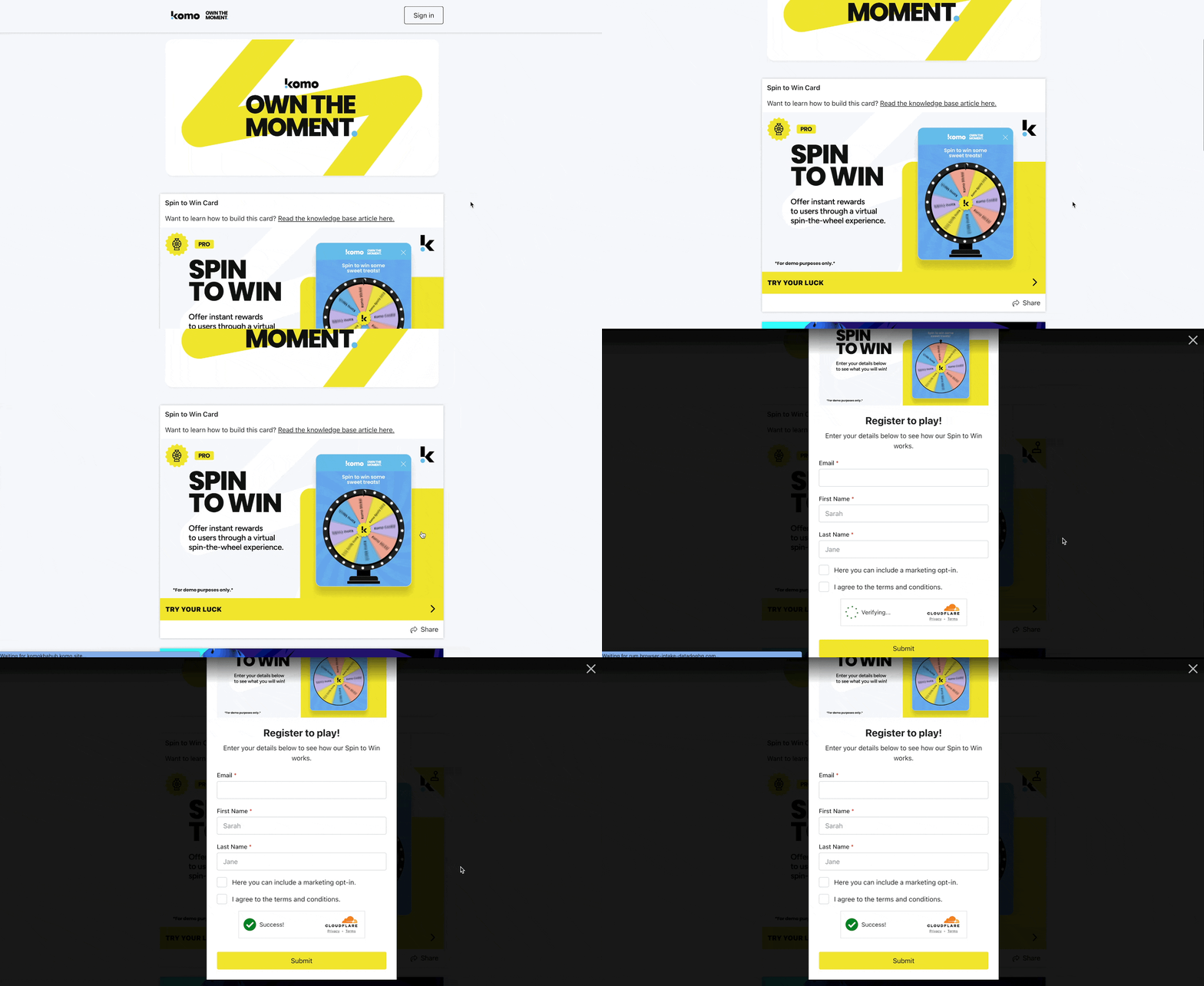
- Navigate to your live site and engage with a piece of content with a data capture form to view the experience.