
What is it?
The LocalCard connected app lets your workflows issue LocalCard digital gift cards, for example to prize winners. It adds two workflow steps:- Send LocalCard from template: sends a gift card from a LocalCard card template.
- Generate LocalCard campaign gift: issues a gift from an existing LocalCard campaign.
You need a LocalCard account and a LocalCard API key.
How do I set it up?
Step 1: Connect LocalCard
- Click the Workspace initials in the top right corner, then click Company Settings.
- Click Connected Apps in the left-hand menu.
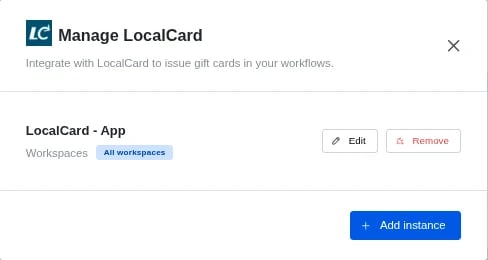
- Click Connect on LocalCard. If you already have a connection, click Manage, then Add instance.
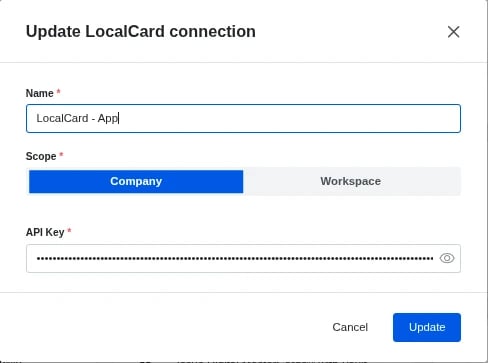
- Enter a Name, pick a Scope and paste your API Key:
- Company: workflows in every workspace can use the connection.
- Workspace: only workflows in the workspace you pick can use it.
- Click Connect.
Step 2: Build your workflow
- Create a workflow at the card, hub or workspace level. See Workflows.
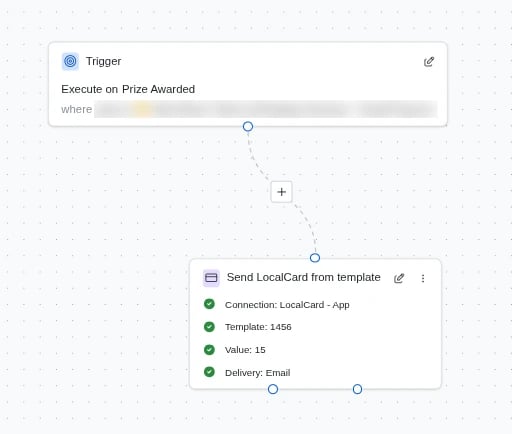
- Set the trigger. For prize winners, use Prize Awarded and filter to your gift card prize.
- Search the Steps panel for LocalCard, drag in the step you need and connect it to the trigger.
The LocalCard steps only appear when a LocalCard connection is available to the workflow’s workspace: a Company connection, or a Workspace connection for that workspace.
- Click the pencil icon on the step and fill in the fields below.
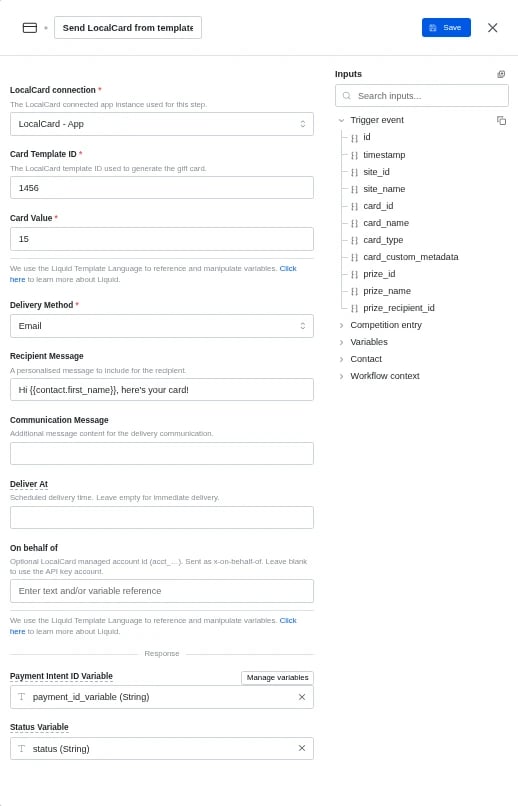
Generate LocalCard campaign gift has the same fields, except:
- Campaign ID (for example
gc_ABC123) replaces Card Template ID. - Gift Value replaces Card Value.
- Delivery Method defaults to Link, which returns a Claim URL instead of emailing or texting the gift.
- Recipient Message overrides the message set on the campaign.
- There’s no Communication Message or Deliver At.
- Under Response, you can save the result to String workflow variables (create them with Manage variables):
- Send LocalCard from template: Payment Intent ID and Status.
- Generate LocalCard campaign gift: Claim URL and Gift Reference.
- Click Save, then Save in the top right-hand corner.
- To start the workflow, click the 3 dots next to it, select Run, then Yes, start it.
Step 3: Check your workflow runs
- Open Workflow Runs, or Usage under the Workflows dropdown in Card settings.
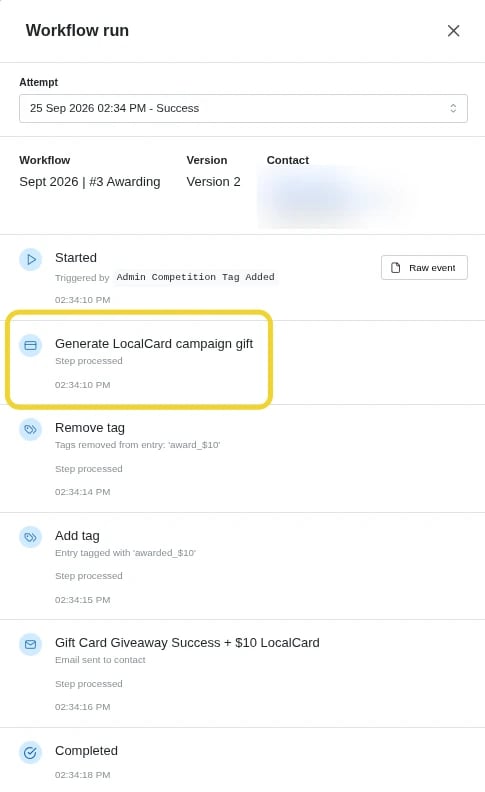
- Open a run. Step processed on the LocalCard step means LocalCard accepted the request.
FAQ
Why can’t I see the LocalCard steps in my workflow? No LocalCard connection is available to this workspace. Add a Company connection, or a Workspace connection for this workspace. The step says “Connection: needs attention”. What does that mean? The selected connection was removed or isn’t available in this workspace. Open the step and pick another connection. Why did the step fail with “Invalid card value” or “Invalid gift value”? Card Value (or Gift Value) must be a number, or Liquid that resolves to a number. Why did the campaign gift step fail? The error shows LocalCard’s campaign status (NotFound, Deleted, Expired, Inactive, InsufficientFunds or BudgetExceeded) or an HTTP code, where 402 means Payment Required. Fix it in LocalCard, then retry the run.