What is it?
This feature allows you to send communications to all users who have not yet redeemed their digital coupons. Create a sense of urgency by informing users they have limited time to redeem their prize and increase redemption rates.How do I set it up?
- Step 1: Create an unsubscribe group
- Step 2: Select the coupon
- Step 3: Create a reminder
- Step 4: Set up your communication
Step 1: Create an unsubscribe group
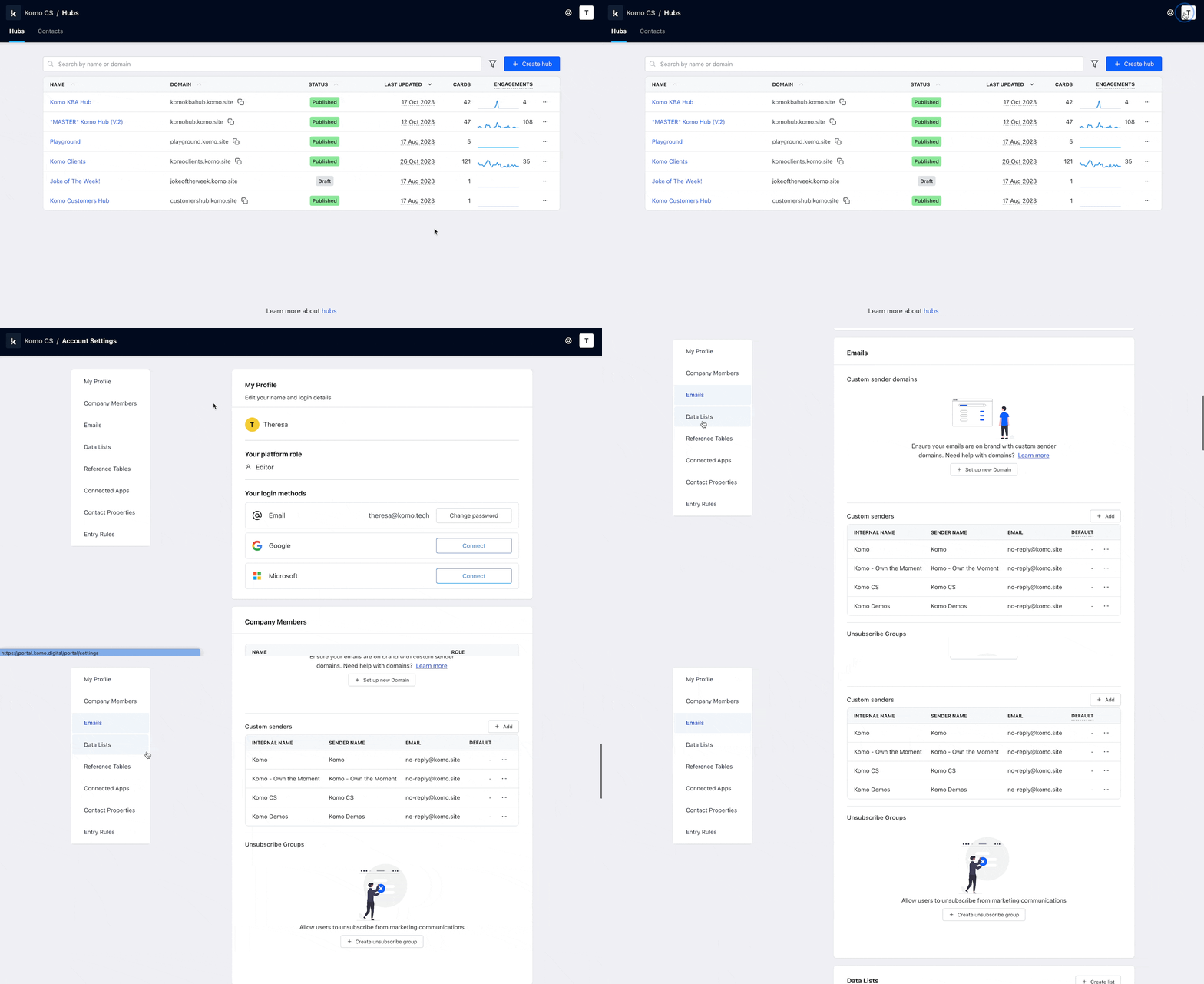
Step 2: Select the coupon
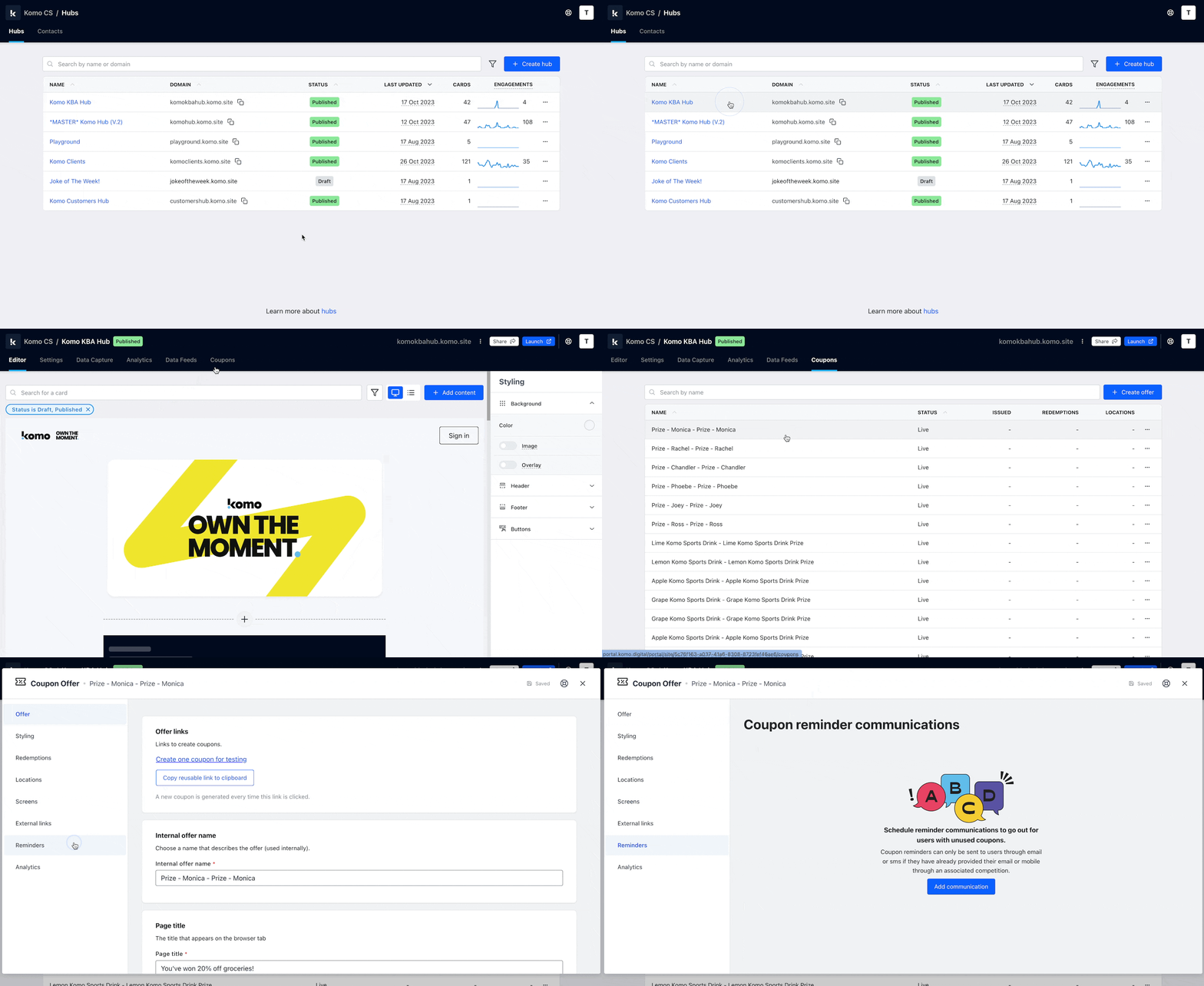
- Go to your Engagement Hub and select the Coupons tab at the top
- Select the coupon you want to set up a reminder for
- Click on the Reminders tab in the left sidebar
Step 3: Create a reminder
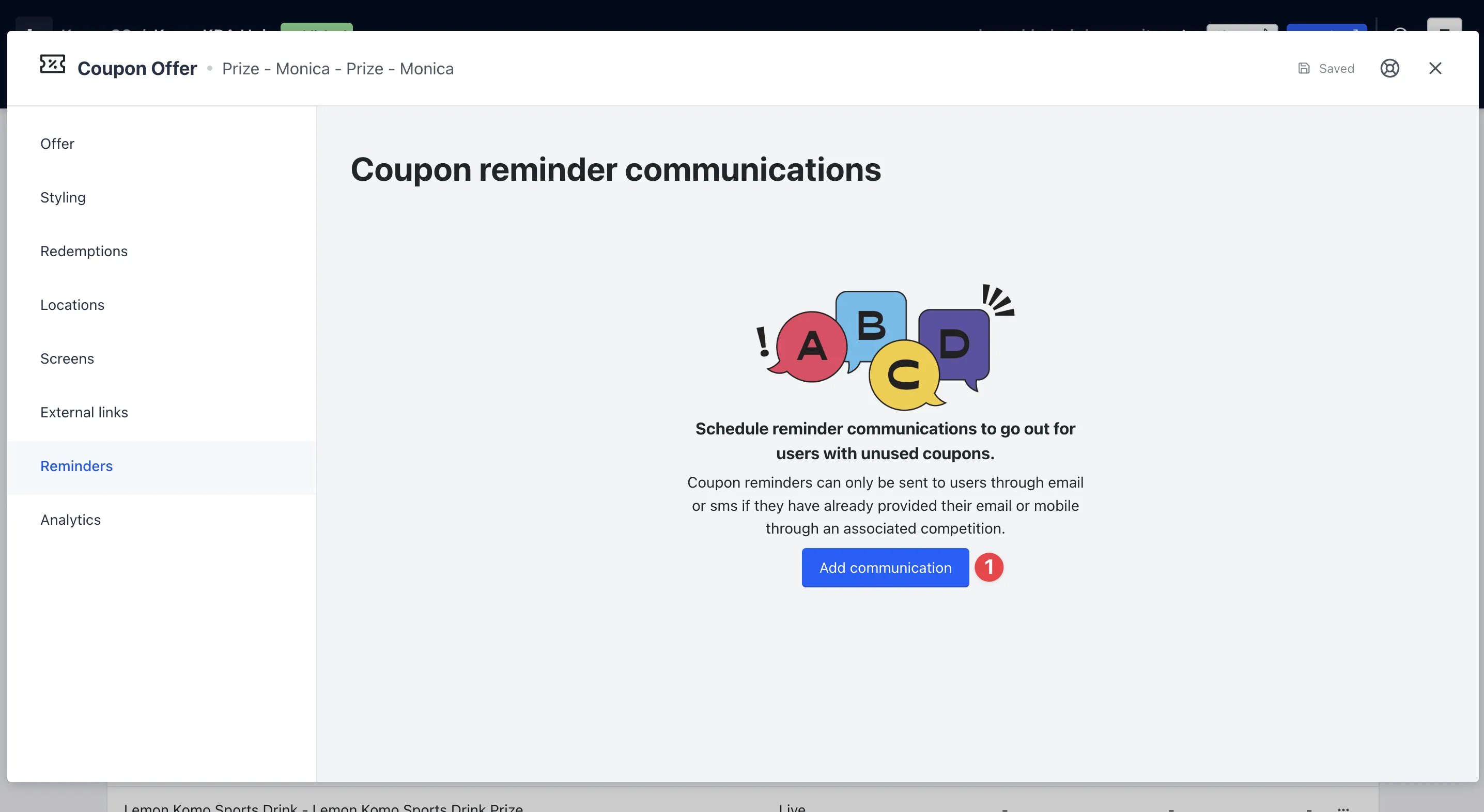
- Click on Add communication
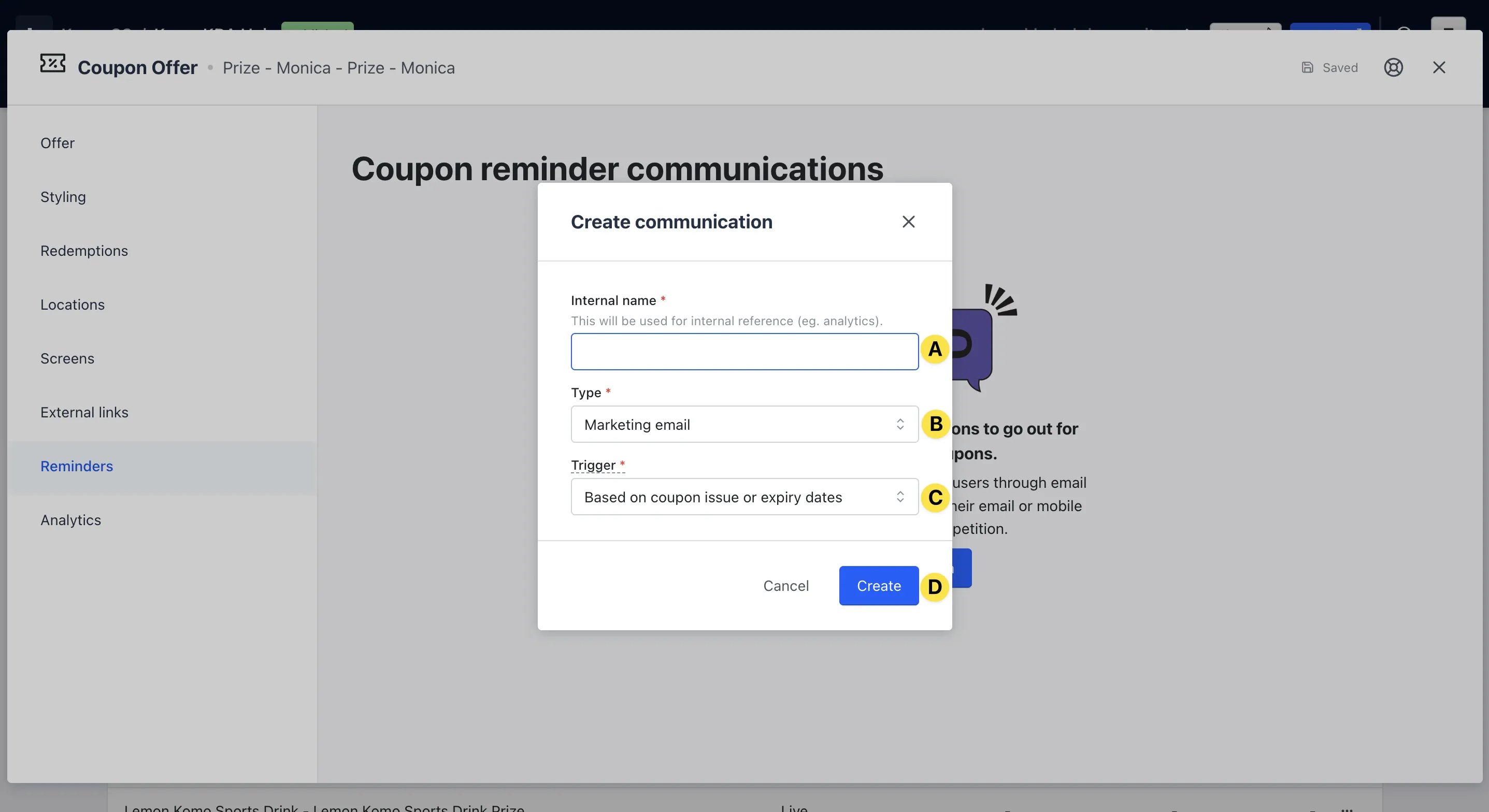
- (A) Add an internal name for the reminder
- (B) Here you can set whether your recipients will receive the particular communication via email or SMS
Make sure to pick the communication channel that matches the information captured by any competitions that uses the coupon. E.g. if your competition form collects email addresses, then select Email. If you use the SMS channel and the competition doesn’t capture mobile phone, then reminders will not be sent.
- (C) Sets the conditions that need to be met for an entrant to receive this communication. The options are:
- Based on coupon issue or expiry dates - All participants will receive this communication depending on when they received the coupon or the expiry dates set
- Manually Sent - Requires you to send the communication manually
- (D) Then click here to create your communication
Step 4: Set up your communication
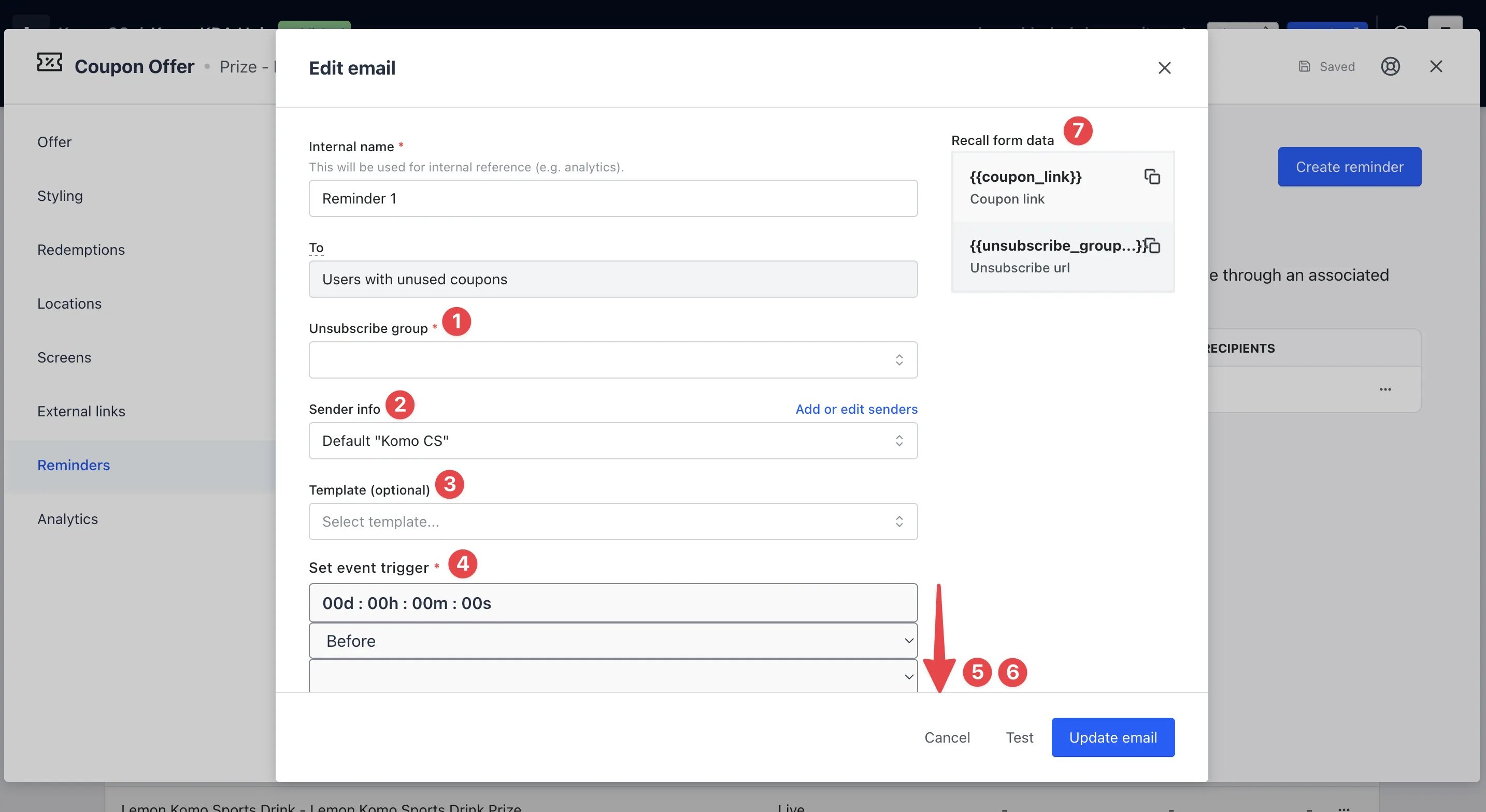
- (1) Here you will select the unsubscribe group you created in Step 1
- (2) This is the sender name. By default, this is your Company name in the portal. To add a new sender name or make any updates, click on Add or edit senders
- (3) Here you have the option to create an email from a template
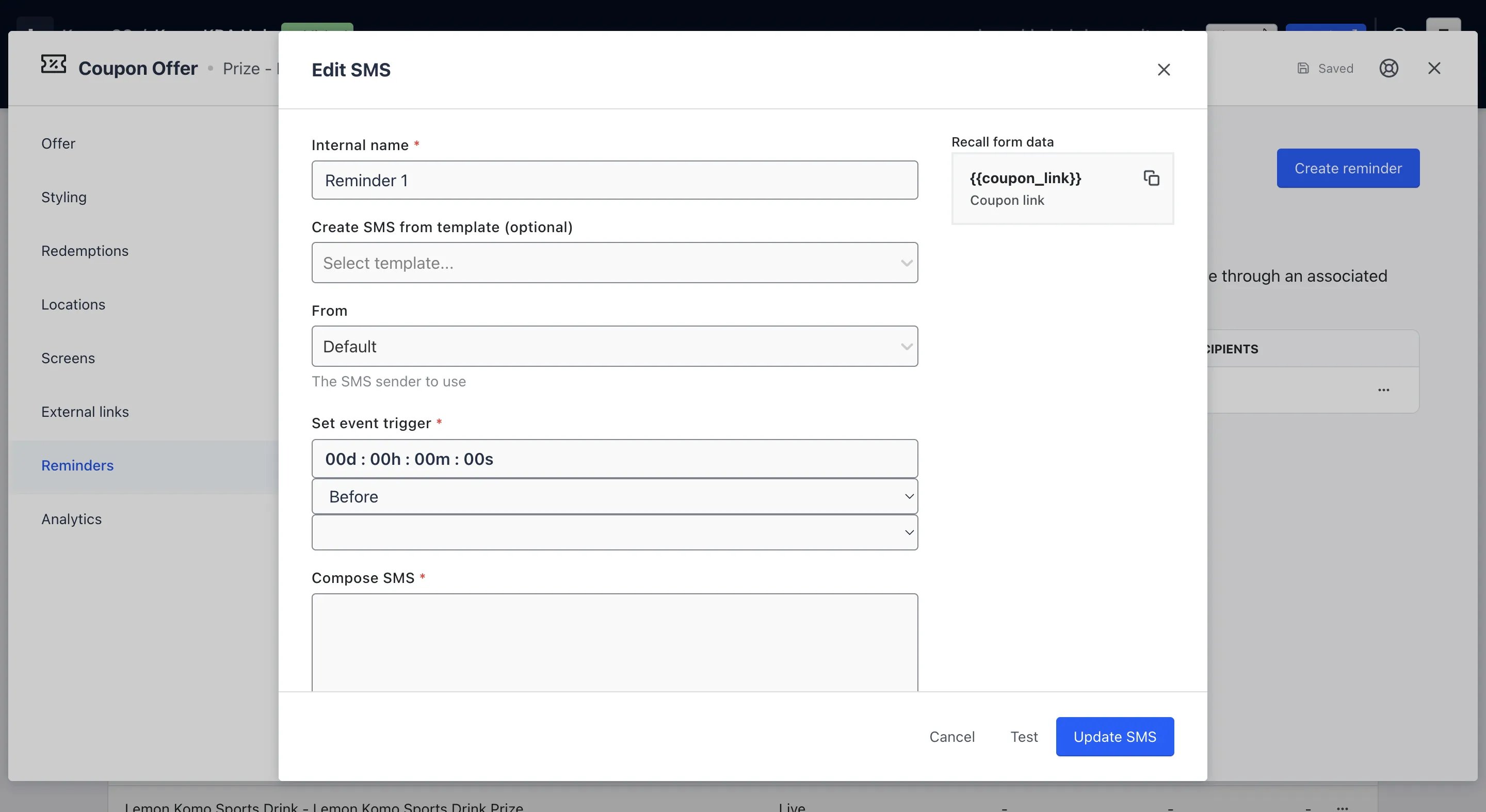
- (4) Set when to automatically send this communication. Select if you want this communication to be sent before or after the coupon was issued (and unused) or based on the coupon expiry
- (5) Add a subject line
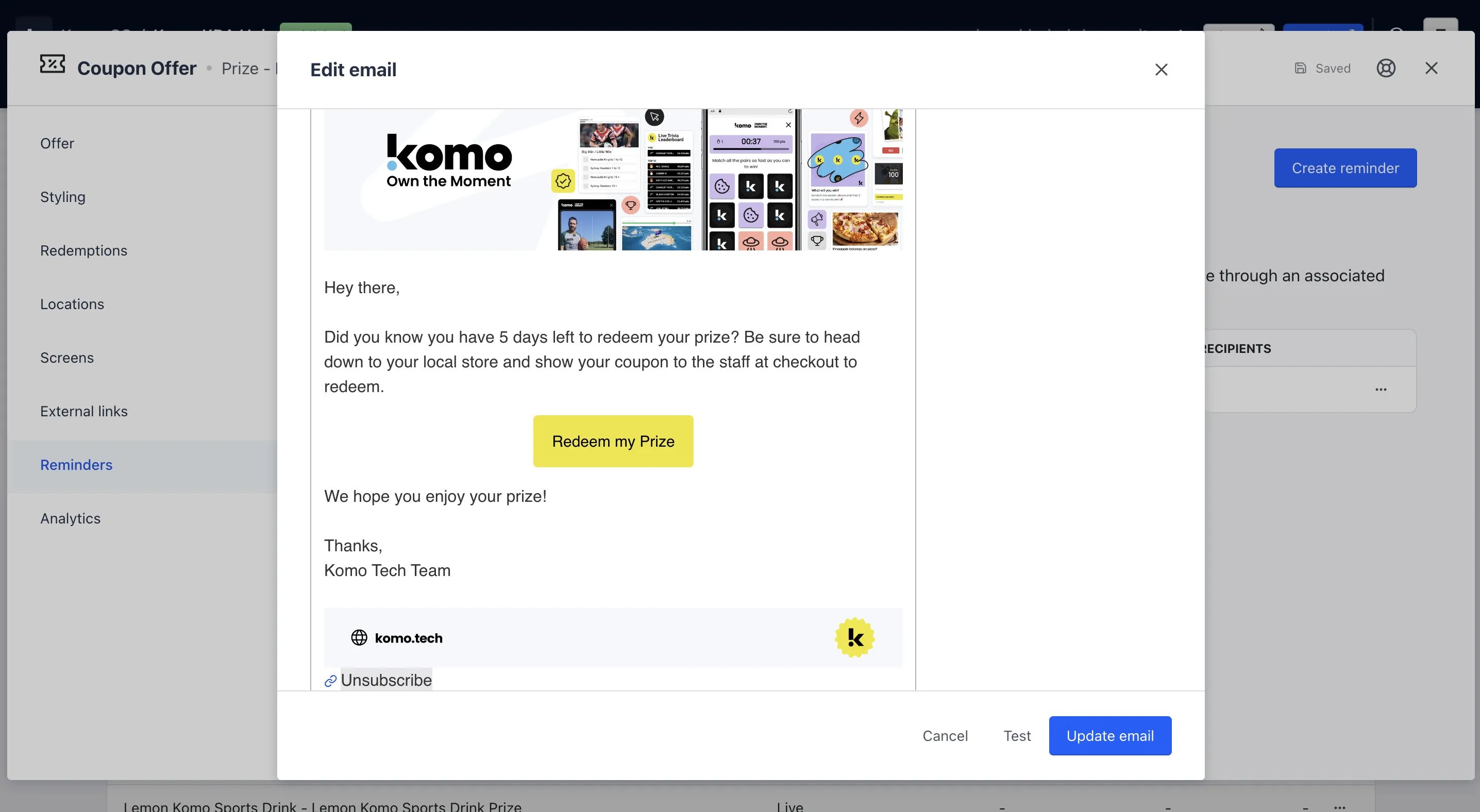
- (6) Here is where you’ll create your email body. Use the toolbar for greater options when creating your communication
As this is sent to a bulk list of users, we cannot personalize the email communication.
- (7) Copy and paste the coupon link code and unsubscribe group code into the email for users to redeem and opt-out