
POST requests from an external system on a public Event URL.
If you do not create any authentication keys, that URL stays open: anyone who has the URL can send a request. Once you create at least one key, published requests must include a valid key.
Create a Custom Event
Open CRM, then go to Contacts → Custom Events, and create a new event. In the Create Custom Event Schema modal, enter a Name and optional Description, then click Create.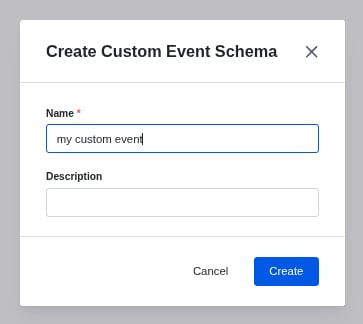
Find the Event URL
- Open CRM, then go to Contacts → Custom Events.
- Open the Custom Event you want to receive requests for.
- On the Event URL card, copy the URL. The card explains: Send a POST request with a JSON body to this URL.
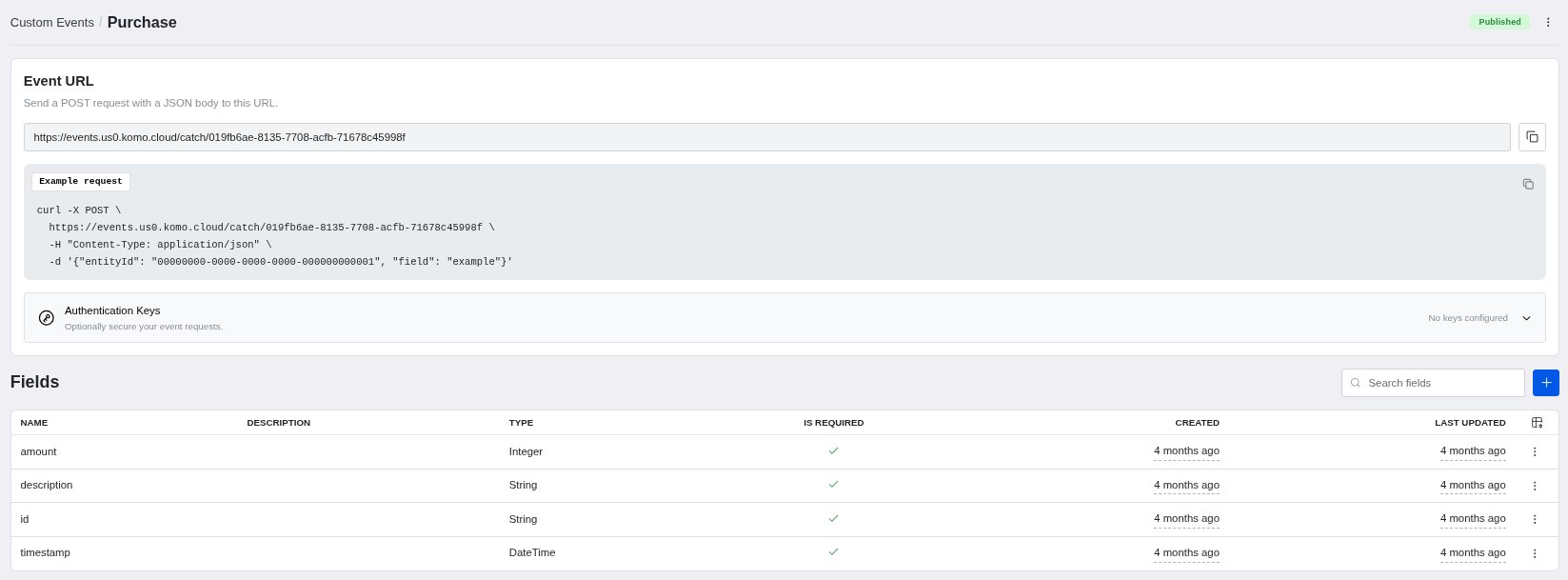
{dc} is your workspace data centre (for example au1 or us1). {schema-id} is the ID of this Custom Event.
Only a Published Custom Event accepts requests on this URL. Draft or Archived events are not available, even if you send a valid key.
Fields
On the same page, the Fields table lists the properties this event accepts. Click + to add a field. In the Create Schema Field modal, enter a Name, optional Description, Type, whether it is Required, and optional Min Length, Max Length, and Regex Validation. Types are String, Integer, Decimal, Boolean, Date, Time, DateTime, Object, and Array.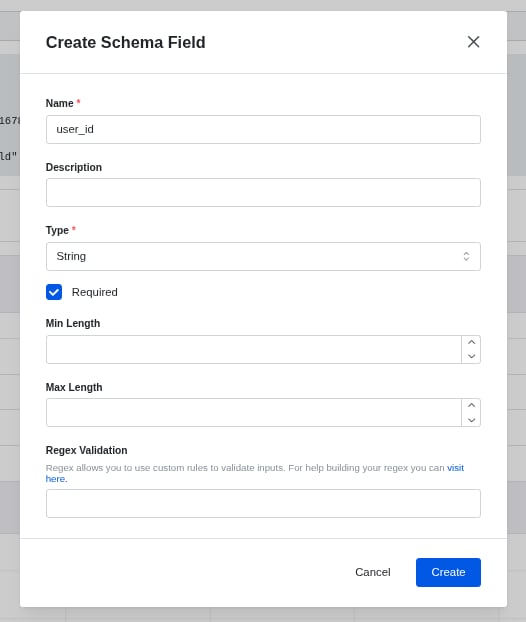
Send an event
Send aPOST request with a JSON object body to the Event URL, with the header Content-Type: application/json.
The body must include entityId: the Contact’s Komo ID (a UUID), not an email or an external ID. Remaining keys must match the field names and types on the schema. Extra keys are ignored when the event is stored. Integer and Decimal values must be JSON numbers, not strings. For Date, Time, and DateTime fields, prefer ISO 8601 values such as 2026-11-13, 14:30:00, or 2026-11-13T14:30:00Z.
A successful request returns 202 Accepted with a trackingId. That means the event was queued. It can still be discarded during processing if the Contact is missing or belongs to another workspace, or if a Date, Time, or DateTime value cannot be parsed.
Error responses are plain text:
400— invalid schema ID, missing or invalidentityId, or invalid JSON401— the Event URL has authentication keys and the Bearer token is missing or invalid404— the Custom Event is not found or is not Published413— the body is larger than 512 KiB422— the body failed field validation, including a missing required field429— rate limit exceeded (Retry-After: 60)500— schema configuration is invalid, or config lookup failed. Retry later, or check field patterns.
Analytics
The Analytics chart on the Custom Event page shows how many events were received over time.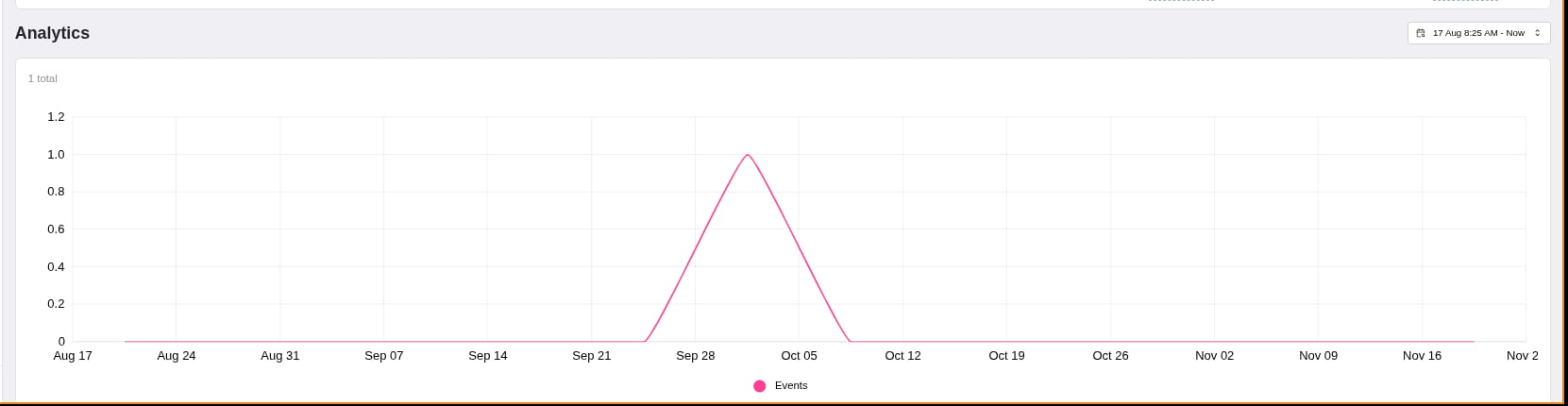
Authentication Keys
On the same Event URL card, under the Example request, expand Authentication Keys. The description is Optionally secure your event requests. The accordion starts collapsed. The status on the right is No keys configured, or 1 key configured / N keys configured once keys exist.
Create a key
Admins with write access can create keys on Draft and Published Custom Events. If you only have read access, or the event is Archived, you can still view existing keys and copy the URL and header example, but Create key is hidden.- Expand Authentication Keys.
- Click Create key.
- In the Create authentication key modal, enter a Key name. This is a label so you can recognise the key later, for example
Production integration. The name is required. You can create more than one key, and names do not have to be unique. - Click Create key.
Send the key with each request
The info on the card says: Use authentication keys when you want to verify requests sent to this event URL. Send the key as a Bearer token in the Authorization header of each request. Send this header (you can copy the same example from the card):<your-key> with the secret you copied when you created the key. Any valid key for that Custom Event is accepted. A key created for one Custom Event cannot be used on another.
Once at least one key exists, the Example request on the card also includes the Authorization header:
Send the key from your server or integration. If a published Event URL has keys, a missing, malformed, or invalid Authorization header is rejected with
401 Unauthorized. Requests to a Draft or Archived Event URL return 404, including when a key is missing or invalid.