What is it?
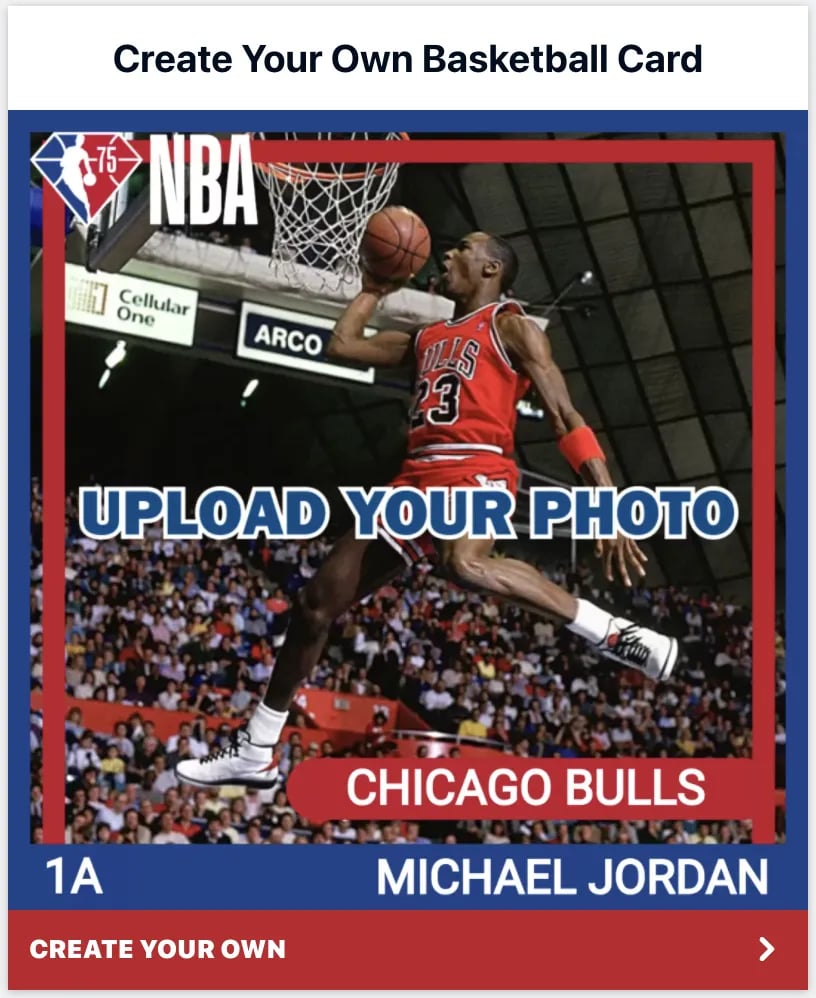
The Photo Frame card allows users to photograph themselves within a branded frame and share across their socials.How do I build one?
- Step 1: Add a Photo Frame card to your Hub
- Step 2: Build out your card
- Step 3: Set up your Gameplay Options
- Step 4: Set up your Data capture
- Step 5: Publish your card
Step 1: Add a Photo Frame card to your Hub
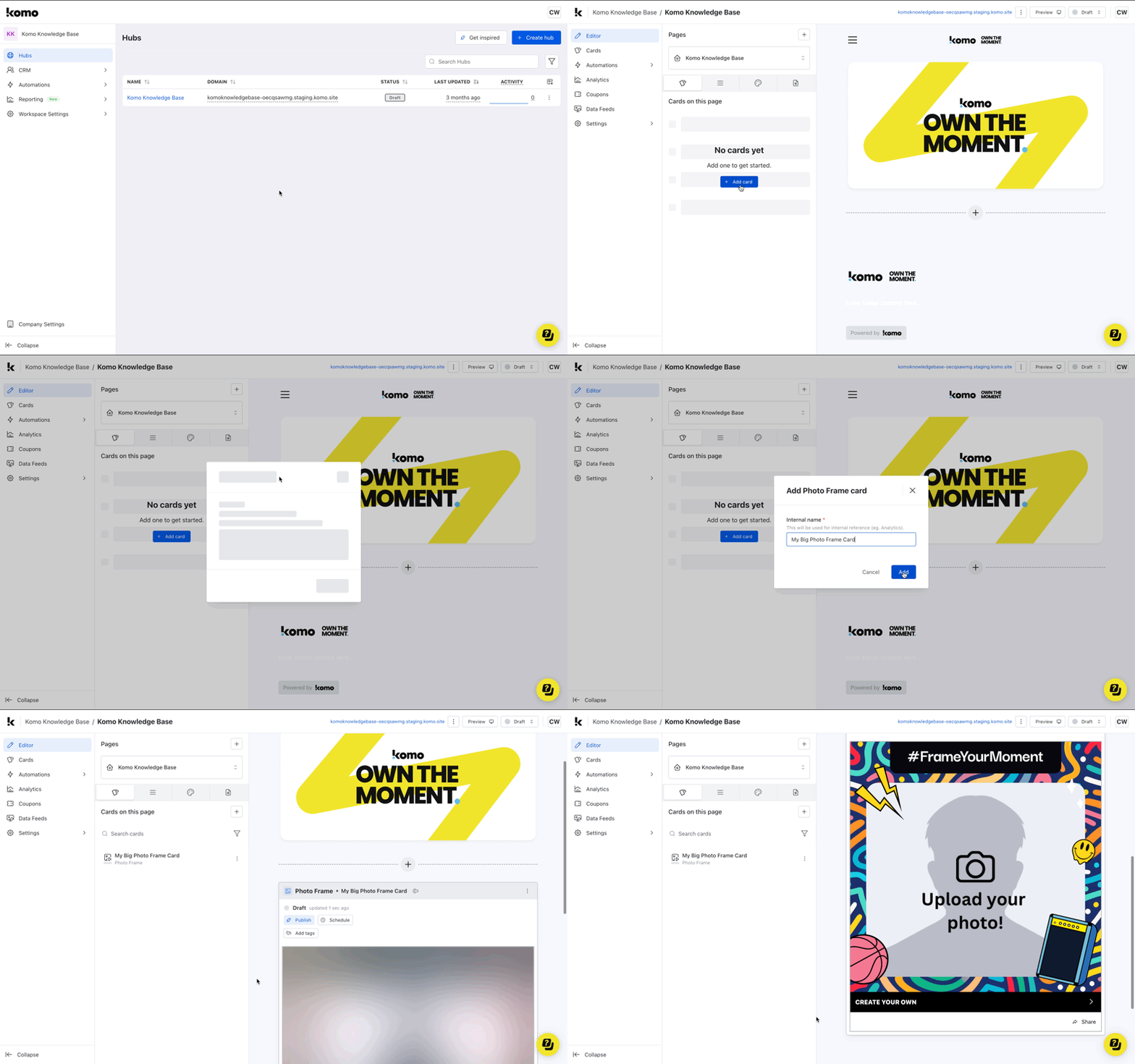
- Navigate to your Engagement Hub.
- Once there click + Add card, from there select Media and then Photo Frame.
- Provide an internal name for the card and click Add.
- You will then see your new card has been added to your Hub.
Step 2: Build out your card
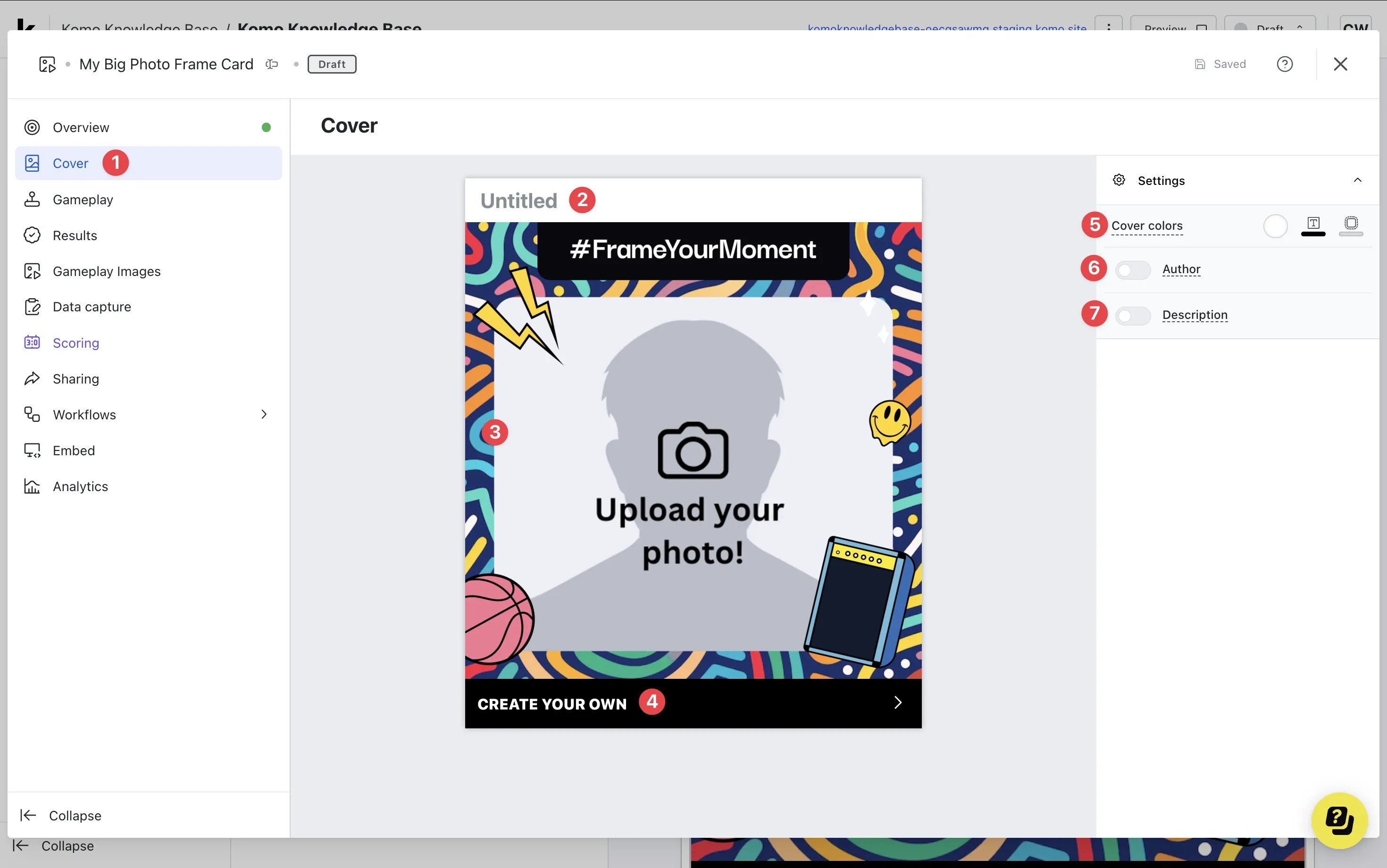
- Clicking on the Photo Frame card within your Hub will allow you to edit the card and start building.
- (1) Click on Cover to begin editing the initial ‘Frame’ which will also act as the Cover image for your card.
- (2) Clicking here will allow you to set a title.
-
(3) Clicking here will give you access to the Photo Frame Editor where you can add and set up your selection of photo frames.
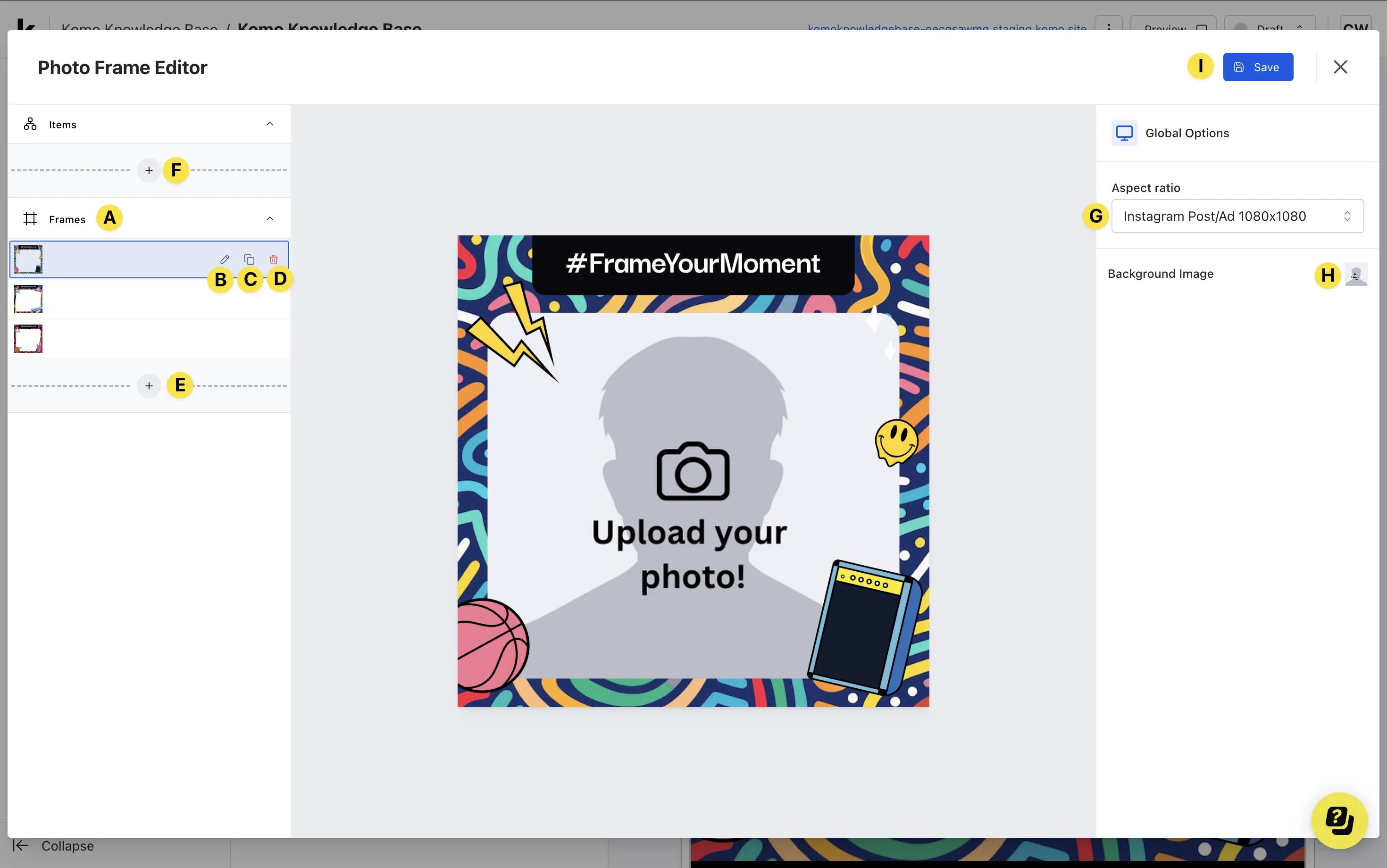
- (A) Here you can see all the uploaded Frames (there will always be 3 default frames). Clicking on a frame will set that frame as the default frame that is shown when a user interacts with the card.
- (B) By clicking on the Pencil icon next to the frame, you can Edit and replace with a new image.
- (C) Clicking here will allow you to Clone a frame.
- (D) Clicking here will allow you to Delete a frame.
-
(E) Click the + icon to Add a new frame
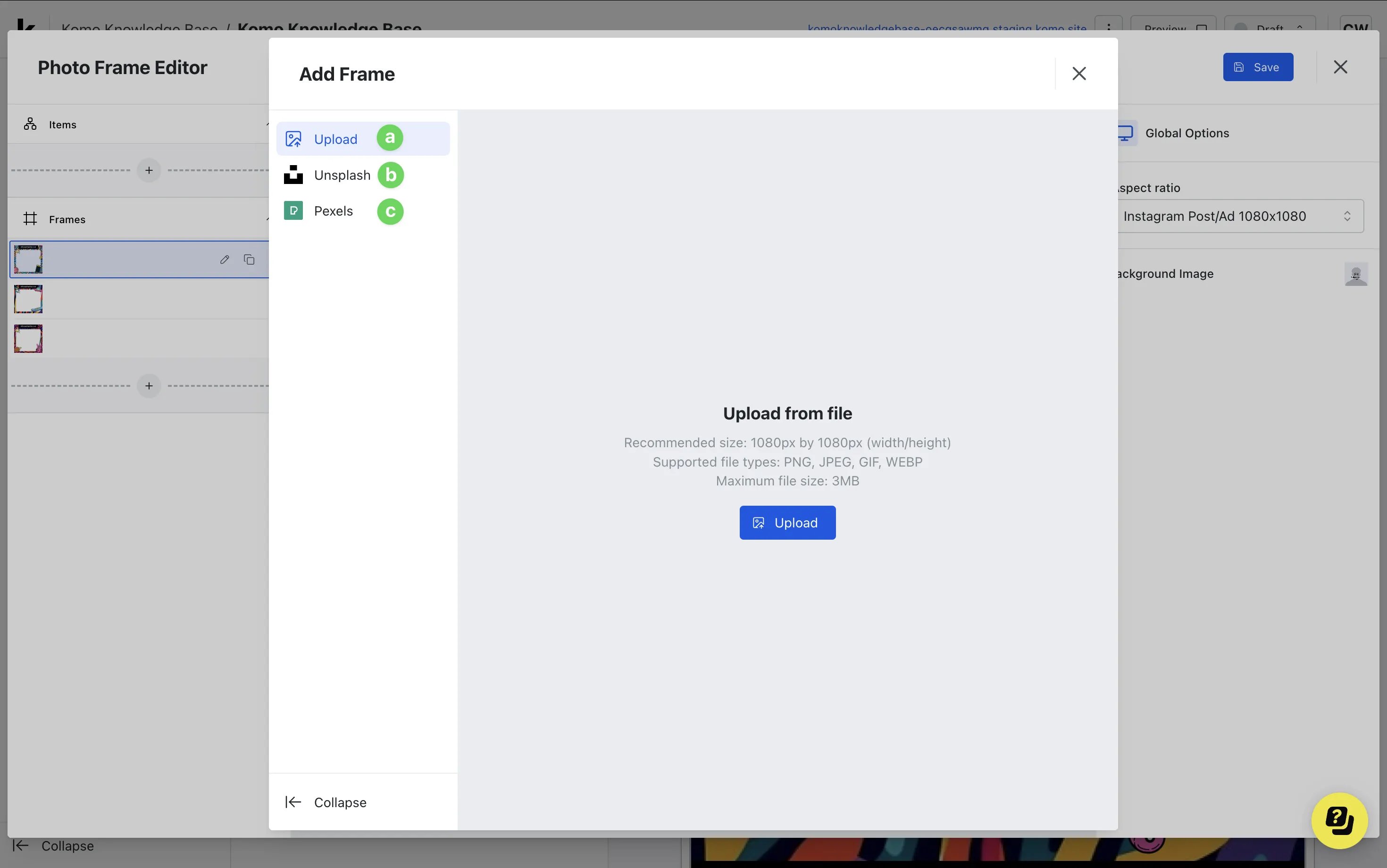
- (a) Here you can Upload a frame/image from your local drive.
- (b) Here you can search Unsplash’s free image database for a suitable frame.
- (c) Here you can search Pexels’ free image database for a suitable frame.
-
(F) Click the + icon here to Add items that are overlaid on your frame. When adding an image item you will have the ability to resize and reposition the image as required. A full breakdown of customization when adding a text item can be seen below.
These items can be text or images and will remain regardless of what Frame is selected.
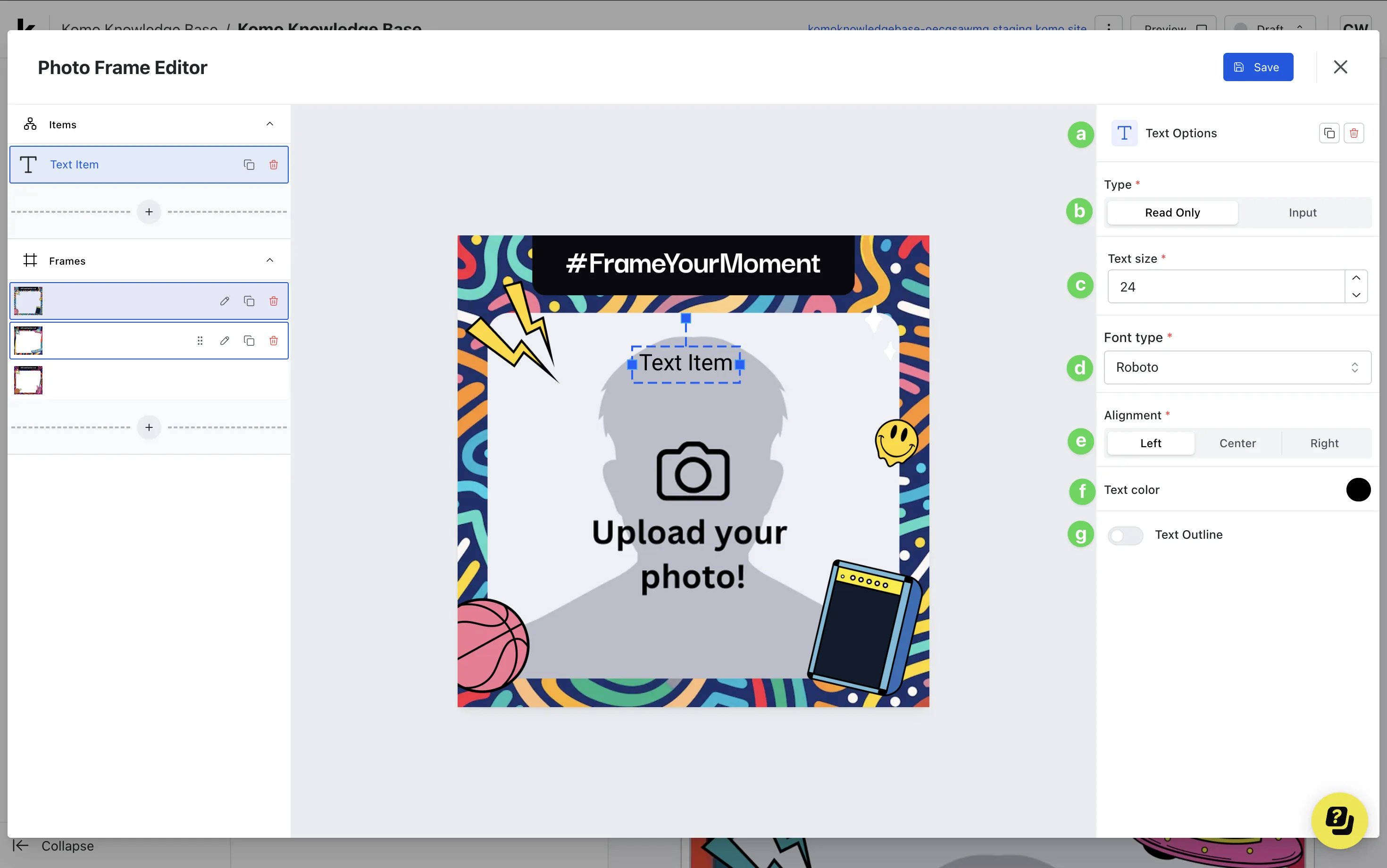
- (a) Here you can either Clone or Delete the text item.
- (b) Here we can set whether the text can be editable by your end-users (Input) or not (Read Only). When Input is selected, you will need to set an interactive label which acts as a prompt for users to edit the text when uploading a photo. This interactive label will not be displayed on the user’s final image (only in the creation phase).
- (c) Here you can change the Text size.
- (d) Here you can select your desired Font type.
- (e) You can align the text according to your requirements.
- (f) Here you can change the Text Color.
- (g) You also have the ability to add a colored Text Outline.
-
(G) Select the Aspect ratio you would like users to upload their photos in.
We recommend sticking to the default 1080 x 1080 Aspect Ratio for compatibility across devices.The frame sits on top of the user’s photo. Text and image items sit on top of the frame. Use a PNG with transparency where the photo should show through. The frame image is stretched to fill the card’s chosen aspect ratio and center-cropped, so export it at the exact aspect-ratio size. The Add/Update Frame uploader uses the current aspect ratio as its ideal size.Aspect ratio options in the Photo Frame Editor:
- Square — 1080×1080
- Instagram Post/Ad — 1080×1350
- Instagram Story — 1080×1920
- Facebook Post — 940×788
- Facebook Cover — 851×315
- Facebook Ad — 1200×628
- Youtube Thumbnail — 1280×720
- Youtube Channel — 2560×1440
- Full HD — 1920×1080
-
(H) Clicking here will allow you to upload and replace the default Background Image. This image is a placeholder only and will be replaced by the user’s uploaded photo when creating their submission.
We recommend placing the text “Upload your photo” on the background image to encourage users to take their own photos.
- (I) Once you are satisfied with all settings, click Save to confirm your changes.
Step 3: Set up your Gameplay options
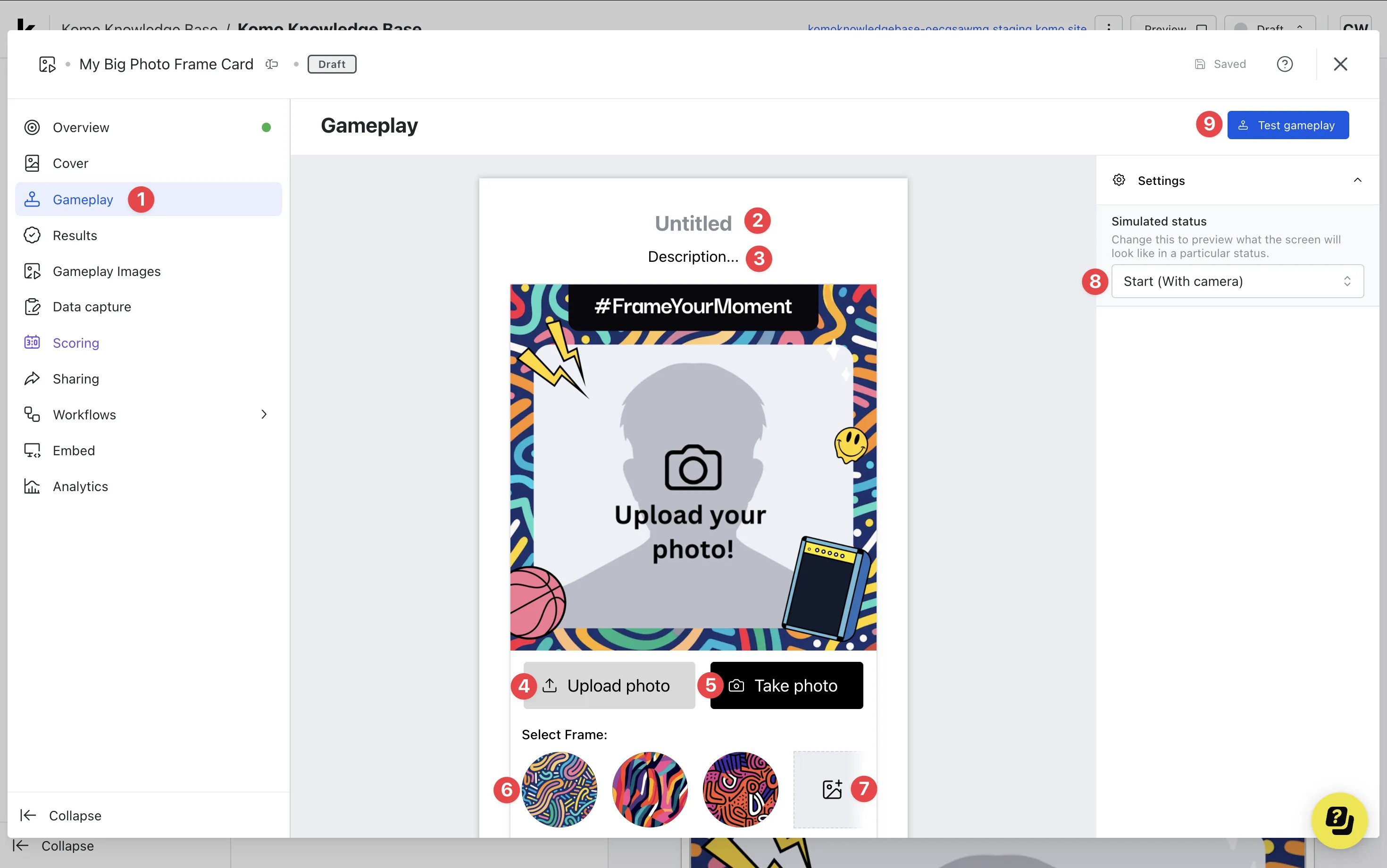
- (1) Click Gameplay to access the Gameplay editor.
- (2) Here you are setting the Title for your photo frame.
- (3) Enter a Description.
- (4) By clicking on the Upload photo button you can edit the Text Color and Background Color of the button.
- (5) By clicking on the Take photo button you can edit the Text Color and Background Color of the button.
- (6) By clicking on the Frame Thumbnails, you can Update the Frame, Update the Thumbnail, Set a Frame as default, or Delete a Frame.
Frame thumbnails are auto-generated when you upload a Frame but you have the ability to customize these by updating the Thumbnail. The recommended size for frame thumbnails is 400 x 400. If you do not upload a custom thumbnail, the frame image itself is used. The picker displays thumbnails with a 400×400 cover crop.
- (7) Click here to Add a new Frame.
- (8) By clicking on Simulated Status you can preview what the screen will look like for the end user depending on whether they have Started (With Camera), Started (No Camera) or Finish (Photo taken). You will also have the ability to edit the Text Color and Background Color for each button that is displayed with each status.
The buttons shown across each of the Simulated Status screens will carry the same colors initially set when editing the Gameplay settings. Editing colors on these screens will edit all button colors across gameplay.After a photo is taken or uploaded, users see New photo and a primary button whose default label is Create. Tapping Create produces the framed image and opens the Results screen. Edit the Create label on the Gameplay screen with Simulated Status set to Finish (Photo taken).
- (9) Clicking Test Gameplay will enable you to simulate how users will interact with the card.
- Upload photo button — on by default. Allows users to upload images from their device. Turn it off to allow camera capture only.
- Randomize frame order — off by default. When on, randomizes the order of the frame options and which frame is selected first.
Step 4: Add a Data capture (Optional)
Users move through Cover → Gameplay (take or upload a photo, pick a frame if more than one is available, then tap Create) → Results. Photo Frame does not gate gameplay behind a form: there is no gate-before-playing option. If you add a data capture form and the user has not yet entered, the form opens after the framed image is created:- Auto pop (default) — the form opens automatically. Set Auto-pop delay from 0 to 15 seconds (default 1.5 seconds) on Data capture → Form → Form entry.
- Manual — the form opens when the user taps Enter competition.
- Link sharing — share a link to the card, using the created image as the link preview.
- Image sharing — share or download the created image.
Ready to set up your competition?
Step 5: Publish your card
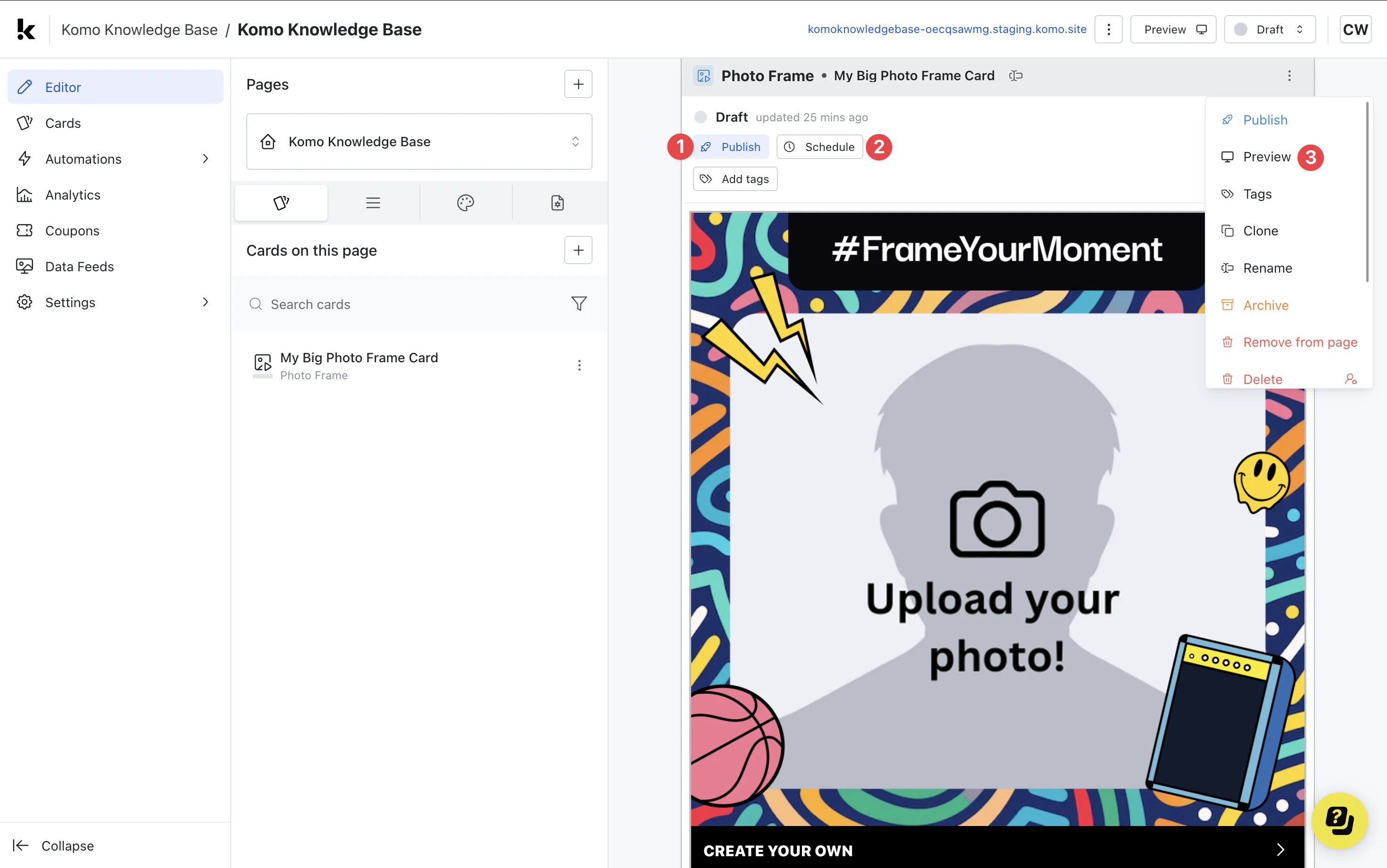
- (1) Publish your card manually and instantly for the world to see.
- (2) Schedule your card to be published and unpublished at set dates and times.
- (3) Click on … to Preview and interact with the card on the front end from a user’s perspective before publishing it. See how to test your card here.
All competition entries will be recorded and will impact the card analytics.
”Go live” checklist
Ready to go live with your Photo Frame? We recommend reviewing the following list before launching and double-checking if you have:- All images uploaded are the correct dimensions. Export image files in 2x to ensure none of the images appear pixelated.
- Added all your desired frames and thumbnails.
- Added a placeholder background image
Card Design Guidelines
Promotion
Stuck on how to promote your activation?
FAQ
When a photograph is taken where is it stored? If you go under the Gameplay Images tab you will be able to review and download all images that have been created on your card, within this card you will also be able to review the details of the user that has uploaded their photo. Is there a way to see the number of creations made? If you click on the Analytics tab, you can see a breakdown of stats relating to the card. Alternatively, you can check the number of creations made by clicking on the Gameplay Images tab and scrolling down to the bottom. What’s the purpose of uploading multiple frames? Uploading multiple frames gives your end user more flexibility to choose the frame that best aligns with their taste. When uploading a photo or taking a selfie, the end user will be able to apply any of the frames that you have uploaded to the card. Can users take photos/selfies in the Photo Frame? Yes, they can! Users can take photos from their mobile, laptop, or computer.Why don't users see a Select Frame picker?
Why don't users see a Select Frame picker?
The Select Frame picker only appears when the card has two or more frames. With a single frame, the picker is hidden.To offer a “no frame” photo, keep one fully transparent PNG as the only frame.
Can I pre-fill the data capture form from a link?
Can I pre-fill the data capture form from a link?
Yes. Add For embeds in a React Native app, pass
komo_f:<field Unique ID>=<value> query parameters to a hub or single-card URL. Values are stored for the browser session, stripped from the URL, and applied to matching form fields when the form opens. Prefill does not submit the form. Auto-submit is a separate setting and defaults to None, so users still see the form and must press Submit (including T&Cs) unless you switch auto-submit on. Link values apply even when a field’s Pre-fill this field with data from the contact setting is off, because that setting only covers saved contact details. See Data Capture for auto-submit options.If the URL already has a ?, append further parameters with &.formPrefillValues instead. See Mobile App Integration and the Forms developer docs.Can I put the Photo Frame inside our app or website instead of the Hub?
Can I put the Photo Frame inside our app or website instead of the Hub?
Yes. Embed Photo Frame like any other card: open the card’s Embed tab and use Get embed code, or the Native embed URL for React Native. See Embed Cards.
Top Tips
- Use a team guernsey and get users to upload a photo of themselves in support of their favorite team!
-
Make a ‘frame’ for your meme canvas. A frame will be a border you put around an image and here you can include your logo/imagery. This frame will be permanent, so when users upload a photo, the frame will be visible each time. A frame is great to include as when users share their creations, it will include your logo/imagery and help promote your brand.
The frame will look like below:
 The cover of the card will update as below: