
Use Carousel (Vote) for votes with image, video, or PDF options. Add it from Add content → Media → Carousel (Vote). The older Vote card is no longer in Add content. Existing Vote cards keep working.
What is it?
Carousel (Vote) displays multiple images, videos and PDFs within one card. Users can then view and vote on their favourite piece of content.How do I build one?
- Step 1: Add a Carousel (Vote) card to your Hub
- Step 2: Add your Content
- Step 3: Configure Data capture
- Step 4: Publish your card
Step 1: Add a Carousel (Vote) card to your Hub
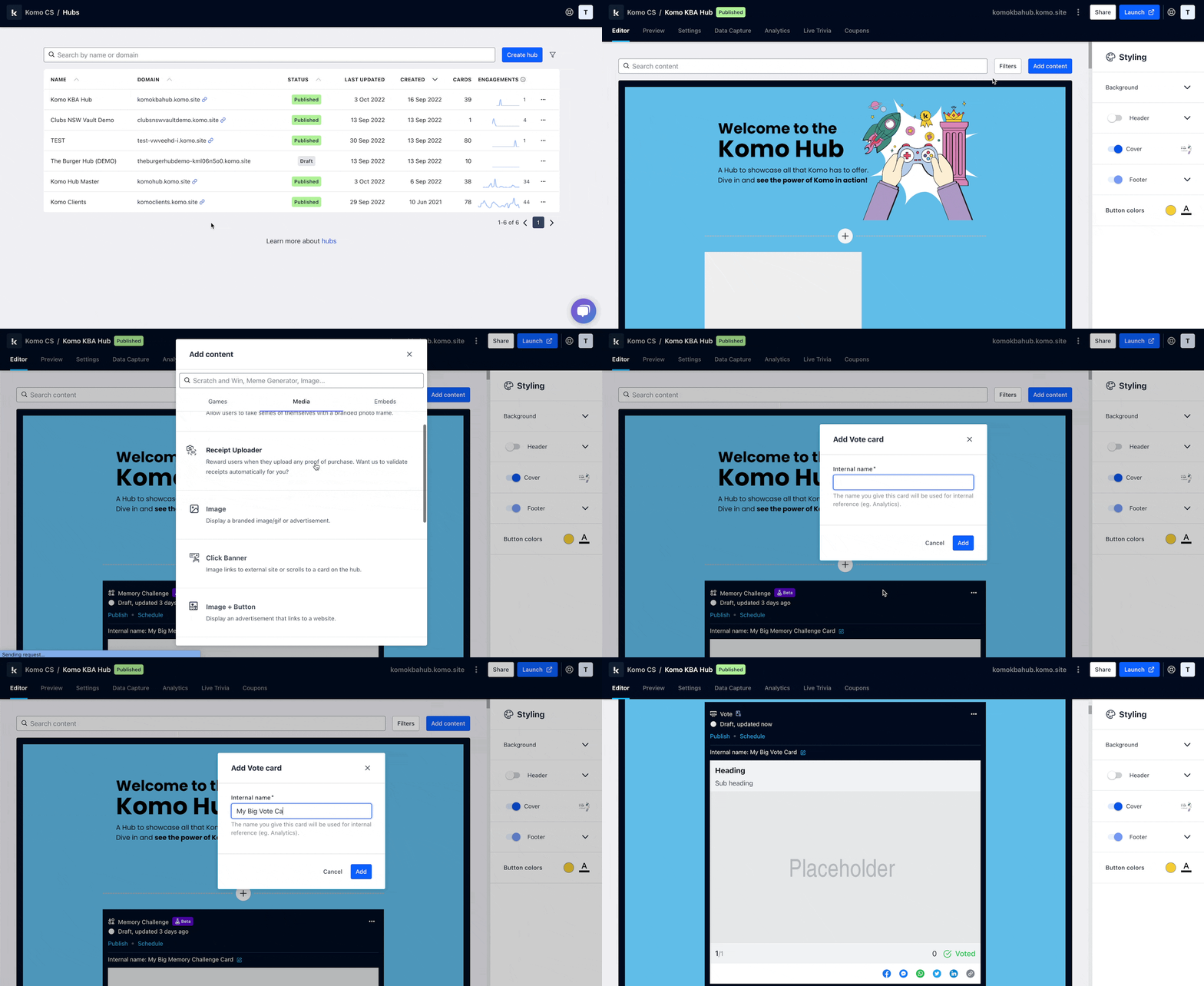
- Navigate to your Engagement Hub.
- Once there click Add content, from here select Media and then Carousel (Vote).
- You will then see your new card has been added to your Hub.
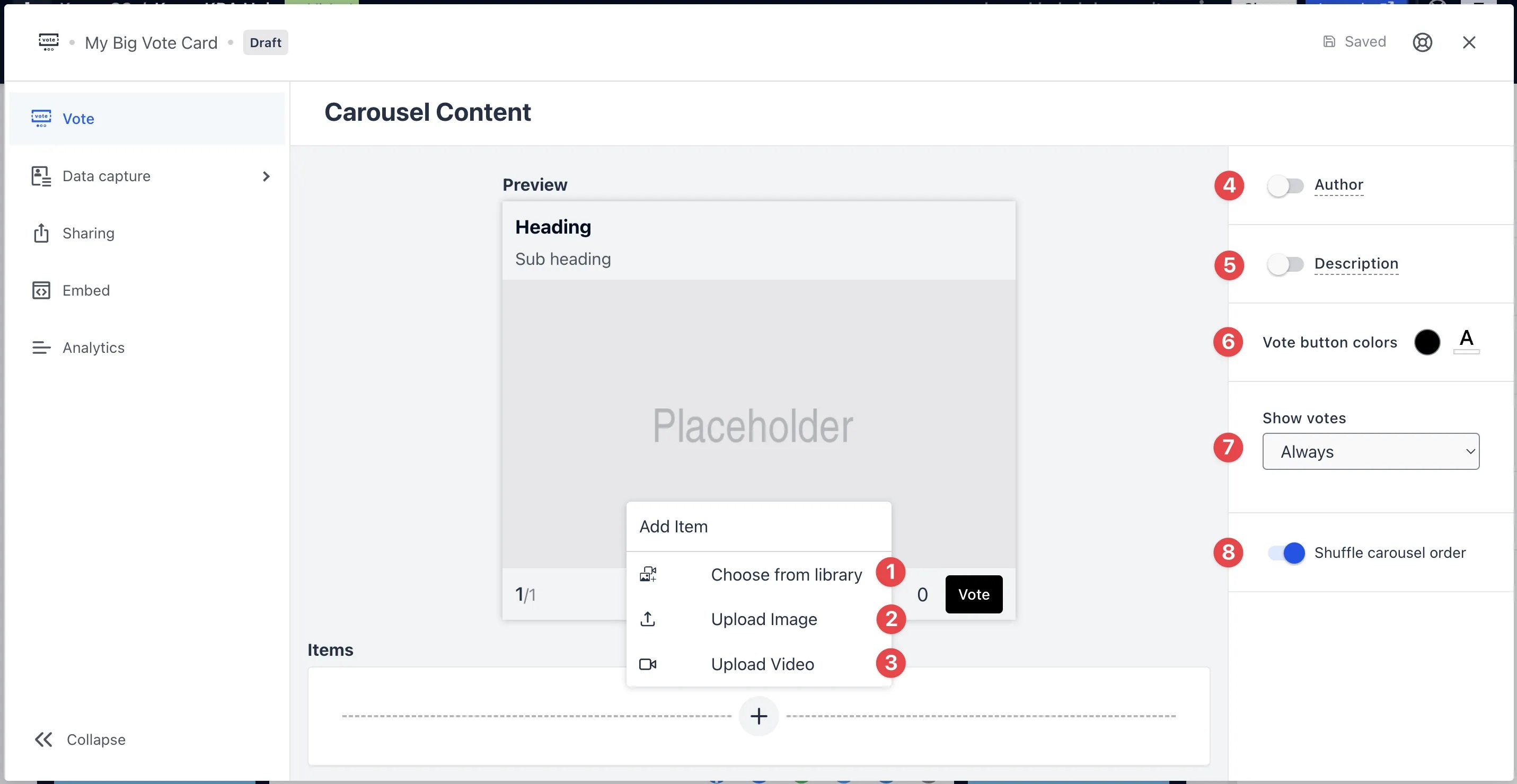
- Clicking on the Carousel (Vote) card will open the editing module.
- (1) Clicking on the plus icon, you can add to your card by choosing content from your Hub’s asset library. Content collected through the Upload card once approved will be added to your Hub’s asset library.
- (2) Clicking here will allow you to upload content from your computer.
-
(3) Here you can upload a video from your device or using a video URL. Learn more on how to get a video URL here.
Carousel Items
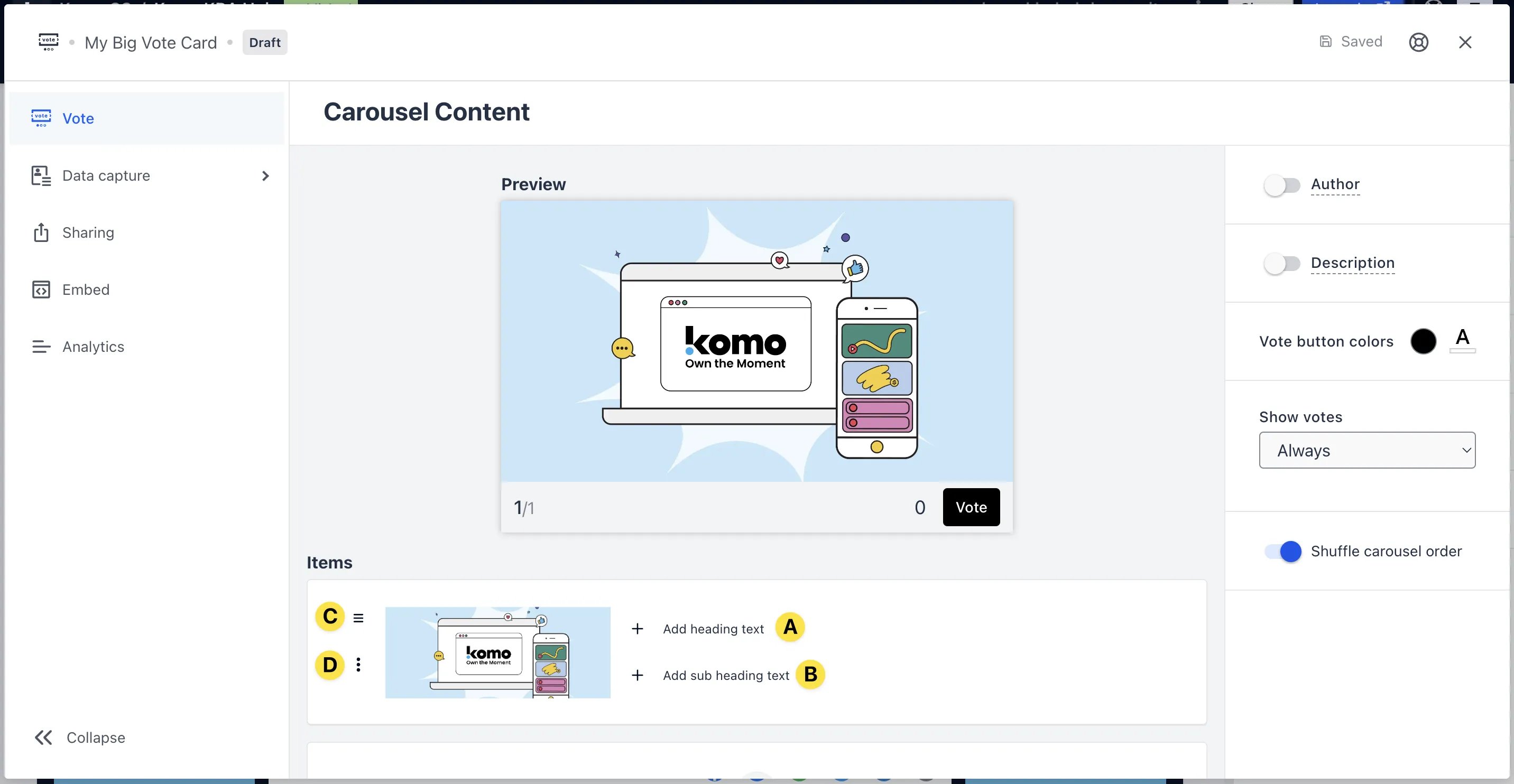
- (A) Here you can add a header text that will appear above the piece of content in the Carousel which will update in the preview above
- (B) Add in the subheader text that appears above that piece of content which will update in the preview above
- (C) Use this option to rearrange content in the Carousel
- (D) Clicking here you can delete content
- (4) You can add an author tag by displaying the brand or person who’s responsible for the card content
- (5) Add a description to the card
- (6) Toggling this option will shuffle the order of content within the Carousel
- (4) You can add an author tag by displaying the brand or person who’s responsible for the card content.
- (5) Add a description to the card.
- (6) Here you can configure the vote button colours
- (7) Set when/if you want to show the current percentage of votes.
- (6) Toggling this option will shuffle the order of content within the vote carousel.
Step 3: Configure Data capture
Carousel (Vote) includes a required data capture form. Configure it rather than adding a separate form.Ready to set up your competition?
Step 4: Publish your card
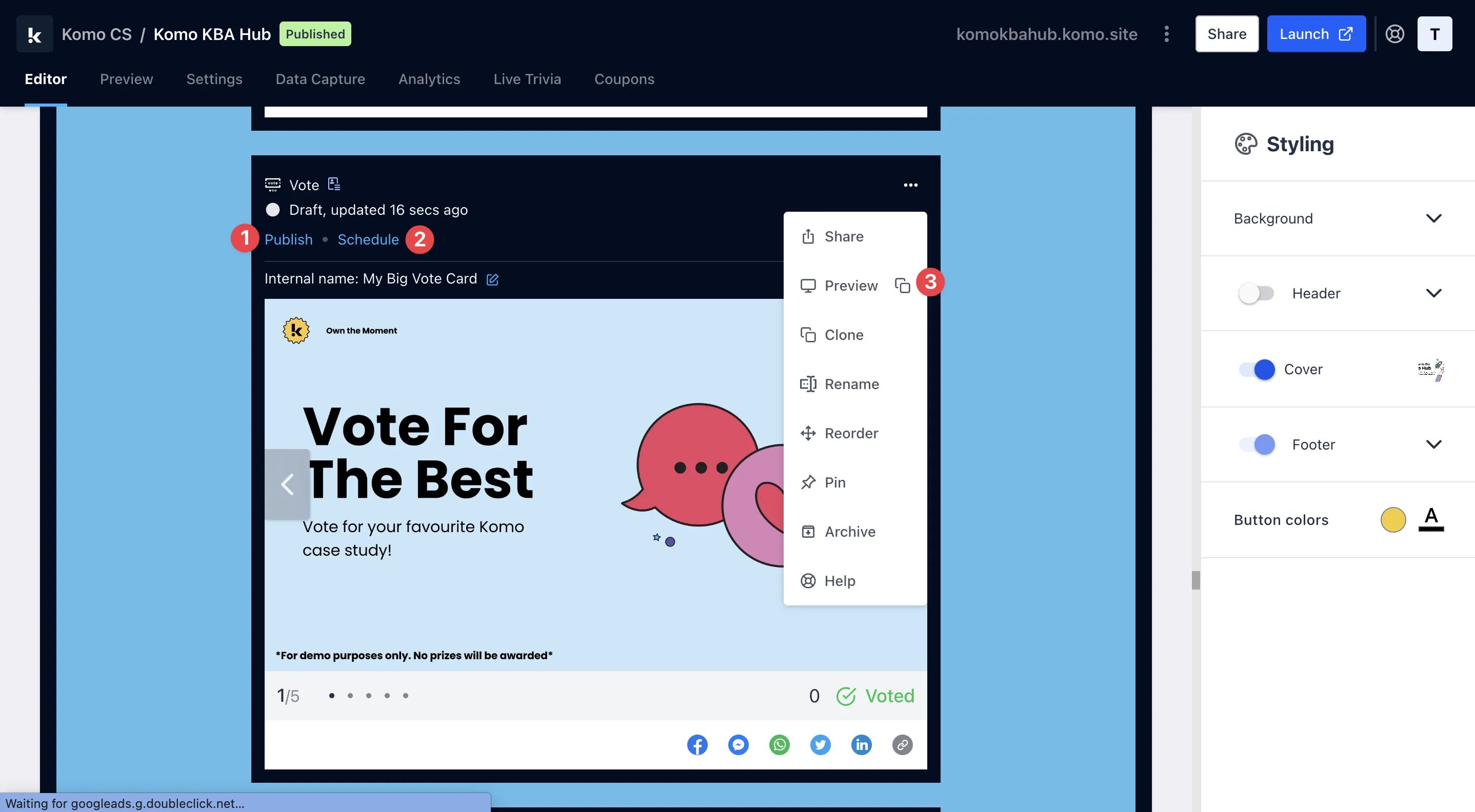
- (1) Publish your card manually and instantly for the world to see.
- (2) Schedule your card to be published and unpublished at set dates and times.
- (3) Click on … to Preview and interact with the card on the front end from a user’s perspective before publishing it. See how to test your card here.
All competition entries will be recorded and will impact the card analytics.
Card Design Guidelines
Promotion
Stuck on how to promote your activation?
FAQ
Can people vote multiple times? Yes. Open General under the data capture settings and set the number of entries to Unlimited. What’s the difference between Carousel (Vote) and Vote? Carousel (Vote) is the card in the catalogue for image, video, and PDF voting. Vote is an older card that is no longer available to add. Existing Vote cards keep working, but use Carousel (Vote) for anything new. What files can I upload? You can upload the following file formats into the Carousel (Vote) card;- Images: png, gif, jpeg, jpg, webp, pdf
- Videos: mp4, 3gpp, mpeg, ogg, quicktime, webm, m4v