
What is it?
The UGC Upload card allows users to upload images, videos and PDFs in an easy and intuitive manner. Once uploaded and approved, this content sits in your asset library. One popular use for this content is sharing it in a Carousel (Vote) or Carousel card.Watch it come to life
How do I build one?
- Step 1: Add a UGC Upload card to your Hub
- Step 2: Set up your card settings
- Step 3: Add a Data capture
- Step 4: Publish your card
Want the design asset guideline?
Step 1: Add a UGC Upload card to your hub
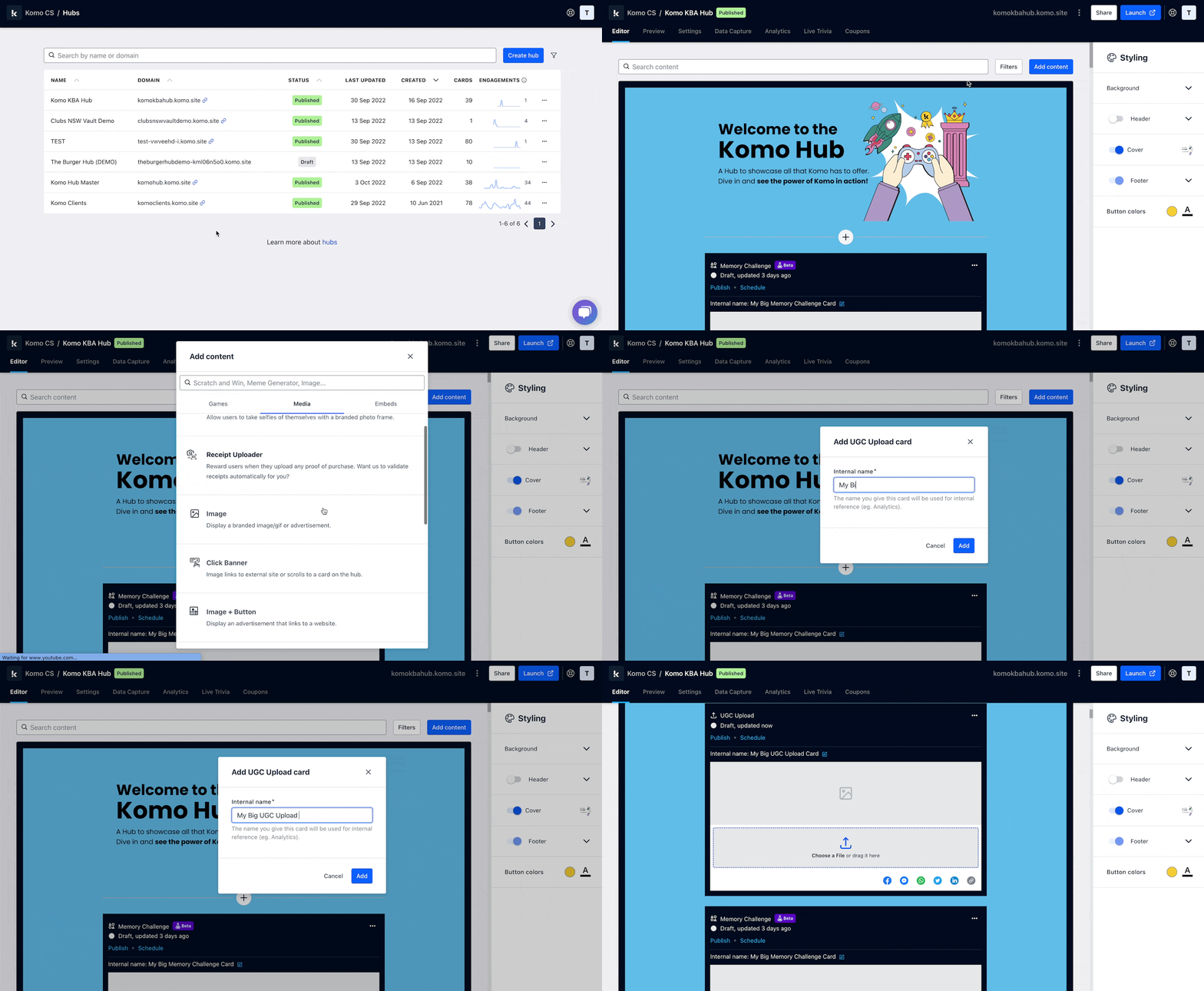
- Navigate to your Engagement Hub.
- Once there click Add Content, from here select Media and then UGC Upload.
- You will then see your new card has been added to your Hub.
Step 2: Set up your card settings
-
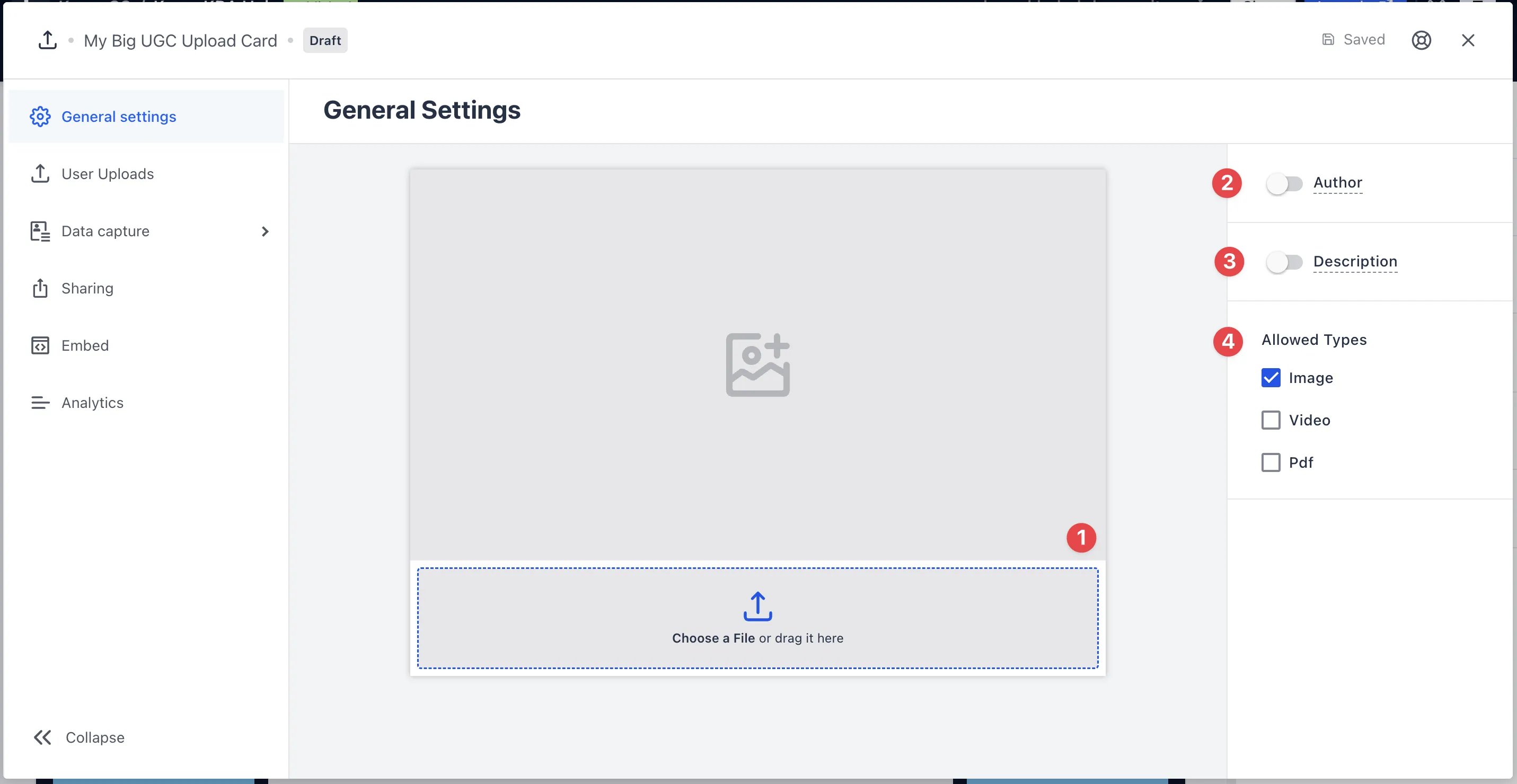
Clicking on the UGC Upload will open the editing module. (1) Click here to add your cover image. (2) You can add an author tag by displaying the brand or person who’s responsible for the card content. (3) Add a description to the card. (4) Here you can configure what file types users can upload. For a more detailed overview of compatible file, formats click here.
Viewing User Upload
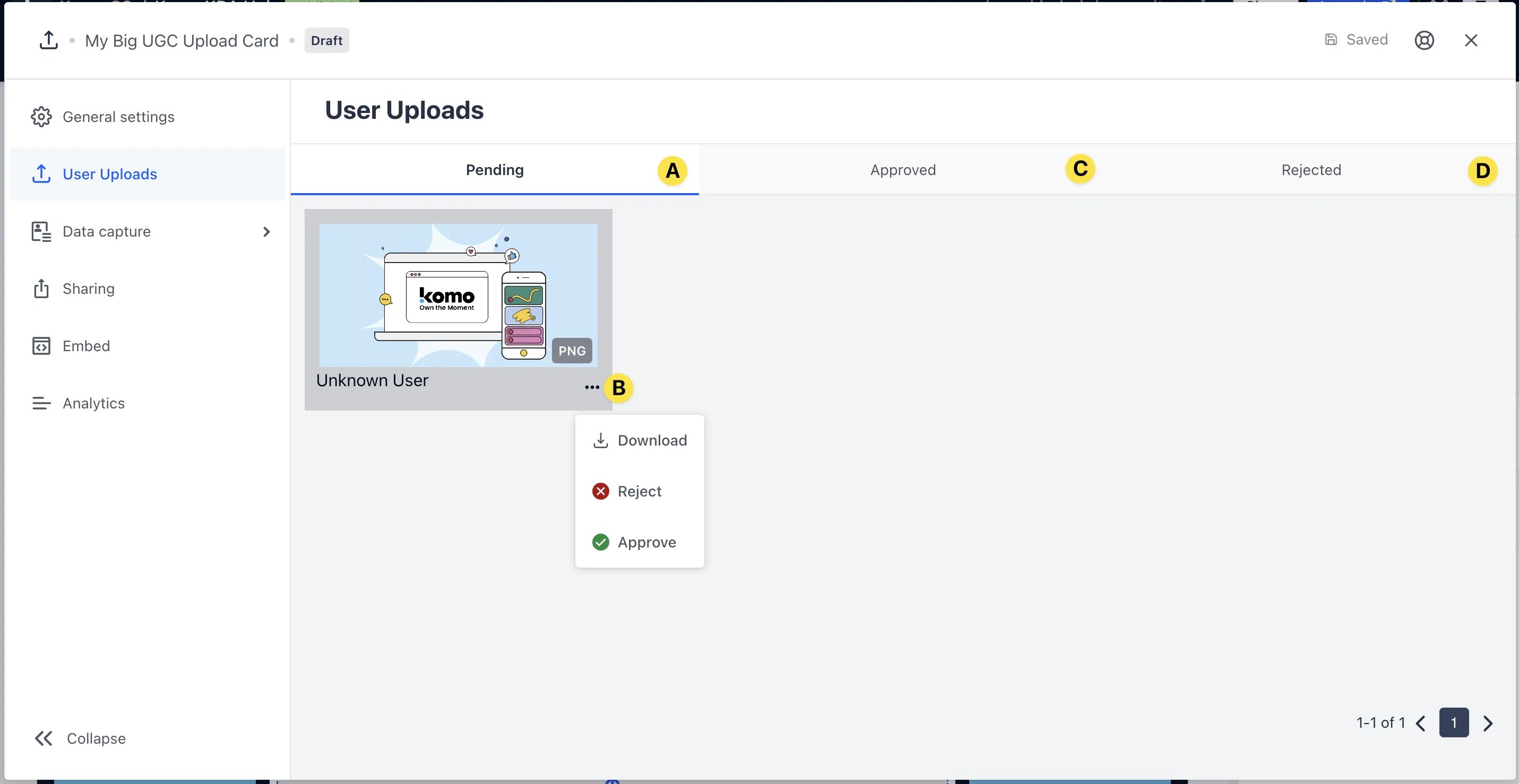
- (A) Once a user has uploaded a piece of content you can view the submission in this tab.
- (B) Clicking on the three dots will provide options for you to organise the submissions. Clicking Download will download that piece of content, Approve will move that piece of content to the approved tab (C), Reject will move that submission to the rejected tab (D)
- Bulk actions: select multiple uploads, then Approve or Reject all selected.
- Content that has been approved will be added to your asset library which will enable you to instantly add it to the Carousel (Vote) and Carousel cards.
Step 3: Add a Data capture (Optional)
Add a Data Capture to your UGC Upload card if you want to collect user data.Ready to set up your competition?
Step 4: Publish your card
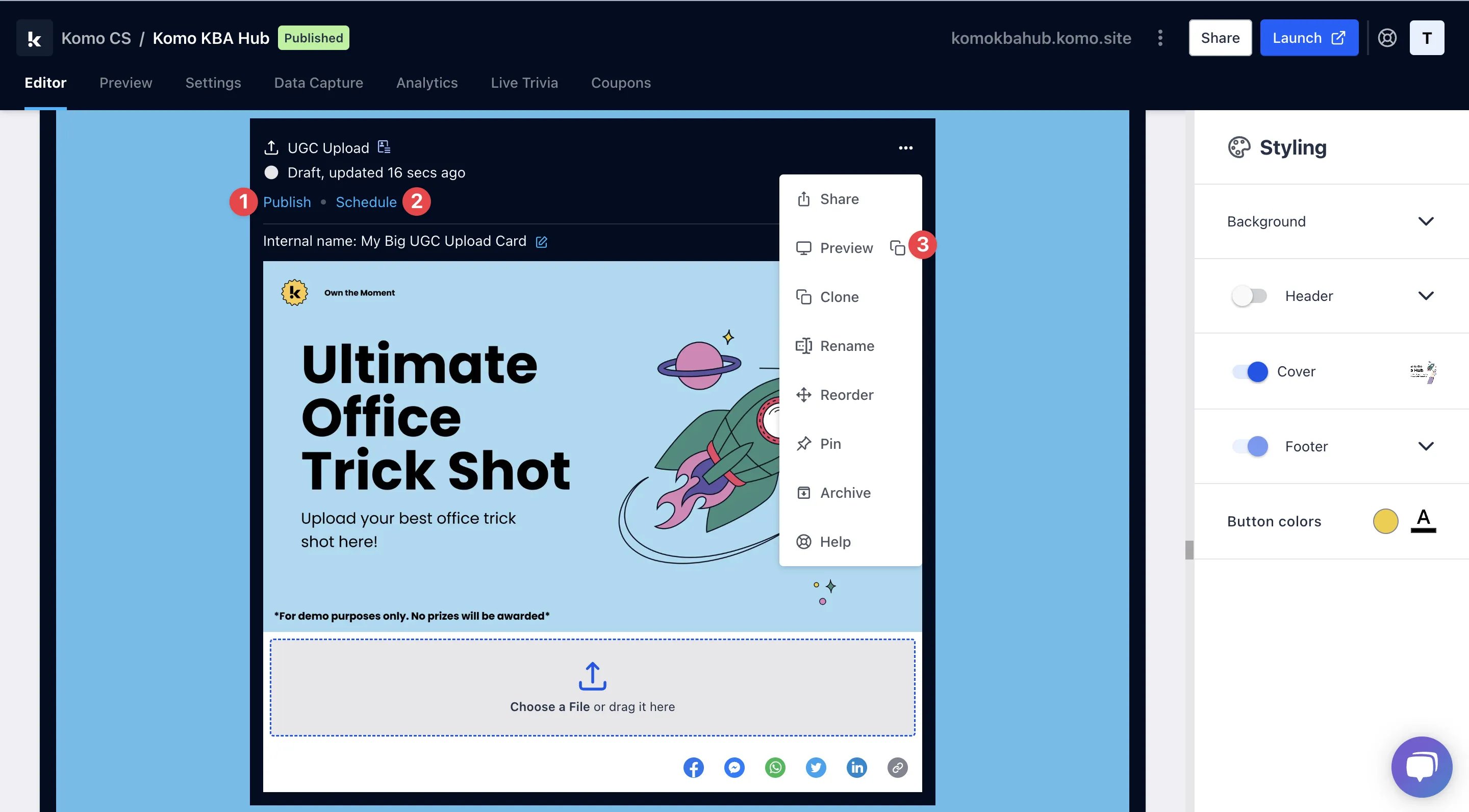
- (1) Publish your card manually and instantly for the world to see.
- (2) Schedule your card to be published and unpublished at set dates and times.
- (3) Click on … to Preview and interact with the card on the front end from a user’s perspective before publishing it. See how to test your card here.
All competition entries will be recorded and will impact the card analytics.