
What is it
When inviting new members you have the choice to give them a role of either a viewer, editor, or owner. Viewers will only be able to overlook your company without the ability to edit. The editor role grants these lack of permissions and the owner grants equal ability to you. You also have the ability to resend invites if needed.How do I do this?
Step 1: Navigate to the Company settings
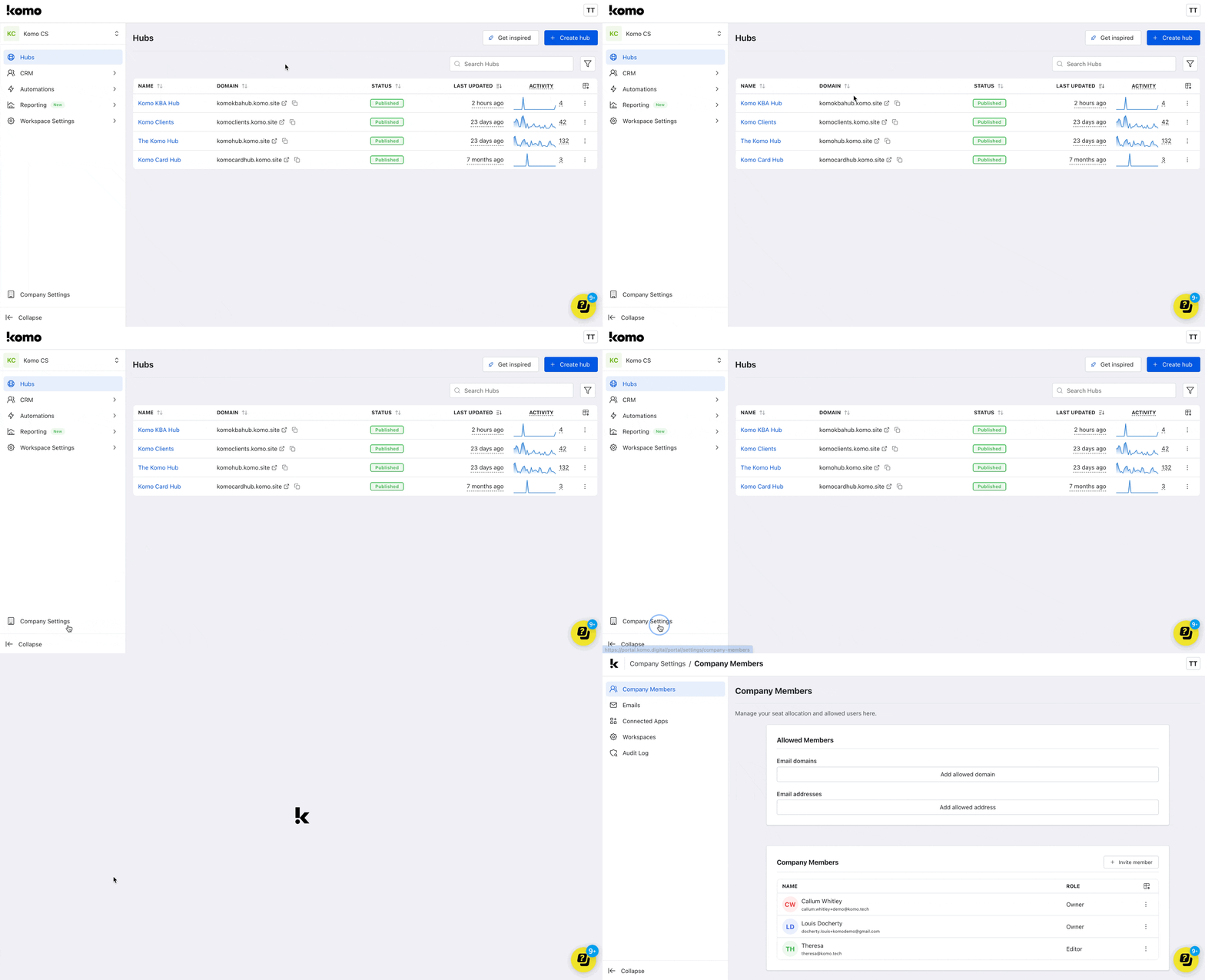
- Head to the Company settings on the company dashboard.
Step 2: Invite new members to your company
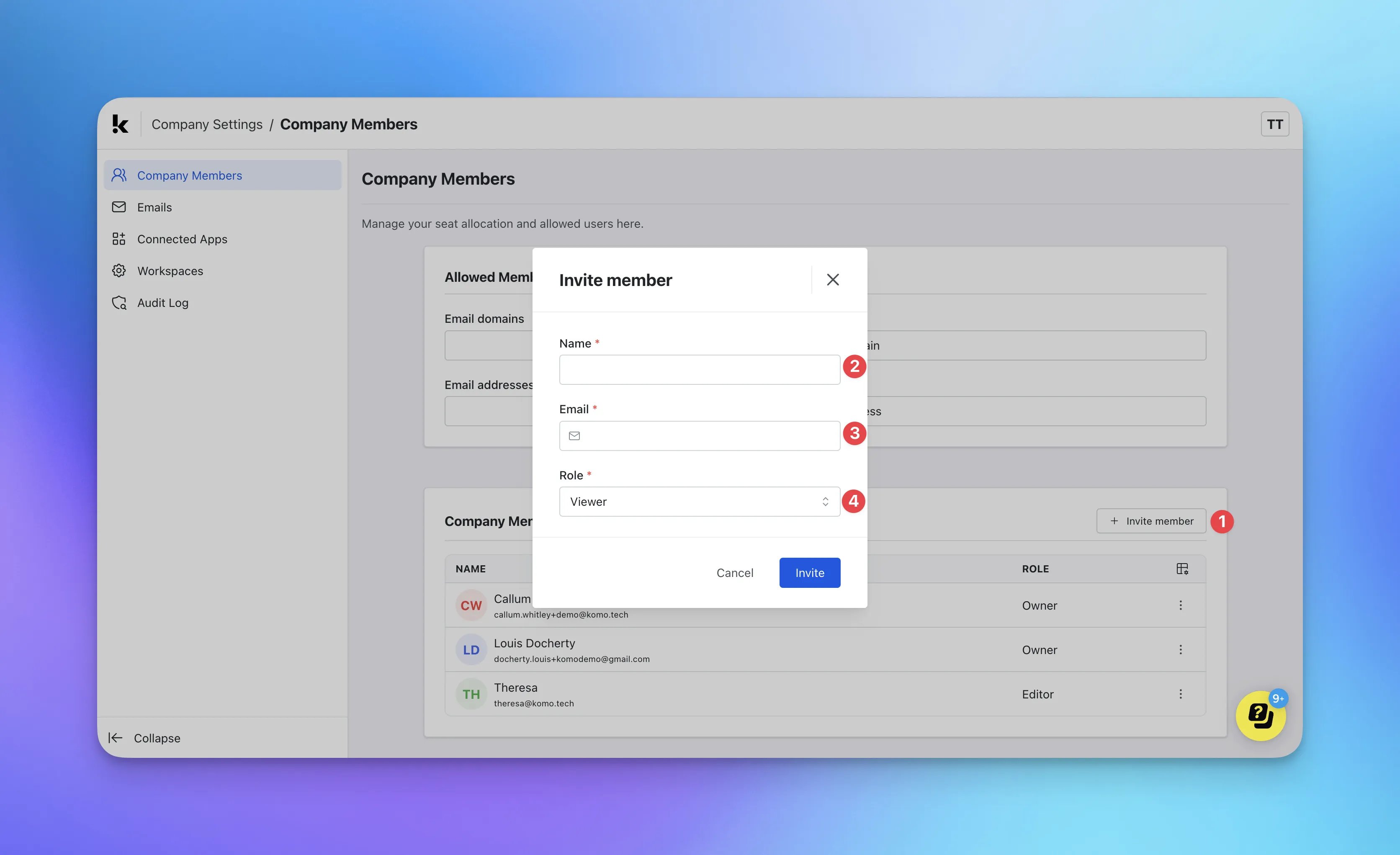
- (1) Under the Company members section, click on Invite member.
- (2) + (3) Enter the new member’s email and name.
- (4) Select the role for the member. You can select from three; viewer, editor or owner.
- Once a member has been invited, they will receive an email promoting them to create an account.
FAQ
How do I change a member’s email address (for example, after a company rebrand)? On the Company Members page (under Company Settings), you can update an accepted member’s email. Changing the email does not change their role or workspace access unless you also change those.- Open Company Settings → Company Members.
- If your company has Allowed Members rules (Email domains or Email addresses), the new email must match them — otherwise the form shows “Email does not match required format for company”. When moving to a new email domain, add it under Allowed Members → Email domains first (this section is visible to members with the Owner role).
- In the members table, open the … menu for the member and select Update.
- In the Update member modal, change the Email field. You can also update Name, and Role if you are allowed to assign roles.
- Click Update. A “Member updated” toast appears.