
What is it?
Create a new sender email with your personalised domain to fully brand your emails. Here you can connect your marketing emails to your Komo communications and include a reply-to email to allow users to reach out to.How do I set it up?
Step 1: Navigate to your Account Settings
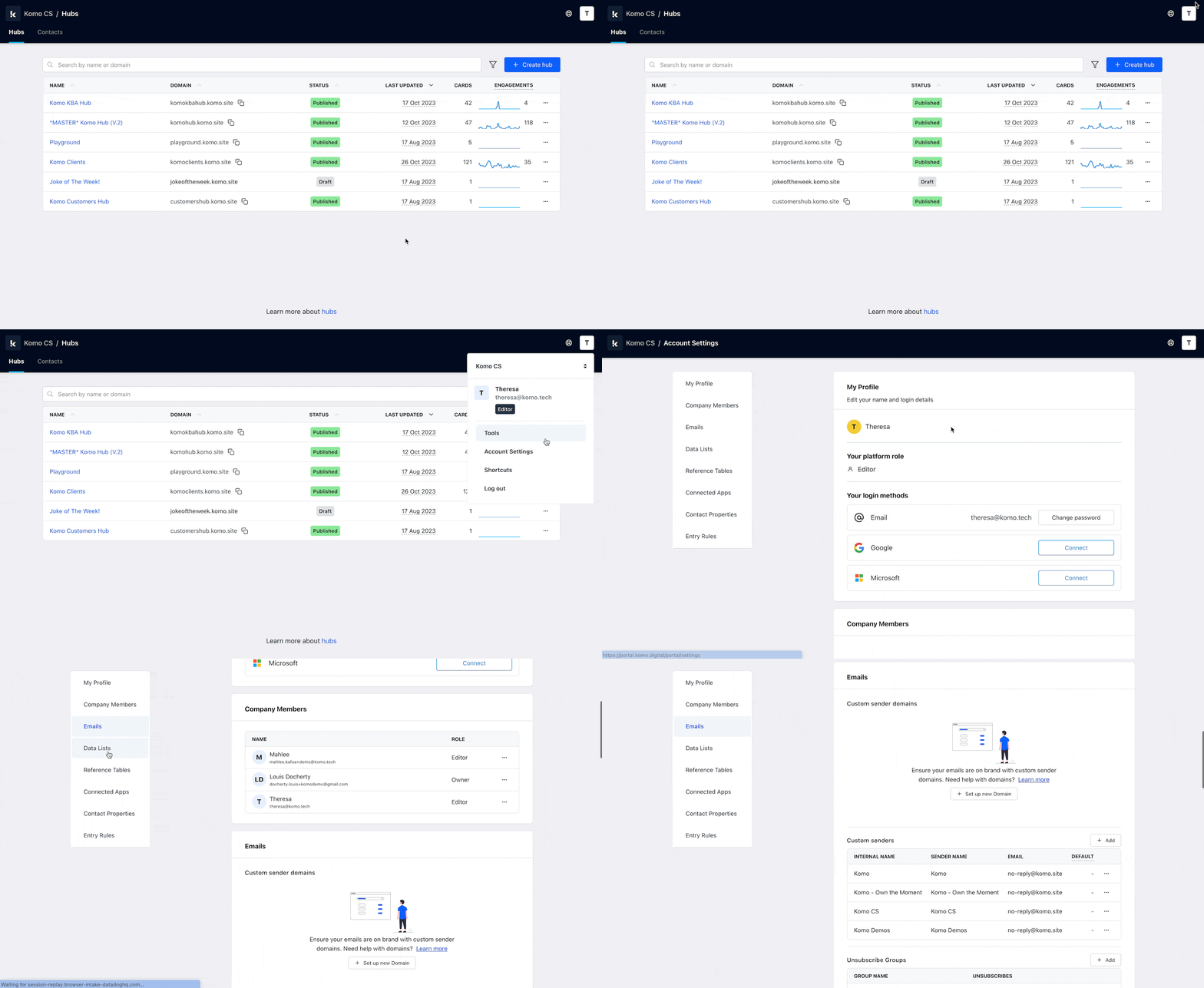
- Head to your Hub then select your icon on the top right of the Komo portal.
- Click on Account Settings followed by Custom sender domains.
Step 2: Set up a new Domain
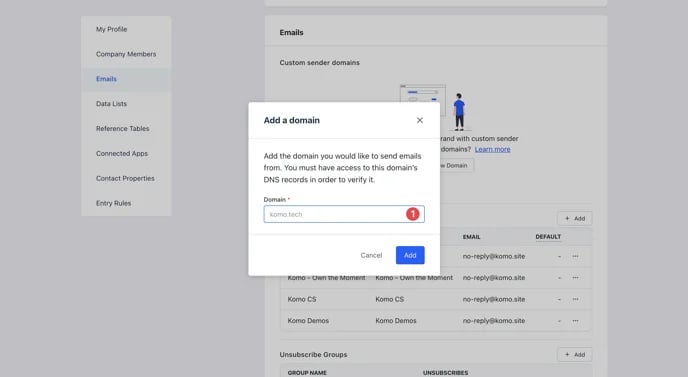
- Click on Set up a new Domain.
- (1) Add the domain you would like to send emails from.
You must have access to this domain’s DNS records in order to verify it.
Step 3: Verify your Domain
- Head over to your DNS provider and add DKIM and Return-Path DNS records to verify your domain and ensure effective delivery.
- Click on the … and then select Verify.
Once verified, the DKIM Verified and Return-Path Verified columns will change to a tick.
Step 4: Add your sender name
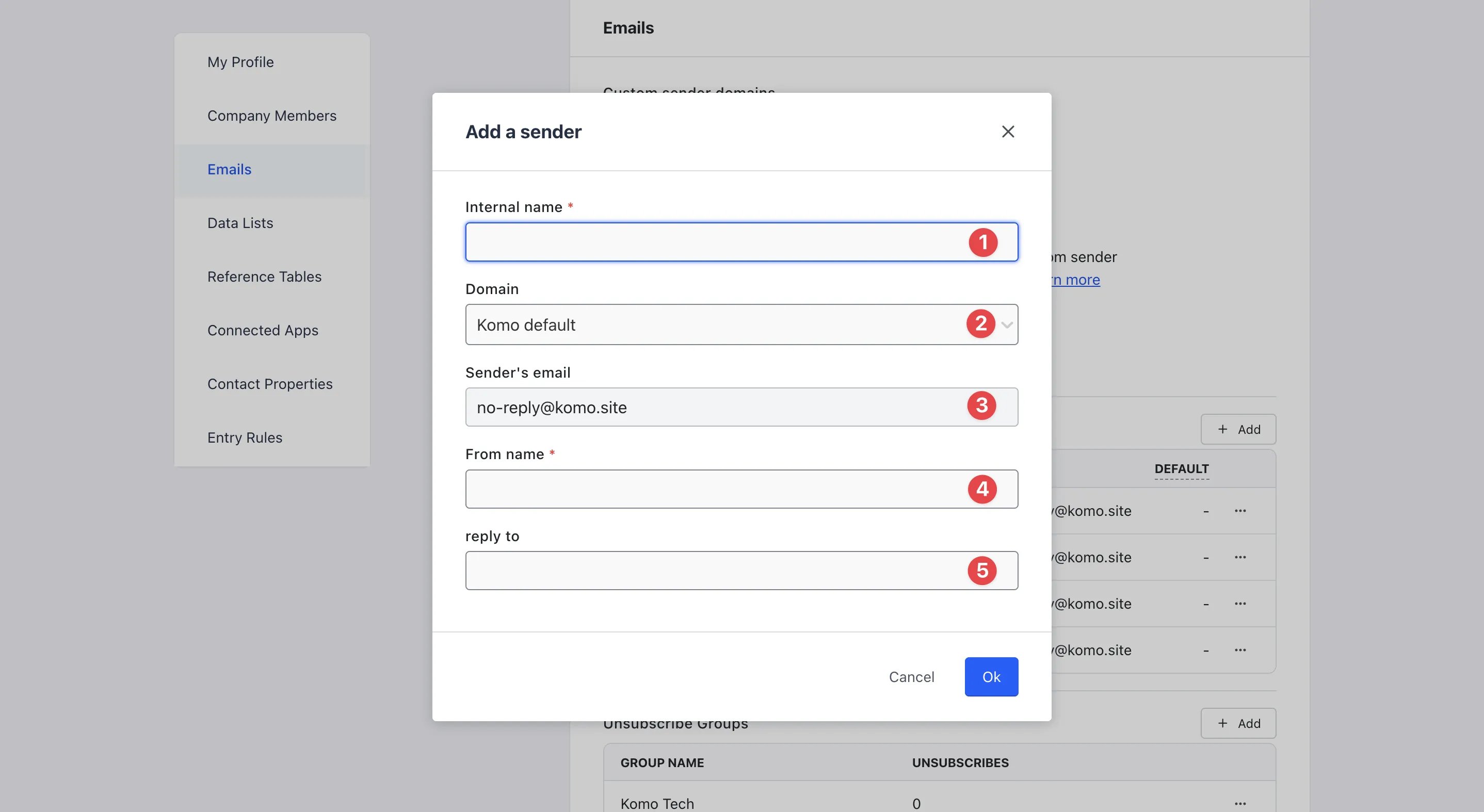
- Click on Add to set up your sender email.
- (1) Here is where you’ll enter an internal name.
- (2) Using the drop-down, select the domain you wish to use.
- (3) Enter the email you wish to use before the domain.
- (4) Include a from name that will appear with the email.
- (5) Add a reply to email here for users to email when they receive your communications and have any follow-up questions.
Step 5: Mark the sender email as Default
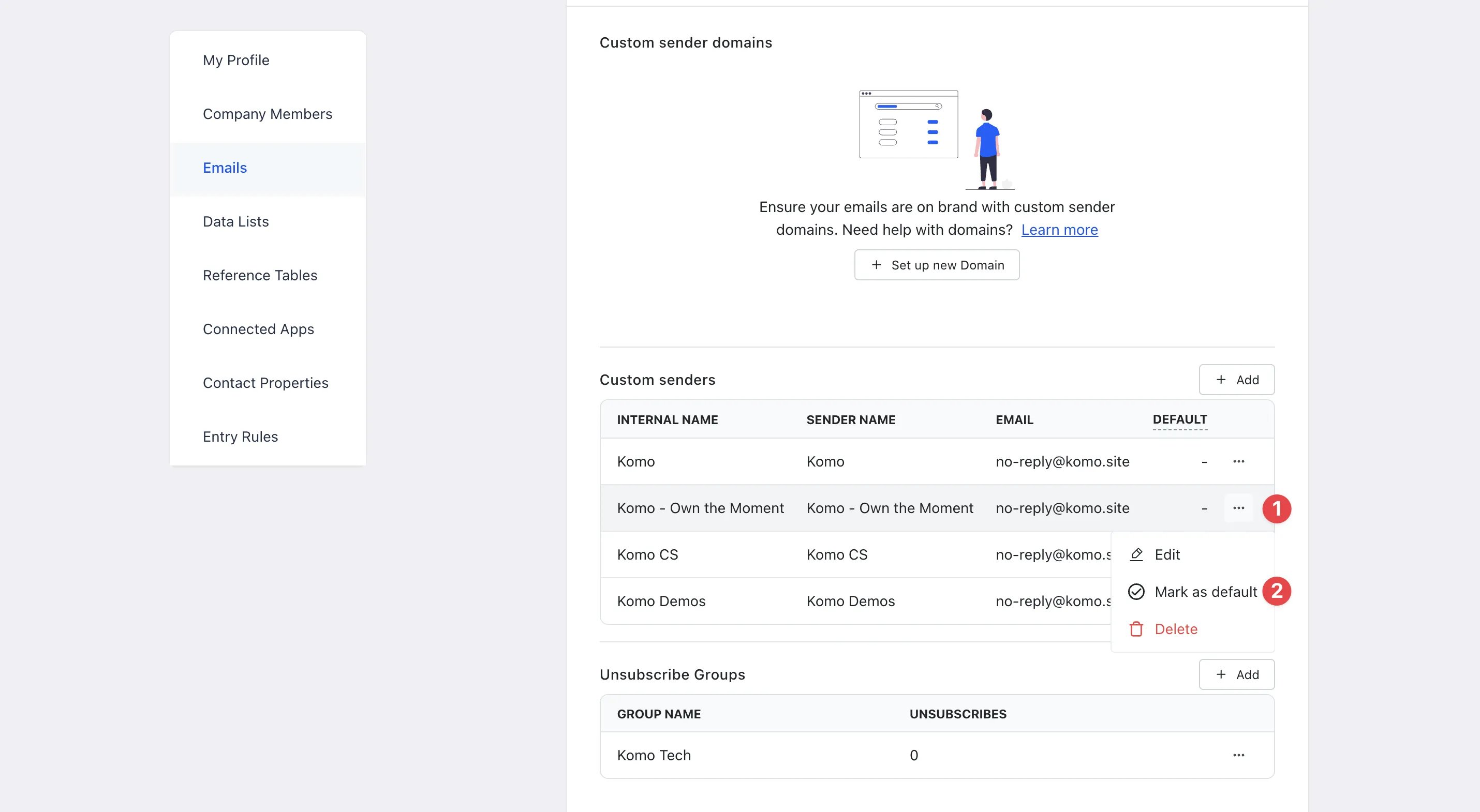
- (1) Click on the … next to the sender email.
- (2) Select Mark as default.
Marking the sender email as default to automatically use this email for all communications created.
FAQ
Can I have multiple sender emails?Yes, you can have different sender emails set up. To select a different sender email when creating a communication, use the Sender info drop-down and select the email you wish to use. Do I need to mark an email as default? We do highly recommend marking one as default so this sender email will always be used when you set up a communication. This is to avoid using the incorrect email if you have multiple setups. Can I edit already created sender emails?
Yes, if you click on the … next to the email, you have the option to edit, mark/remove as default or delete. What if we require an SPF record to enable a 3rd party to send emails on behalf of our domain? SPF records are not required, provided you have DKIM and Return Path set up, which Komo requires to set up a custom email domain. If you still wish to add the SPF record, you can see how to do this here.