
How do I do this?
Step 1: Schedule the card
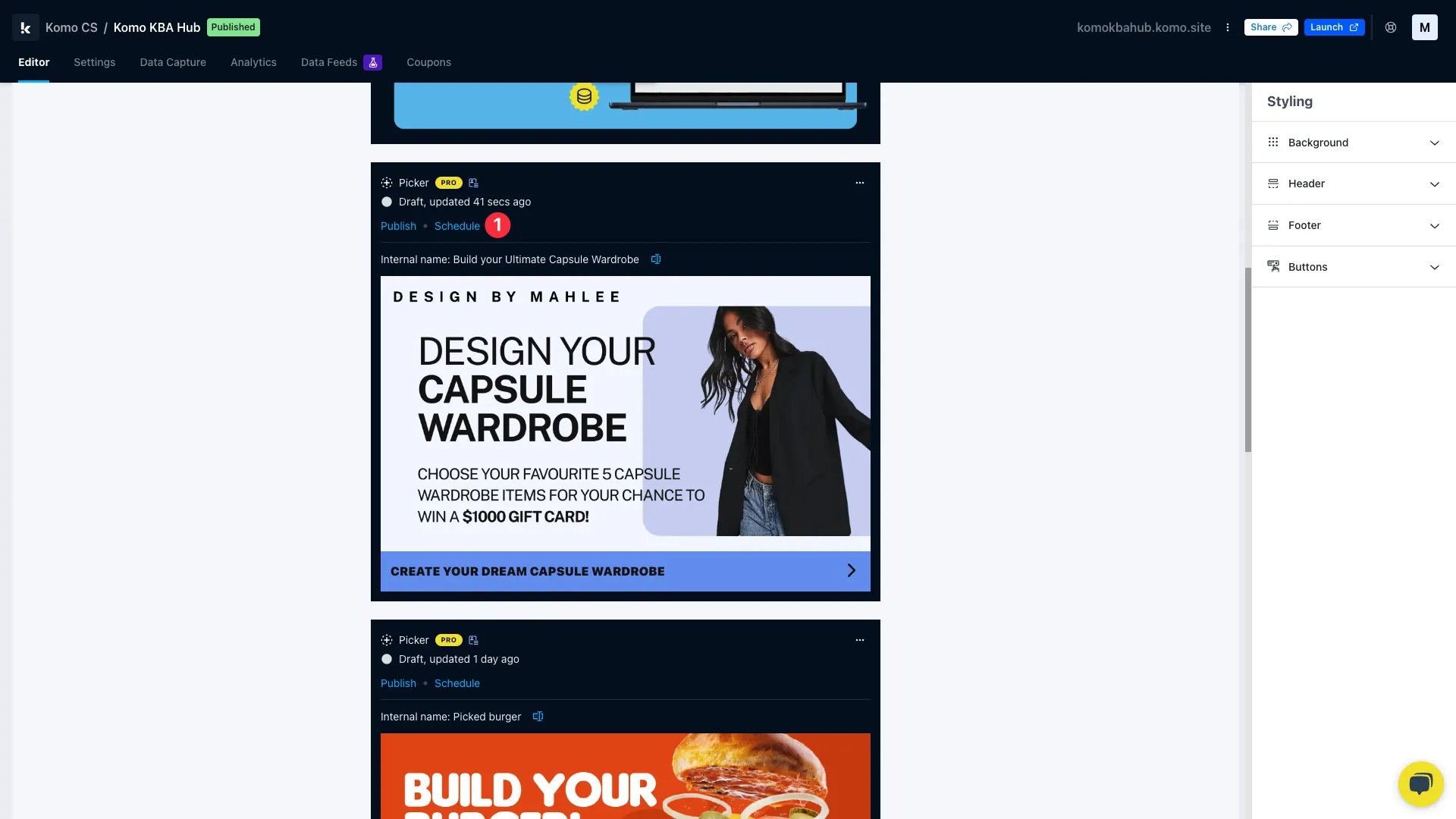
- (1) Click Schedule once you’ve completely built out your card and are ready to schedule it.
Step 2: Set the dates and times
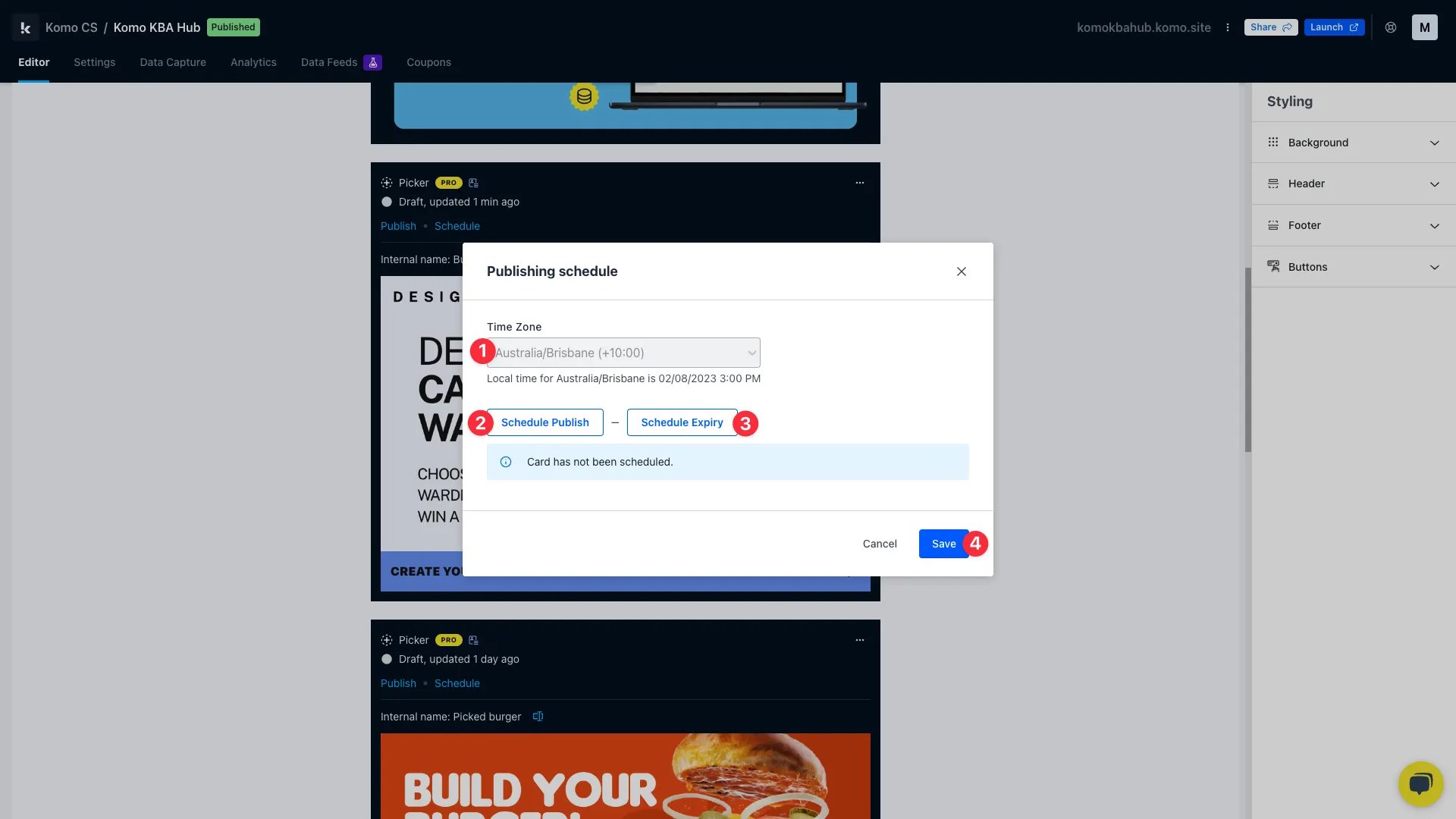
- (1) Here you can set the timezone to reflect when you wish to schedule your Card.
-
(2) Click Schedule Publish to set a date and time you want the card to publish on the Hub.
Schedule Publish
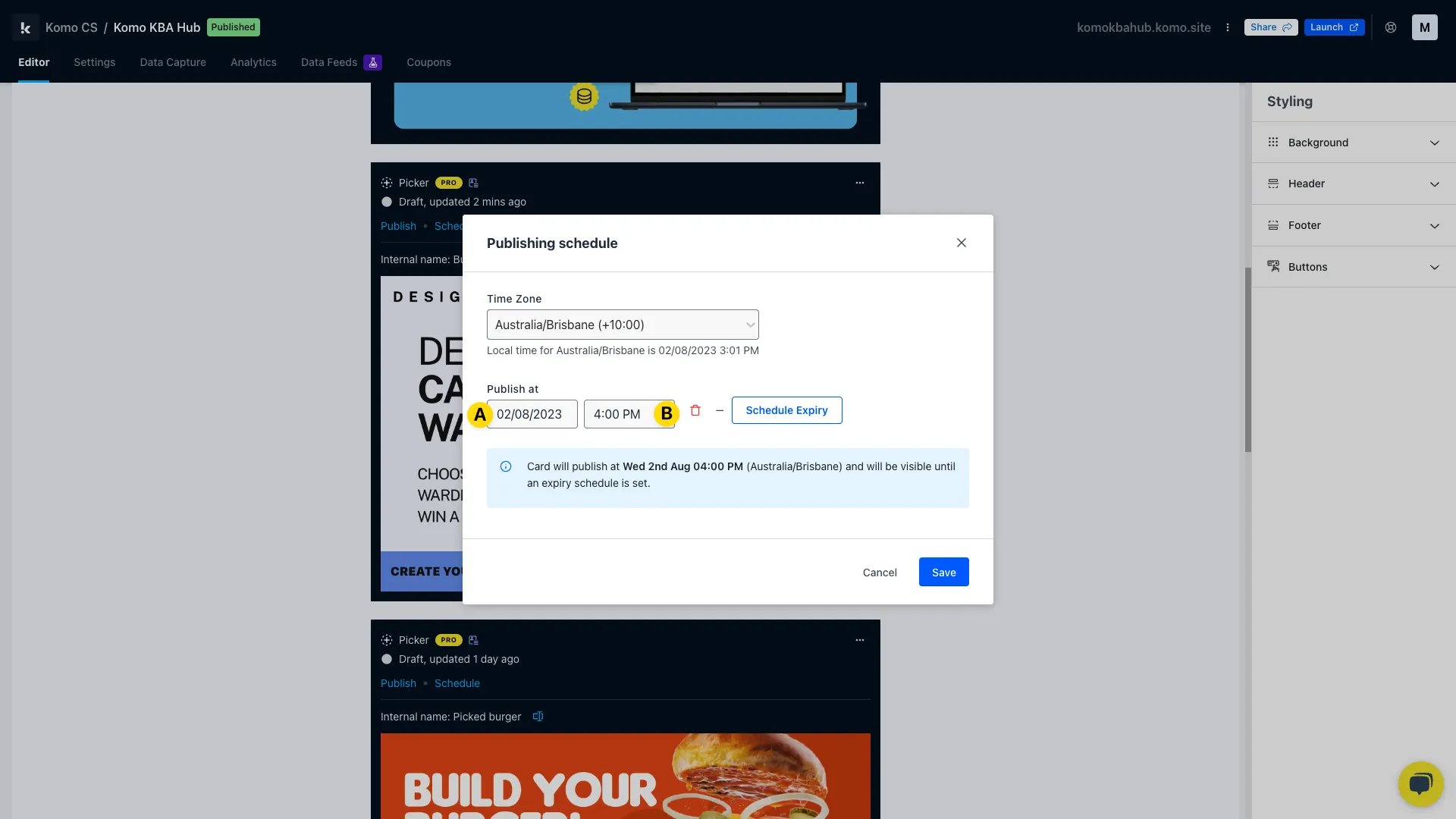
- (A) Click here to select the date the card will publish on.
- (B) Here you can set the time the card will publish at.
-
(3) Click Schedule Expiry to set a date and time you want the card to unpublish on the Hub.
Schedule Expiry
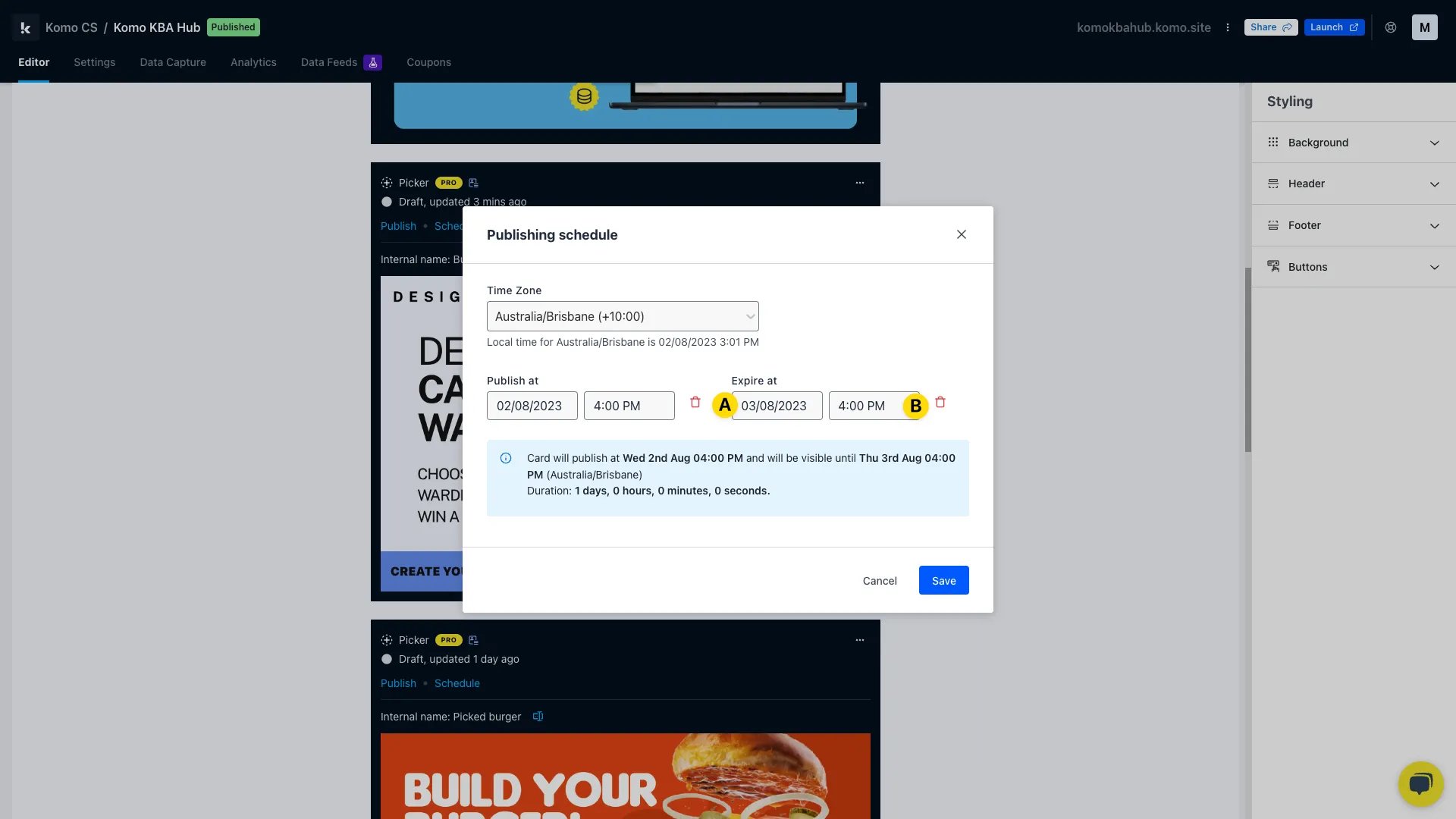
- (A) Click here to select the date the card will unpublish.
- (B) Here you can set the time the card will unpublish.
- (C) Select a Status after un-publish:
- Draft (default) — the card returns to draft status so you can edit and republish it later.
- Archived — the card is archived, removed from any pages, and associated game state (for example trivia questions) is reset. Use this when the campaign is fully complete.
- (4) Click Save once you’re happy with the selected date and time.
The Status after un-publish option only appears when you set an un-publish date.
Step 3: Overview of the scheduled times
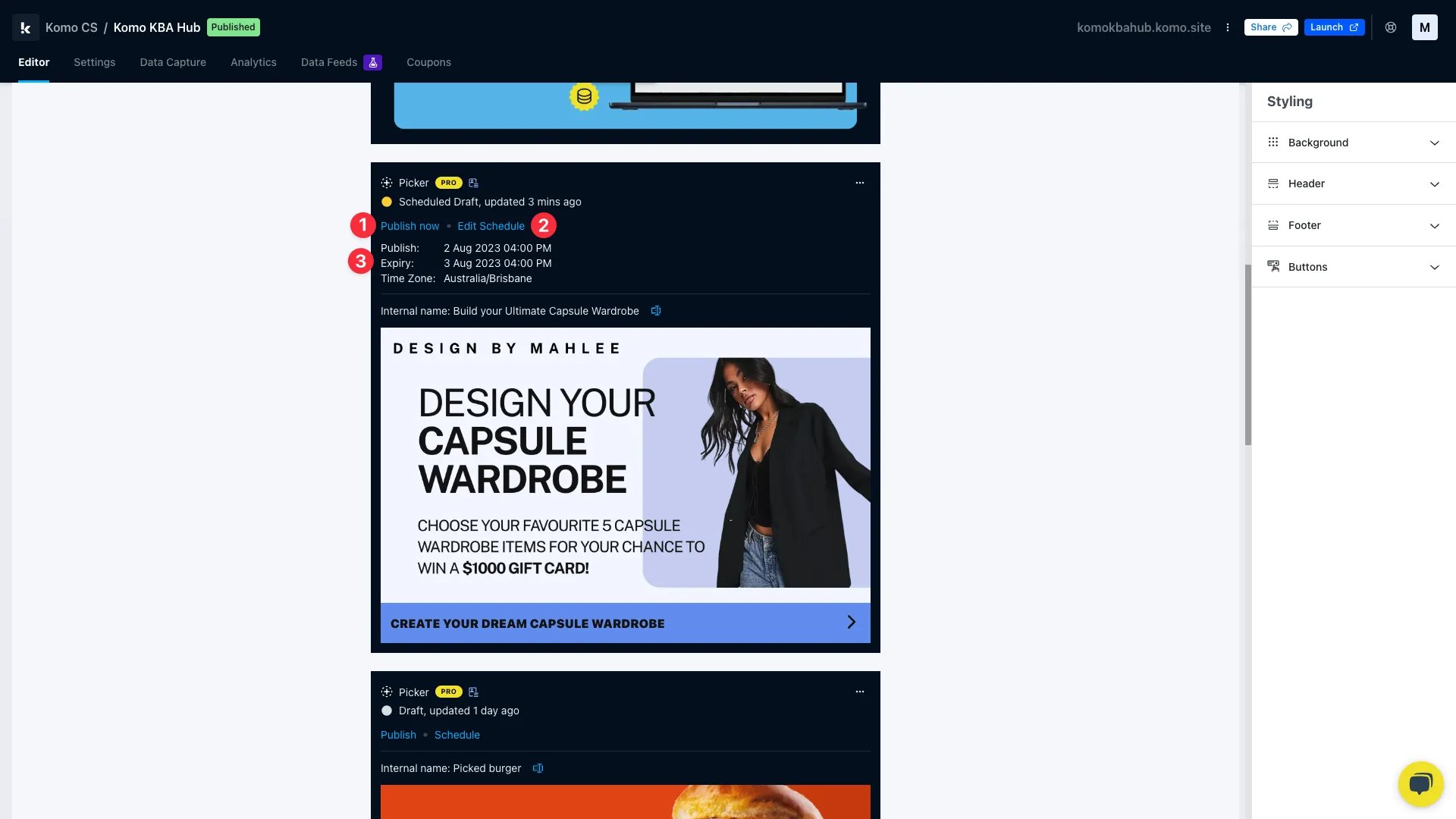
- (1) If you change your mind and want to immediately publish the card, you can click Publish now.
- (2) You can edit the dates and time of the schedule here.
- (3) Here is an overview of the scheduled times.
What happens when a scheduled unpublish runs
When the scheduled unpublish time arrives:- The card is automatically taken off the Hub.
- If the target status is Draft, the card returns to draft and can be edited or republished.
- If the target status is Archived, the card is archived. Archiving also removes the card from all pages it appears on and resets any associated game data (such as trivia or predictive game questions). Restoring those elements later requires manual re-setup.