
This feature will only add the data capture form when it is first created; you are still able to alter the Data Capture on a case-by-case basis to suit whatever competition you are running.
How to build one:
Step 1: Go to the Hub settings
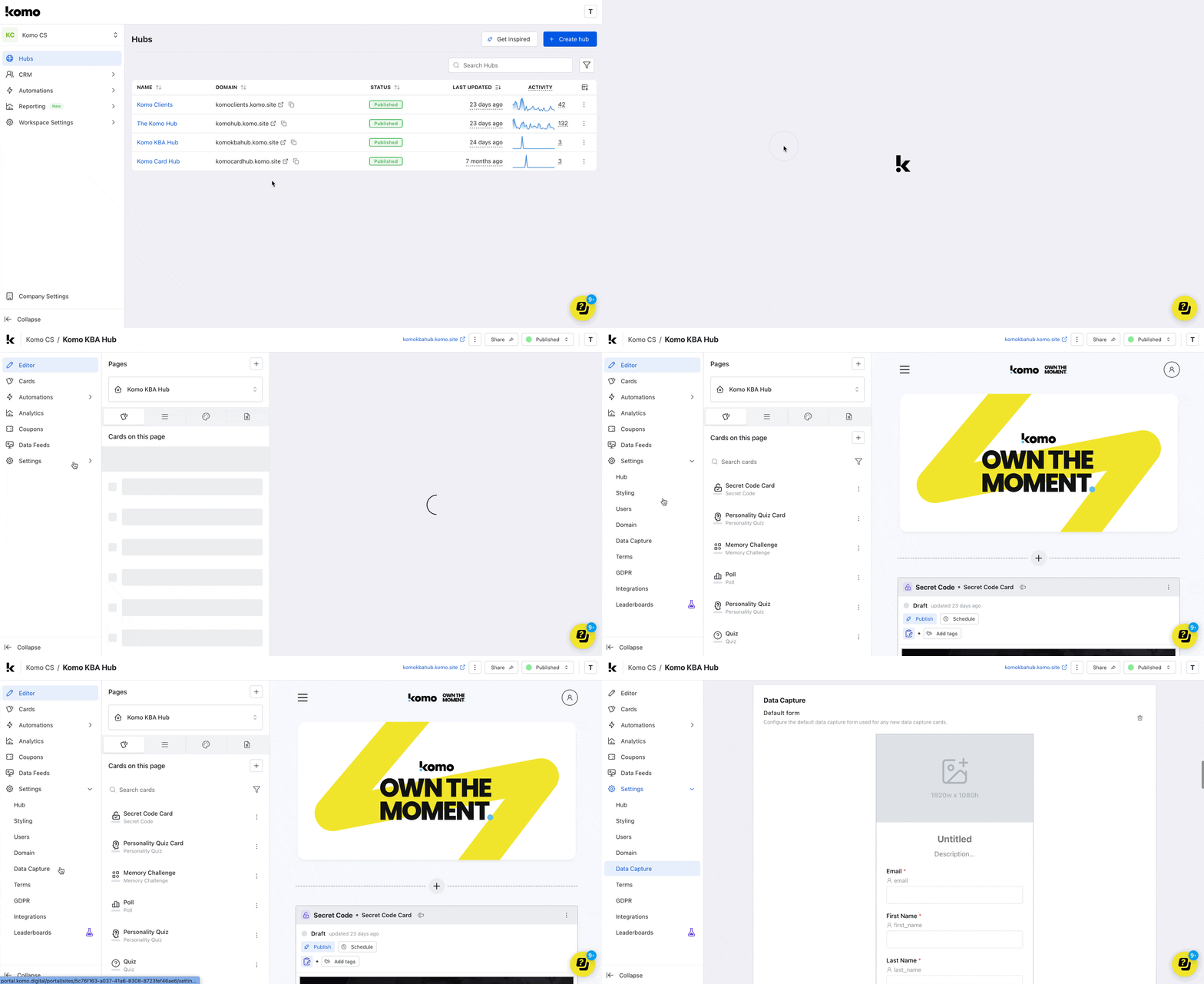
- Navigate to your Engagement Hub.
- Click on the Settings tab and then head to the Data Capture tab.
Step 2: Edit your Default Form
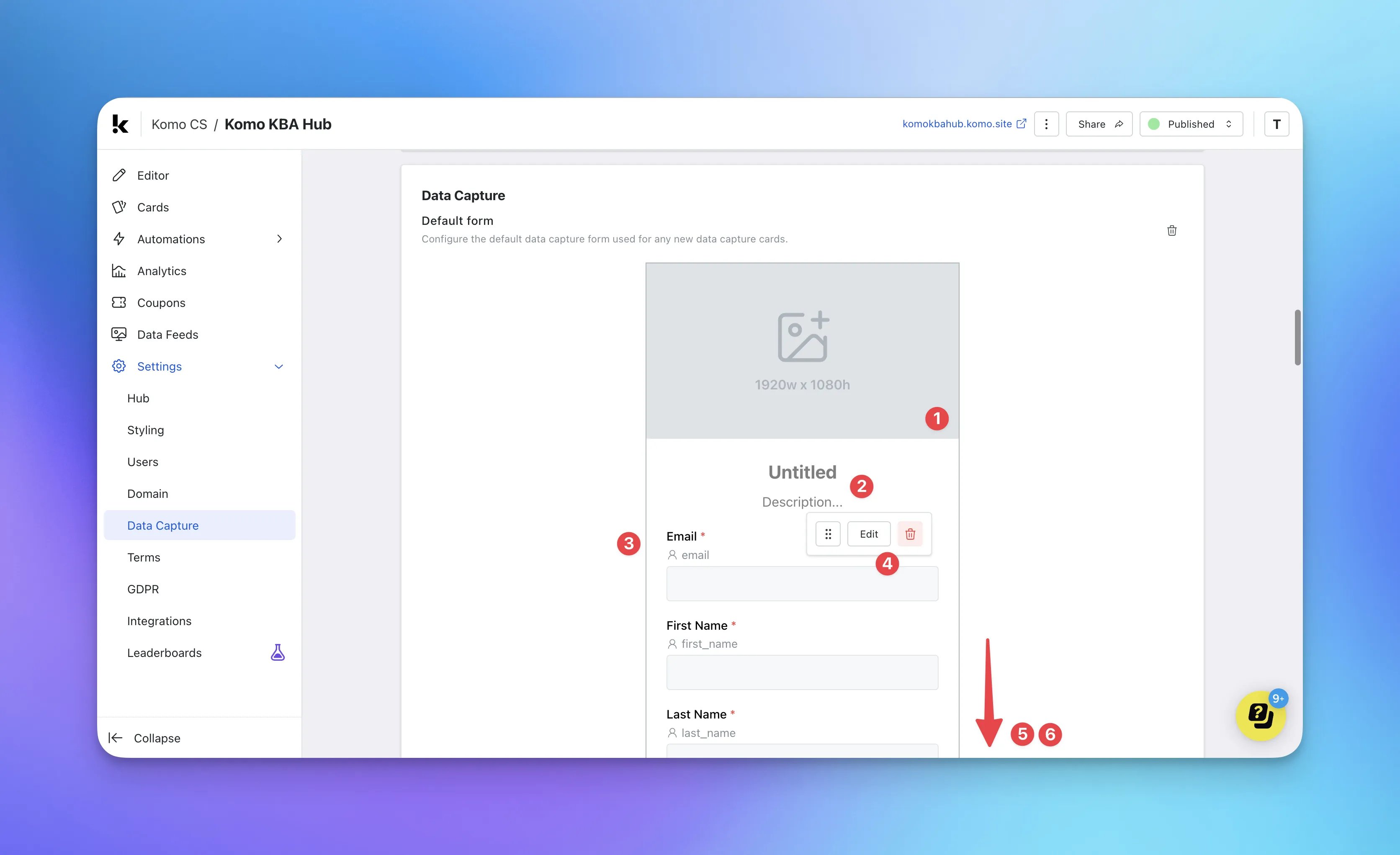
- (1) Here we can add the form cover image. You may choose to alter this depending on the competition you are planning to run. However, setting a simple image here (e.g. a logo) will add it to your form.
- (2) Here you can alter the title and description that will sit above your data capture fields.
- (3) Here we are looking at the specific data capture fields.
- (4) Hovering over each field, you can edit the additional settings such as making it a required field.
- (5) Scrolling down, clicking on the plus icon, you can add as many additional fields as you would like, such as a marketing opt-in.
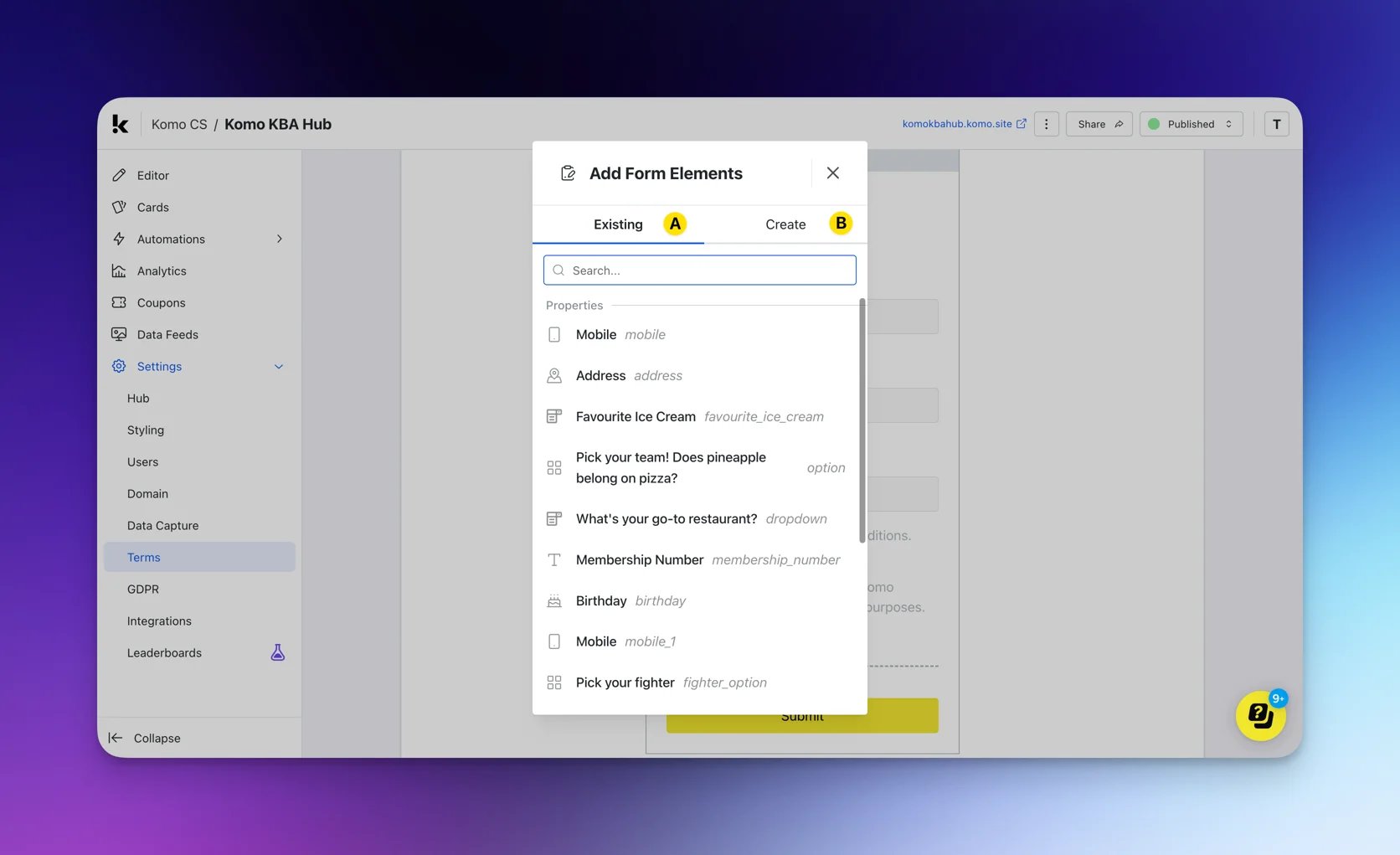
- (A) Add existing contact properties to the default form. If you don’t have any created, follow these steps to create properties that you will consistently use overtime.
- (B) Create new fields to add to the default form.
You can create a contact property here.
- (6) Here you can alter the copy and colors of the submit button.
Step 3: Add Content
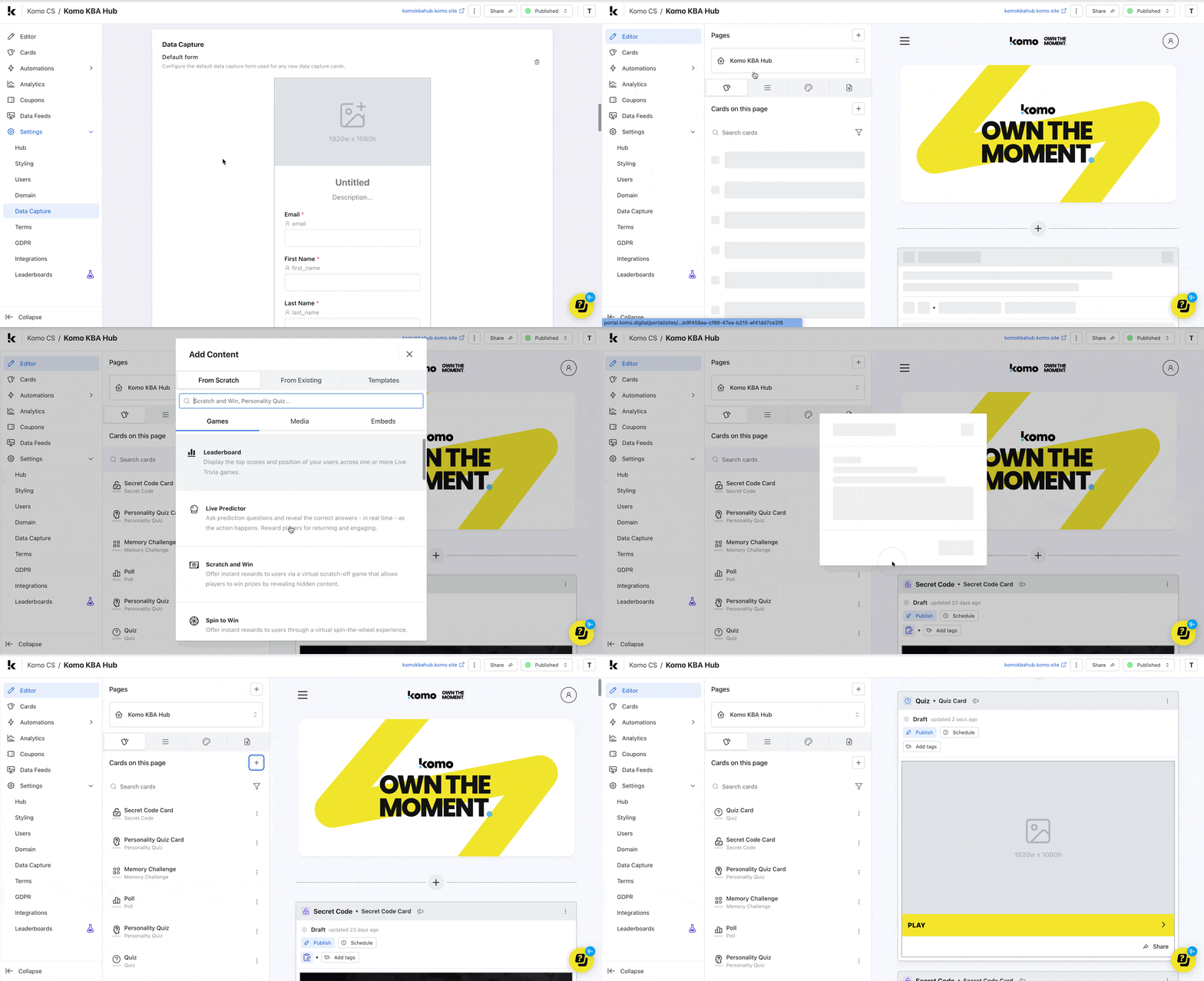
- Navigate back to the Editor page and add a content card to your Hub.
Step 4: Add a Data Capture
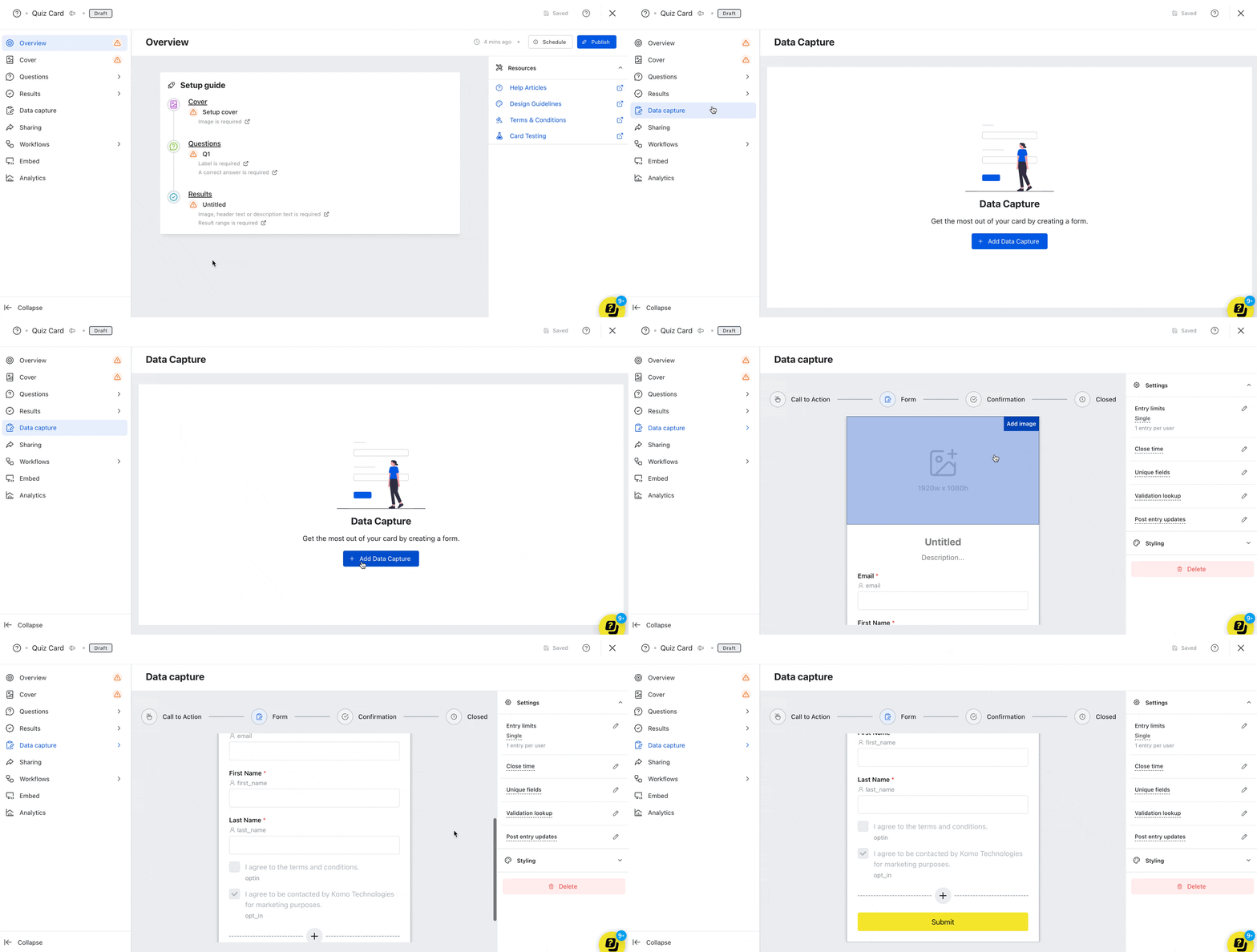
- Clicking on the card will open the editing module.
- Head to the Data Capture tab and then click Add Data Capture.
- Clicking on Form, you will see the Default Form has been added.