
What is it?
Editing Hub Fonts is a feature that gives you the ability to upload and display custom fonts on your Hub. This results in converting all the text elements of your Hub, please reach out to your customer success specialist to help devise aid you with implementation.This feature is currently in Beta testing. Please reach out to your Customer Success Specialist to see if you’re eligible to take part in this.
How do I do this?
Step 1: Go to the Hub Settings
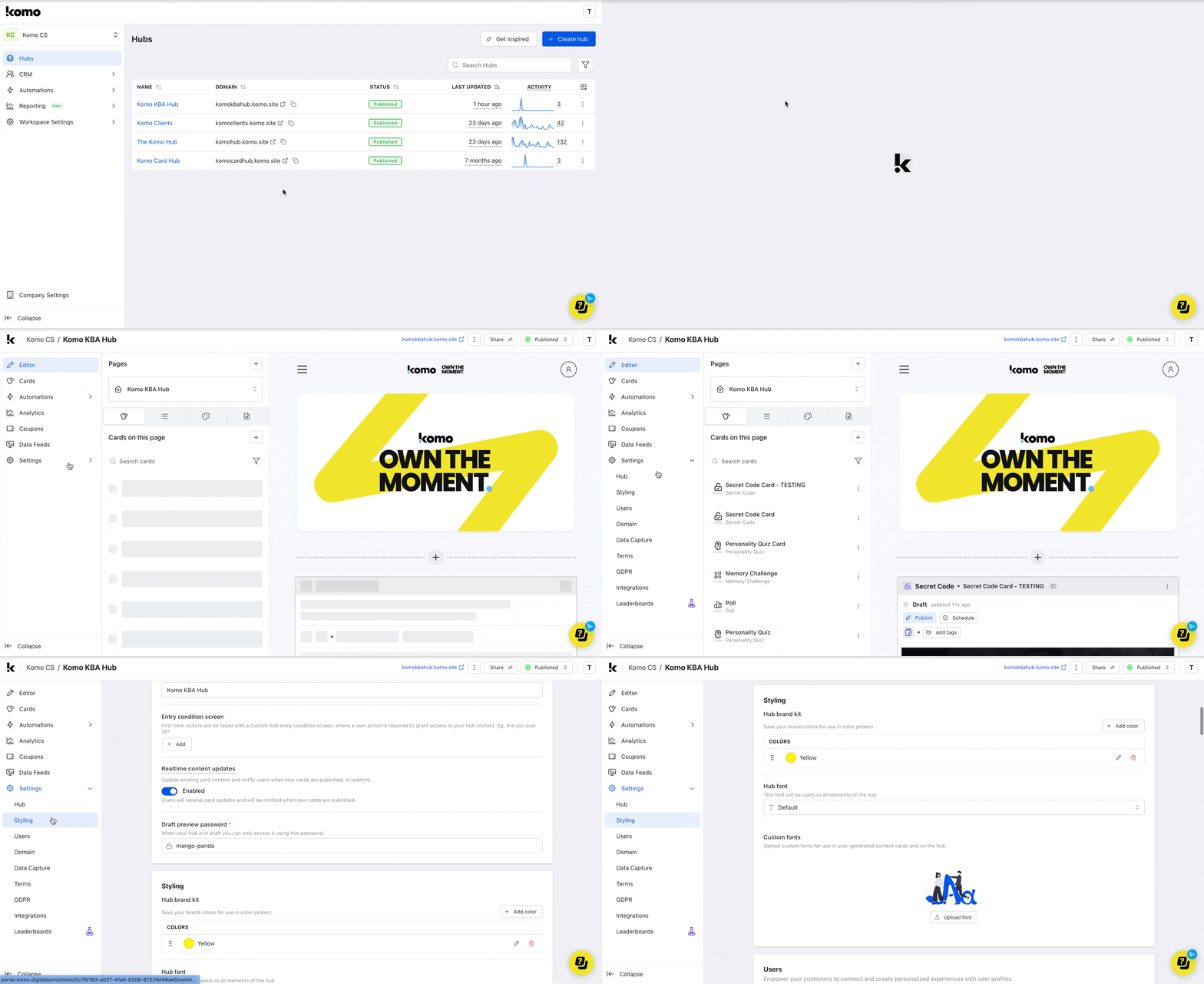
- Navigate to your Engagement Hub.
- Click on the Settings tab and then head to the Styling tab.
Step 2: Upload Custom Font
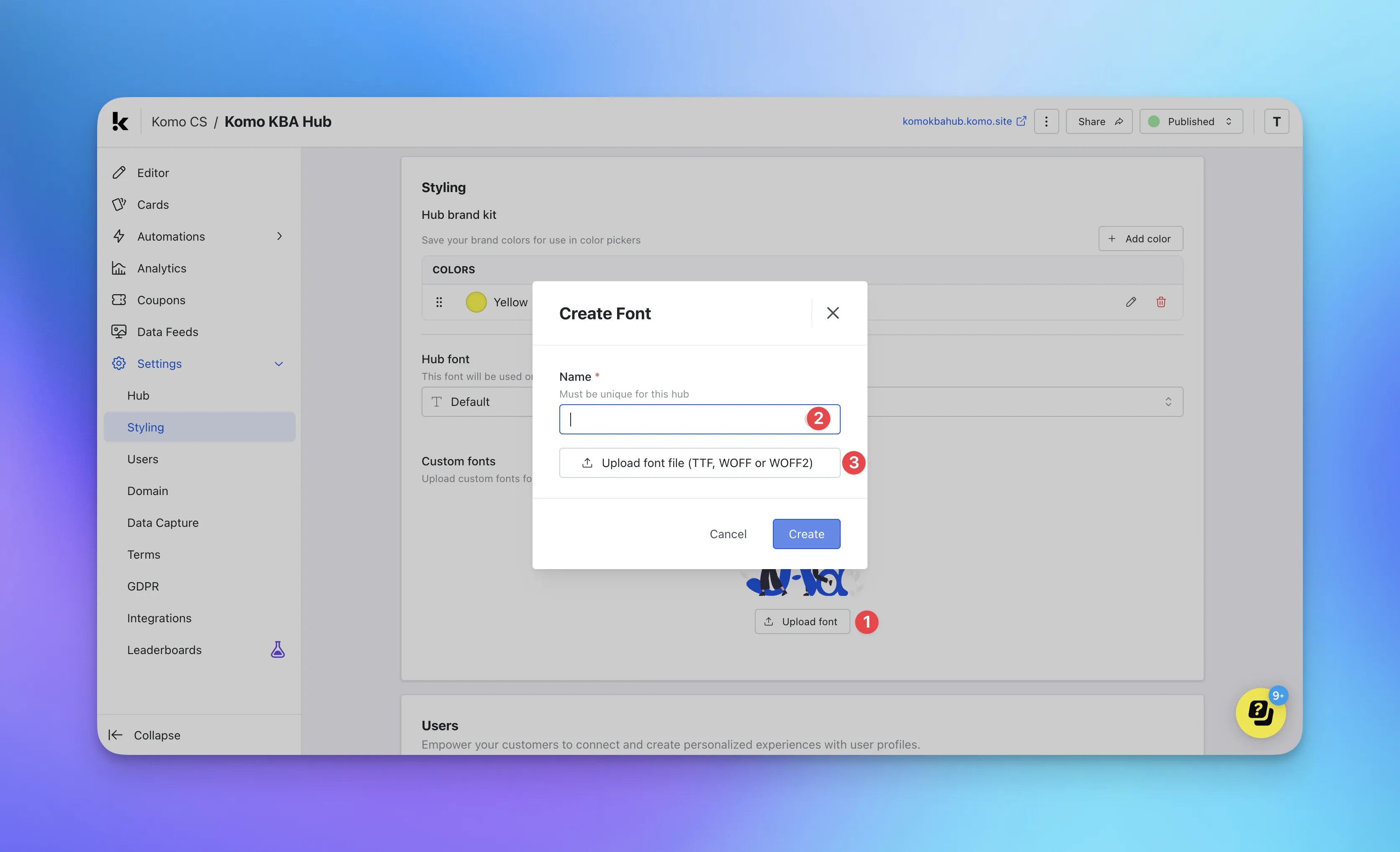
- (1) Click on Upload font.
- (2) Give your custom font a name.
- (3) Upload a new custom font.
Note: The font file needs to be TFF, WOFF or WOFF2.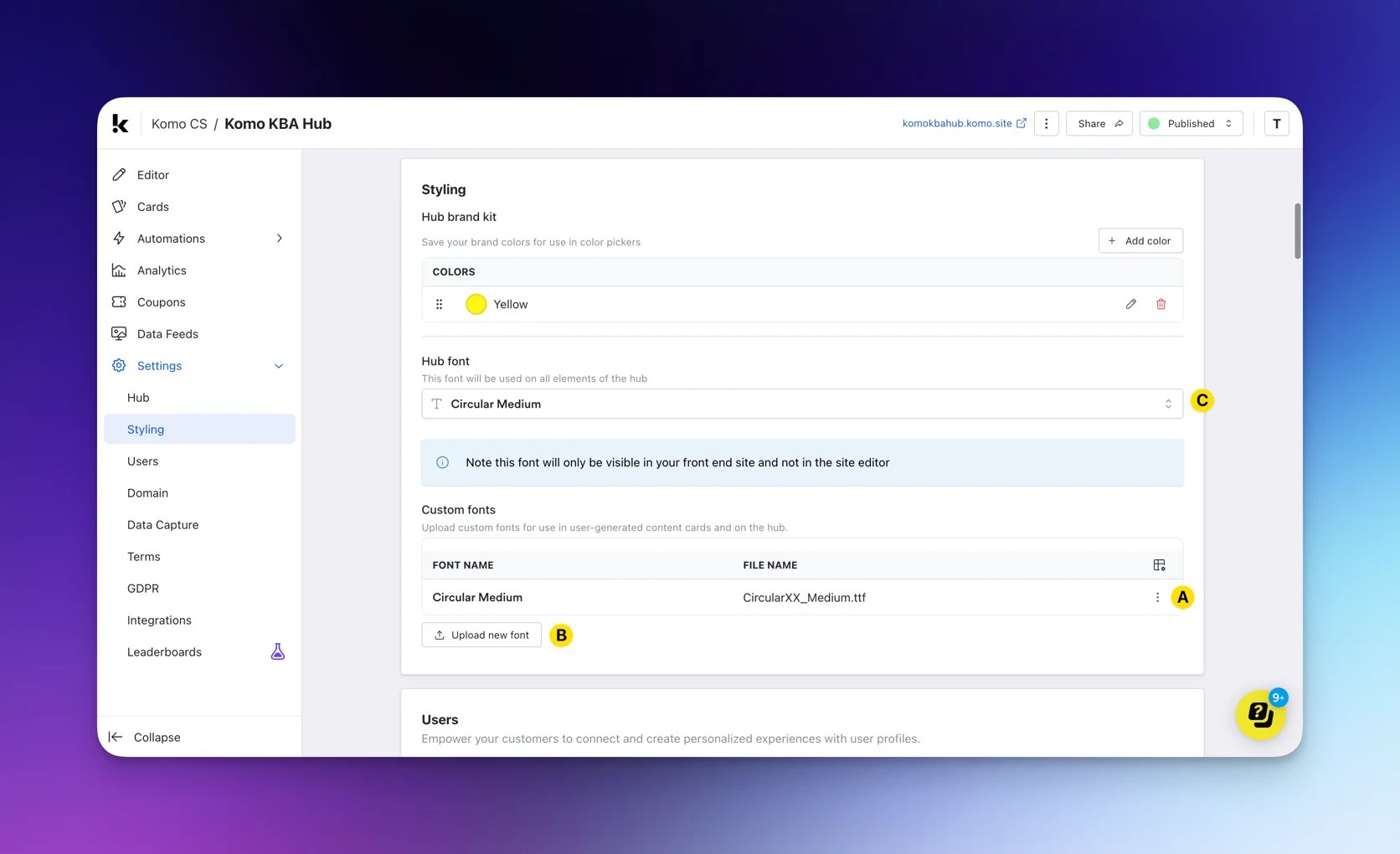
- (A) You will see a list of all custom fonts uploaded. Click … to edit the name of the custom font.
- (B) Upload additional custom fonts by following the previous steps.
- (C) Using the drop-down, select the custom font you wish to use for your Hub.
Step 3: Preview feature
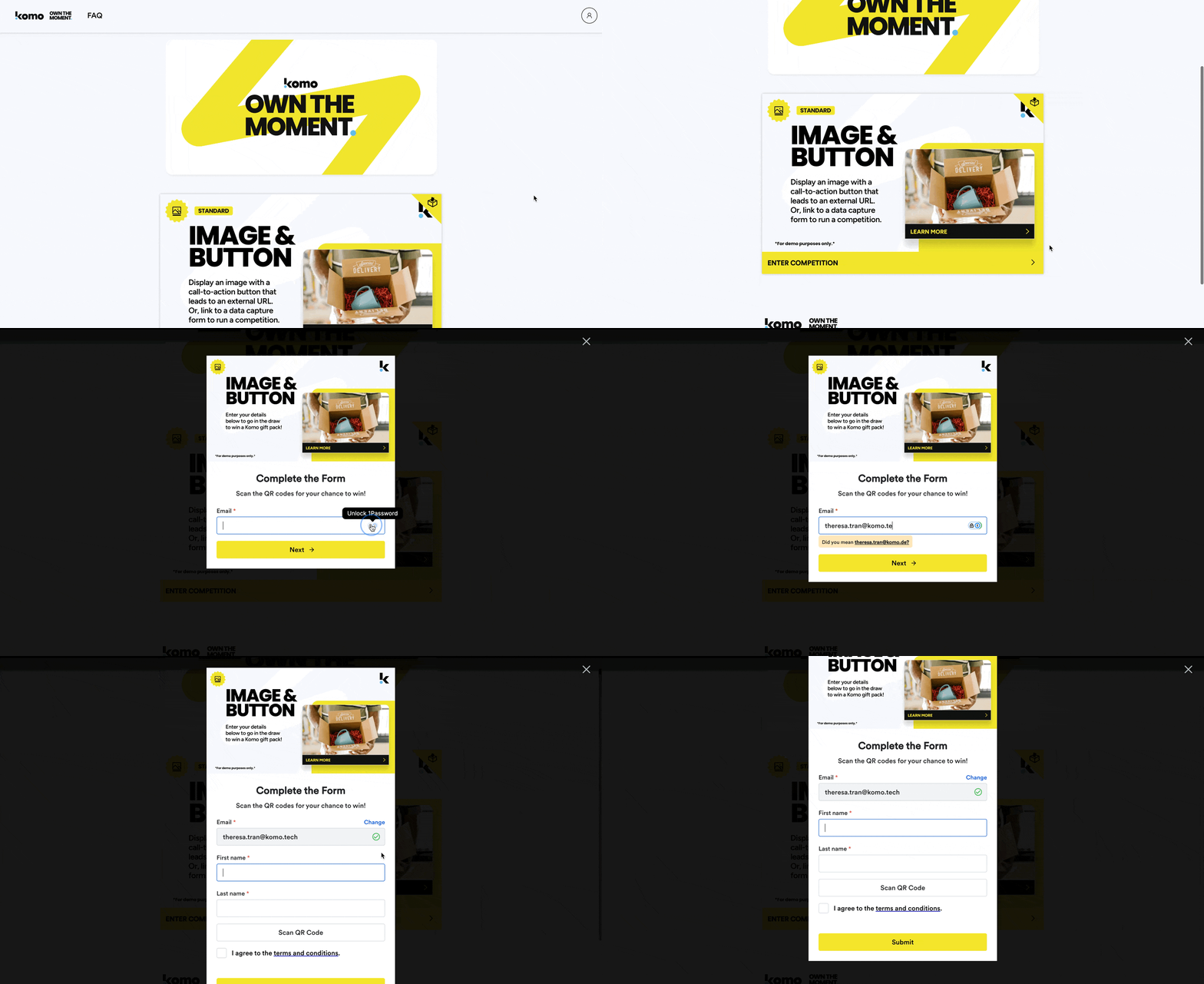
- Navigate to the font end of the Hub to preview the application of your custom font.
The custom font only applies to text/HTML areas on the Hub and content cards. Any text within images will not be affected.