
What is it?
You can now share your Hub directly to your social accounts, through email, with a link or QR code.How do I use it?
Step 1: Set up your SEO/SEM settings
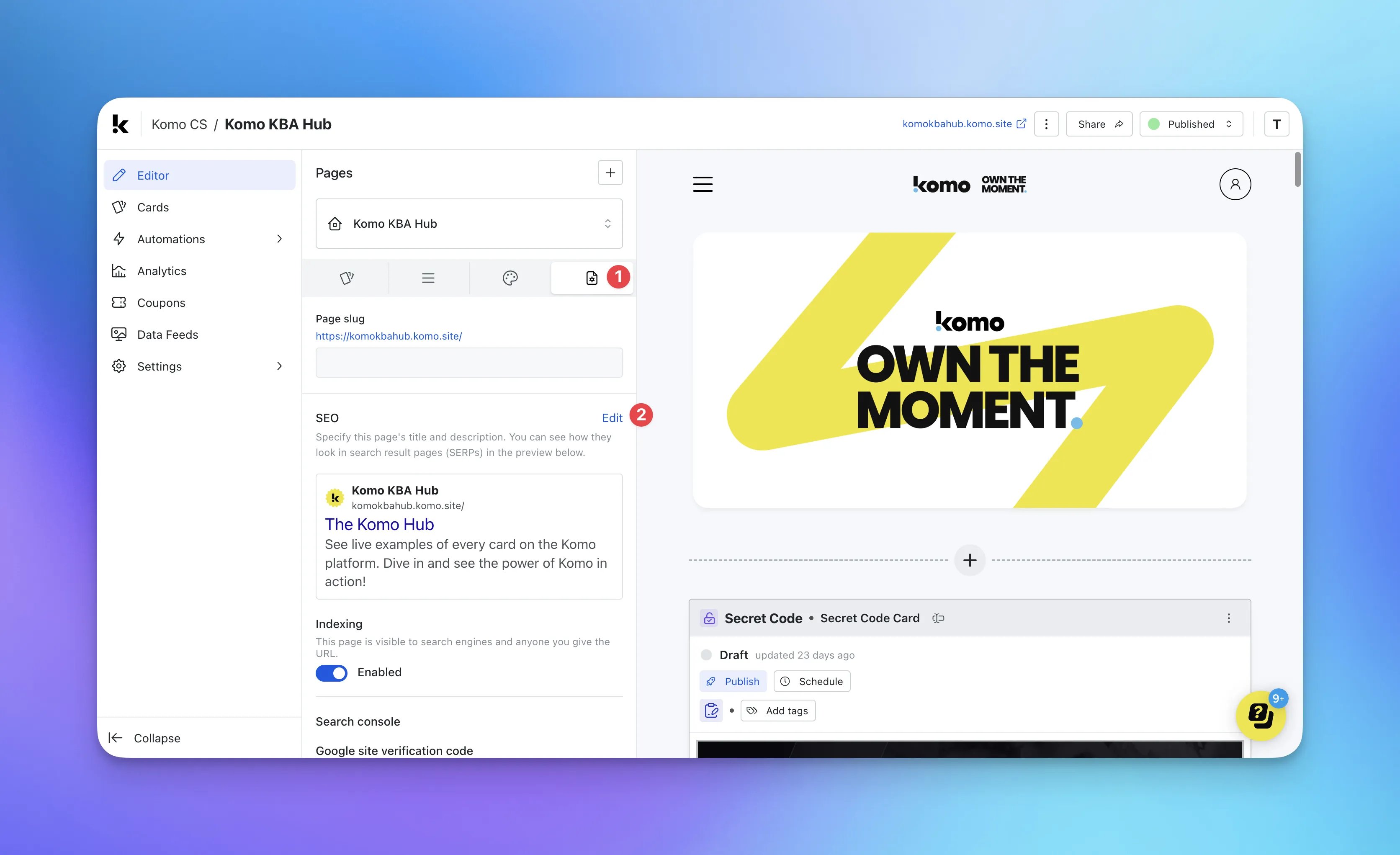
- Navigate to your Engagement Hub.
- (1) Once there, click on Page settings and then (2) Edit.
Here you can set whether you would like your Hub to be visible in search engine results.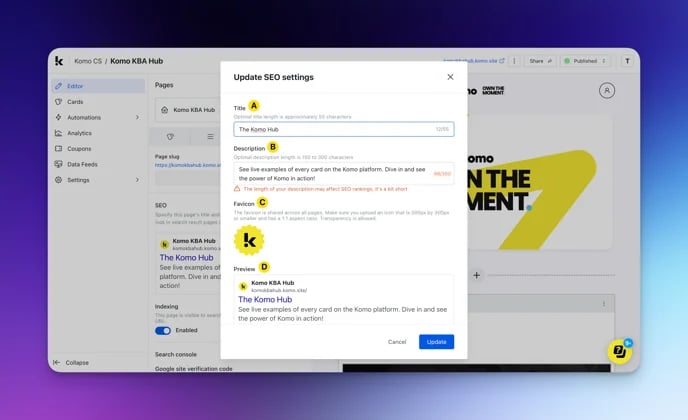
- (A) This refers to the title of your site and will be shown in the browser tab.
- (B) Here you can set up your SEO description.
- (C) This is the icon that will be shown next to your Hub name in your browsers tab.
- (D) This is a preview of search engine results.
Step 2: Sharing a published Hub
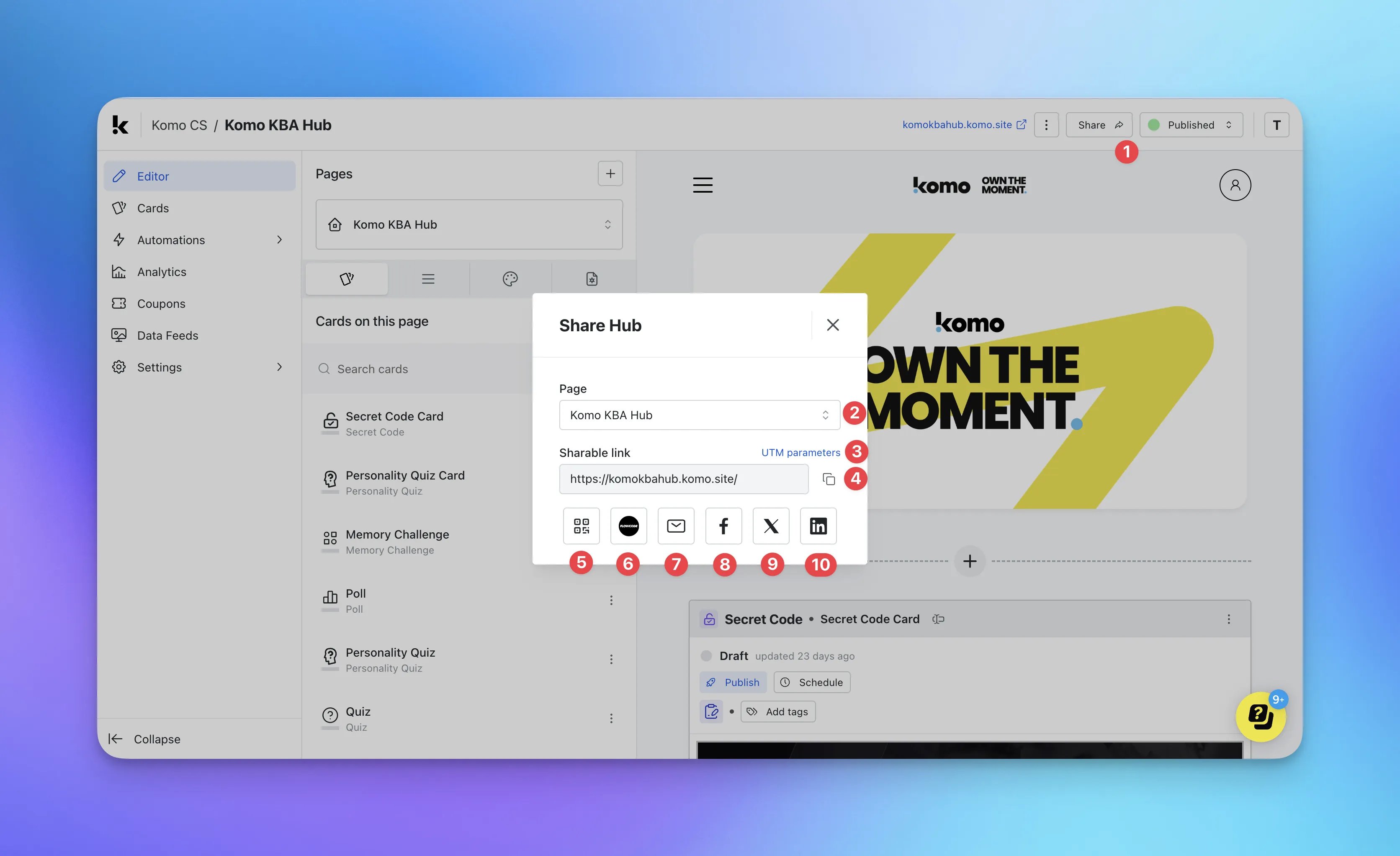
- (1) Click on Share to open the sharing options.
- (2) If you have multi-pages, you can select the page you wish to share.
-
(3) Add UTM parameters to your Hub URL.
We highly recommend using UTM parameters/tracking for all promotional links including QR codes. Click here to learn more.
- (4) Selecting the Clipboard button to copy the sharable link
-
(5) Create a QR code.
Managing the QR Code
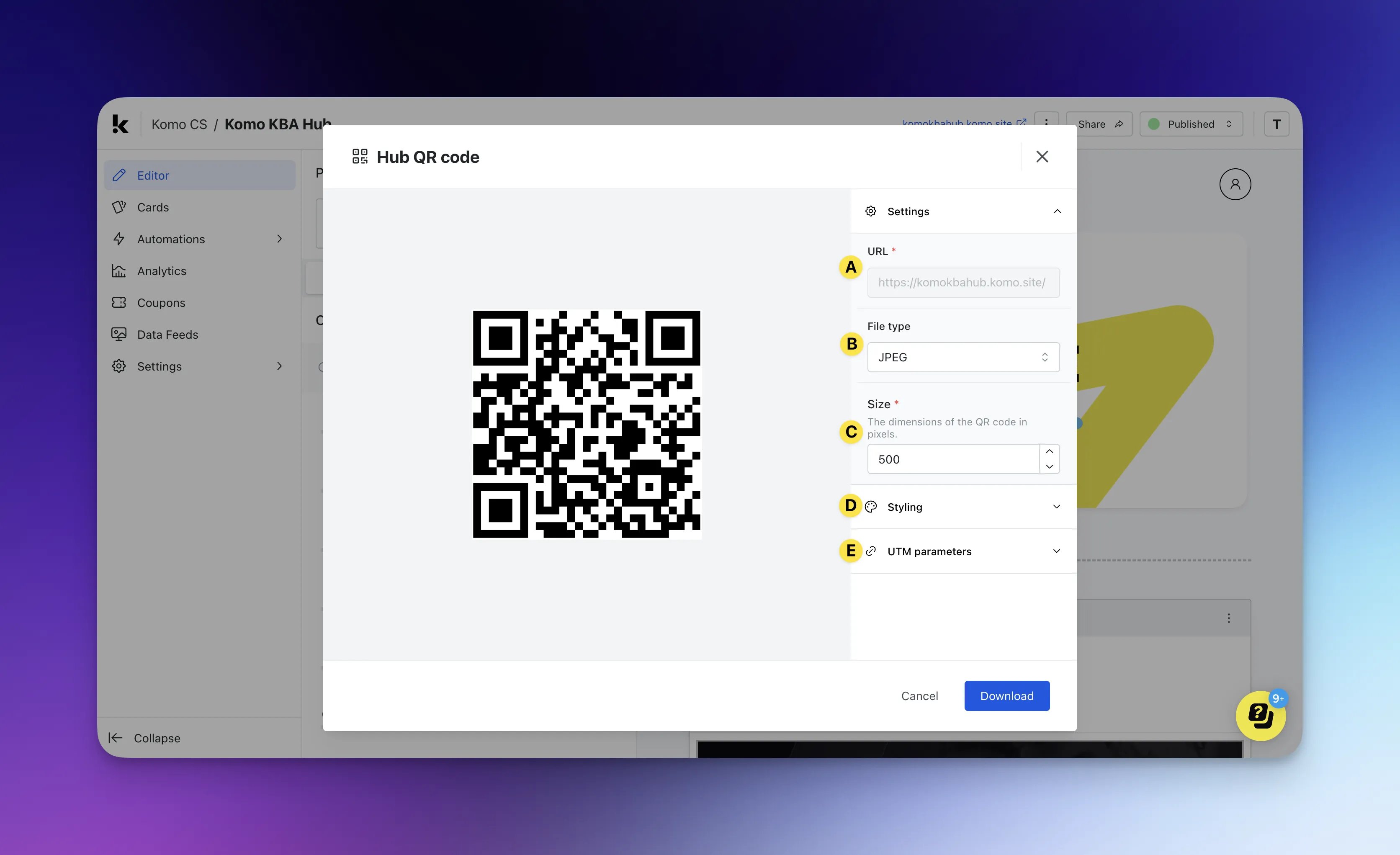
- (A) The Hub URL cannot be changed in this setting.
Ensure you’re happy with your domain prior to generating a QR code as once you alter the domain, you will need to generate a new QR code.
- (B) Select your preferred file type.
- (C) Alter the size of the QR code.
The dimensions are a locked aspect ratio of 1:1.
- (D) Edit the styling of the QR code.

- (a) Edit the background colour of the QR code.
- (b) Edit the foreground colour of the QR code.
- (c) Upload an image or logo here that will sit in the centre.
- (E) Add UTM parameters to the QR code/s to track where traffic is coming from.

- (a) Add a source to identify where the traffic originated from.
- (b) Include a medium to track what type of traffic users originated from.
- (c) Input the campaign name.
- (d) Add a term to track which keyword term a user came from.
This is only use for paid search ads.
- (e) The content will allow you to differentiate between ads or links if you have multiple links directing to the same URL.
- (A) The Hub URL cannot be changed in this setting.
- (6) Connect and create a QR code via Flowcode.
- (7) Share via email.
- (8) Share via Facebook.
- (9) Share via X.
- (10) Share via LinkedIn.
Step 3: Sharing an unpublished Hub
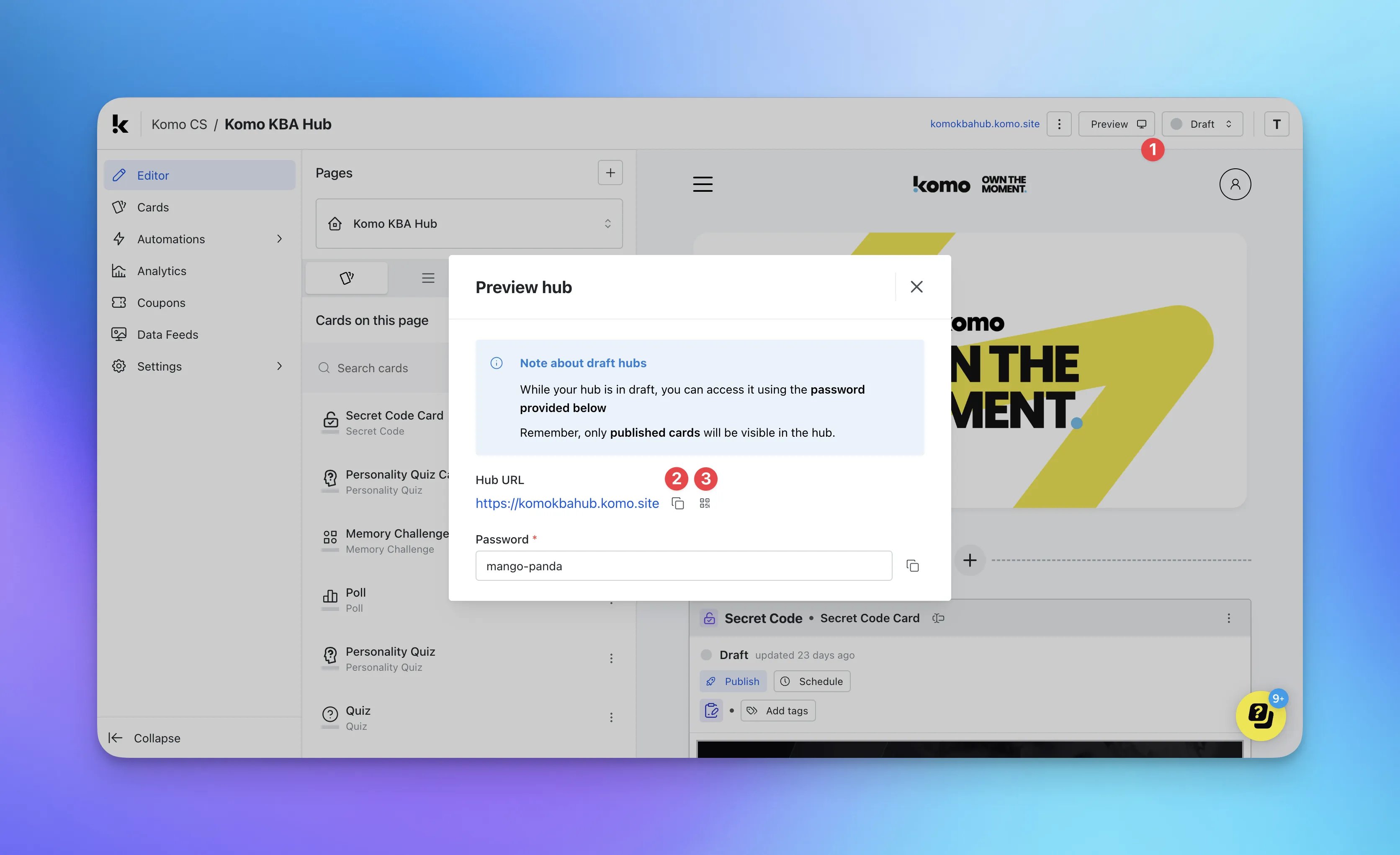
- (1) Click on Preview to open the options.
- (2) Selecting the Clipboard button to copy the sharable link.
- (3) Create a QR code.
Follow Step 2(5) to generate a QR code.