
What is it?
Link Trails let you create short, trackable links (and matching QR codes) that redirect people to a destination you choose — usually a Hub, card, or campaign page. Short links use your region’skomo.link host (for example us1.komo.link or au1.komo.link).
Because you can change the destination after the fact, they’re especially useful for a generic link or QR code you print once (posters, tickets, signage) and then point at different destinations later — without reprinting.
A trail is a campaign container. Inside it you can add multiple short links that share the same destination and settings, so each channel (newsletter, poster, ticket gate, social) gets its own URL while reporting rolls up in one place.
Link Trails sit under Links in the workspace nav and may show a Beta badge. Availability depends on your workspace entitlement. Over time we’ll add more sophisticated link routing and intelligence.
Why would I use it?
Use Link Trails when you need clean, shareable URLs and want to see which channel drove the clicks:- Print a lasting QR or short link, then update where it goes without reprinting
- Shorten long Hub or card URLs for email, social, ads, and print
- Generate QR codes for in-venue or broadcast use
- Apply UTM parameters once at the trail level
- Set an expiry with a fallback URL so campaigns don’t dead-end
- Password-protect a link when access should be limited
- Review click analytics by short link, referrer, UTM, country, and device
How to set one up
1. Open Link Trails
In your workspace sidebar, open Links → Link Trails.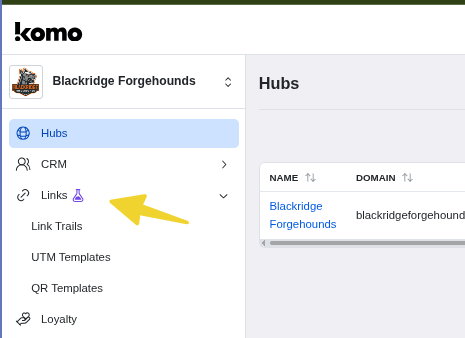
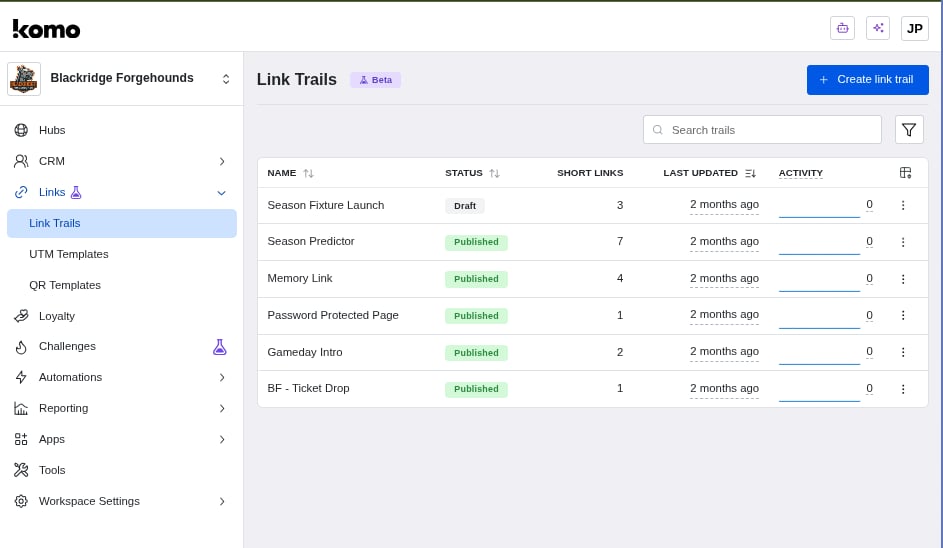
2. Create a trail
- Click + Create link trail.
- Enter a Name (internal — for your team).
- Enter the Destination URL (where visitors should land).
- Click Create.
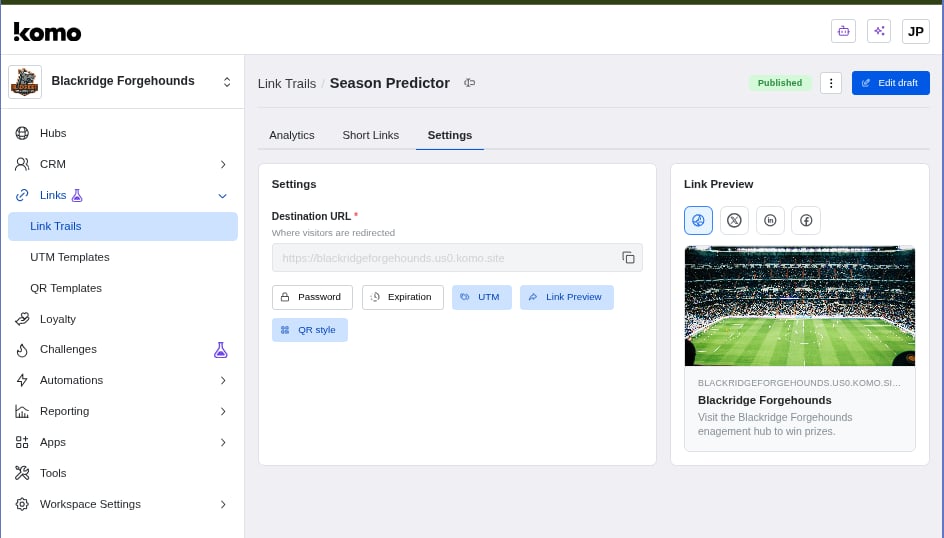
3. Configure settings
Open the trail and go to the Settings tab. Set the Destination URL, then use the option buttons as needed:
Save your changes, then Publish when you’re ready for the short links to go live. After publishing, use Edit draft to change settings and publish again.
4. Add short links
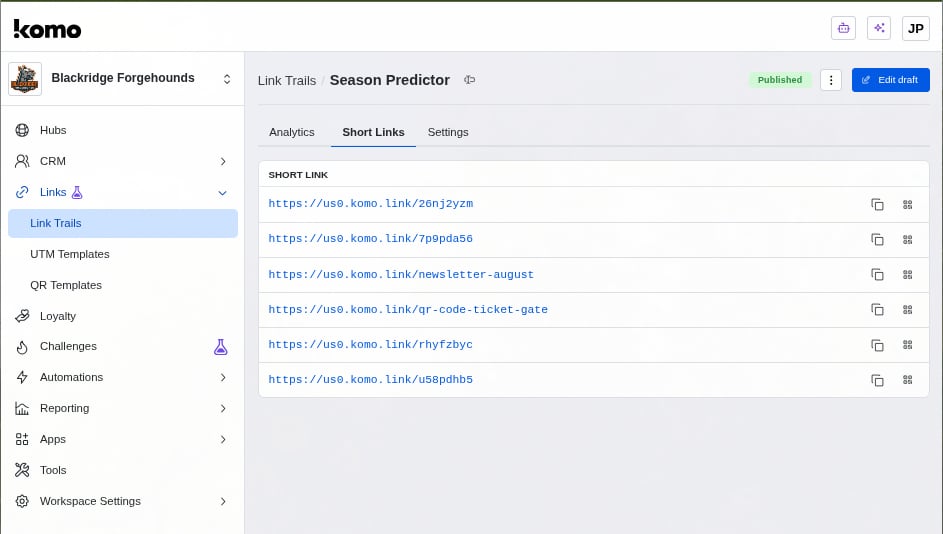
Open the Short Links tab and add a link for each place you’ll share the trail:- Click to add a short link.
- Keep the platform host (your region’s
*.komo.link). - Accept the generated path, or enter a custom slug (for example
newsletter-august). - Copy the URL, or open the QR icon to download a QR code for that link.
How it works
- Someone opens a short link or scans its QR code on
*.komo.link. - Komo records the click (referrer, UTMs, device, location, and which short link was used).
- If a password is set, they’re prompted before continuing.
- If the trail has expired, they’re sent to the fallback URL (when configured) instead of a broken page.
- Otherwise they’re redirected to the trail’s destination URL, with default UTMs applied when set.
Use the trail’s actions menu to Stop, Resume, Rename, or Archive.
Analytics
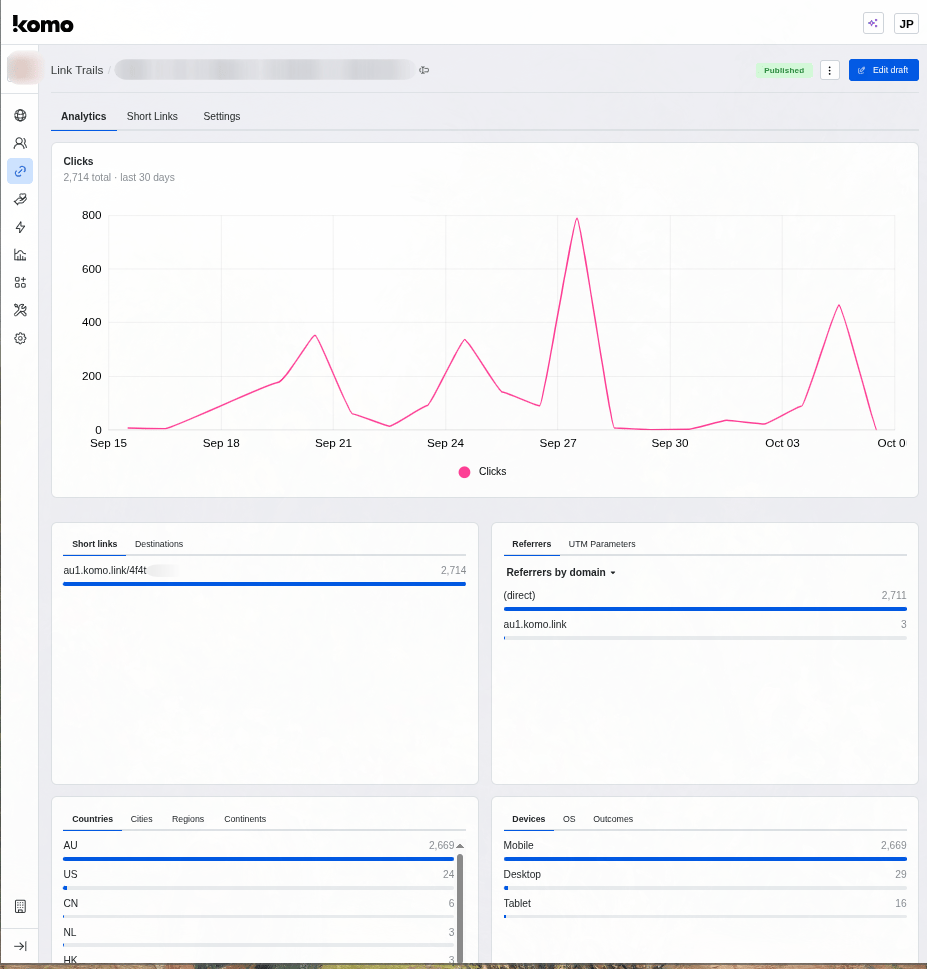
On a published trail, the Analytics tab shows:- Daily clicks over the last 30 days
- Breakdown by short link and destination
- Referrers and UTM values
- Countries (and related location tabs)
- Devices / OS
FAQ
Can I have more than one short link per trail?
Yes. Add as many short links as you need for different channels or creatives. They share the trail’s destination and settings.Can I customise the short link path?
Yes. When adding a short link you can use a generated path or a custom slug. The host stays on your region’skomo.link domain.