
What is it?
The Treasure Hunt allows you to create a digital scavenger hunt for your audience by providing clues or riddles to direct users to different touchpoints either in a physical space (e.g. a shopping center) or digitally (e.g. Facebook and Instagram pages). Users will need to go to these touchpoints and to confirm they were there, they will need to enter a secret code or scan a QR code to mark the checkpoint as completed.How do I build one?
Step 1: Add a Treasure Hunt to your Hub
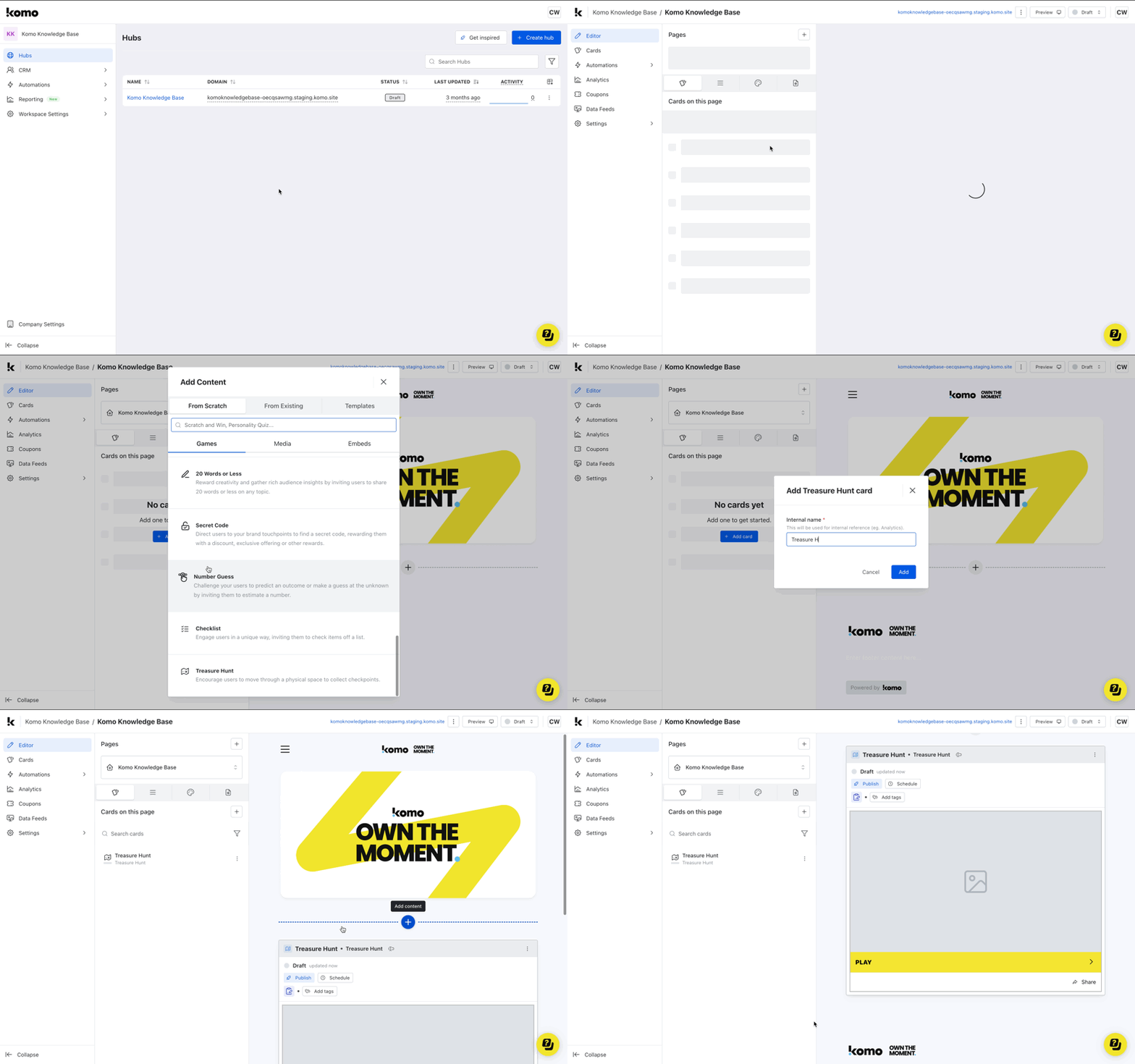
- Navigate to your Engagement Hub.
- Once there click the Plus icon, from here select Games and then Treasure Hunt.
- Give the card an Internal Name and then click Add.
- You will then see your new card has been added to your Hub.
Step 2: Add a Cover image
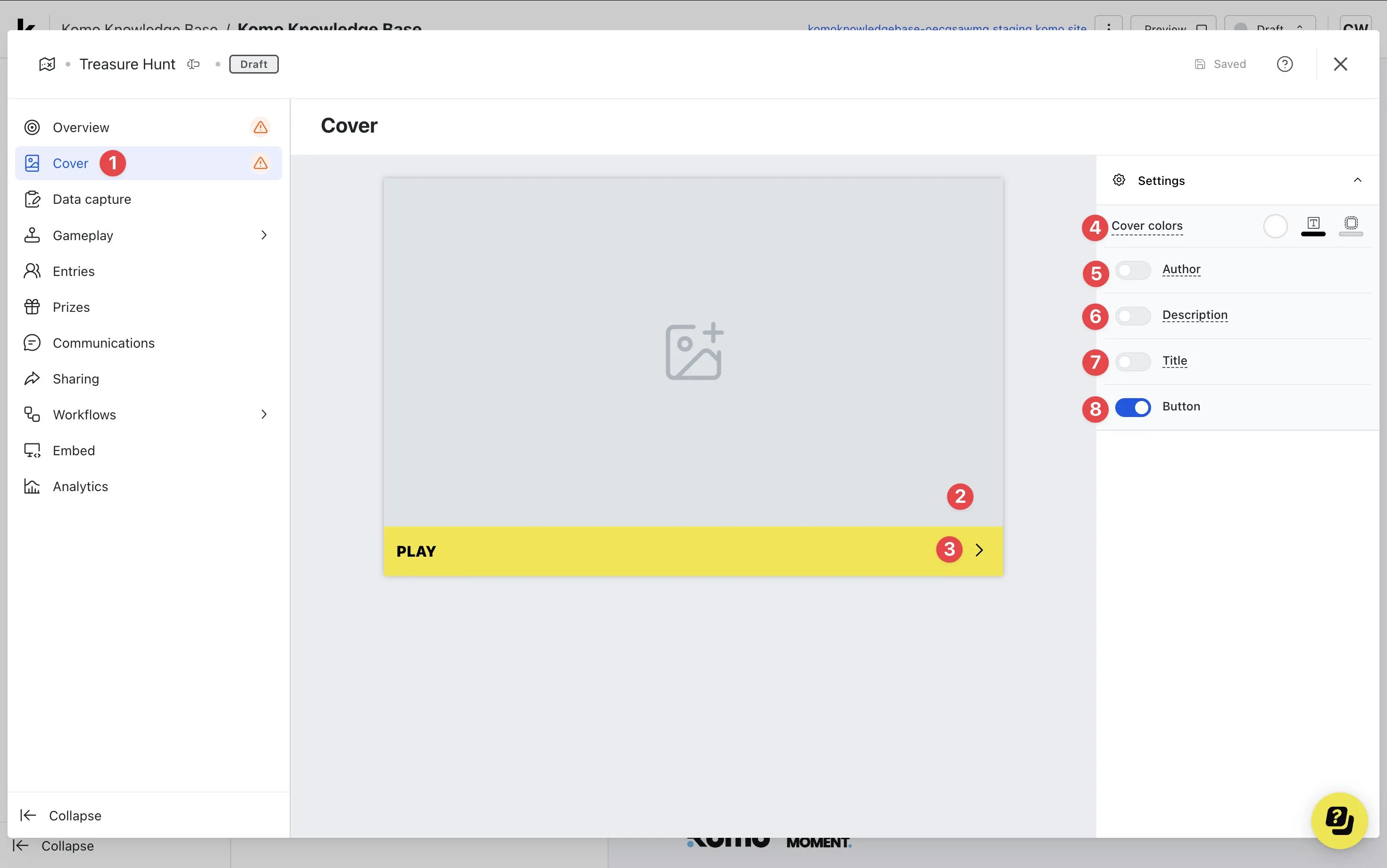
- Clicking on the Treasure Hunt will open the editing module.
- (1) Click cover to open the Cover editor.
- (2) This is where you can upload a cover image.
- (3) Here you can edit the color and copy of the call-to-action bar or (7) you can disable the bar here.
- (4) Set the outer cover colors (description and share bar).
- (5) You can add an author tag by displaying the brand sponsoring the competition.
- (6) Add a description to the card.
- (7) By clicking here you can add a title to your Treasure Hunt card.
- (8) Here you can choose to toggle on or off the CTA button.
Step 3: Set up your Data capture
Data capture is required for this card, this will be on by default but will require you to set up additional settings.Ready to set up your competition?
Step 4: Set up your Rules screen
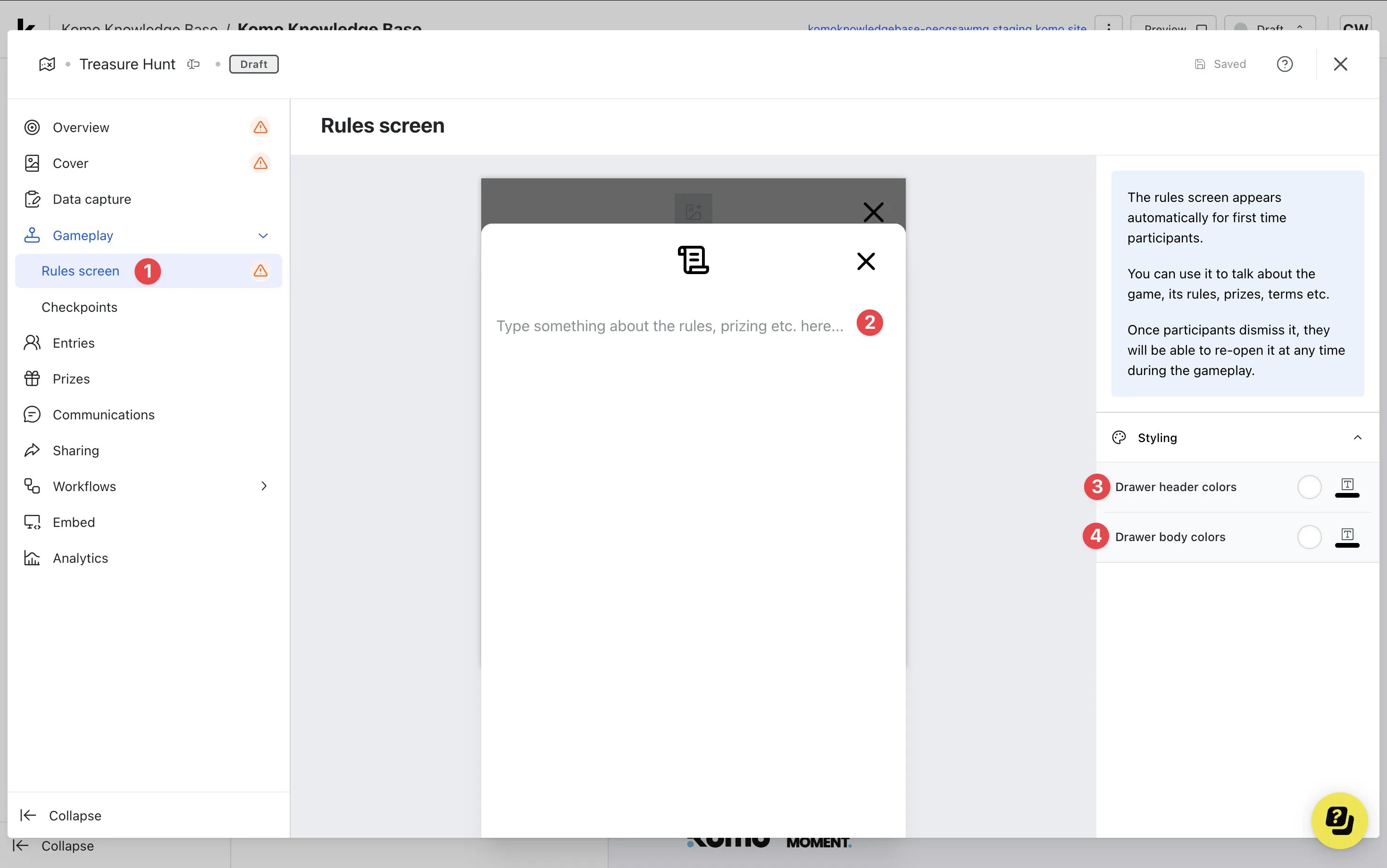
- (1) Click on the Rules screen tab.
- (2) Input the rules for the game here.
- (3) Edit the rules header colors here.
- (4) Edit the rules body colors here.
Step 5: Create your QR code Checkpoints
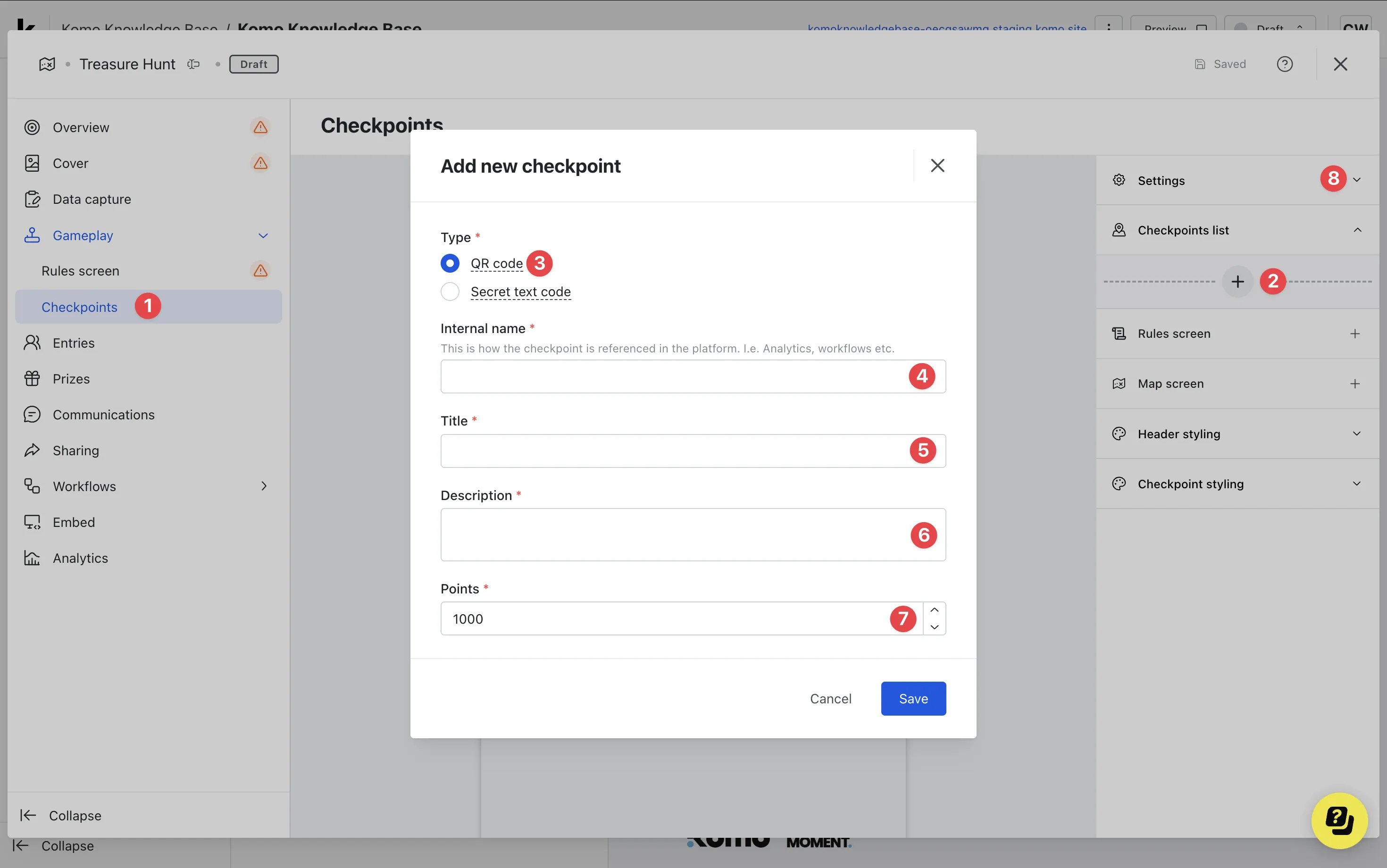
- (1) Click on the Checkpoints tab.
- (2) Click on the Checkpoints list tab and then the + icon to add a checkpoint.
- (3) Select the QR code type.
- (4) Give the checkpoint an internal name.
- (5) Add a title for the checkpoint.
- (6) Include instructions/directions to find the checkpoint in the description.
-
(7) If you have points enabled, alter the number of points the checkpoint is worth or (8) you can disable the points in the settings.
Managing QR Checkpoints
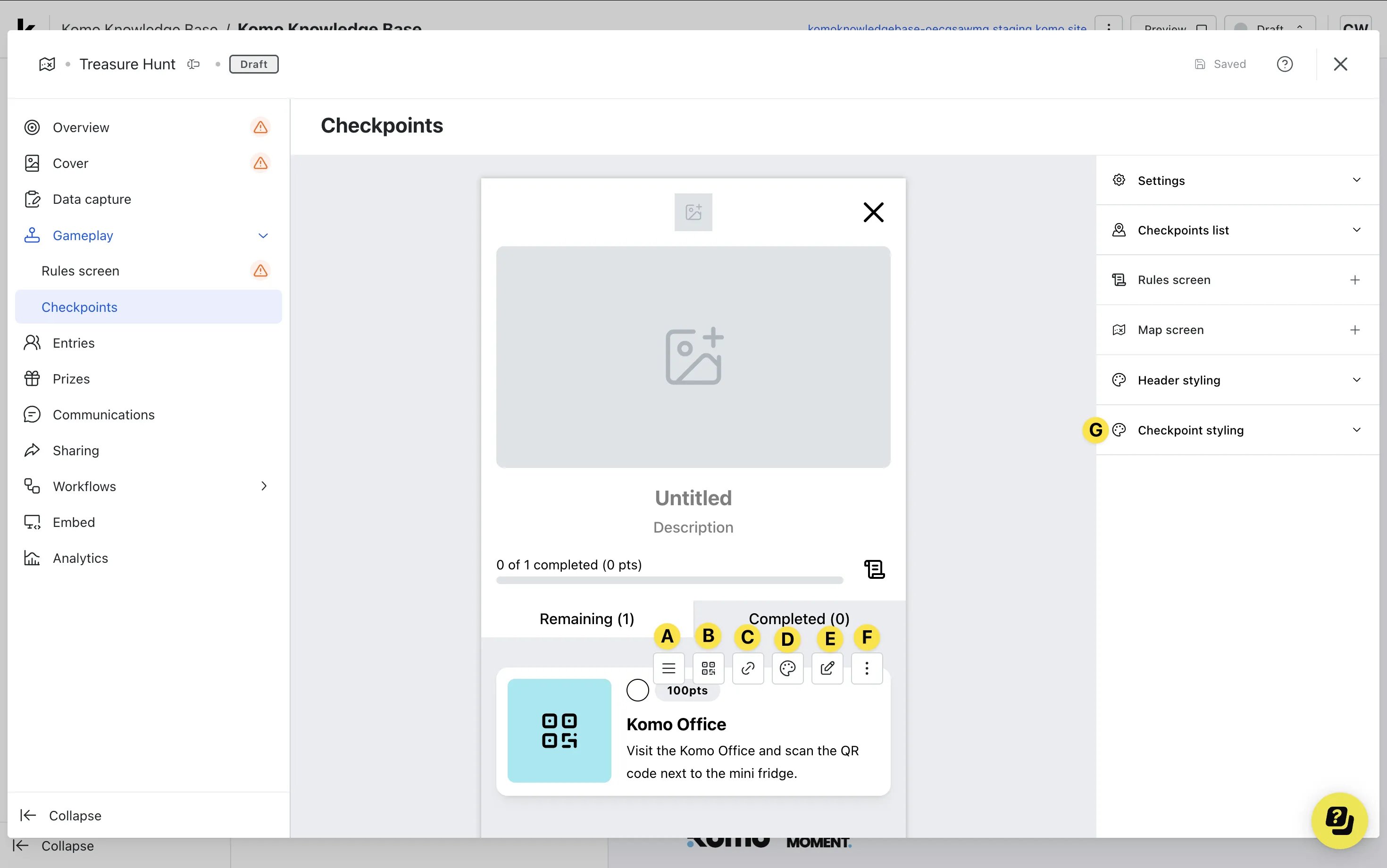
- After clicking save, you will see additional checkpoint settings.
- (A) Using the hamburger menu, drag the checkpoint to reorder.
- (b) Click on the QR code icon to download the QR code.
- (C) Copy the checkpoint URL.
- (D) Edit the colors for the specific checkpoint or alternatively,
- (G) set default colors here to apply to all checkpoints created.
- (E) Here you can edit the checkpoint.
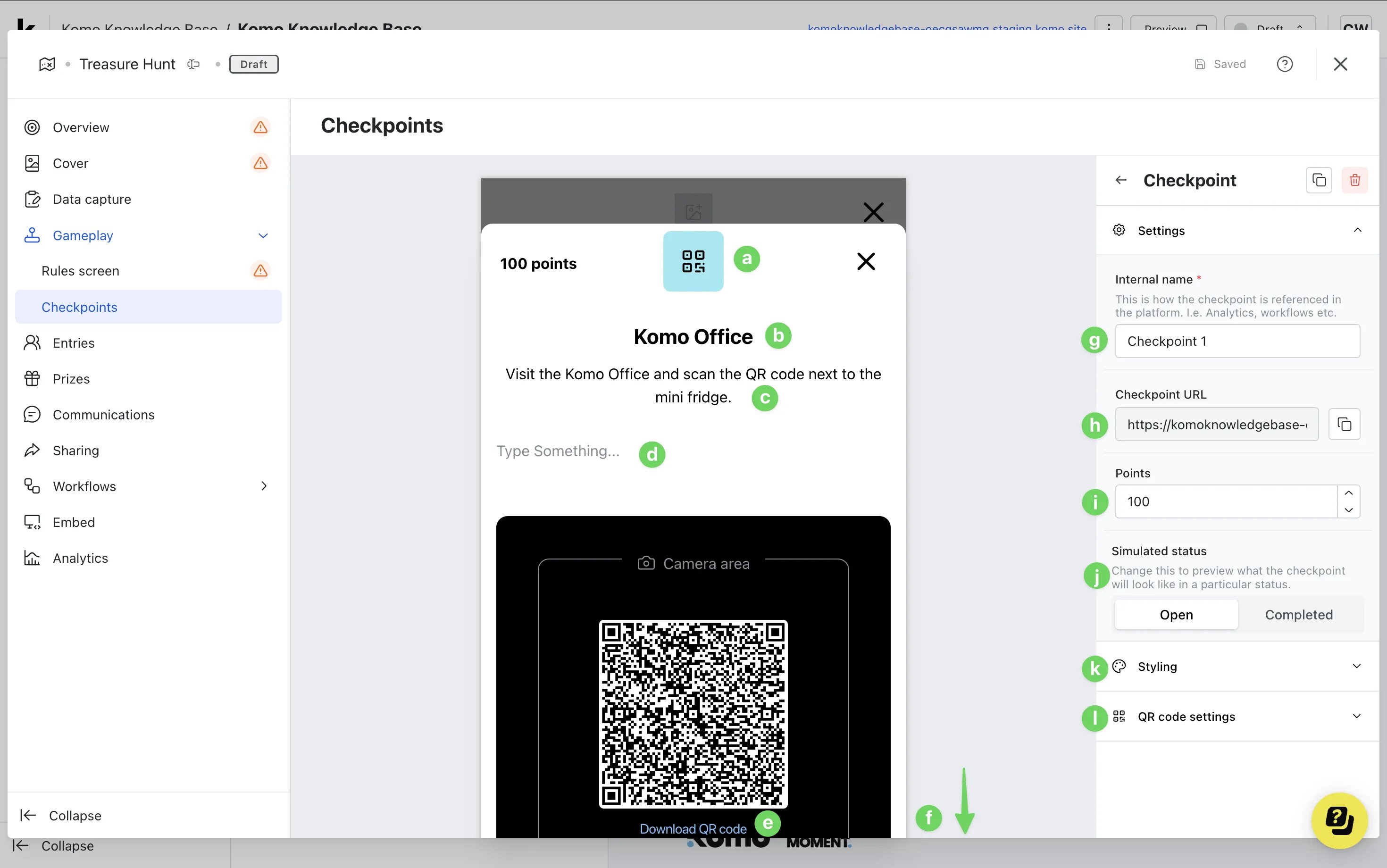
- (a) Upload an image for the checkpoint.
- (b) Update the title of the checkpoint.
- (c) Update the description of the checkpoint.
- (d) Here you can include additional information about the checkpoint.
- (e) Here you can download the QR code.
- (f) Scrolling down, you can include additional information on the footer.
- (g) Edit the internal name of the checkpoint.
- (h) Here you can copy the link to the checkpoint.
- (i) Edit the number of points for the checkpoint.
- (j) Preview the different statuses for the checkpoint.
- (k) Here you can update the the drawer header and body colors.
- (l) Customise and add UTM parameters to the QR code.
- (F) You can delete and clone the checkpoint here.
- (8) Click Save.
Step 6: Create your Secret Code Checkpoints
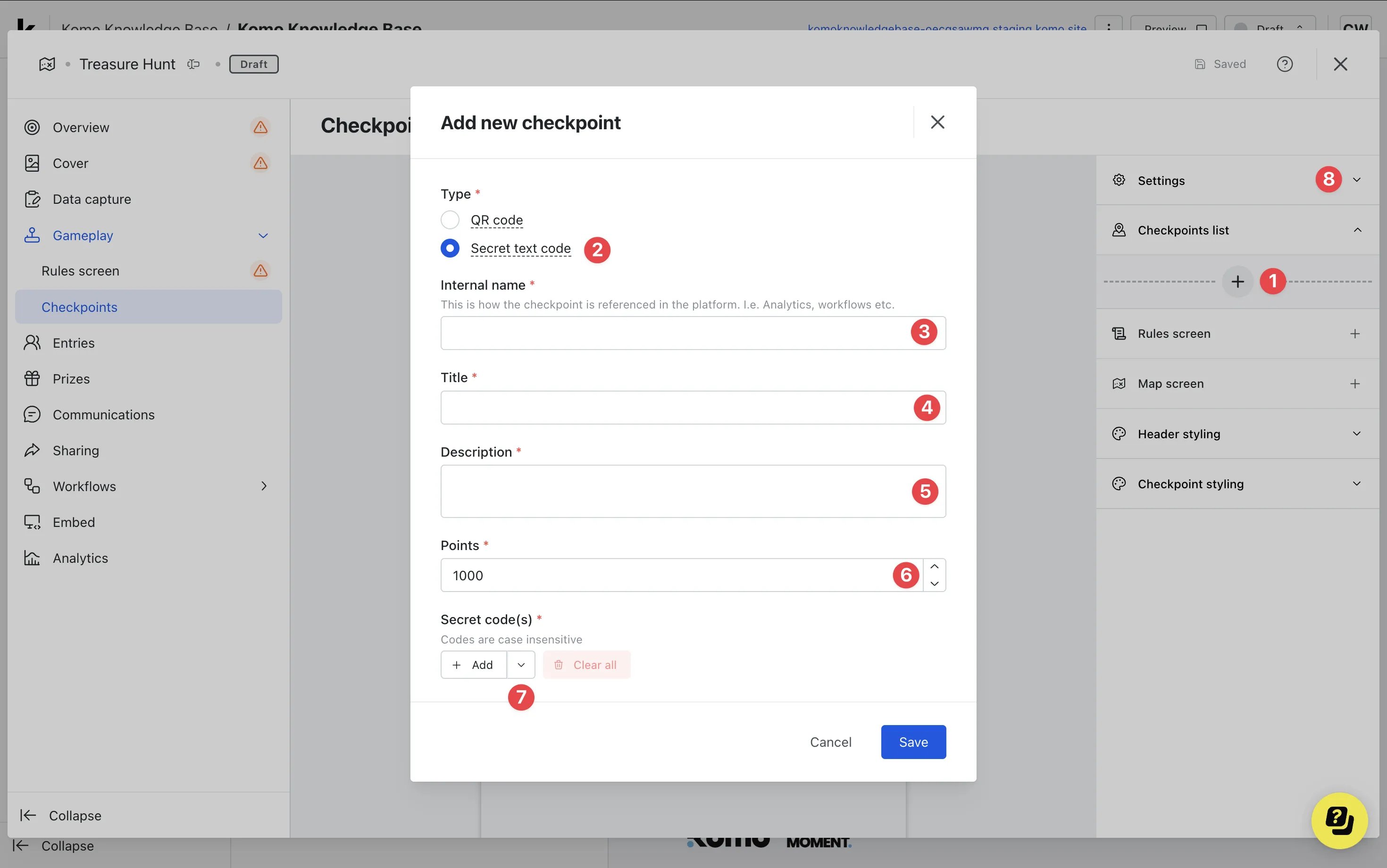
- (1) Click on the checkpoints list tab and then the + icon to add a checkpoint.
- (2) Select the Secret text code type.
- (3) Give the checkpoint an internal name.
- (4) Add a title for the checkpoint.
- (5) Include instructions/directions to find the checkpoint in the description.
- (6) If you have points enabled, alter the number of points the checkpoint is worth or (8) you can disable the points in the settings.
-
(7) Click on + Add to add any individual codes or use the drown-down arrow to add multiple codes.
Managing Secret Code Checkpoints
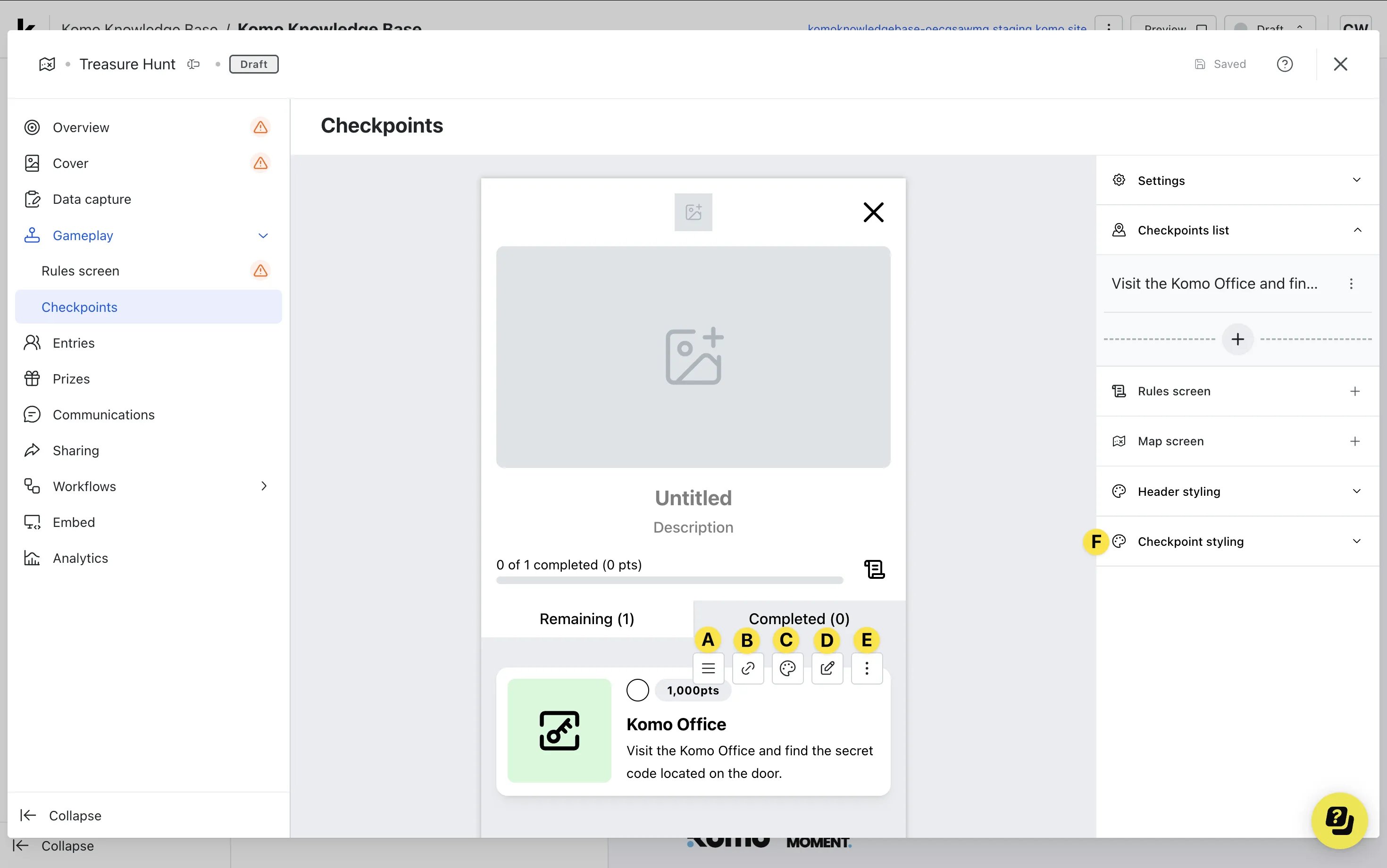
- After clicking save, you will see additional checkpoint settings.
- (A) Using the hamburger menu, drag the checkpoint to reorder.
- (b) Copy the checkpoint URL.
- (C) Edit the colors for the specific checkpoint or (F) you can set default colors here to apply to all checkpoints created.
- (D) Here you can edit the checkpoint.
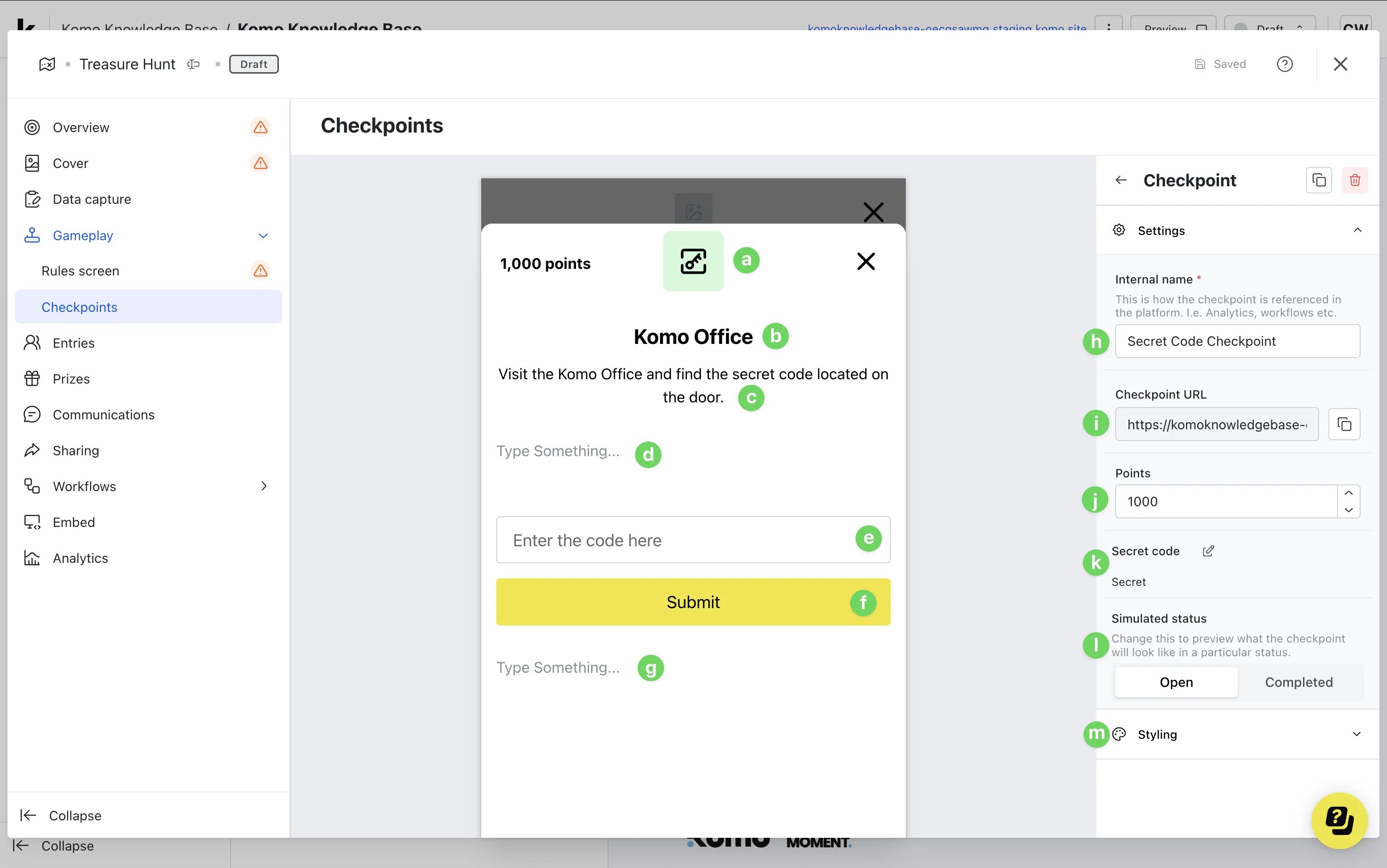
- (a) Upload an image for the checkpoint.
- (b) Update the title of the checkpoint.
- (c) Update the description of the checkpoint.
- (d) Here you can include additional information about the checkpoint.
- (e) Click here to edit and update the secret codes.
- (f) Edit the color and copy of the call-to-action.
- (g) You can include additional information on the footer.
- (h) Edit the internal name of the checkpoint.
- (i) Here you can copy the link to the checkpoint.
- (j) Edit the number of points for the checkpoint.
- (k) Here you can edit the secret code for the checkpoint.
- (l) Preview the different statuses for the checkpoint.
- (m) Here you can update the the drawer header and body colors.
- (E) You can delete and clone the checkpoint here.
Step 7: Style the Gameplay
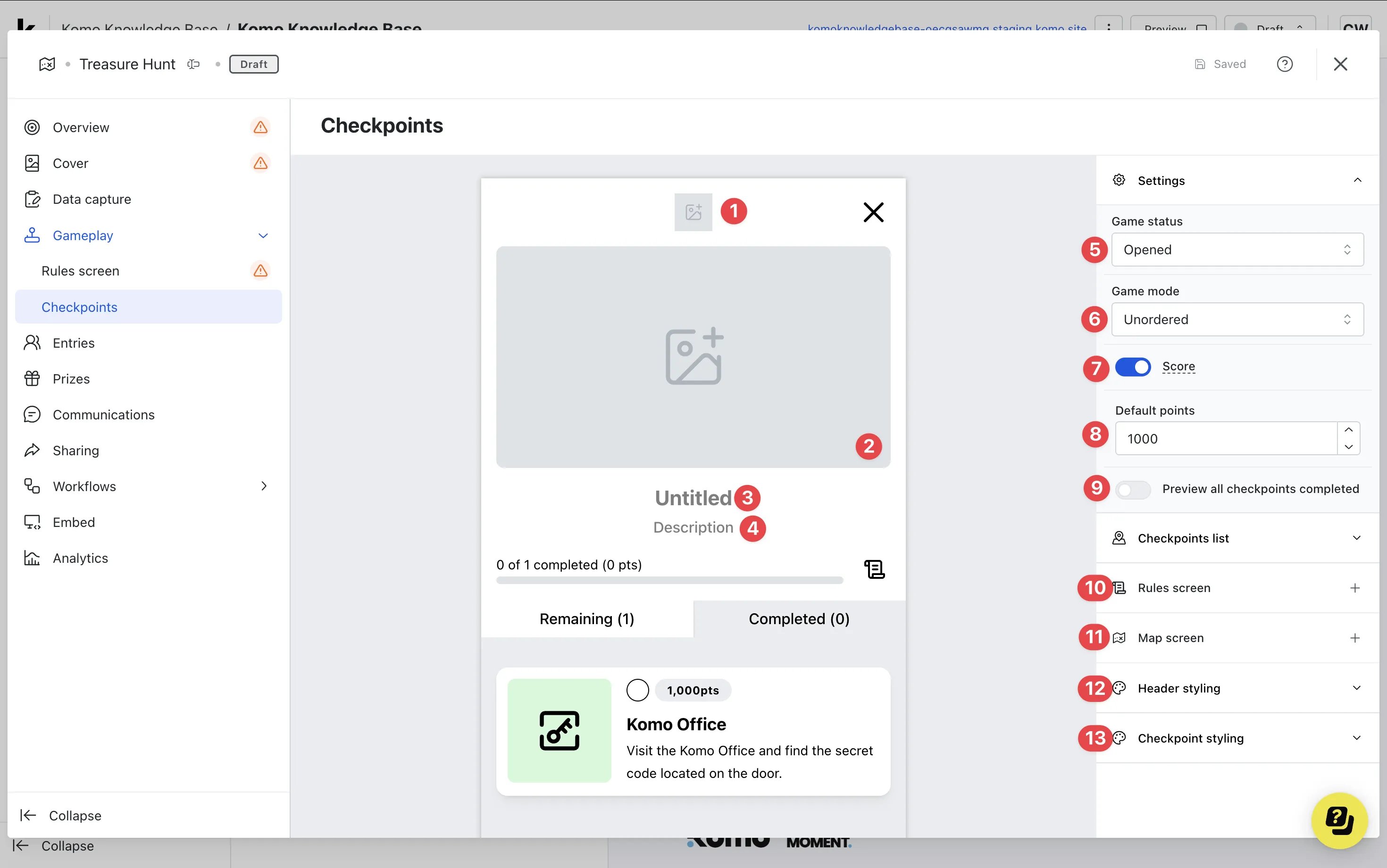
- (1) Upload a logo to the header.
- (2) Upload a cover image for the checkpoints.
- (3) You have the option to add a title.
- (4) Here you can include a description.
-
(5) The game status allows you to open or close the game.
You can build the checkpoints and have the game closed but publish the card to get the audience to register to play earlier.
- (6) The game mode allows you to alter whether the checkpoints need to be completed in any order or in a sequence (ordered).
- (7) Here you can disable the points functionality.
-
(8) If you have points enabled, edit the default number of points awarded per checkpoint.
-
(9) Here you can preview the experience for when a user completes all checkpoints and add a completion banner or message.
Setting up Completion of Checkpoints
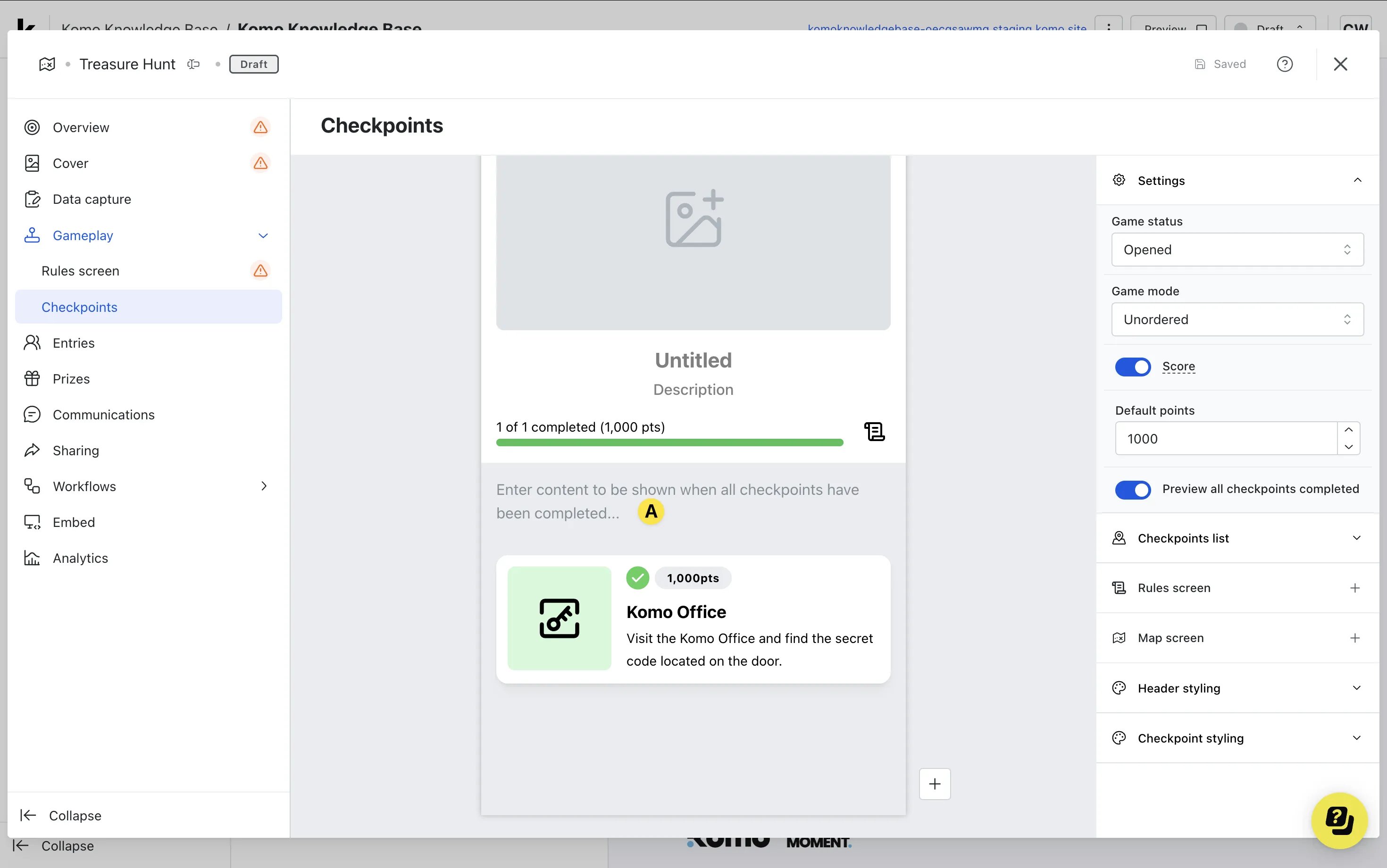
- (A) Click here to enter a completion banner or message.
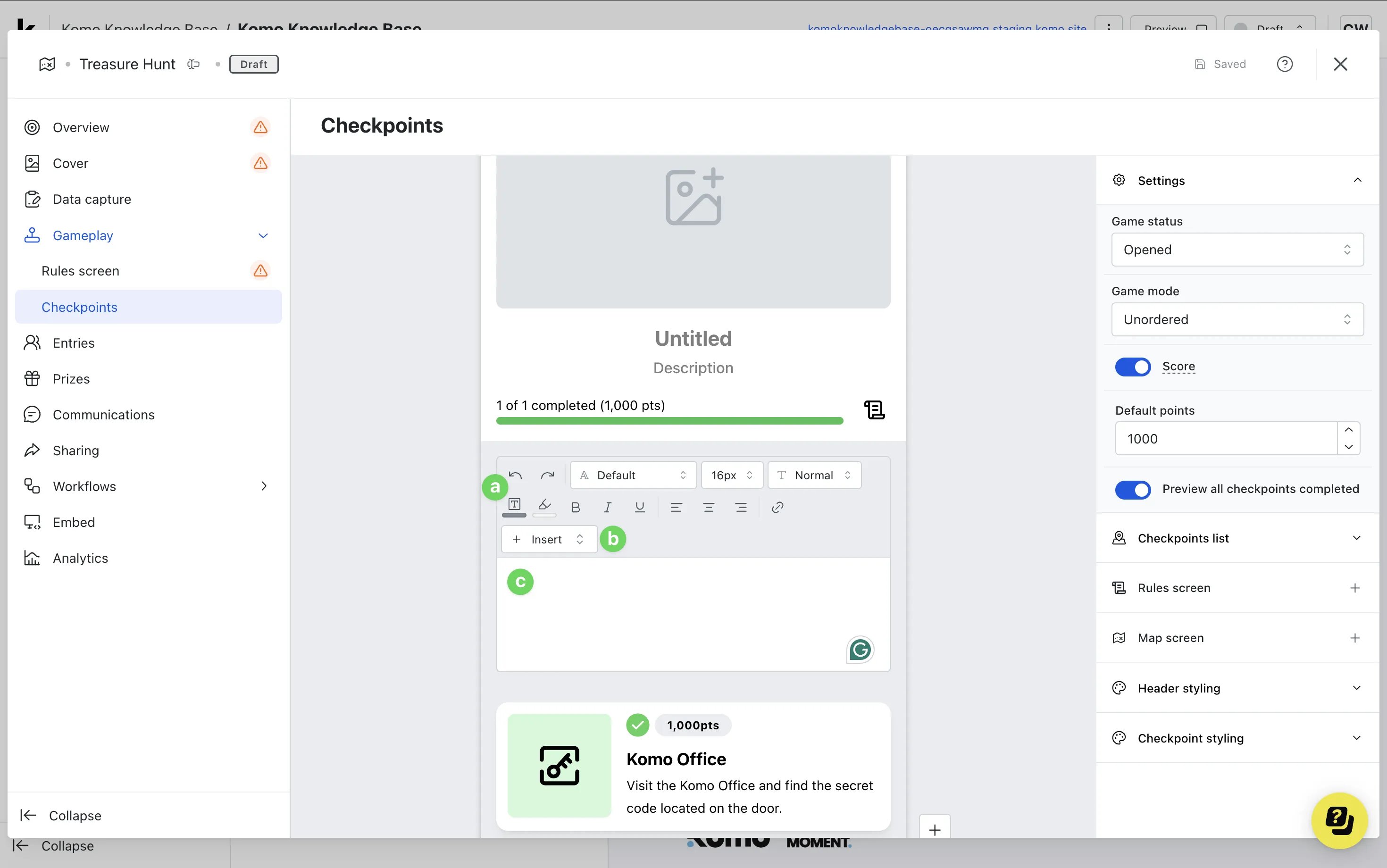
- (a) Here you can edit text and alignment settings for the completion content.
- (b) Click here to insert a completion banner image or horizontal divider.
We recommend uploading a completion banner that congratulates participants on finishing all checkpoints as well as detailing next steps (such as prizing process), rather than a plain text-based message. Images are much more captivating and offer greater engagement than text alone.
- (c) Here you can add text and preview your banner image once uploaded.
- (A) Click here to enter a completion banner or message.
-
(9) Here you can preview the experience for when a user completes all checkpoints and add a completion banner or message.
- (10) Edit the rules screen here.
-
(11) Here you can upload a map.
Adding a Map
 If you are directing users around a physical location, mark the areas to outline where the checkpoints are to help users navigate through the game. If you are running a digital scavenger hunt, you can move on to the next step.
- (A) Here you can upload an image of the map.
- (B) You can disable scaling the map to the screen.
- (C) Edit the drawer header and body colors here.
-
(12) Edit the header settings here.
Setting the Header
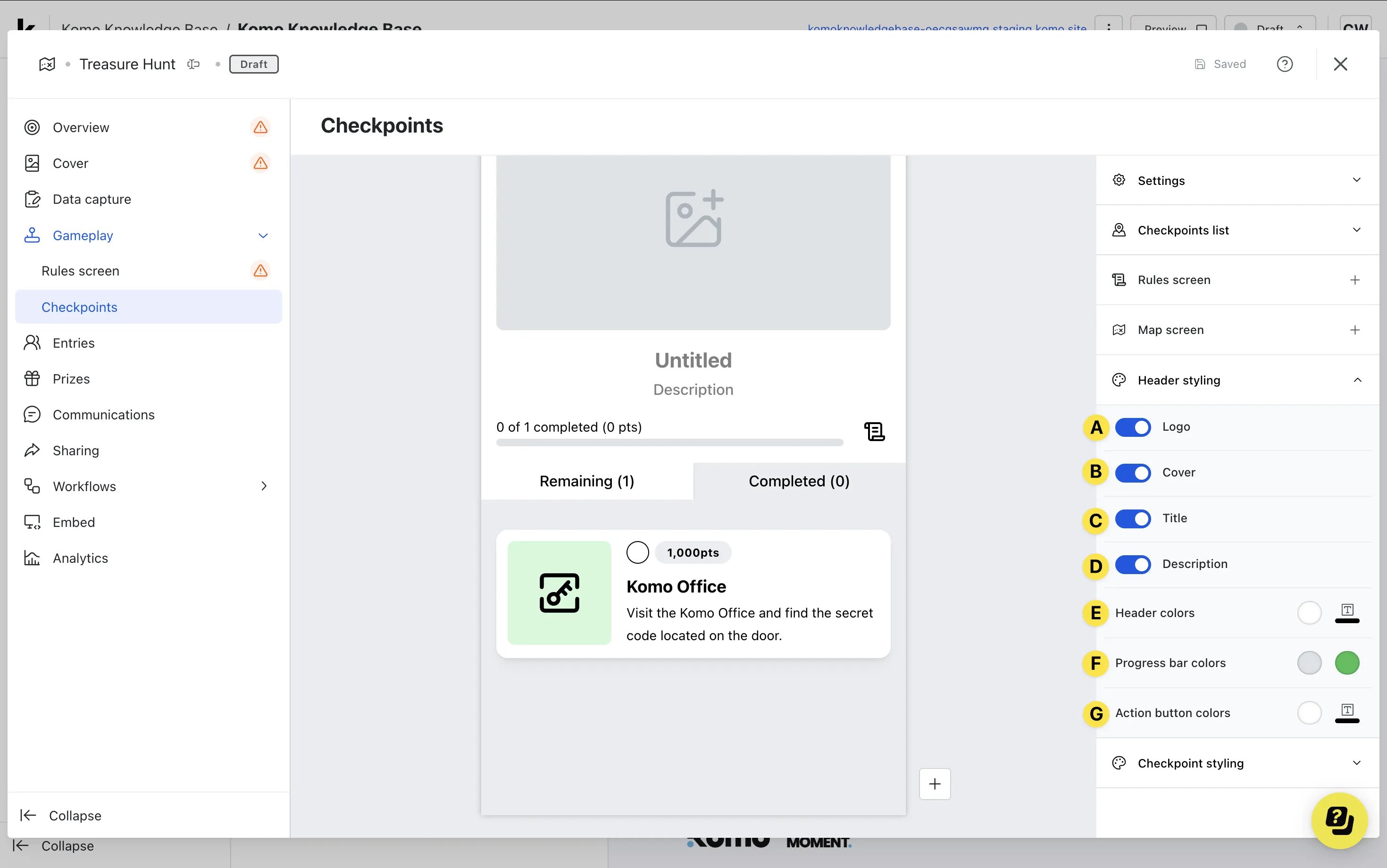
- (A) You can disable the header logo here.
- (B) Disable the cover image above the checkpoints.
- (C) Toggle off the title and (D) description.
- (E) Edit the header colors here.
- (F) Alter the progress bar colors.
The default green color is visible when checkpoints are completed.
- (G) Set Progress bar completed text — shown when the progress bar reaches 100% (replaces the numeric progress label).
- (H) Here you can edit the action button colors for the rules and maps icon.
-
Under gameplay Settings, set Progress bar limit if the bar should fill before every checkpoint is done.
Leave Progress bar limit empty to use the total checkpoint count.
-
(13) Update the checkpoint styling settings here.
Styling Checkpoints
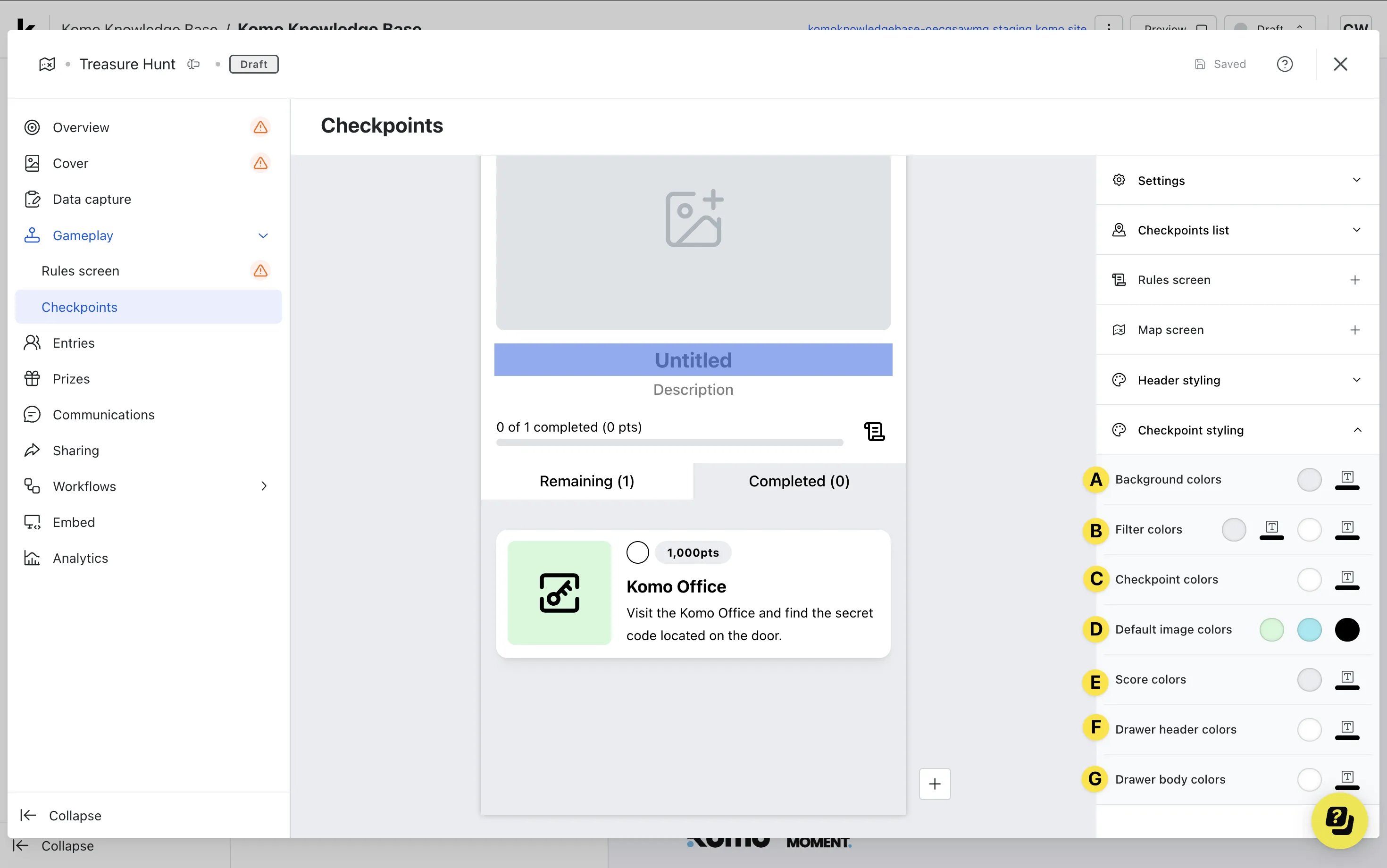
- (A) Update the background color of the checkpoint list.
- (B) Set the filter colors for when users switch between the remaining and completed tabs.
- (C) Edit the background and text color of the checkpoints.
- (D) Edit the default image colors here.
- (E) If you have points enabled, edit the score background and text color here.
- (F) Edit the drawer header and (G) body colors here.
Let participants reopen completed checkpoints
By default, a completed checkpoint can’t be opened again. Tapping it in the list does nothing, and scanning its QR code or opening its link shows Checkpoint already completed.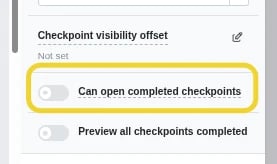
- Under gameplay Settings, turn on Can open completed checkpoints. It sits just above Preview all checkpoints completed and is off by default.
- With it on, participants can tap a completed checkpoint to open its drawer again. Scanning the QR code or opening the checkpoint link for a completed checkpoint also opens the drawer.
- A reopened checkpoint never shows the code entry or QR scanner, so it can’t be completed twice. The drawer still shows the checkpoint’s image, title, description, and Top content and Bottom content if they’re turned on.
Show custom content on a completed checkpoint
Each checkpoint has a Middle content area that only shows on a completed checkpoint, in place of the code entry or QR scanner. Use it for a thank-you message, a reward reminder or next steps.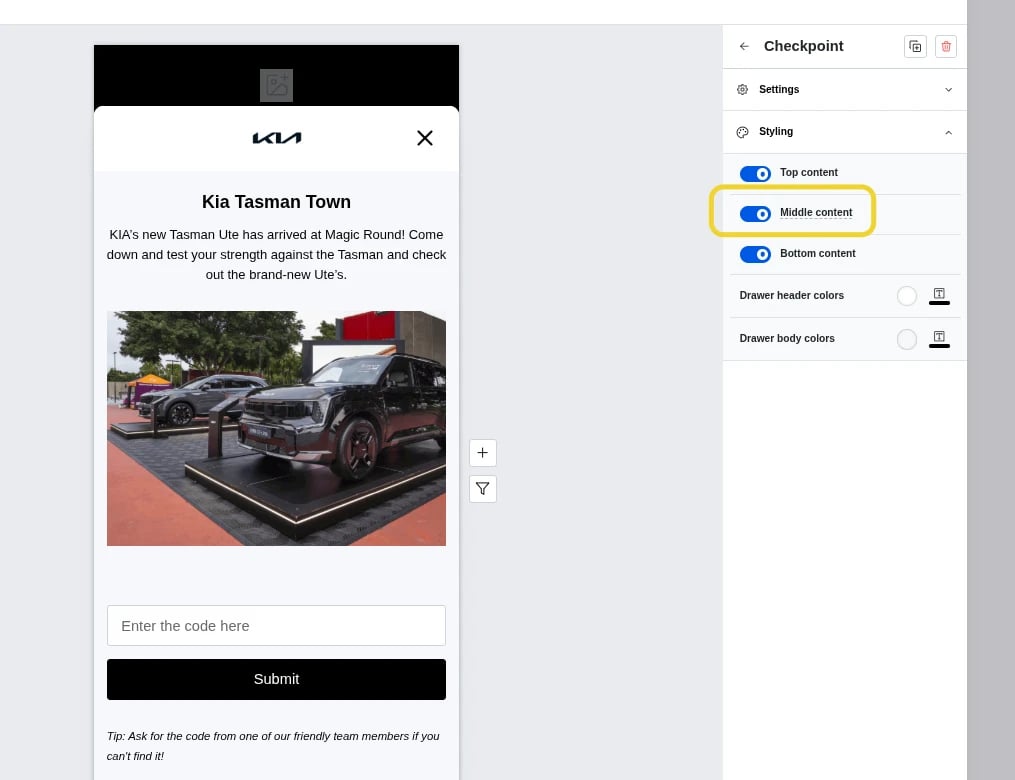
- Open the checkpoint and expand Styling. Make sure Middle content is on. It’s on by default, alongside Top content and Bottom content.
- In the checkpoint’s Settings, set Simulated status to Completed. The code entry or QR preview in the drawer is replaced by an editable Middle content area.
- Click the area and add your content. Changes save when you click away.
Participants mainly see Middle content when they reopen a checkpoint, so turn on Can open completed checkpoints too. It can also appear briefly right after a participant completes a checkpoint, while the success tick plays and before the drawer closes. If Middle content is off or empty, nothing shows in that space on a completed checkpoint.
Step 8: Create your Prizes and Communications
Set up the prizes and communications you wish to send for the Treasure Hunt card. Learn how to create your prizes and communications here.Step 9: Publish your card
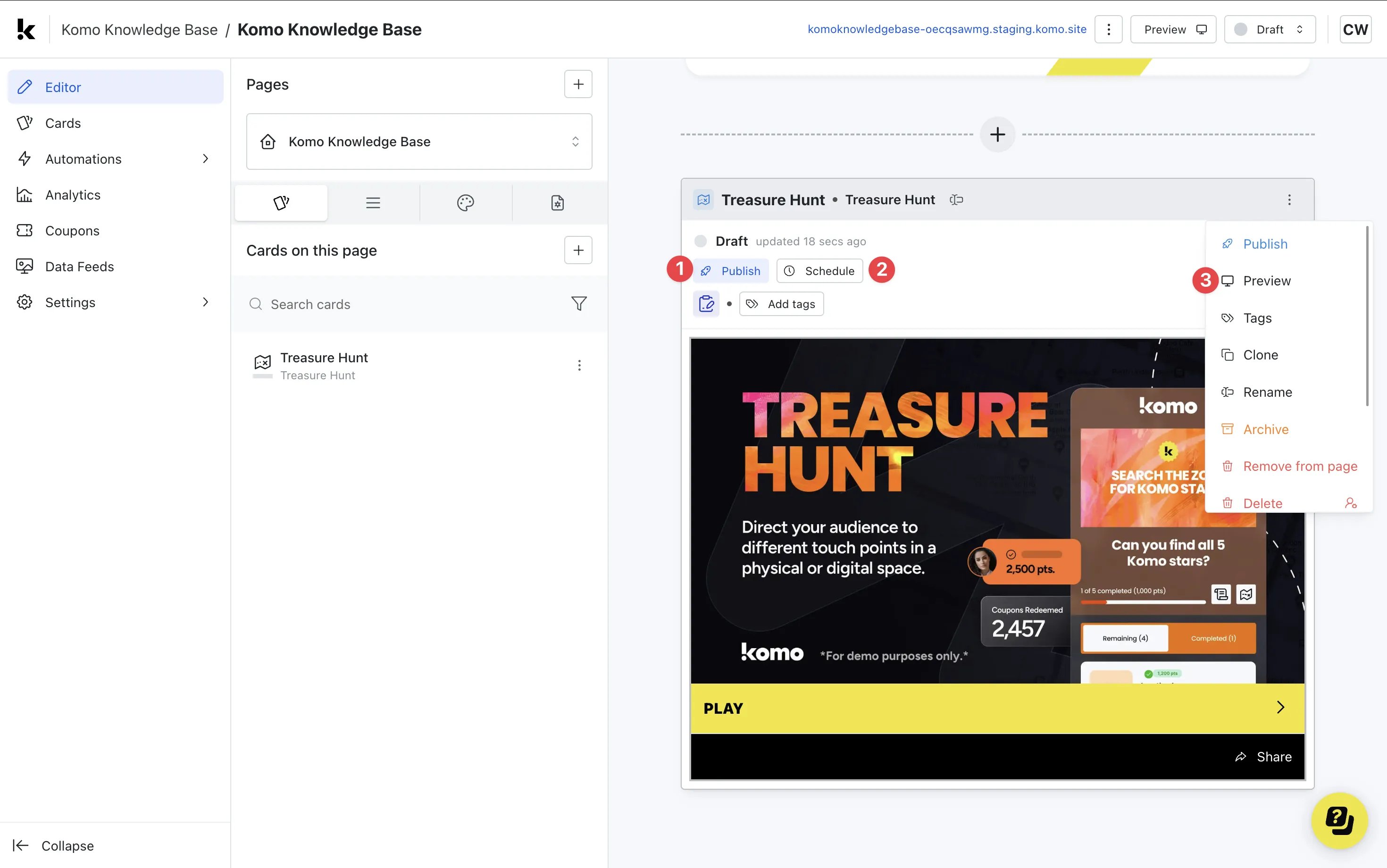
- (1) Publish your card manually and instantly for the world to see.
- (2) Schedule your card to be published and unpublished at set dates and times.
- (3) Click on … to Preview and interact with the card on the front end from a user’s perspective before publishing it. See how to test your card here.
All competition entries will be recorded and will impact the card analytics.
”Go live” checklist
Ready to go live with your Treasure Hunt? We recommend reviewing the following list before launching and double-checking if you have:- All images uploaded are the correct dimensions. Refer to our Design Guidelines which outline all recommended sizes.
- If you are using QR codes, ensure you have these downloaded to print and display at your location/s.
- If you are using Secret codes, ensure all the code words are correct and connected to each checkpoint.
- Your instructions to find each checkpoint are clear and specifies where to go to complete the checkpoint.
- Hyperlinked your T&Cs to the opt-in-field, which is created in the data capture section of the settings tab if you have a competition attached.
- All your communications (Registration, Winner/s, Everybody Else) are fully set up and ready to send.
- Your Prizes and the awarding rules are set up correctly.
- If you are using coupons, make sure the coupons created are set up correctly. Check the coupon limits are set, the copy for each screen is right and you have linked the appropriate coupons to your communications.
Terms & Conditions Template
Card Design Guidelines
Promotion
Stuck on how to promote your activation?
Analytics and reporting
Treasure Hunt exposes checkpoint data in two places, and they answer different questions:- Card Analytics — aggregate stats across all entrants. Use this for headline reporting: how many people completed one or more checkpoints, how many completed all checkpoints, and the total number of checkpoints completed across the campaign.
- Entries tab — per-contact rows with a hover-expandable list of every checkpoint that individual completed and when. Filter entries by “completed” or “not completed” specific checkpoints, and include checkpoint columns in your CSV export.
Troubleshooting
Users get bounced back to the card cover after scanning a checkpoint
Users get bounced back to the card cover after scanning a checkpoint
A refresh-loop symptom — user scans a QR code, sees the Treasure Hunt for a moment, then lands back on the cover — is almost always caused by a custom script left on the site from a previous campaign or an earlier support session.Check Site Settings → Super user → Head script and Body script for any leftover redirect, refresh, or session-clear script. Remove any script you did not intentionally add and republish.If you did not add any custom scripts, contact [email protected] with an example contact email — the team can trace the affected record.
Card Analytics and Entries tab show different numbers
Card Analytics and Entries tab show different numbers
They measure different things and both are correct:
- Card Analytics counts checkpoint completions in aggregate. If one contact completes the same checkpoint twice (via different sessions or on multiple devices) it can be counted more than once at the aggregate level depending on the metric.
- Entries tab shows unique contact-level state — each contact is one row, with the checkpoints that specific contact has completed.