
How to Run an In-Venue Live Trivia
What is it?
Live Trivia allows you to run a multiplayer trivia game in real-time. It is a great tool to entertain and collect market research data. Live Trivia can be seamlessly integrated into a range of marketing campaigns and is excellent for in-venue activations.How do I build one?
Step 1: Add a Live Trivia to your Hub
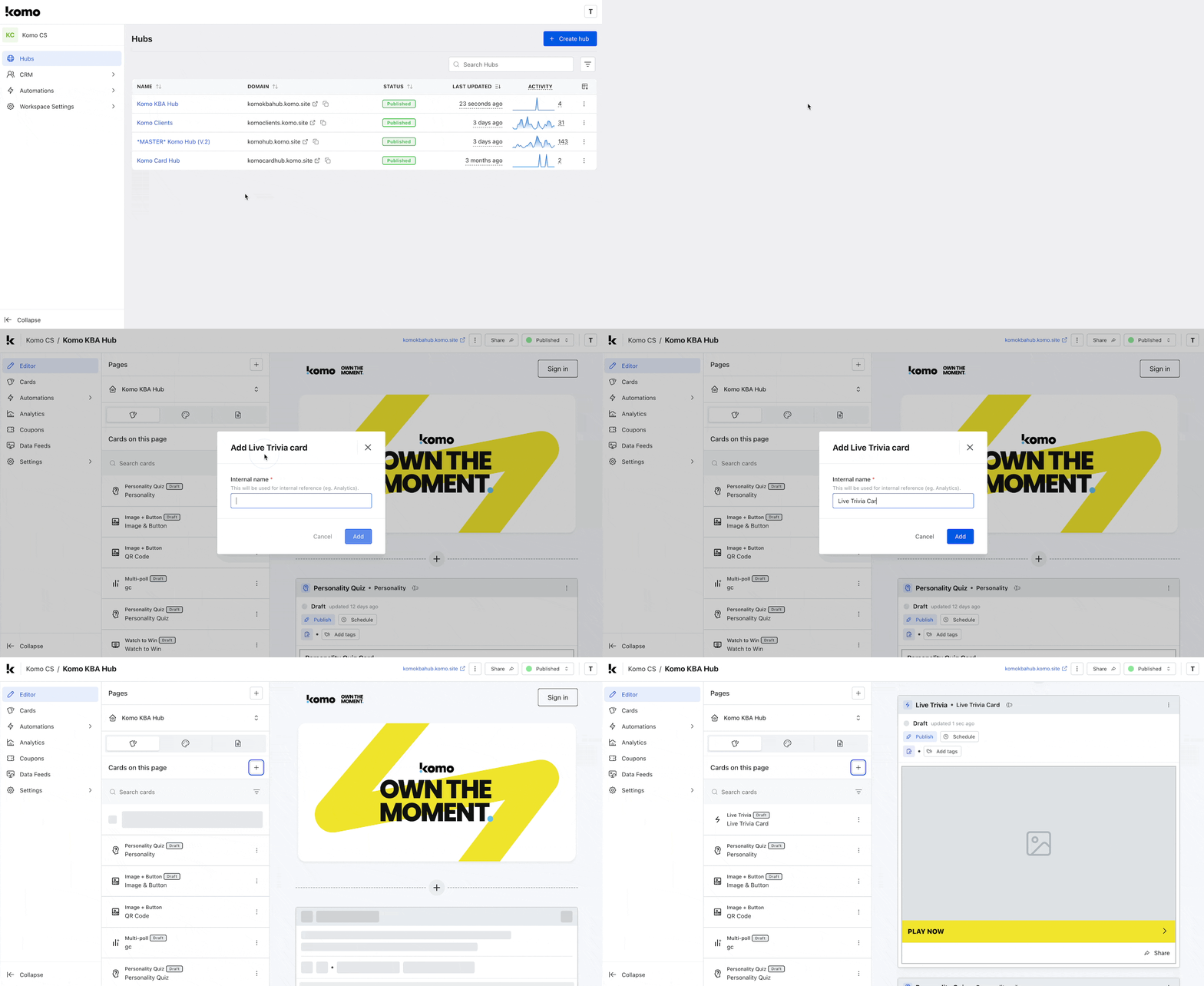
- Navigate to your Engagement Hub.
- Once there, click the Plus icon, select Games and then Live Trivia.
- Input an internal name for the card and click Add.
- You will then see your new card has been added to your Hub.
Step 2: Set up your Live Trivia start time
- Clicking on the Live Trivia will open the editing module.
- (1) Allows you to set the duration and your Live Trivia’s start/finish time.
Scheduling your Live Trivia Game and Duration
Scheduling your Live Trivia Game and Duration
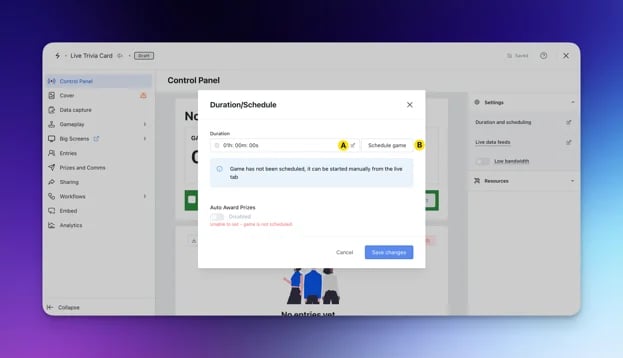
- (A) Set how long your game will run for. The builder default is 1 hour.
- (B) Set the start and finish time of your Live Trivia game.
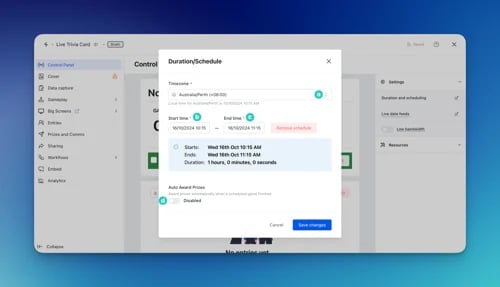
- (a) Select the timezone.
- (b) Set the start date and time of the trivia.
- (c) Set the end date and time for the trivia.
- (d) Toggling this option on will automatically award the prizes once the Live Trivia game ends. Auto-award is off by default — switch it on if you want prizes awarded when the game ends.
This feature requires the Live Trivia to be scheduled to be enabled.
- (2) Add live data feeds. These are optional, however, we highly recommend adding them if you are running your Live Trivia in-venue as they provide an additional point of engagement for your audience.
Types of Live Data Feeds
Types of Live Data Feeds
Live data feeds work by pulling through data from your entrant’s responses to your Live Trivia questions and then displaying it in a fun & engaging manner for your crowd. Below is a list of the live data feeds;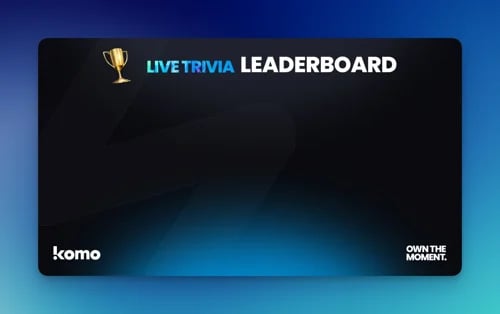
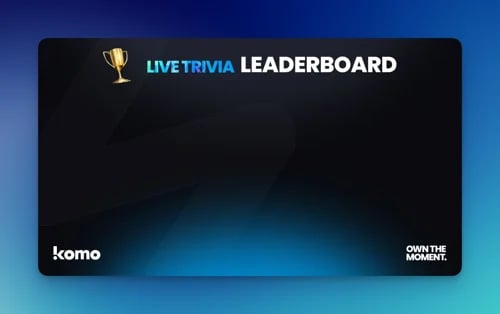
- Leaderboard: The Leaderboard screen will display the top 10 current high scores in your Komo Live competition.
- Beat the expert: To get your players excited at the possibility to beat the experts, use the ‘beat the expert’ screen. Simply input the expert’s score in the screen set-up settings and your screen is ready to go.
- Question results: The question results screens pull the live results to a selected question and displays it on the big screen.
- Hardest question: This action screen shows the most challenging question and the percentage of people who answered incorrectly.
-
Smartest team: The smartest team screen pits teams opposing each other by revealing which team has scored the highest.
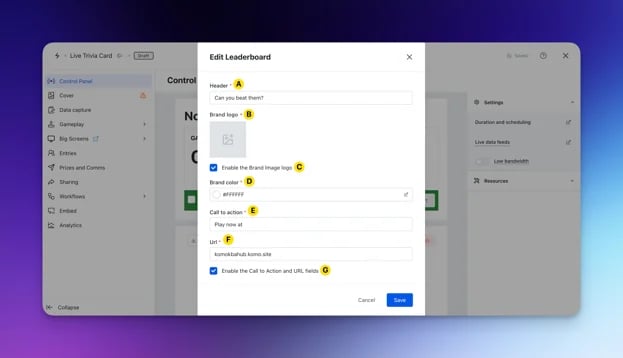
- (A) The live data feed’s header title.
- (B) Upload your brand’s logo or (C) disable the logo here.
The recommended sizing is 300w x 300h with a transparent background. - (D) Select your brand’s color. We highly recommend not using black as it won’t appear against the action screen’s background.
- (E) Add a call-to-action.
- (F) Enter the URL people can enter to play your Live Trivia or (G) disable the URL here.
- (3) Toggles Low-bandwidth mode on/off. You may decide to use this option in areas with poor mobile reception.
- (4) Here you can view the relevant resources to build the Live Trivia.
- (5) If you are manually starting your Live Trivia ie: at an in-venue event, this is where you will start the Live Trivia.
- (6) At any point throughout the Live Trivia, you can click this button to download a .CSV file. Within this file, you will receive all the information relating to users’ responses to your form and Live Trivia questions.
- (7) Here you view all disqualified entrants.
Step 3: Add a Cover to your Live Trivia card
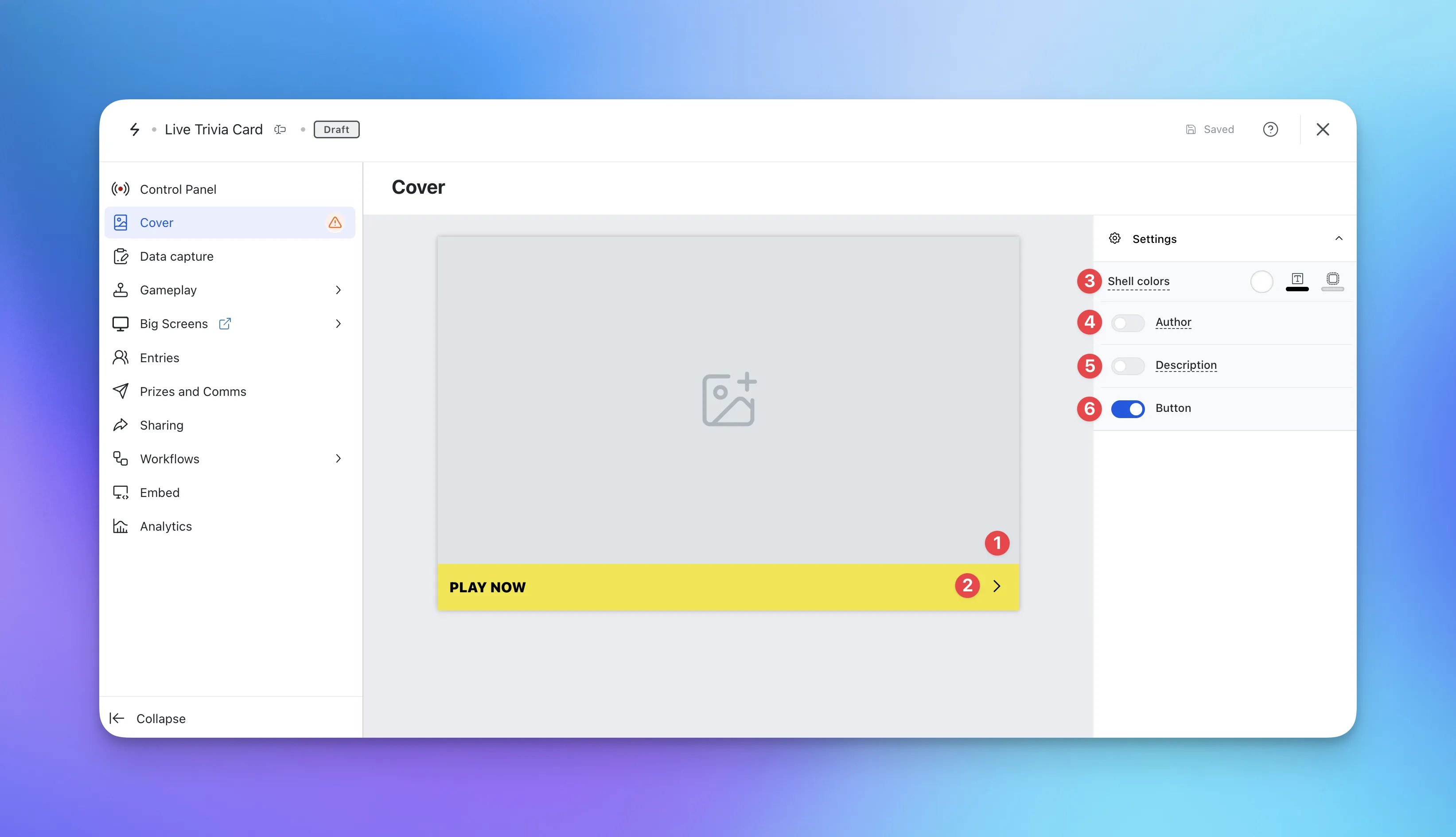
- Click on the Cover tab.
- (1) Here you can upload the cover image for the card, we recommend using your registration image.
The recommended size is 1920w x 1080h. We strongly encourage you to include the following information on the registration image;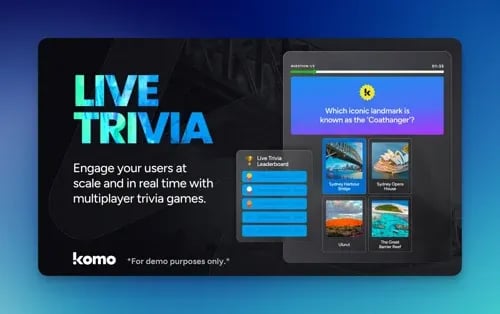
- The name of your Live Trivia game
- Prizing details
- (2) Here you can edit the color and copy of the call-to-action or (6) disable the bar.
- (3) Set the Outer card shell colours (description and share bar).
- (4) You can add an Author tag by displaying the brand or person who’s responsible for the card content.
- (5) Add a Description to the card.
Step 4: Set up your Data Capture Screen
Unlike other cards the Live Predictor card comes with a data capture already added, you will just be required to finish setting it up. For a guide on how to do this check out our article below.Ready to set up your competition?
Step 5: Set up your Rules Screen
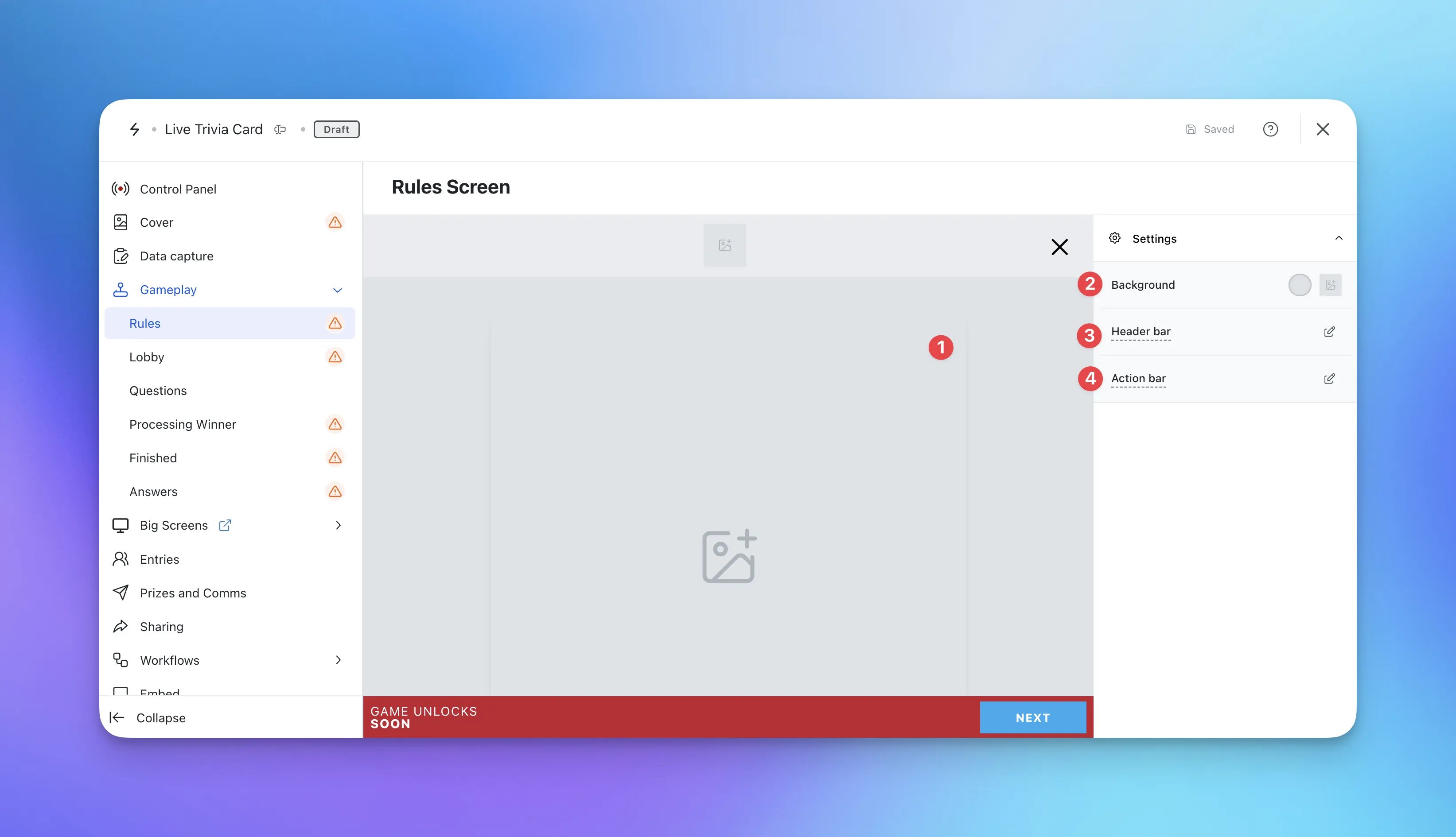
- Click on the Gameplay tab and then Rules.
- (1) Here you can set a rules screen image.
The recommended size is 1080w x 1080h. We strongly encourage you to include the following information on the rules screen image;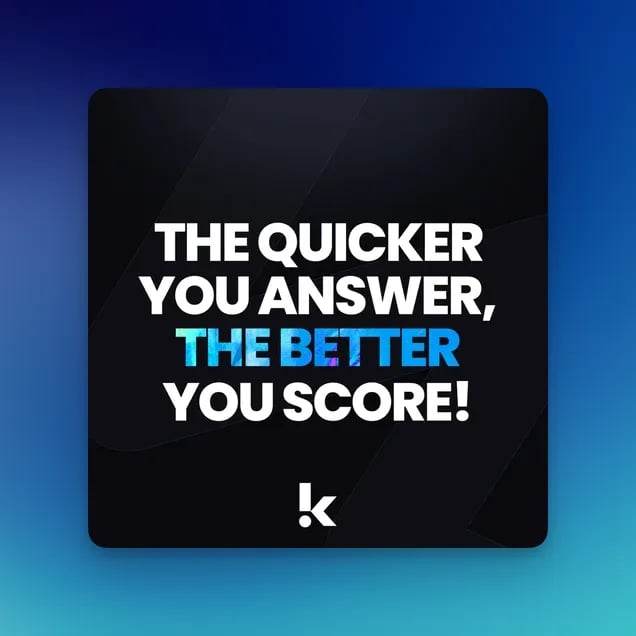
- Use the copy “The Quicker You Answer, The Better You Score”
- (2) Here you can configure the background of the trivia game.
- (3) Alter the headerbar color.
- (4) Edit the game action bar colors (the footer bar).
Step 6: Set up your Lobby Screen
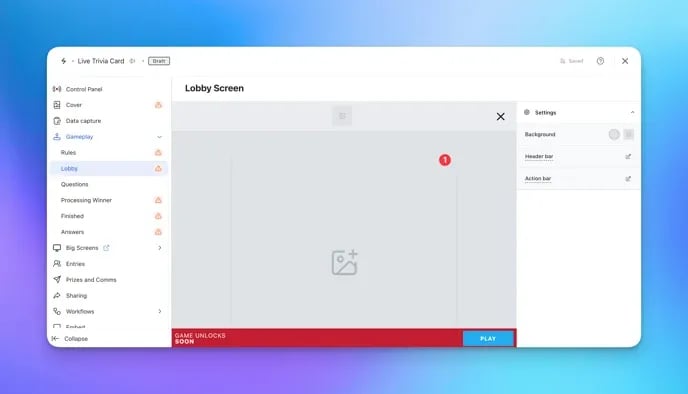
- Click on the Lobby Screen tab.
- (1) Here you can set a lobby screen image.
The recommended size is 1080w x 1080h. We strongly encourage you to include the following information on the lobby screen image;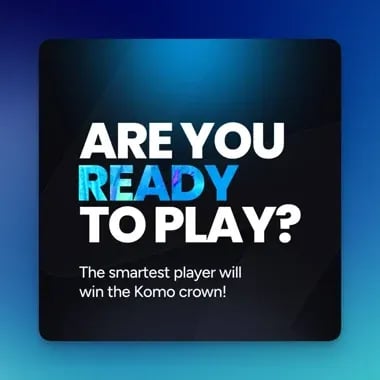
- Prizing Information
Step 7: Write your questions
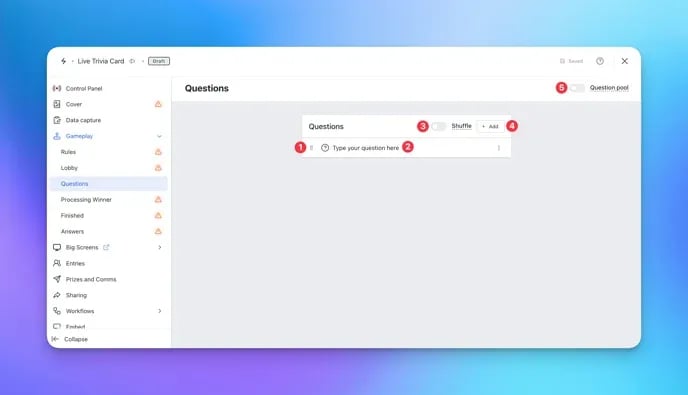
- Click on the Questions tab.
- (1) The toggle to the left of each question will allow you to reorder your questions by dragging and dropping them.
-
(2) Clicking on a question will allow you to edit it.
Adding Questions
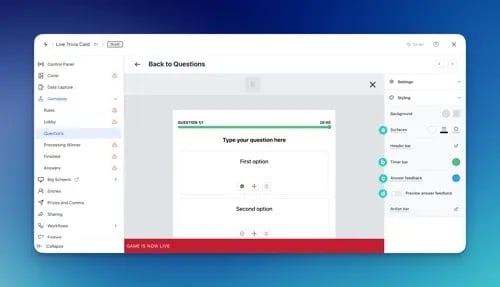
- (A) This is where you write your desired question.
- (B) Type in a potential answer.
- (C) The options at the bottom of each answer allow you to nominate a correct answer, delete an answer and move the answer.
- (D) Scrolling down, click the plus icon to add another potential answer.
- (E) Toggling this option on/off allows you to upload an image associated with the question.
- (F) Here you can choose to toggle off the question text if you have chosen to display your question text in the cover image.
- (G) Connect quiz responses to contact properties.
- (H) Here you can change your Quiz question to a Survey question and vice-versa.
- (I) Changes the answer layout.
- (J) Alters the amount of time a user has to answer a particular question. The default is 20 seconds.
- (K) Scroll down the right sidebar, you can shuffle the potential answers’ positions for each individual entrant. Shuffle is on by default.
- (L) Here you can Style the trivia question.
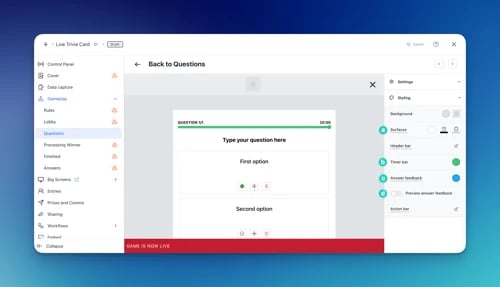
- (a) Set the colors behind the question and potential answers.
- (b) Alter the Time bar color.
- (c) Edit the Answer feedback colour, and
- (d) Toggle on to preview the color.
- (3) Toggling on the shuffle button will automatically and randomly shuffle your questions when showing them to your users.
-
(4) Clicking the Add button will allow you to add additional questions. The different question types are as follows;
- Quiz questions - This allows you to create your own quiz questions and populate them within your Live Trivia.
- Survey questions - Typically utilized for Market Research questions but a great opportunity to create great user-generated content by utilizing divisive topics such as ‘Does Pineapple belong on pizza?” (Hint: It definitely does)
- Questions from the library - Selecting this will open the Komo content library and give you access to over 40,000 pre-made questions.
-
(5) By toggling on Question Pools [optional], you can add as many questions as you like to a pool, feeding your users questions from this pool randomly. This combats cheating and introduces variety into your Live Trivia games!
Managing Question Pools
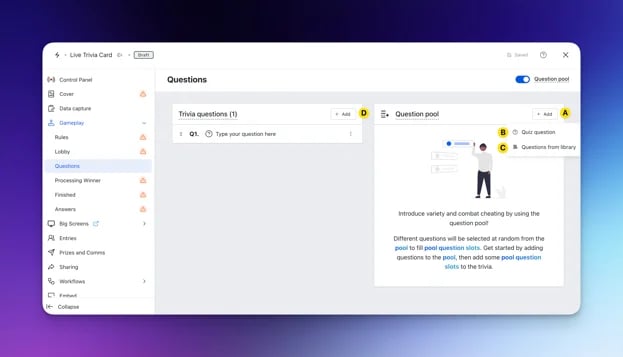
- (A) Click the Add button to add a question to the pool.
- (B) + (C) Choose from a quiz question or a question from the library to add to your pool.
- (D) Once you’ve added all desired questions to your pool, click the Add button and select the Pool Question Slot question type from the options provided. Note: From here, your users will be fed a question from the Pool at random when they come across a Pool Question Slot in your Live Trivia game.
How scoring works
A player’s total score is the sum of the points earned across all questions they receive.
For a correct quiz answer, points are calculated using the time remaining:
Points = (time remaining in milliseconds / question duration in milliseconds) × 10,000
The result is rounded to the nearest whole point and limited to a maximum of 10,000 points.
Faster correct answers therefore earn more points. Survey answers are not time-based: any submitted
answer earns 10,000 points.
- Minimum possible total score: 0 points.
- Maximum possible total score: number of questions received × 10,000 points.
Step 8: Upload your Processing Screen
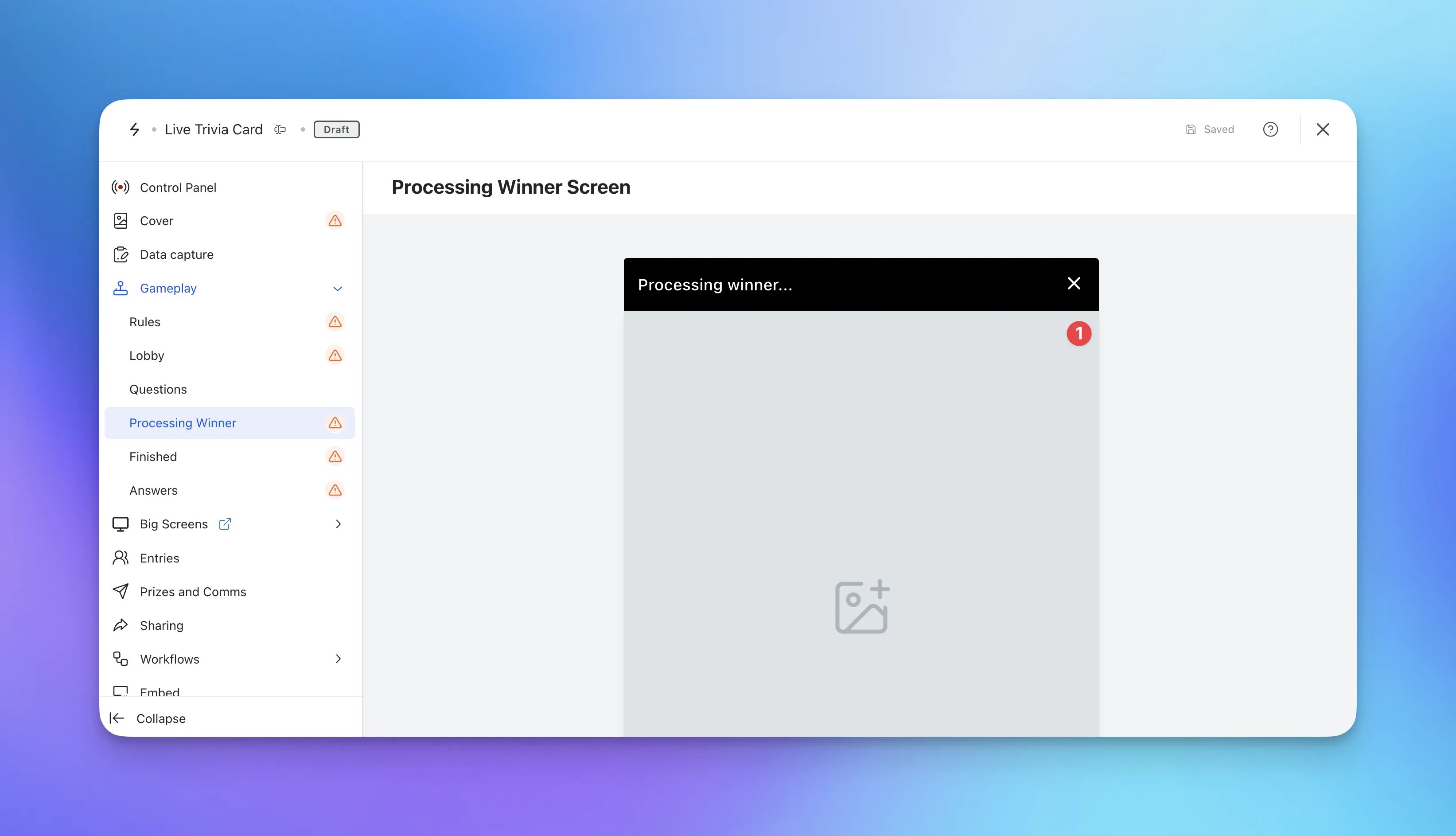
- Click on the Processing Screen tab.
-
(1) Here you can set the processing screen image.
Add a naming sponsor or include your logo here. See below for an example of a processing screen image:
Step 9: Set up your Finished Screen
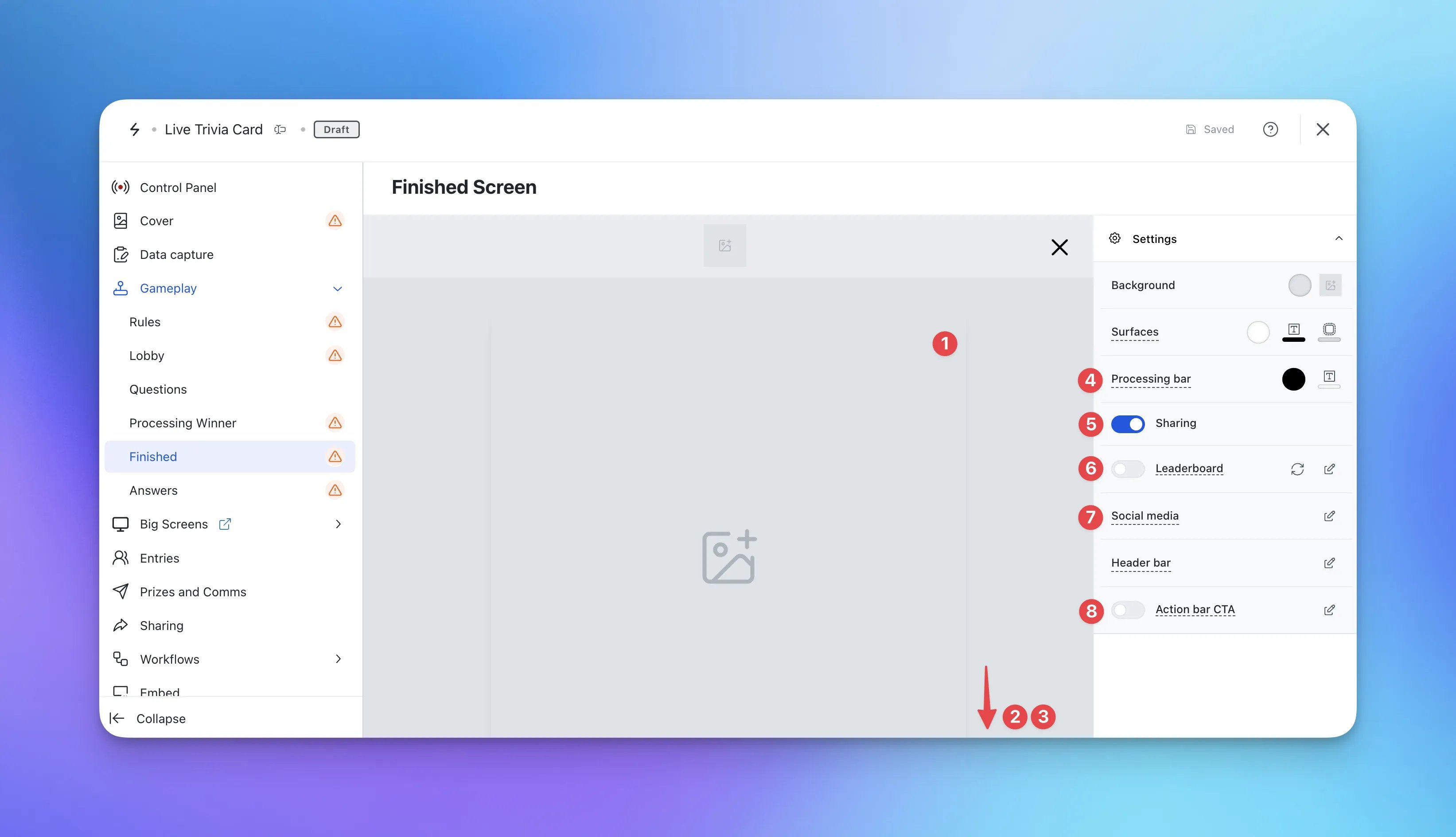
- Click on the Finished Screen tab.
-
(1) Here you can set the Finished screen image.
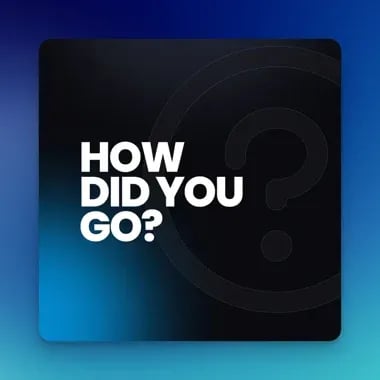
The recommended size is 1080w x 1080h. We strongly encourage you to include the following information on the finished screen image. See below for an example of a finished screen image;
- (2) Scroll down to alter the finished copy here.
- (3) Edit the Share CTA colors or (5) disable the button here.
- (4) Set the Processing bar colors.
-
(6) Click on the edit icon to set up the leaderboard.
Setting up your In-Card Live Trivia Leaderboard
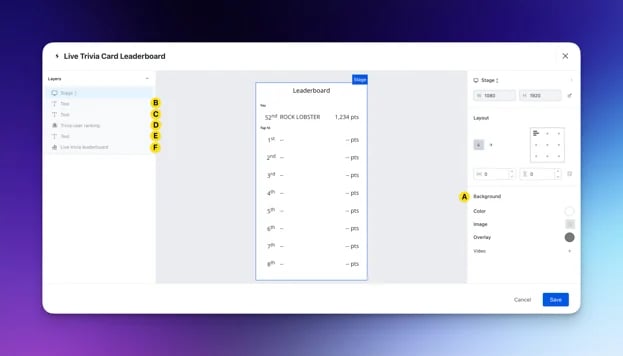
- (A) You can add a background to the leaderboard by setting a solid color or uploading an image.
- (B) Click here to enter the Leaderboard title settings.
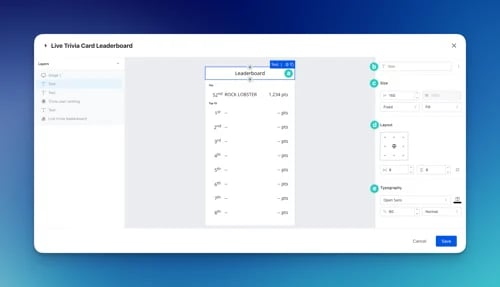
- (a) Here you can change the title of the leaderboard.
- (b) You can label the cell and clicking on …, you can clone and delete this layer.
- (c) Edit the cell size here.
- (d) Using the grid layout, you can select your preferred text alignment. The boxes below allow you to alter the horizontal and vertical padding.
- (e) Alter the typography here. Change the title font, size and color.
- (C) Click here to enter the user ranking title settings.
- (D) Here is where you’ll edit the user ranking settings.
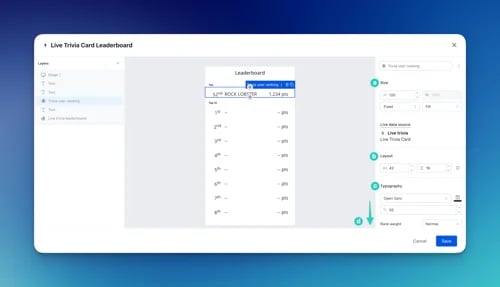
- This is an example of the user’s ranking. This will update with the user’s data once they have played the Memory Challenge.
- (a) Edit the cell size here.
- (b) Alter the horizontal and vertical padding.
- (c) Here you can edit the typography. Change the title font, size and color.
- (d) Scrolling down, you can add a background color to the user ranking and adjust the border radius.
- (E) Click here to enter the leaderboard ranking title settings.
- (F) Here is where you’ll edit the leaderboard ranking settings.
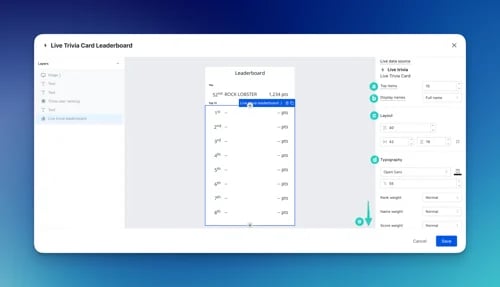
- (a) Adjust the number of positions shown on the leaderboard.
- (b) Here you can choose how to display the entrant names.
- (c) Alter the spacing between the rank items using the first setting, and the boxes below allow you to alter the horizontal and vertical padding.
- (d) Here you can edit the typography. Change the title font, size and color.
- (e) Scrolling down, you can edit the animation. Changing the duration of the scroll (milliseconds) and the delay.
This setting works best if you have more than 10 rank items, or if you can’t view all the items on one page.
- (8) Here you can add an call-to-action bar that displays at the bottom of the entrant’s screen once they’ve finished the trivia. Use this feature to push users to a destination of your choice.
Step 10: Set up your Answers Screen
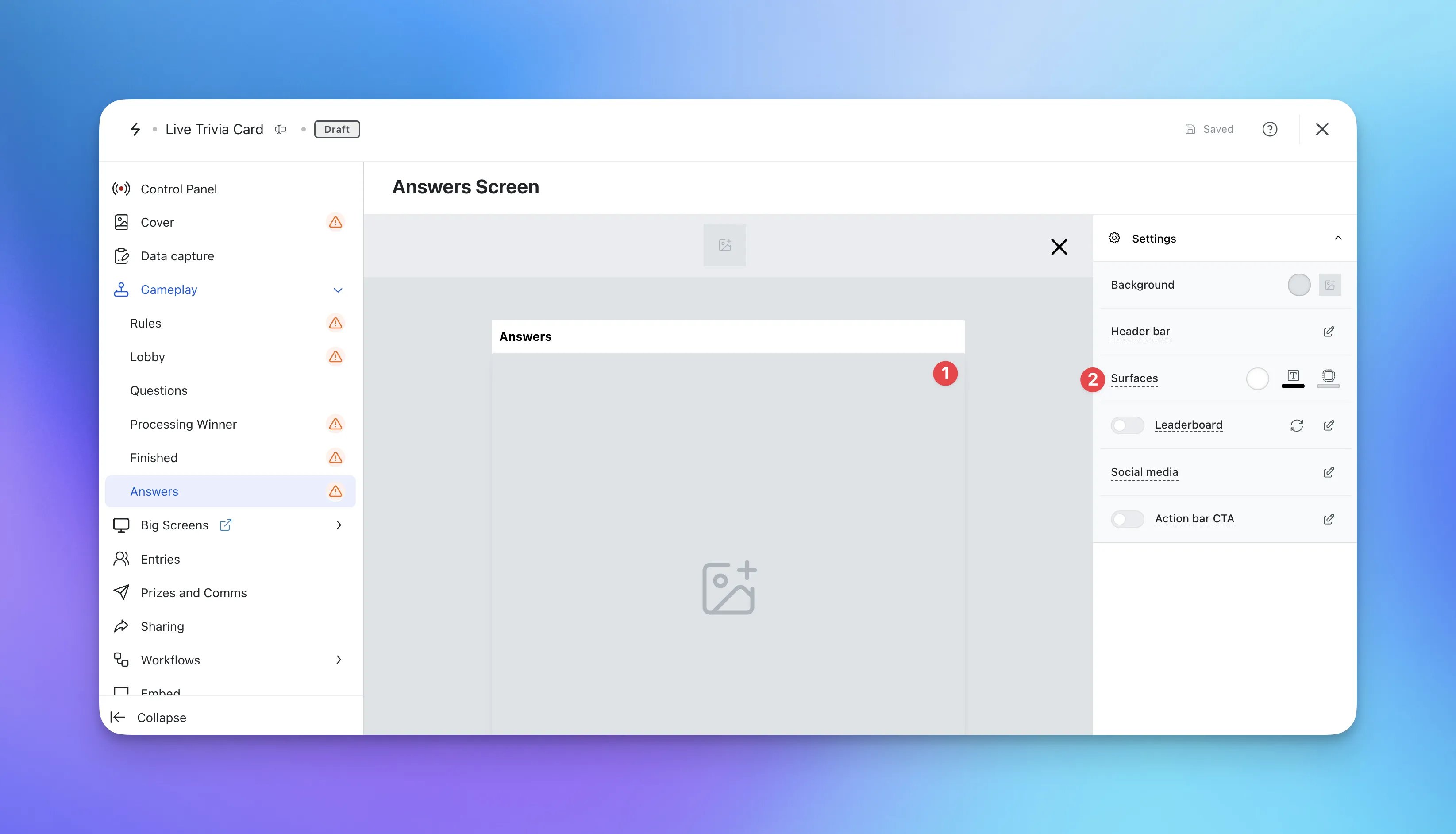
- Click on the Answers Screen tab.
-
(1) Here you can set the Answers screen image.
The recommended size is 1080w x 1080h. We strongly encourage you to include the following information on the answer screen image;
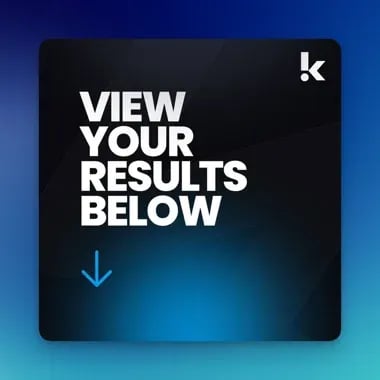
- Use the copy “View Results” with an arrow pointing down. See below for an example of an answer screen image.
Step 11: Set up your Big Screens (optional)
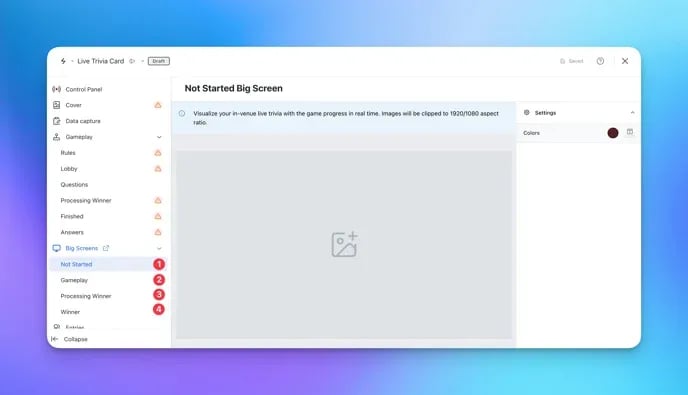
- (1) Click on the big screens tab and then not started.
Setting up the Not Started screen
Setting up the Not Started screen
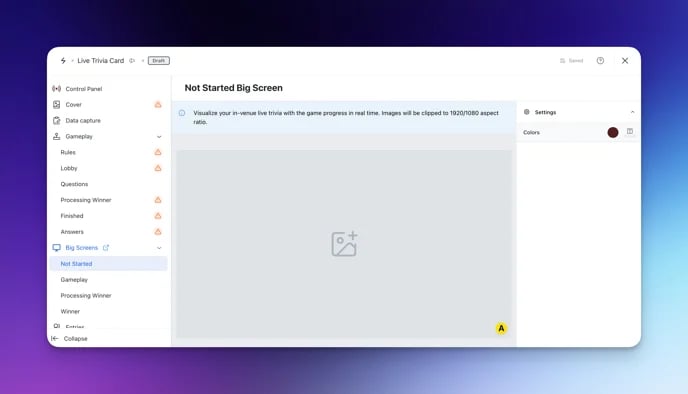
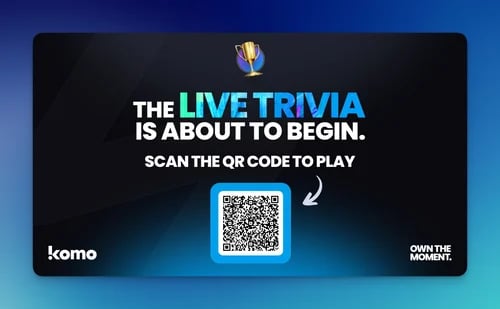
- The not stated screen. This is a holding screen that is displayed prior to starting the game. Provide details of the game and a QR code for users to register to play.
- (A) Upload a background image here.
- (2) Here you can edit the gameplay screen.
Setting up the Gameplay screen
Setting up the Gameplay screen
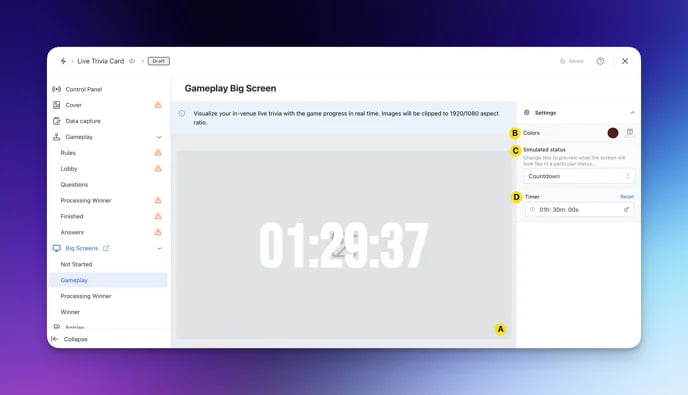
- The game in progress screen. This image will have the time left for live trivia placed as an overlay on top of the image. It will then countdown accordingly.
- (A) Upload a background image here.
- (B) Alter the countdown clock colors.
- (C) Using the drop-down, preview the different gameplay statuses.
- (D) Update the timer to preview.
- (3) Here you can edit the processing winner screen.
Setting up the Processing Winner screen
Setting up the Processing Winner screen
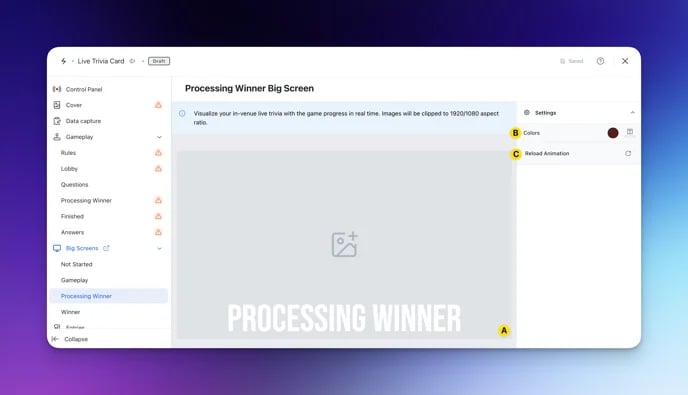
- The processing screen. The processing screen is shown at the end of the Live Trivia but prior to the prizes being awarded. it acts as a holding screen whilst the person running the Live Trivia awards the prizes.
- (A) Upload a background image here.
- (B) Alter the processing winner text color.
- (C) Here you can reload the processing winner animation.
- (4) Here you can edit the winner screen.
Setting up the Winner screen
Setting up the Winner screen
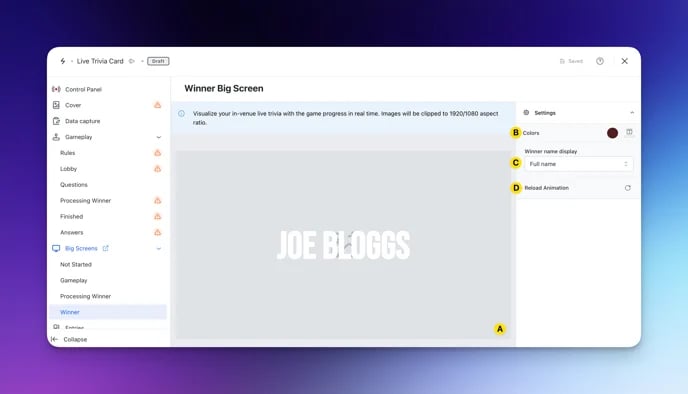
- The winner screen is shown once the prize is awarded and displays the Live Trivia winner’s name as an overlay on your uploaded image.
- (A) Upload a background image here.
- (B) Alter the winner text color.
- (C) Here you can reload the winner animation.
Step 12: Set up your prizes and communications
- Ready to set up your Prizes and Communications? Click here to learn more.
When setting up prizes for Live Trivia, you have the additional option to add images to represent each prize.
Step 13: Publish your Card
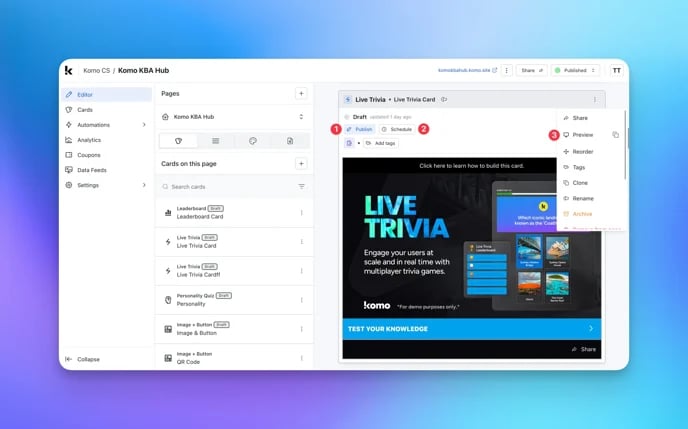
- (1) Publish your card manually and instantly for the world to see.
- (2) Schedule your card to be published and unpublished at set dates and times.
- (3) Click on … to Preview and interact with the card on the front end from a user’s perspective before publishing it. See how to test your card here.
”Go live” checklist
Ready to go live with your Live Trivia? We recommend reviewing the following list before launching and double-checking if you have:- All images uploaded to each screen are the correct dimensions. Export image files in 2x to ensure none of the images appear pixelated.
- Added all your trivia questions (including imagery where possible).
- Used survey and market research questions to gain insights and user-generated social media content. (Consider including a Prefix in front of these sorts of questions, e.g. ‘BONUS POINTS’, ‘HAVE YOUR SAY?’, or ‘FAN POLL’)
- Created personalized communications for your market research questions.
- Add all your brand/social links to the Social media tab on the Finished screen.
- Added your social sharing copy in the settings tab, giving users the best experience and increasing the likelihood of your game being shared.
- Added a Call to action bar on the Finished screen. This is shown at the end of the Live Trivia when people are reviewing their scores. This can be one of the most potent commercial tools in the game - it is a simple CTA that always receives a great click-through rate.
- Hyperlinked your T&Cs to the opt-in-field, which is created in the data capture section of the settings tab.
- All your communications (Major Prize Winner, Minor Prize Winner, Everybody Else, Registration) are fully set up and ready to send with the unique gameplay link included. The unique gameplay link allows the player to come back after the game is completed to check their score.
- You have added and attached a Leaderboard to your Live Trivia game.
- If you are using coupons, make sure the coupons created are set up correctly. Check the coupon limits are set, the copy for each screen is right and you have linked the appropriate coupons to your communications.
- Set the game length (the builder default is 1 hour; for in-venue games, change this to around 2 minutes).
- If you want prizes awarded when the game ends, switch auto-award on (it is off by default) and ensure your Prize awarding rules are set up correctly.
- Uploaded images for all ‘prize’ recipients and those not winning a prize with a “thanks for playing image.”
- Uploaded images to the Big screens (if running an in-venue trivia). Make sure to include your logo on the bottom of each image and the copy “Congratulations” on the top for the Winner screen as the winner’s name will appear in the middle.
- Set up the action screens which pull live data from the trivia game. These can be used to promote your current game or to promote pre-registrations for future games. Example action screens include: “The Top 10”, “The Hardest Question”, “Team Game Results”, “Fan Poll Results.”
- Tested through your game with a couple of people to ensure all of your communications and images are as you wish them to be. You can see how to test your game here. Then you’re ready to go live!
Terms & Conditions Template
Card Design Guidelines
Promotion
Stuck on how to promote your activation?
FAQ
What happens in the event of a tie? Answers in Live Trivia are recorded using millisecond accuracy and converted into points using the scoring formula above. Therefore, a tie on points is unlikely. However, if it does occur, whichever user entered first is awarded first place. What are the recommended sizes for each image? Click here to view our Live Trivia design guidelines. What’s the difference between a Quiz Card and a Live Trivia game? The Quiz Card allows you to challenge your audience at any time, it is always open, and users can take as long as they like to answer questions. The Live Trivia is best described as a ‘pub quiz’ available to anyone, anywhere. The Live Trivia is open for a set amount of time (this can be as little or as long as you like), and then once started, users have a set amount of time to answer and be crowned the smartest Insert topic/team Fan. What is an invite-only Live Trivia game and why would I want to do this? An invite-only Live-trivia is when you want only a subset of your community to be able to take part in a trivia competition - this is often done when running larger campaigns and users can ‘win’ entry into a final private trivia game to crown a winner. You can see how to set this up here. How do I run my Live Trivia in-venue? Click here for a step-by-step guide to running your Live Trivia in-venue. How do I attach terms & conditions to my Live Trivia game? Simply send through your terms and conditions in a .PDF format to your Customer Success Specialist and they will take care of it for you. Download your Live Trivia terms and conditions here.Top tips
- Aim to have 8-12 questions for maximum engagement.
- Base your Live Trivia on a topic that’s fun and interesting e.g. TV show, movies, Christmas etc.
- Use images in your questions - a cover photo and/or images for each answer. This brings your game to life! You don’t want to play a game that’s just plain text…
- Include survey questions. Get to know your audience by asking specific questions about your business or anything you’re curious about knowing. This is a bonus points question, your audience will definitely answer it as whatever answer they select, they will get points for!
- Design your Cover and Data Capture Form screen early so you are able to promote your game for users to register. You can then design the rest of the game while promoting it at the same time. Your game will remain closed until you decide to publish it live.
- We highly recommend adding prizing details to your designs, ie: First place wins X.
- Create test games of your trivia so you can see how it will look from your audience’s perspective. This allows you to see the game in action and spot any changes you may need to do.
- Set up a Call to Action bar on the Finished screen to direct users back to your Hub to view their position on the Leaderboard or to take part in other competitions and games.
- Use your Data Capture screen as your cover image. This should include the name and type of your Live Trivia and prizing details. Make sure to follow the sizing recommendations for the Cover and Data Capture screen as they will be different!
- Ensure the ‘Shuffle answers’ option is on to avoid cheating!