
What is it?
The Swiper card allows you to ask your audience ‘yes or no’ type questions where they get to swipe left or right to answer. This interactive format creates an engaging game-like experience that encourages participation and can be used for quizzes, surveys, or entertainment.How do I build one?
Step 1: Add a Swiper to your Hub
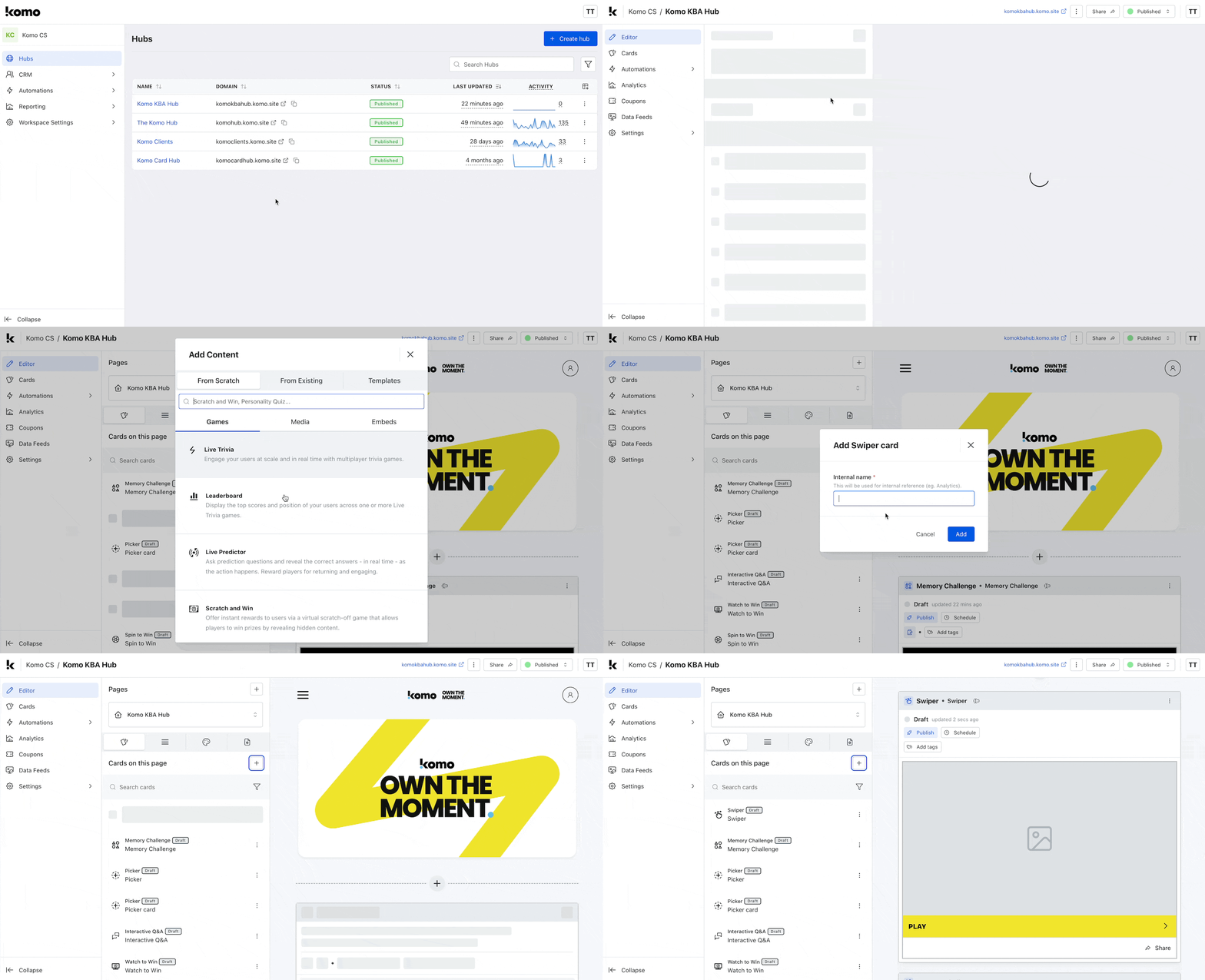
- Navigate to your Engagement Hub
- Once there, click Add content, and from here select Games and then Swiper
- Provide an internal name for the card
- You will then see your new card has been added to your Hub
Step 2: Add a Cover image
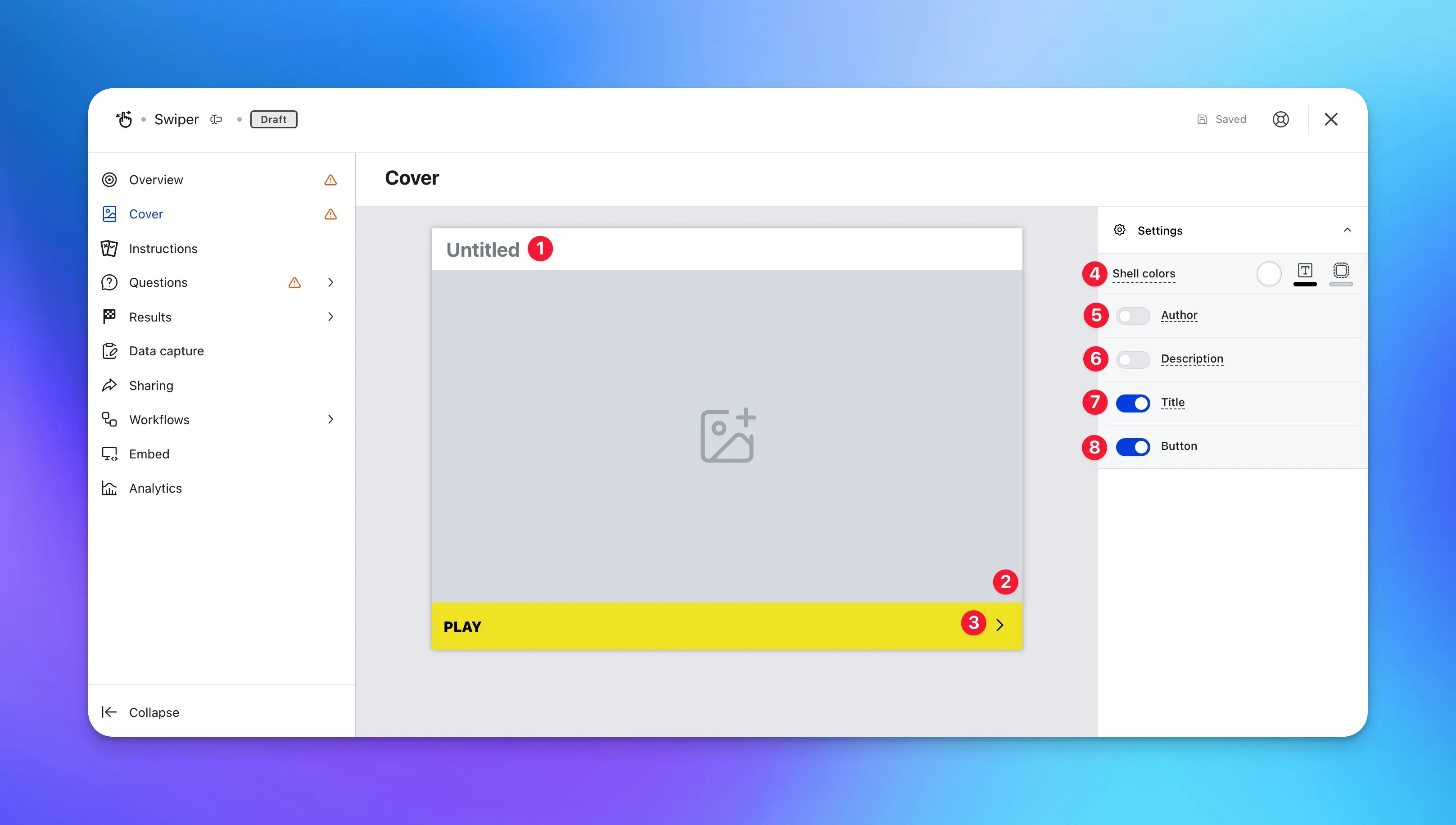
- Clicking on the Swiper will open the editing module
- (1) By clicking here you can add a title to your Swiper card
- (2) This is where you can upload a cover image
- (3) Here you can edit the color and copy of the call-to-action bar or (8) toggle this off here
- (4) Set the Outer card shell colors (description and share bar)
- (5) You can add an Author tag by displaying the brand or person who’s responsible for the card content
- (6) Add a Description to the card
- (7) Here you can disable the title
Step 3: Edit the Instructions screen
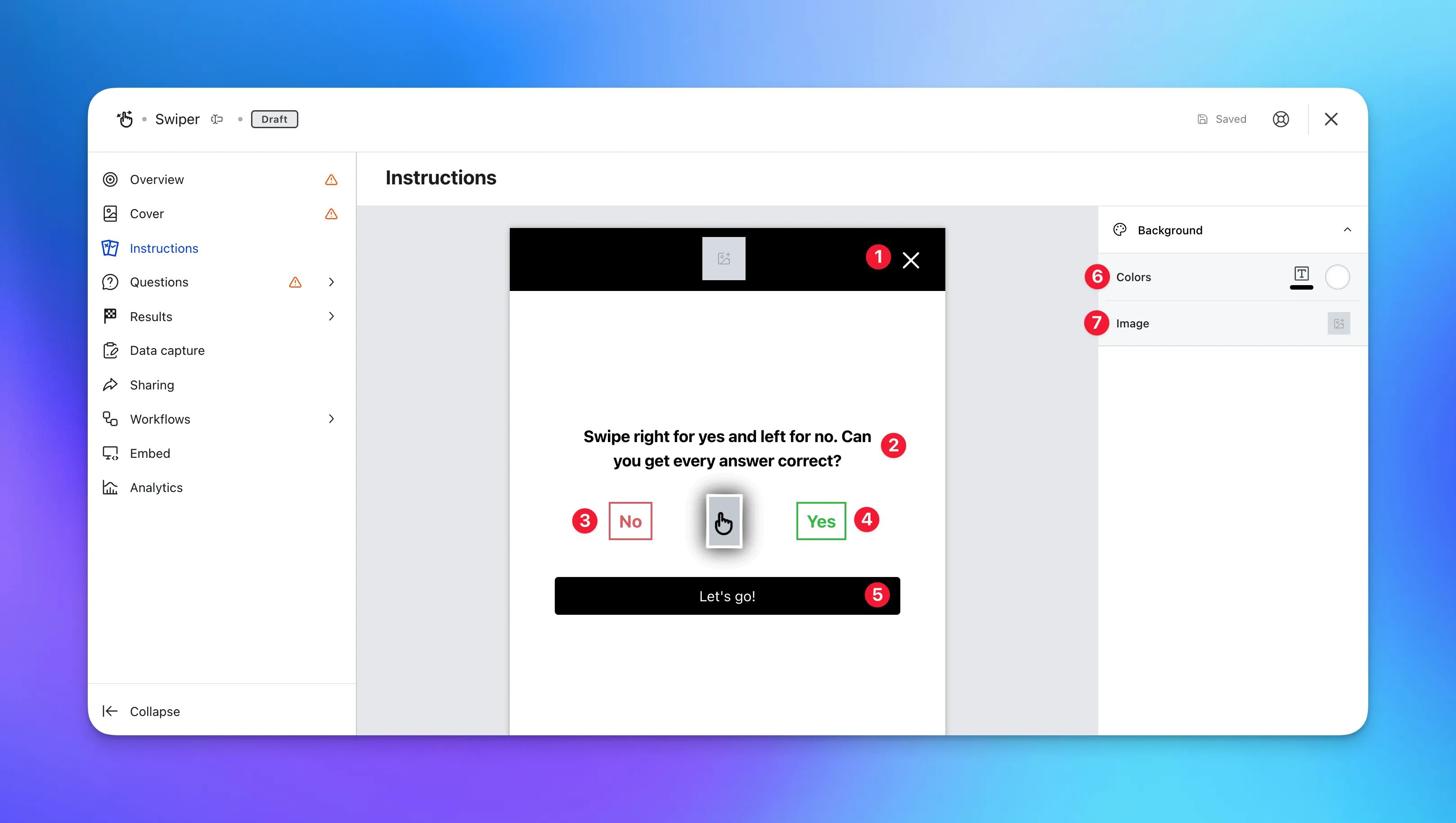
- (1) You can edit the header background color and add your imagery here
- (2) Edit the instructions for the game here
- (3)+(4) Alter the color and copy of the ‘Yes and No’ swiper buttons
- (5) Edit the call-to-action bar here
- (6) You can edit the background color and instruction text color here
- (7) Or you can upload a background image
Step 4: Add your Question
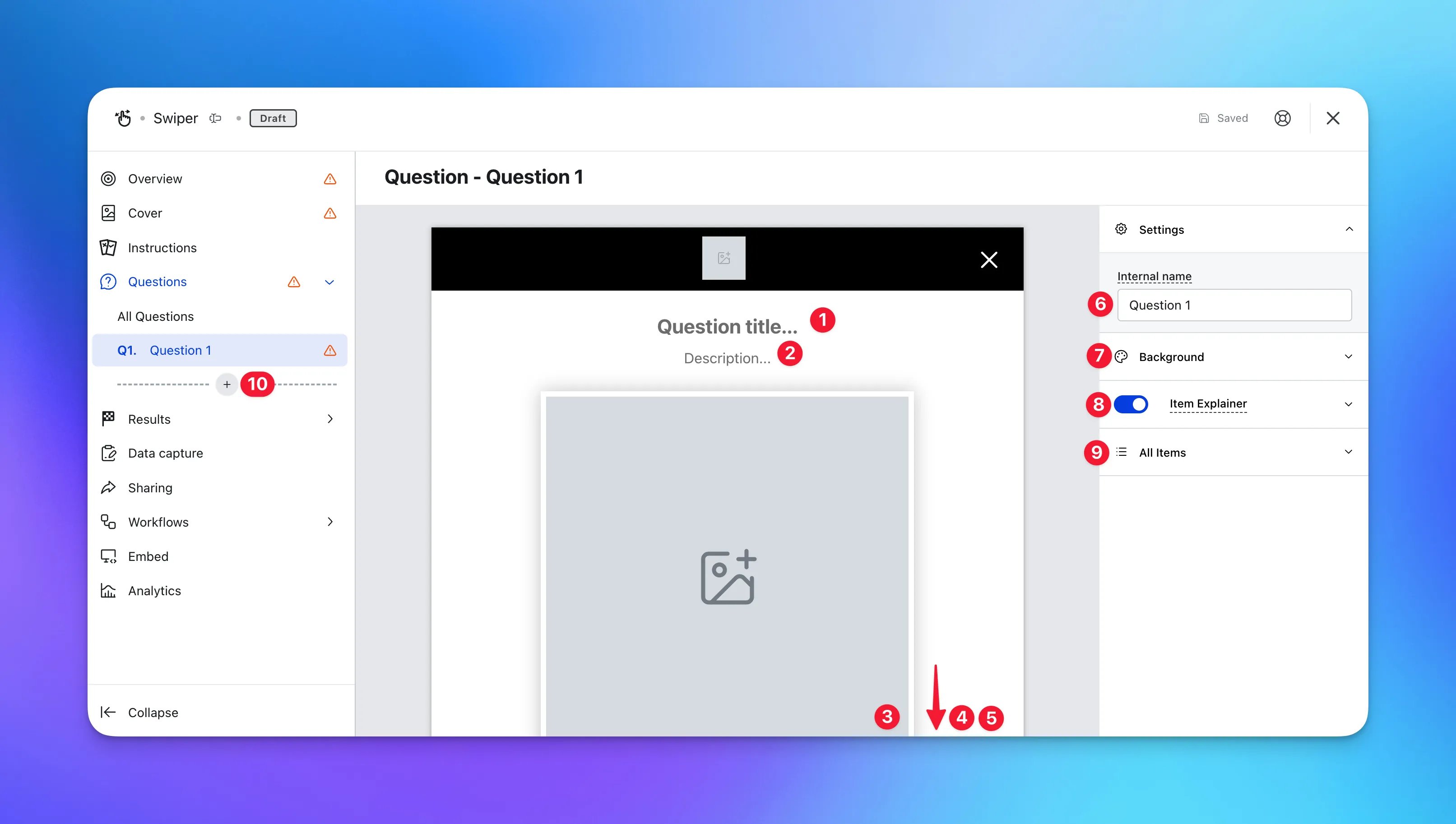
- (1) Here you can write your question
- (2) You can include a description here
-
(3) Add your swipe options here
Adding Swipe Options
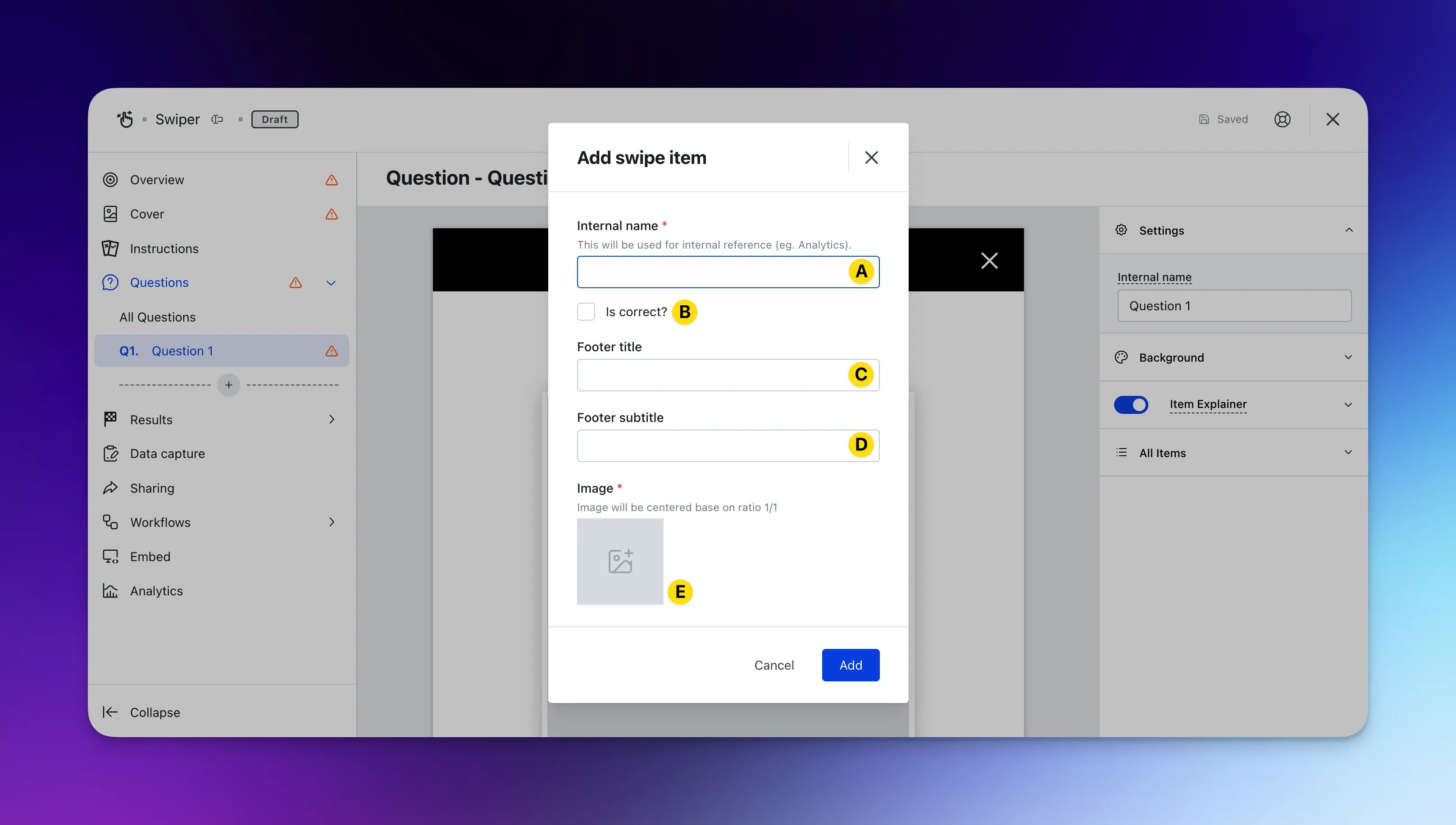
- (A) Give this option an internal name
- (B) Mark this option as correct
- (C) You can add a title to this option that will appear on the bottom right of the option
- (D) And add a subtitle below the footer title
- (E) Upload an image for the option here
- (4)+(5) Alter the color and copy of the swipe buttons
- (6) Give the question an internal name
-
(7) Here you can edit the background settings
Note: The settings made in Step 3(6) will follow through here.
-
(8) Here you can edit and toggle off the Item explainer
Managing Item Explainer
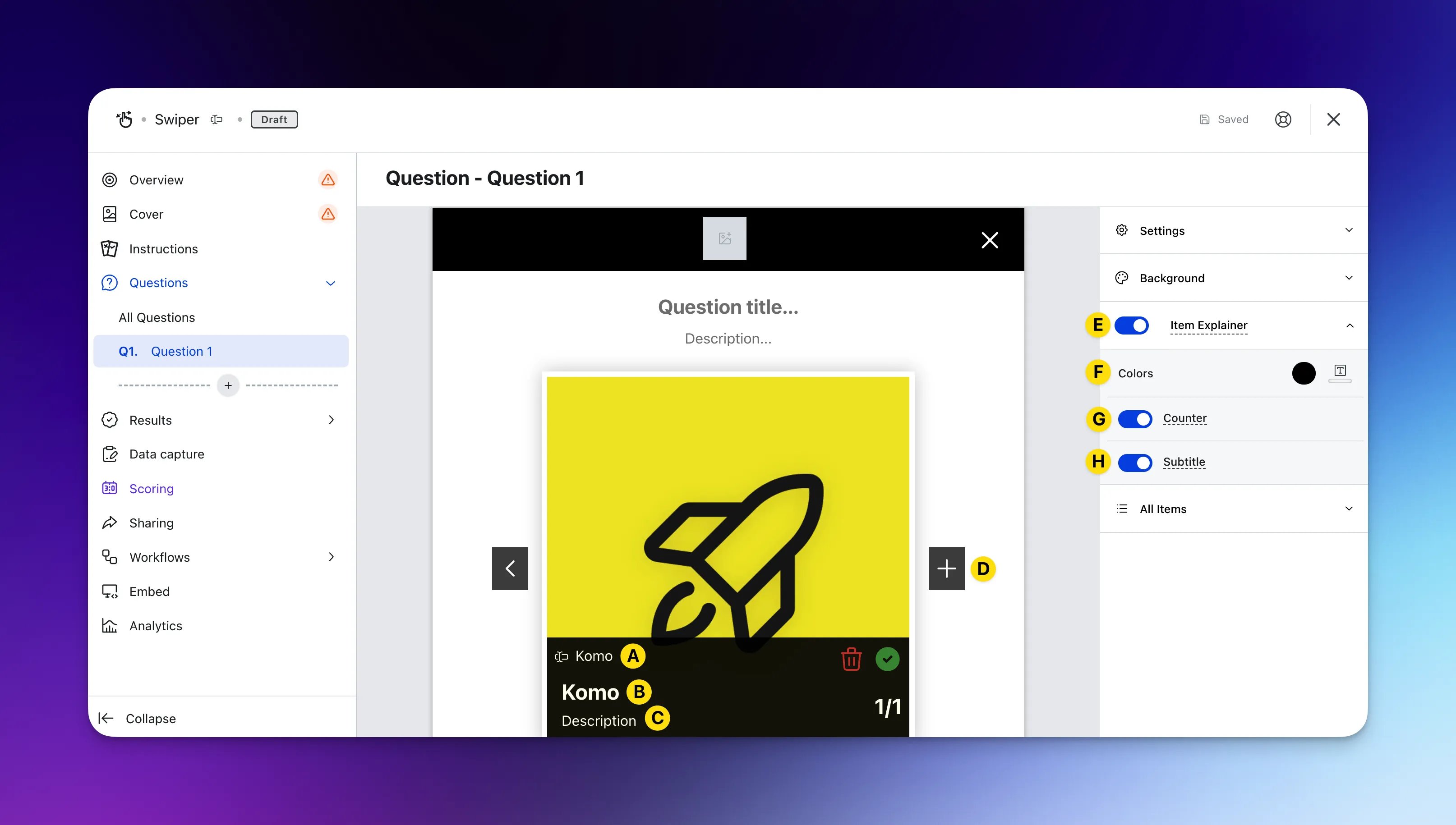
- (A) Update the internal name
- (B) Edit the item title here
- (C) Here you can add a subtitle/description and (H) toggle off the subtitle option
- (D) Click on the plus icon to add another item
- (E) Here you can disable the item explainer
- (F) Edit the footer background color and text color
- (G) Here you can toggle off the counter located on the bottom right
-
(9) View all the items for the question
Viewing All Question Items
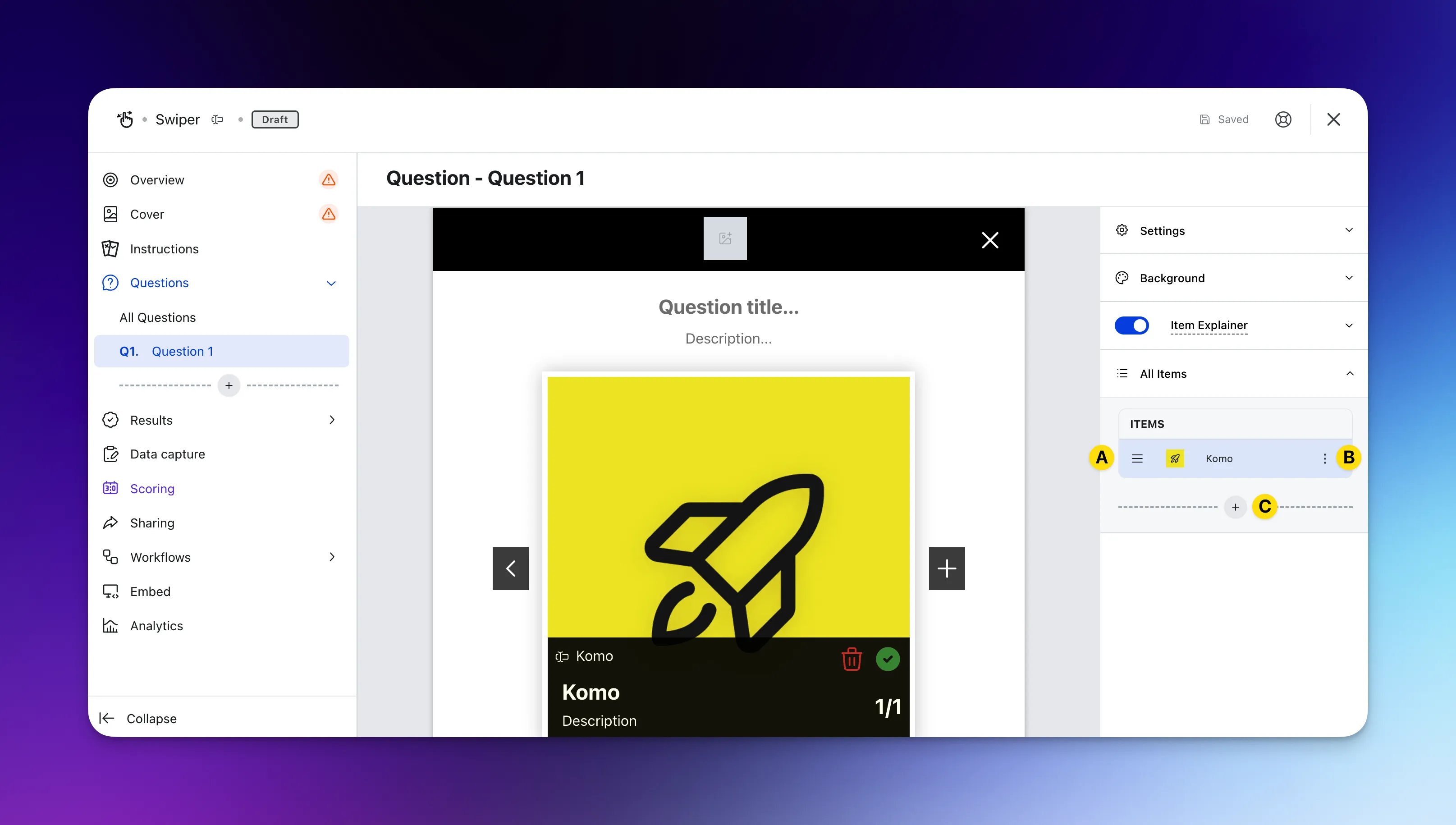
- (A) Using the burger menu to move and rearrange the order of the items
- (B) Here you can update, clone or delete the item
- (C) Click the plus icon to add more items
Step 5: Set up your Results
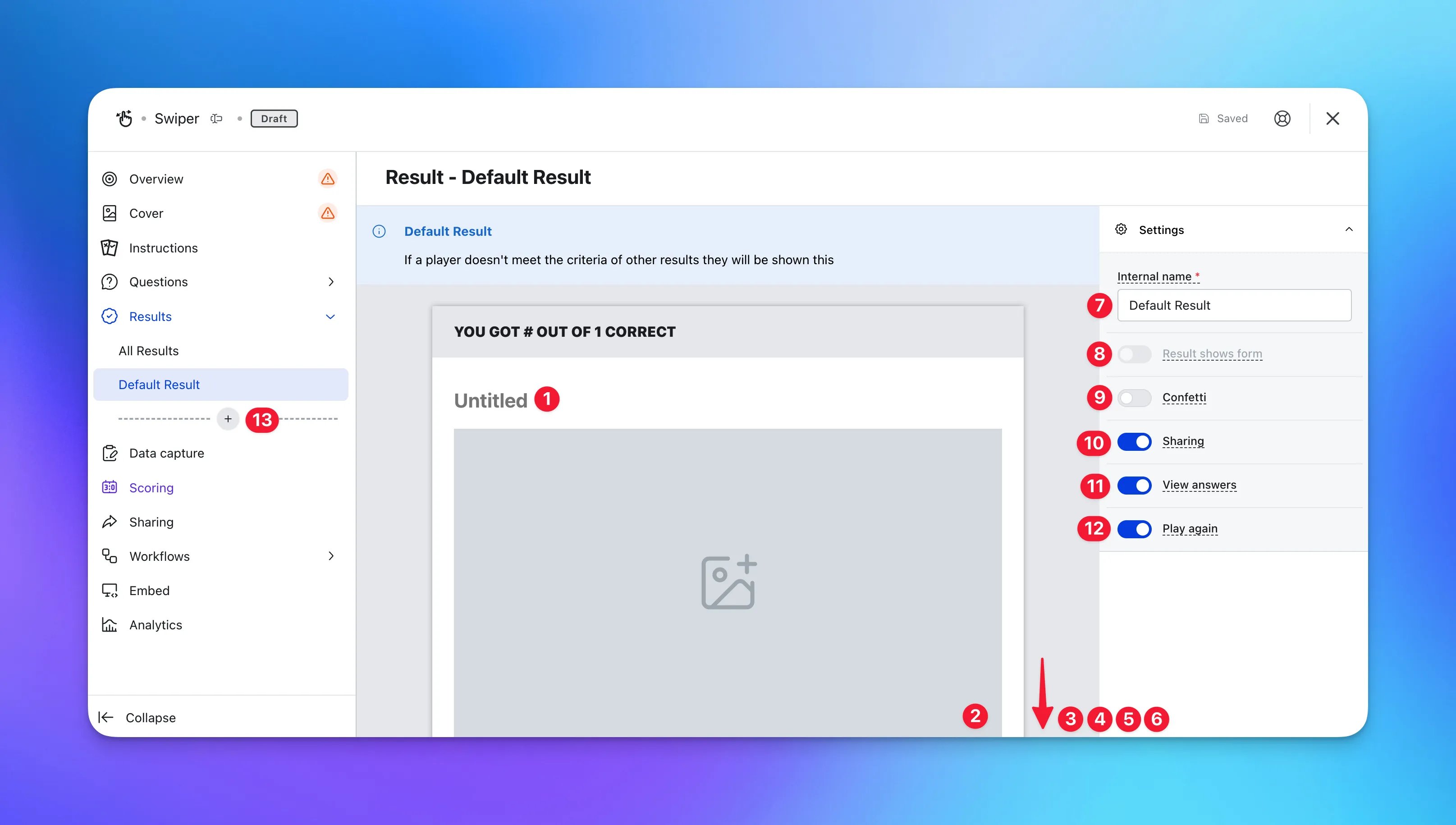
We recommend using this screen as the failure screen. You can change the internal name to read as failure result.
- (1) Give this result a title
- (2) Upload an image to the result
- (3) Scrolling down, you can include a description to this result
- (4) Alter the color and copy of the Share call-to-action or (10) remove the bar here
- (5) Alter the color and copy of the View answers call-to-action or (11) you can hide this button here
- (6) Alter the color and copy of the Play again call-to-action or (12) you can hide this button here
- (7) You can give this result an internal name
-
(8) Have this result lead to a data capture form
You will need to enable the data capture prior to toggling this on. Follow Step 6 to activate.
- (9) Toggle the confetti on if you want to show on this result
-
(13) Click on the plus icon to add another result screen
Adding More Result Screen
- When adding another result screen, the settings are the same as the default result
- (A) You will need to set a range that will trigger this result
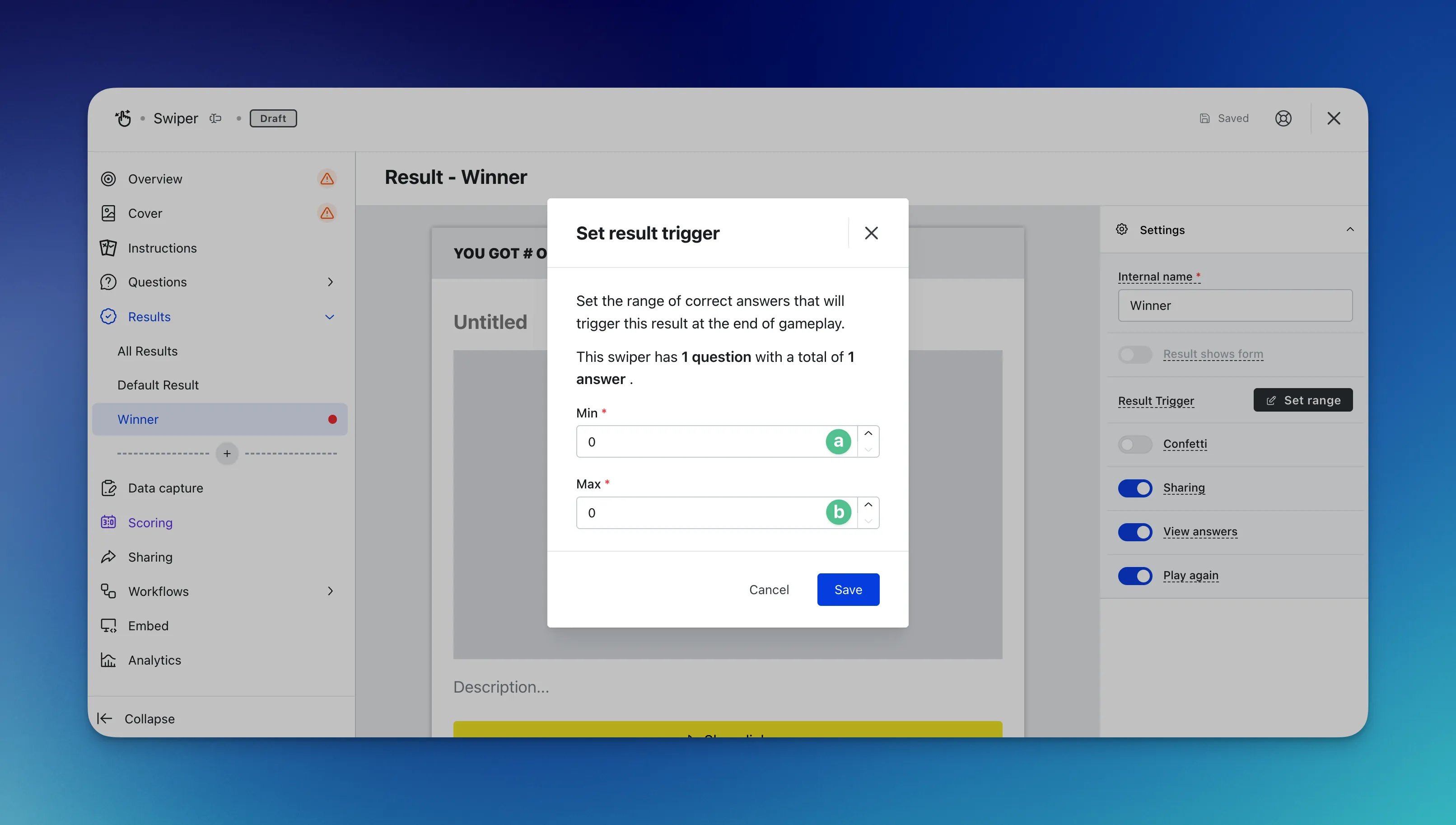
- (a) Set the minimum correct answer needed to show this result
- (b) And then set the maximum correct answers needed
Step 6: Set up your Data capture (Optional)
Whilst adding a competition to your Swiper is recommended to collect data, it is not always required and can be used purely as an engagement piece.Ready to set up your competition?
Step 7: Publish your Card
- (1)Publish your card manually and instantly for the world to see
- (2)Schedule your card to be published and unpublished at set dates and times
- (3) Click on … to Preview and interact with the card on the front end from a user’s perspective before publishing it. See how to test your card here
”Go live” checklist
Ready to go live with your Swiper? We recommend reviewing the following list before launching and double-checking if you have:- All images uploaded are the correct dimensions. Export image files in 2x to ensure none of the images appear pixelated
- Added all your questions and options
- Hyperlinked your T&Cs to the opt-in-field, which is created in the data capture section of the settings tab if you have a competition attached
- Selected the correct answer for all the options
- All your result screens are set up with imagery, copy and the result range
- All your communications (Registration, Winner/s, Everybody Else) are fully set up and ready to send
- If you have a competition attached, ensure your Prizes and the awarding rules are set up correctly
- If you are using coupons, make sure the coupons created are set up correctly. Check the coupon limits are set, the copy for each screen is right and you have linked the appropriate coupons to your communications