
What is it?
The Meme Generator card lets users create and share unique memes within your Engagement Hub. You define the template, control which elements users can edit, and optionally require Data Capture before users download or share their creation.How do I build one?
- Step 1: Add a Meme Generator to your Hub
- Step 2: Create your template
- Step 3: Set up your user options
- Step 4: Set up your result screen
- Step 5: Set up your Data Capture (Optional)
- Step 6: Publish your card
Step 1: Add a Meme Generator to your Hub

- Navigate to your Engagement Hub.
- Click + Add card, select Games, then Meme Generator.
- Provide an internal name for the card and click Add.
Step 2: Create your template
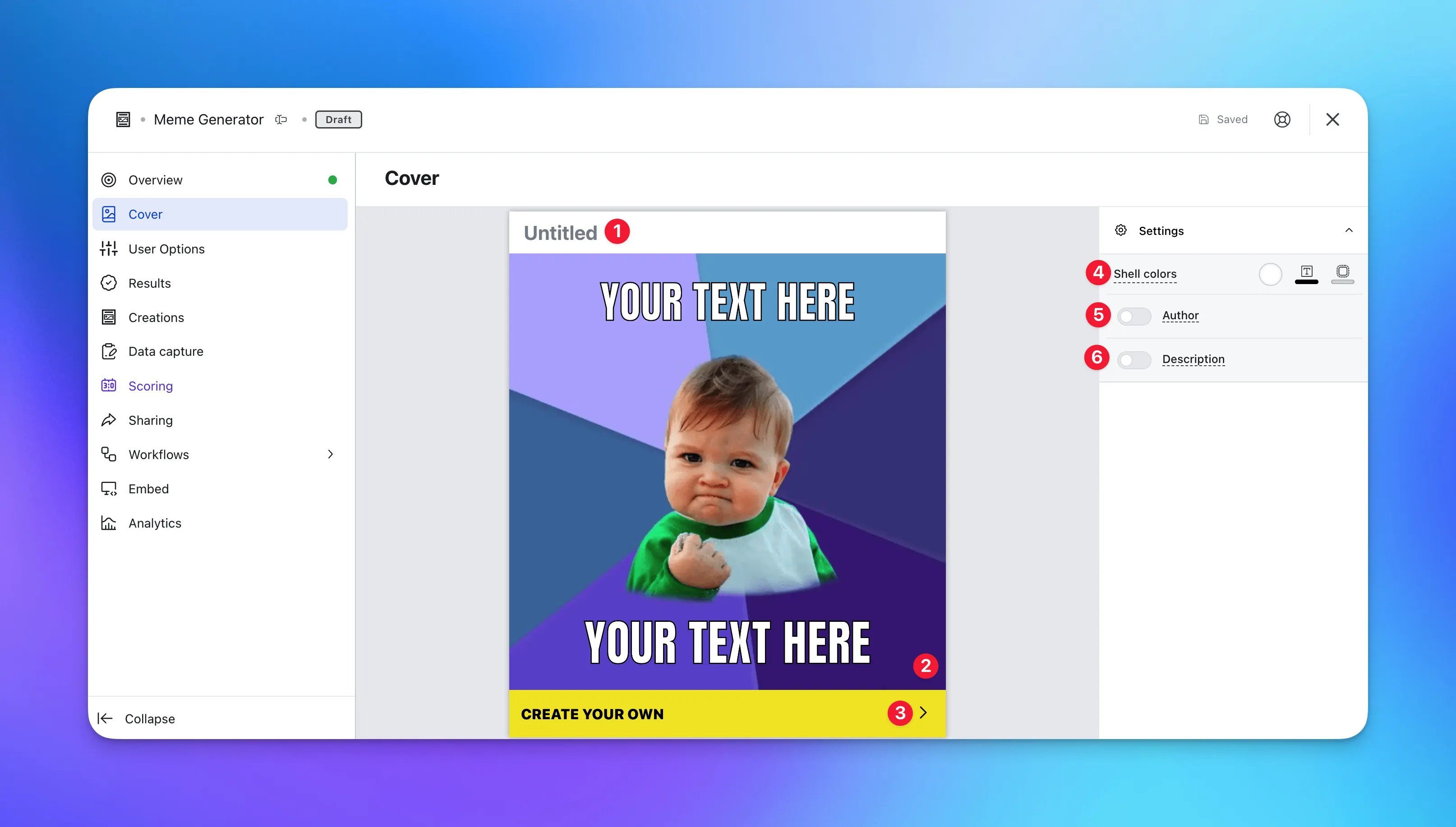
- (1) Set the card title.
-
(2) Configure your Meme Canvas.
Setting up your Meme Canvas
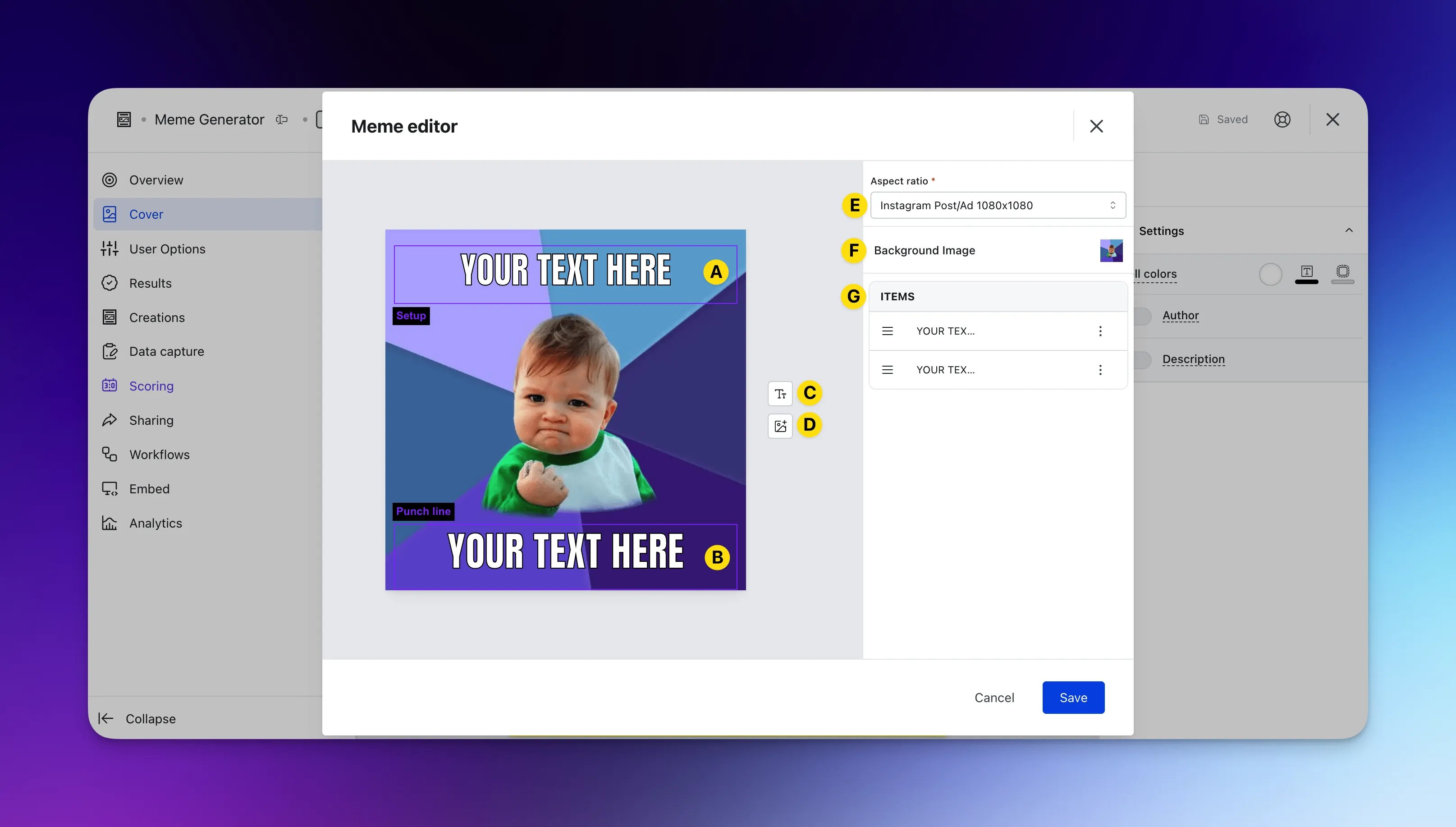
- (A)+(B) Click here to edit text on the canvas.
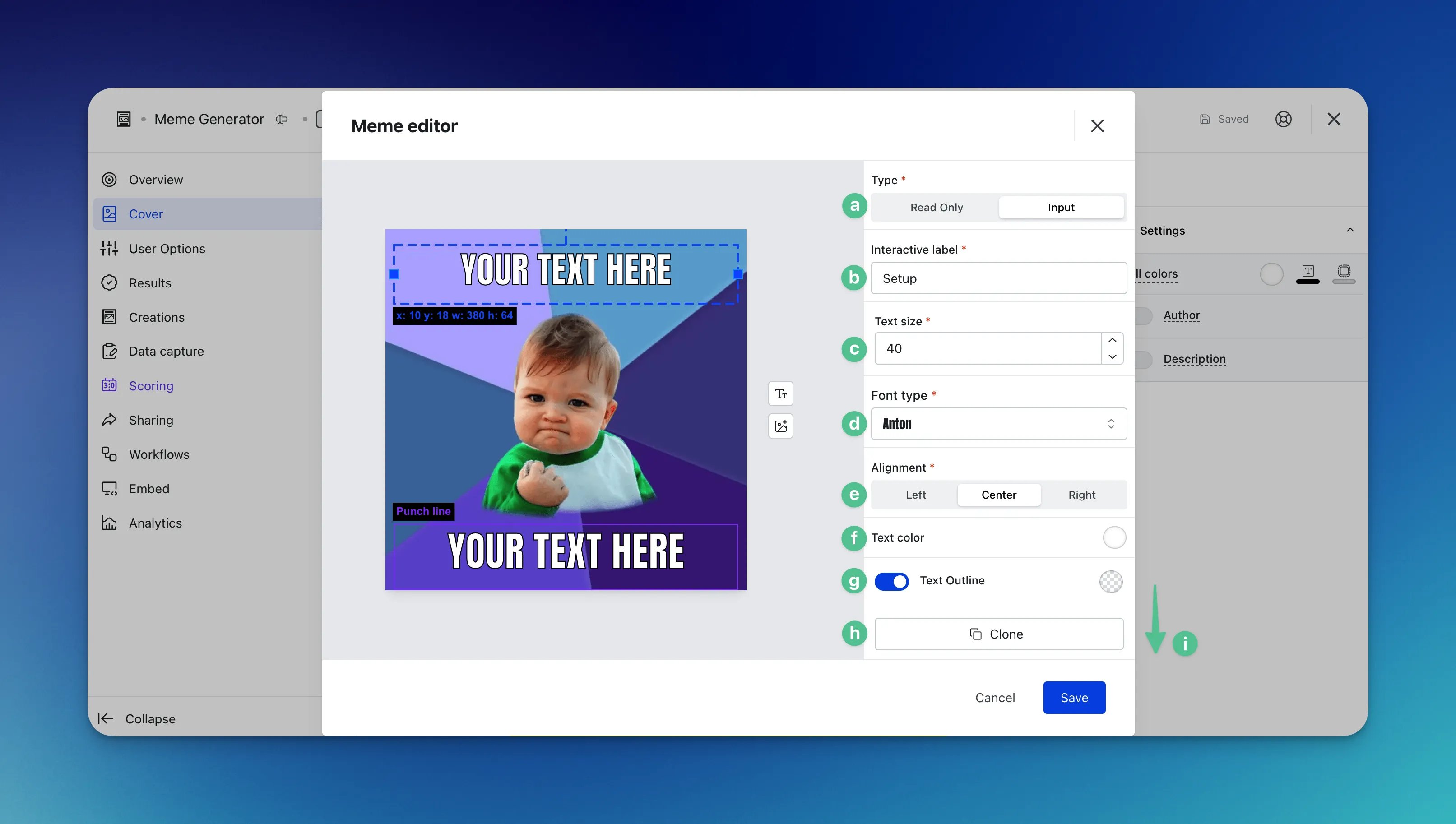
- (a) Select a text box and choose whether users can edit it (Input) or not (Read-Only).
- (b) Set the label for the text box.
- (c) Change the font size.
- (d) Change the font type.
- (e) Change the text alignment.
- (f) Scroll down to change the text colour.
- (g) Add a text outline.
- (h) Clone the text item.
- (i) Delete the text item.
- (C)+(D) Add text and images to your canvas.
- (E) Select the aspect ratio users will create memes in.
- (F) Set the default background image (also used as the card cover image).
- (G) Rearrange canvas items as you add content.
Text elements remain in place regardless of which background image is selected. - (A)+(B) Click here to edit text on the canvas.
- (3) Edit the colour and copy of the call-to-action bar.
- (4) Set the outer card shell colours (description and share bar).
- (5) Add an author tag to show who created the card content.
- (6) Add a description for the card.
Step 3: Set up your user options
- (1) Set the title shown during meme creation.
- (2) Enter a description for the meme experience.
- (3)+(4) Scroll down to customise labels for interactive elements.
- (5) Edit the colour and copy of the submit button.
-
(6) Toggle on additional background imagery to let users choose from extra backgrounds.
Setting up additional background imagery
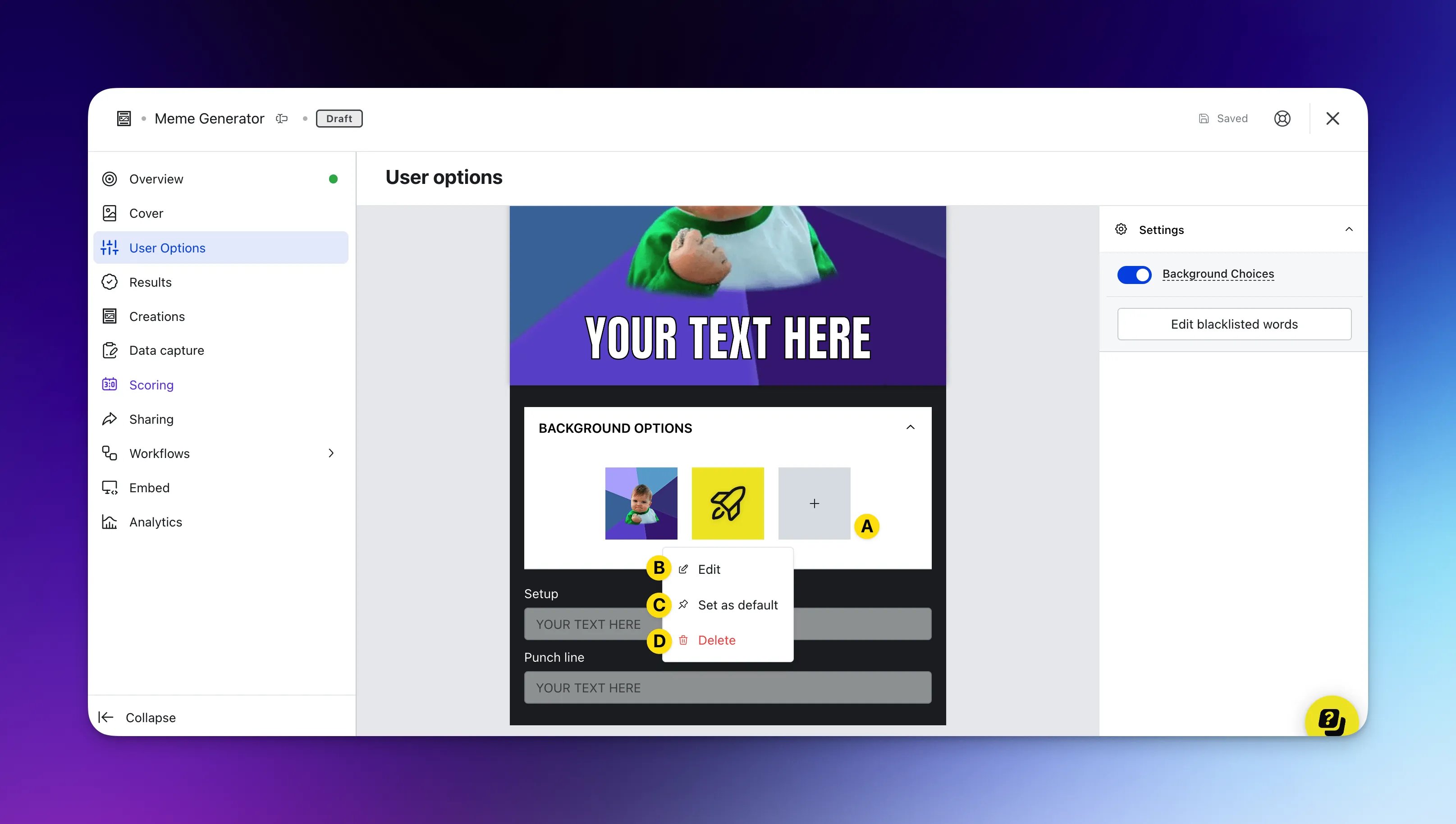
- (A) Add image or colour backgrounds for users to choose from. Keep backgrounds similar in composition so text placement stays readable.
- (B) Select an image to edit it.
- (C) Mark an upload as the default background.
- (D) Delete a background option.
- (7) Optionally add banned words to block inappropriate user input.
- (8) View all memes created on this card, along with associated user details, under Meme Creations.
Step 4: Set up your result screen
Configure the screen shown after a user creates a meme.- (1) Edit the colour and copy of the share button, or use (4) to turn it off.
- (2) Edit the colour and copy of the download button, or use (5) to turn it off.
- (3) Edit the colour and copy of the make another button, or use (6) to turn it off.
Step 5: Set up your Data Capture (Optional)
Adding Data Capture requires users to enter their details before they can download their creation.Ready to set up your competition?
Step 6: Publish your card
Once you are happy with your card, publish it to make it available on your Engagement Hub.- Publish the card manually, or Schedule publish and unpublish dates and times.
- Click … and select Preview to test the user journey before going live. See card testing for more detail.
- Add the card to a page and confirm it is Visible if you want it shown on your Hub.
If Data Capture is attached, competition entries are recorded and count toward card analytics.
”Go live” checklist
Ready to go live with your Meme Generator? Review the following before launch:- All uploaded images use the correct dimensions. Export image files at 2x resolution to avoid pixelation.
- You have added an example setup and punchline on the card, with those text fields set to Input so users can edit the copy.
- You have uploaded a list of banned words if users can enter custom text.
- All communications (Registration, Winner/s, Everybody Else) are set up and ready to send.
- You have linked your T&Cs to the opt-in field in Data Capture.
- Prizes and awarding rules are configured correctly.
- If you are using Digital Coupons, confirm coupon limits, screen copy, and communication links are correct.
Terms & Conditions Template
Card Design Guidelines
Promotion
Stuck on how to promote your activation?
FAQ
How many background options can I upload? You can add as many background options as you need. When a meme is created, where is it stored? Open the Meme Creations tab on the card to review, download, and view user details for each submission. Is there a way to see the number of creations made? Open the card Settings tab and select Analytics for card stats. You can also check the total at the bottom of the Meme Creations tab. Can users take photos or selfies in the Meme Generator? No. If you want users to take photos within a card, use the Photo Frame card instead.Top tips
- Let users edit text where possible. Personalised memes drive stronger engagement than read-only templates.
- Test longer text inputs before launch and resize text boxes so copy remains readable.
- Run competitions with the Meme Generator card—feature winning memes on social channels, or display finalists in a Carousel or Carousel (Vote) card to extend engagement.
- Place text boxes near the edges of the canvas so user-uploaded backgrounds stay visible.
- Choose an aspect ratio that matches where users are most likely to share their memes (for example, square for Instagram or landscape for Facebook).