
What is it?
The Asset Manager is where the images saved in your workspace live. Images you upload through the image picker on a Hub or Card are saved here, so you can reuse them across the workspace without uploading them again.Where to find it
You can open the Asset Manager in two places:- From any image field: when you upload or change an image on a Hub or Card, the image picker opens the Asset Manager. Choose Select on an image to use it.
- From your workspace settings: go to Brand Kit, find the Images section and click Manage Images.
Image actions
Open an image’s menu to work with it:- Grid view: click the ⋮ menu on the image, or right-click it.
- Table view: use the actions menu at the end of the row.
- Asset viewer: Download and Copy public image link are buttons in the toolbar. Rename, Move and Delete are in the Actions menu next to them.
Copy a public image link
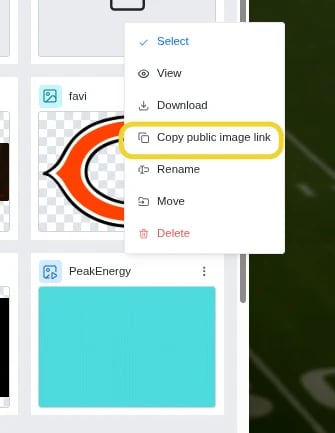
- Open the image’s menu in the grid or table, or open the image in the asset viewer.
- Click Copy public image link. In the asset viewer it’s the copy icon next to Download.
- You’ll see Public image link copied to clipboard. Paste the link wherever you need it.
Copy public image link is available for images only. It doesn’t appear for folders, videos or PDFs.