
What is it?
Badges allow users to earn badges for taking action across your Hub. Whether it’s engaging with content, playing games, or completing forms, Badges provide incentives for customers to return to your Hub repeatedly. To support the Badges feature, contacts allow you to assign achievements to certain users based on their activity within your hub! Contacts also support Profiles, allowing users to identify themselves with an avatar while they engage with the games across your hub. With Workflows, you can set up customised user flows that are triggered when a user fills out a form or completes a game. These triggers lead to actions that can be used to assign achievements (a.k.a. Badges) to certain users.How do I build one?
- Step 1: Turn on Accounts in Hub Settings
- Step 2: Turn on Badges in Hub Settings
- Step 3: Set up your Badges
- Step 4: Configure your Badge Variants [Optional]
- Step 5: Customise the Style of your Badges
- Step 6: Edit the Badge Album [Optional]
- Step 7: Create Workflows to Award Badges
- Step 8: Enable & Configure Profiles [Optional]
Step 1: Turn on Accounts in Hub Settings
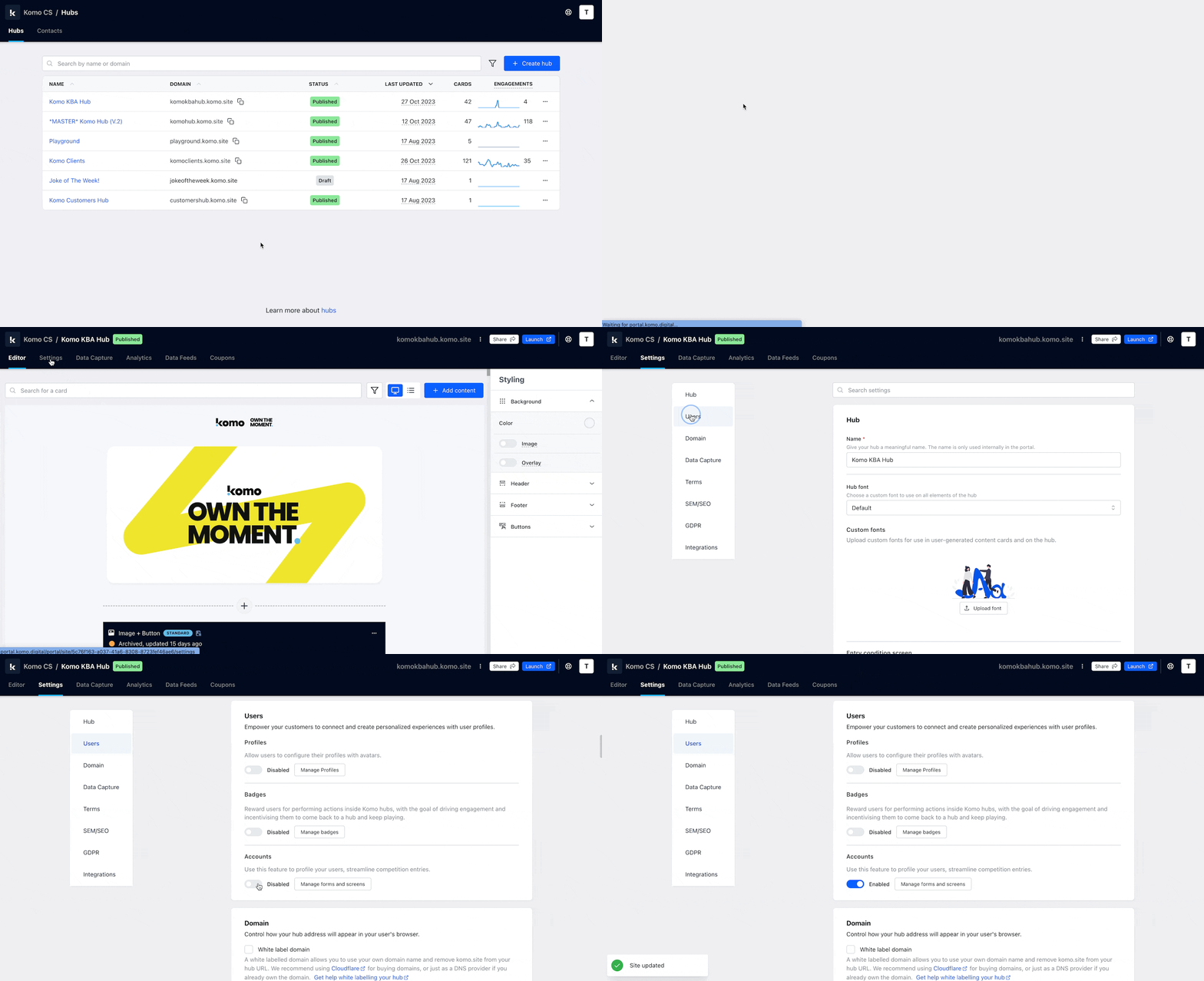
- Navigate to your Engagement Hub and then head to the Settings tab
- Click on Users on the left sidebar
- Toggle on the Accounts Feature. Learn more about the Accounts feature here
User Accounts are not technically required, however, if you do not enable User Accounts, a Contact’s badges will be tied to one device/browser session only. If it’s important that the Badges persist over time, across devices, then enable User Accounts.
Step 2: Turn on Badges in Hub settings
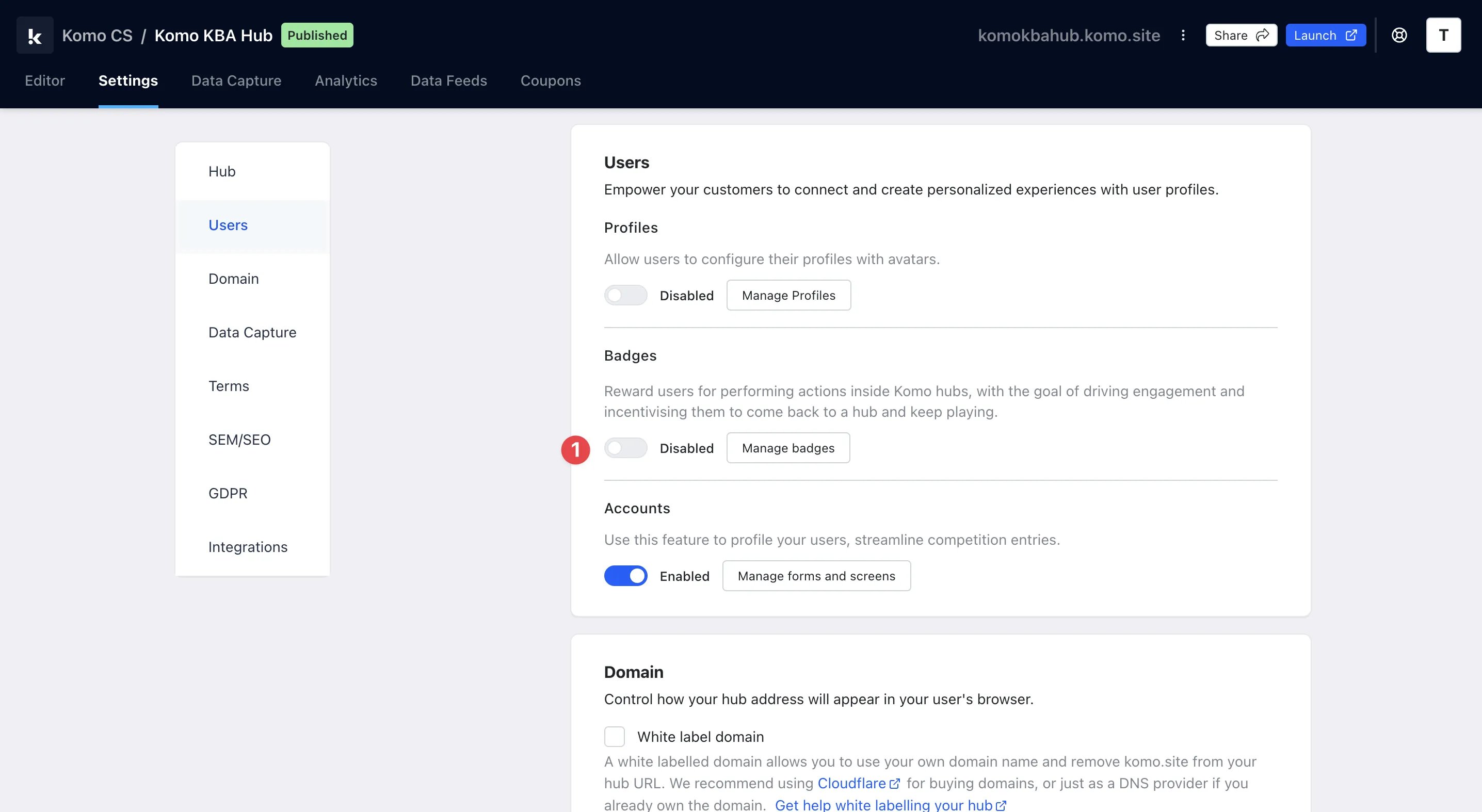
- (1) While you’re still in Settings, enable the Badges Feature
Step 3: Set up your Badges
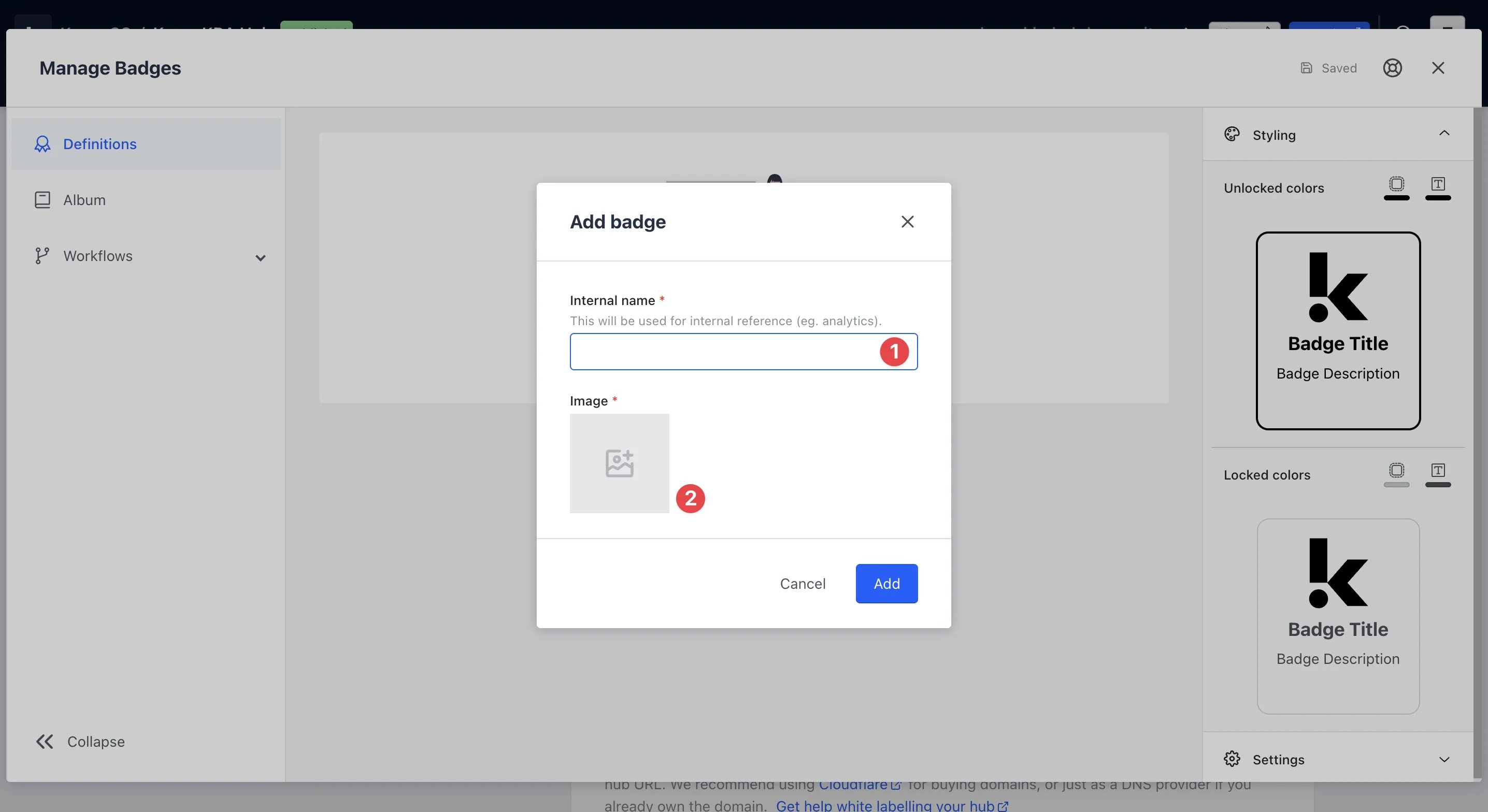
- Click on Manage badges and then Create badge
- (1) Here you will input an Internal name for the badge
- (2) Upload an image of your badge
We highly recommend uploading an image with a transparent background.
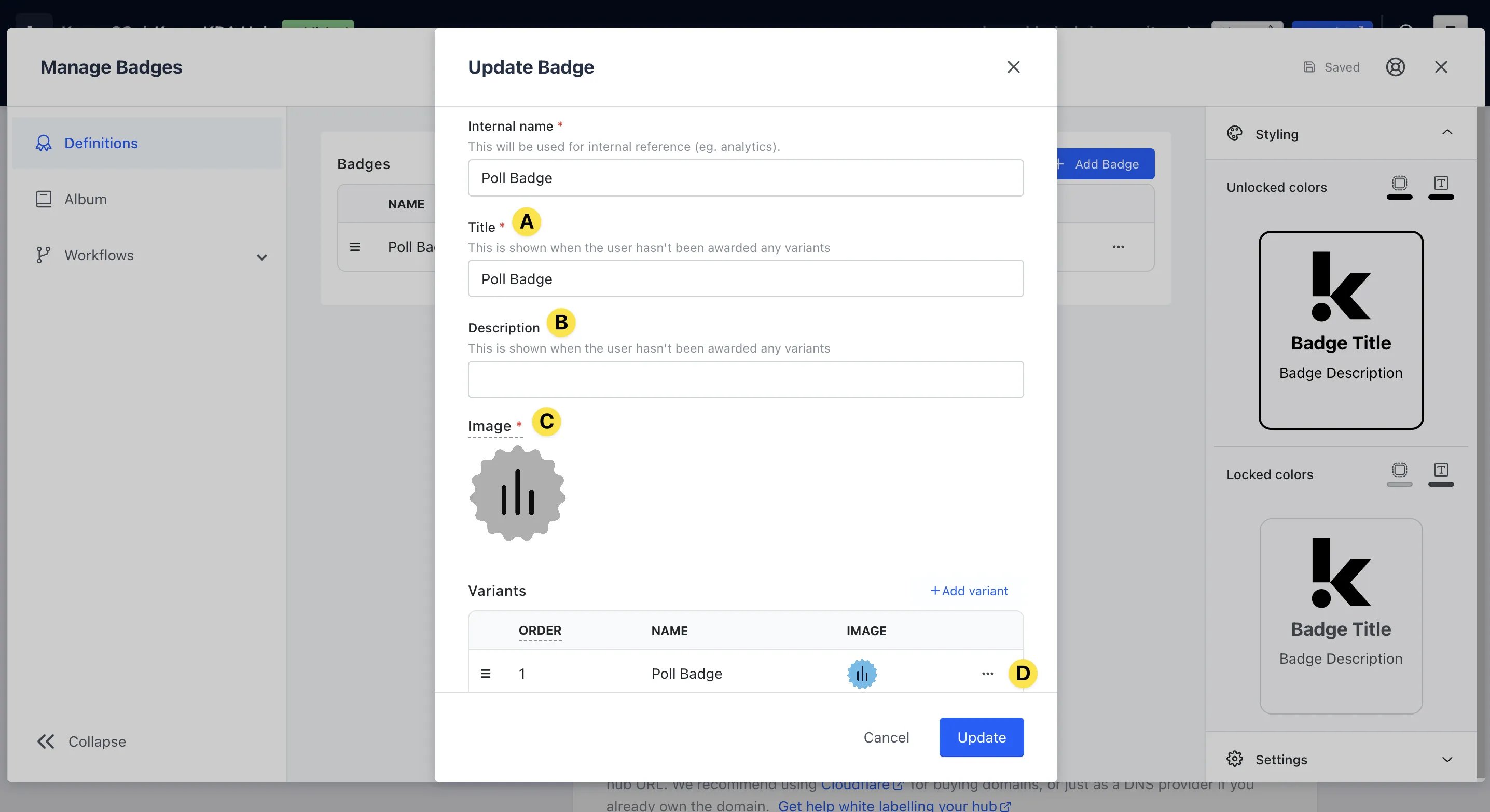
- (A) Update the Title of the badge that will be displayed to users on the Hub
- (B) Add a Description for the badge. Here is where you’ll provide more detail on how to earn this badge. For example, Cast your vote in the controversial poll to unlock this badge!
- (C) This is the image of the badge you uploaded in Step 3. We automatically greyscale these badges to show they’re locked
- (D) Clicking on the … you can edit the earned badge settings
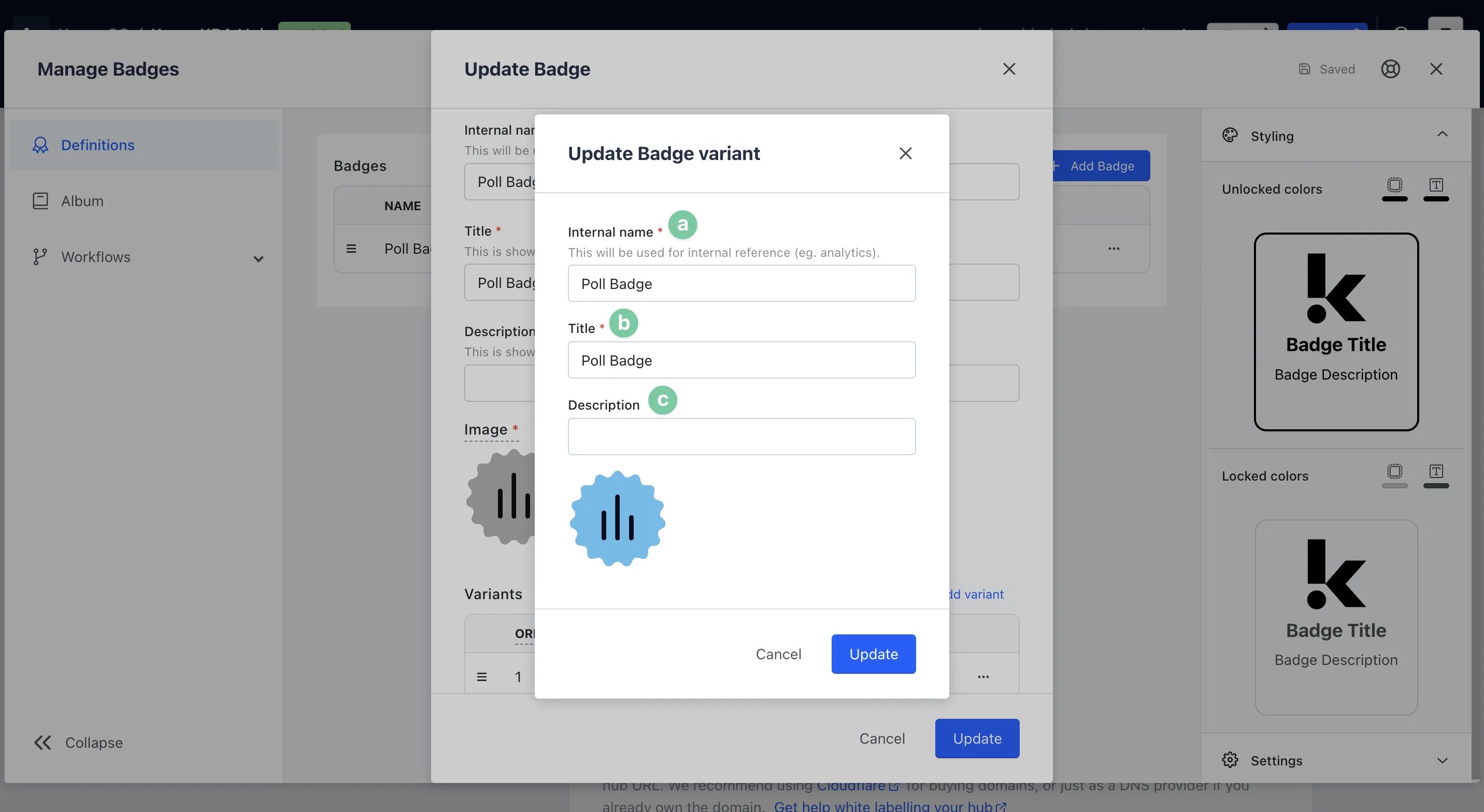
- (a) This is the Internal name for the badge set in Step 3(1)
- (b) Here is the Title of the badge set up in Step 3A
- (c) Enter a Description for when the badge is unlocked. For example, Congrats! You’ve unlocked this badge!
- After clicking on Update, you will see your badge is in draft mode. To make this live, click on … next to the badge and select Publish. This will make the badge visible on the Hub and to users
Step 4: Configure your Badge Variants [Optional]
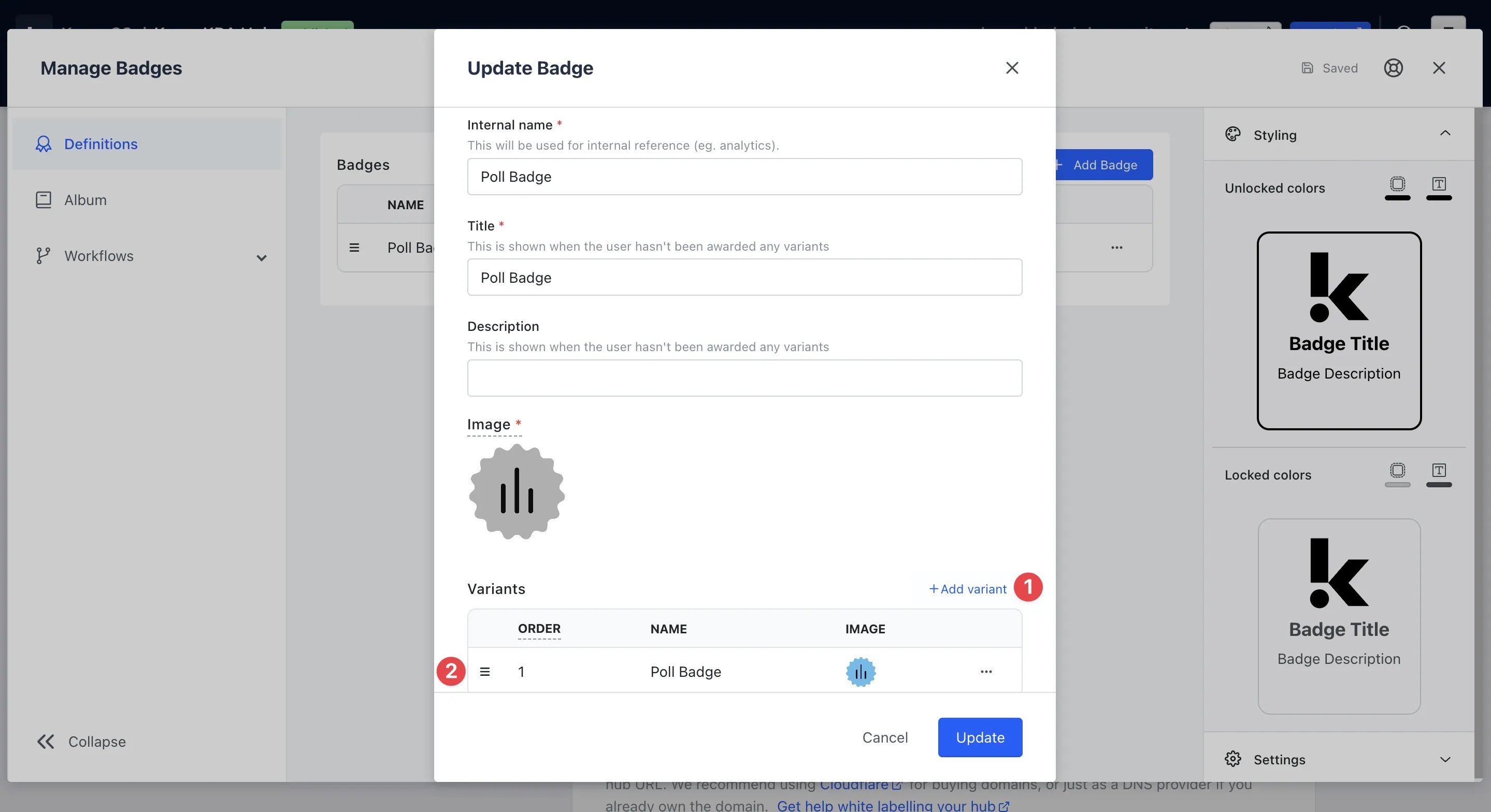
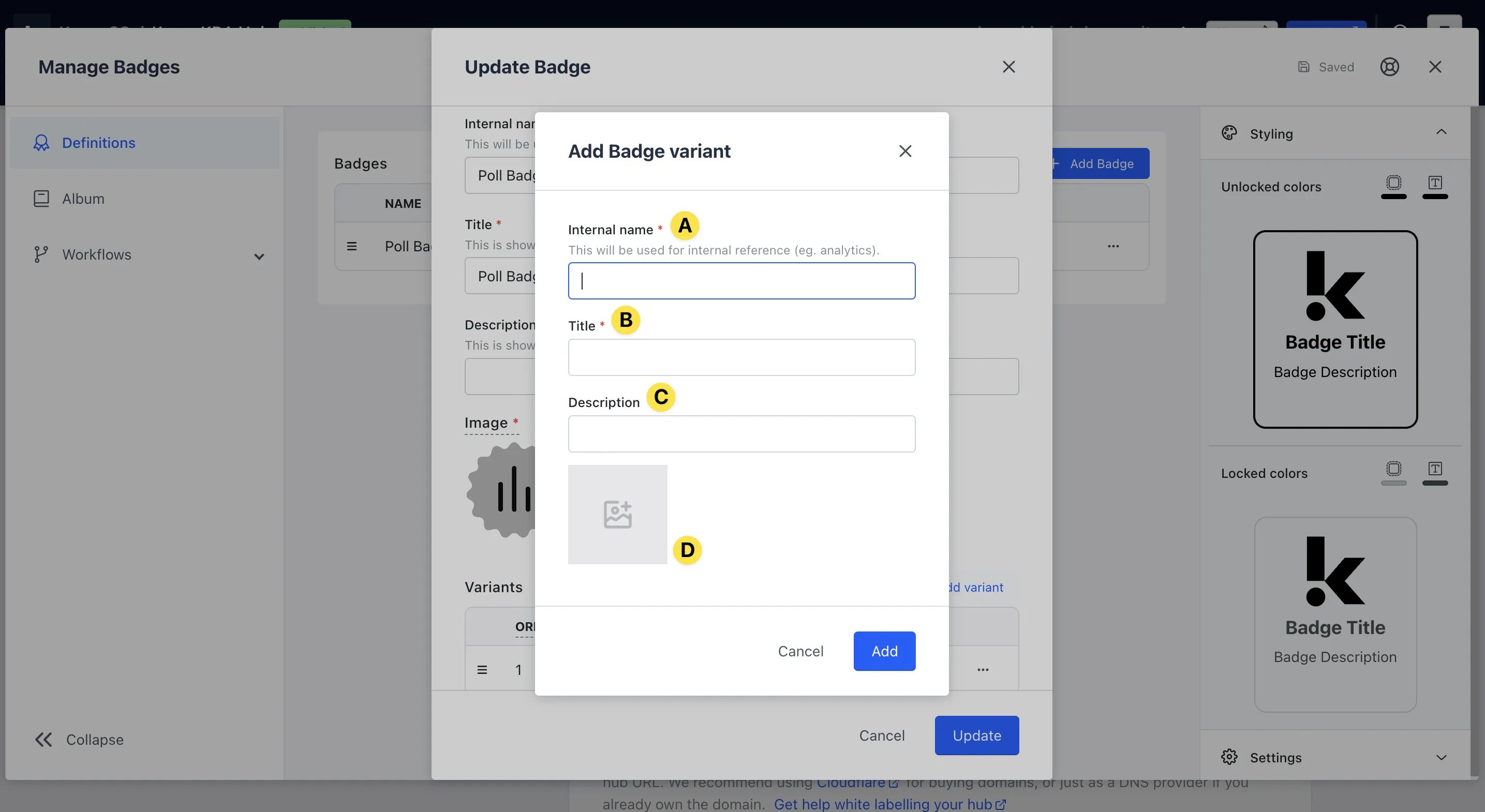
- (A) Enter an Internal name for your Variant
- (B) Enter a Title for your Variant
- (C) Add a Description for each Badge Variant Group that you create
- (D) Upload an image to represent this Variant
- (2) Once you have created your desired Badge Variants, use the Drag functionality (the three horizontal lines to the left of each Badge) to order the Badges in your desired tiering system. Then click save
The Badge order is ranked from 1 being the most important or highest, and less important or lower as the numbers increase.
Step 5: Customise the Style of your Badges
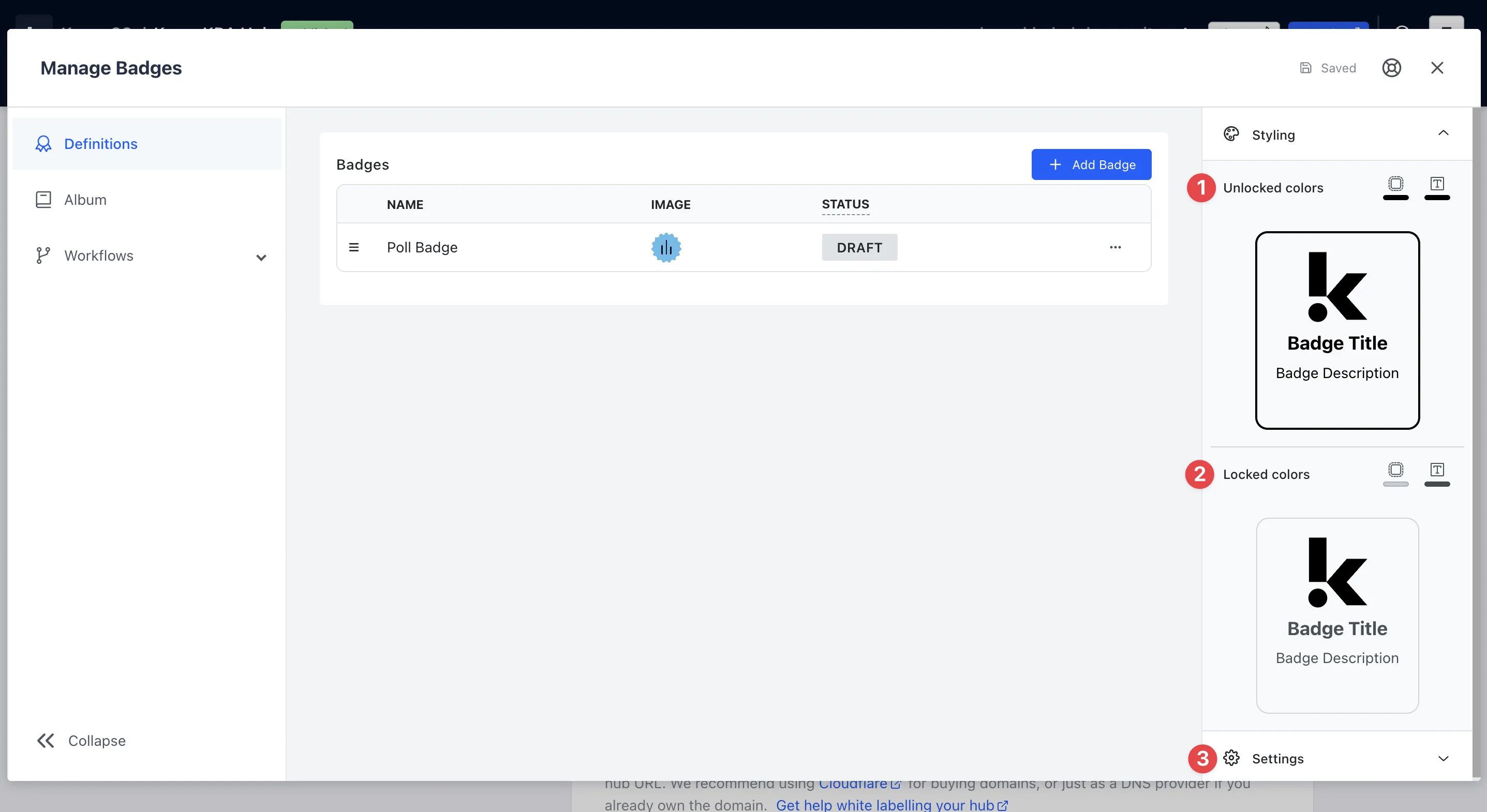
- (1) Use a Hex code, the eye dropper tool or the sliders to select a border and text colour for your Unlocked Badges
- (2) Use a Hex code, the eye dropper tool or the sliders to select a border and text colour for your Locked Badges
- (3) Under the Settings tab, you can choose to overwrite the locked Badge filter, i.e. the way the modal will automatically apply a grayscale to your locked Badges. This way, you can upload your own locked state badge imagery
Step 6: Edit the Badge Album [Optional]
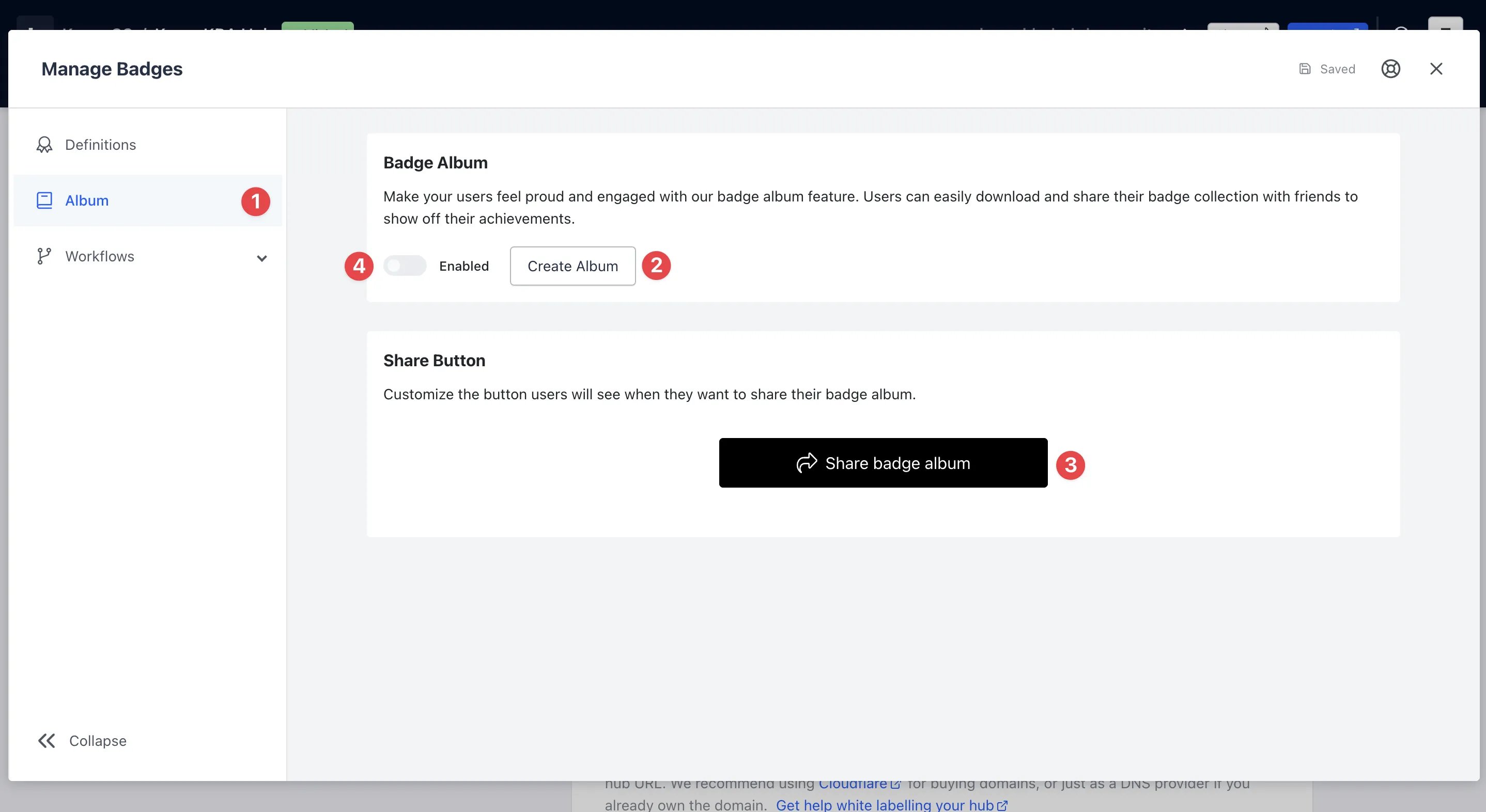
- (1) Navigate to the Album tab on the left sidebar
- (2) To edit the Badge Album, click on the Create Album button
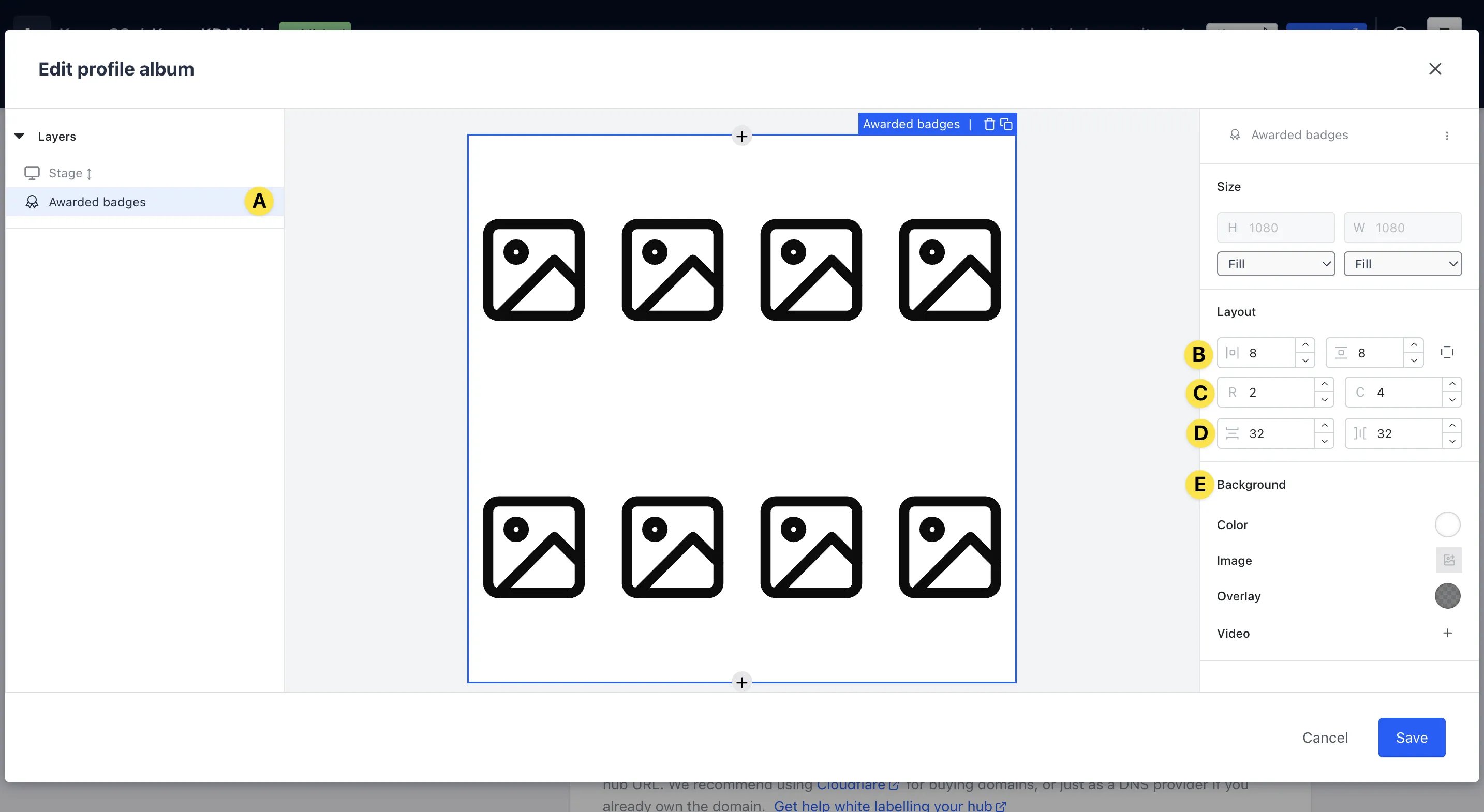
- (A) Click the Awarded badges row to edit the settings
Use the + icon next to the stage to add different elements to your Badge Album like Contact Properties, Awarded Badges, etc.
- (B) Alter the padding around the badges
- (C) Control how you want to present the badges by editing the number of rows and columns
- (D) Edit the amount of space between the rows and columns of each badge
- (E) Upload a background image and set a solid colour
- (3) Here you can also edit the share button that allows users to share their Badge Album
- (4) Once ready, you can enable the badge album
Step 7: Create Workflows to Award Badges
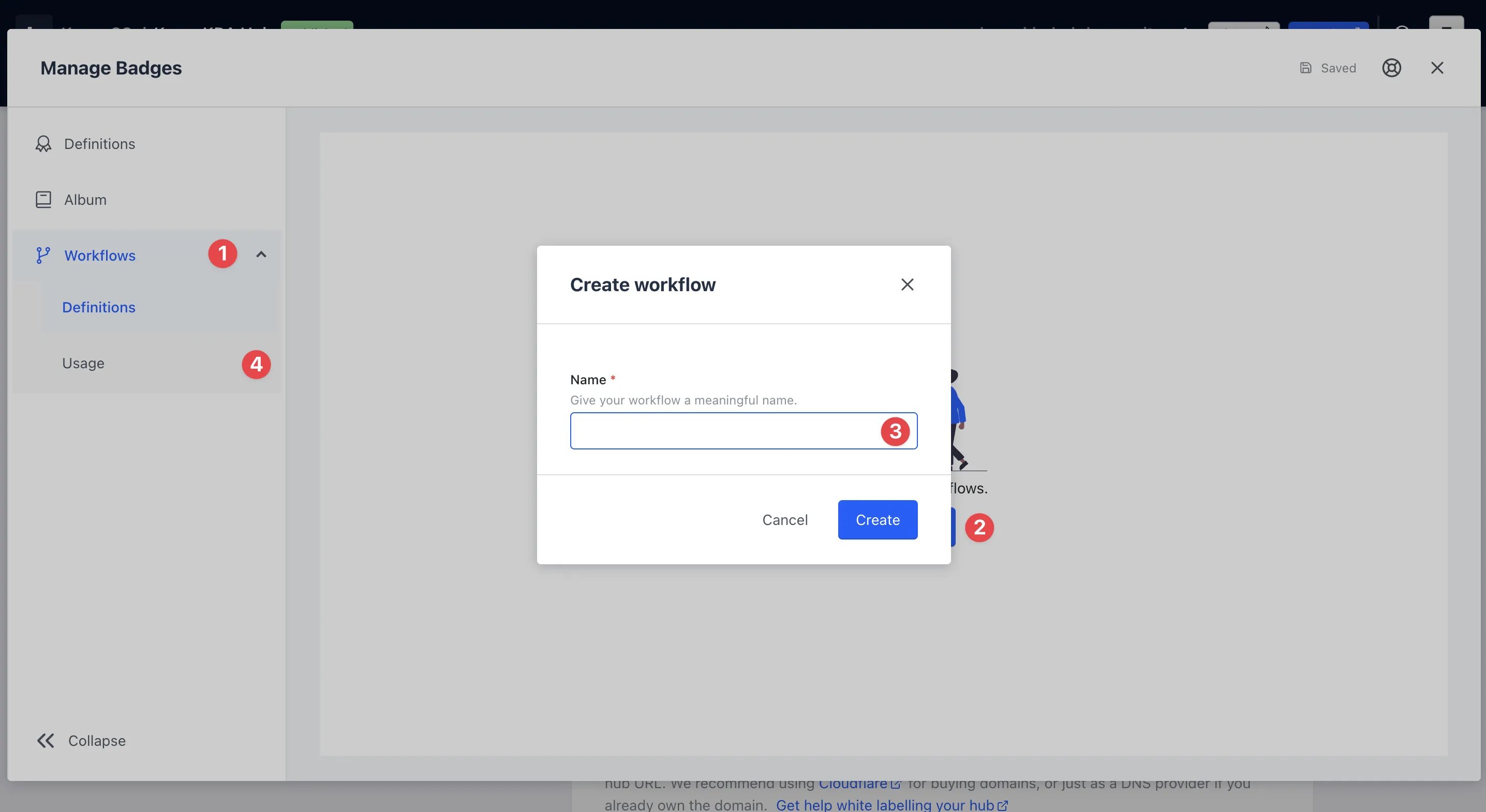
- (1) Navigate to the Workflow tab
- (2) Click on the Create workflow button
- (3) Enter a name for the workflow
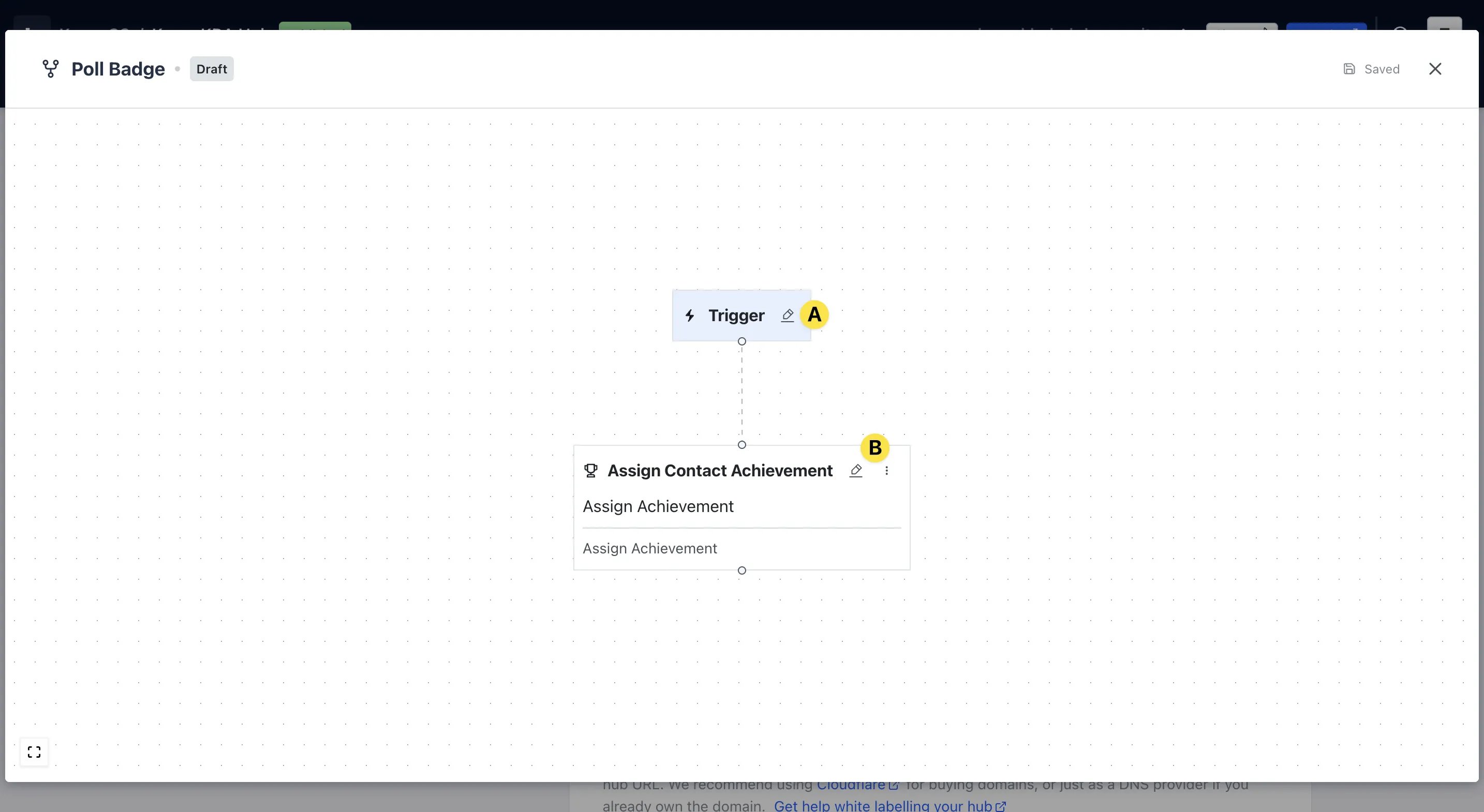
- (A) Click on edit icon to set up the trigger
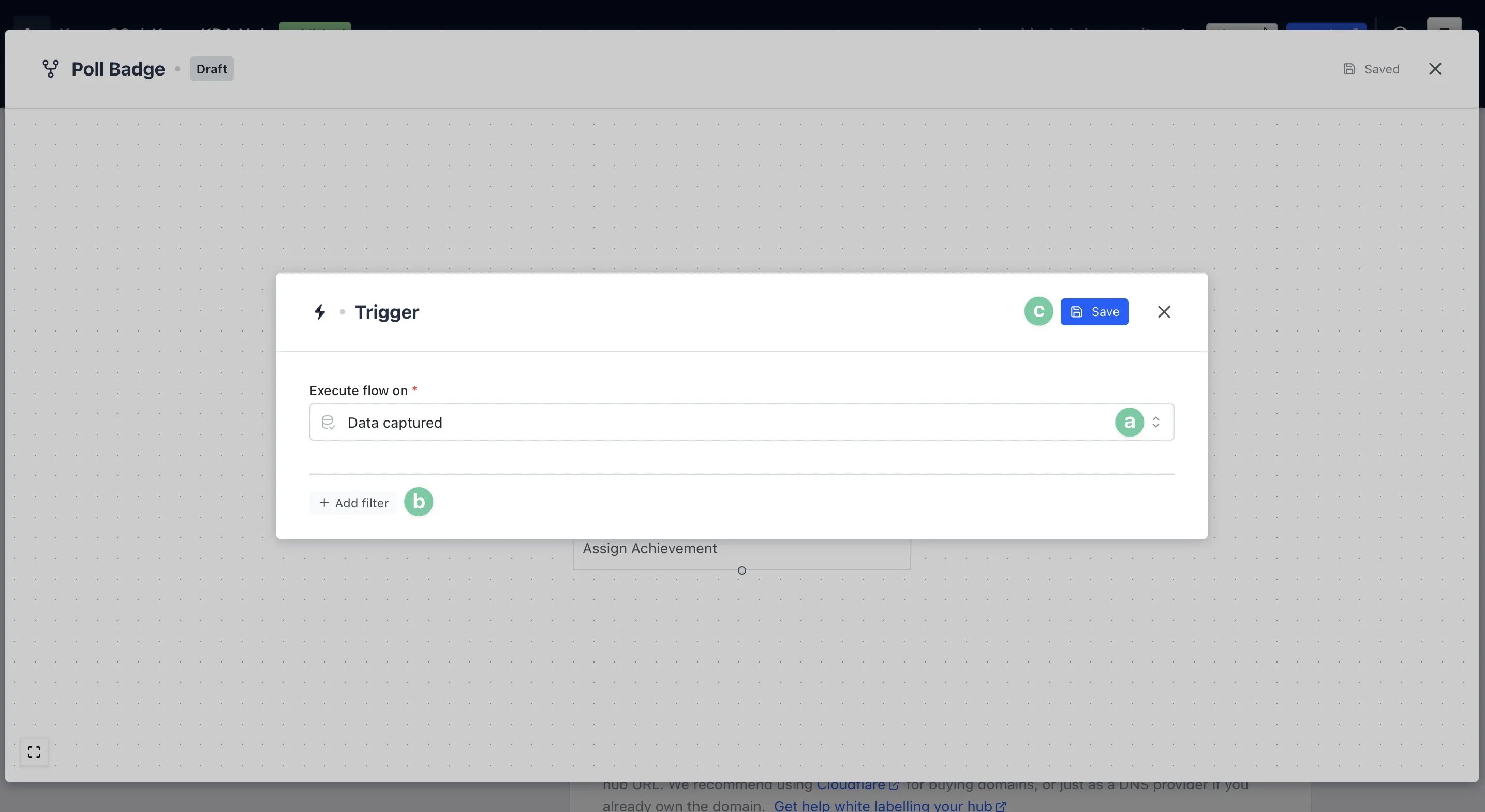
- Contact identified: When a user on your Hub becomes identifiable by their first-party data
- Contact property updated: When details of a user are updated to a specific contact property
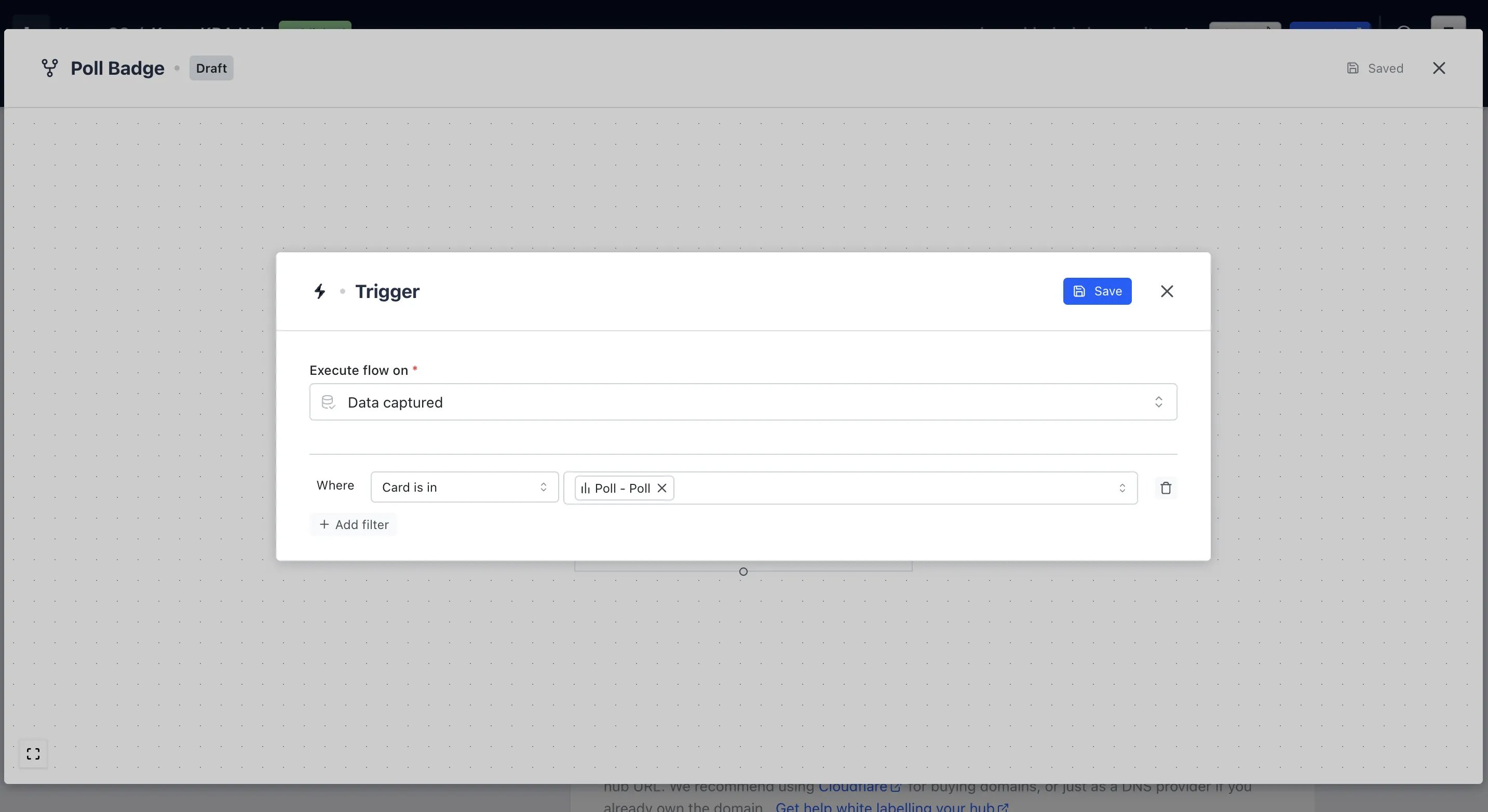
- Gameplay data captured: When a user fills out a data capture form on your Hub. Add filters to only award Badges on certain Cards
- Gameplay action occured: When a user completes a specific action within a game mechanic
- Gameplay ended: When a user completes a game on your Hub. Add filters to only award Badges for certain games, scores, etc
- Receipt validated successfully: When a receipt using our auto-receipt validation tool has been approved
You can link this workflow to multiple cards by adding more filters.
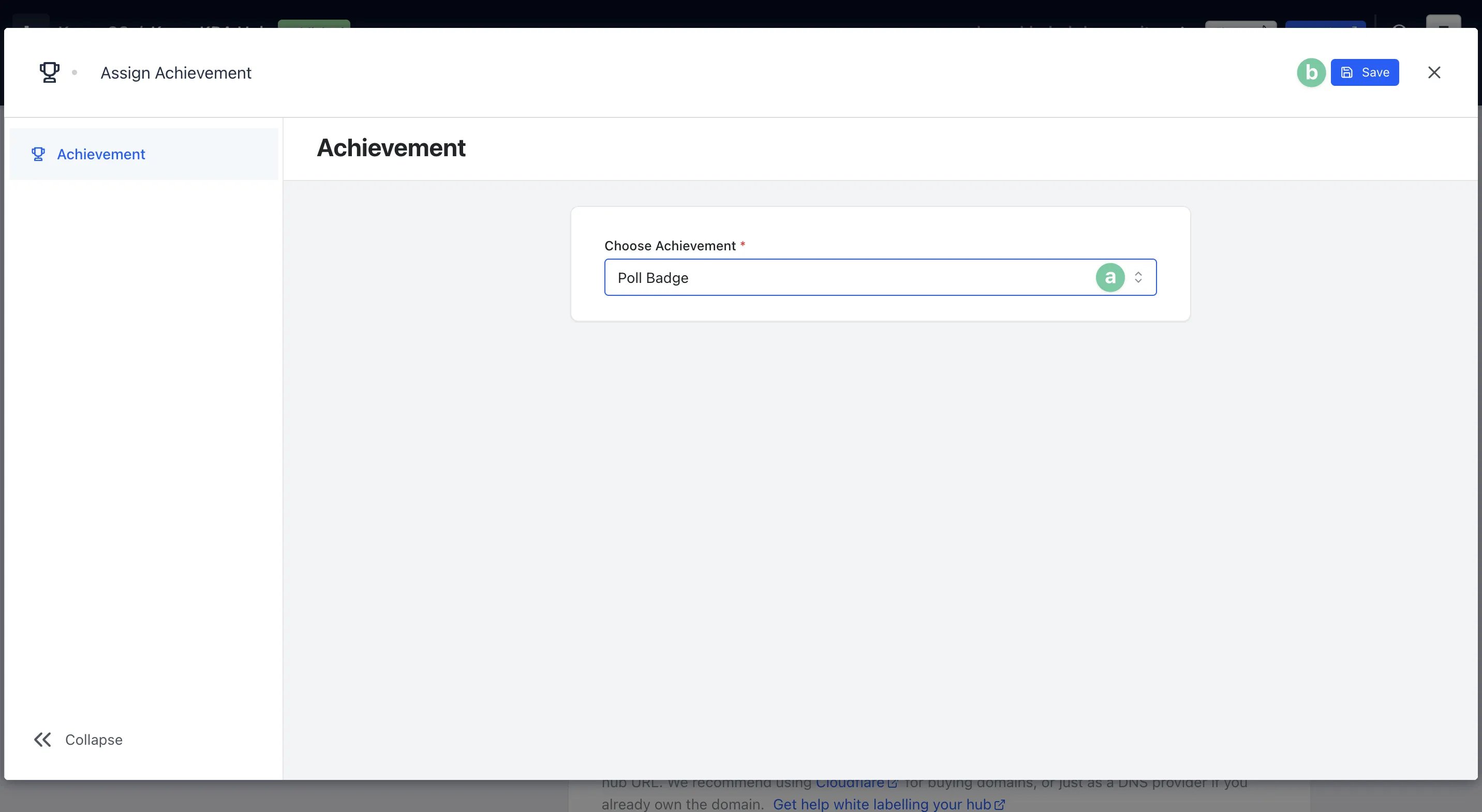
- (a) Using the drop-down, select the badge you want to connect
- (b) Then click on Save to continue
- Repeat step 7 for each Badge or Badge Variant.
- You can view each execution of an individual Workflow by navigating to the 3 dots next to a flow and selecting Edit.
Step 8: Enable & Configure Profiles [Optional]
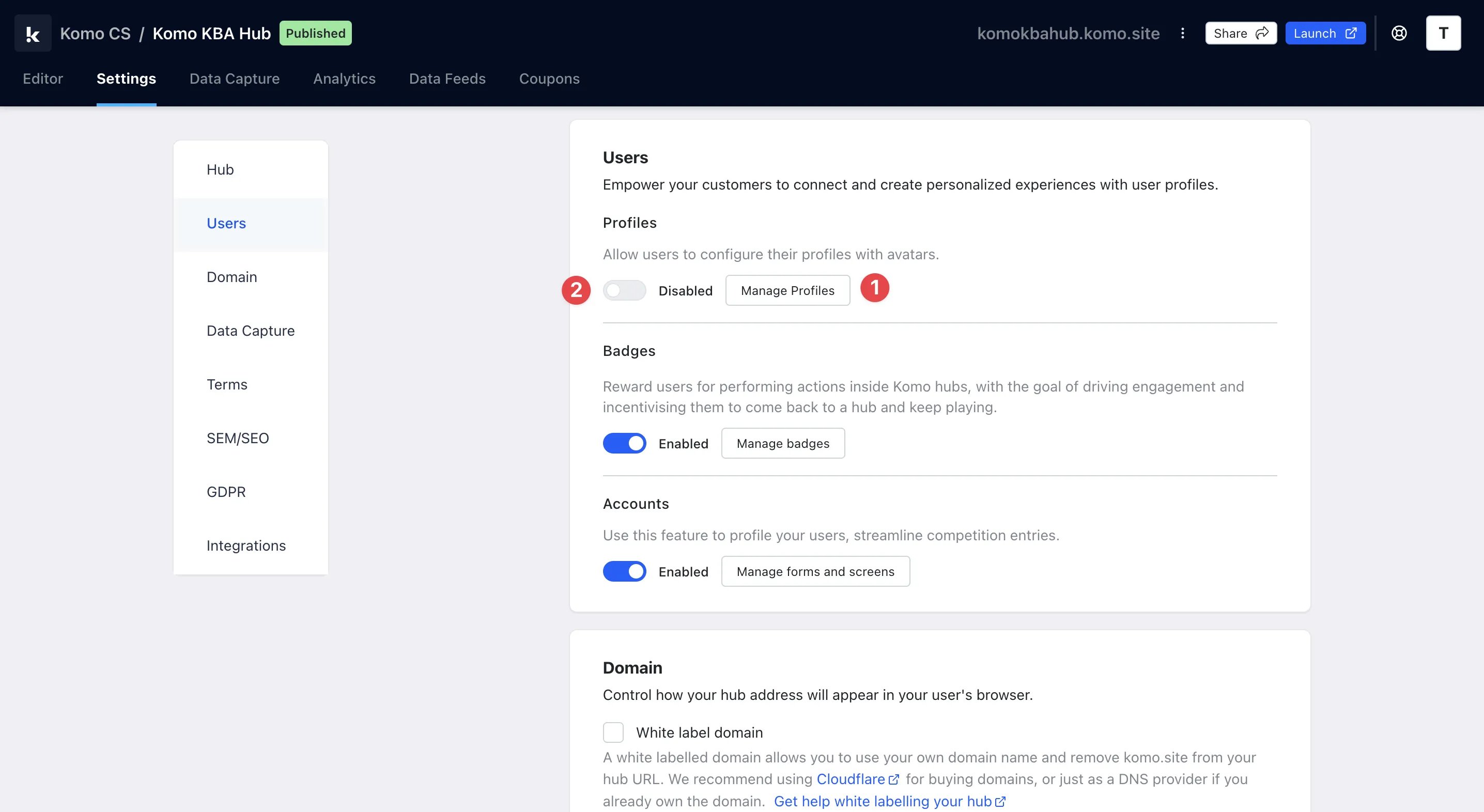
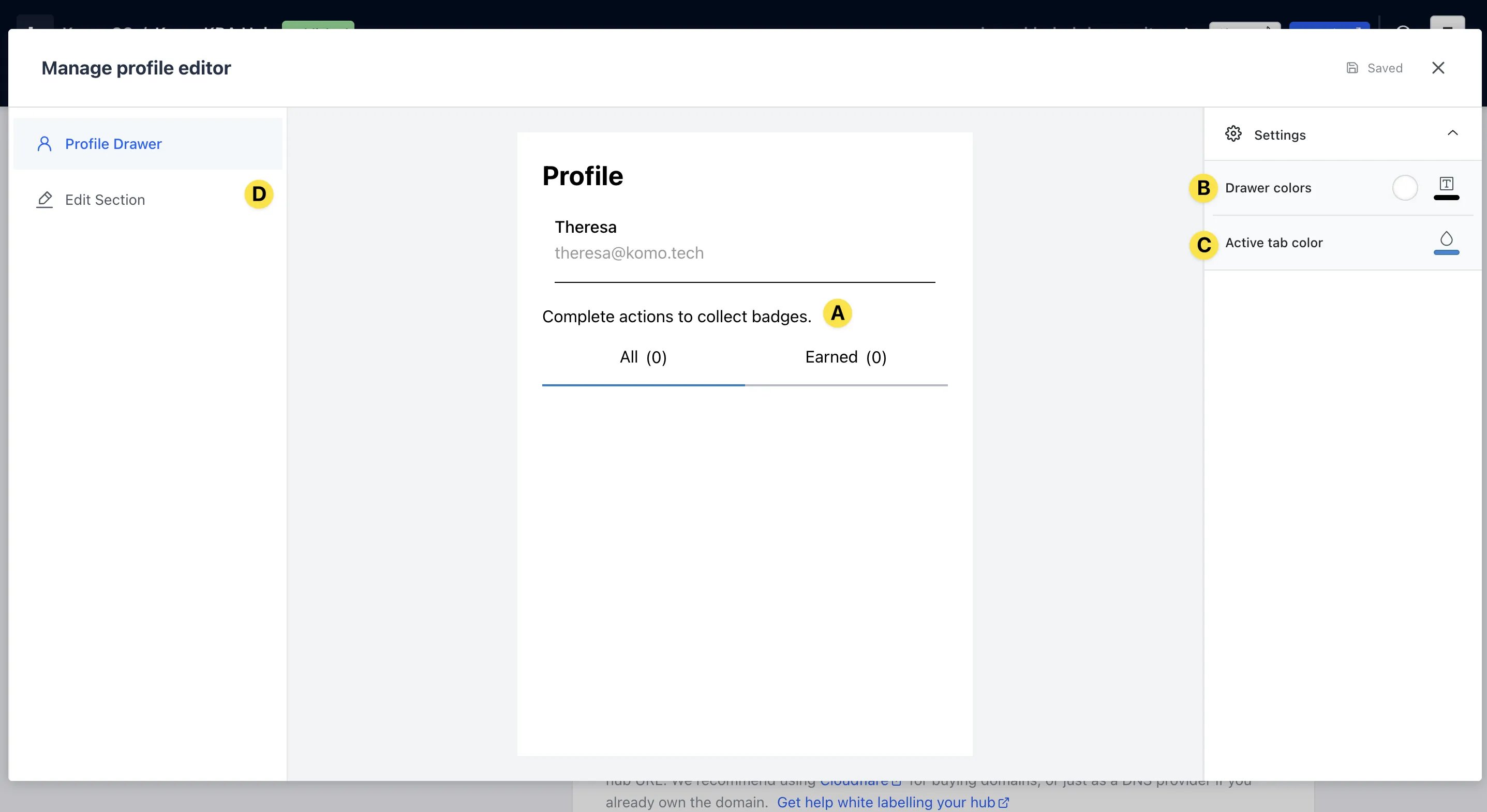
- (A) Here you can edit the messaging shown on the profile. Include instructions on what to do. For example, collect all badges to go in the running to win X!
- (B) You can change the background and text colours of the Profile Drawer
- (C) Here you can also edit the Active tab colours
- (D) Click here to edit the profile avatars
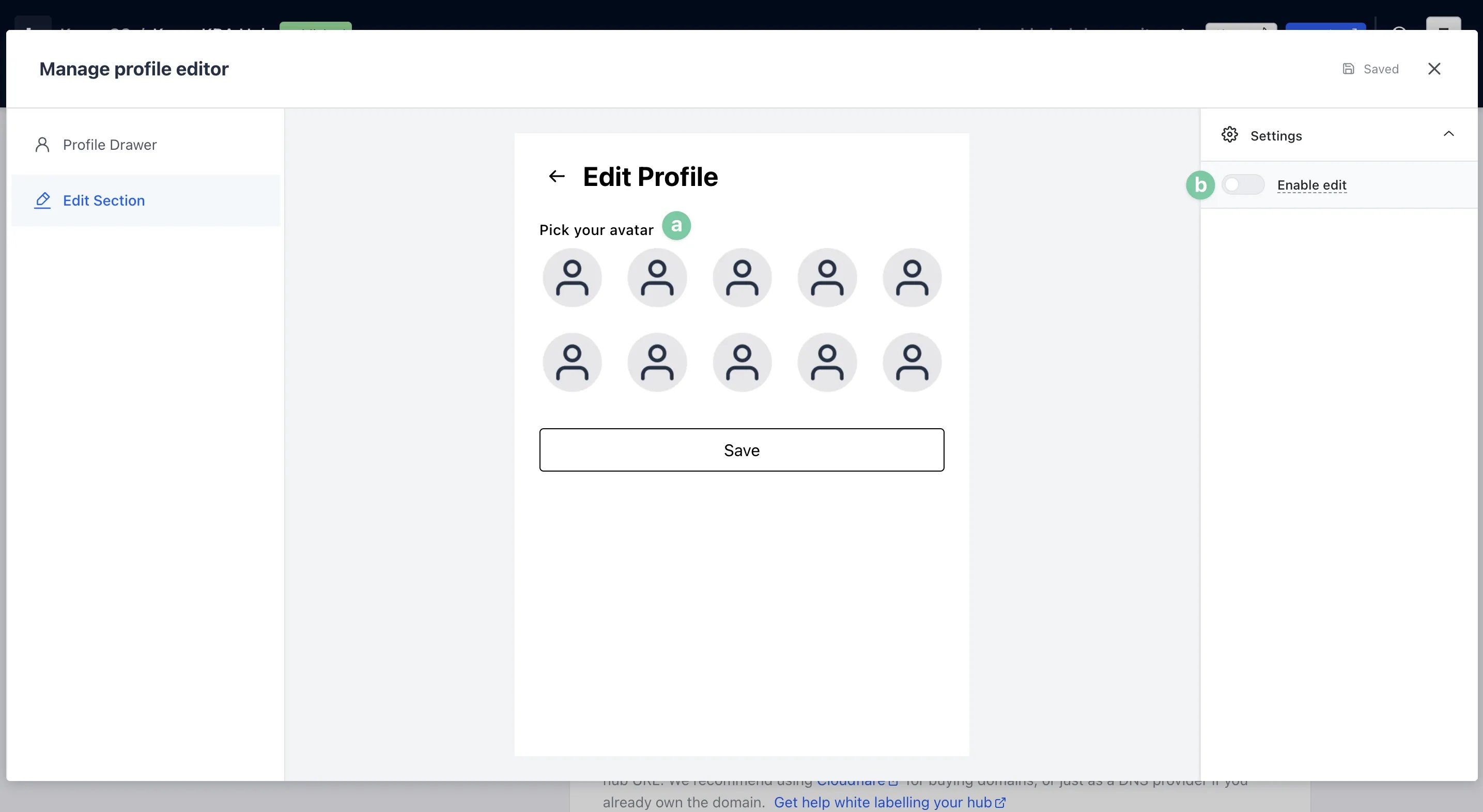
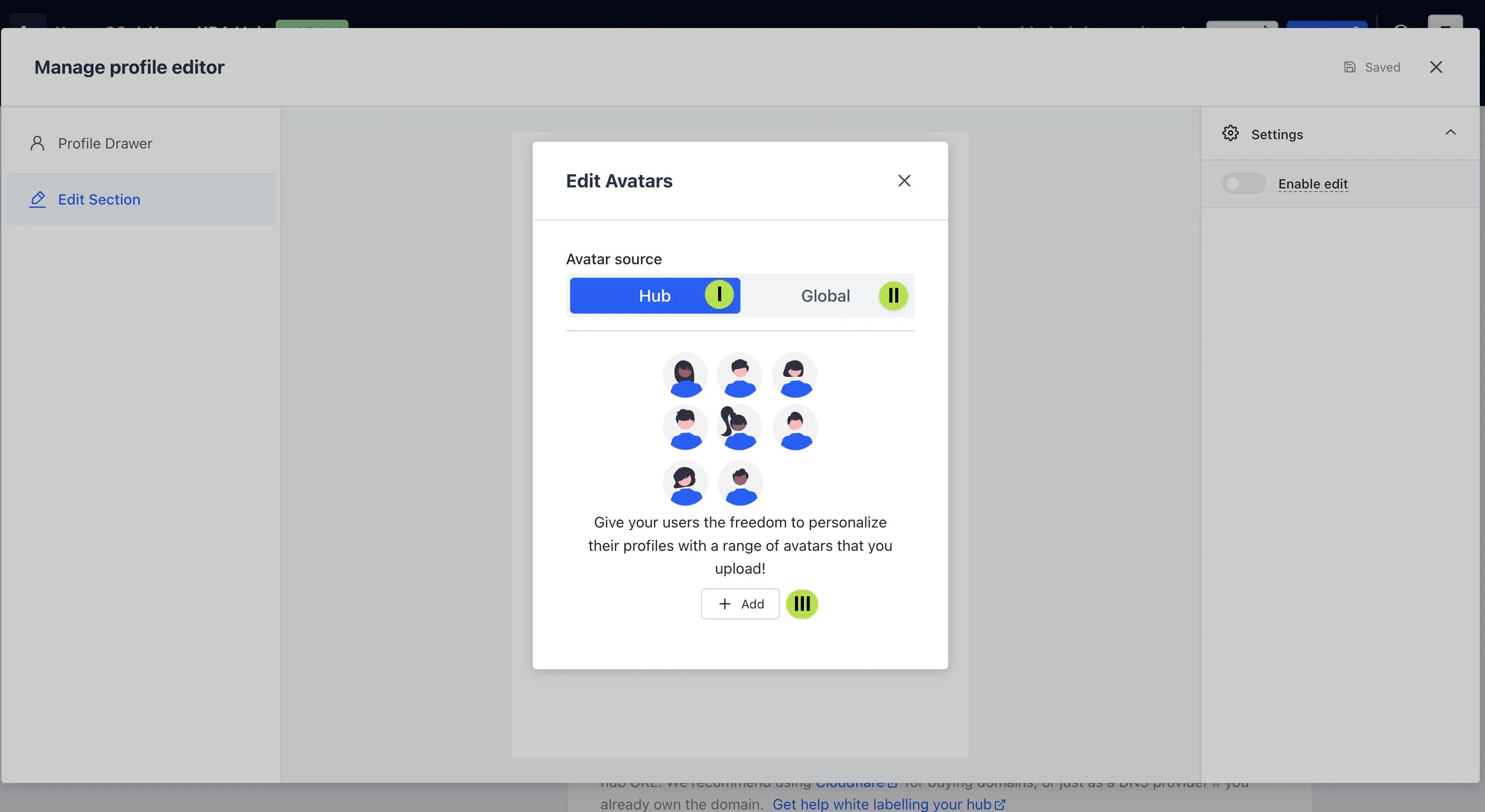
- (I) Have your avatars only available on this Hub
- (II) Allow uploaded avatars to be used across all Hubs
- (III) Click on Add to upload your avatar images
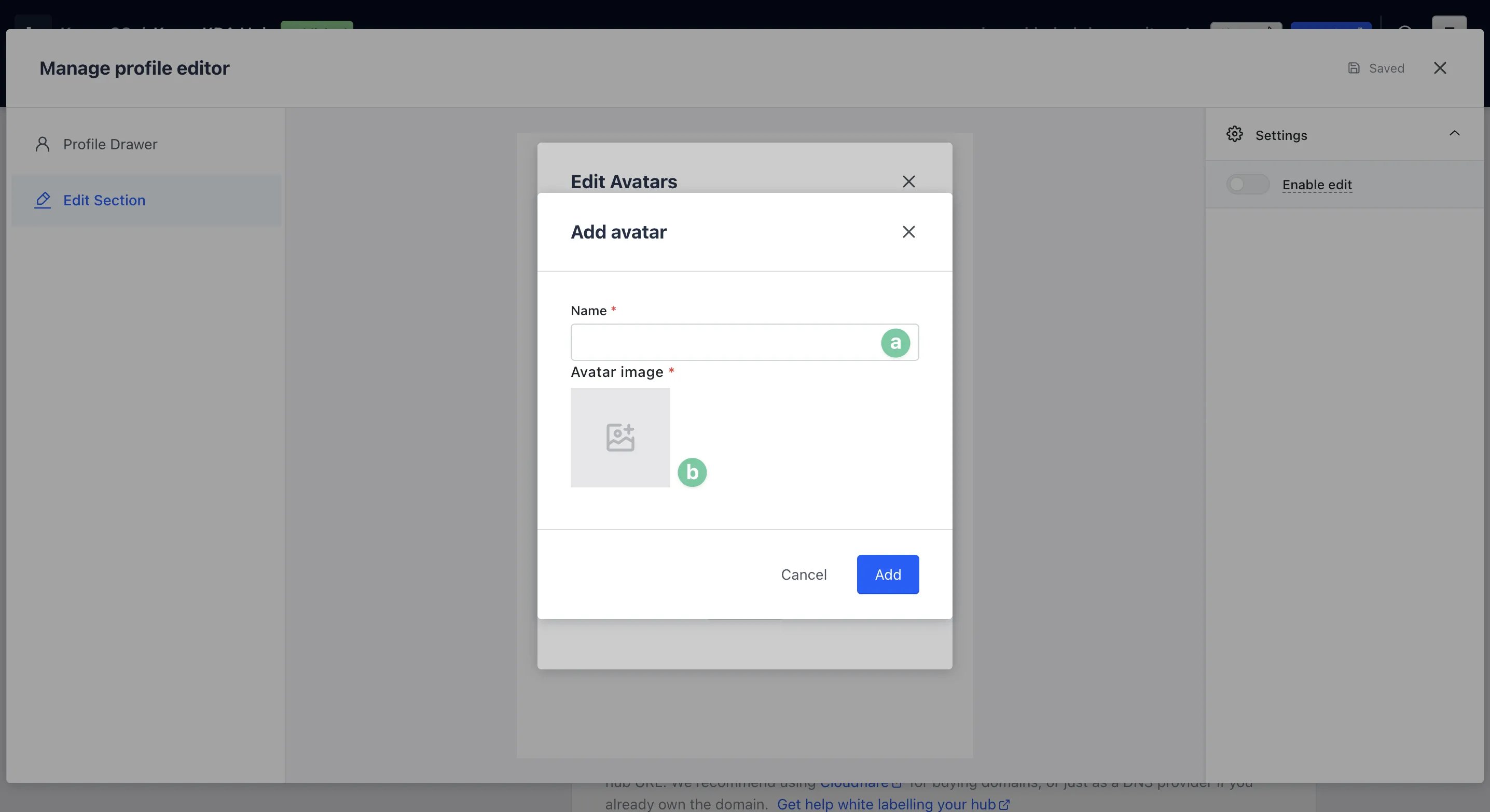
- (a) Enter a name for your avatar
- (b) Upload an image to reflect the avatar then hit Add
Rename the Badges panel label [Optional]
Change the word Badges shown as the profile drawer panel title (e.g. to Charms). Does not change badge behaviour or notification copy.- Hub → Contacts → Profiles → Manage profiles
- In the profile drawer preview, click the Badges title (inline edit) and rename it
badgesPanelTitle. Per-badge Title is still set when creating/editing badges.
”Go Live” Checklist
Ready to go live with your Badges, Contacts & Workflows? We recommend reviewing the following list before launching and double-checking if you have:- Ensured that all images uploaded for Badges, Badge Groups, Profile and Badge Album are the correct dimensions. Export image files in 2x to ensure none of the images appear pixelated. Review the design guidelines for Badges here if needed
- Activated each workflow to award individual Badges to users. You can do this by checking that each workflow has the green Active badge
- Set up all communications with your contacts using the Accounts settings
- Edited all the styling of your Badges and various screens that appear for the end-user as a part of this feature
- You’ve run a test of your Badges and Workflows to ensure Badges are awarded correctly
Promotion
Stuck on how to promote your activation?
Badge Design Guidelines
FAQ
Is there a limit to the amount of Badges I can have on my Hub? No, there’s no limit to the amount of Badges you can create! Just remember, you have to set up a Workflow to award each individual Badge and/or Badge Variant. Can I launch a Badges campaign to run across a certain timeline to encourage repeat engagement? Absolutely! Through our client M&C Saatchi, Woolworths have created a Hub in sponsorship of Netball Australia where there are different games running for each week of the Netball season, so users can return to the Hub repeatedly in order to collect all the Badges. Remember, repeat engagement is driven by how you promote your campaign! Check out some promotion ideas here.Top Tips
- The Badges feature provides an excellent opportunity to drive user-generated content (here your users promote your Hub for you!). Make sure you encourage sharing in the copy across your games, the Badge Album, etc
- While Badge Variants are an optional part of this feature, they do create a tiered and layered experience that encourages users to return to your Hub and play again and again in order to collect all the Badges in a given group, so definitely consider configuring these!
- Get creative with how you reflect your brand in the design of your Badges. This will help to drive brand recall and recognition, making users even more familiar with your brand
- As with any game or feature of the Komo Engagement Engine, the Badges feature is incredibly easy to configure yourself. But as there are a few steps involved, this is an important one to test before you go live